- Automatic Meeting Links
- Quick Summary – Automatic Meeting Links
- What’s New With Automatic Meeting Links
- Automatic Meeting Links Now Generate On Reconnect
- Why Automatic Meeting Links Matter
- How To Use Automatic Meeting Links In GHL
- Pro Tips For Automatic Meeting Links
- Automatic Meeting Links – FAQs
- What Automatic Meeting Links Mean For You
Automatic Meeting Links
If you’ve ever had a Zoom or Google Meet disconnect at the worst possible time, you know the headache it causes. Appointments get booked without meeting links, clients show up confused, and your calendar turns into a guessing game.
GoHighLevel just eliminated that chaos.
With the latest update, GHL now automatically adds missing meeting links to any future appointments that were scheduled during a video conferencing tool disconnect. No more scrambling to fix it manually — it just works.

With automatic meeting links, GoHighLevel now fills in missing Zoom, Google Meet, or Teams links after you reconnect, so you never have to backtrack or manually fix appointments again.
Quick Summary – Automatic Meeting Links
Purpose: This update ensures future appointments missing meeting links get automatically fixed after video conferencing tools like Zoom or Meet are reconnected.
Why It Matters: It prevents no-shows and miscommunications by ensuring every upcoming appointment has a valid meeting link, even after tool downtime.
What You Get: Automatic meeting link generation for Zoom, Google Meet, and Microsoft Teams when reconnected to GHL.
Time to Complete: No setup needed. Just reconnect your tool, GHL handles the rest instantly.
Difficulty Level: Zero. This feature runs in the background without any manual input.
Key Outcome: A more reliable, error-proof calendar that keeps your team and clients connected, even during integration hiccups.
What’s New With Automatic Meeting Links
This new GHL feature quietly solves a major workflow snag for agencies and businesses.
Here’s what’s new: when your video conferencing tool (like Zoom, Google Meet, or Microsoft Teams) gets disconnected, any appointments scheduled during that downtime may be missing their meeting links. That’s always been a problem, until now.
Automate marketing, manage leads, and grow faster with GoHighLevel.

With this update, once you reconnect the integration, GHL will:
- Automatically detect all upcoming appointments that were created while the tool was disconnected
- Attach valid meeting links to each one, no need to edit or resend anything
- Ensure everyone has the info they need, from clients to internal staff
This update applies across all major video platforms supported by GHL:
- Zoom
- Google Meet
- Microsoft Teams
If you’ve ever had to dig through appointments and manually paste links back in, that chore is officially gone.
Automatic Meeting Links Now Generate On Reconnect
Before this update, if Zoom or Google Meet dropped off your GHL integration, you were in for a mess.
When your video tool dropped out, any appointments made during that time showed up without a meeting link. You had to dig through the calendar, find each one, generate a new link, and then update both your team and the client. It was tedious and easy to overlook.
Now, that’s handled automatically.
The system tracks which appointments were created while your video tool was disconnected. As soon as you reconnect, GHL:
- Scans for any upcoming appointments missing a meeting link
- Instantly generates a new link for each one
- Inserts the correct URL back into the appointment
No need to go back and fix anything, the system takes care of it for you.
This shift from manual recovery to auto-sync is one of those small upgrades that saves hours and eliminates human error.
Why Automatic Meeting Links Matter
Let’s be real: missing meeting links cause real problems.
A client clicks into their calendar to join a call… but there’s no link. Now they’re confused, your team’s panicking, and you’re left trying to do damage control.
This update removes that risk.
With automatic meeting links, GHL ensures that every future appointment has the proper meeting location, even if your video integration went offline temporarily. That means:
- Fewer no-shows or delays due to “where’s the link?” confusion
- No more manual patchwork fixing broken calendar events
- Happier clients and smoother team ops, even during tech hiccups
You can’t always prevent a tool from disconnecting, but now you don’t have to worry about the fallout. GHL’s calendar just got smarter, and your business looks more professional because of it.
How To Use Automatic Meeting Links In GHL
If you’ve ever had Zoom or Google Meet disconnect and forgot to update appointments manually, this fix has your back. GHL now auto-adds missing meeting links the moment you reconnect your video tool, no need to dig through your calendar one by one. Here’s how it works behind the scenes:
Step 01 – Reconnect Your Video Conferencing Tool
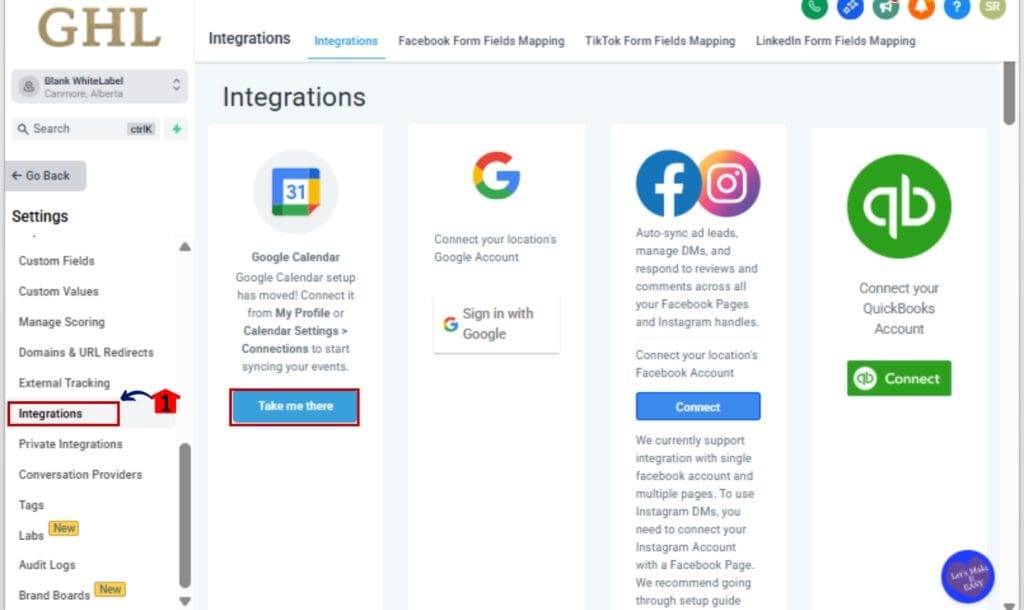
1.1 Go to Settings > Integrations in your GHL account.
1.2 Find your disconnected tool (Zoom, Google Meet, or Microsoft Teams).
1.3 Click Reconnect and follow the platform-specific steps.
Step 02 – GHL Scans for Affected Appointments
2.1 Once reconnected, GHL runs an automatic scan.
2.2 It looks for any upcoming appointments created while the tool was disconnected.

Step 03 – Missing Meeting Links Are Added Automatically
3.1 GHL generates the appropriate meeting links.
3.2 It attaches them to each appointment, no manual action required.

Step 04 – Optional: Confirm the Fix
4.1 Go to Calendar > Appointments.
4.2 Open any appointment made during the outage.
4.3 You’ll see the meeting link has been added automatically.

That’s it. Reconnect and walk away, GHL handles the rest.
Pro Tips For Automatic Meeting Links
This update is designed to be hands-off, but if you want to get the most out of it (and avoid future surprises), here are a few tips:
1. Set up tool reconnection alerts
Video integrations can disconnect without warning. Use GHL workflows or third-party tools (like email alerts or Slack zaps) to notify you when Zoom, Google Meet, or Teams goes offline.
2. Periodically review your integrations
Jump into Settings > Integrations every couple of weeks to double-check that everything is connected, especially if you manage multiple sub-accounts.
3. Use calendar filters to spot blank meetings
If you’re ever unsure whether links were missed, filter your calendar or export appointments to catch any that don’t have meeting URLs. It’s a quick sanity check.
4. Add a “meeting link exists” check to workflows
Mistakes happen. Having a workflow that catches blank meeting fields can give you peace of mind, especially during high-volume booking weeks.
5. Educate your team
Make sure your VA, booking manager, or anyone handling appointments knows this fix exists. It’ll reduce stress and unnecessary edits when reconnecting integrations.
This update is solid, but pairing it with smart habits makes it even better.
Automatic Meeting Links – FAQs
What Automatic Meeting Links Mean For You
This update might not seem flashy, but it’s a big deal for agencies that live and die by their calendars.
By automatically adding missing meeting links after Zoom, Google Meet, or Microsoft Teams is reconnected, GoHighLevel saves you from the hidden mess-ups that lead to no-shows, client confusion, and wasted time.
It’s one more behind-the-scenes automation that keeps your operation sharp, your team informed, and your clients showing up.
No more double-checking every booking. No more scrambling to fix broken links. Just reconnect and move on, GHL’s got your back.
Scale Your Business Today.
Streamline your workflow with GoHighLevel’s powerful tools.