- Introduction – AI Builder Errors Finally Fixed
- Quick Summary – AI Builder Errors Overview
- Here are this weeks HighLevel Updates
- What’s Fixed Now – The Reliability Upgrade Explained
- Why This Matters for Agencies Using GHL
- How to Use the Workflow AI Builder Now
- Pro Tips to Reduce AI Builder Errors and Maximize Results
- What This Means for Scaling Automation in Your Business
- Frequently Asked Questions – AI Builder Errors in GHL
- Conclusion – AI Builder Errors Fixed for Good
Introduction – AI Builder Errors Finally Fixed
AI Builder Errors in GHL were real. You could generate workflows using the Workflow AI Builder. It created triggers. It built actions. It even attempted conditional branches. On paper, it worked. Enter your goal. Click generate. Watch it build.
But every time the workflow included conditions? Things broke.
If/Else branches failed to generate. Wait steps with contact reply conditions didn’t load. Decision Maker logic collapsed. Find Contact actions sometimes caused the entire workflow to fail.
That’s where things got frustrating. If you were building nurture sequences, onboarding automations, or pipeline workflows with branching paths, you couldn’t always trust the first generation. Sometimes you had to run it again. And again. And if it broke near the end? You were rebuilding from scratch.
Agencies felt that pain fast. Client onboarding automations with conditional paths. Follow-up sequences triggered by replies. Appointment workflows that needed Decision Maker routing. Every generation attempt came with uncertainty. Would it build clean? Or would it error out?
It worked. But it wasn’t reliable. GHL has now fixed that.
AI Builder Errors tied to conditional generation have been eliminated. Node failures have dropped by 10x. Workflows now generate consistently — even at higher volume post-GA.
The system builds conditional branches correctly. Valid nodes no longer randomly fail. Complex workflows hold together from start to finish.
It’s a backend upgrade on the surface. But for agencies building scalable automation systems, this is a serious improvement in speed, trust, and execution.
The latest GoHighLevel Changelog includes several other GHL feature updates that round out your daily workflow:
- New QR Code Styling Options: Shapes, Borders, and Rim Text
- Collapse & Resize Pipeline Stages in Kanban View
- Notes just got smarter for the contacts page!
- New Asana actions in workflows – Find Project and Find section
- Email AI + Knowledge Base Integration 🚀
- Dialer: Auto-minimize, Pin & Drag
- Schema Markup Using AI
Keep reading for much more on all these updates and a deep dive into the Media Storage feature!
Quick Summary – AI Builder Errors Overview
Purpose: This update eliminates AI Builder Errors in GHL by fixing conditional generation failures and drastically reducing node creation issues during workflow builds.
Why It Matters: Reliable workflow generation means agencies can confidently build complex automations without regeneration delays or broken conditional logic slowing them down.
What You Get: A 0% conditional error rate, a 10x reduction in node failures, and more consistent workflow output even at higher generation volume.
Time to Complete: Generating and validating a workflow using the improved AI Builder can take as little as 5–15 minutes depending on complexity.
Difficulty Level: Beginner to Advanced. The AI handles structure, while you refine logic and strategy before publishing.
Key Outcome: Faster automation builds, fewer interruptions, and scalable, reliable workflow systems inside GHL.
Here are this weeks HighLevel Updates
New QR Code Styling Options: Shapes, Borders, and Rim Text
What it does:
Lets you stop using boring QR codes. You can now tweak the shape, style the border, and add text around the edge.
Where in GHL:
Accessible via Sites → QR Codes and within QR tools embedded in Funnel and Website builders.
Automate marketing, manage leads, and grow faster with GoHighLevel.

Impact:
Improves visual presentation and brand alignment while increasing scan appeal.
Best suited for:
Agencies that care about branding, small businesses running local promotions, online stores, and teams pushing QR campaigns.
Collapse & Resize Pipeline Stages in Kanban View
What it does:
Lets you hide pipeline stages you’re not actively using and adjust column widths so your board fits the way you work.
Where in GHL:
Inside Opportunities when you’re viewing your pipeline in Kanban mode.
Impact:
No more dragging your screen forever just to find the deals that matter.
Best suited for:
Owners running multi-stage pipelines, reps working deals every day, and anyone fed up with a messy board.
Notes Just Got Smarter for the Contacts Page
What it does:
Upgrades the notes area so it’s easier to write, review, and keep things organized inside a contact record.
Where in GHL:
Found directly within each contact’s profile under Notes.
Impact:
Makes it simpler to see what’s been discussed and who added what — without digging through clutter.
Best suited for:
Teams collaborating on accounts and businesses that document every client touchpoint.
New Asana Actions in Workflows – Find Project & Find Section
What it does:
Lets your workflow check what already exists in Asana before adding anything new.
Where in GHL:
Go to Workflows, add an action, and choose the Asana integration.
Impact:
No more duplicate projects. No more messy task boards. Just cleaner automation.
Best suited for:
Operations teams and agencies that rely on Asana to manage client delivery.
Email AI + Knowledge Base Integration
- What it does:
Allows Email AI to reference your Knowledge Base for smarter, more accurate responses. - Where in GHL:
Found in Conversations → Email composer with AI enabled and Knowledge Base settings under AI configuration. - Impact:
Smarter email suggestions that understand your business and help you reply quicker. - Best suited for:
Support teams, agencies managing inboxes, and businesses scaling communication with AI.
Dialer: Auto-Minimize, Pin & Drag
- What it does:
Lets you auto-minimize the dialer during calls, pin it in place, and drag it anywhere on screen. - Where in GHL:
Found in Conversations → Dialer. - Impact:
Cleaner workspace and easier multitasking during sales or support calls. - Best suited for:
Sales teams, outbound callers, appointment setters, and agencies making daily calls.
Schema Markup Using AI
- What it does:
Generates structured schema markup automatically using AI for SEO enhancement. - Where in GHL:
Found in Sites → Website or Funnel settings within AI or SEO sections. - Impact:
Improves search visibility without manual coding. - This works well for:
Teams building websites that need stronger search visibility, from agencies to small local businesses.
What’s Fixed Now – The Reliability Upgrade Explained
This wasn’t a cosmetic tweak. GHL went after the root cause of AI Builder Errors and fixed the two biggest failure points: conditional generation and node creation reliability. And the numbers tell the story.
Conditional AI Builder Errors: Eliminated
Before this update, workflows involving conditions were the most likely to fail. If/Else branches would break. Reply-based waits wouldn’t generate properly. Decision logic would sometimes collapse the entire build.
Now?
Conditional generation AI Builder Errors are at 0%.
That’s not a small reduction.
That’s complete elimination.
If your workflow includes branching logic, reply-based triggers, decision routing, or contact lookups, the AI Builder now generates those structures reliably from start to finish.
For agencies building real automation systems — not just simple follow-ups — this is huge.
Node Failures: 10x Reduction
The second major issue was node generation failures.
Valid workflow actions were occasionally failing during creation, causing full workflow builds to stop mid-process. That failure rate was sitting around 3.5% before the fix.
After the upgrade?
It dropped to approximately 0.35%.
That’s a 10x improvement.
And here’s what makes it even more impressive: this reduction happened while generation volume increased 3x after general availability.
So usage went up. AI Builder Errors went down.
That’s real infrastructure improvement.
The Bigger Focus: Reliability at Scale
This update wasn’t just about fixing a few bugs.
It reinforces three pillars for the Workflow AI Builder:
- Lower error rates
- Low latency
- Correct workflow output
In other words, reliability first.
GHL prioritized eliminating AI Builder Errors before scaling adoption further. That means the system is now designed to support higher volume, more complex builds, and agency-level automation demands.
The AI Builder isn’t just functional anymore.
Why This Matters for Agencies Using GHL
AI Builder Errors weren’t just technical glitches.
They were momentum killers.
When you’re building automations for clients, speed matters. Confidence matters. Consistency matters. If a workflow fails halfway through generation, you don’t just lose a few seconds. You lose flow. You stop trusting the tool. You start rebuilding manually “just in case.”
That slows everything down.
Now that AI Builder Errors are eliminated at the conditional level and reduced dramatically at the node level, agencies can build differently.
You can generate multi-branch workflows without hesitation.
You can confidently include reply-based triggers, Decision Maker routing, and contact lookups without wondering if the AI will break mid-build.
You can move faster.
Faster Workflow Production
Agencies often build:
- Client onboarding sequences
- Lead nurture automations
- Sales follow-up systems
- Appointment reminder flows
- Reactivation campaigns
Most of these include conditions.
Now those builds generate cleanly.
That means fewer regenerations. Fewer manual rebuilds. Less QA time. And faster client delivery.
When you multiply that across dozens of sub-accounts?
That’s serious time savings.
More Trust in AI Automation
Trust is everything.
If you don’t trust the output, you won’t use the feature fully. You’ll limit complexity. You’ll simplify workflows unnecessarily. You’ll avoid branching logic even when it would improve results.
Now that AI Builder Errors are resolved, agencies can lean into the AI.
Build complex logic.
Generate full-funnel automations.
Scale across multiple industries.
The reliability upgrade gives you permission to use the tool at full power.
Better Client Experience
Clients don’t see error logs.
They see results.
When workflows generate correctly the first time, agencies deploy faster. Campaigns go live sooner. Follow-ups trigger correctly. Conditional paths work as expected.
That leads to:
- Cleaner automation systems
- Fewer support tickets
- Less troubleshooting
- Stronger retention
Reliable automation isn’t flashy.
But it’s foundational.
And this update strengthens that foundation.
How to Use the Workflow AI Builder Now
The Workflow AI Builder is accessed from the Automations area inside your GHL sub-account. You will use it to generate a workflow, include conditional logic, review the structure, and activate it once validated.
It is important to clearly define your trigger, actions, and conditions before publishing. The steps below show you exactly how to access the AI Builder, generate a reliable workflow, review the output, and turn it live.
- Access the Workflow AI Builder in GHL.
- Generate a Workflow with Conditional Logic.
- Review and Validate the Workflow Structure.
- Test and Activate the Workflow with Confidence.
To start, make sure you are logged in to your GoHighLevel sub-account.
Step 01 – Access the Workflow AI Builder in GHL
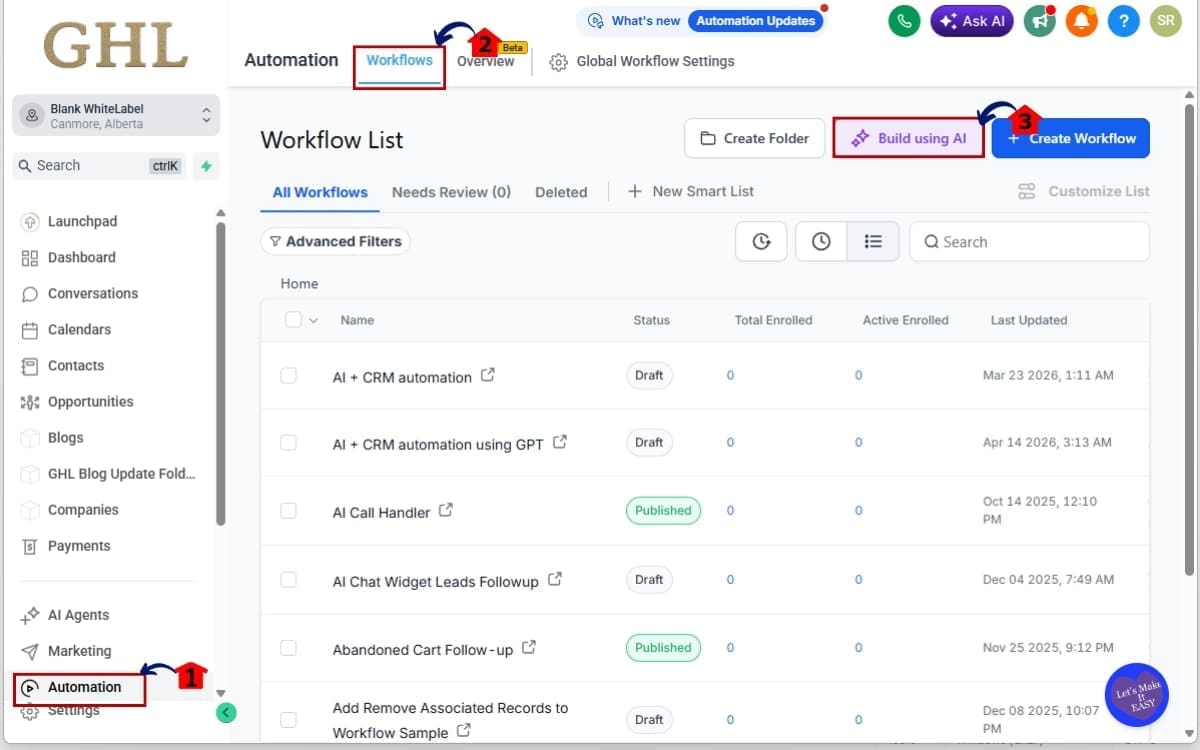
- In this step, you will navigate to the Workflows area inside your GHL sub-account and open the AI Builder. This is where you begin generating automated workflows using structured prompts.
1.1 From the left-hand menu, click on Automations
- This is where all workflow-related tools are located.
1.2 Click on Workflows
- You’ll land on the main workflows dashboard where you can view, edit, or create automations.
1.3 Click the Build using AI
- This launches the Workflow AI Builder interface where you can describe your automation goals.
Step 02 – Generate a Workflow with Conditional Logic
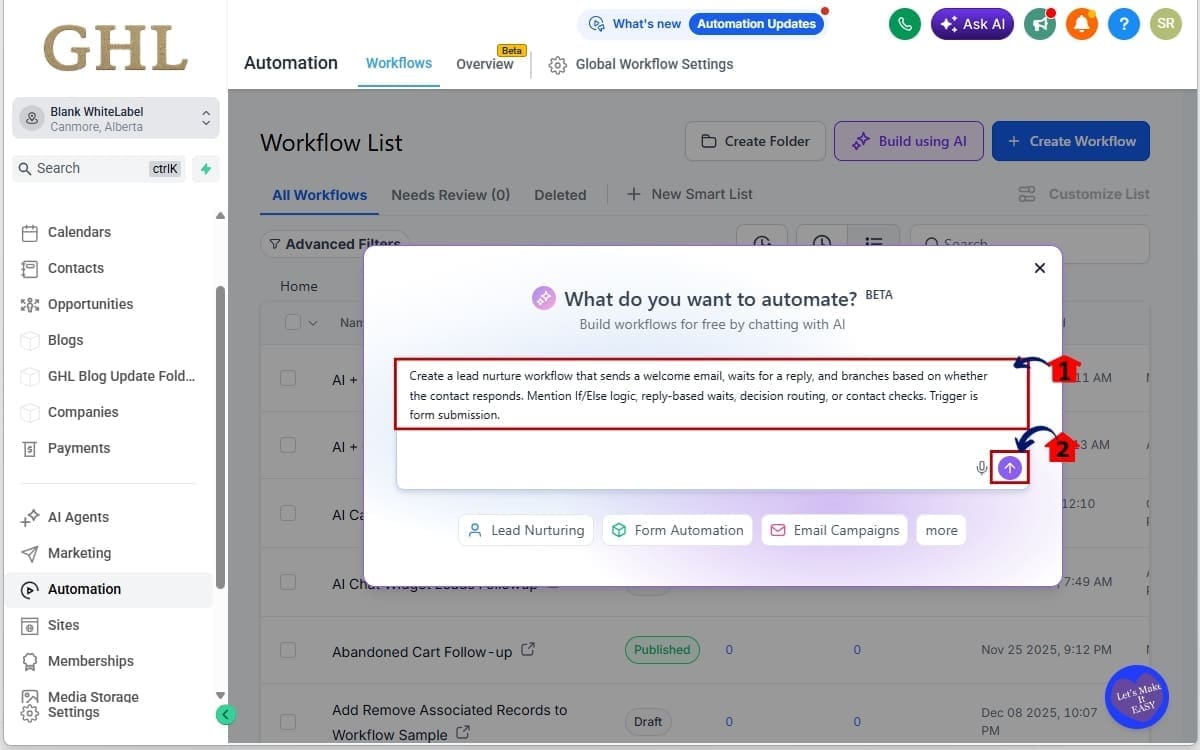
- Now that AI Builder Errors related to conditions are eliminated, you can safely include advanced logic in your prompts.
2.1 Enter a clear workflow objective in the AI prompt field
- Example: “Create a lead nurture workflow that sends a welcome email, waits for a reply, and branches based on whether the contact responds. Mention If/Else logic, reply-based waits, decision routing, or contact checks. Trigger is form submission”
2.2 Click Submit
- The AI Builder will create the full workflow structure, including triggers, actions, and conditional branches.
Step 03 – Review and Validate the Workflow Structure
- Even with improved reliability, reviewing your workflow ensures everything aligns with your strategy.
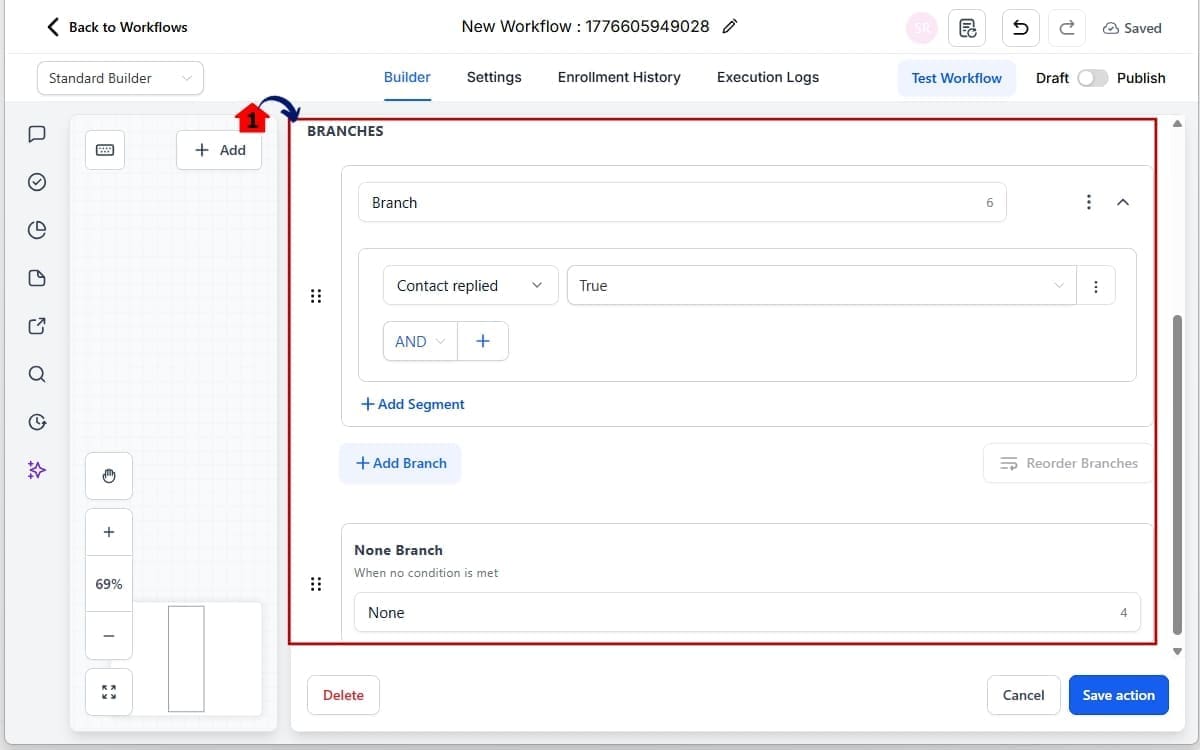
3.1 Check all If/Else branches
- Confirm that each condition is logically correct and points to the right actions.
Step 04 – Test and Activate the Workflow with Confidence
- With AI Builder Errors significantly reduced, testing and deployment are now more predictable and efficient.
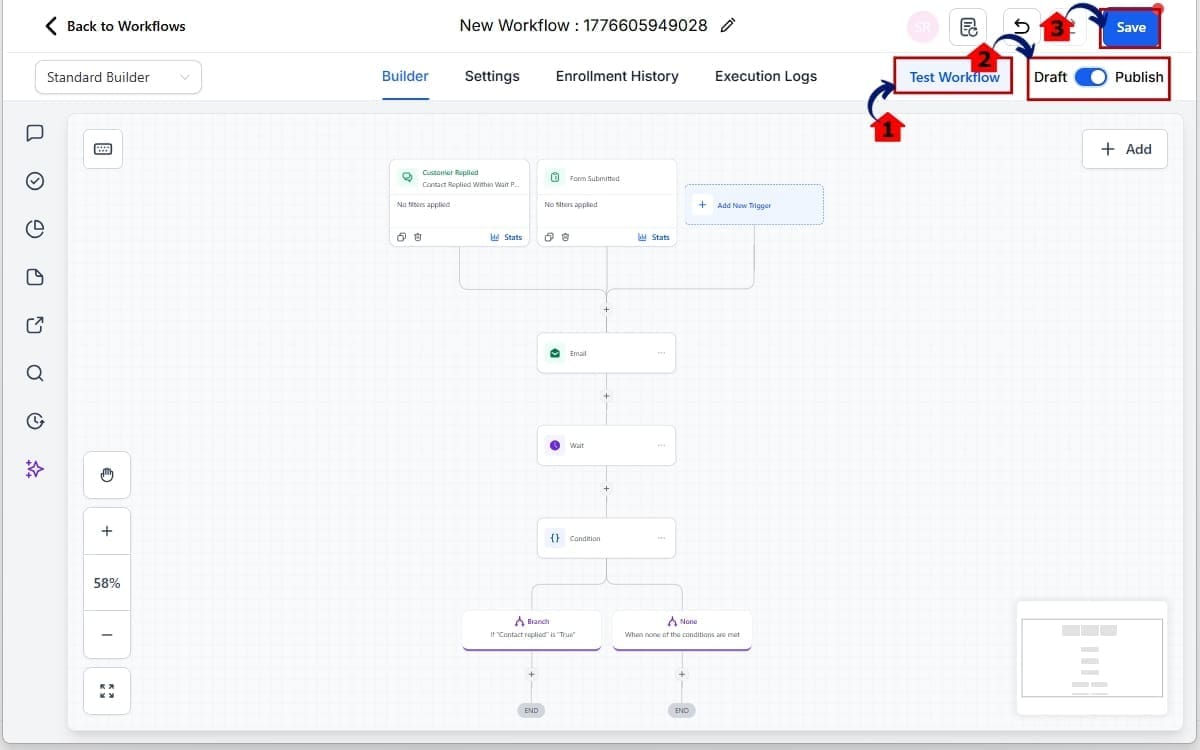
4.1 Click Test Workflow
- Click the test workflow
4.2 Toggle the workflow from Draft to Publish/Active
- Once validated, activate the workflow to start running for real contacts.
4.3 Click Save to store your workflow changes
- Always save before testing or activating.
With these reliability improvements, you can now use the Workflow AI Builder to create advanced automations without worrying about AI Builder Errors disrupting your build process. What once required manual rebuilding and repeated attempts is now a smooth, dependable workflow creation experience.
Pro Tips to Reduce AI Builder Errors and Maximize Results
AI Builder Errors arenow largely eliminated at the system level. But if you want clean, powerful workflow generation every single time, how you use the AI Builder still matters.
Here’s how agencies can get the best output possible.
1. Be Specific in Your Prompt
The AI Builder performs best when you’re clear.
Don’t say:
“Create a nurture workflow.”
Instead say:
“Create a lead nurture workflow triggered by form submission. Send a welcome email. Wait 2 days. If contact replies, send internal notification. If no reply, send follow-up SMS.”
The clearer your structure, the cleaner your build.
Specific inputs = predictable outputs.
2. Define Your Trigger Clearly
Many generation issues in the past started with vague triggers.
Always include:
- What starts the workflow
- What condition qualifies the contact
- What event should move them forward
Example:
“Trigger when tag ‘New Lead’ is added.”
This keeps the automation structured from the start.
3. Think in Logic Branches
Now that conditional AI Builder Errors are eliminated, you can safely use:
- If/Else splits
- Reply-based waits
- Pipeline-based decisions
- Tag-based routing
But structure it intentionally.
Map the logic in your head first. Then describe it clearly in the AI prompt.
Complex doesn’t mean messy.
4. Review Before You Publish
Even with reliability improvements, you should always:
- Scan each branch
- Confirm wait timing
- Double-check conditions
- Rename steps clearly
AI builds structure fast.
You refine it.
That’s the winning combo.
5. Use a Test Contact Every Time
Before activating:
- Create a dummy contact
- Trigger the workflow manually
- Watch how it moves through each branch
This ensures everything runs exactly how you expect.
Reliability is high.
Validation is still smart.
6. Build Reusable Workflow Frameworks
Now that AI Builder Errors are significantly reduced, agencies can confidently:
- Generate core automation templates
- Turn them into Snapshots
- Deploy across multiple sub-accounts
Stable generation means scalable systems.
And scalable systems mean recurring revenue.
The Workflow AI Builder is no longer just a convenience tool.
It’s becoming a reliable production tool.
And if you treat it strategically, it will save you serious build time.
What This Means for Scaling Automation in Your Business
AI Builder Errors being eliminated isn’t just a technical win.
It’s a scaling win.
When workflow generation becomes reliable, everything downstream becomes easier. You’re no longer hesitating before building complex automations. You’re no longer wondering if a conditional branch will break the entire structure. You build. It works. You move on.
That speed compounds.
Faster Client Onboarding Systems
Agencies often build similar automations across multiple clients:
- Welcome sequences
- Sequences that warm up new prospects
- Reminder messages so no one forgets their booking
- Campaigns to bring old leads back to life
- Pipeline routing systems
Before, AI Builder Errors created friction when generating these repeatedly.
Now, workflows generate cleanly. You can create one strong automation, refine it, duplicate it, snapshot it, and deploy it confidently across accounts.
Less rebuilding.
More deploying.
Stronger Snapshot Products
If you sell snapshots or deploy automation templates in SaaS Mode, reliability matters even more.
A broken workflow inside a snapshot creates:
- Support tickets
- Client confusion
- Internal troubleshooting
- Loss of trust
With AI Builder Errors reduced to near zero, your generated workflows are far more stable before they ever reach a client account.
That protects your brand.
Higher Automation Complexity (Without Fear)
Now you can confidently build:
- Multi-branch reply logic
- Smart routing based on engagement
- Conditional follow-ups
- Behavior-based segmentation
Complex workflows used to feel risky if generation reliability wasn’t solid.
Now they feel safe.
And complexity done right increases conversions.
More Margin, Less Manual Work
Every time you regenerate a workflow, you burn time.
Every time you manually rebuild broken logic, you burn margin.
Eliminating AI Builder Errors means fewer interruptions during build sessions. You can stay in flow. You can batch-create automations. You can scale production without increasing labor.
That’s operational leverage.
When automation runs smoothly, nobody notices. But the second it breaks, everything comes to a halt.
This update strengthens the core engine agencies depend on.
And when your engine runs smoothly, growth becomes easier.
Frequently Asked Questions – AI Builder Errors in GHL
Conclusion – AI Builder Errors Fixed for Good
AI Builder Errors used to create hesitation.
Conditional branches failed. Nodes broke mid-generation. Entire workflows collapsed during creation. It slowed agencies down and chipped away at confidence in automation.
That’s no longer the case.
Conditional generation AI Builder Errors are now eliminated. Node failures have been reduced by 10x. Workflow creation inside GHL is now significantly more stable — even with increased usage volume.
That’s not just a bug fix.
That’s infrastructure improvement.
For agencies, that means:
- Faster automation builds
- Fewer regenerations
- Less manual rebuilding
- More trust in AI-generated workflows
- More scalable systems
The Workflow AI Builder is no longer just convenient.
It’s reliable.
And when automation becomes reliable, growth becomes predictable.
If you haven’t tested the AI Builder recently, now is the time. Generate a multi-branch workflow. Include reply-based logic. Push it a little. You’ll feel the difference.
The team here at GHL Growth Garage will continue breaking down every meaningful GoHighLevel upgrade so you can stay ahead and scale smarter.
Have you tested the updated Workflow AI Builder yet? What kind of automation are you building next?
Scale Your Business Today.
Streamline your workflow with GoHighLevel’s powerful tools.