

- Introduction – GHL Appointment Time Zone Guide
- Quick Summary – Appointment Time Zone
- Here are this weeks HighLevel Updates
- What Is GHL Appointment Time Zone?
- Why This Update Matters
- How GHL Appointment Time Zone Works
- How to Set Up GHL Appointment Time Zone
- Pro Tips for Better Appointment Scheduling
- What This Means for Your Business
- FAQs Appointment Time Zone
- Conclusion Appointment Time Zone
Introduction – GHL Appointment Time Zone Guide
Appointment Time Zone usually isn’t something people think twice about—until the times don’t line up. One client arrives an hour early, another joins three hours late, and suddenly you’re trying to work out whether the workflow or the timezone caused the problem.
Imagine checking your calendar and seeing today’s meetings exactly where they should be. A few hours later, a client emails asking why nobody joined the call. After a bit of digging, you realise the workflow scheduled the appointment using the wrong timezone.
Timezone interpretation is often the missing piece. A workflow can execute successfully from start to finish, yet still schedule an appointment incorrectly because the Start Date & Time was processed using a different timezone than intended.
Scheduling appointments should be simple. Fixing timezone mistakes after they’ve happened shouldn’t become part of your daily routine.
Now GHL has made that easier. The new Appointment Time Zone field in the Book Appointment workflow action lets you choose exactly how appointment times are interpreted before they’re booked. You can select a fixed timezone or dynamically use the Contact Timezone, ensuring every appointment is created at the correct absolute time.
Less confusion. More accurate bookings. Better client experiences. And here’s what agencies and businesses with remote clients will appreciate most.
This isn’t just another workflow update. It’s a scheduling accuracy update.
The new GHL Appointment Time Zone feature helps you eliminate timezone mistakes, improve workflow reliability, and confidently automate bookings for clients anywhere in the world.
More accurate appointments. Happier clients. Fewer scheduling headaches. More confidence in every workflow.
The latest GoHighLevel Changelog includes several other GHL feature updates that round out your daily workflow:
- New QR Code Styling Options: Shapes, Borders, and Rim Text
- Collapse & Resize Pipeline Stages in Kanban View
- Notes just got smarter for the contacts page!
- New Asana actions in workflows – Find Project and Find section
- Email AI + Knowledge Base Integration 🚀
- Dialer: Auto-minimize, Pin & Drag
- Schema Markup Using AI
Keep reading for much more on all these updates and a deep dive into the Appointment Time Zone feature!

Quick Summary – Appointment Time Zone
Purpose: The GHL Appointment Time Zone feature gives you control over how workflow appointment times are interpreted, ensuring bookings are created at the correct local time.
Why It Matters: Incorrect timezone interpretation can lead to missed meetings, frustrated clients, and unnecessary rescheduling. This update helps eliminate those scheduling errors.
What You Get: You can choose a fixed timezone or dynamically use the Contact Timezone when the Book Appointment workflow action runs, making appointment automation far more accurate.
Time to Complete: Most users can update an existing workflow in less than 5 minutes.
Difficulty Level: Beginner. The feature is easy to configure and requires no advanced workflow knowledge.
Best For: Marketing agencies, consultants, coaches, sales teams, virtual assistants, and businesses scheduling appointments across multiple timezones.
Key Outcome: More accurate bookings, fewer scheduling mistakes, improved client experience, and greater confidence that your appointment workflows will run exactly as intended.
Here are this weeks HighLevel Updates
New QR Code Styling Options: Shapes, Borders, and Rim Text
What it does:
Lets you stop using boring QR codes. You can now tweak the shape, style the border, and add text around the edge.
Where in GHL:
Accessible via Sites → QR Codes and within QR tools embedded in Funnel and Website builders.
Automate marketing, manage leads, and grow faster with GoHighLevel.

Impact:
Improves visual presentation and brand alignment while increasing scan appeal.
Best suited for:
Agencies that care about branding, small businesses running local promotions, online stores, and teams pushing QR campaigns.
Collapse & Resize Pipeline Stages in Kanban View
What it does:
Lets you hide pipeline stages you’re not actively using and adjust column widths so your board fits the way you work.
Where in GHL:
Inside Opportunities when you’re viewing your pipeline in Kanban mode.
Impact:
No more dragging your screen forever just to find the deals that matter.
Best suited for:
Owners running multi-stage pipelines, reps working deals every day, and anyone fed up with a messy board.
Notes Just Got Smarter for the Contacts Page
What it does:
Upgrades the notes area so it’s easier to write, review, and keep things organized inside a contact record.
Where in GHL:
Found directly within each contact’s profile under Notes.
Impact:
Makes it simpler to see what’s been discussed and who added what — without digging through clutter.
Best suited for:
Teams collaborating on accounts and businesses that document every client touchpoint.
New Asana Actions in Workflows – Find Project & Find Section
What it does:
Lets your workflow check what already exists in Asana before adding anything new.
Where in GHL:
Go to Workflows, add an action, and choose the Asana integration.
Impact:
No more duplicate projects. No more messy task boards. Just cleaner automation.
Best suited for:
Operations teams and agencies that rely on Asana to manage client delivery.
Email AI + Knowledge Base Integration
- What it does:
Allows Email AI to reference your Knowledge Base for smarter, more accurate responses. - Where in GHL:
Found in Conversations → Email composer with AI enabled and Knowledge Base settings under AI configuration. - Impact:
Smarter email suggestions that understand your business and help you reply quicker. - Best suited for:
Support teams, agencies managing inboxes, and businesses scaling communication with AI.
Dialer: Auto-Minimize, Pin & Drag
- What it does:
Lets you auto-minimize the dialer during calls, pin it in place, and drag it anywhere on screen. - Where in GHL:
Found in Conversations → Dialer. - Impact:
Cleaner workspace and easier multitasking during sales or support calls. - Best suited for:
Sales teams, outbound callers, appointment setters, and agencies making daily calls.
Schema Markup Using AI
- What it does:
Generates structured schema markup automatically using AI for SEO enhancement. - Where in GHL:
Found in Sites → Website or Funnel settings within AI or SEO sections. - Impact:
Improves search visibility without manual coding. - This works well for:
- Teams building websites that need stronger search visibility, from agencies to small local businesses.
What Is GHL Appointment Time Zone?
The new GHL Appointment Time Zone feature adds a Timezone field to the Book Appointment workflow action. It gives you direct control over how GoHighLevel interprets the Start Date & Time before an appointment is created.
Nothing was technically wrong with the old system—it simply assumed every booking should follow the account’s timezone. That’s perfectly fine when everyone works from the same location. Once clients are spread across different timezones, though, those assumptions don’t always hold up.
Not every business needs dynamic scheduling, and that’s why you can lock appointments to a single timezone. If all of your meetings happen from one office or service area, a fixed timezone keeps every booking consistent without any extra setup.
If your clients are spread across different timezones, there’s an easier option. Choose Contact Timezone, and GoHighLevel will use the timezone saved on each contact’s profile when creating the appointment. It removes the guesswork and helps ensure every booking matches the contact’s local time.
If you don’t choose a timezone, nothing breaks. GHL simply continues using your account’s default timezone, keeping existing workflows working exactly as they always have.
Although this looks like a small addition to the workflow builder, it has a big impact on scheduling accuracy. Instead of guessing how a date and time should be interpreted, you now decide exactly how every automated booking should behave.
It’s a simple improvement that gives your appointment workflows far more flexibility, especially as your business grows beyond a single timezone.
Why This Update Matters
Nothing seems unusual at first. Your calendar fills up, confirmations go out, and the workflow carries on without a single error. A few hours later, your client asks why today’s meeting isn’t happening when they expected.
Businesses that only serve one area probably won’t run into this very often. The challenge starts when your clients aren’t all in the same timezone. That’s when scheduling mistakes become much easier to make—and much harder to spot.
For agencies, this update is even more valuable. Many agencies manage multiple sub-accounts, each serving clients in different locations. Without clear timezone control, appointment workflows can produce inconsistent results depending on the account settings or where the contact is located.
The new GHL Appointment Time Zone feature removes that uncertainty.
You’re no longer locked into using your account’s default timezone for every appointment. If one timezone works for your entire business, stick with that. If your clients are spread across different regions, GHL can automatically use the timezone saved on each contact instead.
The result is simple. Your automations become more reliable. Your clients receive appointments at the correct local time. Your team spends less time correcting scheduling mistakes.
And your business looks far more professional because every booking happens exactly when everyone expects it to.
This isn’t the kind of update you’ll be checking every morning. It just keeps your appointment workflows running more smoothly, without needing your attention.
How GHL Appointment Time Zone Works
Implementing this update takes very little effort. Once the preferred timezone has been configured within the Book Appointment action, appointment scheduling follows that setting automatically.
Every time the Book Appointment action runs, GoHighLevel uses the Start Date & Time you’ve provided together with the timezone you’ve selected. It combines those two pieces of information before creating the appointment.
A fixed timezone keeps every booking tied to the same location, no matter where your contacts are based. If your business runs from a single office or follows standard operating hours, this setting keeps your appointment schedule consistent.
Contact Timezone takes the guesswork out of scheduling. Rather than applying the same timezone to every booking, GoHighLevel looks at the timezone stored for each contact and schedules the appointment accordingly.
GoHighLevel doesn’t immediately lock in the appointment. It first checks your calendar to make sure the selected time is free, helping reduce the chance of overlapping bookings.
There is one important exception.
Turning on Override Availability changes how bookings are handled. Instead of checking whether the time slot is free, GoHighLevel creates the appointment straight away. That’s useful in a few specialised workflows, but for most businesses, it’s worth leaving the availability check in place.
It’s also worth knowing what happens if you don’t configure the new timezone field at all. Nothing changes.
GHL simply falls back to your account’s default timezone, allowing your existing workflows to continue working exactly as they did before this update.
At the moment, this enhancement only applies to the Book Appointment workflow action. If you use other appointment-related features inside GoHighLevel, they’ll continue using their existing timezone behaviour until similar functionality is added in future updates.
In other words, this feature doesn’t change how your workflows operate. It simply gives you much greater control over how appointment times are interpreted, helping every booking happen at exactly the right time.
How to Set Up GHL Appointment Time Zone
Adding the new Appointment Time Zone setting to your workflow only takes a minute, but it can save hours of confusion later. Whether you’re booking appointments for local customers or clients across multiple countries, this new option ensures your workflows schedule appointments exactly as you intended.
In this guide, you’ll learn where to find the new Timezone field, how to choose between a fixed timezone and the Contact Timezone option, and what to check before activating your workflow.
- Access the Automation Area in GoHighLevel.
- Open the Book Appointment Action.
- Choose the Correct Time Zone.
- Configure the Appointment Time.
- Save and Test Your Workflow.
To start, make sure you are logged in to your GoHighLevel sub-account.
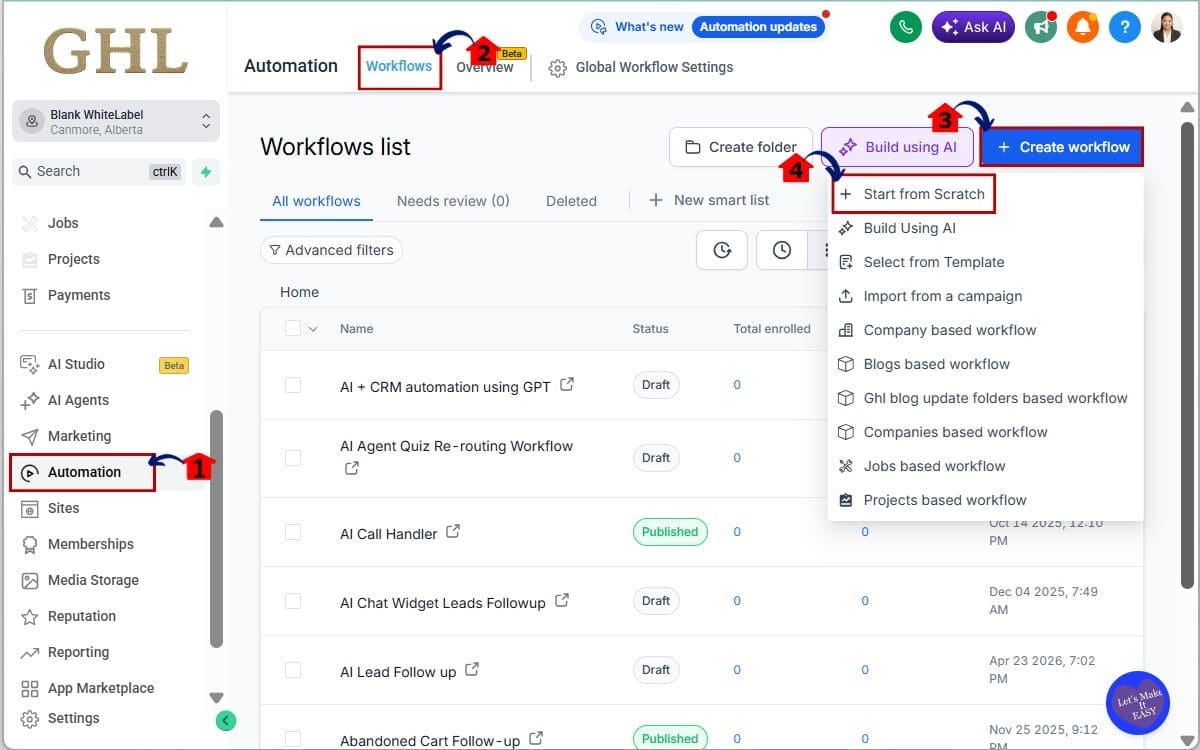
Step 01 – Access the Automation Area in GoHighLevel
- The Automation section is where you build and manage all your workflows.
1.1 Log in to your GoHighLevel sub-account. From the left-hand menu, click Automation.
- This is where all workflow automations are created, edited, and managed.
1.2 Click workflows
- The Workflows page displays all existing automations and lets you create new ones.
1.3 Create a new workflow.
- This opens the workflow creation window so you can build a new automation.
1.4 Click start from scratch
- Starting with a blank workflow gives you complete control over each automation step.
Step 02 – Open the Book Appointment Action
- Now you’ll add or edit the workflow action that creates appointments.
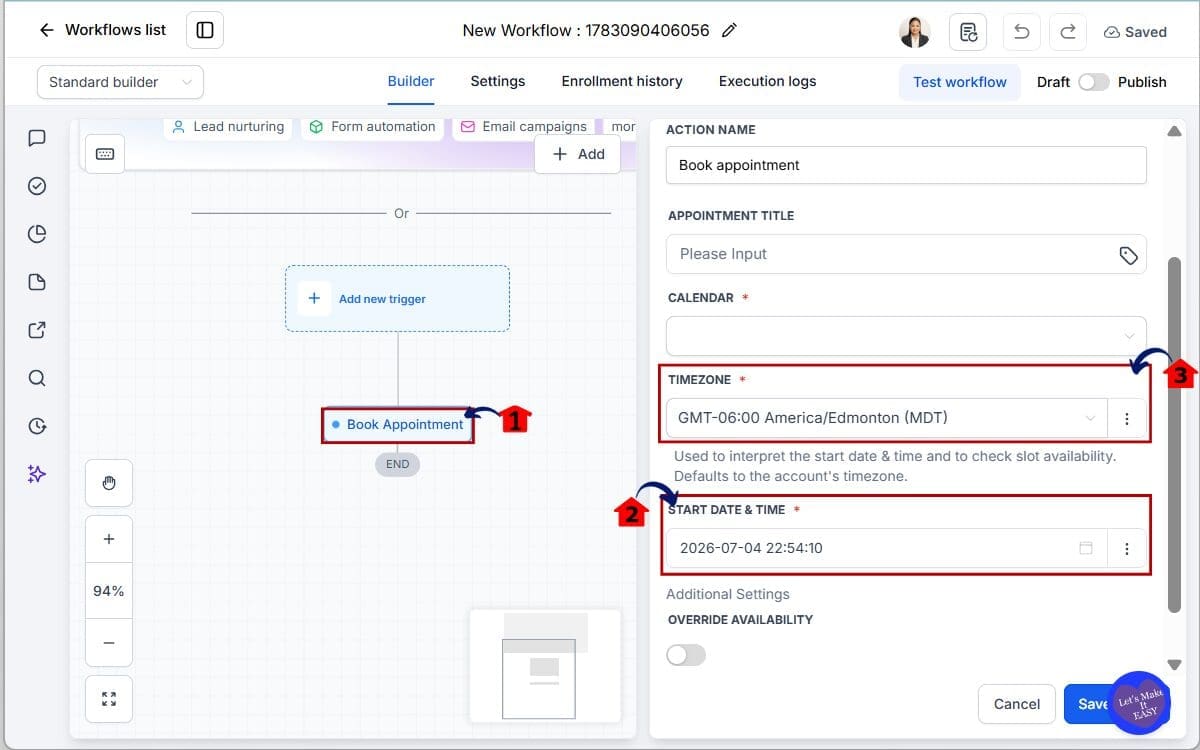
2.1 Locate the Book Appointment workflow action. Click the action to open its settings.
- This is where you configure how appointments are created within the workflow.
2.2 Scroll to the Start Date & Time section.
- This section controls when the appointment will be scheduled.
2.3 You’ll now see the new Timezone field directly below the scheduling options.
- This option lets you choose how GoHighLevel interprets the appointment time before creating the booking.
Step 03 – Choose the Correct Time Zone
- This is where you decide how GoHighLevel should interpret the appointment time.
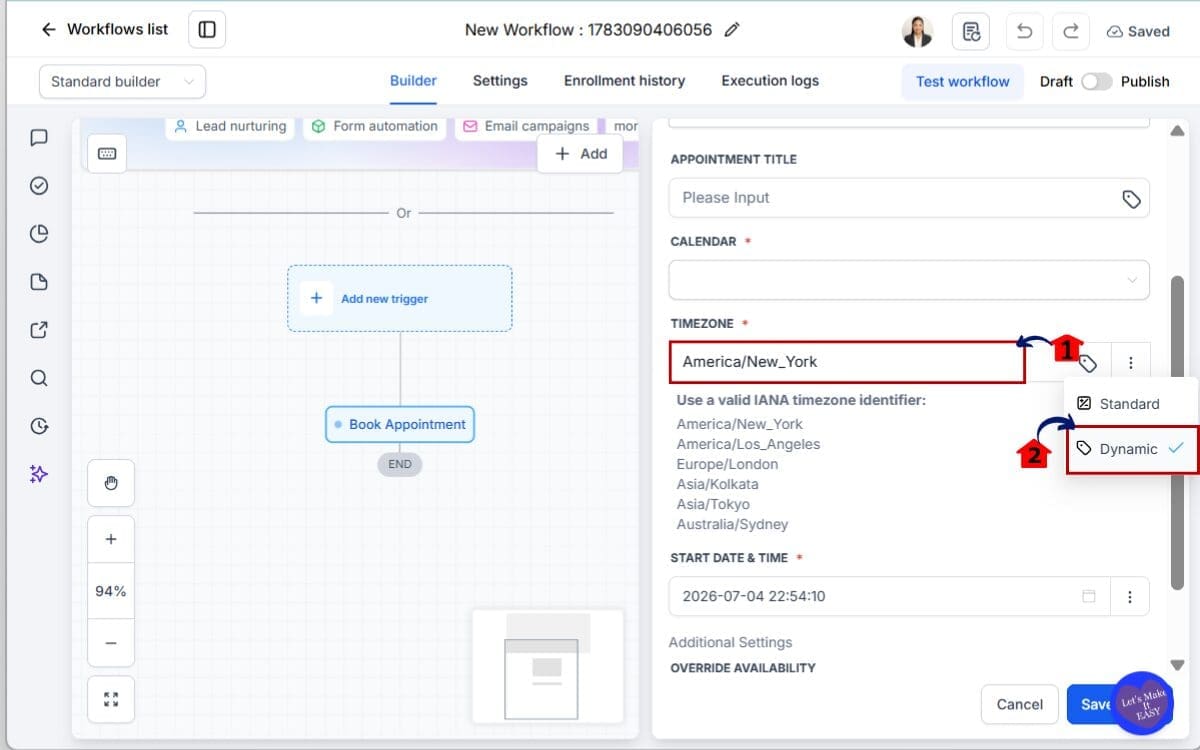
3.1 Click the Timezone dropdown.
- This displays all available timezone options you can apply to the appointment.
3.2 Select a Dynamic Timezone if every appointment should follow a single business location.
Examples include:
- Australia/Sydney
- America/New_York
- Europe/London
Step 04 – Configure the Appointment Time
- With the timezone selected, you can finish configuring the booking.
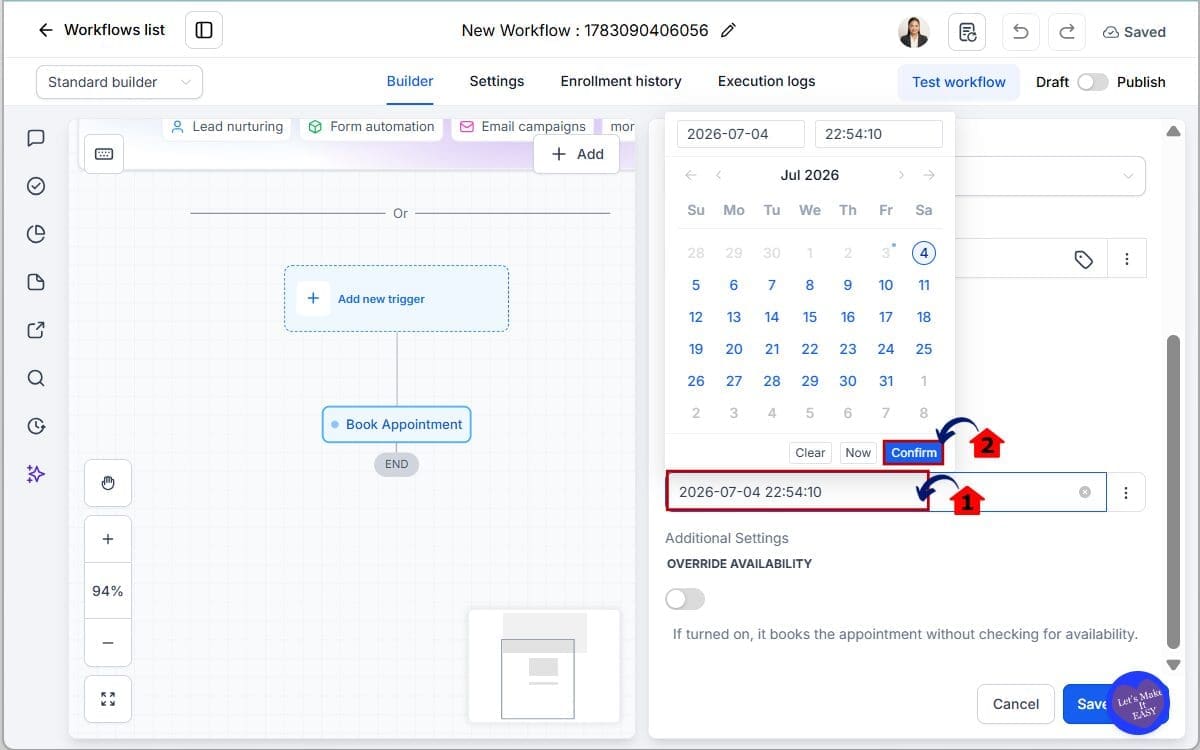
4.1 Enter or map the Start Date & Time.
- This tells GoHighLevel when the appointment should be created in the workflow.
4.2 Confirm the calendar being used for the appointment.
- Review any additional booking options already configured within the action. Remember, the timezone is only used to interpret the Start Date & Time before the appointment is created.
Step 05 – Save and Test Your Workflow
- Always test before sending real contacts through your automation.
5.1 Click Test workflow.
- Run a test to confirm the appointment is booked using the correct date, time, and timezone.
5.2 Click publish
- Publishing makes your workflow live so it can begin processing contacts.
5.3 Click save in workflow
- Saving ensures all of your recent changes, including the new timezone setting, are applied.
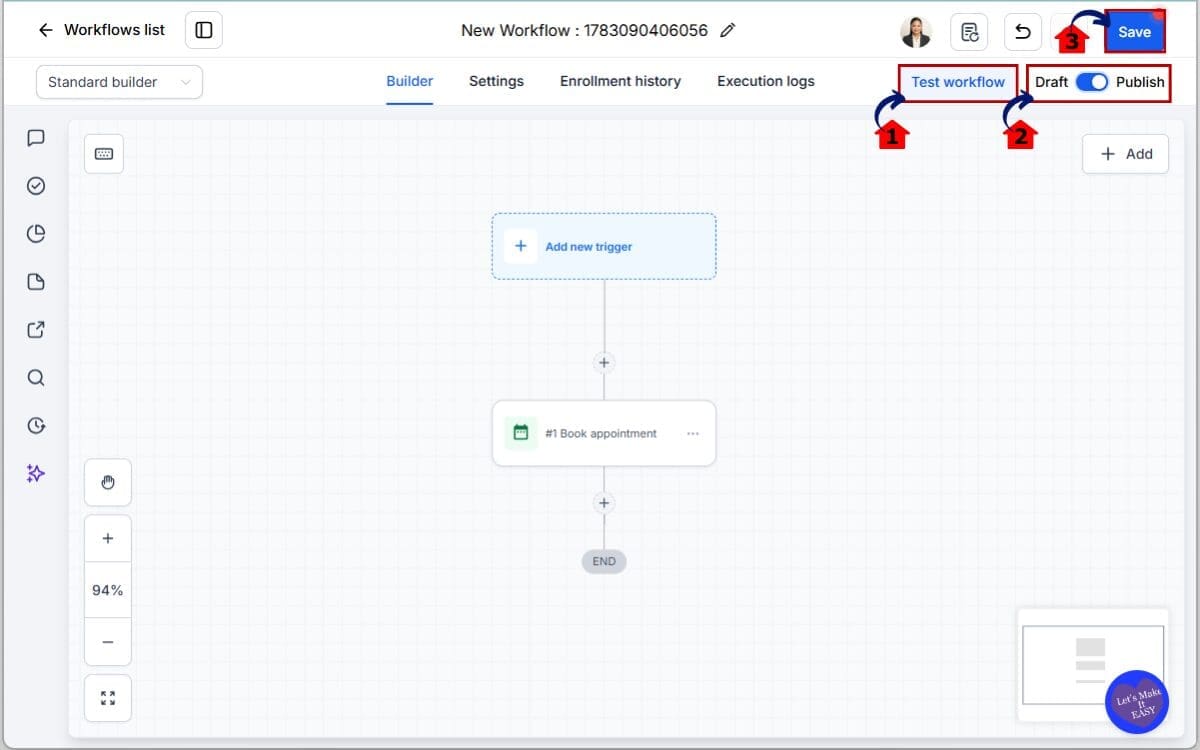
If you’re using Contact Timezone, repeat the test with contacts located in different timezones to ensure everything behaves as expected.
A quick five-minute test today can prevent missed appointments and unnecessary support requests later.
Pro Tips for Better Appointment Scheduling
The timezone setting is only one part of a reliable scheduling workflow. The recommendations below can help improve booking accuracy and reduce avoidable scheduling issues over time.
Use Contact Timezone for Remote Clients
If your business serves customers in different cities, states, or countries, Contact Timezone is usually the best choice. It allows GoHighLevel to schedule appointments based on each contact’s location, creating a smoother experience without requiring manual timezone calculations.
Choose a Fixed Timezone for Local Businesses
If every appointment takes place in the same office or follows one business schedule, use a fixed timezone instead. This keeps your workflows consistent and ensures every booking aligns with your operating hours.
Keep Contact Records Up to Date
Dynamic scheduling is only as accurate as the information stored in your CRM. If you’re using Contact Timezone, make sure your contacts have the correct timezone recorded. Reviewing your contact data regularly will help prevent unexpected booking times.
Always Test Before Going Live
Before activating a workflow, run a few test appointments using different scenarios.
For example:
- Test with a local contact.
- Test with a contact in another timezone.
- Verify that the appointment appears on the correct calendar.
- Check that confirmation emails display the expected meeting time.
A quick test today can spare you from fixing booking issues after your workflow is already live.
Be Careful with Override Availability
Override Availability can be useful for special automation scenarios, but it should be used carefully. When enabled, GoHighLevel books the appointment without checking whether the calendar is actually free.
For most workflows, you’re better off leaving Override Availability disabled. Turn it on only when skipping the availability check is part of your automation.
Keep Your Workflows Simple
It’s tempting to add extra conditions and date calculations, but they aren’t always necessary. The new timezone option already handles much of that work, making it easier to keep your workflows clean and manageable.
Review Existing Appointment Workflows
If appointment workflows are already part of your setup, consider giving them a quick review. A simple timezone update could be enough to improve how future bookings are scheduled.
You probably won’t notice the difference after the first booking. Give it a few weeks, though, and the benefits become much easier to spot. Fewer scheduling mix-ups mean less time spent fixing appointments and more time focusing on your clients.
What This Means for Your Business
No two businesses schedule appointments in exactly the same way. One expectation never changes, though—everyone wants meetings to begin at the time shown on the calendar.
That’s easy when everyone works in the same timezone. It becomes much harder once your calendar includes clients from different states or countries.
As an agency grows, its calendar usually becomes more complicated too. Meetings that were once all local can quickly turn into calls with clients across different cities, countries, or continents. That’s when timezone management starts becoming part of the job.
The new Appointment Time Zone setting removes much of that manual work. Instead of trying to work out which timezone should apply to every workflow, GoHighLevel can now use the one you’ve configured when the appointment is created.
The improvement isn’t limited to agencies either.
You don’t need an international client base to get value from this update. Greater control over appointment scheduling can be useful whether your bookings happen across the country or just across town.
A month from now, you probably won’t remember enabling this setting. What you might remember is that appointment-related issues stopped popping up nearly as often.
That’s the kind of improvement that quietly earns its place in your workflow.
FAQs Appointment Time Zone
Conclusion Appointment Time Zone
Appointment scheduling only gets your attention when something doesn’t line up. A meeting starts late, a client joins at the wrong time, or someone misses the booking altogether. The new timezone setting helps reduce those situations by giving workflow appointments more accurate time handling.
Your existing workflows can stay exactly as they are. The only difference is that appointment times now have an extra layer of accuracy before the booking reaches your calendar. If your business schedules meetings across different locations, that’s a welcome improvement.
If appointment workflows already play a role in your business, it’s worth taking a few minutes to see where this setting fits. Small improvements like this often have the biggest impact because they solve problems before anyone notices them.
We’ll continue covering every meaningful GoHighLevel update here at GHL Growth Garage, along with practical guides and workflow ideas to help you get more from the platform.
Scale Your Business Today.
Streamline your workflow with GoHighLevel’s powerful tools.


