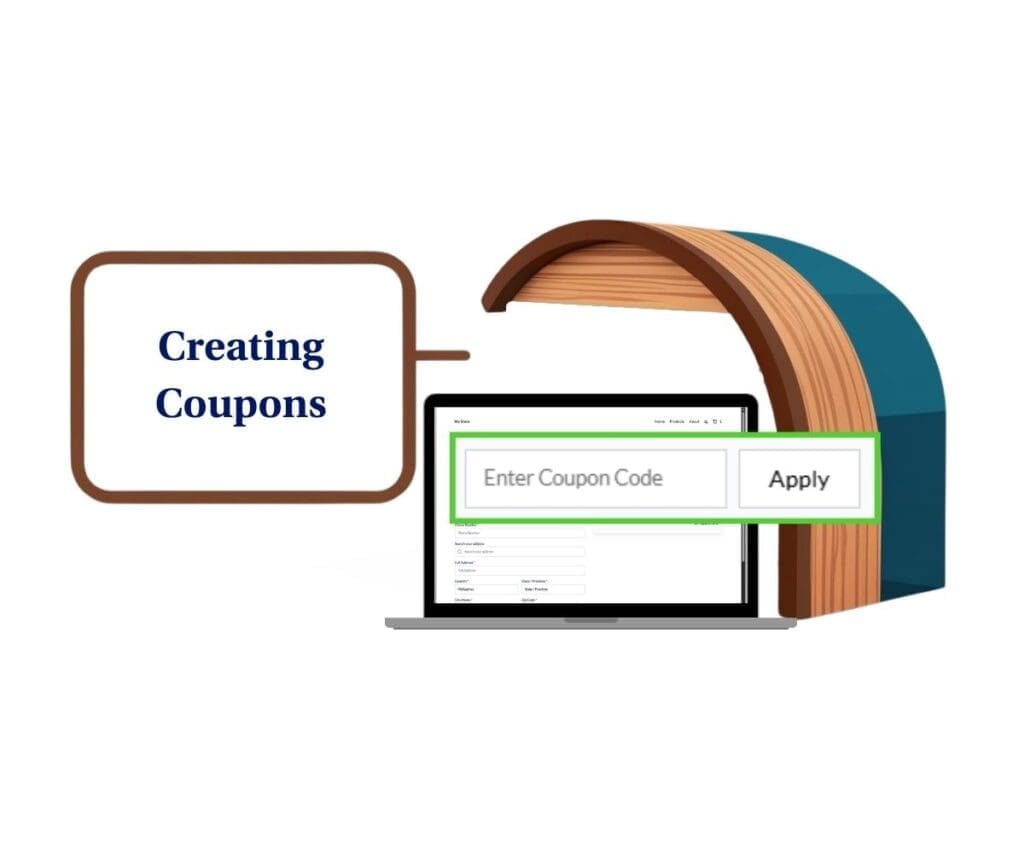
- Clean up your booking flow with simpler starting-price displays and optional coupon fields, all controlled from one global setting.
- Quick Summary – Booking Page Pricing Overview
- WHAT’S NEW: GHL Booking Page Pricing
- WHAT’S CHANGED: GHL Booking Page Pricing
- WHY THIS MATTERS TO YOU (GHL Booking Page Pricing)
- How to Use Global Booking Page Pricing Settings in GoHighLevel
- CHOOSING THE RIGHT PRICING DISPLAY (GHL Booking Page Pricing)
- COUPON VISIBILITY (GHL Booking Page Pricing)
- WHAT THIS MEANS FOR YOUR BUSINESS (GHL Booking Page Pricing)
- FREQUENTLY ASKED QUESTIONS about GHL Booking Page Pricing
- CONCLUSION: GHL Booking Page Pricing
Clean up your booking flow with simpler starting-price displays and optional coupon fields, all controlled from one global setting.
GHL Booking Page Pricing
Booking Page Pricing is one of those small details that quietly makes or breaks your conversions.
Because here’s what happens in real life: a customer lands on your booking page, sees a price that feels confusing, sees a coupon box they don’t have a code for, and suddenly they’re second-guessing the whole thing. Not because your service is bad… but because the booking experience feels messy.
This new Services (v2) update fixes that in a clean, practical way.
Inside GoHighLevel (GHL), you now have Global Booking Settings that let you control two big pieces of the booking page experience: how pricing is displayed (including a new “From $X” option), and whether the coupon code field shows at all. These settings apply across all your booking widgets, so you’re not stuck fixing this one calendar at a time.
In short: you get more control, customers get less clutter, and your booking flow feels way more intentional.
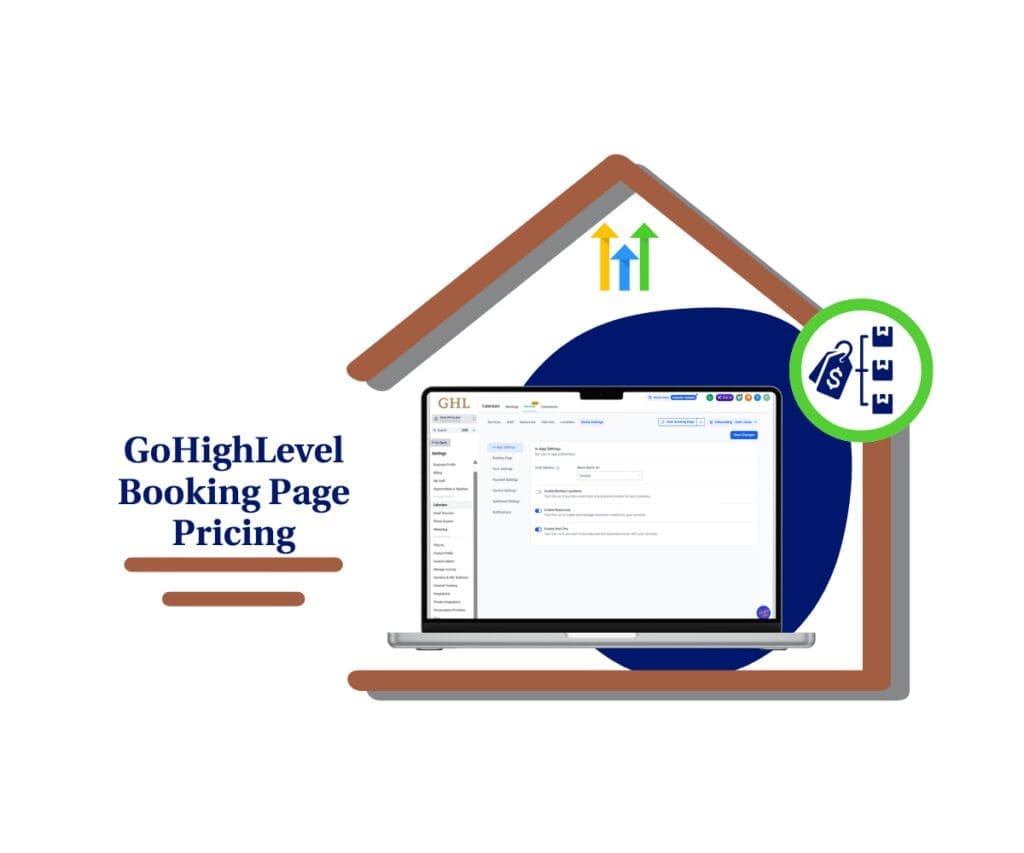
With Booking Page Pricing controls in GHL, you can show a simple “From $X” starting price and remove the coupon box when you don’t need it. That means a cleaner booking page, clearer expectations, and fewer customers dropping off mid-booking.
Quick Summary – Booking Page Pricing Overview
Purpose: This mini-guide shows you how to control Booking Page Pricing in GHL Services (v2) using Global Settings, so every booking widget stays consistent.
Why It Matters: A messy price range or a useless coupon field can cause hesitation and abandoned bookings, so tightening the booking page removes friction.
What You Get: You get two global controls that let you show a starting price or a full range, plus the option to hide coupon codes entirely.
Time To Complete: Most users can set this up in about 3 to 5 minutes, including a quick test on a live booking page.
Difficulty Level: This is beginner-friendly and only requires changing a few settings in the Calendars area.
Key Outcome: Your booking pages look cleaner, pricing feels easier to understand, and customers are more likely to finish the booking.
WHAT’S NEW: GHL Booking Page Pricing
This update gives you three new global controls that make your Services (v2) booking pages feel cleaner and more consistent.
- Hide the coupon code field (fully)
Automate marketing, manage leads, and grow faster with GoHighLevel.

You can now choose to enable or disable coupon codes on the booking page. When you disable it, the coupon field doesn’t just “sit there unused”… it’s completely hidden.
That matters because coupon fields are sneaky distractions. Customers see the box and immediately think:
“Wait… do I need a code?”
And if they don’t have one, some of them bounce, or they pause to go hunting for discounts instead of booking.
Now you get to decide if that box belongs on your booking experience at all.
- New “From $X” pricing display option
You now have a new price display format called “From $X”.
Instead of showing a full price range on the booking page, GHL can display the lowest starting price for that service. The final price is still calculated after the customer selects variations or add-ons (so they’re not being charged blindly).
This is perfect when:
- Your service has multiple tiers
- Add-ons change the price
- The “range” makes the offer feel confusing or too wide
- Apply these settings globally across booking widgets
This is the sleeper feature. Instead of adjusting settings one widget at a time, you can set it once in Global Booking Settings and have it apply across all booking widgets. That means more consistency for your brand, less setup time, and fewer “why does this booking page look different?” headaches.
WHAT’S CHANGED: GHL Booking Page Pricing
Before this update, your booking page usually showed the full price range. That worked fine for simple services, but it could look messy when you had tiers, variations, or add-ons. Customers would see a wide range and start asking questions before they ever booked.
Now you can choose how pricing shows up. You can keep the fixed range (the old way), or switch to “From $X” so people see the lowest starting price first. That’s a big win for Booking Page Pricing when your final cost depends on what the customer selects.
The coupon box also changed in a good way. If you turn off coupon codes, the field is fully hidden on the booking page. So customers are not distracted by a code box they cannot use, and your booking flow stays clean and focused.
WHY THIS MATTERS TO YOU (GHL Booking Page Pricing)
When your booking page feels busy, people hesitate. A confusing price range or a coupon box with no code can make customers stop and think, and that small pause can turn into a dropped booking. This update helps you remove those little friction points that cost you appointments.
With GHL Booking Page Pricing, you can match the price display to how your service actually sells. If the final price changes based on add-ons or variations, “From $X” gives customers a simple starting point without overwhelming them. If your pricing is more fixed, the range option still works and keeps things clear.
For agencies, this is also a consistency win. Since the settings apply globally across booking widgets, you can standardize the booking experience across pages and offers. Less guesswork, fewer edits, and a smoother path from click to confirmation.
How to Use Global Booking Page Pricing Settings in GoHighLevel
These controls are set inside Services (v2) Global Settings. You are not editing each service one by one, and you are not rebuilding your booking widgets. You are simply choosing how Booking Page Pricing displays and whether the coupon code field shows on the booking page.
Here are the steps to set it up:
- Access the Settings area in GoHighLevel.
- Open Services in Settings in Calendar.
- Open Payment Settings and Turn coupon codes on or off in Global Settings.
- Choose your Booking Page Pricing display format.
To start, make sure you are logged in to your GoHighLevel sub-account.
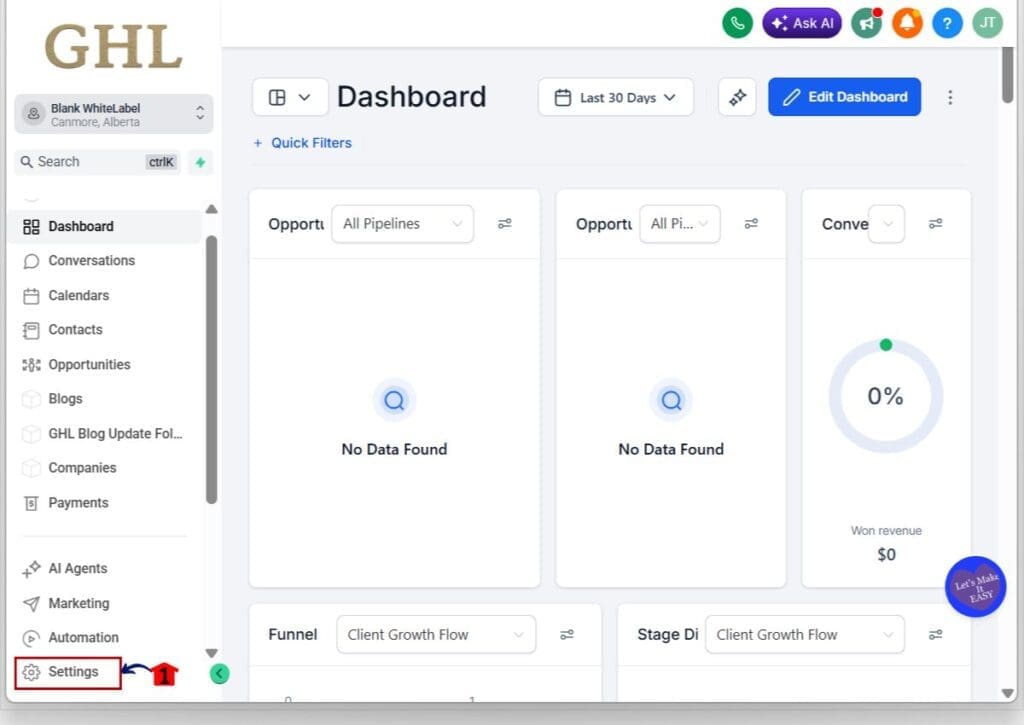
Step 01 – Access the Settings area in GoHighLevel
- Go to the bottom of the Main Menu on the left-hand sidebar.
1.1 Click the Settings gear icon ⚙️.
- This opens the Settings dashboard.
Step 02 – Open Services in Settings in Calendar
- This is where Services (v2) settings are managed.
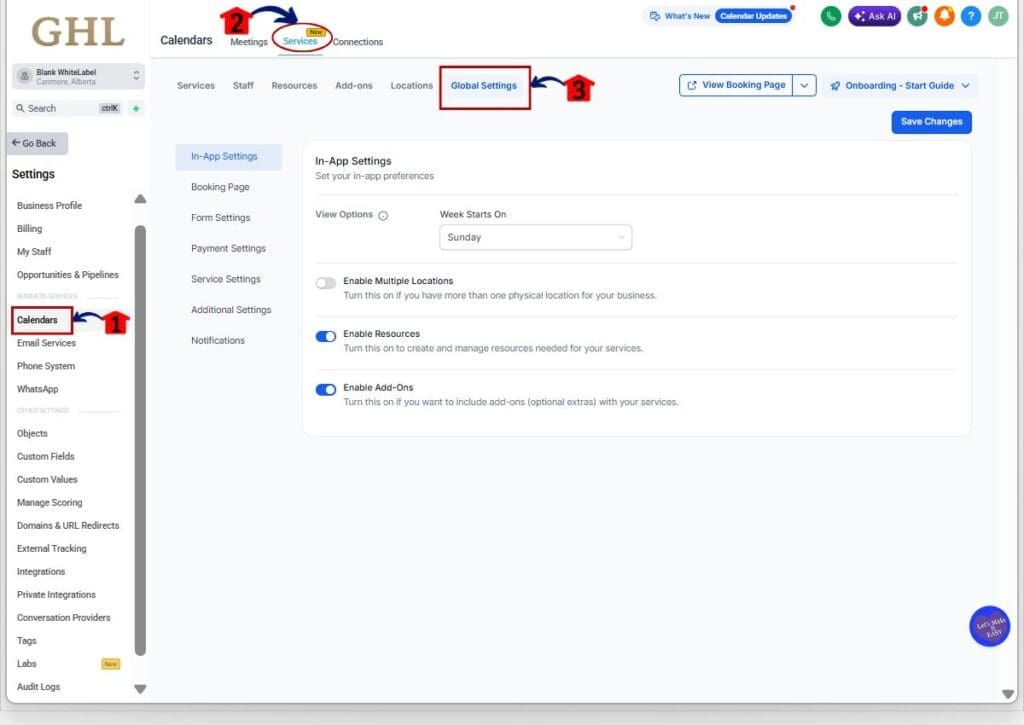
2.1 In the Settings dashboard, click Calendars.
- This opens the Calendar Dashboard.
2.2 Click Services on the menu tab.
- This opens the Services Dashboard.
2.3 Click Global Settings.
- This opens the Global Settings Dashboard where the global booking rules live.
Step 03 – Open Payment Settings and Turn coupon codes on or off in Global Settings
- This is where Booking Page Pricing and coupon visibility settings are found.
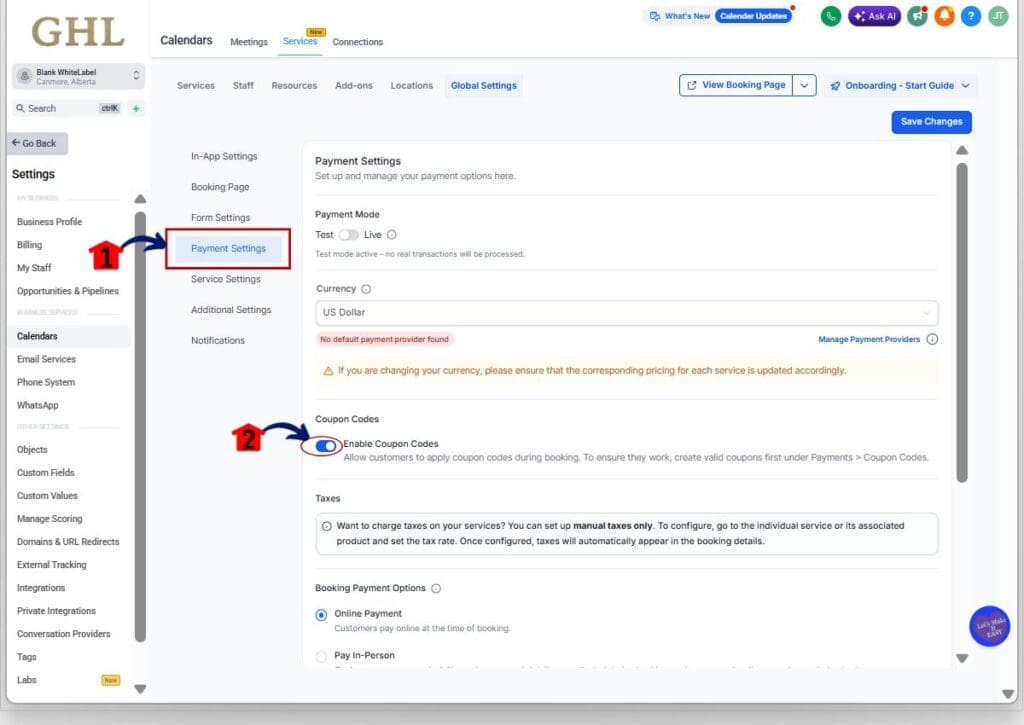
3.1 On the left menu inside Global Settings, click Payment Settings.
- The screen updates and shows pricing and coupon options.
3.2 Find the toggle labeled Enable Coupon Codes.
- Toggle ON if you want customers to enter coupon codes at booking.
- Toggle OFF if you want the coupon field hidden completely.
- When OFF, customers will not see the coupon field at all.
Step 04 – Choose your Booking Page Pricing display format
- This controls what customers see before selecting variations or add-ons.
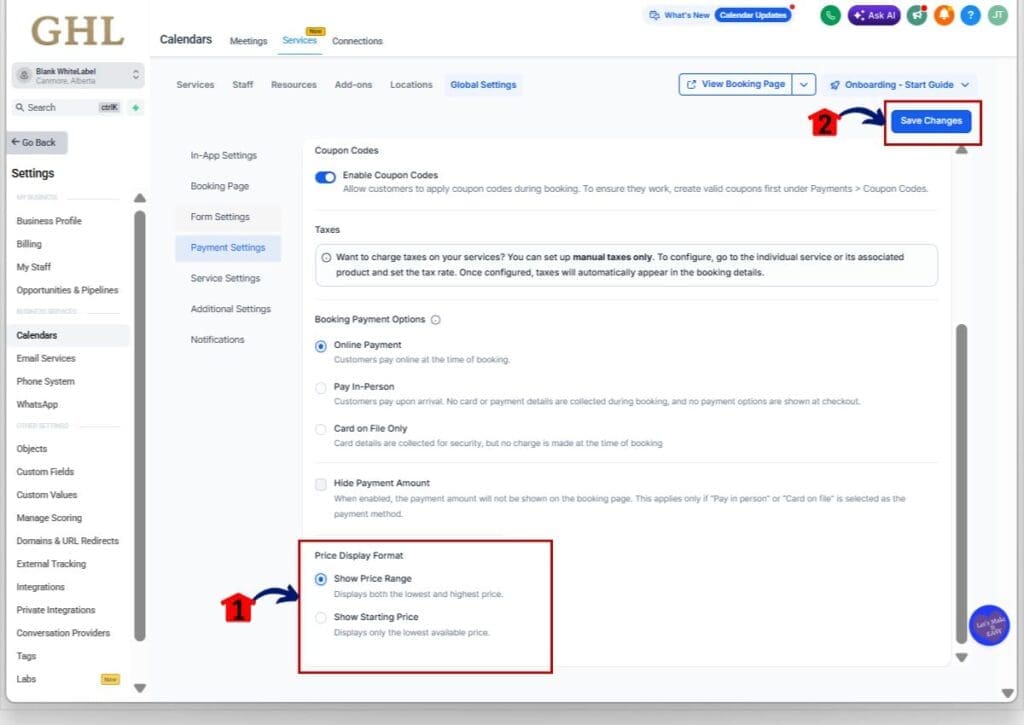
4.1 Find the setting labeled Price Display Format.
- Select Show Price Range to display both the lowest and highest price.
- Select Show Starting Price to display only the lowest available price.
- The final price is calculated after the customer selects variations or add-ons.
4.2 Click Save Changes.
- This makes the settings live across your booking widgets.
CHOOSING THE RIGHT PRICING DISPLAY (GHL Booking Page Pricing)
Show Price Range is the safe, clear option when you want customers to see the full picture upfront. It displays both the lowest and highest price, which works best when your pricing does not change much, or when customers expect total transparency before they click anything. This is also a smart choice for higher-ticket services where people want to know the full range right away.
Show Starting Price is best when your service price depends on what the customer picks. If you have variations, tiers, or add-ons, the range can look wide and confusing. Starting price keeps the booking page simple, then the final price updates after the customer selects what they want. For Booking Page Pricing, this option often reduces friction because customers are not forced to interpret a big range on the first screen.
One rule keeps you out of trouble: make sure your starting price is a real, common entry point, not a “bait” price that almost nobody pays. If most customers end up far above the starting price, you will get more questions, more drop-offs, and more trust issues. Pick the display that matches how your service is usually bought.
COUPON VISIBILITY (GHL Booking Page Pricing)
If you do not actively run public promos, the coupon field is usually a distraction. People see a coupon box and assume they are missing a deal. Then they pause, they second-guess, or they leave to go hunt for a code. Turning it off keeps the booking page clean and keeps the customer focused on booking, not bargaining.
Keep coupon codes enabled when you truly use them as part of the offer. If you send discount codes through email or SMS campaigns, or you run seasonal promos, then leaving the field visible makes sense. The key is consistency. If customers are likely to have a code, show the field. If they are not, hide it.
For agencies, this is also a branding and support win. A consistent Booking Page Pricing experience across clients means fewer “where do I enter the code?” messages, and fewer awkward checkout questions. Set it once in Global Settings, then move on to the stuff that actually makes you money.
WHAT THIS MEANS FOR YOUR BUSINESS (GHL Booking Page Pricing)
If you manage multiple offers, or multiple client accounts, this update saves you time and reduces headaches. You can set Booking Page Pricing once in Services (v2) Global Settings, and every booking widget follows the same rules. That means fewer random booking pages with different pricing layouts, and fewer “why does this look different?” messages from clients.
For service businesses with add-ons, this is a big clarity upgrade. Think salons, med spas, cleaning companies, or anyone who sells a base service plus extras. Show Starting Price keeps the first screen simple, then the final price updates after the customer picks variations or add-ons. Customers feel guided instead of confused, and that usually leads to more completed bookings.
And for promos, coupon control keeps your checkout flow honest and clean. If you run public campaigns, keep coupons enabled and make it easy to redeem. If promos are private or rare, hide the field and stop training customers to search for discounts. Either way, you get a booking experience that fits your business instead of forcing your business to fit the booking page.
FREQUENTLY ASKED QUESTIONS about GHL Booking Page Pricing
CONCLUSION: GHL Booking Page Pricing
This update is simple, but it fixes a real problem. You now control two things that shape the whole booking experience: whether customers see a coupon field, and how Booking Page Pricing shows up before they make selections.
If your services include add-ons or variations, Show Starting Price keeps the first view clean and easy to understand. If you want full transparency upfront, Show Price Range still does the job. Either way, you get to choose the format that fits how your business actually sells.
Set it once in Services (v2) Global Settings, save changes, and test one live booking page. Then you are done. If you want more step-by-step GoHighLevel mini-guides like this, check back with GHL Growth Garage for the next update.
Scale Your Business Today.
Streamline your workflow with GoHighLevel’s powerful tools.