

- Introduction – CRM Notes Management Just Got Smarter
- Here are this weeks HighLevel Updates
- What’s New in CRM Notes Management
- What’s Changed from the Old Notes System
- Why This Matters for Agencies and Teams
- How to Use the New CRM Notes Management Features
- Pro Tips to Maximize CRM Notes Management
- What This Means for Your Business
- Results You Can Expect
- What’s Next for GHL CRM Notes Management
- FAQ about CRM Notes Management in Contact Page
- Conclusion – Smarter CRM Notes Management in GHL
Introduction – CRM Notes Management Just Got Smarter
Before this update, CRM Notes Management inside GHL was basic. You could add a note to a contact.
That was it. No titles. No visual structure. No attachments. No pinning. And searching through long contact timelines meant scrolling… and scrolling… and scrolling.
It worked. But it wasn’t built for teams.
For agencies managing dozens, sometimes hundreds, of active contacts, this created friction. One team member would leave a note without context. Another would add follow-up details buried in the timeline. Critical information would get lost between call logs, SMS threads, and status updates.
Finding one key detail could take minutes.
GHL has now removed that limitation.
CRM Notes Management is now structured, searchable, and actionable. You can add clear titles to notes. Apply color labels for visual organization. Attach files directly to a note. Pin up to two critical notes to the top of the contact timeline. And search across both titles and descriptions instantly.
No more digging. No more guessing. No more cluttered timelines.
What changed:
The Notes section inside contact records now supports titled entries, color-coded categorization, file attachments, pinned priority notes (maximum of two), and search functionality across both the note title and description. Notes are no longer just plain text entries, they’re organized documentation tools inside your CRM.
Who this is for:
Agency owners managing client pipelines. Sales teams tracking deal details. Virtual assistants updating contact records daily. And any GHL user who relies on clean, structured CRM data to operate efficiently.
What we’ll demonstrate:
In this breakdown, we’ll cover what’s new inside CRM Notes Management, explain why it matters for agency workflows, walk through how to use each new feature inside GHL, and share practical tips to help your team stay organized, aligned, and faster inside the contact timeline.
The latest GoHighLevel Changelog includes several other GHL feature updates that round out your daily workflow:
- Version History Improvements: View & Restore Versions Across Builders
- [Compliance] Stay compliant with ACH payment on Stripe
- Canva Integration In Media Storage
- Bulk Import for Companies
- AI Builder: 52% Faster Workflow Generation
- Record IDs – Improved Visibility in Lists & Record Details
- Reselling Reporting on Agency Dashboard
- Blogs – Revamped URL Blog Importer Experience 🚀
Keep reading for much more on all these updates and a deep dive into the Notes Contact Page feature!

Here are this weeks HighLevel Updates
Version History Improvements: View & Restore Versions Across Builders
- What it does:
Access old versions and restore them across builders. - Where in GHL:
Found in Funnels, Websites, and other builders under version history. - Impact:
Quick fixes when changes don’t go as planned. - Who it’s great for:
Agencies and users making frequent updates.
[Compliance] Stay compliant with ACH payment on Stripe
Automate marketing, manage leads, and grow faster with GoHighLevel.

- What it does:
Helps make sure your ACH payments through Stripe follow the right rules by adding compliance checks. - Where in GHL:
You’ll see this when configuring ACH payments in the Payments and Stripe settings. - Impact:
Keeps you protected from potential compliance problems and makes payments more secure. - Who this is for:
Anyone collecting ACH payments, especially agencies and SaaS businesses.
Canva Integration In Media Storage
- What it does:
Allows you to access and import Canva designs directly into GHL’s media storage. - Where in GHL:
Media Library / Storage section when uploading or selecting files. - Impact:
Speeds up content creation by removing the need to download and re-upload assets. - Who this is for:
Marketers, designers, and agencies creating visual assets for funnels, emails, and ads.
Bulk Import for Companies
- What it does:
Enables bulk uploading of company records into GHL instead of adding them one by one. - Where in GHL:
CRM under Companies section (import/upload functionality). - Impact:
Saves time and simplifies onboarding large datasets or migrating client information. - Who this is for:
Agencies, sales teams, and businesses handling large volumes of company data.
AI Builder: 52% Faster Workflow Generation
- What it does:
Improves AI workflow generation speed, cutting build time by over half. - Where in GHL:
AI Workflow Builder inside Automation > Workflows. - Impact:
Speeds up automation creation, allowing faster testing and deployment. - Who this is for:
Agencies, automation builders, and marketers creating workflows frequently.
Record IDs – Improved Visibility in Lists & Record Details
- What it does:
Makes record IDs easier to see within lists and detailed views. - Where in GHL:
CRM records, lists, and detail pages. - Impact:
Improves tracking, integrations, and debugging when working with specific records. - Who this is for:
Developers, advanced users, and teams working with integrations or data tracking.
Reselling Reporting on Agency Dashboard
- What it does:
Adds reporting insights for reselling activities directly in the agency dashboard. - Where in GHL:
Agency Dashboard under reporting/analytics sections. - Impact:
Gives better visibility into revenue and performance from resold services. - Who this is for:
Agencies running SaaS mode or reselling GHL services.
Blogs – Revamped URL Blog Importer Experience 🚀
- What it does:
Improves the blog importer tool for pulling content from URLs into GHL. - Where in GHL:
Sites > Blogs > Import via URL. - Impact:
Makes moving your blogs over quicker and a lot easier to handle. - Who this is for:
Agencies, content marketers, and businesses migrating blogs into GHL.
What’s New in CRM Notes Management
CRM Notes Management inside GHL is no longer just a blank text box in a timeline.
It’s now a structured documentation tool built for real teams.
Here’s exactly what was added.
Note Titles
You can now add a clear, searchable title to every note. Instead of dumping context into one long paragraph, you can label entries like:
- Discovery Call Summary
- Pricing Objection
- Contract Sent
- Follow-Up Required
- Escalation Issue
This creates instant structure inside the contact timeline. When multiple team members work inside the same contact record, titles make it obvious what each note is about, without opening every entry.
Color-Coded Notes
Notes can now be color-labeled. This gives you visual categorization at a glance.
Think about using colors for:
- Red → Urgent Issues
- Green → Closed / Completed
- Blue → Sales Updates
- Yellow → Follow-Up Required
Instead of reading every line, your brain spots priority instantly. This is a small feature with big operational impact.
File Attachments Inside Notes
You can now attach files directly to a note.
That means:
- Proposals
- Contracts
- Screenshots
- PDFs
- Call summaries
- Supporting documents
All stored directly within the context of that specific note. Before this, documentation often lived in separate systems or generic uploads. Now, CRM Notes Management keeps context and files together.
Pin Notes (Maximum of Two)
You can pin up to two notes to the top of the contact timeline. This is huge. Critical information, like deal terms, objections, or key agreements, no longer gets buried under activity logs.
Pinned notes stay fixed at the top. Your team sees what matters first.
Search Functionality (Title + Description)
Search now works across both the note title and the description.
That means:
- Type a keyword.
- Instantly locate the exact note.
- No manual scanning required.
For accounts with long sales cycles or ongoing client communication, this dramatically reduces friction.
Cleaner Timeline Structure
All of this combined creates a more organized, readable contact timeline.
Instead of a cluttered activity feed, CRM Notes Management now feels intentional.
Structured. Searchable. Prioritized. This isn’t just a feature addition. It’s a usability upgrade.
What’s Changed from the Old Notes System
Before this update, CRM Notes Management inside GHL was extremely simple.
Too simple. You could add a note. That’s it.
No hierarchy. No structure. No prioritization. No attachments. And no way to quickly locate specific information inside a long contact record.
Here’s what that meant in real-world agency workflows.
Plain Text Only
Every note looked the same.
Whether it was:
- A quick internal reminder
- A full discovery call summary
- A pricing objection
- A legal agreement detail
It all blended together. Important updates got buried under general comments.
No Visual Organization
There was no way to visually categorize notes. If you wanted to flag something as urgent, you had to type “IMPORTANT” in all caps and hope someone noticed it.
That’s not a system. That’s improvising.
No Attachments Inside Context
If you needed to reference a proposal or supporting document, it lived somewhere else.
You had to:
- Upload it separately
- Link it manually
- Or explain in the note where to find it
That created unnecessary friction. No Pinning Critical Information
High-priority details could easily disappear under:
- Call logs
- SMS threads
- Email updates
- Workflow activity
Unless someone manually scrolled, they could miss something critical.
No Search Across Notes
If you needed to find one specific keyword from months ago, you had two options: Scroll. Or scroll more.
For contacts with long sales cycles or active pipelines, this slowed everything down.
What This Means
The old version worked for solo users with light activity. It did not scale well for agencies, teams, or high-volume sales environments.
Now, CRM Notes Management is built for structured collaboration, not just note-taking. This update moves notes from “basic text entry” to “operational documentation.” And that changes how teams use the CRM entirely.
Why This Matters for Agencies and Teams
If you run an agency, you don’t just “store notes.” You manage information. And messy information slows everything down. CRM Notes Management isn’t about aesthetics. It’s about operational clarity.
Faster Information Retrieval
When your team can search note titles and descriptions instantly, they stop wasting time.
No more:
- “Wait, where did we write that?”
- “Was that in a call note?”
- “Who mentioned that objection?”
You type a keyword. You find the answer. That speed compounds across dozens of contacts per day.
Clearer Team Communication
Agencies rarely operate solo.
You have:
- Sales reps
- Account managers
- Virtual assistants
- Media buyers
- Client success staff
When one person leaves a structured, titled note, the next person understands context immediately. No guessing. No misinterpretation. That improves internal handoffs dramatically.
Prioritization Without Extra Tools
Pinned notes eliminate chaos. Instead of relying on Slack messages or separate task systems to highlight critical info, you can anchor the two most important updates directly inside the contact.
The most relevant details stay at the top. Every time.
Stronger Documentation
File attachments inside notes mean everything stays connected. Proposal? Attached. Signed agreement? Attached. Screenshot of client approval? Attached.
Now CRM Notes Management becomes a lightweight documentation hub — not just a comment box.
Reduced Risk of Costly Mistakes
Small configuration or communication errors cost agencies money. Missing a pricing note. Forgetting an objection. Overlooking a special agreement.
Structured notes reduce those risks. Less friction. Less confusion. More confidence inside every deal.
When your CRM is clean, your team operates cleaner. And that’s the real win.
How to Use the New CRM Notes Management Features
The updated CRM Notes Management tools are accessed directly inside each contact record in GHL. You will create titled notes, apply color labels, attach files, pin priority notes, and use the search feature from the Notes section in the right-hand panel.
The steps below walk you through exactly where to click and how to configure each option so you can immediately implement structured note-taking inside your contact timelines.
- Access the Contacts Section in GHL.
- Add a Structured Note to a Contact Record.
- Edit the Title and Description of the Notes.
- Attach Supporting Files to a Contact Note.
- Pin Important Notes or Search Notes Instantly.
To start, make sure you are logged in to your GoHighLevel sub-account.
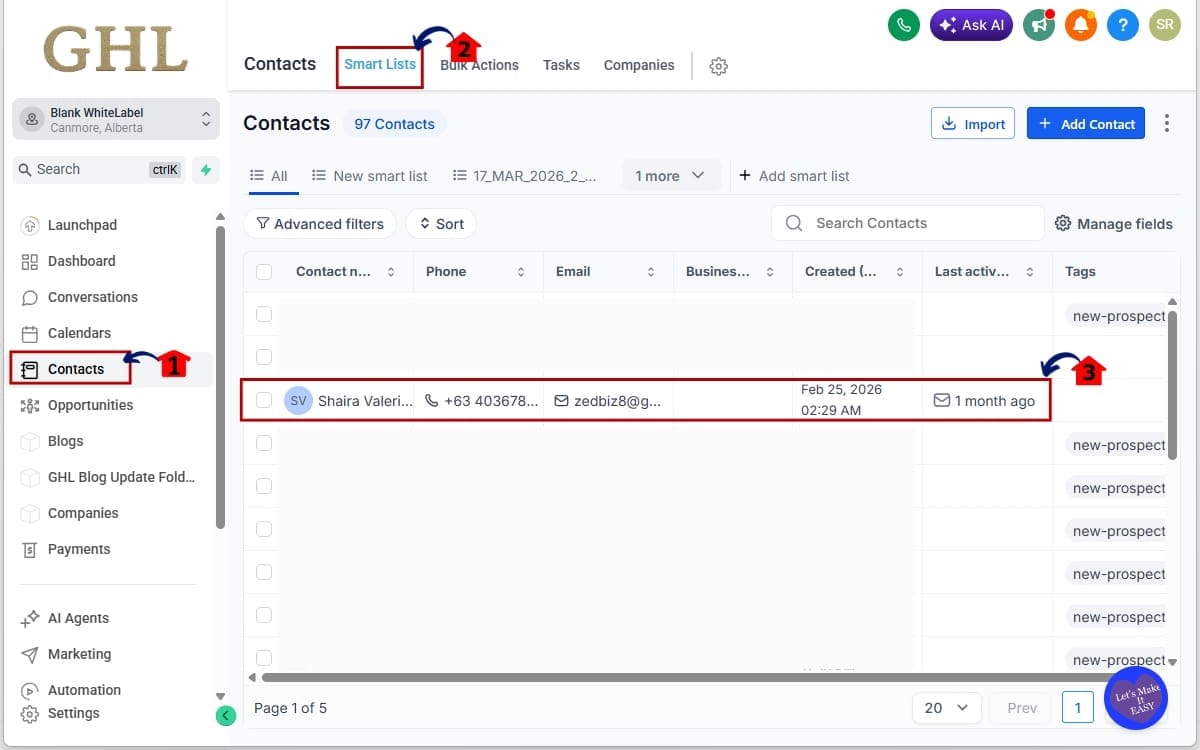
Step 01 – Access the Contacts Section in GHL
- Navigate to the Contacts area to locate and manage individual records where the Notes feature is housed. This is your starting point for creating, organizing, and accessing structured CRM notes within GoHighLevel.
1.1 Access the Main Left Hand Menu in GoHighLevel. Click on “Contacts.”
- The Main Menu on the left side of your screen contains all major areas you work in. This opens your full contact list.
1.2 Click smart list
- Select the smart list in the menu above
1.2 Select an Existing Contact
- Click on the contact name to open the contact record.
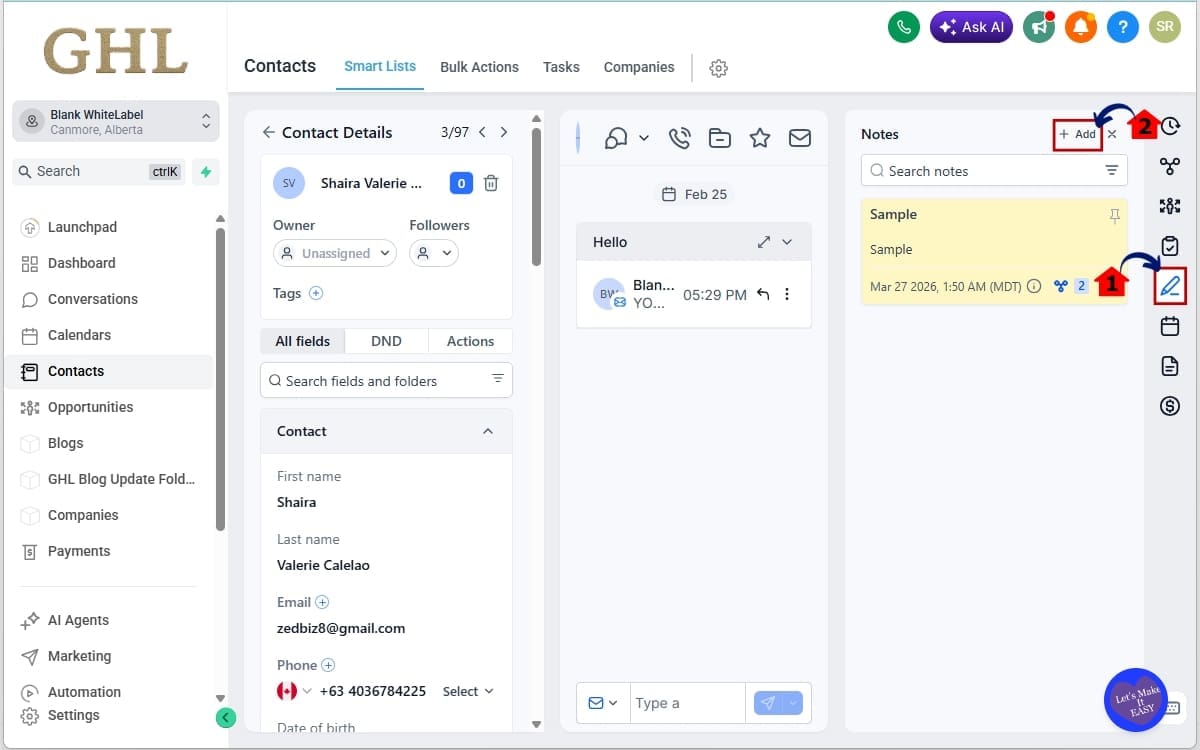
Step 02 – Add a Structured Note to a Contact Record
- Create a clear, organized record within the contact timeline by adding a titled note with relevant details. Structured notes improve searchability, enhance team communication, and ensure important information is easy to find.
2.1 Locate the Pencil Icon or Notes Section
- On the right-side panel inside the contact record, open the Notes tab.
2.2 Click “+Add”
- A note creation window will appear.
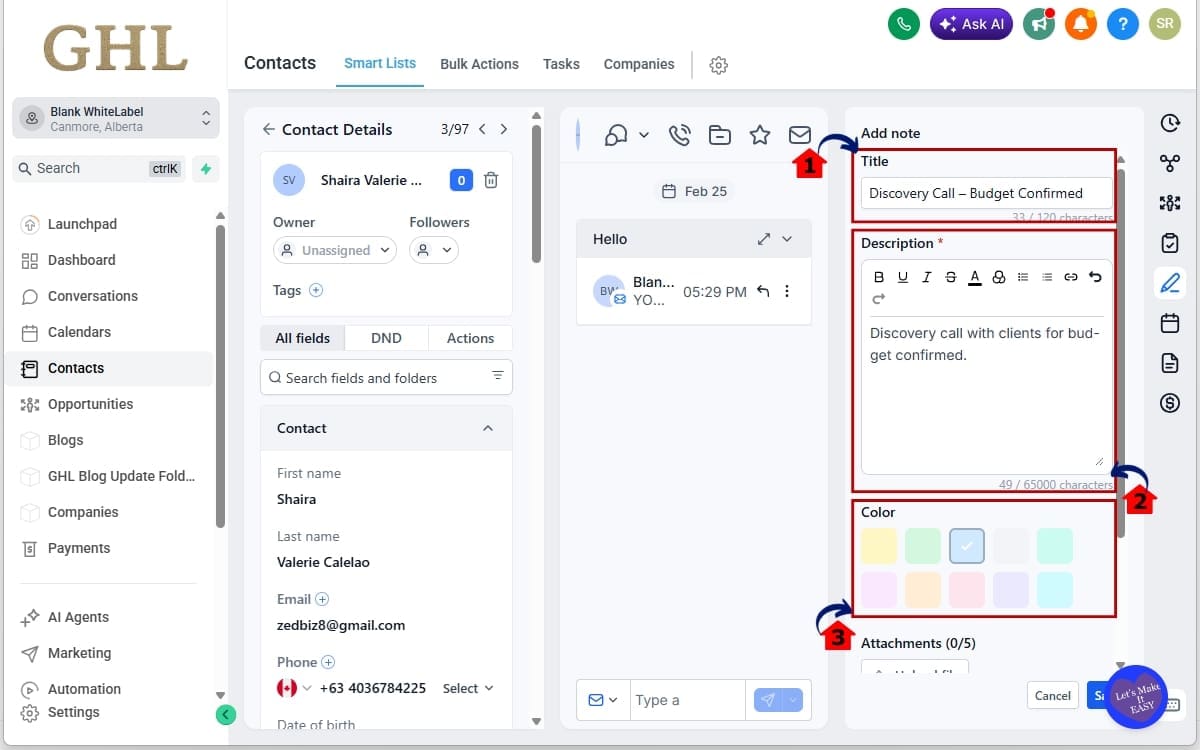
Step 03 – Edit the Title and Description of the Notes
- Update existing notes to improve clarity, accuracy, and searchability. Editing titles and descriptions ensures your team always has access to the most relevant and up-to-date contact information.
3.1 Add a Clear Note Title
- Enter a short, descriptive title. Example: “Discovery Call – Budget Confirmed”
3.2 Enter the Note Description
- Add detailed context in the description field. Keep it structured and readable.
3.3 Select a Color Label
- Choose a color that matches your internal system.
Example system:
- Red → Urgent
- Blue → Sales
- Green → Completed
- Yellow → Follow-Up
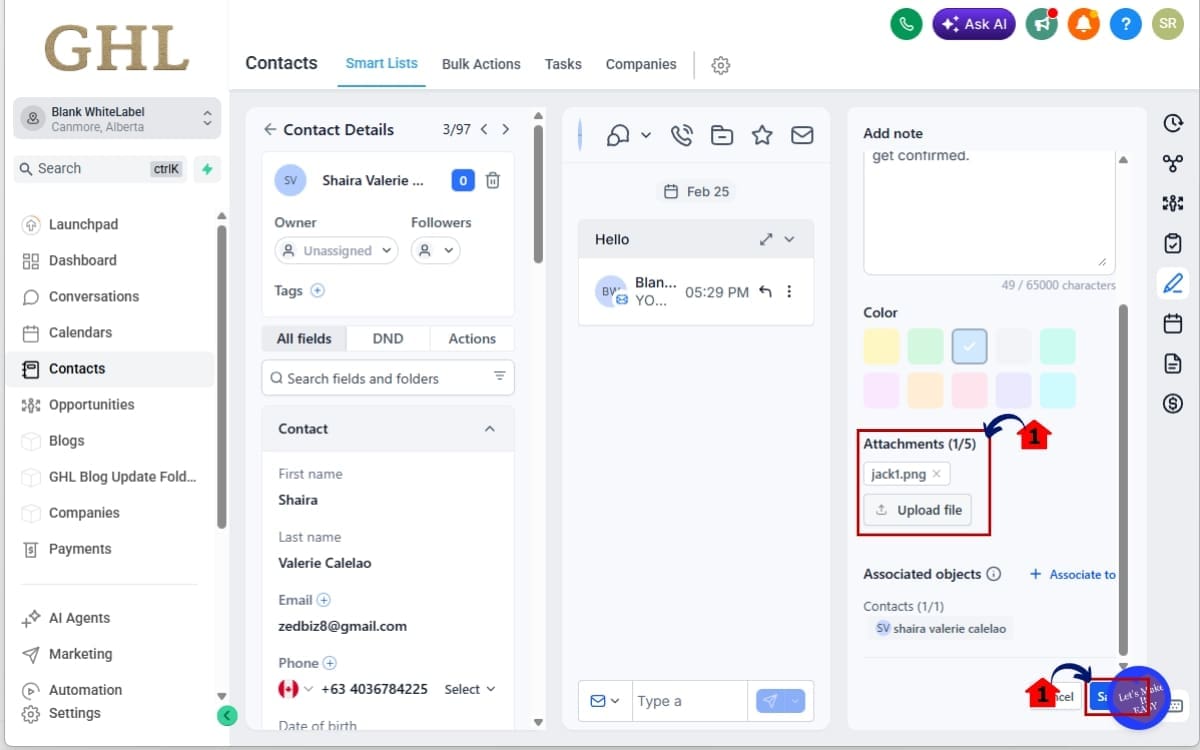
Step 04 – Attach Supporting Files to a Contact Note
- Add supporting documents directly to a contact’s note to centralize important information. File attachments provide context, improve collaboration, and ensure your team has immediate access to essential resources.
4.1 Locate the File Attachment Option and Upload Relevant Files
- Click to upload a supporting document. Attach proposals, PDFs, screenshots, or contracts and Keep files relevant to that specific note.
4.3 Save the Note
- The attachment will now live directly within that note’s context.
Step 05 – Pin Important Notes or Search Notes Instantly
- Highlight critical information and locate notes quickly within a contact record. Pinning ensures high-priority updates remain visible, while the search feature allows you to find specific notes instantly, improving efficiency and team collaboration.
5.1 Select “Pin Note.”
- You can pin up to two notes per contact. Pinned notes remain fixed at the top of the timeline.
5.2 Locate the Search Bar Within the Notes Section
- Inside the contact record, use the search function.
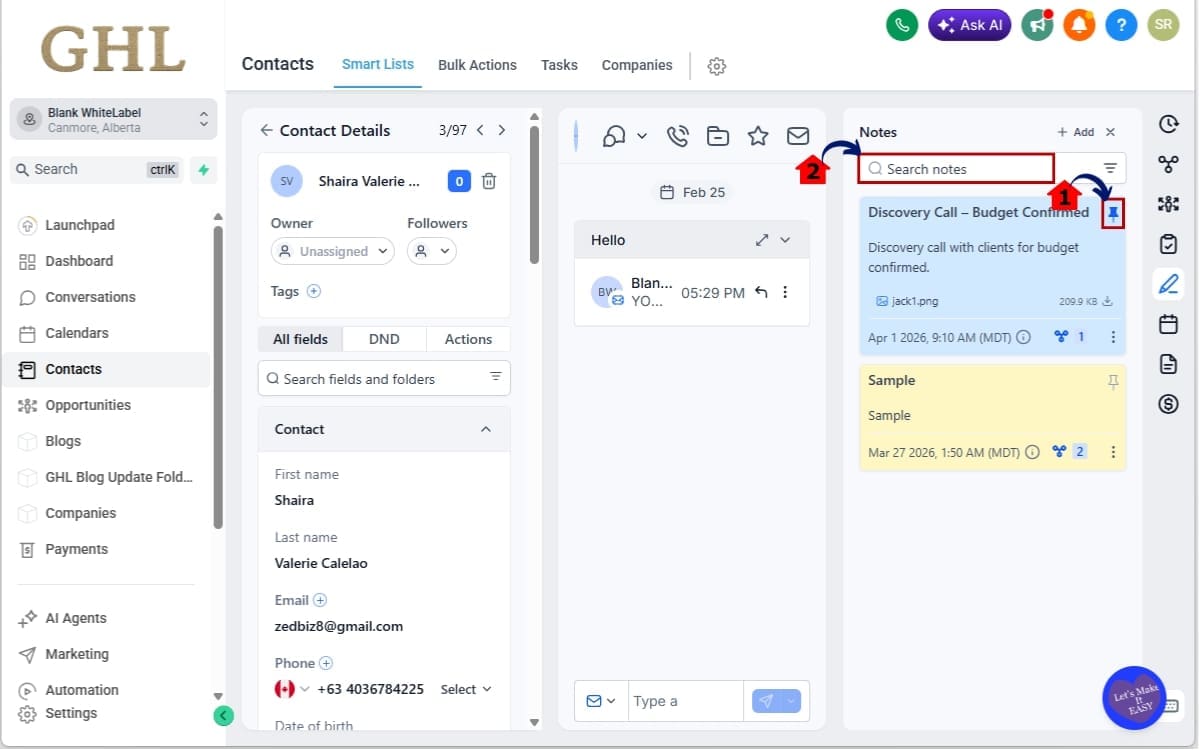
This eliminates manual scrolling and makes CRM Notes Management far more efficient for long-term accounts.
Pro Tips to Maximize CRM Notes Management
Most users will add titles and stop there. Don’t.
If you want CRM Notes Management to actually improve operations, you need a simple internal system. Here’s how to do it right.
Standardize Your Note Titles
Consistency makes search powerful.
Instead of random titles like:
- “Call”
- “Update”
- “Spoke to client”
Use structured formats such as:
- Discovery Call – Budget Confirmed
- Objection – Pricing Concern
- Contract – Signed 6 Month
- Follow-Up – Waiting on Approval
When everyone follows the same pattern, search becomes instant and reliable.
Use Color Coding With Intention
Don’t pick colors randomly. Assign meaning.
Example agency system:
- Red → Urgent / Escalation
- Yellow → Follow-Up Needed
- Blue → Sales Updates
- Green → Closed / Completed
Now your timeline becomes visually scannable. Your brain processes color faster than text.
Pin Strategically (Not Emotionally)
You can only pin two CRM Notes Management. Use them wisely.
Best candidates for pinned notes:
- Active deal terms
- Payment structure
- High-risk objections
- Current campaign status
- Temporary urgent issues
Avoid pinning general updates. Keep the top reserved for mission-critical information.
Attach Context, Not Clutter
Just because you can attach files doesn’t mean you should upload everything.
Attach files that:
- Provide clarity
- Support decisions
- Document agreements
Avoid duplicating files that already live in a central document system unless context requires it.
Combine CRM Notes Management With Tags and Tasks
CRM Notes Management works best when combined with:
- Contact Tags
- Tasks
- Pipeline Stages
Example:
- Leave a titled note: “Follow-Up – Needs Case Study”
- Add a Task with due date
- Apply a “Follow-Up” tag
Now your CRM becomes structured, not reactive.
Audit Your Timeline Monthly
If you manage high-volume accounts, review pinned CRM Notes Management monthly. Unpin outdated information. Archive clutter. Keep the top of your timeline clean. A clean CRM is a fast CRM. And fast teams win.
What This Means for Your Business
This CRM Notes Management upgrade isn’t just about cleaner notes. It’s about cleaner operations. When your contact records are structured, your entire workflow tightens up.
Better Sales Conversations
Imagine jumping into a follow-up call and instantly seeing:
- Pinned deal terms
- Budget confirmation
- Objections raised
- Attached proposal
No scrambling. No asking the client to “remind you.” That level of preparedness builds authority. Clients feel it.
Stronger Team Handoffs
Closing is one thing. Delivering is another. When CRM Notes Management are messy, expectations get blurry. When they’re organized and pinned properly, everyone knows exactly what was promised.
The new account manager sees:
- What was promised
- What concerns were raised
- What timeline was agreed
No internal Slack thread needed.
Less Internal Friction
When team members can find information in seconds, collaboration improves automatically.
No more:
- “Where did you write that?”
- “I think it’s somewhere in the timeline.”
- “Let me scroll and check.”
Structured CRM Notes Management reduces micro-friction — and micro-friction adds up.
Improved Client Experience
Clients never log into your CRM. But they notice when your team knows their history without hesitation. That level of recall builds confidence fast.
Trust closes deals. Trust keeps clients.
Operational Scalability
The bigger your agency gets, the more dangerous messy data becomes. Five clients? You can wing it. Fifty clients? You need structure.
This update turns CRM Notes Management into operational documentation, which is critical when scaling beyond a solo operation. The CRM should support growth. Not slow it down.
Results You Can Expect
When you fully use the new CRM Notes Management system inside GHL, the results show up quickly.
Not in theory. In daily execution.
Faster Contact Reviews
Opening a contact record should not feel like detective work.
With titled notes, pinned priorities, and search functionality, reviewing an account takes seconds instead of minutes.
That time savings compounds fast — especially for agencies managing dozens of active deals.
Cleaner CRM Data
When notes are structured, your CRM becomes readable. Readable data is usable data.
Instead of messy timelines filled with random updates, you now have organized documentation with context, hierarchy, and visual indicators.
Cleaner systems reduce stress across your team.
Improved Decision-Making
Instead of guessing, your sales team sees concerns documented clearly. Account managers don’t have to hunt for deal terms. And leadership can quickly check the quality of communication across the board.
Reduced Errors
Missed details cost money. Wrong pricing. Forgotten conditions. Overlooked client concerns.
Pinned CRM Notes Management and structured entries drastically reduce those risks because critical information is no longer buried.
Faster Team Onboarding
When new staff join your agency, the learning curve matters.
A structured CRM timeline makes it easier for them to:
- Understand account history
- Review deal stages
- Identify priorities
- Catch up quickly
Instead of guessing what happened over the last 60 days.
Confidence Across the Board
When your CRM is organized, your team feels in control. And when your team feels in control, performance improves. CRM Notes Management now supports that level of operational clarity. That’s the real result.
What’s Next for GHL CRM Notes Management
If you think CRM Notes Management is powerful now… GHL isn’t done. This update laid the foundation. More enhancements are already on the roadmap.
Rich Text Editor
Right now, notes are structured and organized, but formatting is still simple.
A rich text editor will allow:
- Bold text
- Bullet points
- Better formatting
- Clear visual separation
This will make long discovery notes or onboarding summaries much easier to read. Especially for teams documenting detailed client calls.
Manual Note Rearranging
Currently, notes follow timeline order. Future updates will allow manual rearranging.
That means you’ll be able to control how notes appear beyond pinning just two at the top. For agencies that document long-term projects, this adds even more structural flexibility.
Tag Users Inside CRM Notes Management
User tagging is coming. This means you’ll be able to mention team members directly inside notes.
For example:
“@John Please confirm ad budget before launch.”
That creates clearer internal communication without relying on external messaging tools.
Auto-Save or Draft Functionality
Long CRM Notes Management can be risky. If you navigate away accidentally, you could lose work. Auto-save or draft functionality will prevent that. It’s a small upgrade, but one that improves confidence during documentation.
Microphone Dictation Support
Voice-to-text note entry is on the way.
This is huge for:
- Sales reps logging call CRM Notes Management quickly
- Field staff updating contacts on mobile
- Teams who prefer speaking over typing
Speed of documentation directly impacts consistency. And consistency strengthens CRM quality.
What This Signals
GHL is clearly investing in CRM Notes Management as more than a basic feature. They’re turning it into a true collaboration and documentation layer inside the contact record.
That’s important. Because as agencies scale, structured information becomes non-negotiable. And GHL is building in that direction.
FAQ about CRM Notes Management in Contact Page
Conclusion – Smarter CRM Notes Management in GHL
CRM Notes Management inside GHL just moved from basic to powerful.
What used to be simple text entries are now structured, searchable, and prioritized documentation tools inside your contact records.
You can:
- Add clear titles
- Apply color labels
- Attach files directly to CRM Notes Management
- Pin up to two critical updates
- Search across titles and descriptions instantly
That’s not a small tweak.
That’s operational leverage.
For agencies, this means cleaner handoffs. Faster contact reviews. Fewer missed details. And more confidence inside every sales conversation and client interaction.
When your CRM is organized, your team performs better.
And when your team performs better, clients feel it.
If you’re already using GHL daily, start implementing structured titles and a color system immediately. Don’t just “add notes.” Build a note framework.
Small process upgrades like this compound over time.
Have you started using the new CRM Notes Management features yet?
What system are you using for color labels and pinned notes?
Let me know how you’re implementing this inside your agency.
And check back regularly, GHL continues to evolve fast, and we’ll keep breaking down the updates that actually matter.
Scale Your Business Today.
Streamline your workflow with GoHighLevel’s powerful tools.


