- Introduction – GHL Booking Period Settings Just Got Smarter
- Quick Summary – Booking Period Settings
- Here are this weeks HighLevel Updates
- What’s New – Clear Booking Period Settings Modes
- Booking Period Settings Without Hidden Logic
- Smart Compatibility Rules in Booking Period Settings
- Migration Update for Booking Period Settings
- Why Booking Period Settings Matter for Your Business
- How to Review Booking Period Settings in GHL
- Real-World Use Cases for Booking Period Settings
- Common Mistakes Booking Period Settings Now Eliminate
- Frequently Asked Questions – GHL Booking Period Settings
- Conclusion – Smarter Booking Period Settings in GHL
Introduction – GHL Booking Period Settings Just Got Smarter
Before this update, Booking Period Settings inside GHL Rentals worked, but they were not always clear. Time selection behavior could depend on hidden global settings. Rental start and end logic was not always visible at the listing level. And in some cases, that led to accidental multi-day charges or confusion around how duration was calculated.
For agencies managing multiple rental listings, that friction added up. Even though GHL gave you flexibility, booking logic was not always self-contained. If time selection was disabled globally, it affected listings quietly. If pricing units conflicted, it was not always obvious why.
GoHighLevel has now significantly improved that experience.
Booking Period Settings are now fully controlled at the listing level. You can enable or disable time selection per listing. You can clearly see default rental start and end times. And each booking mode behaves exactly as defined, with no hidden dependencies.
What changed:
GHL introduced three clearly defined Booking Period Settings modes: Date & Time Selector, Date Selector, and Fixed Durations. Time selection behavior is now visible inside each listing. Global “Disable Time Selector” logic has been removed. Compatibility rules now prevent invalid hourly and date-based pricing combinations.
Who this is for:
Agencies managing rental properties, businesses offering equipment rentals, vacation rental operators, event space owners, and any GoHighLevel user using Rentals who wants predictable pricing and clearer booking behavior.
What we’ll demonstrate:
We’ll break down the three Booking Period Settings modes, explain the new compatibility rules, show how listing-level time control works, review migration behavior for existing listings, and walk through how to adjust your rental configuration inside GHL.
The latest GoHighLevel Changelog includes several other GHL feature updates that round out your daily workflow:
- Version History Improvements: View & Restore Versions Across Builders
- [Compliance] Stay compliant with ACH payment on Stripe
- Canva Integration In Media Storage
- Bulk Import for Companies
- AI Builder: 52% Faster Workflow Generation
- Record IDs – Improved Visibility in Lists & Record Details
- Reselling Reporting on Agency Dashboard
- Blogs – Revamped URL Blog Importer Experience 🚀
Keep reading for much more on all these updates and a deep dive into the Book period settings feature!
Quick Summary – Booking Period Settings
Purpose: This update restructures Booking Period Settings inside GHL Rentals so booking behavior is clearly controlled at the listing level instead of relying on hidden global settings.
Why It Matters: It eliminates accidental multi-day charges, prevents invalid pricing combinations, and makes rental start and end times fully visible and predictable.
What You Get: Three clearly defined booking modes, built-in compatibility safeguards, listing-level time selection control, and automatic migration of existing rentals.
Time to Complete: Reviewing and confirming your Booking Period Settings typically takes 5–10 minutes per rental listing.
Difficulty Level: Easy. The new structure is more intuitive and requires no advanced configuration knowledge.
Key Outcome: Clearer booking logic, safer pricing setup, fewer support issues, and stronger customer trust in your rental checkout process.
Here are this weeks HighLevel Updates
Version History Improvements: View & Restore Versions Across Builders
- What it does:
Access old versions and restore them across builders. - Where in GHL:
Found in Funnels, Websites, and other builders under version history. - Impact:
Quick fixes when changes don’t go as planned. - Who it’s great for:
Agencies and users making frequent updates.
Automate marketing, manage leads, and grow faster with GoHighLevel.

[Compliance] Stay compliant with ACH payment on Stripe
- What it does:
Helps make sure your ACH payments through Stripe follow the right rules by adding compliance checks. - Where in GHL:
You’ll see this when configuring ACH payments in the Payments and Stripe settings. - Impact:
Keeps you protected from potential compliance problems and makes payments more secure. - Who this is for:
Anyone collecting ACH payments, especially agencies and SaaS businesses.
Canva Integration In Media Storage
- What it does:
Allows you to access and import Canva designs directly into GHL’s media storage. - Where in GHL:
Media Library / Storage section when uploading or selecting files. - Impact:
Speeds up content creation by removing the need to download and re-upload assets. - Who this is for:
Marketers, designers, and agencies creating visual assets for funnels, emails, and ads.
Bulk Import for Companies
- What it does:
Enables bulk uploading of company records into GHL instead of adding them one by one. - Where in GHL:
CRM under Companies section (import/upload functionality). - Impact:
Saves time and simplifies onboarding large datasets or migrating client information. - Who this is for:
Agencies, sales teams, and businesses handling large volumes of company data.
AI Builder: 52% Faster Workflow Generation
- What it does:
Improves AI workflow generation speed, cutting build time by over half. - Where in GHL:
AI Workflow Builder inside Automation > Workflows. - Impact:
Speeds up automation creation, allowing faster testing and deployment. - Who this is for:
Agencies, automation builders, and marketers creating workflows frequently.
Record IDs – Improved Visibility in Lists & Record Details
- What it does:
Makes record IDs easier to see within lists and detailed views. - Where in GHL:
CRM records, lists, and detail pages. - Impact:
Improves tracking, integrations, and debugging when working with specific records. - Who this is for:
Developers, advanced users, and teams working with integrations or data tracking.
Reselling Reporting on Agency Dashboard
- What it does:
Adds reporting insights for reselling activities directly in the agency dashboard. - Where in GHL:
Agency Dashboard under reporting/analytics sections. - Impact:
Gives better visibility into revenue and performance from resold services. - Who this is for:
Agencies running SaaS mode or reselling GHL services.
Blogs – Revamped URL Blog Importer Experience 🚀
- What it does:
Improves the blog importer tool for pulling content from URLs into GHL. - Where in GHL:
Sites > Blogs > Import via URL. - Impact:
Makes moving your blogs over quicker and a lot easier to handle. - Who this is for:
Agencies, content marketers, and businesses migrating blogs into GHL.
What’s New – Clear Booking Period Settings Modes
The biggest improvement in this update is clarity.
Booking Period Settings inside GHL Rentals now show three clearly defined modes. Each mode has predictable behavior. Each mode controls how duration is calculated. And each mode makes it obvious whether customers can select time or just dates.
No more guessing. No more hidden logic.
Here are the three modes now available:
Date & Time Selector
This mode always shows both date and time pickers inside the booking widget.
Customers choose:
- Start date
- Start time
- End date
- End time
This is ideal for hourly rentals. Equipment rentals. Studio bookings. Meeting rooms. Anything where time precision matters.
The behavior is no longer influenced by global settings. If you choose Date & Time Selector, time selection is active. Simple.
Date Selector
This mode allows customers to select only start and end dates.
Time selection is disabled, but default Rental Start Time and Rental End Time are clearly visible inside the listing settings. These defaults are applied automatically when calculating the rental duration.
This is perfect for:
- Vacation rentals
- Overnight stays
- Daily property bookings
- Date-based pricing models
Fixed Durations
This mode is designed for predefined booking blocks.
You can create fixed rental durations such as:
- 2 hours
- 4 hours
- 1 day
- 1 week
- 1 month
You can optionally allow time selection. If disabled, the system automatically applies the default Rental Start Time. The end time is calculated based on the selected duration.
Monthly bookings now roll over correctly into the next calendar month using smart date handling.
The result?
Booking Period Settings are no longer vague. They are structured. Clear. And controlled entirely at the listing level.
Booking Period Settings Without Hidden Logic
Before this update, Booking Period Settings could behave differently depending on global configuration.
That was the real problem.
There was a “Disable Time Selector” option hidden inside Global Settings. If it was turned on, it could override listing behavior without being visible inside the rental itself. That meant admins sometimes didn’t realize why time wasn’t showing. Or why duration was calculating differently than expected.
Now that behavior is gone.
Booking Period Settings are fully self-contained inside each listing. What you see inside the rental configuration is exactly how it behaves in the booking widget. No silent overrides. No global interference.
This eliminates one of the biggest sources of confusion in Rentals.
Here’s what that fixes:
- No more accidental multi-day charges caused by hidden time logic
- No more guessing whether time selection is enabled
- No more conflicts between listing-level and global settings
- No more unclear start and end time behavior
Everything is now visible and explicit.
- If Date & Time Selector is enabled, customers will see time.
- If Date Selector is chosen, time is clearly disabled and default times are applied.
- If Fixed Duration is selected, the system calculates end times automatically.
The booking logic now lives where it should, inside the listing itself.
This change alone makes Booking Period Settings far easier to understand, especially for agencies managing multiple rental configurations.
Smart Compatibility Rules in Booking Period Settings
One of the smartest parts of this update is something most people won’t notice right away.
Protection.
GHL has added built-in compatibility rules inside Booking Period Settings to prevent unsupported pricing combinations. That means the system now actively blocks invalid setups before they cause billing issues.
Here’s what that looks like.
If Booking Period is set to Date Selector, hourly pricing is automatically disabled.
Why?
Because hourly pricing requires time selection. And Date Selector intentionally removes time selection. Mixing the two would break duration logic.
On the flip side:
If Booking Unit is set to Hour, Date Selector is disabled.
Again, this prevents conflicts. You cannot run hourly pricing without time control.
Before this update, users could accidentally combine incompatible settings. That sometimes led to unexpected duration calculations or pricing errors.
Now, GHL simply prevents it.
These Smart Compatibility Rules do three important things:
- Protect your pricing logic
- Prevent accidental misconfiguration
- Reduce support headaches
It’s a quiet improvement. But it’s a powerful one.
Booking Period Settings now guide you toward valid configurations instead of letting you build broken ones.
And for agencies managing multiple rental listings, that safeguard matters.
Migration Update for Booking Period Settings
Whenever GHL changes how Booking Period Settings work, there’s one big question:
What happens to existing listings?
Good news. You don’t need to rebuild anything.
To ensure a smooth transition, GHL automatically mapped all existing rental listings to the correct Booking Period mode. That means your previous configurations were analyzed and placed into the new structured system without breaking live bookings.
Here’s what was handled automatically:
- Existing listings were assigned to the appropriate Booking Period mode
- Default Rental Start Time was populated where required
- Default Rental End Time was populated where needed
- Incompatible combinations were aligned with valid configurations
This prevents downtime. It prevents booking disruptions. And it prevents accidental pricing errors during the transition.
If you were previously relying on global time selector behavior, that logic has now been converted into listing-level configuration. So the behavior should remain consistent, just clearer and easier to see.
That said, this is still a smart time to review your rental listings.
Why?
Because now you can visually confirm exactly how your Booking Period Settings behave. You can see whether time is enabled. You can confirm default start and end times. And you can validate pricing compatibility.
Migration was automatic.
But optimization is still your move.
Why Booking Period Settings Matter for Your Business
This update is not just about cleaner settings.
It’s about control.
Before, Booking Period Settings could create uncertainty. A rental might behave one way in theory and another way in practice. Time selection might disappear because of a hidden global rule. Duration might calculate differently than expected.
That creates risk.
Risk leads to:
- Accidental multi-day charges
- Refund requests
- Customer confusion
- Support tickets
- Lost trust
Now that Booking Period Settings are fully listing-level controlled, that risk drops significantly.
You can clearly see:
- Whether time selection is enabled
- What the default rental start time is
- What the default rental end time is
- How duration is calculated
- Whether pricing units are compatible
That clarity improves more than admin experience.
It improves customer experience.
Clarity at checkout reduces friction. Predictable pricing builds confidence. And confident buyers complete more purchases.
For agencies managing multiple rental clients, this also reduces operational friction. You no longer need to troubleshoot invisible global overrides. Each listing stands on its own.
Booking Period Settings now support scale.
That’s the real upgrade.
How to Review Booking Period Settings in GHL
The Booking Period Settings update is managed directly inside each rental listing in your GoHighLevel sub-account. In this section, you will review your current rental configuration, confirm which booking mode is selected, verify how time selection behaves, and ensure your pricing structure matches the selected booking logic.
This process takes only a few minutes per listing and helps prevent billing errors, duration miscalculations, and pricing conflicts. Follow the steps below to review and validate your Booking Period Settings inside GHL.
- Access the Rentals Section and Open a Rental Listing.
- Review Booking Period Mode of the rentals.
- Verify Time Selection Behavior in settings.
- Configure Fixed Durations in booking.
To start make sure you are logged in to your GoHighLevel sub-account.
Step 01 – Access the Rentals Section and Open a Rental Listing
- This step ensures you are inside the correct area of your sub-account where Booking Period Settings are configured and managed.
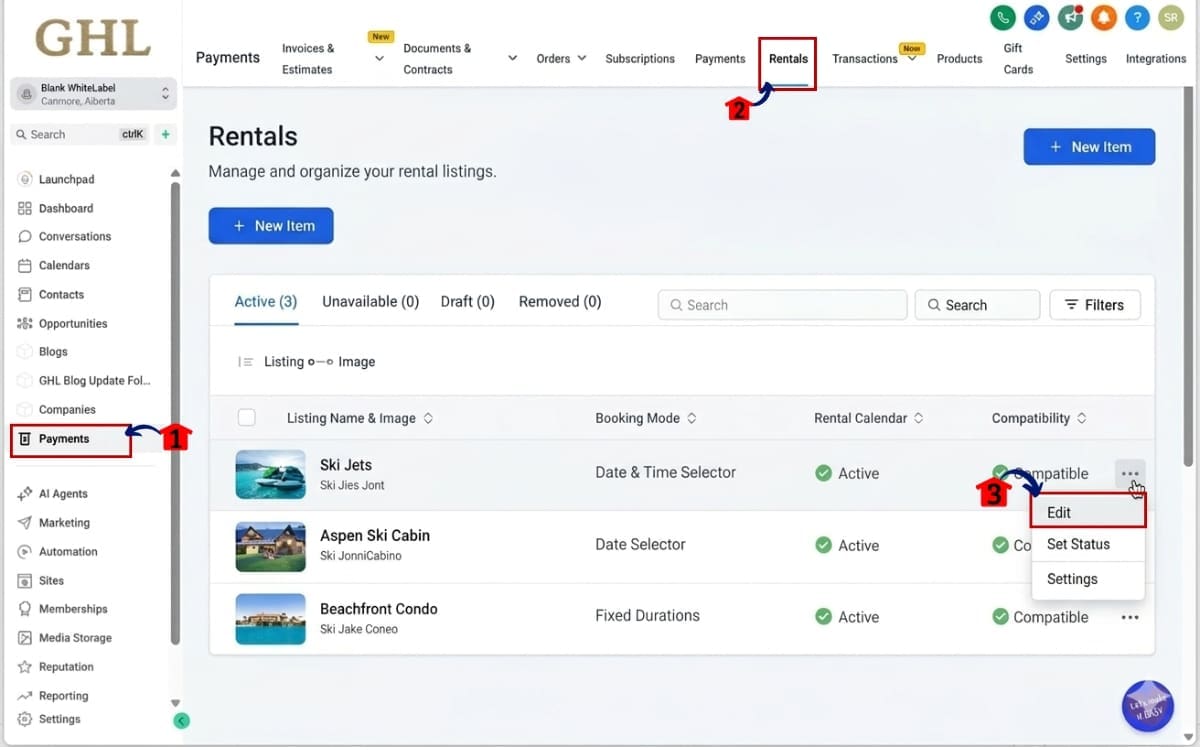
1.1 From the left-hand menu, click on Payments.
- The Payments section contains all revenue-related tools, including products, subscriptions, invoices, and Rentals (if enabled on your account).
1.2 Inside Payments, click on Rentals.
- This will take you to the Rentals dashboard where all your rental listings are organized and managed in one place.
1.3 Open the rental listing you want to review.
- Click on the listing name to access its individual settings, including Booking Period mode, pricing configuration, and time selection controls. You are now inside the Rentals dashboard where all your rental listings are located and ready for review.
Step 02 – Review Booking Period Mode of the rentals
- This step allows you to confirm how your rental calculates duration and whether customers can select dates only or both dates and times.
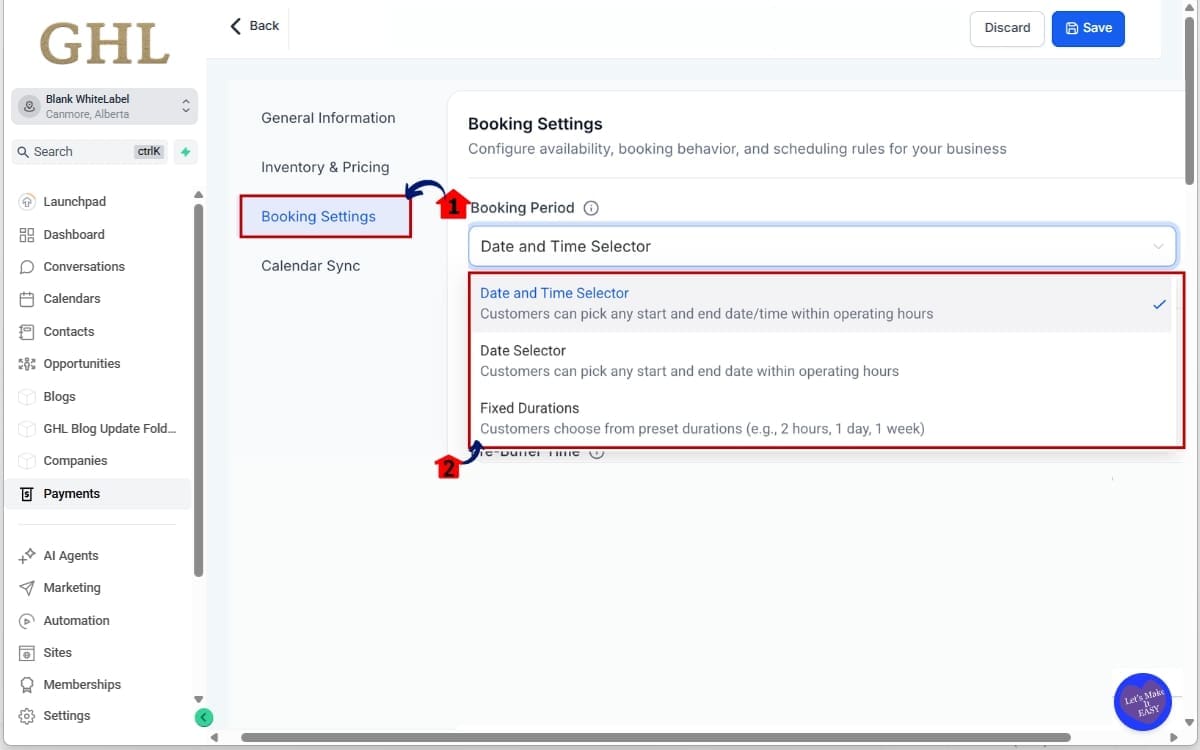
2.1 Locate the Booking Period Settings section.
- Scroll inside the rental listing settings until you find the Booking Period configuration area. This is where booking behavior is defined for that specific rental.
2.2 You will now see three available modes:
- Date & Time Selector – Allows customers to choose both start and end dates and exact times. Best for hourly or time-sensitive rentals.
- Date Selector – Allows customers to select only start and end dates. Default start and end times are applied automatically. Ideal for overnight or vacation rentals.
- Fixed Durations – Offers predefined booking blocks such as 2 hours, 4 hours, or full-day rentals. The system calculates the end time automatically.
Step 03 – Verify Time Selection Behavior in settings
- This step ensures your rental either allows time selection or correctly applies default times based on the selected Booking Period mode.
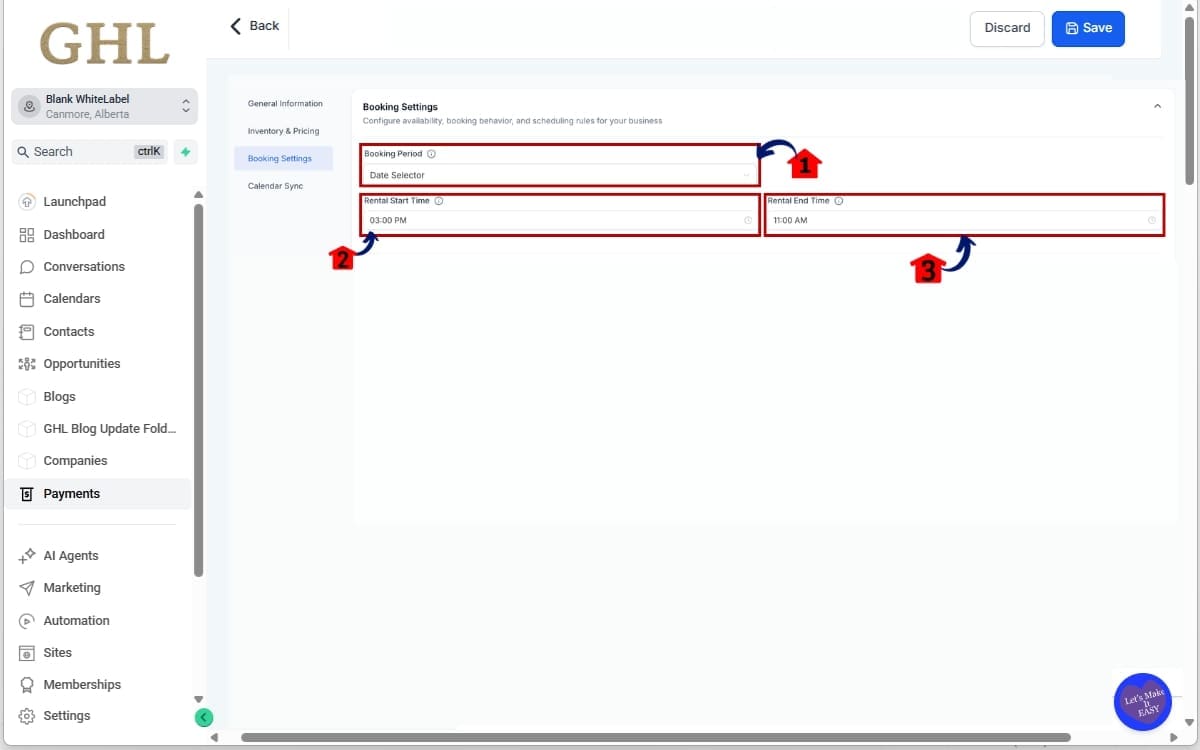
3.1 If Date Selector is selected, confirm time selection is disabled.
- When using Date Selector mode, customers should only be able to choose start and end dates. No time picker should appear in the booking widget.
3.2 Check the Default Rental Start Time field.
- This time defines when the rental officially begins on the selected start date (for example, 3:00 PM check-in).
3.3 Check the Default Rental End Time field.
- This time defines when the rental ends on the selected end date (for example, 11:00 AM check-out). These default times are automatically applied when customers select dates only. Make sure they reflect your actual business rules to avoid confusion or billing disputes.
Step 04 – Configure Fixed Durations in booking
- This step allows you to create predefined booking blocks so customers can only select specific rental timeframes.
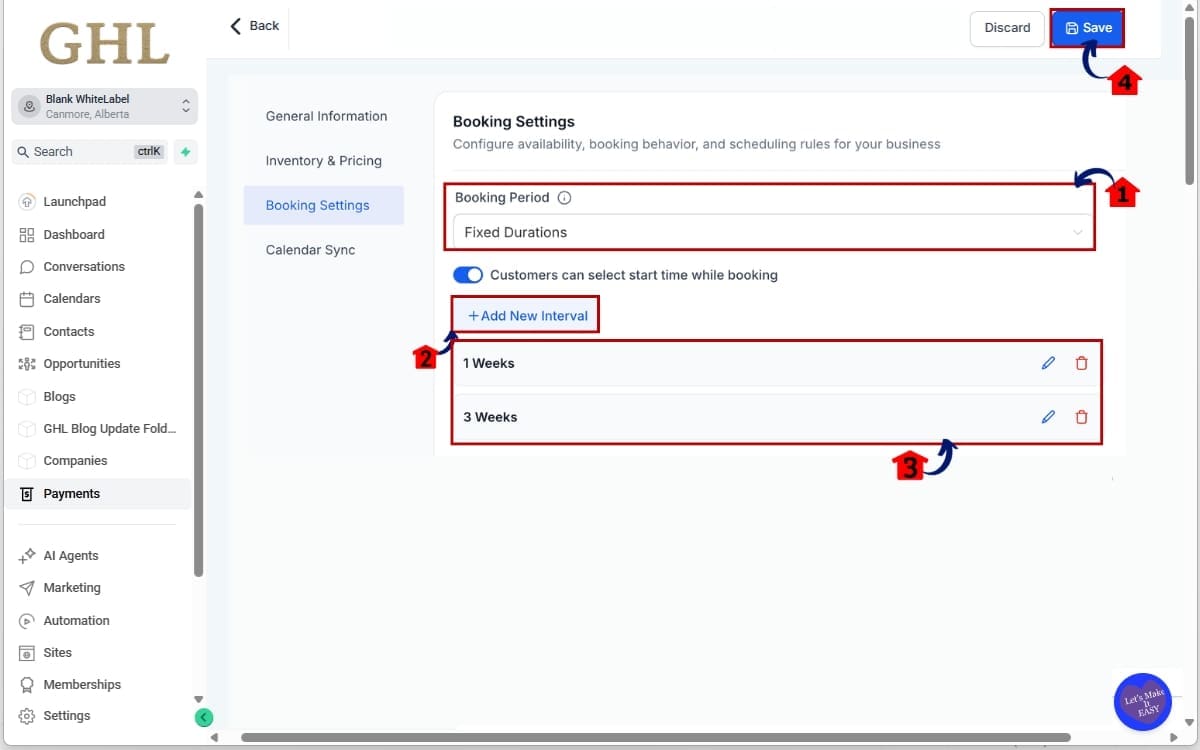
4.1 Select Fixed Durations as your Booking Period mode.
- Choose “Fixed Durations” from the Booking Period Settings section to enable structured booking intervals instead of open date or time selection.
4.2 Click Add New Interval.
- This allows you to define a preset duration that customers can choose during checkout.
4.3 Add 1 Week and 2 Weeks as booking intervals.
- Enter “1 Week” as one interval and “2 Weeks” as another. These fixed options will now appear in the booking widget for customers to select.
4.4 Click Save.
- Make sure to save your changes so the new duration options are applied to the rental listing.
Even though GHL now blocks invalid pricing combinations automatically, it is still important to review your configuration and confirm that your intervals match your pricing and business model.
Real-World Use Cases for Booking Period Settings
Now that Booking Period Settings are clear and listing-level controlled, the real power shows up in how you apply them.
Different rental businesses need different logic. And now GHL supports that cleanly.
Here’s how to think about it.
Scenario 1 – Equipment Rentals (Hourly Control)
If you rent out cameras, tools, studio space, bikes, or event equipment, you need time precision.
Use: Date & Time Selector
Why?
Customers must choose exact start and end times. Pricing is typically hourly. Duration needs to be calculated down to the hour.
With the updated Booking Period Settings, time selection is always visible. There’s no global override turning it off behind the scenes. What you configure is what customers see.
Scenario 2 – Vacation Rentals (Date-Based Simplicity)
When you’re renting out properties by the night, time pickers don’t really help. They just add friction.
Use: Date Selector
The guest focuses on the days they’re staying. Your system quietly handles the exact timing based on your default settings.
Example:
- Check-in: 3:00 PM
- Check-out: 11:00 AM
Duration is calculated clearly. No hourly conflicts. No time picker distractions.
Scenario 3 – Event Spaces with Fixed Blocks
If you rent out event venues, boardrooms, or party spaces in fixed blocks, you want structured booking windows.
Use: Fixed Durations
Offer predefined options like:
- 2 hours
- 4 hours
- 8 hours
- Full day
You can optionally allow time selection. Or apply a default start time and let GHL calculate the end automatically.
This keeps booking clean and prevents partial-hour confusion.
The key shift?
Booking Period Settings now match your business model instead of forcing you to work around hidden system logic.
Common Mistakes Booking Period Settings Now Eliminate
Before this update, a lot of rental issues were not caused by bad pricing.
They were caused by unclear logic.
Booking Period Settings used to rely partly on global configuration. That meant listings could behave differently than expected. And when booking behavior is unclear, mistakes happen.
Here are the biggest problems this update removes.
Accidental Multi-Day Charges
This was the big one.
If time selection was disabled globally but pricing logic assumed time precision, duration could calculate in unexpected ways. Some customers ended up being charged for extra days.
Now, Booking Period Settings are explicit at the listing level. What you configure is exactly how it calculates.
Hidden Time Selector Overrides
Previously, the “Disable Time Selector” option in Global Settings could silently override listings.
Now that control lives directly inside each rental listing. There are no hidden switches affecting behavior.
Invalid Hourly + Date Combinations
Some users tried combining hourly pricing with date-only booking.
That setup does not logically work. And now GHL prevents it automatically through smart compatibility rules.
Unclear Start and End Time Logic
Before, default start and end times were not always obvious. That made it harder to explain booking behavior to customers.
Now, default Rental Start Time and Rental End Time are clearly visible and applied consistently.
The result?
- Fewer support tickets.
- Fewer refund requests.
- Fewer confused customers.
Booking Period Settings are now structured to protect your revenue instead of risking it.
Frequently Asked Questions – GHL Booking Period Settings
Conclusion – Smarter Booking Period Settings in GHL
This update is about clarity.
GHL didn’t just tweak Booking Period Settings. It rebuilt how booking logic is structured inside Rentals. Time selection is now controlled at the listing level. Default rental start and end times are visible. Compatibility rules prevent broken pricing setups. And hidden global overrides are gone.
That means:
- Fewer billing surprises
- Clearer rental duration calculations
- Better customer experience
- Less admin confusion
- Stronger trust in your booking process
For agencies managing rental clients, this is a quiet but powerful improvement. Each listing now stands on its own. You can customize time behavior per rental without worrying about global conflicts.
If you’re using Rentals inside GoHighLevel, take five minutes today and review your Booking Period Settings. Confirm the right mode is selected. Verify your default times. Run a quick test booking.
Small configuration. Big impact.
The team here at GHL Growth Garage loves updates that remove friction and protect revenue. And this one does exactly that.
Have you reviewed your Booking Period Settings yet?
Let us know how this update is working for your rental setup.
Scale Your Business Today.
Streamline your workflow with GoHighLevel’s powerful tools.