- Introduction: Certificate QR Codes in GHL
- Quick Summary – Certificate QR Codes
- Here are this weeks HighLevel Updates
- What Are Certificate QR Codes in GHL?
- What’s New in the Certificate Builder
- Why Certificate QR Codes Matter for Your Business
- How to Add Certificate QR Codes in GHL
- QR Styling Options Explained
- Pro Tips for Using Certificate QR Codes
- Real Business Use Cases
- FAQs For Certificate QR Codes
- Conclusion: Turn Certificates Into Smart Assets
Introduction: Certificate QR Codes in GHL
Certificate QR Codes used to be the missing piece in digital certificate verification. If you’ve ever issued course certificates inside GoHighLevel, you know the real limitation wasn’t the design.
It was what happened after someone received it.
You’d create the certificate. Customize the layout. Issue it automatically after course completion. And then… that was it.
A static PDF. No built-in verification. No easy way for employers to confirm it. No direct path back to your brand.
Sometimes recipients shared them. Sometimes they didn’t. But when you’re running courses, certifications, or white-label training programs, “it looks good” isn’t good enough. It has to prove something.
Before this update, if you wanted verification or a clickable destination, you had to use third-party QR generators. Download the image. Upload it manually. Hope the link stayed active.
No native validation. No automation. No clean workflow. That meant agencies either ignored verification… or built clunky workarounds. Neither option scales.
Now that changes. With Certificate QR Codes built directly into the GHL Certificate Builder, you can add instant verification or custom links in seconds. No external tools. No uploads. No hacks.
Drop it in. Choose verification or custom link. Customize the style. Done.
Issue once. Verify instantly. Turn every certificate into a branded marketing asset.
The latest GoHighLevel Changelog includes several other GHL feature updates that round out your daily workflow:
- New Certificate QR Codes Code Styling Options: Shapes, Borders, and Rim Text
- Collapse & Resize Pipeline Stages in Kanban View
- Notes just got smarter for the contacts page!
- New Asana actions in workflows – Find Project and Find section
- Email AI + Knowledge Base Integration 🚀
- Dialer: Auto-minimize, Pin & Drag
- Schema Markup Using AI
Keep reading for much more on all these updates and a deep dive into the Certificate QR Codes feature!

Quick Summary – Certificate QR Codes
Purpose
Certificate QR Codes allow you to add scannable verification or custom redirect links directly inside your GHL course certificates. This turns static certificates into interactive and verifiable digital assets.
Why It Matters
This feature increases credibility, reduces certificate fraud, and creates new marketing opportunities. It allows employers, clients, and partners to instantly verify authenticity with a quick scan.
What You Get
You get built-in Certificate QR Codes generation inside the Certificate Builder, two QR options (Verification or Custom Link), live preview editing, and styling controls for background and stroke colors.
Time to Complete
Most users can add and test Certificate QR Codes in under 10 minutes once inside the Certificate Builder.
Difficulty Level
Beginner-friendly. The setup is simple, visual, and fully native inside GHL with no third-party tools required.
Key Outcome
Your certificates become instantly verifiable, brand-aligned, and capable of driving traffic or generating leads long after course completion.
Here are this weeks HighLevel Updates
New Certificate QR Codes Styling Options: Shapes, Borders, and Rim Text
What it does:
Lets you stop using boring Certificate QR Codes. You can now tweak the shape, style the border, and add text around the edge.
Where in GHL:
Accessible via Sites → QR Codes and within QR tools embedded in Funnel and Website builders.
Automate marketing, manage leads, and grow faster with GoHighLevel.

Impact:
Improves visual presentation and brand alignment while increasing scan appeal.
Best suited for:
Agencies that care about branding, small businesses running local promotions, online stores, and teams pushing Certificate QR Codes campaigns.
Collapse & Resize Pipeline Stages in Kanban View
What it does:
Lets you hide pipeline stages you’re not actively using and adjust column widths so your board fits the way you work.
Where in GHL:
Inside Opportunities when you’re viewing your pipeline in Kanban mode.
Impact:
No more dragging your screen forever just to find the deals that matter.
Best suited for:
Owners running multi-stage pipelines, reps working deals every day, and anyone fed up with a messy board.
Notes Just Got Smarter for the Contacts Page
What it does:
Upgrades the notes area so it’s easier to write, review, and keep things organized inside a contact record.
Where in GHL:
Found directly within each contact’s profile under Notes.
Impact:
Makes it simpler to see what’s been discussed and who added what — without digging through clutter.
Best suited for:
Teams collaborating on accounts and businesses that document every client touchpoint.
New Asana Actions in Workflows – Find Project & Find Section
What it does:
Lets your workflow check what already exists in Asana before adding anything new.
Where in GHL:
Go to Workflows, add an action, and choose the Asana integration.
Impact:
No more duplicate projects. No more messy task boards. Just cleaner automation.
Best suited for:
Operations teams and agencies that rely on Asana to manage client delivery.
Email AI + Knowledge Base Integration
- What it does:
Allows Email AI to reference your Knowledge Base for smarter, more accurate responses. - Where in GHL:
Found in Conversations → Email composer with AI enabled and Knowledge Base settings under AI configuration. - Impact:
Smarter email suggestions that understand your business and help you reply quicker. - Best suited for:
Support teams, agencies managing inboxes, and businesses scaling communication with AI.
Dialer: Auto-Minimize, Pin & Drag
- What it does:
Lets you auto-minimize the dialer during calls, pin it in place, and drag it anywhere on screen. - Where in GHL:
Found in Conversations → Dialer. - Impact:
Cleaner workspace and easier multitasking during sales or support calls. - Best suited for:
Sales teams, outbound callers, appointment setters, and agencies making daily calls.
Schema Markup Using AI
- What it does:
Generates structured schema markup automatically using AI for SEO enhancement. - Where in GHL:
Found in Sites → Website or Funnel settings within AI or SEO sections. - Impact:
Improves search visibility without manual coding. - This works well for:
Teams building websites that need stronger search visibility, from agencies to small local businesses.
What Are Certificate QR Codes in GHL?
Certificate QR Codes inside GHL allow you to place a scannable code directly on any course certificate you create.
That code can do one of two things. It can verify the certificate. Or it can send someone anywhere you want.
This is built directly inside the Certificate Builder. No third-party generators. No image downloads. No manual uploads.
You simply add the QR element while editing your certificate.
You’ll see two options when adding it:
Verification QR
his option links to the official certificate preview and validation page inside GHL. When someone scans it, they see the authentic certificate tied to that user. This helps prevent fake certificates and builds trust instantly.
Custom Link QR
This option lets you paste any URL. That could be:
- A website
- A booking page
- A LinkedIn profile
- A portfolio
- A sales funnel
- A review request page
Now your certificate doesn’t just prove completion. It becomes interactive.
And because it’s native inside GHL, everything updates instantly in the builder. You can drag it, resize it, and style it directly on the canvas.
No extra tools. No extra cost. Just built-in functionality that makes your certificates smarter.
For agencies and course creators, this turns certificates from static PDFs into verification tools and traffic drivers.
Simple upgrade. Big impact.
What’s New in the Certificate Builder
This update adds native Certificate QR Codes directly inside the GHL Certificate Builder.
Before this, if you wanted a QR code on a certificate, you had to:
- Generate it somewhere else.
- Download the image.
- Upload it into the certificate design.
- Hope the link stayed active.
- Hope it scanned correctly.
It worked. But it wasn’t clean. Now everything is built in.
Here’s what’s new.
Native Certificate QR Codes Support
You can now add a QR code as an element inside the Certificate Builder. It behaves just like text or images. Drag it. Resize it. Position it anywhere on the canvas.
Two QR Code Types
You can choose between:
- Verification QR
This automatically links to the official certificate preview and validation page. - Custom Link QR
This lets you paste any URL you want.
No external tools required.
Live Canvas Preview
As you customize the QR code, changes update instantly inside the builder. You see exactly how it will look before publishing.
QR Styling Controls
You can now customize:
- Background color
- Stroke color
This means your QR codes can match your brand instead of looking like a generic black box.
Cleaner Workflow. No switching tabs. No downloading files. No manual resizing images.
Everything happens inside GHL. This is one of those small updates that quietly removes friction. Less manual work. More control. More professionalism.
Why Certificate QR Codes Matter for Your Business
Certificate QR Codes are not just a design upgrade. They solve real business problems.
First, they make certificates instantly verifiable.
If you’re delivering compliance training, certification programs, or any kind of professional credential, verification isn’t optional. People want to know it’s legit. A quick scan that pulls up the official validation page instantly clears up any questions.
No emails back and forth. No manual confirmation. Just scan and confirm.
Second, they increase credibility.
A certificate with a QR code feels official. It looks modern. It signals structure. When someone shares it online or prints it, that QR adds authority.
Perception matters. And this raises it.
Third, they create traffic opportunities.
If you use the Custom Link QR option, every certificate becomes a marketing asset. Imagine this:
- A graduate shares their certificate on LinkedIn
- Someone scans the QR
- It leads to your booking page
- Or your next-level program
- Or your agency website
Now your students help drive leads. Automatically.
Fourth, they reduce fraud.
Fake certificates happen. Screenshots get edited. PDFs get copied. But a verification QR tied directly to GHL’s official preview page makes that much harder. Scan it.
If it’s real, it shows. If it’s fake, it doesn’t.
Finally, they add scalable value for agencies.
If you’re running a white-label SaaS or managing certification portals for clients, this is an easy win. It’s something you can actually talk about in your sales pitch. It upgrades your offer without adding extra work to your plate.
That’s the sweet spot. Low effort. High perceived value. Certificate QR Codes don’t just make certificates look better. They make them work harder for your business.
How to Add Certificate QR Codes in GHL
Certificate QR Codes are added directly inside the Certificate Builder in your course area. You will open your course, access the Certificates section, edit the certificate design, insert the QR element, choose the QR type, customize its appearance, and save your changes.
The steps below will walk you through the full setup process so you can publish certificates that are scannable, verifiable, and ready to use immediately.
- Access the Credentials Area in GoHighLevel.
- Add the Certificate QR Code Element.
- Customize the QR Code Design in Certificate.
- Save and Test Your Certificate.
To start, make sure you are logged in to your GoHighLevel sub-account.
Step 01 – Access the Credentials Area in GoHighLevel
- You will begin inside your sub-account dashboard to locate the course where certificates are managed.
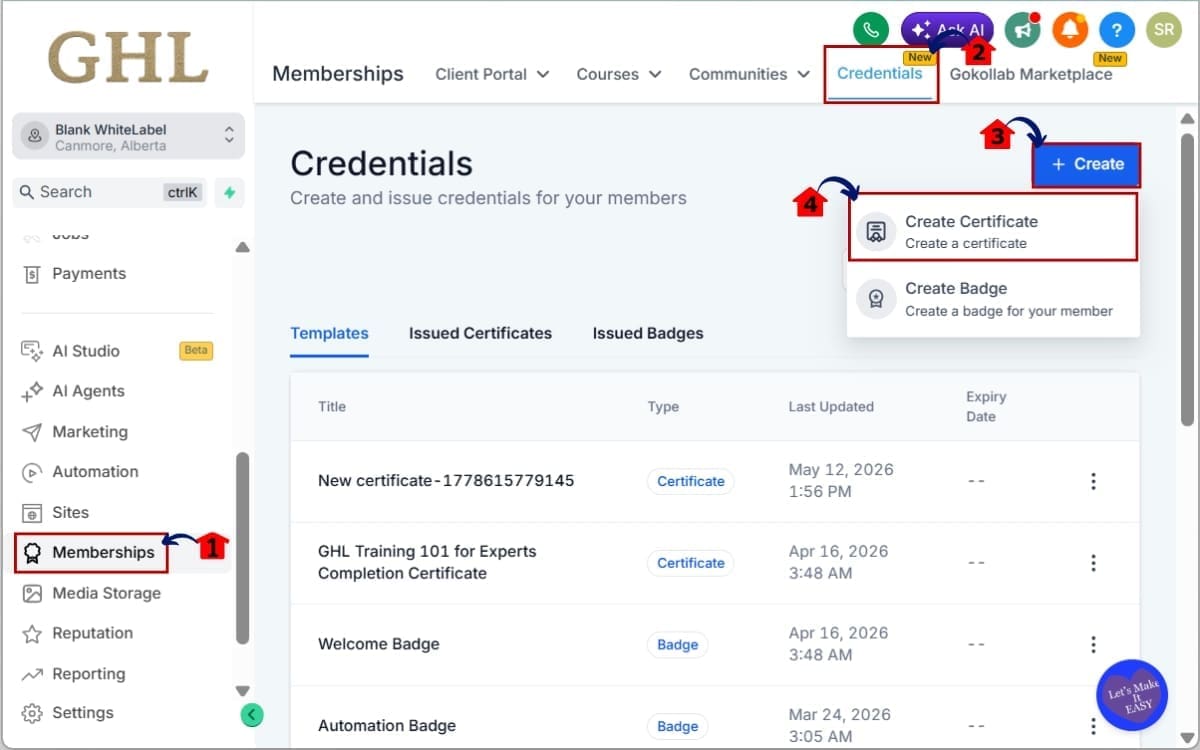
1.1 Click on “Memberships” in the left-hand menu.
- This opens the area where your courses and learning products are stored.
1.2 Navigate to the “Credentials” section inside the course.
- This is where certificates and completion credentials are created and managed.
1.3 Click +Create in the dashboard.
- This allows you to add a new credential or certificate to the course.
1.4 Click “Create Certificate” if you are building one from scratch.
- The Certificate Builder canvas will open, where you can design and edit the certificate layout.
Step 02 – Add the Certificate QR Code Element
- You will now place the QR code directly onto your certificate layout inside the builder.
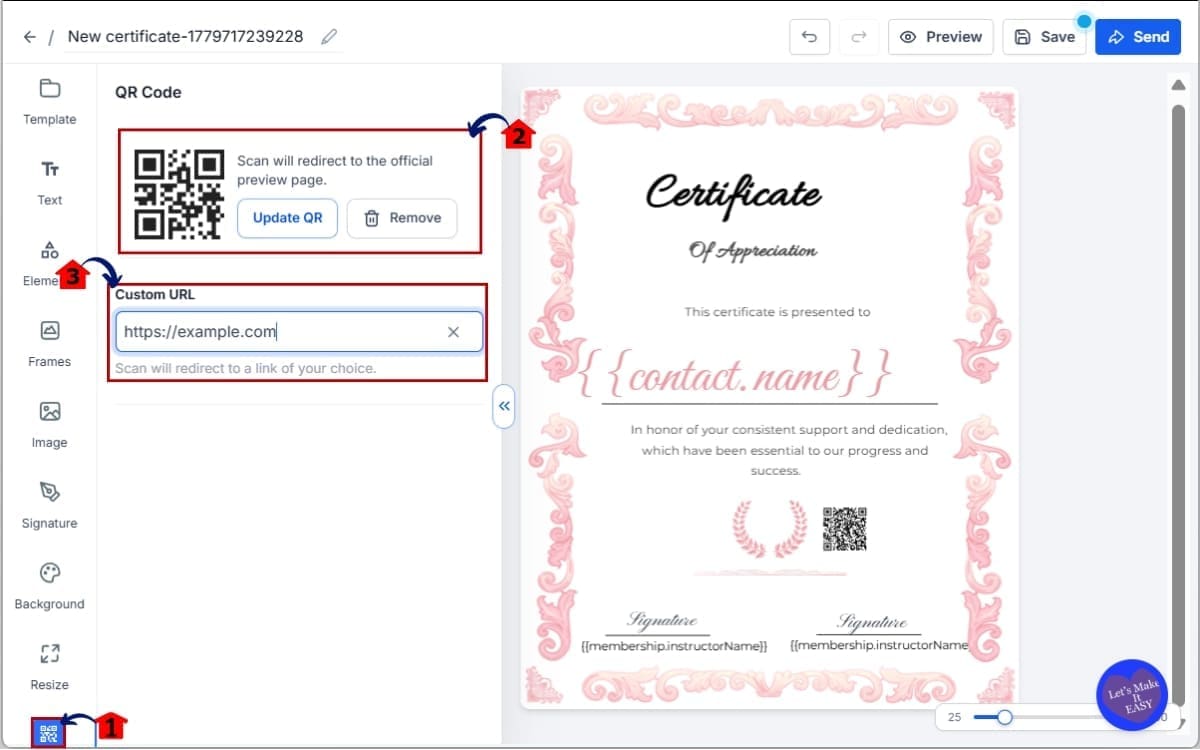
2.1 Inside the builder, locate the “QR Code” element option.
- This element is built into the editor and does not require any external tools.
2.2 Click to add the QR code to your certificate canvas.
- The QR will appear on the canvas and can be moved or resized as needed.
2.3 Choose your QR Type.
- You must select how the QR code will function when scanned. Select “Custom Link QR.” This option allows you to send users to a specific destination of your choice.
Step 03 – Customize the QR Code Design in Certificate
- You will now adjust the appearance of the QR code so it matches your branding and remains easy to scan.
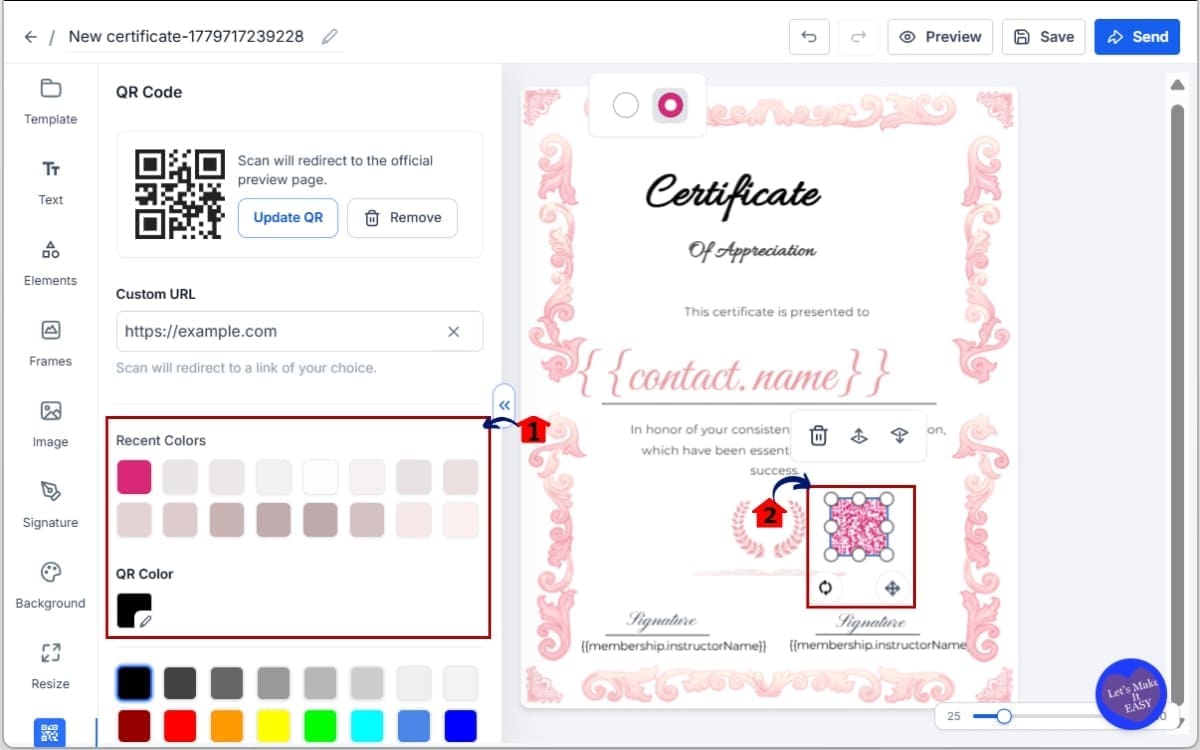
3.1 Adjust the Background Color and Adjust the Stroke Color.
- Choose a color that contrasts well with your certificate background and This controls the visible pattern lines of the QR.
3.2 Resize the QR code.
- Click and drag the corners to scale it appropriately.
Step 04 – Save and Test Your Certificate
- You will now finalize your certificate and confirm that the QR code works correctly before issuing it to users.
4.1 Click “Save” in the Certificate Builder.
- This applies your QR code settings and updates the certificate layout.
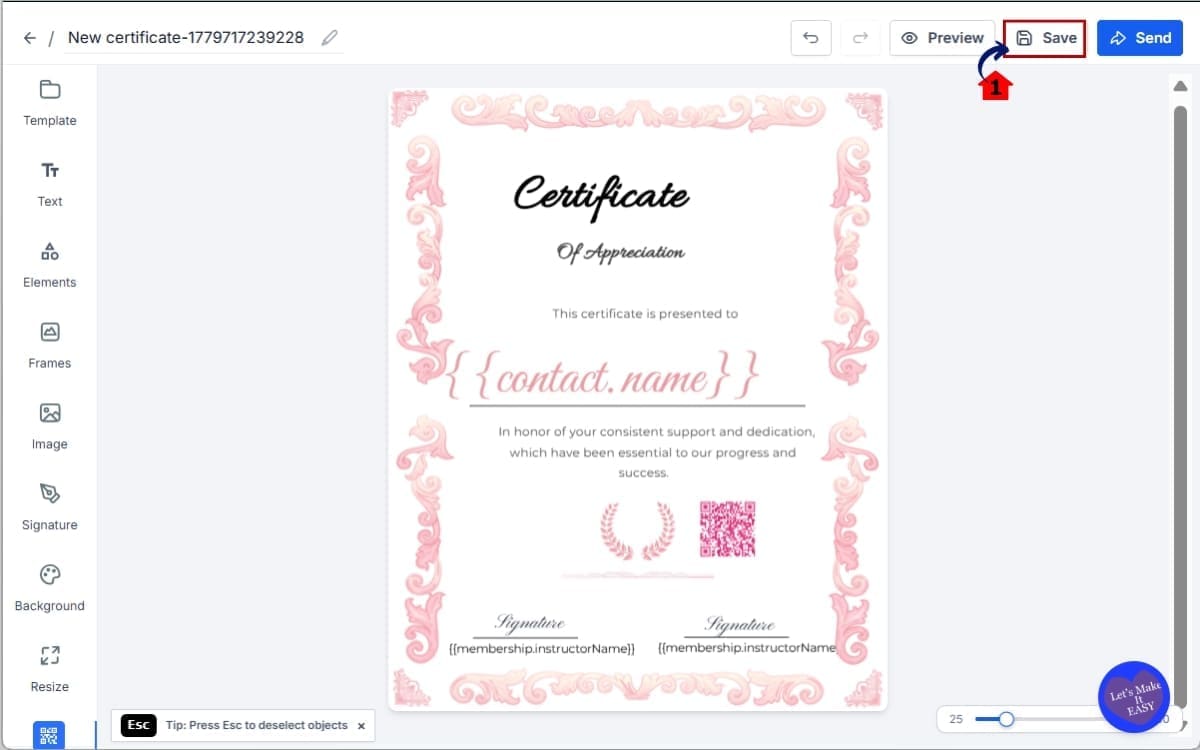
Never skip testing. A broken QR code defeats the purpose. Once tested, your Certificate QR Codes are live and fully functional.
QR Styling Options Explained
Certificate QR Codes are not just functional. They are customizable. And that matters more than most people think.
Sure, the standard black QR works. But if branding matters to you, the small design tweaks make it feel intentional instead of slapped on.
Inside the GHL Certificate Builder, you now control two main styling options.
Background Color
This controls the area behind the QR pattern. If your certificate has a white background, you may keep this white for maximum contrast. But if your design uses light brand tones, you can match it cleanly.
Stroke Color
This controls the visible pattern of the QR code itself. This is where branding really comes in. Instead of plain black, you can use:
- Dark blue
- Brand green
- Deep gray
- Corporate navy
As long as contrast remains strong, it will still scan correctly.
Here are a few best practices to follow.
Always Maintain High Contrast
If the QR kind of disappears into the design, it’s going to cause issues. Make it stand out. Dark lines. Light base. That’s it.
Avoid Light-on-Light Combinations
Light gray on white might look modern, but it will fail when printed.
Test Before Publishing
Always download a test certificate and scan it using multiple devices.
Think About Print
If your users will print certificates, remember that some printers reduce contrast. Bold, darker strokes are safer.
Match Your Brand Boards
If you are using Brand Boards inside GHL, align the QR stroke with your primary or secondary brand color. This keeps everything consistent.
Use Clean Placement
Most of the time, the bottom corners work best. Just keep it away from backgrounds with patterns or heavy graphics.
Small design choices create big perception shifts. A properly styled QR code looks intentional. A poorly styled one looks like an afterthought.
And when you’re issuing certificates that represent achievement, professionalism matters.
Pro Tips for Using Certificate QR Codes
Now that you know how to add Certificate QR Codes, let’s talk strategy. Because this is where most users leave money on the table.
Use Verification QR for Compliance Programs
If you run regulated training, safety programs, healthcare certifications, or corporate compliance courses, always use the Verification QR option.
This builds trust instantly. Employers can scan and confirm. No manual approval required. No back-and-forth emails.
Use Custom Link QR for Growth
If you’re running coaching, consulting, marketing, or skills-based programs, the Custom Link QR is powerful.
Here’s what you can link to:
- Your booking calendar
- Your advanced certification program
- A VIP upsell offer
- A LinkedIn connection page
- A testimonial request form
- A referral funnel
Every certificate becomes a gateway to your next offer. That’s leverage.
Turn Certificates into Lead Generators
Imagine this. A student shares their certificate on LinkedIn. Someone scans the QR. It goes to your landing page.
You just gained exposure without spending on ads. Certificates become organic traffic drivers.
Automate After Completion
After a student completes the program, build a workflow that automatically:
- Sends a congratulatory email
- Encourages them to share the certificate
- Includes instructions like “Scan the QR to verify”
This increases engagement and social proof.
Keep It Professional
Keep the QR reasonably sized. Don’t overload the certificate. Clean beats clutter.
Test Across Devices
Always scan using:
- iPhone
- Android
- Printed version
Never assume it works perfectly without testing.
Use It as a Sales Talking Point
If you run SaaS Mode or white-label portals, market this feature.
“Instantly Verifiable Certificates with Built-In QR Codes.”
That’s a strong selling angle. Certificate QR Codes are simple to add. But when used strategically, they create authority, trust, and traffic at scale.
Real Business Use Cases
Certificate QR Codes are not just a design feature. They’re a positioning tool.
Here’s how different types of GHL users can use them in the real world.
Coaches and Course Creators
If you run online coaching programs, skill-based training, or digital courses, your students want proof of completion.
Now that proof is interactive. They finish the course. They receive their certificate. They share it online. Someone scans the QR.
It either verifies the certificate or sends traffic straight back to you. That’s brand exposure without extra ad spend.
Agencies Running Certification Programs
If you certify businesses, contractors, or professionals, verification matters.
Instead of answering emails like: “Is this certificate real?”
They scan. It verifies instantly. This saves admin time and increases credibility.
White-Label SaaS Resellers
If you offer training portals inside SaaS Mode, this becomes a sales feature.
You can now say: “Our platform includes instantly verifiable certificates with built-in QR codes.”
That sounds premium. And it costs you nothing extra to implement.
Corporate Training Departments
If you provide internal staff training, compliance courses, or onboarding programs, HR teams can quickly verify completion by scanning.
Simple. Fast. Reliable.
Event and Workshop Hosts
Running live events and handing out certificates afterward? A QR lets you guide people toward:
- Your next event
- A VIP upgrade
- A feedback form
- A booking page
Now your certificate becomes a follow-up funnel.
Local Businesses
Gyms, real estate brokerages, medical clinics, and contractors can issue branded certificates for workshops or certifications.
That QR code becomes a credibility stamp. And credibility sells. Certificate QR Codes turn certificates into active assets instead of static files. They verify. They market. They scale.
FAQs For Certificate QR Codes
Conclusion: Turn Certificates Into Smart Assets
Certificate QR Codes are one of those simple upgrades that quietly change everything.
Before this update, certificates inside GHL were static. They looked good. They confirmed completion. But that was it.
Now they verify. Now they redirect. Now they market.
With built-in Certificate QR Codes, you can instantly validate achievements, reduce fraud, and turn every issued certificate into a traffic and credibility tool.
No third-party tools. No manual uploads. No clunky workarounds.
Just clean, native functionality inside the Certificate Builder.
If you’re running any kind of course, coaching offer, certification, compliance training, or SaaS portal, this is a simple upgrade that just makes sense.
Low effort. High perceived value. And if you use the Custom Link option strategically, every certificate becomes a bridge to your next offer.
That’s leverage. Go into your GHL sub-account today. Open your Certificate Builder. Add a QR code. Test it. Then think bigger.
Have you tried adding QR codes to your certificates yet? Curious whether you’re using them just for verification or as a marketing tool too.
And check back to the GHL Growth Garage blog for more GoHighLevel feature breakdowns and tactical mini-guides.
Scale Your Business Today.
Streamline your workflow with GoHighLevel’s powerful tools.