- Contact Management UI Gets a Refresh
- Quick Summary – Contact Management UI
- What’s New in the Contact Management UI
- Why Contact Management UI Matters
- How to Use the New Contact Management UI in GHL
- Pro Tips to Maximize the New UI
- Results You Can Expect from the Redesign
- FAQs About the GHL Contact Page Redesign
- GHL’s Contact UI Just Leveled Up
Contact Management UI Gets a Refresh
GHL just rolled out a slick new redesign of the contact detail page, and it’s exactly what power users have been asking for.
Built with real user feedback, this redesign is all about speed and clarity. From sharper contrasts to smarter layout, it helps you move faster through contact records with fewer clicks and less mental drag.
It’s not a change to how the system works under the hood, it’s about making everything more visible, more intuitive, and more actionable.
The GHL contact management UI was already powerful. Now it’s cleaner, faster, and built for how agencies actually work.

This redesign improves the contact management UI with streamlined layout, easier tag handling, and faster access to critical fields, giving agencies more speed and clarity inside GHL.
Quick Summary – Contact Management UI
Purpose: This update refreshes the GHL contact detail page UI for faster navigation, better visibility, and cleaner Contact Management UI.
Why It Matters: It cuts down the time spent searching, editing, and tagging contacts, making CRM workflows smoother for agencies and teams.
What You Get: Improved field contrast, expandable tags, inline tag creation, clickable engagement scores, and faster access to Opportunities.
Time to Complete: You can explore and get used to the new layout in under 5 minutes, no training required.
Difficulty Level: Beginner. No technical setup or system changes are needed.
Key Outcome: Faster Contact Management UI updates, fewer clicks, and a cleaner CRM that your team will actually enjoy using.
What’s New in the Contact Management UI
The GHL Contact Management UI detail page just got a major facelift, and the improvements are immediately noticeable.
Here’s what’s new:
Automate marketing, manage leads, and grow faster with GoHighLevel.

1. Improved Color Contrast for Input Fields
Text fields now use a darker shade that clearly separates input from field labels. It’s a small tweak that makes a big difference when scanning through data quickly, especially on large or complex contact records.
2. Visual Cues for Empty Fields
Fields with no data now show double dashes “–”, helping you quickly spot what’s missing without second-guessing. It’s a subtle UX boost that helps reduce time spent scanning.
3. Folder Background Styling
Folders are now highlighted with a grey background, making it easier to distinguish between grouped fields and standalone inputs. This helps you navigate between sections more fluidly.
4. Opportunities Moved Under Actions
This was one of the most requested changes. Opportunities now sit under the “Actions” section. The entire card is clickable, which cuts down on friction when accessing or updating opportunities mid-conversation.
5. Tagging Gets a Cleaner Interface
You can now create tags directly from the contact card. The popup is wider, tags are fully displayed, and the section is expandable/collapsible. Tag Contact Management UI just got way easier.
6. Engagement Score Moved to Top
The contact’s engagement score now lives right next to their name. Click it, and it jumps you straight to the engagement details. More visibility. Less hunting.
7. Add More Emails and Phones
Additional phone numbers and emails are now stored in the contact folder, no more guessing where to find them or having them float outside your primary layout.
8. Faster Delete Access
The three-dot menu is gone. A new trash icon makes it faster to remove contacts when needed, especially helpful for bulk cleanup or mistake reversals.
This redesign isn’t about flash, it’s about fixing the friction points that slow teams down.
Why Contact Management UI Matters
It might not look massive at first glance, but this redesign hits where it counts. When you’re deep in the CRM all day, small tweaks make big waves.
When you’re managing dozens of contacts a day, or training team members to do it, clarity and speed are everything. The old UI worked, but it made users hunt for key actions. Add that up over weeks, months, and team members… and you’ve got a silent productivity killer.
This update tackles that head-on.
By improving contrast and reorganizing key elements, GHL has made the Contact Management UI detail experience faster to scan, easier to interact with, and way more intuitive. You no longer need a mini-training to figure out where opportunities or tags live. Everything just feels where it should be.
For agency owners? That means fewer bottlenecks.
For new team members? A shorter learning curve.
For everyone? Less mental friction when moving between contacts, folders, and actions.
In short: it’s the same powerful Contact Management UI record, just smarter.
How to Use the New Contact Management UI in GHL
Ever tried to walk a new team member through the contact page and got lost halfway yourself? You’re not alone. This update finally makes things easy to find and easy to use. Here’s how to make the most of the update in just a few steps:
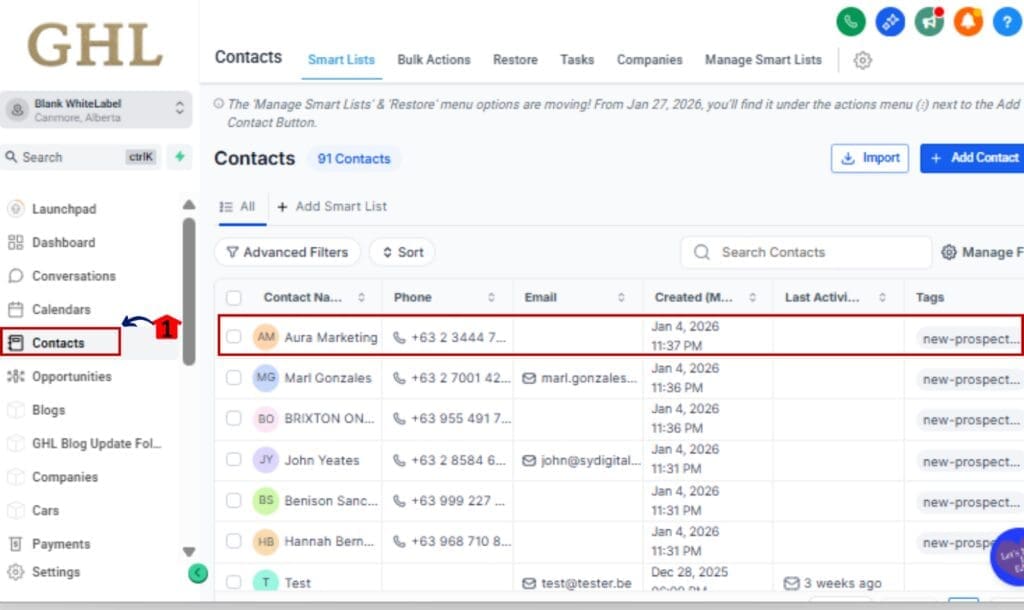
Step 01 – Open Any Contact Record
1.1 Go to your GHL dashboard.
1.2 Click into the Contacts area and choose any contact to get started.
Step 02 – Create Tags Without Leaving the Page
2.1 Locate the “Tags” section on the contact card.
2.2 Click to open the newly expanded tag popup.
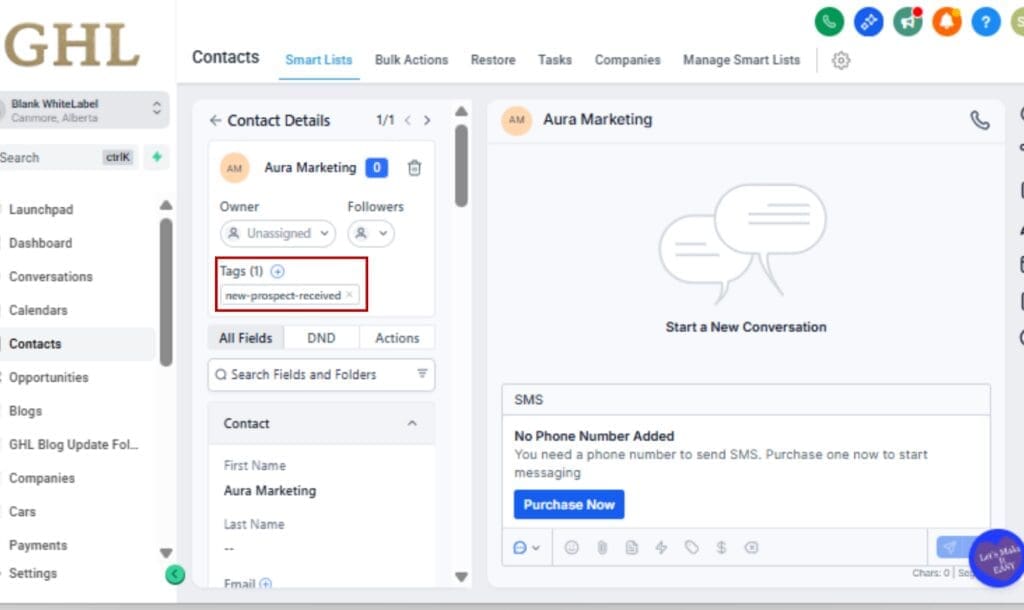
2.3 Type your new tag and hit Enter.
2.4 Expand or collapse the tag list as needed for easier navigation.

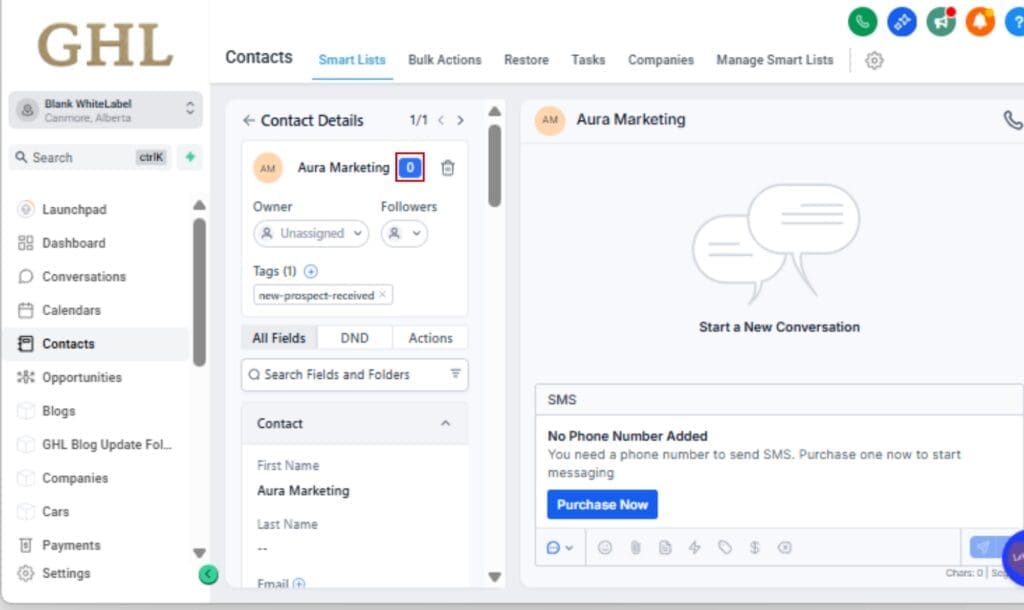
Step 03 – Use the Engagement Score for Quick Prioritization
3.1 Spot the Engagement Score next to the contact’s name.
3.2 Click the score to open up detailed activity insights.
3.3 Use it to identify hot leads without jumping tabs.
Step 05 – Store Additional Phone Numbers or Emails
5.1 In the Contact Folder section, find the Add Phone or Add Email buttons.
5.2 Click to enter secondary contact info (up to 10 entries allowed).
5.3 Label them for clarity, Work, Home, Mobile, etc.

Step 06 – Use the New Delete Shortcut
6.1 Find the trash can icon, it’s replaced the old three-dot menu on the contact card.
6.2 Click it, then confirm the delete when the prompt appears.

Step 07 – Spot Missing Info with Empty Field Indicators
7.1 Scroll through the contact record.
7.2 Look for fields marked with “–” to see where info is missing.
7.3 Use this to clean up incomplete records on the fly.

That’s it. The new UI removes the guesswork so you can manage, tag, and act on contacts without breaking your flow.
Pro Tips to Maximize the New UI
It’s easier to work with Contact Management UI now, no doubt. But if you want to really dial in your process, these tips will help you do even more with the update.
Pin High-Value Fields to the Top
If your team repeatedly updates specific fields (like deal stage or lead source), use custom folder sorting to place them at the top. No more scrolling = faster updates.
Use Tags as Smart Filters
You can drop in tags straight from the contact page now, which makes it super easy to build Smart Lists that auto-organize your contacts on the fly.
Leverage the Engagement Score in Workflows
Set up workflows that respond to how engaged someone is, like sending a quick nudge to leads with high scores or re-engaging the quiet ones. Now that the score is easier to spot, you can act faster.
Train Your Team on New Layout
It may be intuitive, but a 5-minute Loom or walkthrough saves confusion, especially around where “Opportunities” and “Additional Info” now live.
Collapse What You Don’t Use
Use the expandable tag section and folder organization to hide fields that aren’t relevant to your role. Less noise = less friction.
Shortcut for Deletion During Cleanup
If you’re auditing your list or merging duplicates, the new trash icon makes bulk cleanup fast. Just make sure only Admins have delete rights.
It’s more than a visual refresh. These improvements are all about making your daily work less clunky. Use ’em smart.
Results You Can Expect from the Redesign
Let’s talk outcomes, because this UI update wasn’t just about aesthetics. It’s about giving you and your team real performance gains inside the CRM.
Fewer Clicks, Faster Flow
With key tools like Opportunities, Engagement Score, and delete now easier to find, you’ll get things done quicker, no more digging around.
Cleaner Interface = Less Training Time
Bringing on new team members or showing clients around? The cleaner layout makes it simpler for everyone to get the hang of things right away, less explaining needed.
Stronger Lead Visibility
The engagement score is now right where it should be: at the top, next to the contact’s name. It’s easier to spot, easier to use, and leads to better lead qualification decisions on the spot.
Better Data Hygiene
With empty fields clearly marked and secondary contacts stored neatly, it’s easier to spot missing info and clean up incomplete records, boosting the quality of your Smart Lists, filters, and automations.
More Confidence in the CRM
If the platform feels simple and responsive, people actually want to use it. That means fewer mistakes and a team that gets into a rhythm faster.
This redesign is subtle, but powerful. And once your team adjusts, you’ll wonder how you ever used the old layout.
FAQs About the GHL Contact Page Redesign
GHL’s Contact UI Just Leveled Up
This redesign isn’t about adding fluff. It’s about sharpening what you already use every day, and giving you less to click, more to see, and fewer reasons to get frustrated.
From faster opportunity access to inline tag creation, GHL took real agency feedback and baked it into a cleaner, smarter contact experience. It’s built for teams who don’t have time to hunt through clutter or train every VA for hours on how to use the CRM.
So go explore it. Click into a contact. Try adding a tag or checking the engagement score. You’ll see just how much smoother it feels, and why this update matters more than it looks on the surface.
Because when your CRM works with you (not against you), scaling your business gets a whole lot easier.
Scale Your Business Today.
Streamline your workflow with GoHighLevel’s powerful tools.