- Introduction – Custom Form Embed in GHL
- Quick Summary – Custom Form Embed
- Here are this weeks HighLevel Updates
- What’s New with Custom Form Embed Controls
- What Changed in the Builder Experience
- Why Custom Form Embed Control Matters
- How to Use Custom Form Embed Modal Height
- Pro Tips for Better Custom Form Embed Performance
- What This Means for Your Business
- FAQs About Custom Form Embed in GHL
- Conclusion – Smarter Custom Form Embed Setup in GHL
Introduction – Custom Form Embed in GHL
Custom Form Embed control matters. Until your popup looks wrong. You’ve seen it. Form opens. It’s too tall. Scroll bar inside a scroll bar. Slide-in cuts off. Sticky sidebar feels cramped. It works… but it doesn’t convert like it should.
If you’ve embedded forms in GHL for client sites, funnels, or landing pages, you’ve probably felt this. The form collects leads. The automation fires. But the layout? It didn’t always fit the page perfectly.
And when you’re building for multiple clients, different themes, different screen sizes, different layouts, guessing modal height isn’t efficient.
It slows you down. It looks unpolished. It hurts conversions.
Now that changes. You can now control Custom Form Embed modal height directly inside GHL. Popup. Polite slide-in. Sticky sidebar. Set the height. Adjust the fit. Match the design.
One small setting. Big visual difference. The builder experience is smoother too. No more clicking Preview or Save while it’s still loading. Buttons stay disabled until everything is ready.
This update makes your forms feel intentional. Clean. Professional. Better fit. Better user experience. Better results inside GHL.
The latest GoHighLevel Changelog includes several other GHL feature updates that round out your daily workflow:
- New QR Code Styling Options: Shapes, Borders, and Rim Text
- Collapse & Resize Pipeline Stages in Kanban View
- Notes just got smarter for the contacts page!
- New Asana actions in workflows – Find Project and Find section
- Email AI + Knowledge Base Integration 🚀
- Dialer: Auto-minimize, Pin & Drag
- Schema Markup Using AI
Keep reading for much more on all these updates and a deep dive into the Custom Form Embed feature!
Quick Summary – Custom Form Embed
Purpose:
This update gives you direct control over Custom Form Embed modal height inside GHL so your popup, slide-in, and sidebar forms fit your website layout properly.
Why It Matters:
When forms look oversized or cramped, user experience suffers and conversions drop. Custom Form Embed control removes that friction.
What You Get:
You can now define modal height in pixels for Popup, Polite Slide-in, and Sticky Sidebar embeds, plus enjoy a more reliable builder experience.
Time To Complete:
Setting modal height takes less than five minutes per form once you know where to find it.
Difficulty Level:
Beginner-friendly. If you can copy and paste embed code, you can use this feature.
Key Outcome:
Cleaner layout, smoother user experience, and stronger conversion performance without redesigning your funnels.
Here are this weeks HighLevel Updates
New QR Code Styling Options: Shapes, Borders, and Rim Text
What it does:
Lets you stop using boring QR codes. You can now tweak the shape, style the border, and add text around the edge.
Where in GHL:
Accessible via Sites → QR Codes and within QR tools embedded in Funnel and Website builders.
Automate marketing, manage leads, and grow faster with GoHighLevel.

Impact:
Improves visual presentation and brand alignment while increasing scan appeal.
Best suited for:
Agencies that care about branding, small businesses running local promotions, online stores, and teams pushing QR campaigns.
Collapse & Resize Pipeline Stages in Kanban View
What it does:
Lets you hide pipeline stages you’re not actively using and adjust column widths so your board fits the way you work.
Where in GHL:
Inside Opportunities when you’re viewing your pipeline in Kanban mode.
Impact:
No more dragging your screen forever just to find the deals that matter.
Best suited for:
Owners running multi-stage pipelines, reps working deals every day, and anyone fed up with a messy board.
Notes Just Got Smarter for the Contacts Page
What it does:
Upgrades the notes area so it’s easier to write, review, and keep things organized inside a contact record.
Where in GHL:
Found directly within each contact’s profile under Notes.
Impact:
Makes it simpler to see what’s been discussed and who added what — without digging through clutter.
Best suited for:
Teams collaborating on accounts and businesses that document every client touchpoint.
New Asana Actions in Workflows – Find Project & Find Section
What it does:
Lets your workflow check what already exists in Asana before adding anything new.
Where in GHL:
Go to Workflows, add an action, and choose the Asana integration.
Impact:
No more duplicate projects. No more messy task boards. Just cleaner automation.
Best suited for:
Operations teams and agencies that rely on Asana to manage client delivery.
Email AI + Knowledge Base Integration
- What it does:
Allows Email AI to reference your Knowledge Base for smarter, more accurate responses. - Where in GHL:
Found in Conversations → Email composer with AI enabled and Knowledge Base settings under AI configuration. - Impact:
Smarter email suggestions that understand your business and help you reply quicker. - Best suited for:
Support teams, agencies managing inboxes, and businesses scaling communication with AI.
Dialer: Auto-Minimize, Pin & Drag
- What it does:
Lets you auto-minimize the dialer during calls, pin it in place, and drag it anywhere on screen. - Where in GHL:
Found in Conversations → Dialer. - Impact:
Cleaner workspace and easier multitasking during sales or support calls. - Best suited for:
Sales teams, outbound callers, appointment setters, and agencies making daily calls.
Schema Markup Using AI
- What it does:
Generates structured schema markup automatically using AI for SEO enhancement. - Where in GHL:
Found in Sites → Website or Funnel settings within AI or SEO sections. - Impact:
Improves search visibility without manual coding. - This works well for:
Teams building websites that need stronger search visibility, from agencies to small local businesses.
What’s New with Custom Form Embed Controls
Custom Form Embed just got more flexible inside GHL. You can now set a custom modal height for three specific embed types:
Popup. Polite Slide-in. Sticky Sidebar
Before this update, your embed size was mostly controlled by the form content itself. If the form was long, the modal stretched. If the layout didn’t match the host page, it could feel oversized or cramped.
Now you control it. Inside the embed settings, you’ll see a Modal Height field. This lets you define how tall the popup window should appear when triggered. You choose the value. You decide how it fits.
This matters because every website layout is different. Some pages have tight spacing. Some have large hero sections. Some need smaller slide-ins to avoid covering content.
With Custom Form Embed modal height control, your forms adapt to the page instead of dominating it.
And here’s the important part. This update does not break existing embeds.
If you’ve already placed forms on client websites, they will continue to work exactly the same way unless you manually add a modal height value. That keeps everything backward compatible.
It’s optional. It’s controlled. It’s safe to implement. This isn’t just a visual tweak. It’s layout precision.
What Changed in the Builder Experience
Custom Form Embed improvements didn’t stop at modal height control. GHL also fixed something that frustrated a lot of users.
Before this update, you could click Preview, Integrate, or Save while the builder was still loading. Sometimes nothing happened. Sometimes it lagged. Sometimes it felt broken.
Now those buttons stay disabled until the builder fully loads. Simple change. Big difference.
This prevents dead clicks. It prevents confusion. It prevents you from thinking something didn’t save.
When the builder is ready, the buttons activate. Clear signal. No guessing.
If you manage multiple forms, surveys, or quizzes every week, this matters more than you think. Small friction adds up.
When you’re building funnels for clients, moving fast between assets, or duplicating forms across sub-accounts, you don’t want uncertainty in the interface. You want reliability.
That’s what this fixes. The Custom Form Embed workflow now feels more stable from the moment you open the builder to the moment you grab your embed code.
No premature clicks. No weird behavior. Just clean execution. It doesn’t change how you build. It changes how smooth it feels. And that matters when you’re scaling.
Why Custom Form Embed Control Matters
Custom Form Embed control is not just a design tweak. It directly impacts conversions.
When a popup is too tall, users scroll inside a scroll box. That creates friction. When a slide-in covers too much content, it feels intrusive. When a sticky sidebar feels cramped, it looks unpolished.
Friction lowers trust. Lower trust lowers conversions. Now you can control that.
With Custom Form Embed modal height settings in GHL, your forms fit the layout instead of fighting it. That means cleaner presentation and smoother interaction.
Here’s where this really helps:
- Agency owners embedding forms on client WordPress sites.
- Marketers building tight landing pages with limited space.
- Lead magnets using slide-ins that shouldn’t block key content.
- Quiz funnels that need to feel polished and intentional.
Before, you had to adjust form fields, spacing, or redesign sections just to control appearance. Now you adjust one setting. Modal height. That’s it.
This also improves brand perception. A form that fits perfectly feels professional. It feels intentional. It feels built for that page.
And when users feel that level of polish, they’re more likely to complete the form.
Better fit. Better experience. Better results.
Custom Form Embed control gives you layout authority without redesigning your entire funnel. That’s powerful when you’re scaling.
How to Use Custom Form Embed Modal Height
Custom Form Embed modal height is configured inside the Form, Survey, or Quiz builder before you generate your embed code. You will access the builder, open the embed settings, enter a modal height value, and then update the code on your website.
In the steps below, you will learn exactly where to find the setting, how to apply the height in pixels, how to copy the updated embed code, and how to test the form on your page to ensure it displays correctly. Follow each step in order to make sure your embed fits your layout properly.
- Access the Forms, Surveys, or Quizzes Section.
- Go to integrate inside the builder.
- Open the Embed Settings in the Builder.
- Set the Custom Modal Height.
- Install the Embed on Your Website.
To start, make sure you are logged in to your GoHighLevel sub-account.
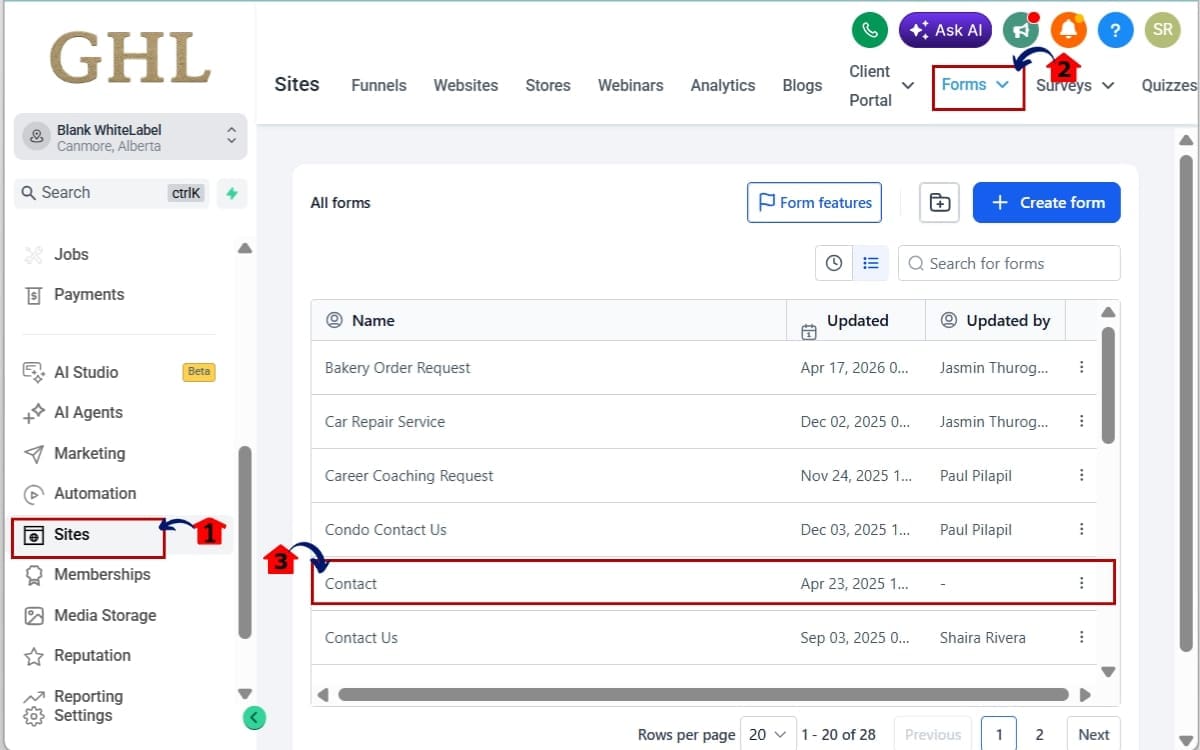
Step 01 – Access the Forms, Surveys, or Quizzes Section
- The Main Menu on the left side of your screen contains all primary areas inside GHL.
1.1 Click on the “Sites” menu item in the left-hand sidebar.
- This is where your Funnels, Websites, Forms, Surveys, and Quizzes are located.
1.2 From the top navigation menu, select:
- Forms
- Surveys
- or Quizzes
Choose the asset you want to embed. In this sample we will choose forms.
1.3 Click to open the Form, Survey, or Quiz in the builder.
- Wait for the builder to fully load before clicking anything. You’ll notice the action buttons stay disabled until loading is complete.
Step 02 – Go to integrate inside the builder
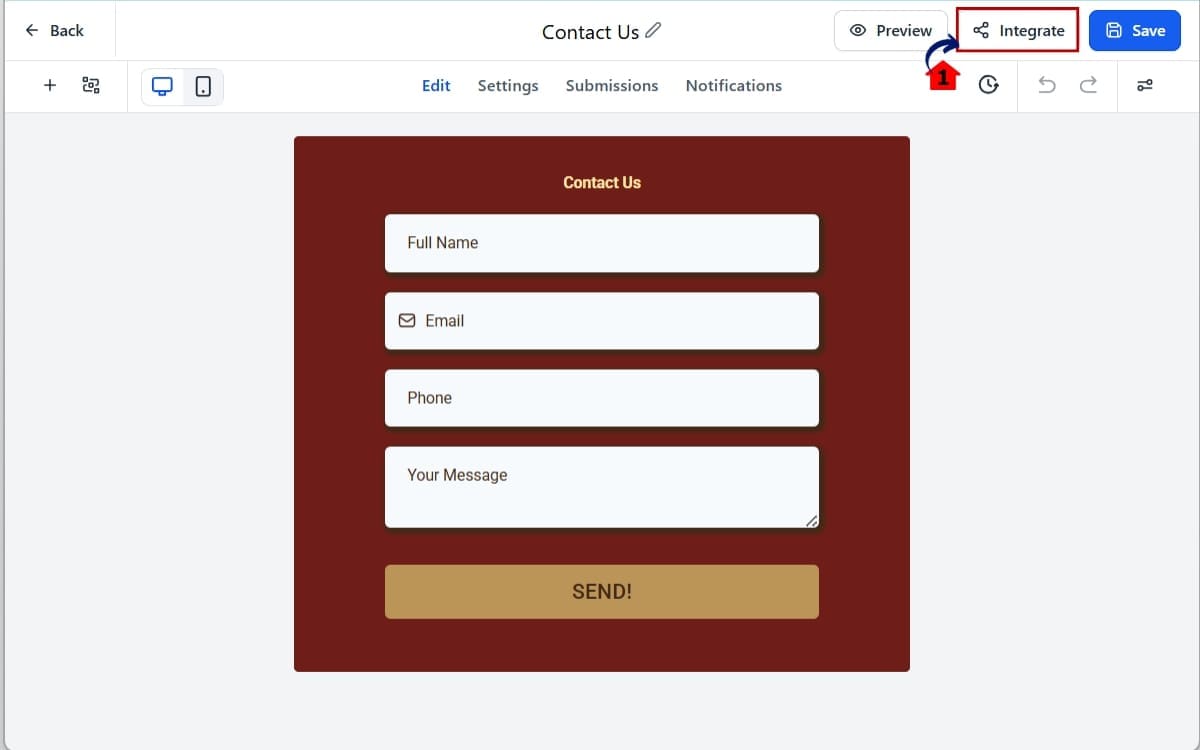
- This is where you access all embed and installation options for your form.
2.1 Once inside the builder, click the “Integrate” button in the top right corner.
- This opens the integration and embed options.
Step 03 – Open the Embed Settings in the Builder
- This is where you choose how the form will be displayed on your website.
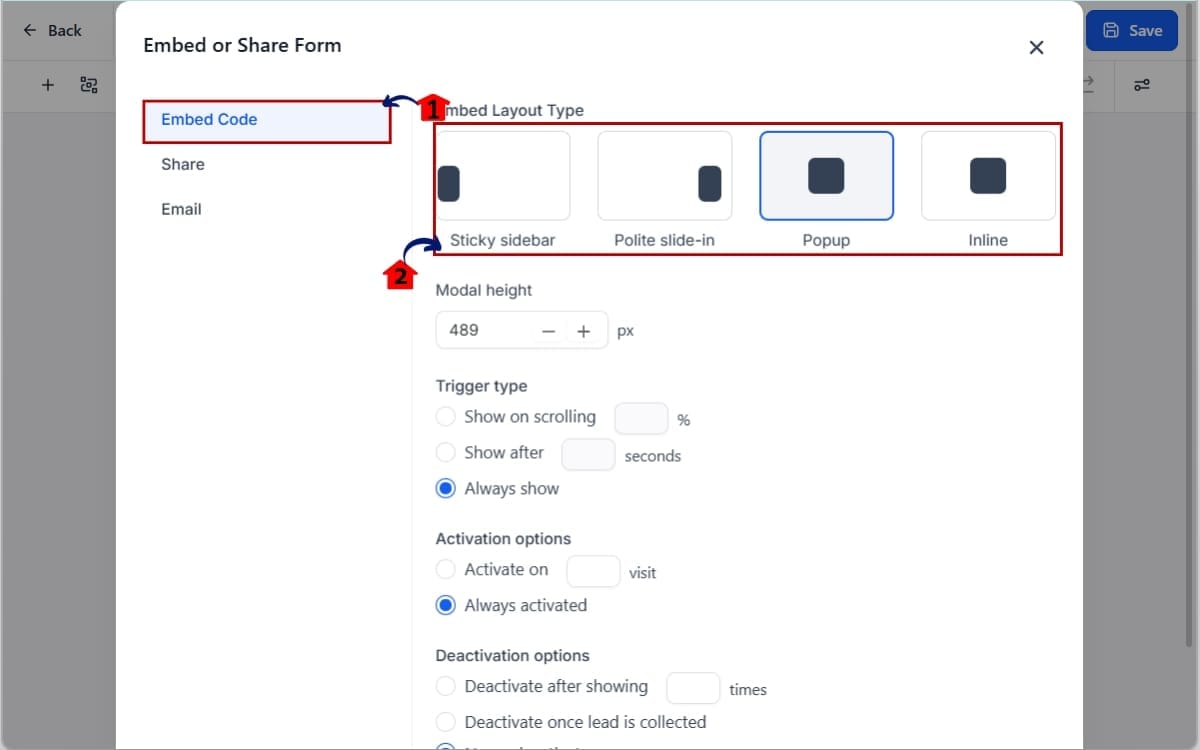
3.1 Select “Embed Code.”
- This displays all available embed display options for your form. You’ll now see multiple embed types available.
3.2 Choose one of the following embed types:
- Popup
- Polite Slide-in
- Sticky Sidebar
- These embed types allow you to control modal height before generating the code.
Step 04 – Set the Custom Modal Height
- This is where you define how tall the popup or slide-in will appear on your website.
4.1 Locate the “Modal Height” field inside the embed settings and enter your desired height value in pixels.
- Use a pixel value that matches the visible length of your form to reduce internal scrolling.
Examples:
- 600
- 700
- 800
Start with a height that matches the approximate length of your form.
4.2 Copy the updated embed code.
- This ensures the new modal height setting is included when you install the form on your website.
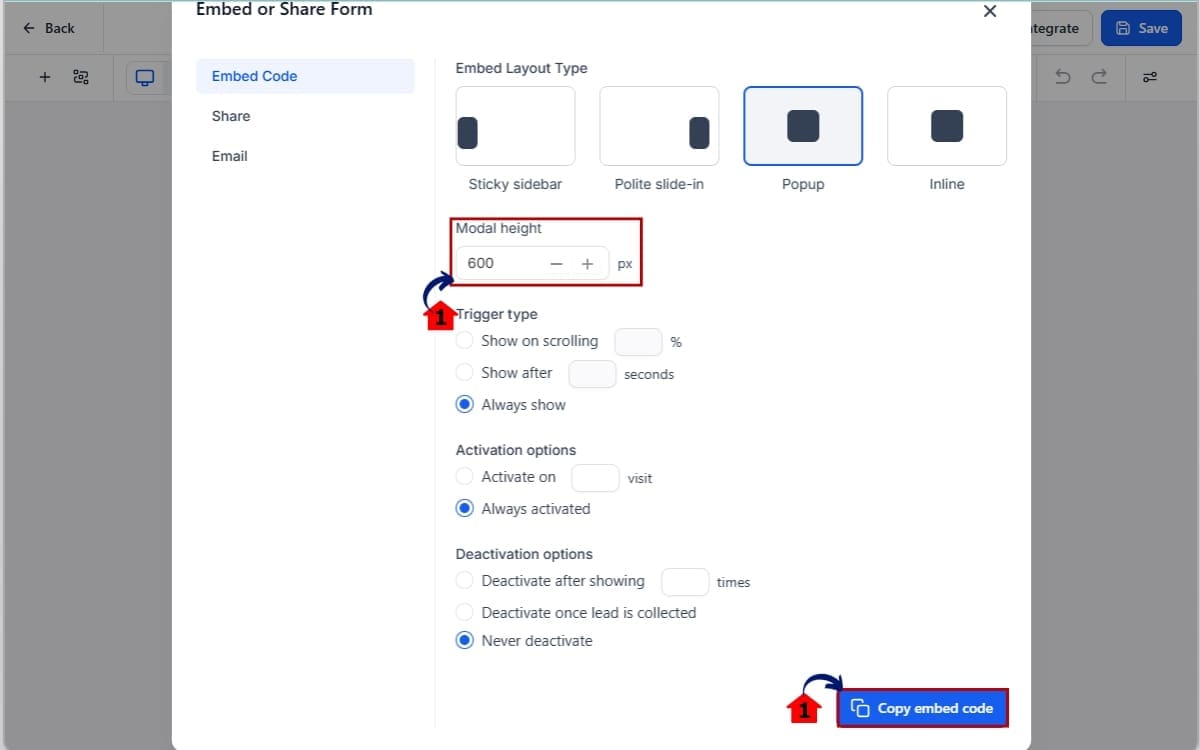
Important: If you leave the Modal Height field blank, your embed will behave exactly as it did before this update.
Step 05 – Install the Embed on Your Website
- This is where you apply the updated embed code to make the modal height live on your page.
5.1 Paste the copied embed code into your website or funnel page.
- Place the code inside an HTML block or custom code section where you want the form to appear.
5.2 Click Save.
- Saving the page applies the updated embed so the new modal height displays properly.
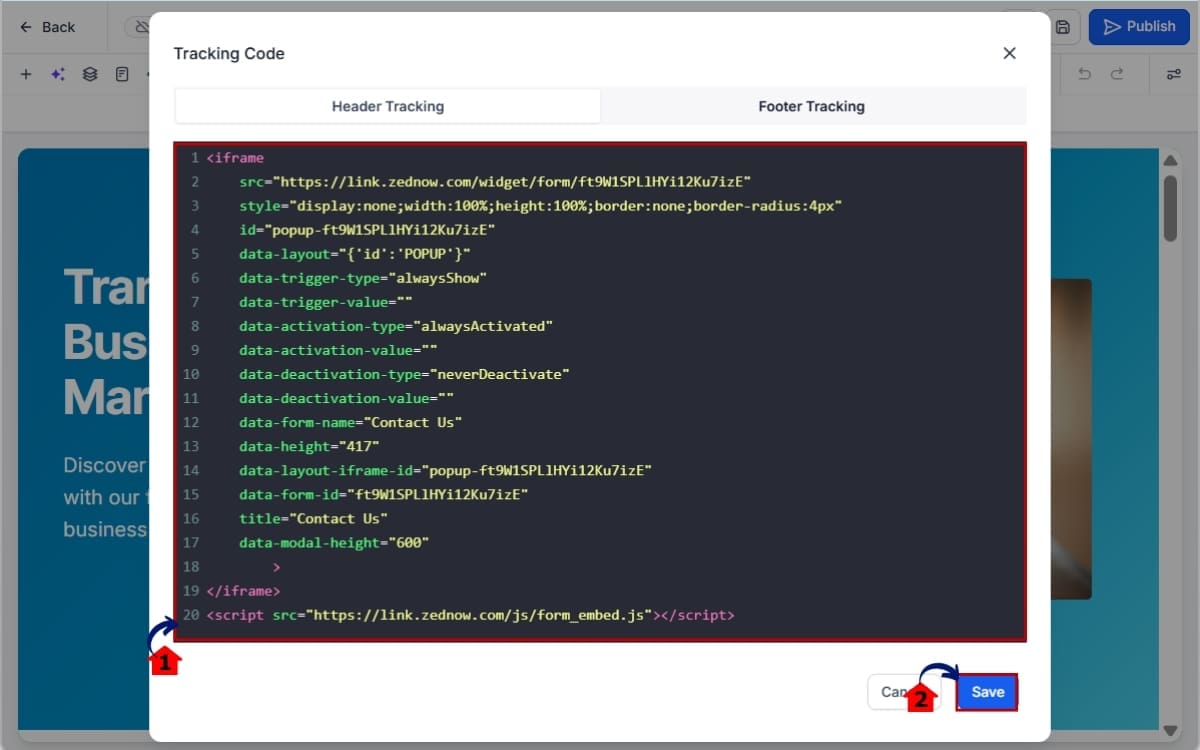
That’s it. You now have full control over how your Custom Form Embed displays across different layouts and screen sizes.
Pro Tips for Better Custom Form Embed Performance
Custom Form Embed control gives you flexibility. But how you use it determines your results.
Here’s how to make it work harder for you.
Match Modal Height to Form Length
Don’t guess. Count your fields. If your form has:
- 3–4 fields → Start around 500–600px
- 5–7 fields → Try 650–750px
- Longer forms → 800px+ may be better
Choose a modal height that fits the form comfortably without taking over the layout.
Test on Mobile Every Time
Desktop might look perfect. Mobile might not.
Always test your Custom Form Embed on a phone. Slide-ins especially can feel larger on smaller screens. Make sure the CTA button stays visible without excessive scrolling.
Make sure your main button shows up without users having to scroll.
If your submit button is buried at the bottom of a tall modal, completion rates drop. Adjust height so users can clearly see:
- Headline
- Key fields
- Submit button
Clarity converts.
Use Clean Spacing Inside the Form
Modal height control fixes the container. It doesn’t fix messy layout.
Avoid:
- Huge image headers
- Excessive padding
- Long paragraphs above fields
Keep it tight. Clean forms convert better.
Avoid “Set It and Forget It”
Different pages may need different heights. A popup on a homepage hero section may need a different size than one on a blog page. Adjust when necessary. Small layout refinements compound over time.
Think Like a Designer
Custom Form Embed control isn’t just technical. It’s visual strategy. Your form should feel like it belongs on the page. Not like it was slapped on top of it.
When your layout feels intentional, trust increases. And when trust increases, conversions follow.
What This Means for Your Business
Custom Form Embed control isn’t just a nicer setting inside GHL. It’s a leverage point.
When your forms fit the page correctly, everything feels tighter. More professional. More intentional. That changes how visitors respond.
A clean popup doesn’t feel intrusive. A well-sized slide-in doesn’t block content. A balanced sticky sidebar doesn’t overwhelm the layout.
That improves user experience. And better user experience increases form completion rates.
If you’re running an agency, this lets you clean things up fast without tearing apart the whole funnel.
If you manage multiple sub-accounts, this saves time. No more adjusting padding or deleting sections just to shrink a popup.
If you sell white-label services, this is one of those small details that separates average builds from premium builds.
Better layout control also means fewer client complaints. No more “the form looks weird on my homepage.” No more “why is there a scroll bar inside the popup?”
You fix it at the embed level. Done. From a marketing automation standpoint, this matters too.
When friction drops, opt-ins rise. When opt-ins rise, automation works harder. When automation works harder, revenue grows. That’s the chain reaction.
Custom Form Embed modal height control gives you design precision without technical complexity. Small update. Real impact.
FAQs About Custom Form Embed in GHL
Conclusion – Smarter Custom Form Embed Setup in GHL
Custom Form Embed control in GHL gives you something every agency and marketer needs.
Precision. You can now define exactly how your popup, slide-in, or sticky sidebar appears on the page. No more oversized modals. No more cramped layouts. No more awkward scroll bars inside scroll bars.
You control the height. You control the fit. You control the experience.
On top of that, the improved builder reliability removes confusion. Preview, Integrate, and Save now wait until the system is ready. That small change makes your workflow smoother and more predictable.
And when you’re managing multiple client accounts, building funnels weekly, or launching lead magnets at scale, smooth matters.
Custom Form Embed modal height control may seem like a small update.
It’s not. It improves presentation. It reduces friction. It protects conversions.
This is one of those small tweaks that adds up. Try adjusting the height on an old form and notice how it looks afterward.
You’ll see the difference immediately.
Have you tried the new Custom Form Embed settings yet? Let me know how it’s working in your funnels and client builds.
And check back to the GHL Growth Garage blog for more GoHighLevel Mini-Guides designed to help you build smarter and scale faster.
Scale Your Business Today.
Streamline your workflow with GoHighLevel’s powerful tools.