

- Gift Card Permissions: Take Control of Team Access
- Quick Summary – Gift Card Permissions
- Here are this week's HighLevel Updates 🚀
- Why Gift Card Permissions Matter for Your Team
- What Gift Card Permissions Can Control
- How to Set Up Gift Card Permissions in GHL
- Quick Tips for Safer Gift Card Permissions
- What Gift Card Permissions Mean for Your Business
- Frequently Asked Questions About Gift Card Permissions
- Gift Card Permissions Give You Better Control
Gift Card Permissions: Take Control of Team Access
GHL has added more control over who can work with Gift Cards. Instead of using one set of Gift Card Permissions for your entire team, you can adjust access based on each person’s role.
Your support team can still look up Gift Card orders without having the ability to issue new ones. Managers can update Gift Card products while full card codes stay hidden. You can also keep delete and deactivate controls limited to specific users.
For agencies and growing teams, this makes day-to-day access much easier to manage.
The team here at GHL Growth Garage sees this as a useful update for any business with several people working inside the same GoHighLevel account. Gift Card Permissions help you match access to each person’s actual job instead of handing out more control than they need.
You can also use assigned-data access to limit certain users to the records assigned to them. This gives you another layer of control when you don’t want every team member seeing every Gift Card order.
In practice, this makes your Gift Card setup easier to manage and helps keep sensitive information in the hands of the right people.
The latest GoHighLevel Changelog includes several other GHL feature updates that round out your daily workflow:
- Wait Action Enhancement: TikTok DM Replies
- India Recurring Mandate Support for Affiliate Indian Signup Pages
- Housecall Pro – More Workflow Actions & Triggers
- Email Services Dashboard for Agencies
- Email Sequences Now Available in Beta Labs
- Group Your Contacts by Source in Dashboards & Reporting
- MMLite Adoption Banner in Conversations
Keep reading for much more on all these updates and a deep dive into the Gift Card Permissions feature!

Quick Summary – Gift Card Permissions
Purpose: Gift Card Permissions let GHL admins control exactly what each team member can view and do inside the Gift Cards area.
Why It Matters: You can reduce unnecessary access to sensitive Gift Card information and keep higher-risk actions limited to the right people.
What You Get: Separate controls for viewing orders, managing products, sharing sell links, sending Gift Cards, revealing full codes, viewing details, and deactivating cards.
Time To Complete: Most teams should be able to review and update a user’s Gift Card Permissions in just a few minutes.
Difficulty Level: Easy. The settings are managed from the staff member’s Roles & Permissions area inside GHL.
Key Outcome: Your team gets the access they need without giving every user full control over Gift Cards.
Here are this week’s HighLevel Updates 🚀
Wait Action Enhancement: TikTok DM Replies
What’s New:
Instead of continuing after a fixed delay, your workflow can pause until someone replies to your TikTok DM.
Where in GHL:
Found in Automation → Workflows using the Wait action after sending a TikTok DM.
Automate marketing, manage leads, and grow faster with GoHighLevel.

Impact:
Your automation responds when someone actually joins the conversation, rather than after a timer runs out.
Recommended For:
Anyone using TikTok DMs to start conversations with potential customers.
India Recurring Mandate Support for Affiliate Indian Signup Pages
What’s New:
Supports recurring payment mandates for Indian affiliates, helping subscriptions comply with local banking requirements.
Where in GHL:
Available on Affiliate Program signup pages for users in India.
Impact:
Creates a smoother signup experience while reducing payment failures for recurring subscriptions.
Recommended For:
Agencies, SaaS businesses, and affiliate programs onboarding customers in India.
Housecall Pro – More Workflow Actions & Triggers
What’s New:
Adds new workflow triggers and actions for the Housecall Pro integration, giving you more ways to automate field service processes.
Where in GHL:
Inside Automation → Workflows when using the Housecall Pro integration.
Impact:
Expands automation possibilities between HighLevel and Housecall Pro, reducing manual work and improving operational efficiency.
Recommended For:
Home service businesses, field service companies, and agencies managing Housecall Pro clients.
Email Services Dashboard for Agencies
What’s New:
Introduces a centralized dashboard where agencies can monitor email services across their accounts.
Where in GHL:
Found in the Agency View under the new Email Services Dashboard.
Impact:
Makes it easier to monitor email health, identify issues, and manage deliverability from one place.
Recommended For:
Agency owners, support teams, and admins managing multiple client email services.
Email Sequences Now Available in Beta Labs
What’s New:
Introduces Email Sequences as a Beta Labs feature, providing another way to create structured email follow-up campaigns.
Where in GHL:
Enable it from Settings → Labs, then access Email Sequences after activation.
Impact:
Cuts down the time spent checking different areas just to see how your email services are performing.
Recommended For:
Marketers, agencies, coaches, and businesses running nurture campaigns or onboarding emails.
Group Your Contacts by Source in Dashboards & Reporting
What’s New:
Lets you organize contact reports based on where your leads originated.
Where in GHL:
Available within Dashboards & Reporting when viewing contact analytics.
Impact:
Makes it easier to compare lead sources and identify which marketing channels are producing the best results.
Recommended For:
Marketing teams, agency owners, and businesses tracking campaign performance across multiple lead sources.
MMLite Adoption Banner in Conversations
What’s New:
Displays a helpful banner inside Conversations to encourage users to adopt the new MMLite messaging experience.
Where in GHL:
Appears within the Conversations module for eligible accounts.
Impact:
Helps users discover and transition to MMLite while highlighting its benefits directly inside the messaging interface.
Recommended For:
Current HighLevel users exploring the latest messaging experience and teams preparing to migrate to MMLite.
Why Gift Card Permissions Matter for Your Team
Giving every team member full Gift Card access usually isn’t necessary.
A support rep may only need to view Gift Card orders and check customer details. They probably don’t need permission to issue new cards, edit Gift Card products, reveal full codes, or deactivate existing cards.
That’s where this update helps.
Each team member can be given only the permissions their job calls for. That way, higher-risk actions aren’t available to everyone.
It also helps reduce unnecessary exposure to Gift Card codes and customer information. If someone only needs to help with order questions, you can give them enough access to do that without opening up the rest of the Gift Card system.
For agencies, this is especially useful when several staff members, VAs, account managers, or support reps work inside the same GHL account.
You don’t have to give everyone the same level of control. You can decide who gets access to viewing, sending, editing, sharing, or deactivating Gift Cards.
As you add more staff, you can keep permissions organized without making things complicated.
What Gift Card Permissions Can Control
Gift Card Permissions in GHL let you separate viewing access from higher-risk actions. That means a team member can get the access they need without automatically getting control over everything.
Here are the main permissions you can manage:
View Gift Card Orders lets a user see issued Gift Cards and the related order information.
View Gift Card Products lets a user open Gift Card products and review how they’re configured.
Create/Edit Gift Card Products allows a user to create new Gift Card products or change existing ones.
Access Sell Link / Share via QR gives a user access to the dedicated sell link and QR code for a Gift Card product.
Send Gift Cards allows a user to issue Gift Cards directly to customers through the Send flow.
This permission decides who is allowed to uncover the full Gift Card code.
Use this setting to choose which users can open and review a Gift Card order in more detail.
This permission decides who can delete or deactivate Gift Cards.
The nice part is that you can shape access around the way your team actually works, rather than giving everyone the same permissions.
You can keep the more sensitive controls limited without getting in the way of your team’s day-to-day work.
How to Set Up Gift Card Permissions in GHL
Gift Card Permissions are managed inside GoHighLevel under each staff member’s Roles & Permissions settings. You’ll first choose the team member you want to update, then open the Gift Cards section and decide which actions they’re allowed to access.
You can control whether a user can view Gift Card orders, manage products, send Gift Cards, reveal full codes, access sell links, or deactivate cards. You can also use assigned-data access to limit certain users to only the records assigned to them.
- Open users and Select the Staff Member.
- Configure Gift Card Permissions.
- Turn on Gift Card Permissions user needs.
- Configure Assigned Data Access.
Step 01 – Open users and Select the Staff Member
- Go to the main menu on the left side of your screen. Scroll to the bottom and click Settings.
1.1 Click Users.
- This opens the section where you can view and manage the users who have access to your GHL sub-account.
1.2 Find the staff member in your User list.
- Make sure you select the correct user before changing any permissions.
1.3 Click the Edit icon for that staff member.
- This opens the user’s settings so you can review their role and access.
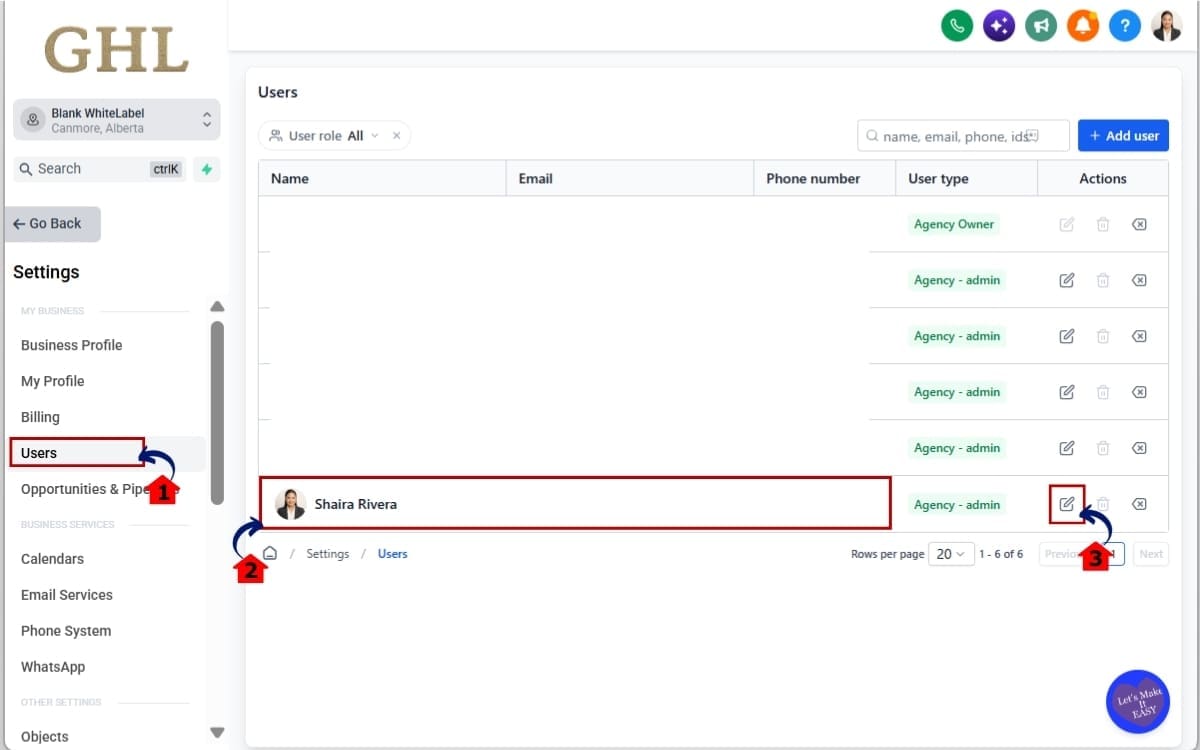
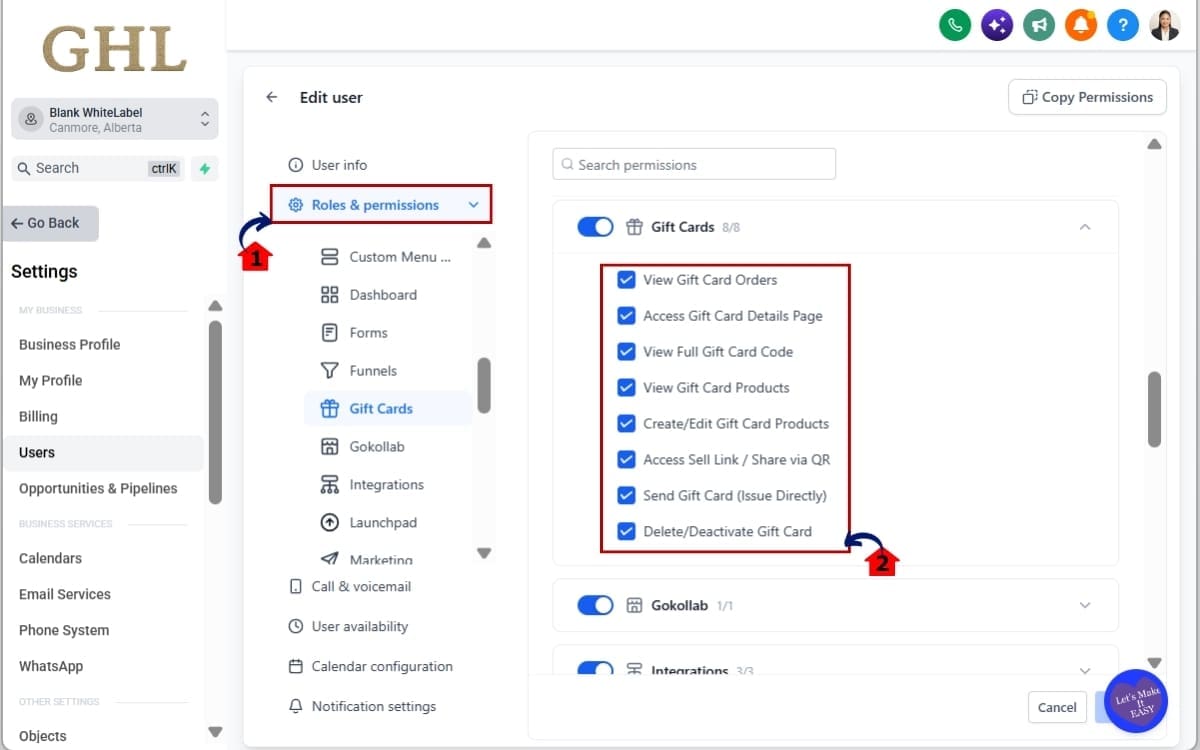
Step 2.0 – Configure Gift Card Permissions
- Open the Gift Cards section under Roles & Permissions and choose the access that fits the staff member’s responsibilities.
2.1 Open Roles & Permissions.
- This is where GHL lets you control what that team member can access and which actions they’re allowed to perform.
2.2 Review the available Gift Card Permissions.
- GHL currently provides separate controls for:
- View Gift Card Orders
- View Gift Card Products
- Create/Edit Gift Card Products
- Access Sell Link / Share via QR
- Send Gift Cards
- View Full Gift Card Code
- Access Gift Card Details Page
- Delete/Deactivate Gift Cards
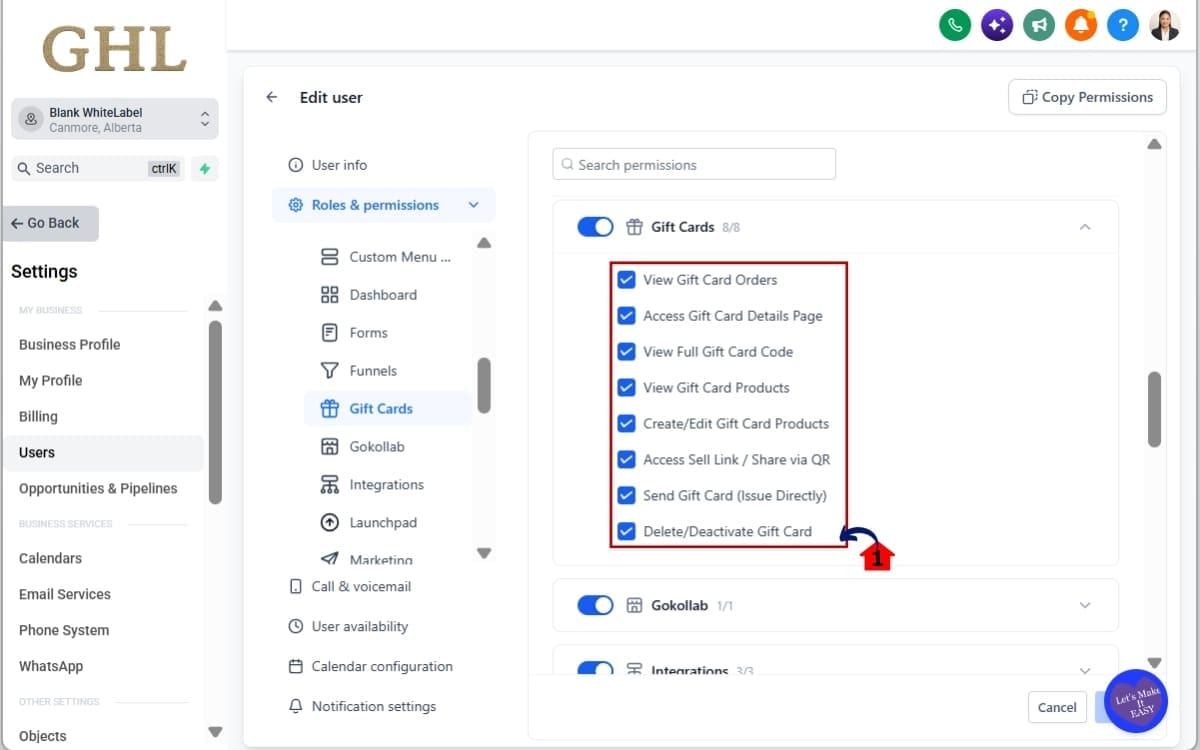
Step 3.0 – Turn on Gift Card Permissions user needs
- Review the available Gift Card permissions and switch on only the ones this user needs for their day-to-day responsibilities.
3.1 Turn on only the permissions the user needs.
- For example, a support team member may need to view Gift Card orders and details without being able to send new Gift Cards or change Gift Card products.
Step 4.0 – Configure Assigned Data Access
- Use assigned-data settings when a user should have access to Gift Cards but should not see all Gift Card data inside the account.
4.1 Review whether the user should see all available data or only assigned data.
- Assigned-data access gives you another level of control beyond basic page permissions.
4.2 Save your permission changes.
- Make sure your updated settings are saved before leaving the staff member’s profile.
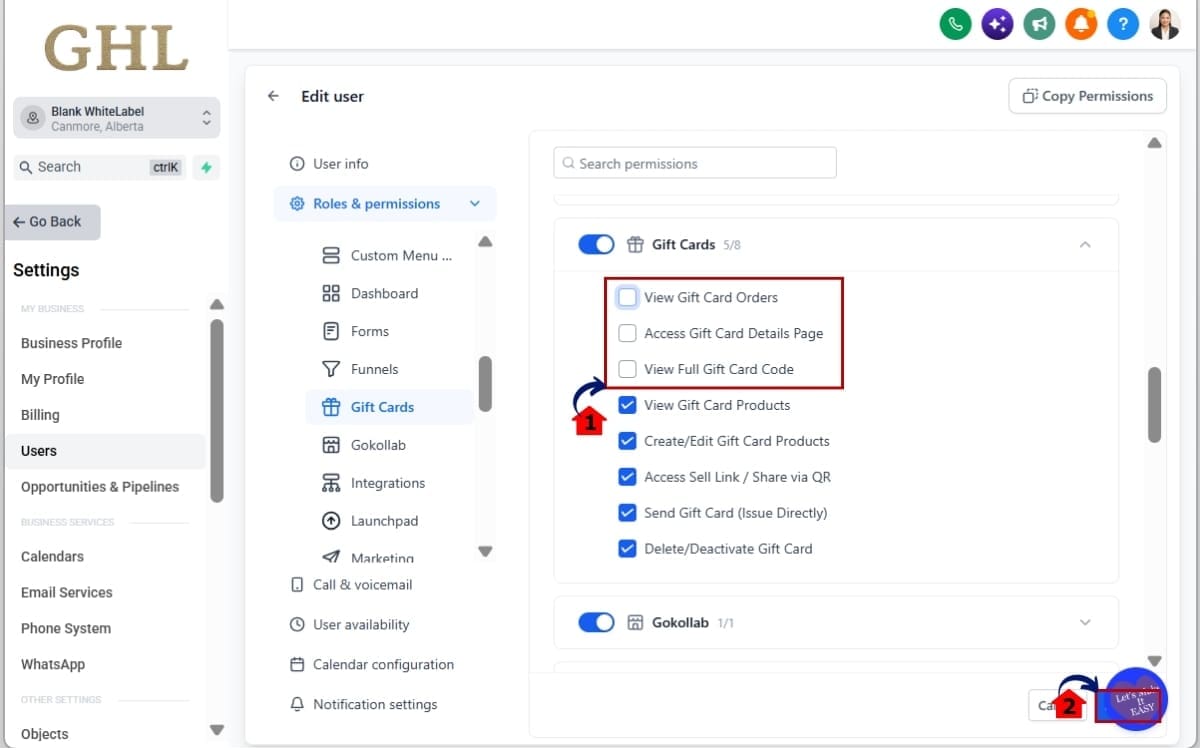
Admins retain full Gift Card access by default, while other users can be configured with only the capabilities they need.
Note: The changelog confirms the Gift Cards permission section, the eight individual permissions, assigned-data access, separate full-code protection, and the navigation path through Settings → My Staff → Roles & Permissions → Gift Cards. It does not provide every current button label or save-screen detail, so the steps above avoid adding unsupported interface instructions.
Quick Tips for Safer Gift Card Permissions
You’ll get more value from Gift Card Permissions if you keep the access rules simple and tied to each person’s job.
Start by giving each team member only the access they actually need.
If someone only needs to answer customer questions, they probably don’t need permission to send Gift Cards, reveal full codes, or deactivate cards.
Be extra careful with View Full Gift Card Code.
Because this gives access to sensitive Gift Card details, it’s best kept to the people who actually need it for their work.
The same goes for Delete/Deactivate Gift Cards.
Keep that permission restricted to trusted team members who are responsible for managing card status and account-level decisions.
Use assigned-data access when you want users to work with Gift Cards without seeing every record in the account.
This is handy when different people on your team handle different parts of the job.
Any time a team member’s job changes, take another look at their Gift Card Permissions to make sure the access still fits.
A quick permission review can help prevent old access from hanging around longer than it should.
And don’t skip testing.
After making the changes, test the account and confirm the right areas are open while the restricted ones stay off limits.
What Gift Card Permissions Mean for Your Business
If your team shares a GHL sub-account, Gift Card Permissions can help keep everyone’s access a bit more under control.
You don’t have to treat every user the same. Access can follow the way responsibilities are split across your team.
That can help reduce accidental changes, limit unnecessary access to sensitive Gift Card information, and make staff responsibilities easier to manage.
Agencies with several people working in different roles can set Gift Card access to match what each person actually handles.
A support rep can focus on helping customers. A marketing team member can access sell links and QR codes. A manager can handle product changes or card issuance. More sensitive actions can stay limited to the people responsible for them.
Assigned-data access adds another layer of control when users should only see the records connected to their work.
The biggest benefit is better structure.
As more people join your team, it becomes easier to set up access for new users and change permissions when someone’s role shifts.
You’re not just giving people access to Gift Cards. You’re deciding exactly what each person can see and do.
Frequently Asked Questions About Gift Card Permissions
Gift Card Permissions Give You Better Control
Gift Card Permissions give GHL users a much cleaner way to manage team access.
Instead of giving every staff member the same level of control, you can decide who can view orders, manage products, send Gift Cards, reveal full codes, share sell links, or deactivate cards.
That matters as your team grows.
Support staff can get the access they need without touching higher-risk actions. Managers can handle broader Gift Card tasks. Marketing team members can focus on promotion tools. And admins can keep sensitive controls limited to the right people.
Assigned-data access makes this even more useful by giving you another way to limit what certain users can see.
If you use Gift Cards in GoHighLevel, it’s worth reviewing your current staff setup.
Head to Settings → My Staff → Roles & Permissions → Gift Cards and review what each team member can actually see and do.
The goal is simple: give people what they need, keep sensitive actions protected, and make your GHL account easier to manage as your business grows.
Have you reviewed your team’s Gift Card Permissions yet?
Scale Your Business Today.
Streamline your workflow with GoHighLevel’s powerful tools.


