- Introduction – GHL Pipeline Creation Permissions Guide
- Quick Summary – GHL Pipeline Creation Permissions
- Here are this weeks HighLevel Updates
- What Are GHL Pipeline Creation Permissions?
- Why GHL Pipeline Creation Permissions Matter
- How to Enable GHL Pipeline Creation Permissions
- Pro Tips for GHL Pipeline Creation Permissions
- What This Means for Your Business
- FAQs Pipeline Creation Persmissions
- Conclusion Pipeline Creation Permissions
Introduction – GHL Pipeline Creation Permissions Guide
Pipeline Creation Permissions might sound like a small update. Until someone on your team accidentally creates, clones, or duplicates a pipeline they were never supposed to touch. You’ve probably seen it happen.
If you’ve ever managed a growing team, you’ve probably seen this firsthand. One person creates a new pipeline, another duplicates it for a different project, and before anyone notices, there are several versions of what should have been a single sales process. Finding the right pipeline becomes frustrating for everyone.
It usually isn’t one big mistake that causes problems. It’s a series of small changes made by different people over time. Before long, your CRM starts looking very different from the system you originally designed.
Managing opportunities should be simple. Managing the people who manage those opportunities shouldn’t create even more work.
Now GHL has made that easier. Pipeline Creation Permissions give Agency Admins and Account Admins complete control over who can create new pipelines. Better still, the same permission also controls who can clone and duplicate existing pipelines, helping keep your CRM clean and consistent.
Less clutter. Better security. More accountability. And here’s what agency owners and growing teams will appreciate most.
This isn’t just another permissions update. It’s a CRM management update.
The new GHL Pipeline Creation Permissions feature helps you protect your pipeline structure, reduce accidental changes, and give the right people the right level of access, without slowing your team down.
Better control. Cleaner pipelines. Fewer mistakes. More confidence as your business grows.
The latest GoHighLevel Changelog includes several other GHL feature updates that round out your daily workflow:
- New QR Code Styling Options: Shapes, Borders, and Rim Text
- Collapse & Resize Pipeline Stages in Kanban View
- Notes just got smarter for the contacts page!
- New Asana actions in workflows – Find Project and Find section
- Email AI + Knowledge Base Integration 🚀
- Dialer: Auto-minimize, Pin & Drag
- Schema Markup Using AI
Keep reading for much more on all these updates and a deep dive into the Pipeline Creation Permissions feature!

Quick Summary – GHL Pipeline Creation Permissions
Purpose: Learn how to use GHL Pipeline Creation Permissions to control which users can create, clone, and duplicate pipelines within your CRM.
Why It Matters: Restricting pipeline creation helps keep your CRM organized, prevents accidental structural changes, and ensures only authorized users can modify your sales pipeline setup.
What You Get: You’ll learn where to find the new permission, how to enable or disable it, and best practices for managing staff roles and permissions in GoHighLevel.
Time to Complete: Most admins can review and update Pipeline Creation Permissions in less than five minutes.
Difficulty Level: Beginner. If you’re familiar with the GoHighLevel Settings area, the process is quick and straightforward.
Key Outcome: By assigning Pipeline Creation Permissions to the right users, you’ll create a cleaner, more secure CRM that’s easier to manage as your team and business continue to grow.
Here are this weeks HighLevel Updates
New QR Code Styling Options: Shapes, Borders, and Rim Text
What it does:
Lets you stop using boring QR codes. You can now tweak the shape, style the border, and add text around the edge.
Where in GHL:
Accessible via Sites → QR Codes and within QR tools embedded in Funnel and Website builders.
Automate marketing, manage leads, and grow faster with GoHighLevel.

Impact:
Improves visual presentation and brand alignment while increasing scan appeal.
Best suited for:
Agencies that care about branding, small businesses running local promotions, online stores, and teams pushing QR campaigns.
Collapse & Resize Pipeline Stages in Kanban View
What it does:
Lets you hide pipeline stages you’re not actively using and adjust column widths so your board fits the way you work.
Where in GHL:
Inside Opportunities when you’re viewing your pipeline in Kanban mode.
Impact:
No more dragging your screen forever just to find the deals that matter.
Best suited for:
Owners running multi-stage pipelines, reps working deals every day, and anyone fed up with a messy board.
Notes Just Got Smarter for the Contacts Page
What it does:
Upgrades the notes area so it’s easier to write, review, and keep things organized inside a contact record.
Where in GHL:
Found directly within each contact’s profile under Notes.
Impact:
Makes it simpler to see what’s been discussed and who added what — without digging through clutter.
Best suited for:
Teams collaborating on accounts and businesses that document every client touchpoint.
New Asana Actions in Workflows – Find Project & Find Section
What it does:
Lets your workflow check what already exists in Asana before adding anything new.
Where in GHL:
Go to Workflows, add an action, and choose the Asana integration.
Impact:
No more duplicate projects. No more messy task boards. Just cleaner automation.
Best suited for:
Operations teams and agencies that rely on Asana to manage client delivery.
Email AI + Knowledge Base Integration
- What it does:
Allows Email AI to reference your Knowledge Base for smarter, more accurate responses. - Where in GHL:
Found in Conversations → Email composer with AI enabled and Knowledge Base settings under AI configuration. - Impact:
Smarter email suggestions that understand your business and help you reply quicker. - Best suited for:
Support teams, agencies managing inboxes, and businesses scaling communication with AI.
Dialer: Auto-Minimize, Pin & Drag
- What it does:
Lets you auto-minimize the dialer during calls, pin it in place, and drag it anywhere on screen. - Where in GHL:
Found in Conversations → Dialer. - Impact:
Cleaner workspace and easier multitasking during sales or support calls. - Best suited for:
Sales teams, outbound callers, appointment setters, and agencies making daily calls.
Schema Markup Using AI
- What it does:
Generates structured schema markup automatically using AI for SEO enhancement. - Where in GHL:
Found in Sites → Website or Funnel settings within AI or SEO sections. - Impact:
Improves search visibility without manual coding. - This works well for: Teams building websites that need stronger search visibility, from agencies to small local businesses.
What Are GHL Pipeline Creation Permissions?
Keeping your pipeline structure under control is much easier when only the right people have permission to create new ones. This update gives admins that level of control.
Until now, anyone with the right level of access could create a new pipeline whenever they felt it was needed. That wasn’t always a problem, but as teams grew, it became much easier for duplicate pipelines and inconsistent naming to creep into the CRM.
This update makes permission management much more precise. Pipeline creation can now be limited to specific roles, helping prevent unnecessary changes to your CRM. It also covers cloning and duplicating pipelines, so all three actions are managed from a single permission.
This makes role management much more predictable.
Good permission settings remove the guesswork. Your sales team can work with opportunities as usual, while CRM changes stay in the hands of the people responsible for managing the system.
This update is especially valuable for:
- Marketing agencies managing multiple client accounts.
- Businesses with growing sales teams.
- Virtual assistants who only need day-to-day CRM access.
- Companies with dedicated CRM administrators responsible for system management.
By separating pipeline management from everyday opportunity management, GHL gives administrators another layer of control without making the platform more complicated.
One permission change can save a lot of unnecessary cleanup later. By limiting who can create or copy pipelines, your CRM stays more organized as your team and business continue to grow.
Why GHL Pipeline Creation Permissions Matter
This isn’t the kind of feature that grabs headlines. Its value shows up later, when your CRM stays organized even as more people start using it.
Imagine opening your Opportunities section and seeing five pipelines that all look almost identical. Which one should your team use? Which one powers your automations? Those questions become much more common when pipeline creation isn’t properly managed.
Think about a growing agency with five or ten staff members.
One person creates a testing pipeline. Another duplicates an existing pipeline instead of using the original. A third creates a new version because they couldn’t find the right one. Before long, your Opportunities section is filled with pipelines that nobody is using, making it harder for everyone to find the correct one.
That’s exactly the type of problem GHL Pipeline Creation Permissions help prevent.
Keeping pipeline creation in the hands of a few trusted users helps prevent unnecessary clutter and makes the Opportunities section much simpler for everyone to work in.
This update also strengthens your internal processes.
Every team works better when responsibilities are clearly defined. Some people manage opportunities. Others manage the CRM. Permission settings help keep those roles separate without adding extra work.
The result is a more consistent system with fewer mistakes.
The larger your team becomes, the more useful clear permission settings are. Everyone knows what they’re responsible for, and your CRM stays far more organized without constant supervision.
Better permissions don’t just improve security. They improve efficiency, accountability, and the overall health of your CRM.
How to Enable GHL Pipeline Creation Permissions
Pipeline Creation Permissions are managed from the Roles & Permissions settings in your GoHighLevel account. In this section, you’ll choose which users can create, clone, or duplicate pipelines while allowing everyone else to continue working with opportunities based on their assigned role.
The steps below show you where to find this setting, how to update the permission, and how to apply the change to your staff members.
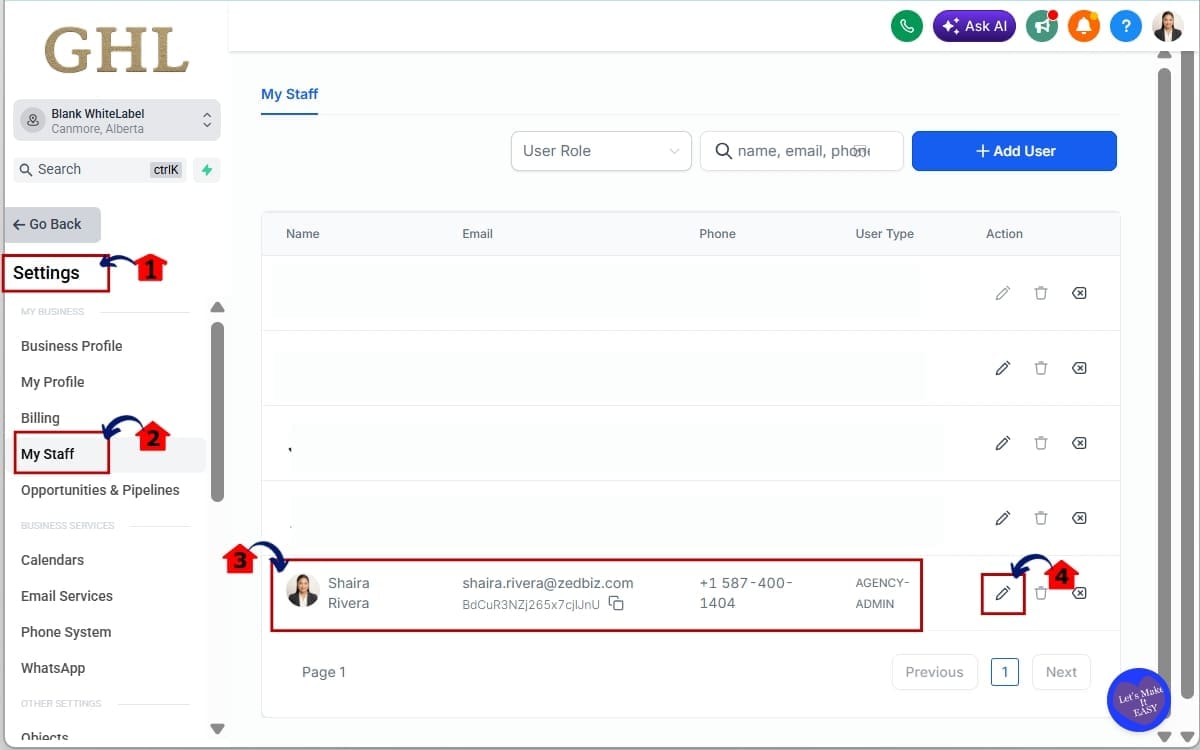
- Access the Settings and Open My Staff.
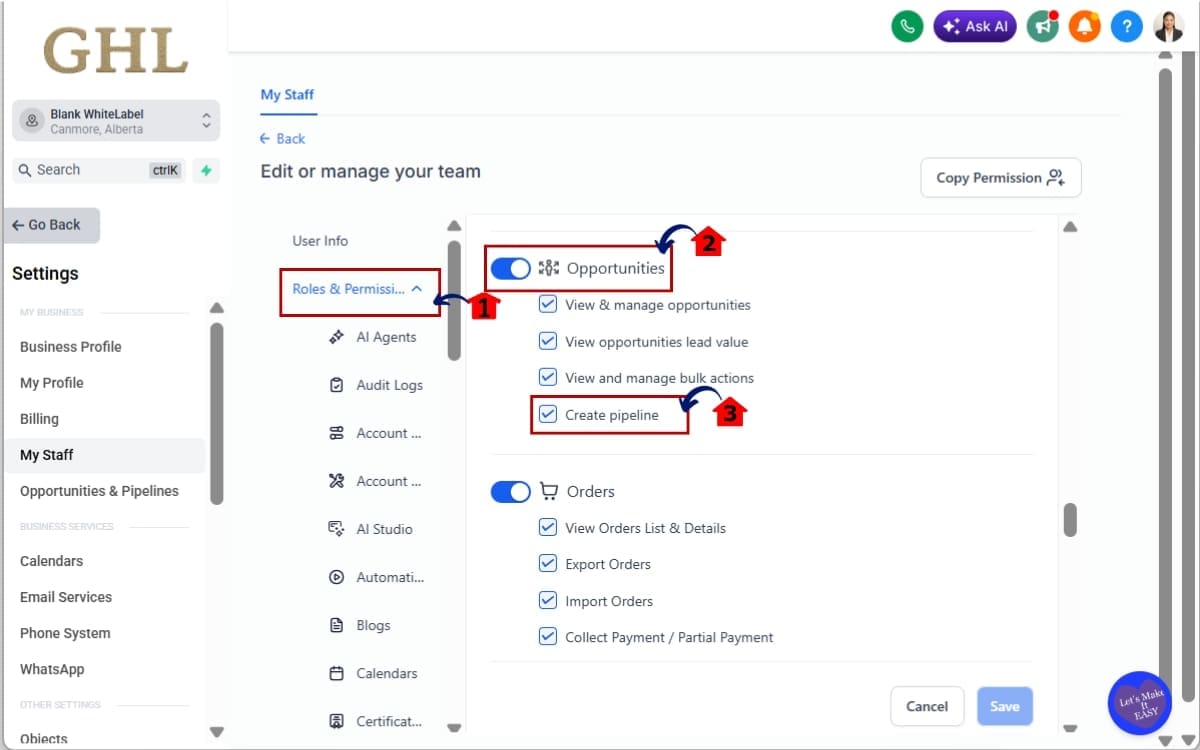
- Open Roles & Permissions then Configure.
- Save Your Changes Settings.
To start, make sure you are logged in to your GoHighLevel sub-account.
Step 01 – Access the Settings and Open My Staff
- The Settings area is where you manage users, permissions, business settings, and account configuration.
1.1 Click the Settings gear icon (⚙️).
You’ll now be in the main Settings dashboard where you can access:
- Business Profile
- Billing
- My Staff
- Roles & Permissions
- Other account settings
1.2 Click My Staff.
- The My Staff page displays every user in your GoHighLevel account and allows you to manage their individual access.
1.3 Locate the staff member whose permissions you want to update.
- Permissions are assigned individually, so you’ll need to select the correct user before making any changes.
1.4 Click on their name to open their user profile.
- The user profile contains the Roles & Permissions settings where you’ll update the Create Pipeline permission.
Step 02 – Open Roles & Permissions then Configure
- Every staff member is assigned permissions that determine what they can and cannot do inside GoHighLevel.
2.1 Open the Roles & Permissions tab.
- Opens the user’s permission settings so you can manage their access to GoHighLevel features.
2.2 Scroll through the available permission categories and Find the Opportunities section.
- The Opportunities section contains all permissions related to pipeline and opportunity management.
2.3 Locate the Create Pipeline permission. Turn the toggle ON to allow the user to:
- Create new pipelines
- Clone existing pipelines
- Duplicate existing pipelines
Turn the toggle OFF if you want to prevent all of these actions. Remember, this single permission controls all three pipeline creation actions.
Step 03 – Save Your Changes Settings
- The final step is to apply the new permission.
3.1 Click Save.
- The updated permission takes effect immediately.
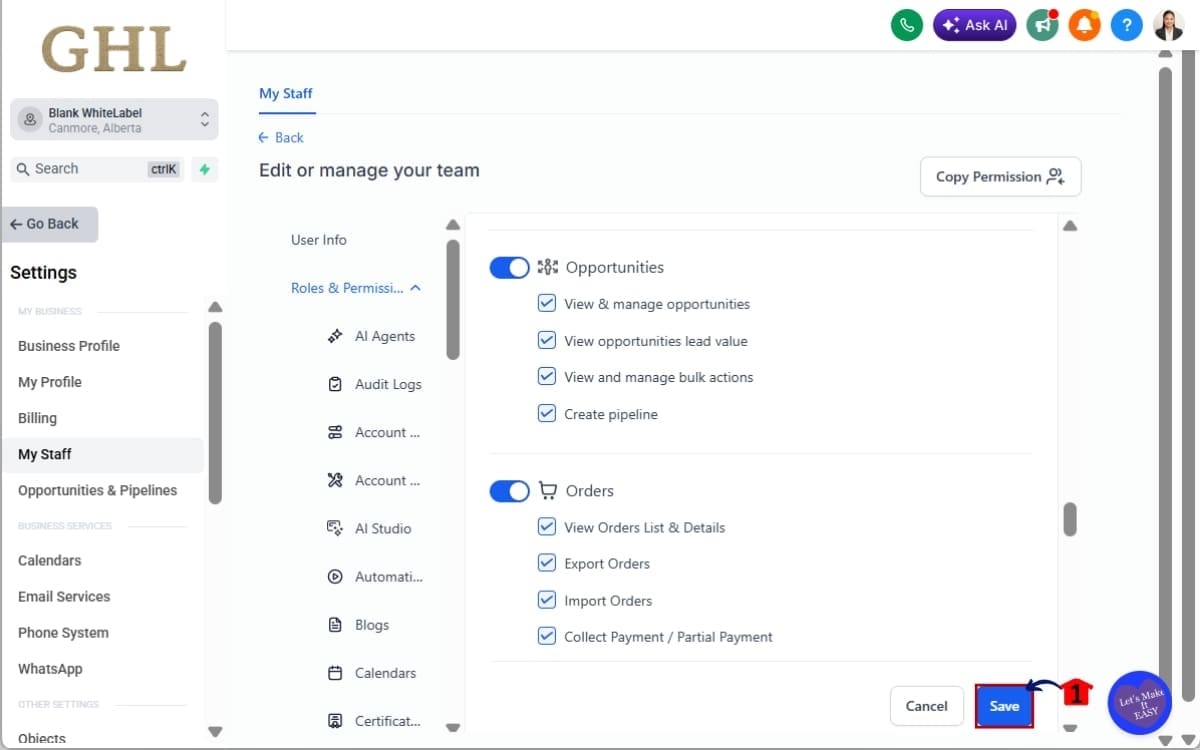
If needed, ask the user to sign out and back in before testing the new permission. Verify the changes by logging in as that user or asking them to confirm they can, or cannot, create, clone, or duplicate pipelines.
That’s it. Your CRM is now better protected, and only authorized users can make structural changes to your sales pipelines. It’s a simple change that helps keep your Opportunities section organized as your team grows.
Pro Tips for GHL Pipeline Creation Permissions
Enabling GHL Pipeline Creation Permissions is a great first step. Getting the most out of it comes down to how you manage your staff roles.
Every business manages its CRM a little differently, but these recommendations are a solid place to start.
Only Give Pipeline Access to Trusted Users
Most people on your team will never need to create a new pipeline. Keeping that permission limited to the people who manage your CRM is usually the better approach.
This reduces the chance of accidental changes while keeping your sales process consistent.
Use Standard Staff Roles
One thing that saves a lot of time is keeping the same role setup across your accounts whenever it makes sense.
A dependable role structure helps new staff get started without unnecessary permission changes later.
Review Permissions Regularly
Teams change over time.
Businesses change, and your permission settings should change with them. Reviewing user access every so often helps keep everything aligned.
It’s a simple habit that can prevent unnecessary mistakes later.
Keep Your Pipelines Clean
The fewer people creating new pipelines, the easier it is to keep your Opportunities section clean and consistent.
Instead of managing several duplicate pipelines with similar names, your team works from a single, standardized sales process that everyone understands.
Test Before Rolling Out Changes
Before calling the job finished, confirm the updated role behaves the way you intended.
Confirm they can still perform the tasks they need while ensuring restricted actions—such as creating, cloning, or duplicating pipelines, are no longer available.
A quick test gives you confidence that your permissions are working exactly as intended.
Small permission changes often have a big impact.
When your CRM stays organized, your team can concentrate on moving deals forward instead of sorting out unnecessary pipeline changes.
What This Means for Your Business
GHL Pipeline Creation Permissions may only add one new toggle, but the impact goes far beyond a simple settings update.
Things are much easier to manage when everyone isn’t changing the CRM in different ways. Limiting who can make structural updates helps keep your sales process consistent.
Agencies often have several people working in the same client account. Limiting pipeline creation helps keep everyone using the same CRM structure instead of introducing unnecessary changes.
For sales managers, it creates a more consistent sales process. Everyone works from the same approved pipelines, making reporting more accurate and ensuring automations continue running as expected. Instead of wondering which pipeline to use, your team can focus on following the sales process you’ve already built.
A handful of users may not seem like much, but clear permissions become more valuable every time someone new joins your team.
A well-managed CRM usually comes down to one thing: everyone understands what they’re responsible for.
Not every member of your team needs administrative control. Matching permissions to responsibilities keeps things much simpler.
Sometimes the smallest updates deliver the biggest long-term improvements.
GHL Pipeline Creation Permissions are one of those updates. By taking a few minutes to review your staff roles today, you’ll create a more organized CRM, reduce accidental changes, and give your team the confidence to work efficiently within clearly defined boundaries.
FAQs Pipeline Creation Persmissions
Conclusion Pipeline Creation Permissions
GHL Pipeline Creation Permissions might seem like a small addition, but they solve a problem that many growing businesses and agencies face every day.
When too many people can create or copy pipelines, things can get messy surprisingly quickly. Before long, your team is working across duplicate pipelines, and nobody is quite sure which one should be used.
With this new permission, GoHighLevel puts that control back in the hands of administrators.
Keeping pipeline management with the right people makes it much easier to maintain a CRM your whole team can rely on.
The best part?
A few minutes spent reviewing your permissions today can save you from a lot of unnecessary CRM cleanup later.
Take another look at your current staff permissions. You may find there are users with access they no longer need, especially when it comes to creating pipelines.
Small improvements like this are what help create a more secure, scalable, and efficient CRM.
The team at GHL Growth Garage will continue bringing you practical GoHighLevel mini-guides to help you stay up to date with every new feature and make the most of your GHL account.
Have you started using GHL Pipeline Creation Permissions yet? Will you be limiting pipeline creation to admins, or do you prefer giving your whole team access? We’d love to hear how you’re using this update in your business.
Scale Your Business Today.
Streamline your workflow with GoHighLevel’s powerful tools.