- Introduction – LinkedIn Poll Scheduling Just Got Easier in GHL
- Quick Summary – LinkedIn Poll Scheduling
- Here are this weeks HighLevel Updates
- What’s New – LinkedIn Poll Scheduling in GHL
- Why LinkedIn Poll Scheduling Matters for Agencies
- How to Use LinkedIn Poll Scheduling in GHL
- Pro Tips for LinkedIn Poll Scheduling
- What LinkedIn Poll Scheduling Means for Your Marketing Strategy
- Real-Time Business Application of LinkedIn Poll Scheduling
- FAQs About LinkedIn Poll Scheduling
- Conclusion – Start Using LinkedIn Poll Scheduling Today
Introduction – LinkedIn Poll Scheduling Just Got Easier in GHL
LinkedIn Poll Scheduling sounds simple. Until you’re switching platforms to make it happen.
You’ve done it before. Plan content in Social Planner. Open LinkedIn. Rebuild the poll. Set the duration. Publish manually.
The post goes live. But the workflow is broken.
If you’ve been managing LinkedIn inside GHL, you know the pattern. You schedule posts. You queue content. You organize campaigns. But when it came to polls? You had to leave the system.
And when you’re running weekly engagement campaigns, managing multiple client accounts, or testing new messaging, jumping between tools isn’t efficient.
It slows momentum. It creates friction. It kills flow. LinkedIn Poll Scheduling inside GHL fixes that gap.
Poll creation now lives directly inside Social Planner. Add your question. Choose 2 to 4 answers. Set your poll duration. Publish, schedule, queue, or save as draft.
All without leaving the platform. No manual rebuilding. No external switching. No workflow chaos.
And here’s what agencies will love. This upgrade makes engagement easier while keeping your LinkedIn strategy fully centralized inside GHL.
Cleaner workflow. Better engagement. More control.
The latest GoHighLevel Changelog includes several other GHL feature updates that round out your daily workflow:
- New QR Code Styling Options: Shapes, Borders, and Rim Text
- Collapse & Resize Pipeline Stages in Kanban View
- Notes just got smarter for the contacts page!
- New Asana actions in workflows – Find Project and Find section
- Email AI + Knowledge Base Integration 🚀
- Dialer: Auto-minimize, Pin & Drag
- Schema Markup Using AI
Keep reading for much more on all these updates and a deep dive into the LinkedIn Poll Scheduling feature!

Quick Summary – LinkedIn Poll Scheduling
Purpose
This guide shows you how to use LinkedIn Poll Scheduling inside GHL to create, schedule, and manage engagement-driven LinkedIn polls directly from Social Planner.
Why It Matters
LinkedIn Poll Scheduling removes platform switching, streamlines your workflow, and turns audience engagement into structured strategy instead of random posting.
What You Get
You get native poll creation, flexible duration options, full integration with scheduling, recurring posts, queues, and bulk uploads — all inside one centralized system.
Time to Complete
Setting up and publishing your first LinkedIn poll takes less than five minutes once your LinkedIn account is connected.
Difficulty Level
Beginner-friendly. If you can create a social post in GHL, you can create a LinkedIn poll.
Key Outcome
You build higher engagement, gain real audience insights, and keep your entire LinkedIn content strategy organized inside GHL.
Here are this weeks HighLevel Updates
New QR Code Styling Options: Shapes, Borders, and Rim Text
What it does:
Lets you stop using boring QR codes. You can now tweak the shape, style the border, and add text around the edge.
Where in GHL:
Accessible via Sites → QR Codes and within QR tools embedded in Funnel and Website builders.
Automate marketing, manage leads, and grow faster with GoHighLevel.

Impact:
Improves visual presentation and brand alignment while increasing scan appeal.
Best suited for:
Agencies that care about branding, small businesses running local promotions, online stores, and teams pushing QR campaigns.
Collapse & Resize Pipeline Stages in Kanban View
What it does:
Lets you hide pipeline stages you’re not actively using and adjust column widths so your board fits the way you work.
Where in GHL:
Inside Opportunities when you’re viewing your pipeline in Kanban mode.
Impact:
No more dragging your screen forever just to find the deals that matter.
Best suited for:
Owners running multi-stage pipelines, reps working deals every day, and anyone fed up with a messy board.
Notes Just Got Smarter for the Contacts Page
What it does:
Upgrades the notes area so it’s easier to write, review, and keep things organized inside a contact record.
Where in GHL:
Found directly within each contact’s profile under Notes.
Impact:
Makes it simpler to see what’s been discussed and who added what — without digging through clutter.
Best suited for:
Teams collaborating on accounts and businesses that document every client touchpoint.
New Asana Actions in Workflows – Find Project & Find Section
What it does:
Lets your workflow check what already exists in Asana before adding anything new.
Where in GHL:
Go to Workflows, add an action, and choose the Asana integration.
Impact:
No more duplicate projects. No more messy task boards. Just cleaner automation.
Best suited for:
Operations teams and agencies that rely on Asana to manage client delivery.
Email AI + Knowledge Base Integration
- What it does:
Allows Email AI to reference your Knowledge Base for smarter, more accurate responses. - Where in GHL:
Found in Conversations → Email composer with AI enabled and Knowledge Base settings under AI configuration. - Impact:
Smarter email suggestions that understand your business and help you reply quicker. - Best suited for:
Support teams, agencies managing inboxes, and businesses scaling communication with AI.
Dialer: Auto-Minimize, Pin & Drag
- What it does:
Lets you auto-minimize the dialer during calls, pin it in place, and drag it anywhere on screen. - Where in GHL:
Found in Conversations → Dialer. - Impact:
Cleaner workspace and easier multitasking during sales or support calls. - Best suited for:
Sales teams, outbound callers, appointment setters, and agencies making daily calls.
Schema Markup Using AI
- What it does:
Generates structured schema markup automatically using AI for SEO enhancement. - Where in GHL:
Found in Sites → Website or Funnel settings within AI or SEO sections. - Impact:
Improves search visibility without manual coding. - This works well for:
Teams building websites that need stronger search visibility, from agencies to small local businesses.
What’s New – LinkedIn Poll Scheduling in GHL
LinkedIn Poll Scheduling is now fully native inside Social Planner. That means you no longer need to create polls directly on LinkedIn. You build them inside GHL.
Here’s exactly what’s new.
Native LinkedIn Poll Creation
You can now create LinkedIn polls directly from the Social Planner composer. Inside the post builder, simply click “Add Poll.”
From there, you can:
- Start by entering the main question for your poll.
- Add 2 to 4 answer options
- Keep each answer under 30 characters
- Configure everything without leaving GHL
It works just like building a normal post. But now you can attach a poll format instead of plain text.
Flexible Poll Duration Options
You control how long your poll stays active.
Choose from:
- 1 Day
- 3 Days
- 7 Days
- 14 Days
This makes it easy to run short engagement tests or longer audience research campaigns.
Poll Preview Before Publishing
Before anything goes live, you can review your poll.
Check:
- The question
- The answer options
- The duration
No guessing. No publishing blind.
Full Social Planner Integration
This is where LinkedIn Poll Scheduling gets powerful.
Polls work across existing publishing flows:
- Instant Publishing
- Scheduled Posts
- Recurring Posts
- Category Queue
- CSV Bulk Upload
- Drafts
You’re not using a separate tool. You’re using the same structured workflow you already rely on.
Important Notes You Need to Know
There are a few limits to keep in mind.
- LinkedIn Polls cannot be combined with images, videos, PDFs, or other media.
- If media is attached to the LinkedIn version of the post, the poll will not publish.
- When publishing to multiple platforms, you can still attach media to non-LinkedIn versions.
- Polls support 2 to 4 answer options only.
Keep it clean. Keep it simple. That’s it.
Why LinkedIn Poll Scheduling Matters for Agencies
LinkedIn Poll Scheduling is not just a small feature update. It’s a workflow upgrade.
If you manage multiple client accounts, you know how important efficiency is. Every extra tab. Every extra platform. Every manual step adds friction. And friction kills momentum.
Now, polls live inside your existing Social Planner system. No switching. No rebuilding posts. No “I’ll do that later.”
Everything stays organized in one place. That alone saves time. But the real power is engagement.
LinkedIn polls consistently outperform standard posts. They invite participation. They encourage quick interaction. They increase dwell time. And LinkedIn’s algorithm notices that.
More engagement means more visibility. More visibility means more conversations. More conversations mean more opportunities.
For agencies, this is huge.
You can now:
- Run audience research without extra tools
- Test messaging before launching an offer
- Increase interaction on client pages
- Drive comments and direct messages
- Validate service ideas quickly
You can build weeks of LinkedIn engagement in advance without touching your content calendar every day.
That’s scalable marketing. This feature is especially powerful for:
- Agency owners managing multiple brands
- Social media managers building engagement calendars
- Virtual assistants executing content plans
- B2B marketers targeting decision-makers
- Coaches and consultants growing personal brands
Polls aren’t just “fun posts.” They are strategic engagement tools. And now they are built directly into GHL.
How to Use LinkedIn Poll Scheduling in GHL
LinkedIn Polls are created and managed inside the Social Planner area of your GHL account. You’ll create the poll, add your answer choices, choose how long it will run, and then decide whether to publish it immediately or schedule it for later.
The process is straightforward, but there are a few requirements to be aware of, such as poll option limits and publishing restrictions. The steps below will show you how to create and publish a LinkedIn poll using Social Planner in GoHighLevel.
- Access the Main Left Hand Menu in GoHighLevel.
- Create a New LinkedIn Post.
- Add Your LinkedIn Poll in the Post.
- Choose Your Poll Duration in the Edit.
- Preview and Confirm the Poll.
To start, make sure you are logged in to your GoHighLevel sub-account.
Step 01 – Access the Main Left Hand Menu in GoHighLevel
- The Main Menu on the left side of your screen contains all the core areas you work in inside GHL.
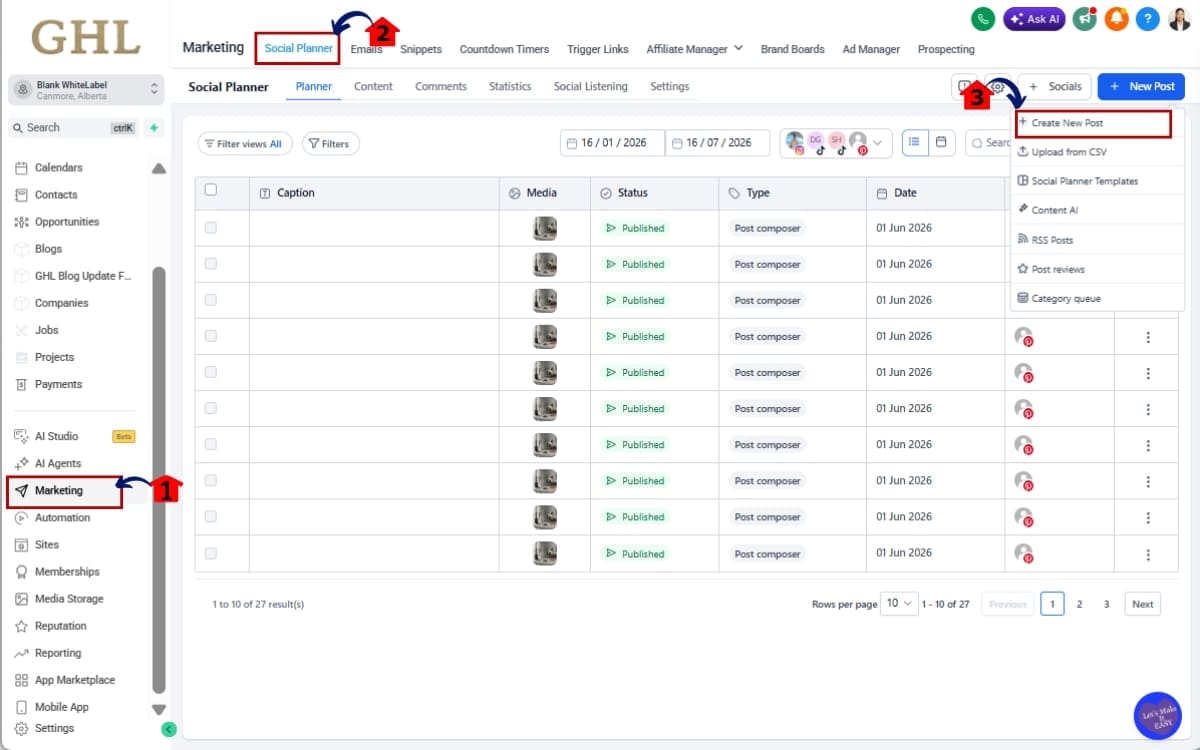
1.1 Click on the Marketing menu item.
- This opens your marketing tools and content sections.
1.2 Click on “Social Planner.”
- You’ll now be inside the Social Planner dashboard where all your scheduled and draft posts live.
1.3 Click the “Create Post” button.
- This opens the Social Planner composer window.
Step 02 – Create a New LinkedIn Post
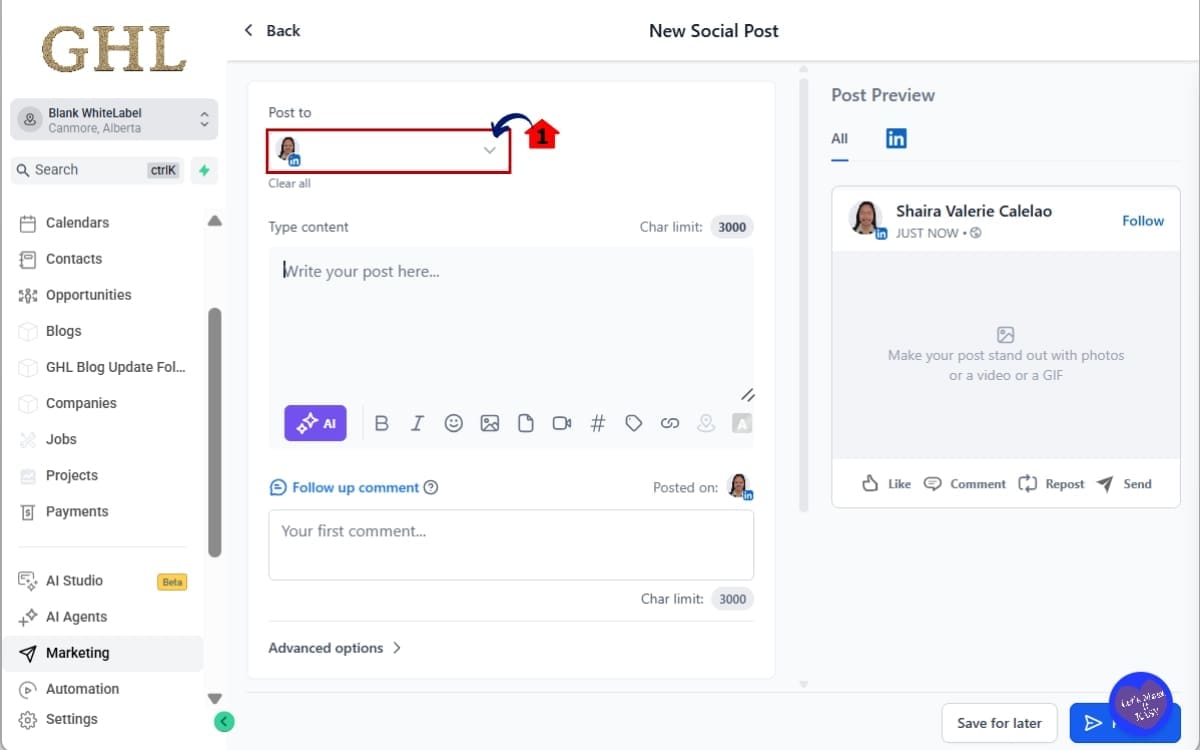
- Create a new social post and select the LinkedIn account where you want your poll to be published.
2.1 Select your LinkedIn account.
- Make sure the correct LinkedIn profile or company page is selected.
Step 03 – Add Your LinkedIn Poll in the Post
- Create your poll by adding a question, answer choices, and the settings needed before publishing.
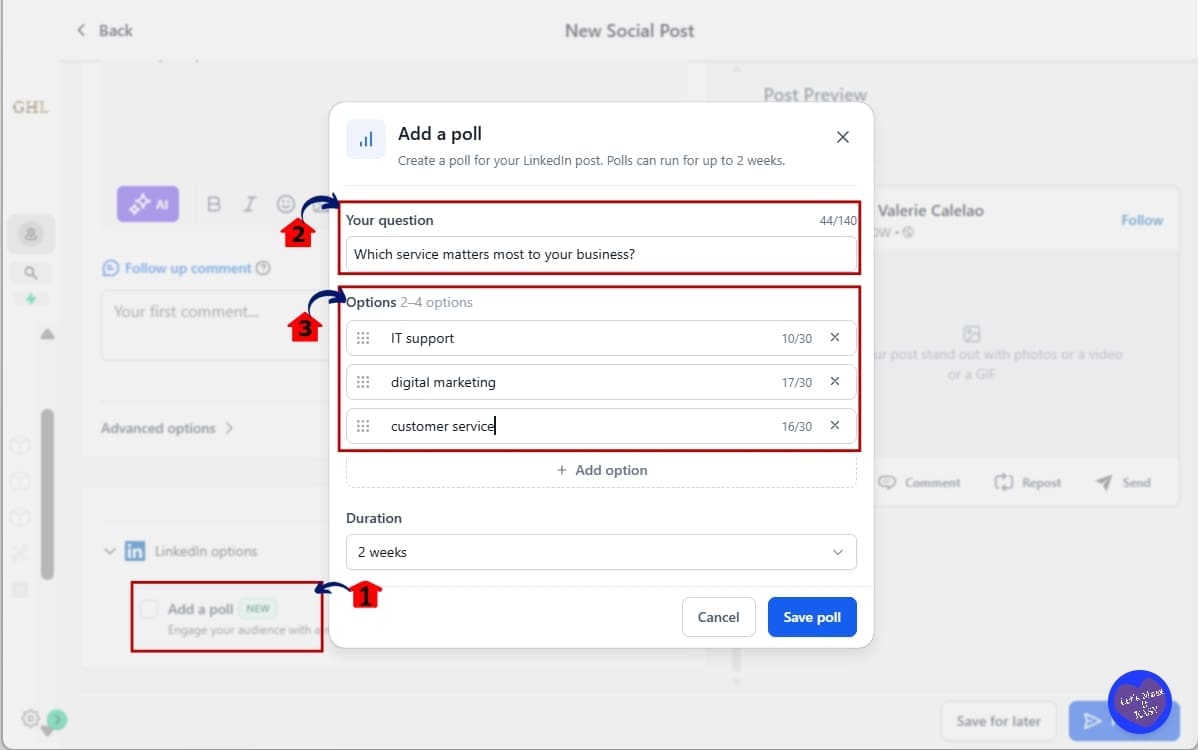
3.1 Click the “Add Poll” option inside the composer.
- The poll builder will expand below your post area.
3.2 Enter your poll question.
- Maximum length is 140 characters and Keep it clear and direct.
Example: Which service matters most to your business?
3.3 Add 2 to 4 answer options.
- Each option must be under 30 characters. You cannot exceed four answers.
Important:
- Do NOT attach images, videos, PDFs, or media to the LinkedIn version of this post.
- If media is attached, the poll will not publish.
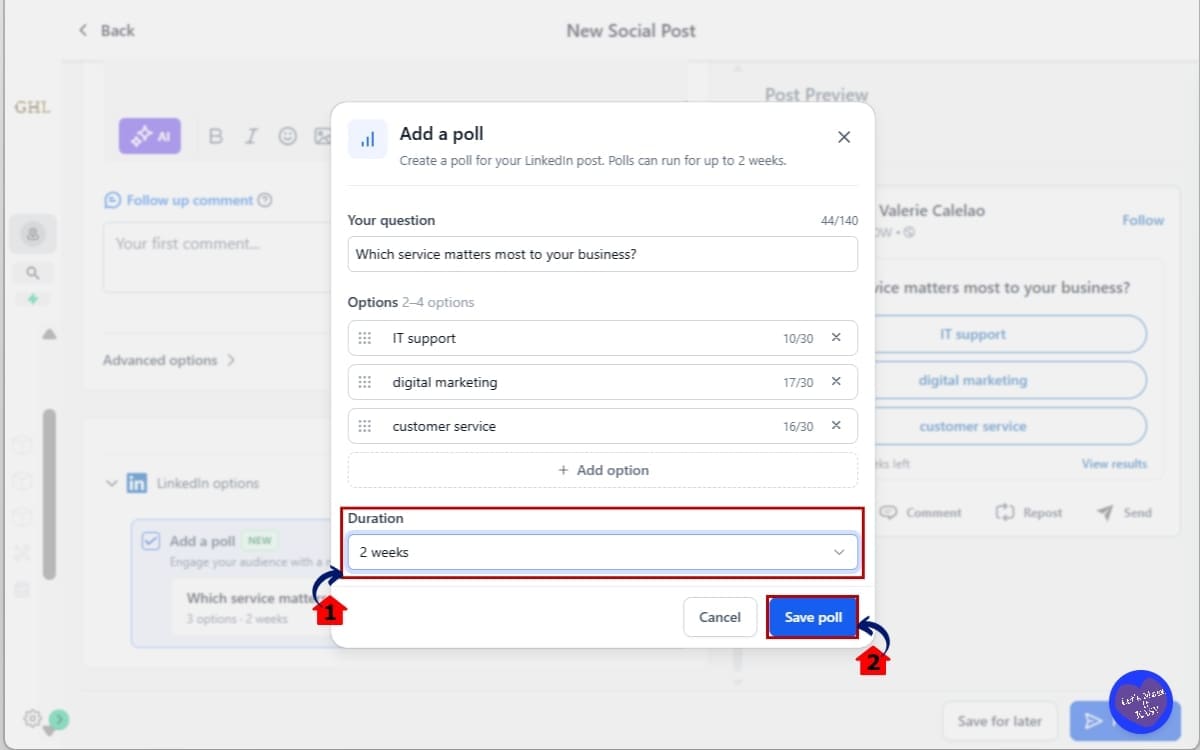
Step 04 – Choose Your Poll Duration in the Edit
- Select how long you want your LinkedIn poll to stay open and collect responses from your audience.
4.1 Locate the duration dropdown.
- This setting controls how long people can continue voting on your poll.
4.2 Select how long the poll should remain active.
Options include:
- 1 Day
- 3 Days
- 1 week
- 2 weeks
Choose based on your campaign goal. Shorter durations work well for urgency. Longer durations work better for research and visibility.
4.3 Click Save Poll
- This saves your poll settings and adds the poll to your LinkedIn post.
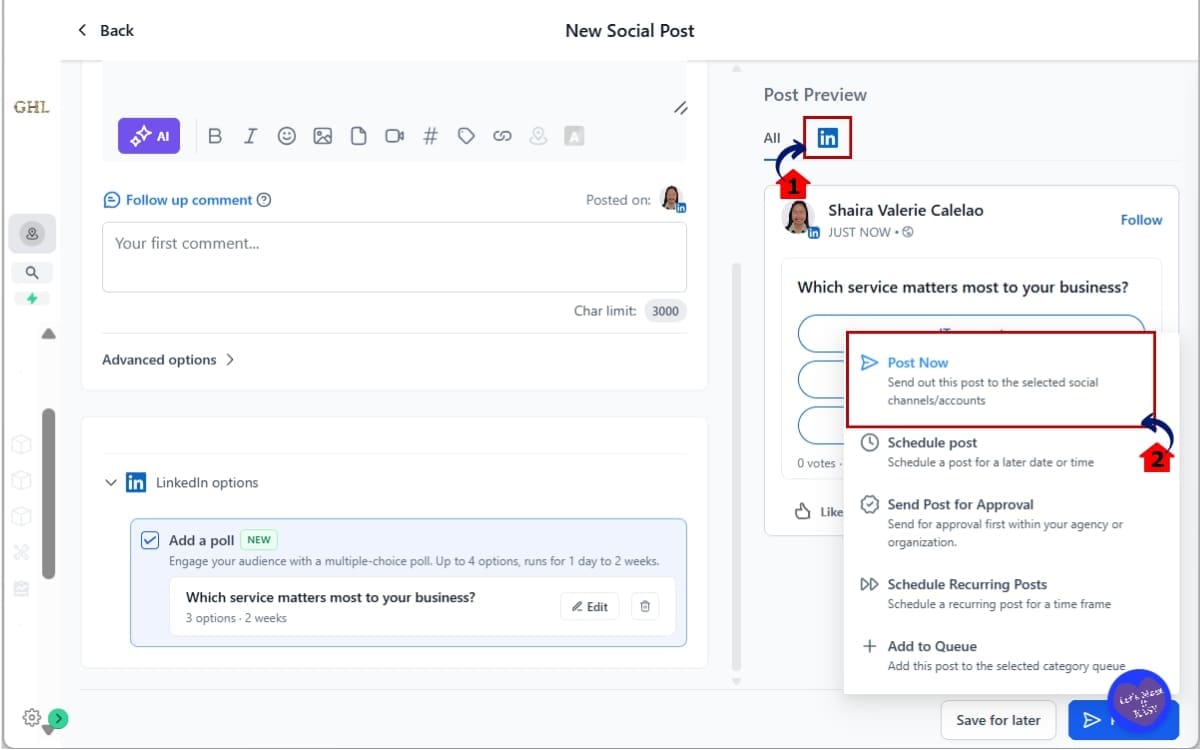
Step 05 – Preview and Confirm the Poll
- Review your LinkedIn poll one final time before publishing it to your audience.
5.1 Review your poll preview.
- Check your question.
- Check answer options.
- Confirm duration.
5.2 Click Post now.
- This will immediately publish your LinkedIn poll to the selected LinkedIn profile or company page.
That’s it. Your LinkedIn poll is now live or scheduled directly from GHL.
Troubleshooting Common Issues
Poll did not publish? Check this first:
- Did you attach media to the LinkedIn version? Remove it.
- Do you have more than 4 answer options? Reduce them.
- Is your question over 140 characters? Shorten it.
Keep it simple. Polls work best when they’re clean and focused.
Pro Tips for LinkedIn Poll Scheduling
LinkedIn Poll Scheduling is simple to use. But when you use it strategically, it becomes a serious engagement engine.
Here’s how to get more out of every poll you publish inside GHL.
Use Polls for Audience Research
Don’t just ask random questions. Ask questions that give you business intelligence.
Examples:
- What’s your biggest marketing challenge right now?
- Which service matters most to your business?
- What tool are you currently using?
These answers help you shape offers, messaging, and content direction.
Validate Offers Before You Build Them
Thinking about launching a new package? Test it first.
Create a poll with 3 variations of your offer. See which one gets the most votes. Now you’re building based on real interest, not guesses. That’s smarter marketing.
Keep Questions Clear and Direct
LinkedIn polls work best when they are simple. Avoid long explanations. Avoid complicated choices.
Ask one focused question. Provide clear answers. Make it easy to click.
Pair Polls With Follow-Up Posts
The poll is step one. The follow-up post is where the magic happens.
After the poll ends:
- Share results
- Add commentary
- Tag respondents
- Invite DMs
This increases conversation and builds authority.
Use Recurring Poll Campaigns
Because LinkedIn Poll Scheduling works with recurring posts and category queues, you can build engagement cycles.
Example:
- Weekly “Marketing Monday” poll
- Monthly industry insight poll
- Quarterly strategy feedback poll
Consistency builds recognition.
Avoid These Common Mistakes
- Don’t attach media to LinkedIn versions. The poll will fail.
- Don’t write vague answer options. Be specific.
- Don’t overuse polls daily. They lose impact.
- Don’t ignore the comments. That’s where relationships start.
Use polls with intention. Not noise. When done right, LinkedIn Poll Scheduling becomes more than a feature.
It becomes a lead generation tool.
What LinkedIn Poll Scheduling Means for Your Marketing Strategy
LinkedIn Poll Scheduling is not just a posting feature. It’s a strategy tool.
When you keep engagement inside GHL, your marketing becomes more structured. More intentional. More measurable.
Before this update, polls were disconnected from your main workflow.
Now they sit inside your Social Planner calendar alongside every other campaign.
Polls no longer need to be those last-minute posts you throw together when you run out of content ideas.
Plan:
- Awareness posts
- Authority posts
- Polls
- Follow-ups
- Offer-driven content
All inside one system. That means better campaign flow. It also improves content consistency.
You can map out your polls ahead of time and keep your LinkedIn activity running without constantly thinking about what to post next.
That alone improves execution. But here’s the bigger play. Polls give you data. Real responses from real prospects.
You can use that data to:
- Adjust messaging
- Create new offers
- Improve sales conversations
- Refine your funnel strategy
For agencies, this means you can show clients measurable engagement growth.
For consultants, it means deeper audience insight.
For B2B brands, it means better positioning.
And because everything stays inside GHL, your workflow stays clean. Less tool switching. Less manual work. More strategic clarity.
LinkedIn Poll Scheduling turns engagement into an organized system instead of random activity. That’s the shift.
Real-Time Business Application of LinkedIn Poll Scheduling
LinkedIn Poll Scheduling becomes powerful when you apply it with intention. Here’s how real agencies and marketers can use it inside GHL.
Scenario 1 – Agency Client Research
Every new client comes with assumptions about their market. The smartest marketers validate those assumptions first.
Try a question like: “What part of [industry topic] do you struggle with most?”
Schedule it through Social Planner. Let it run for 7 days.
Now you have real data from real prospects. You use those responses to shape ad copy, landing pages, and sales messaging.
That’s research without extra software.
Scenario 2 – Offer Validation
Thinking about launching a new service? Don’t guess.
Create a poll with 3 service options and ask your audience which one interests them most.
Example:
“Which service would help you most right now?”
- Option A
- Option B
- Option C
Schedule it. Watch the votes. The winning option becomes your next promotion focus.
You just validated demand before building the full campaign.
Scenario 3 – Engagement-Driven Lead Generation
Polls naturally increase interaction.
More votes = more visibility.
More visibility = more profile visits.
Now pair it with strategy. After the poll ends:
- Post a results breakdown
- Invite people to comment “INFO”
- Send DMs to engaged users
- Trigger follow-up workflows inside GHL
This turns engagement into conversation. And conversation into opportunity.
Scenario 4 – Recurring Authority Campaign
Use recurring scheduling to run a weekly industry poll.
Every Monday: “Marketing Monday Question”
Over time, your audience expects it. You become the voice asking the important questions in your niche.
That builds authority. And authority builds inbound leads. LinkedIn Poll Scheduling is not just about posting.
It’s about building structured engagement systems inside GHL.
FAQs About LinkedIn Poll Scheduling
Conclusion – Start Using LinkedIn Poll Scheduling Today
LinkedIn Poll Scheduling inside GHL is one of those updates that quietly changes everything.
It removes friction. It centralizes engagement.
It turns polls into a structured part of your marketing workflow instead of a random afterthought.
You no longer need to jump between platforms.
You no longer need to manually rebuild posts.
You no longer need to manage engagement outside your system.
Now, polls live where your strategy lives. Inside Social Planner.
This means:
- Cleaner workflows
- More consistent engagement
- Better audience insight
- Stronger content planning
- Less wasted time
For agencies, this is about scale. For marketers, it’s about smarter testing. For consultants, it’s about positioning and authority.
LinkedIn Poll Scheduling makes engagement easier, more organized, and more intentional inside GHL. That’s the win.
Your audience already has opinions. This gives you an easy way to hear them.
Have you tried LinkedIn Poll Scheduling inside GHL yet? What type of poll are you planning to run first?
Check back to the GHL Growth Garage blog for more GoHighLevel feature guides that help you move faster and work smarter. 🚀
Scale Your Business Today.
Streamline your workflow with GoHighLevel’s powerful tools.