- GHL can now read your page and build the right schema for you.
- Quick Summary – Schema Markup AI Essentials
- Why This Matters to You
- AI Flow Builds Schema From Page Content
- What’s Changed (Compared to Phase 1)
- Where to Find It in GHL (Entry Points)
- Best Pages to Use Schema Markup AI On
- How to Use Schema Markup AI in GHL
- Common Mistakes and Quick Fixes (Schema Markup AI)
- Pro / Quick Tips (Schema Markup AI)
- What This Means for Your Business (Practical Application)
- Frequently Asked Questions about Schema Markup AI
- Next Steps With Schema Markup AI in GHL
GHL can now read your page and build the right schema for you.
Schema Markup AI helps you add structured data without the manual work.
Schema Markup AI in GHL takes away the usual schema headaches. You do not need to guess the right schema type or fill out long fields by hand. GHL reads your page and builds the schema based on what is already there.
This matters because schema is easy to get wrong when you do it manually. One missing field, the wrong type, or a bad format can waste time and still leave the page with weak structured data. Most teams end up skipping it or pushing it to “later.”
With Schema Markup AI, you can generate, edit, or delete schema through a simple chat flow inside the builder. It validates the markup and saves it for you. In this guide, you will learn how to turn it on, run it on a page, and publish so the schema goes live.

With Schema Markup AI, you can add or fix structured data on a page in minutes, not half an hour. GHL reads your content, builds the right schema, and saves it after validation.
Quick Summary – Schema Markup AI Essentials
Purpose: This guide shows how to use Schema Markup AI in GHL to generate, edit, and delete structured data directly inside the Website & Funnel Builder using a chat-based AI flow.
Why It Matters: Schema helps Google and AI systems understand your pages better, which can support rich results and stronger AI search interpretation.
What You Get: You’ll learn how to enable the feature in Labs, run Create with AI on a page, refine schema through chat, and publish so it goes live in the page head.
Time To Complete: Most pages take about 2–5 minutes once your page content is final and you follow a simple checklist.
Difficulty Level: Easy since the AI validates and auto-saves the schema after it generates it.
Key Outcome: You can standardize validated, page-specific schema as a repeatable agency deliverable and ship it faster across websites and funnels.
Why This Matters to You
Schema Markup AI saves time on a task that usually slows teams down. Most people can publish a page fast, but schema often becomes the “extra” step that gets skipped. When you can handle schema in minutes, it is easier to keep it part of your normal process.
It also reduces mistakes. Manual schema work often breaks because of missing required fields, wrong formatting, or choosing a schema type that does not match the page. Schema Markup AI reads what is on the page, fills the fields from that content, and then validates before it saves. That means fewer clean-up tasks later.
Automate marketing, manage leads, and grow faster with GoHighLevel.

For agencies, this helps with consistency. You can hand this to a VA or a junior team member and still get a reliable result. The workflow is simple: finalize the page content, run Schema Markup AI, review the Active Schemas, then publish.
AI Flow Builds Schema From Page Content
Schema Markup AI now runs as an AI Flow inside the Website and Funnel Builder. Instead of starting with a blank form, you start with your real page. The AI reads the page content, then generates the schema types that match what the page is actually about.
The biggest change is how much the AI handles for you. It picks the most relevant schema types, places them in the right structure, and pre-fills the fields using live page data. You are not limited to a small set of schema options either. This supports the full range of schema types, so it can match many different page styles.
You can also manage schema through conversation. That means full CRUD in one place: create a new schema, edit what is already there, or delete what you do not want. When the AI finishes, it validates the schema and auto-saves it. You do not need to hunt for a separate save button.
What’s Changed (Compared to Phase 1)
Phase 1 helped users add schema, but it still felt like a manual setup task. You often had to choose the schema type yourself, then fill in fields and check if it was correct. That worked, but it still left room for errors, and it still took time.
Phase 2 shifts the schema into a guided AI workflow. Schema Markup AI reads your page content first, then chooses the schema types that match the page. It also pre-fills the fields using what is already on the page. This removes most of the back and forth that slows people down.
The other big change is control. You are not just generating schema once and moving on. You can create, edit, or delete schema through chat, then let the system validate and auto-save it. And you are no longer limited to a short list of schema types, so the tool can support more page layouts and use cases.
Where to Find It in GHL (Entry Points)
You will find Schema Markup AI inside the Website and Funnel Builder, on the left panel. Open your page, then go to SEO & AI search optimization, and open Schema Markup. From there, you will see the option to Create with AI.
There are two ways the AI experience can open, based on whether Funnel AI is enabled. If Funnel AI is enabled on the account, Schema Markup AI runs inside the Funnel AI panel. This keeps schema work in the same AI space your team may already use.
If Funnel AI is disabled, you will still get Schema Markup AI. GHL opens a dedicated Schema Markup AI pane in the left panel. This version is focused only on schema actions. It is meant for generating, editing, and deleting schema, not page building or content writing.
Best Pages to Use Schema Markup AI On
Schema Markup AI fits best when your team ships pages often and needs a clean process. If you manage multiple clients, schema usually becomes the step that slows down publishing. This update makes it easier to treat schema as part of the normal build, not a separate task.
A simple agency workflow is to run schema after the page content is final. That includes your home page, service pages, landing pages, and key funnel steps like booking or registration. Once the content is locked, Schema Markup AI can read the page, generate the right schemas, and fill the fields from what is already there. Your team then checks Active Schemas and publishes.
This is also useful for delegation. A VA or junior team member can handle schema work without knowing every schema type. You can give them a short checklist: open the page, click Create with AI, review what the AI generated, and publish. Your SEO lead can spot-check the results, instead of doing every schema build by hand.
How to Use Schema Markup AI in GHL
Schema Markup AI is used inside the Website & Funnel Builder while editing a page. You’ll generate schema from the SEO & AI search optimization panel, refine it through chat if needed, and then publish the page to push schema live. Here are the steps to generate and publish schema markup using Schema Markup AI in GHL.
- Access the Funnel or Website page inside GHL Sites.
- Go into the Website Editor for the page you are adding Schema.
- Open the Schema Markup popup.
- Generate schema with Schema Markup AI.
- Refine schemas through chat (optional).
To start make sure you are logged in to your GoHighLevel sub-account.
Step 01 – Access the Funnel or Website page inside GHL Sites
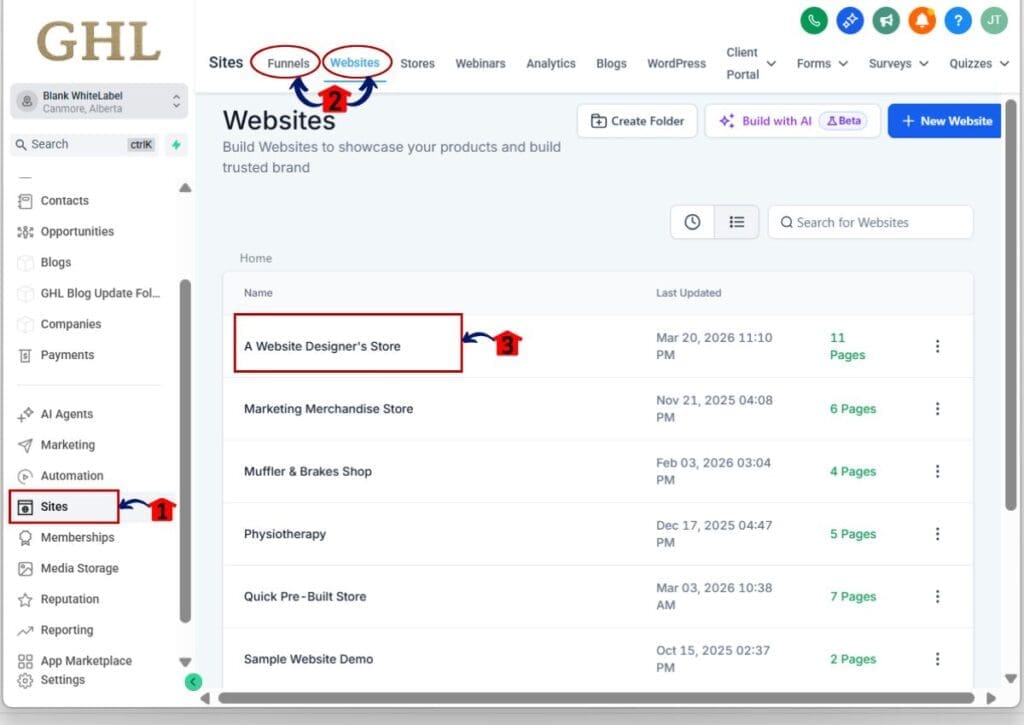
- The Main Menu on the left side of your screen has the main areas you work in when using GHL.
1.1 Click Sites main menu item.
- This opens the Sites section where you can access Websites and Funnels.
1.2 Click Websites or Funnels.
- If you are working on a main website page for SEO, choose Websites.
- If you are adding schema to a funnel step, choose Funnels.
1.3 Click the Website or Funnel name you want to update.
- For our example we will use a Website as it often is more critical for Website SEO to have the Schema set up properly.
- The Schema Markup AI update works with both Websites and Funnels.
Step 02 – Go into the Website Editor for the page you are adding Schema
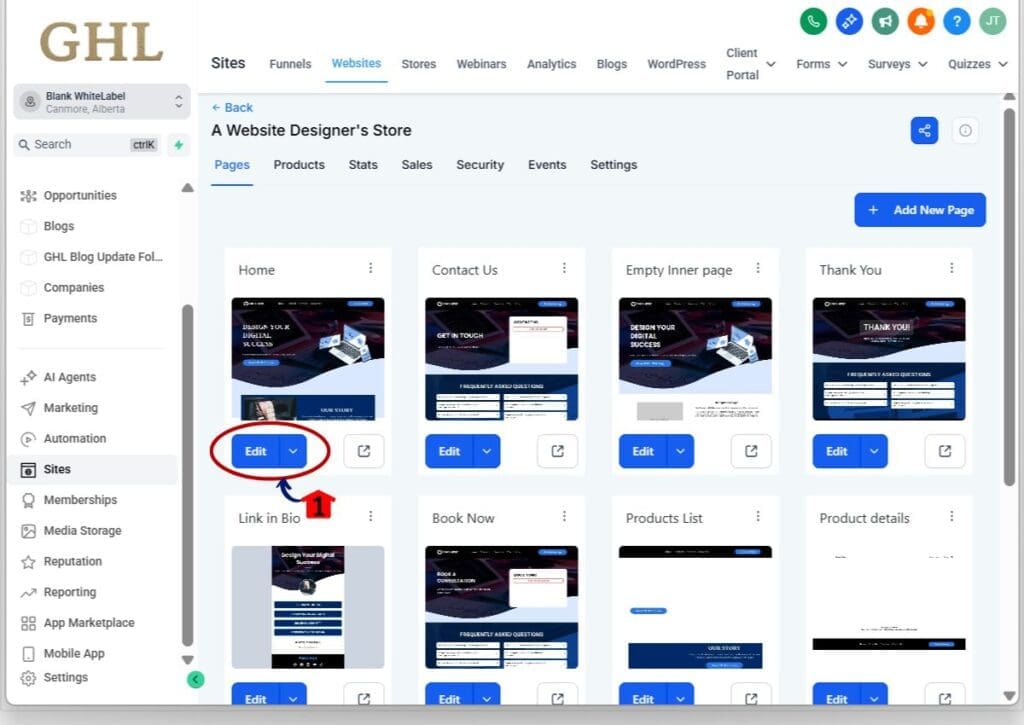
2.1 Click on the Edit button for the page you have chosen to add Schema markup.
- The page editor will load for that page.
Step 03 – Open the Schema Markup popup
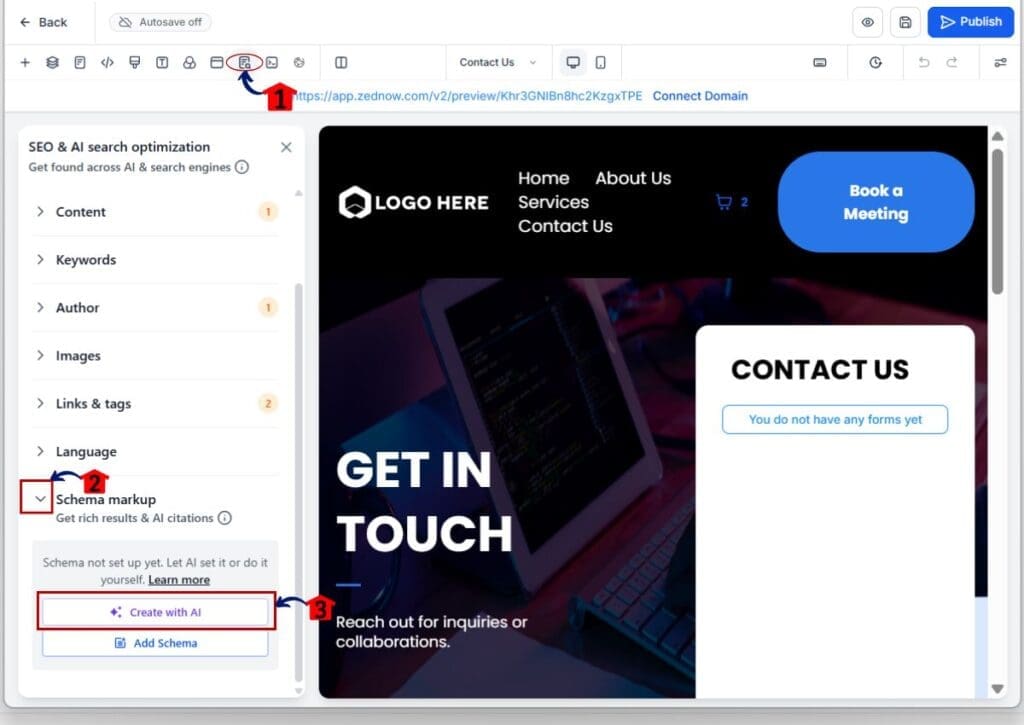
3.1 In the Page Editor top panel, click “SEO & AI search optimization”.
- This opens the SEO and AI optimization settings for the page, including the Schema Markup area.
3.2 Open the drop-down for the schema markup.
- An expanded drop-down will open.
3.3 Click on ” + Create with AI” Button.
- A pop-up window will appear where you can select to create with AI or add schema.
Step 04 – Generate schema with Schema Markup AI
- After Clicking the Create with AI.
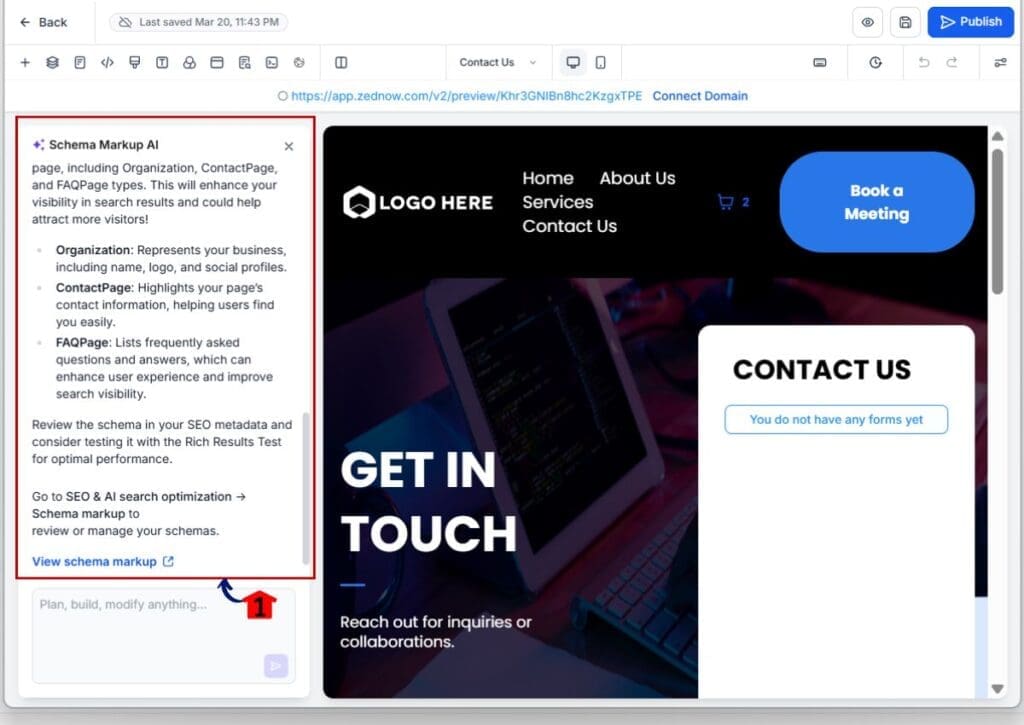
4.2 Let the AI read the page content.
- Schema Markup AI analyzes what is on the page and generates the most relevant schema types.
4.3 Review the schemas and pre-filled fields.
- Confirm the schema types match the page and the key fields look correct.
Step 05 – Refine schemas through chat (optional)
5.1 Ask the AI to add a schema if needed.
- Example: “Add FAQ schema based on the FAQ section on this page.”
5.2 Ask the AI to edit a field.
- Example: “Update the business name field to match the header.”
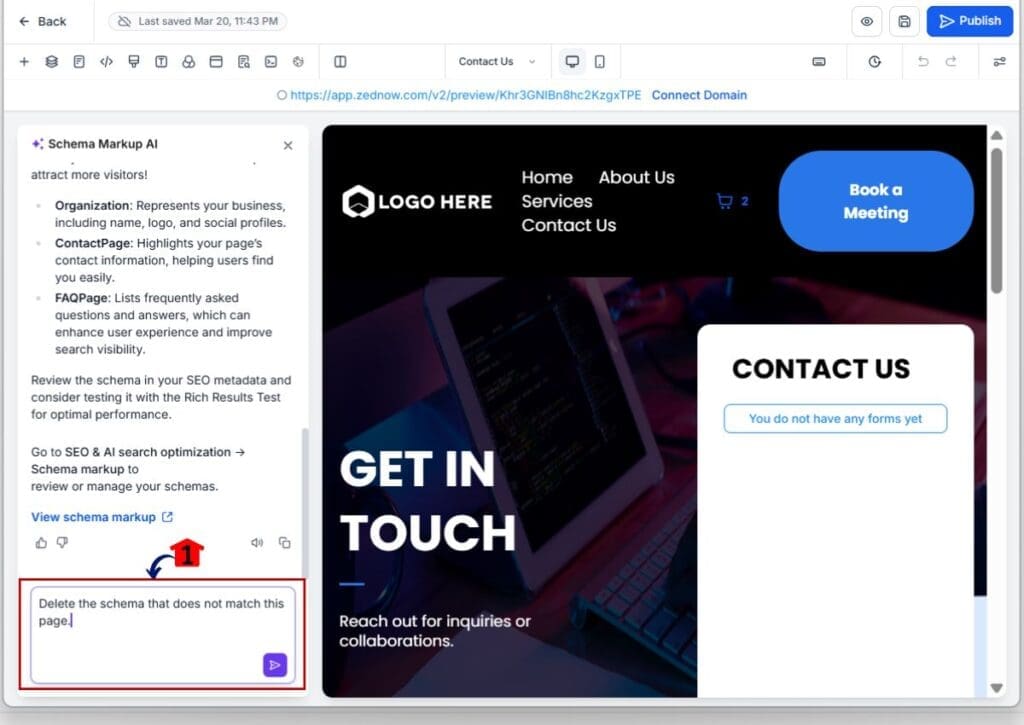
5.3 Ask the AI to remove a schema you do not want.
- Example: “Delete the schema that does not match this page.”
Common Mistakes and Quick Fixes (Schema Markup AI)
The most common issue is trying to run Schema Markup AI on a page that has little or no content. Since the AI reads what is on the page, it needs real headings, sections, and copy to work with. If you see an error, the fix is simple: add the core content first, save, then run Create with AI again.
Another mistake is running it too early in your build. Schema is not auto-generated when you create a new page with AI, and it is best used after the page is finalized. If you generate schema before the offer, FAQs, or key page sections are in place, you may get a weaker result. The quick fix is to treat schema as a finishing step: content first, schema second, publish last.
The last one is assuming schema carries across pages or funnel steps. It does not. Schema is page-specific, so a service page schema will not automatically apply to the next step in the funnel. The fix is to run Schema Markup AI on each important page, then check Active Schemas before you publish.
Pro / Quick Tips (Schema Markup AI)
Run Schema Markup AI after the page is finished. If your headline, offer details, FAQs, or sections are still changing, wait. The AI can only pull what exists on the page right now, so final content gives you a cleaner schema with fewer edits.
Use short, direct chat requests when you refine. You will get better results if you tell it exactly what to change. For example, ask it to update one field, swap one schema type, or remove one schema. This keeps the session tidy and reduces the chance of adding schema that does not match the page.
Make this part of your agency checklist. A simple process works well: content approved, run Create with AI, review Active Schemas, publish. If you delegate, have your VA do the first pass, then have your SEO lead spot-check the Active Schemas on key pages like the homepage, main service pages, and top traffic landing pages.
Do not overdo the schema. Only keep schemas that match what the visitor can actually see on the page. If the AI adds a schema that does not fit, delete it. Clean schema that matches real content is safer and easier to maintain.
What This Means for Your Business (Practical Application)
Schema Markup AI turns schema into a repeatable step, not a special project. When the schema takes 20 to 30 minutes, it often gets pushed back. When it takes a few minutes, it becomes something your team can do on every important page without slowing down the build.
It also makes quality control easier. Instead of checking a long form or reviewing raw JSON, you can review what the AI generated under Active Schemas. If something looks off, you can correct it in plain language through chat. That reduces the skill gap and lowers the risk of small mistakes that can break validation.
For agencies, this improves delivery. You can add “schema validated and published” to your launch checklist and actually keep it there. It also supports cleaner handoffs between roles. A builder or VA can run Schema Markup AI, then your SEO lead can do a quick review on key pages before you publish.
Frequently Asked Questions about Schema Markup AI
Next Steps With Schema Markup AI in GHL
Schema Markup AI makes structured data much easier to handle inside GHL. Instead of guessing schema types and filling out fields by hand, you can let the AI read your page, build the right schema, and save it after validation.
The best workflow is simple and repeatable. Finalize your page content first. Then run Create with AI, review what shows under Active Schemas, and publish. If you need changes, use chat to add, edit, or delete schema without digging through forms.
If you want a quick win, start with one high-value page. Try your homepage, your main service page, or your top converting landing page. Run Schema Markup AI, publish, and then repeat the same process across the pages that matter most.
Scale Your Business Today.
Streamline your workflow with GoHighLevel’s powerful tools.