

- Introduction – GHL User Reply Automation Explained
- Quick Summary – User Reply Automation
- Here are this week's HighLevel Updates 🚀
- What Is GHL User Reply Automation?
- Why GHL User Reply Automation Matters
- Real-World User Reply Automation Examples
- How to Use GHL User Reply Automation
- Pro Tips for Better GHL User Reply Automation
- Results You Can Expect
- FAQs – User Reply Automation
- Conclusion – Put GHL User Reply Automation to Work
Introduction – GHL User Reply Automation Explained
Most businesses have a process that begins after someone on the team responds to a customer. The problem is that those processes often rely on memory instead of User Reply Automation.
You’ve probably seen it before. A sales rep replies to a new lead. A support agent answers a customer’s question. Someone on your team follows up with a prospect after an enquiry.
Then… nothing happens.
Getting a reply out is easy. Remembering all the admin that follows is where things often fall apart.
Now imagine doing that manually for every conversation as your business grows.
You either rely on your team to remember every next step, or important follow-ups get delayed, opportunities stall, and customer conversations slip through the cracks.
Before this update, workflows generally started when the customer did something. If one of your team members sent the reply instead, there wasn’t an equivalent trigger to continue the automation.
That’s now changed.
With the new User Reply Automation trigger in GoHighLevel, every team response can instantly kick off the next stage of your workflow automatically. Whether it’s updating an opportunity, notifying a manager, applying a tag, or creating a follow-up task, your processes keep moving without any manual effort.
The real benefit isn’t simply adding another workflow trigger.
It’s giving your business the ability to react automatically the moment your team engages with a customer.
Less manual work. Faster follow-ups. Smarter GHL User Reply Automation.
The latest GoHighLevel Changelog includes several other GHL feature updates that round out your daily workflow:
- Wait Action Enhancement: TikTok DM Replies
- India Recurring Mandate Support for Affiliate Indian Signup Pages
- Housecall Pro – More Workflow Actions & Triggers
- Email Services Dashboard for Agencies
- Email Sequences Now Available in Beta Labs
- Group Your Contacts by Source in Dashboards & Reporting
- MMLite Adoption Banner in Conversations
Keep reading for much more on all these updates and a deep dive into the User Reply Automation feature!

Quick Summary – User Reply Automation
Purpose: Learn how the new User Reply Automation trigger automatically starts workflows after a team member responds to a contact, helping you streamline your sales, support, and internal processes.
Why It Matters: Manual follow-up tasks can slow your team down and create inconsistencies. GHL User Reply Automation ensures every team reply automatically triggers the next step, keeping your workflows accurate and your customer journey moving forward.
What You Get: You’ll discover how to configure the User Reply Automation trigger, build practical automations, apply real-world use cases, and implement best practices that save time and improve team productivity.
Time to Complete: Most User Reply Automation workflows can be configured in approximately 10–15 minutes, depending on the complexity of your workflow actions.
Difficulty Level: Beginner to Intermediate. Anyone familiar with GoHighLevel Workflows can quickly implement this feature, while advanced users can extend it with conditions, branching logic, and multi-step automations.
Key Outcome: By implementing GHL User Reply Automation, you’ll reduce manual administration, improve CRM accuracy, automate follow-up actions, and create more consistent sales and support workflows that scale with your business.
Here are this week’s HighLevel Updates 🚀
Wait Action Enhancement: TikTok DM Replies
What’s New:
Instead of continuing after a fixed delay, your workflow can pause until someone replies to your TikTok DM.
Where in GHL:
Found in Automation → Workflows using the Wait action after sending a TikTok DM.
Automate marketing, manage leads, and grow faster with GoHighLevel.

Impact:
Your automation responds when someone actually joins the conversation, rather than after a timer runs out.
Recommended For:
Anyone using TikTok DMs to start conversations with potential customers.
India Recurring Mandate Support for Affiliate Indian Signup Pages
What’s New:
Supports recurring payment mandates for Indian affiliates, helping subscriptions comply with local banking requirements.
Where in GHL:
Available on Affiliate Program signup pages for users in India.
Impact:
Creates a smoother signup experience while reducing payment failures for recurring subscriptions.
Recommended For:
Agencies, SaaS businesses, and affiliate programs onboarding customers in India.
Housecall Pro – More Workflow Actions & Triggers
What’s New:
Adds new workflow triggers and actions for the Housecall Pro integration, giving you more ways to automate field service processes.
Where in GHL:
Inside Automation → Workflows when using the Housecall Pro integration.
Impact:
Expands automation possibilities between HighLevel and Housecall Pro, reducing manual work and improving operational efficiency.
Recommended For:
Home service businesses, field service companies, and agencies managing Housecall Pro clients.
Email Services Dashboard for Agencies
What’s New:
Introduces a centralized dashboard where agencies can monitor email services across their accounts.
Where in GHL:
Found in the Agency View under the new Email Services Dashboard.
Impact:
Makes it easier to monitor email health, identify issues, and manage deliverability from one place.
Recommended For:
Agency owners, support teams, and admins managing multiple client email services.
Email Sequences Now Available in Beta Labs
What’s New:
Introduces Email Sequences as a Beta Labs feature, providing another way to create structured email follow-up campaigns.
Where in GHL:
Enable it from Settings → Labs, then access Email Sequences after activation.
Impact:
Cuts down the time spent checking different areas just to see how your email services are performing.
Recommended For:
Marketers, agencies, coaches, and businesses running nurture campaigns or onboarding emails.
Group Your Contacts by Source in Dashboards & Reporting
What’s New:
Lets you organize contact reports based on where your leads originated.
Where in GHL:
Available within Dashboards & Reporting when viewing contact analytics.
Impact:
Makes it easier to compare lead sources and identify which marketing channels are producing the best results.
Recommended For:
Marketing teams, agency owners, and businesses tracking campaign performance across multiple lead sources.
MMLite Adoption Banner in Conversations
What’s New:
Displays a helpful banner inside Conversations to encourage users to adopt the new MMLite messaging experience.
Where in GHL:
Appears within the Conversations module for eligible accounts.
Impact:
Helps users discover and transition to MMLite while highlighting its benefits directly inside the messaging interface.
Recommended For:
Current HighLevel users exploring the latest messaging experience and teams preparing to migrate to MMLite.
What Is GHL User Reply Automation?
Most GoHighLevel workflow triggers are designed around customer activity. They fire when a lead submits a form, books an appointment, or replies to a message. Until now, replying from your own side of the conversation wasn’t something you could trigger a workflow from.
That’s exactly what the new User Reply Automation trigger is designed for.
Your team focuses on replying. The workflow takes care of everything that follows.
You’ll see User Reply Automation in the list of available workflow triggers. Selecting it allows GoHighLevel to react whenever someone on your team replies to a contact.
One thing to keep in mind is that this trigger only responds to replies sent by users in your account. It won’t run when the customer replies because GoHighLevel already has separate triggers for customer activity.
That small change creates plenty of opportunities to automate work that previously happened by hand. Whether you’re updating a pipeline, tagging a contact, or scheduling a follow-up, your workflow can continue automatically after every team reply.
Why GHL User Reply Automation Matters
Most teams don’t struggle with replying to customers. The real challenge is everything that comes after the reply has been sent.
A salesperson reaches out to a new lead. A support agent answers a question. The conversation is moving, but someone still needs to update the CRM, check the pipeline, or decide what happens next.
When business is quiet, that’s easy enough to manage.
Managing a handful of customer conversations is one thing. Managing dozens every day is a completely different story.
A reply can now trigger everything you’ve planned behind the scenes. Your team moves on to the next customer while the workflow takes care of the rest.
Real-World User Reply Automation Examples
The real value of the User Reply Automation trigger comes from what you build around it. Every business has its own process, and this feature lets your workflows reflect that instead of forcing everyone into the same sequence of actions.
Here are a few practical ways businesses are already using GHL User Reply Automation.
Move Opportunities Through Your Pipeline
Sending that first reply usually means the lead is moving forward. Rather than asking the sales team to update the opportunity afterwards, the workflow can do it automatically.
Instead, use the User Reply Automation trigger to automatically move the opportunity from “New Lead” to “Contacted.” Your pipeline stays accurate, reporting becomes more reliable, and everyone on the team can instantly see which leads have been reached.
Notify Managers Automatically
No manager is going to check every message their team sends. What matters is knowing when something important has happened.
When a team member replies to a high-value lead, GHL User Reply Automation can instantly send an internal notification to a sales manager or account owner. This keeps everyone informed without creating extra administrative work.
Tag Contacts for Better Organization
Contact tags are often the foundation of more advanced automations.
Every reply from your support or sales team can automatically add a tag to the contact record. Whether it’s Support Responded or Sales Contacted, those tags help organise your CRM and can trigger whatever happens next in your workflow.
Schedule Follow-Up Tasks
Just because your team replied doesn’t mean the conversation is finished.
A customer doesn’t reply. Two days pass. Instead of hoping someone notices, the workflow creates a reminder for your team to reach out again.
Build Smarter Internal Processes
The User Reply Automation trigger can also launch entirely internal workflows.
For example, you could assign the conversation to another department, notify a fulfilment team after a sale, update custom fields, log activities for reporting, or trigger quality assurance reviews for specific conversations. Since the workflow starts immediately after a team reply, your internal processes stay synchronized without anyone needing to remember the next step.
Some businesses might use this trigger to move deals through the pipeline. Others may build reminders, notifications, or approval processes around it. The choice is entirely yours.
How to Use GHL User Reply Automation
Getting started with the new User Reply Automation workflow trigger only takes a few minutes, especially if you’ve already built workflows in GoHighLevel before. Rather than manually updating records or reminding your team after every conversation, you can use this trigger to launch automations whenever one of your users replies to a contact.
In this guide, you’ll create a workflow, add the User Reply Automation trigger, configure the available settings, and build the actions that should happen after a team member sends a reply. The setup follows the same workflow builder you’re already familiar with, making it easy to add this feature to both new and existing automations.
- Open the Automation Area in GoHighLevel.
- Add the User Replied Workflow Trigger.
- Configure the Trigger in Workflow.
- Add Your Workflow Actions.
- Test and Publish Your Workflow.
Before you begin, make sure you’re logged in to your GoHighLevel sub-account.
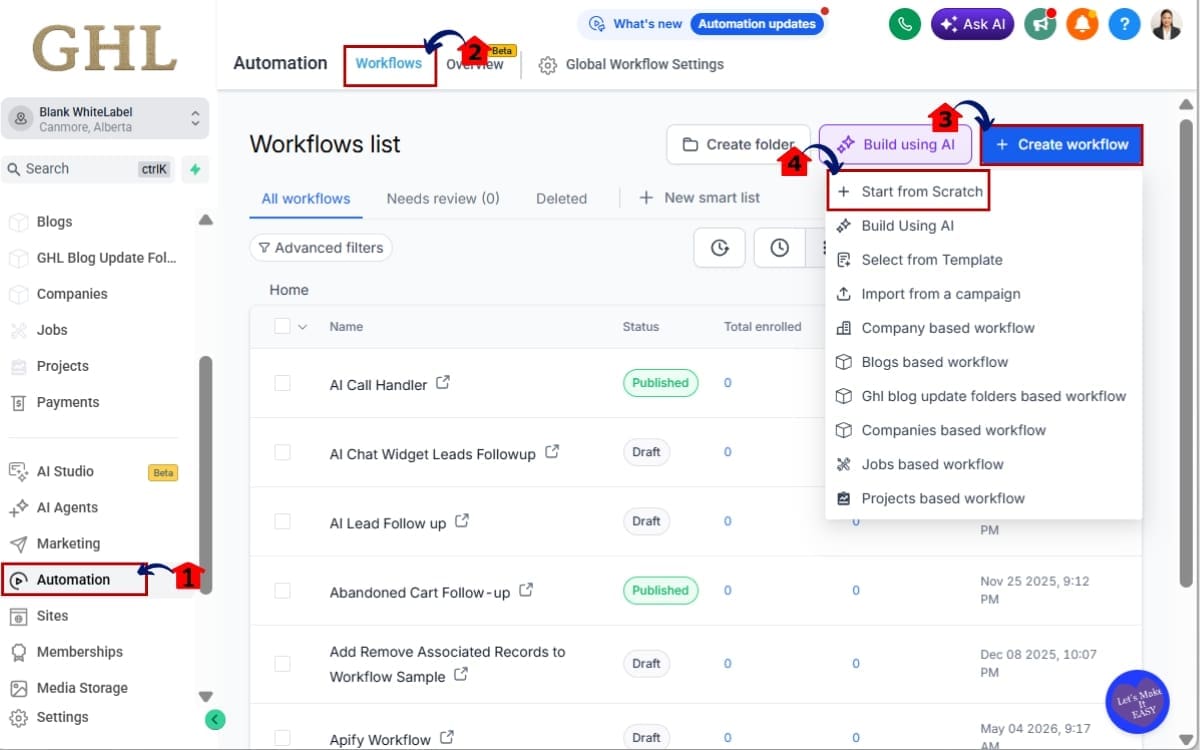
Step 01 – Open the Automation Area in GoHighLevel
- The Automation section is where all workflow automations are created and managed.
1.1 Click Automation from the left-hand navigation menu.
- This opens the Automation area where you’ll find all of your existing workflows.
1.2 Click Workflows from the top navigation.
- You’ll now see your current workflows and have the option to create a new one or edit an existing workflow.
1.3 Click + Create Workflow.
- If you’d like to add the trigger to an existing workflow instead, simply open that workflow from the list.
1.4 Select Start from Scratch.
- You can also choose a template if one better suits your automation.
Step 02 – Add the User Replied Workflow Trigger
- Next, you’ll choose the event that starts the workflow.
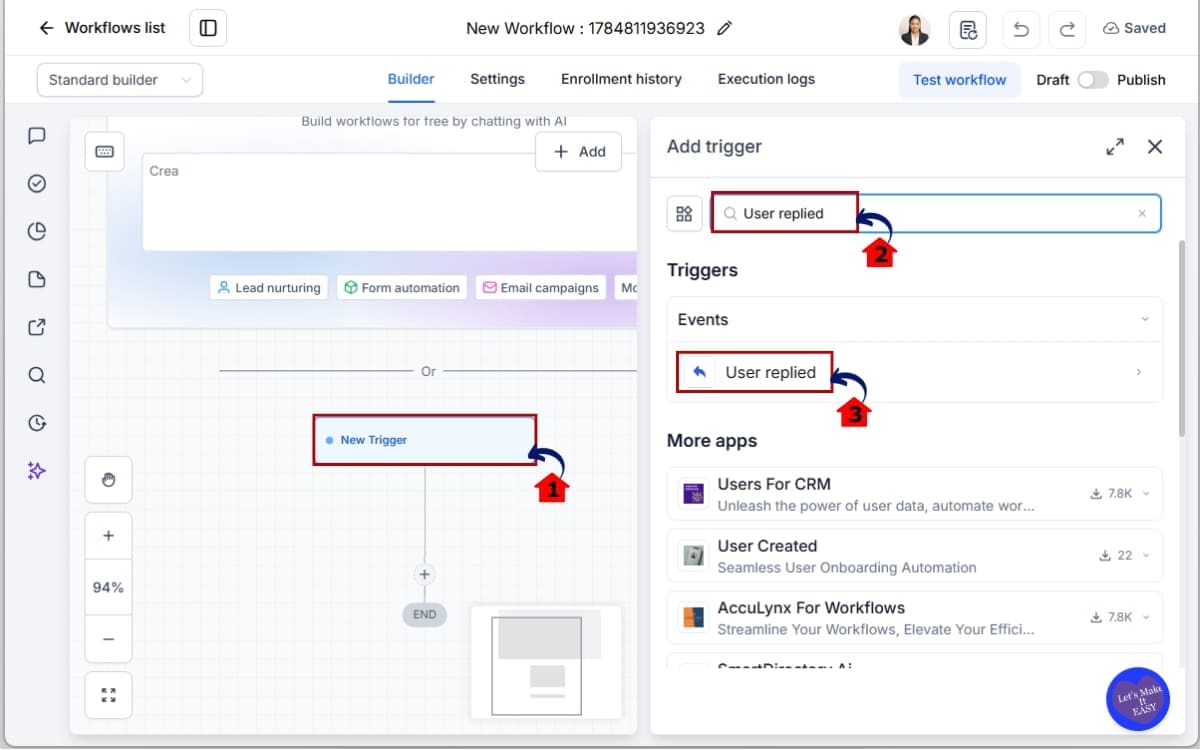
2.1 Click Add New Trigger.
- This opens the list of available workflow triggers.
2.2 Search for User Replied.
- Type User Replied into the search field to quickly locate the new trigger.
2.3 Select User Replied.
- The workflow will now monitor replies sent by users within your GoHighLevel account.
Step 03 – Configure the Trigger in Workflow
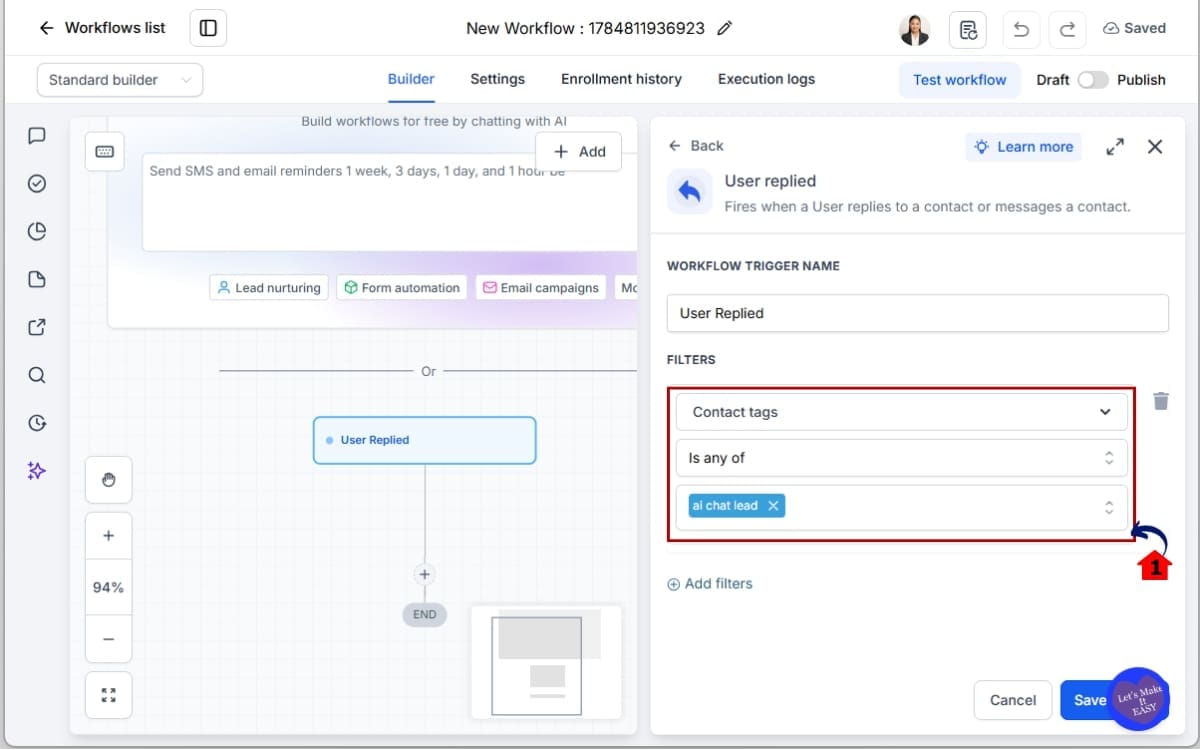
- After selecting the trigger, you’ll need to configure when the workflow should run.
3.1 Review the available trigger settings.
- Depending on your account configuration and future updates, additional trigger options or filters may be available.
Step 04 – Add Your Workflow Actions
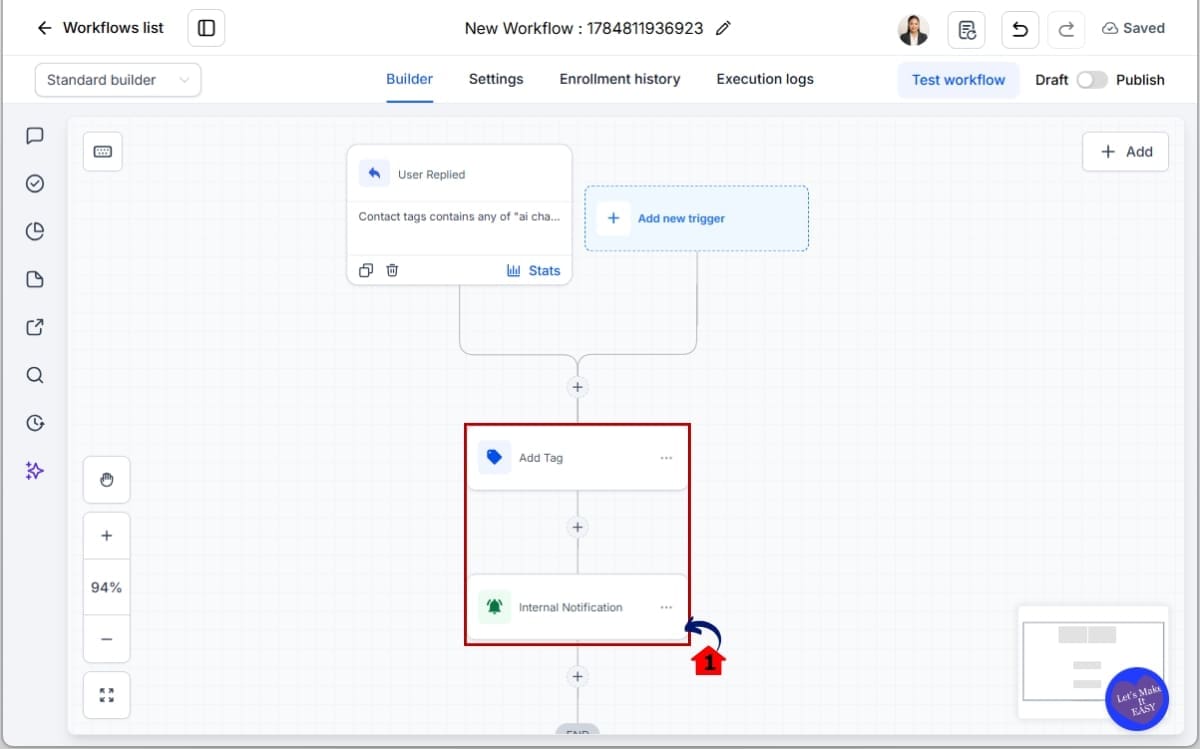
- Now it’s time to decide what should happen after a user replies to a contact.
4.1 Click the + icon to add workflow actions.
- Choose the actions that best support your business process.
For example, you could:
- Apply a contact tag.
- Send an internal notification.
You can combine multiple actions to create a complete automated process.
Step 05 – Test and Publish Your Workflow
- Before using your automation with live contacts, it’s worth confirming that everything works as expected.
5.1 Click Publish.
- Your workflow is now active and ready to run whenever a user sends a qualifying reply.
5.2 Test the automation.
- Send a test reply from one of your users to a sample contact and confirm that each workflow action runs correctly. Check that opportunities update as expected, notifications are delivered, tasks are created, and any other configured actions are completed successfully.
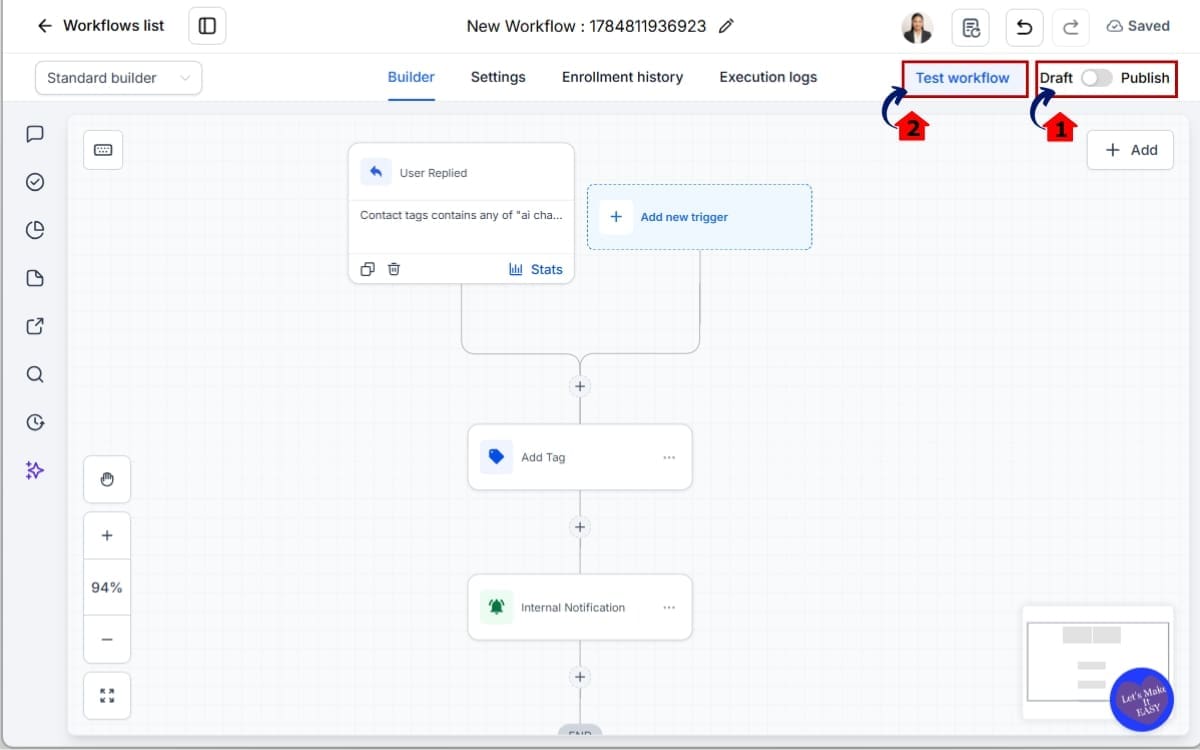
A few minutes spent testing your workflow can prevent unnecessary troubleshooting later and gives you confidence that your automation will perform reliably.
Once you’ve built your first User RepliedUser Reply Automation workflow, you’ll quickly discover other parts of your sales and support processes that can benefit from the same approach. Small automations like these help reduce repetitive admin, keep customer records up to date, and ensure your team follows a consistent process as your business continues to grow.
Pro Tips for Better GHL User Reply Automation
Once you’ve built your first User Reply Automation, it’s tempting to automate everything at once. While GoHighLevel gives you plenty of flexibility, the most effective workflows are usually the simplest. Start with a clear objective, then build on it as your business grows.
Keep Each Workflow Focused
Avoid creating one massive workflow that tries to handle every possible scenario. Instead, build workflows around a single purpose, such as updating your pipeline, notifying a manager, or creating a follow-up task. Smaller workflows are easier to test, troubleshoot, and maintain.
Use Conditions for Smarter Decisions
Not every team reply should trigger the same actions. Add If/Else conditions to make your automations more intelligent.
For example, you could:
- Notify a sales manager only when a high-value lead is contacted.
- Create a follow-up task only if the opportunity is still open.
- Apply different tags based on the pipeline or conversation type.
This keeps your workflows relevant and prevents unnecessary actions.
Let Tags Power Additional Automations
Tags are more than just labels, they can become the starting point for future workflows.
For example, applying a “Sales Contacted” or “Support Responded” tag can trigger onboarding sequences, internal notifications, reporting workflows, or customer nurture campaigns. This modular approach makes your automation easier to expand over time.
Avoid Duplicate Workflow Actions
Take a moment to review your existing workflows before creating new ones. If multiple workflows perform the same action after a User Reply Automation, you could end up with duplicate tasks, repeated notifications, or conflicting pipeline updates.
Keeping your automation organised helps ensure every workflow has a clear purpose.
Test Before You Go Live
Always test your workflow using real conversations before enabling it across your business. Verify that every trigger, condition, and action behaves exactly as expected.
A few minutes of testing can save hours of troubleshooting later and gives you confidence that your automations are working behind the scenes.
Review and Improve Regularly
Your sales and support processes will evolve over time, and your automations should evolve with them.
Schedule a regular review of your workflows to remove outdated actions, improve efficiency, and identify new opportunities to automate repetitive tasks. Even small adjustments can lead to significant time savings as your business grows.
The goal of GHL User Reply Automation isn’t to build more workflows, it’s to build smarter ones. By keeping your automations simple, intentional, and easy to maintain, you’ll create a system that scales with your business while delivering a more consistent experience for both your team and your customers.
Results You Can Expect
Once you’ve implemented GHL User Reply Automation, you’ll quickly notice the difference it makes to your daily operations. While the feature itself is simple, the impact can be significant, especially for businesses handling a high volume of customer conversations.
The first benefit is consistency. Every time a team member replies to a contact, the next step happens automatically. There’s no need to remember to update an opportunity, assign a task, or notify another team member. Your workflows handle those repetitive actions for you, ensuring the same process is followed every time.
You’ll also improve the accuracy of your CRM. Opportunity stages stay up to date, contact records remain organised, and your reports provide a more reliable view of where every lead or customer sits in your pipeline. This gives your team greater confidence in the data they’re using to make decisions.
For sales teams, faster follow-ups can lead to better conversion rates. Automating tasks and reminders helps prevent leads from going cold, while managers gain greater visibility into customer engagement without needing to manually check conversations.
Support teams also benefit from improved accountability. Automatic tags, notifications, and follow-up tasks make it easier to monitor response activity, maintain service standards, and ensure customers receive timely attention throughout their journey.
Agencies managing multiple client accounts will appreciate the scalability this feature provides. Instead of relying on individual team members to remember internal processes, every client can benefit from consistent, repeatable automations that reduce manual work and improve operational efficiency.
Ultimately, GHL User Reply Automation isn’t just about saving time. It’s about creating dependable systems that keep your business moving forward after every customer interaction. When routine tasks happen automatically, your team can spend less time on administration and more time building relationships, closing deals, and delivering exceptional customer experiences.
FAQs – User Reply Automation
Conclusion – Put GHL User Reply Automation to Work
The new User Reply Automation workflow trigger may seem like a small addition to GoHighLevel, but it unlocks a powerful new way to automate your sales, support, and customer service processes. By allowing workflows to begin the moment a team member replies to a contact, you can eliminate repetitive manual tasks and ensure every conversation continues moving forward automatically.
Whether you’re updating opportunity stages, notifying managers, applying contact tags, or creating follow-up tasks, GHL User Reply Automation helps your business respond faster and operate more consistently. Instead of relying on your team to remember the next step, your workflows handle it for you—every time.
As your business grows, these small automations add up to significant time savings, improved team accountability, and a more organised CRM. More importantly, they allow your team to spend less time on administration and more time building relationships, closing deals, and delivering exceptional customer experiences.
If you haven’t explored the new User Reply Automation trigger yet, now is the perfect time. Start with a simple workflow, test it with your existing sales or support process, and gradually expand your automations as your needs evolve. You’ll quickly discover how a single trigger can streamline everyday operations and create a more efficient, scalable business.
Looking for more practical GoHighLevel updates, step-by-step guides, and automation strategies? Visit GHL Growth Garage for the latest tutorials, changelog breakdowns, and expert tips to help you get even more from your GHL account.
Scale Your Business Today.
Streamline your workflow with GoHighLevel’s powerful tools.


