- Workflow Builder Settings in GHL
- Quick Summary – Workflow Builder Settings
- What’s New in Workflow Builder Settings
- What’s Changed for GHL Workflow Control
- Why Workflow Builder Settings Matter
- How to Use It: Set Workflow Defaults and Permissions
- Quick Tips for Workflow Builder Control
- Workflow Builder Settings FAQs
- Final Thoughts on GHL Workflow Control
Workflow Builder Settings in GHL
If you’re still manually switching workflow views for your team, it’s time to fix that. GoHighLevel just dropped a powerful update that lets agency admins set the default builder, Standard or Advanced, and decide who can change it.
Think of it as guardrails for your team. You define the starting point and decide who gets the keys to flip between builders. Whether you’re easing users into the Advanced Builder or standardizing workflows across sub-accounts, this is a major win for control, speed, and scalability.
Let’s break down exactly what changed, and how to set it up.

This update gives GHL agencies the power to define a consistent workflow building experience and control who can toggle builder views, all from one place. With workflow builder settings, you’ll speed up onboarding, reduce team confusion, and guide users into the Advanced Builder at your own pace.
Quick Summary – Workflow Builder Settings
Purpose: This update gives agency admins the power to set a default workflow builder (Standard or Advanced) and decide which user roles can switch between views.
Why It Matters: It brings consistency and control to the workflow building process, reduces team confusion, and allows agencies to guide Advanced Builder adoption at their own pace.
What You Get: A new Global Workflow Settings panel where you can assign the default builder and manage builder-switching access by role.
Time To Complete: Setup takes less than 5 minutes with just a few clicks inside the Workflow Settings panel.
Difficulty Level: Beginner-friendly. No technical knowledge required, just role access and admin permissions.
Key Outcome:Standardize workflow creation, minimize errors, and streamline your team’s automation processes with centralized builder control.
What’s New in Workflow Builder Settings
GoHighLevel now lets agency admins take full control of how workflows are built from the very beginning. This feature introduces two major upgrades under the new Global Workflow Settings panel:
- Default Builder Selection
Now you get to choose which builder new workflows open in, Standard or Advanced, based on what fits your team’s skill level and how you operate. - Role-Based Builder Switching
Want some users to stick to one builder while others can flip between views? Now you can set role-based permissions to control who’s allowed to toggle between the Standard and Advanced Builders.
Automate marketing, manage leads, and grow faster with GoHighLevel.

Agencies finally have more control. Instead of every user dealing with the same setup, you get to set the rules and decide who can tweak them.
What’s Changed for GHL Workflow Control
Before this update, GHL treated all users equally when opening or switching workflow builders. Whether your VA or your lead strategist jumped into a workflow, they landed in whatever builder was last used, or whatever GoHighLevel defaulted to.
Now, that’s history.
Here’s what’s different:
- Defaults Apply Only to New Workflows
Once you set a default (Standard or Advanced), every new workflow will open in that builder, unless a user switches it manually. - Existing Workflows Are Left Alone
Older workflows won’t be affected. They’ll continue to open in whichever builder they were last saved in. - The Last Saved Builder Wins
Even if the default is Advanced, if someone switches a specific workflow to Standard and saves it, that workflow will keep opening in Standard until changed again. - Role-Based Switching Is a Game-Changer
You can now restrict builder-switching to Admins or power users only, no more team members bouncing between builders by mistake.
This shift makes workflow creation more predictable and puts agency owners back in control of their systems.
Why Workflow Builder Settings Matter
Let’s be real, most agencies have a mix of users. Some are workflow wizards, others are still figuring out triggers vs. actions. Without clear controls, that mix can turn into a mess fast.
Here’s why this update matters:
- Consistency for Your Team
Setting a default builder gives your team a shared starting point. Whether you’re onboarding a new VA or scaling a remote team, everyone begins in the same builder. - Accelerates Onboarding & Training
Teaching new hires to use Advanced Builder? Make it the default and give them permission to explore. Prefer they stick to Standard until they’re ready? Lock it down. - Prevents Workflow Breakage
Restricting who can switch builders protects complex automations from accidental edits. It’s guardrails for your most powerful tools. - Encourages Advanced Adoption, Safely
You can guide users into the Advanced Builder at your own pace. Turn it on, let them try it, or hold them back until training’s done.
Bottom line? This is a small settings change with massive workflow implications. And it’s all in your hands.
How to Use It: Set Workflow Defaults and Permissions
Want new workflows to always open in Advanced Builder? Or lock certain roles from switching views? You can do it all in one place inside GHL. This setup gives you centralized control over how your team builds automations, so things stay consistent, streamlined, and secure. Follow these simple steps to put it in motion.
Step 01 – Go to Workflows
1.1 Log into your GHL Agency account
1.2 From the left sidebar, click Automation > Workflows
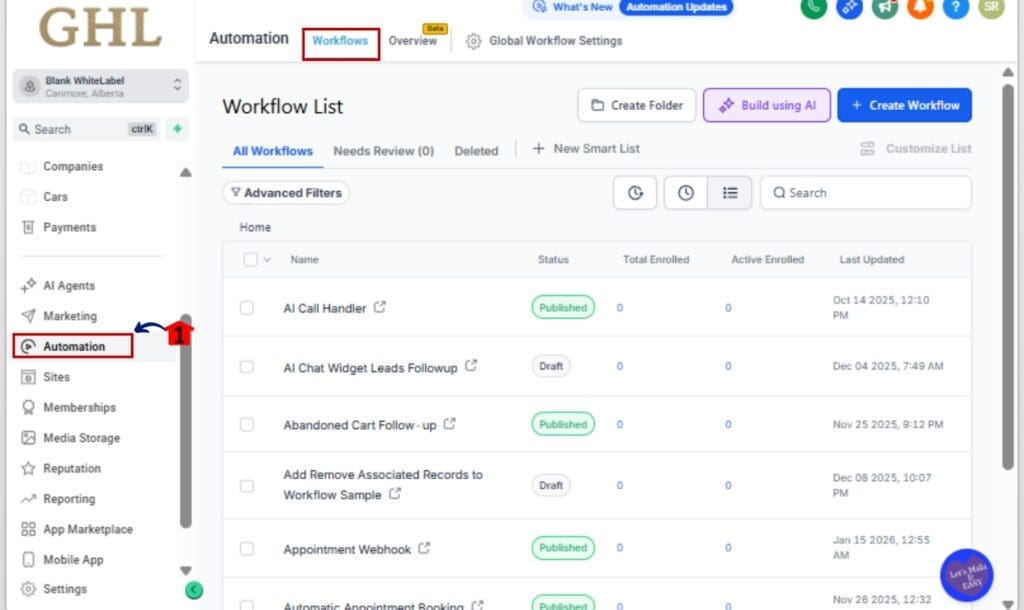
Step 02 – Access Global Workflow Settings
2.1 Go to the top right of your screen inside Workflows and hit the gear icon.
2.2 This opens up your agency’s global settings panel for managing workflow defaults.
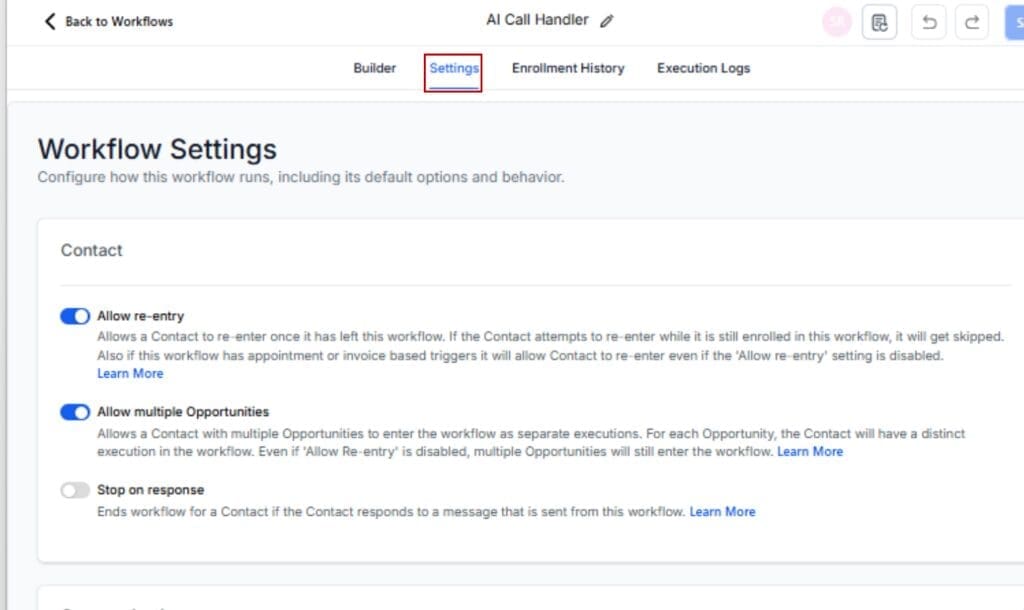
Step 03 – Set Your Default Builder
3.1 Under the Default Builder section, choose between:
• Standard Builder – For basic, user-friendly automations
• Advanced Builder – For power users and complex logic
3.2 Click to select your preferred default
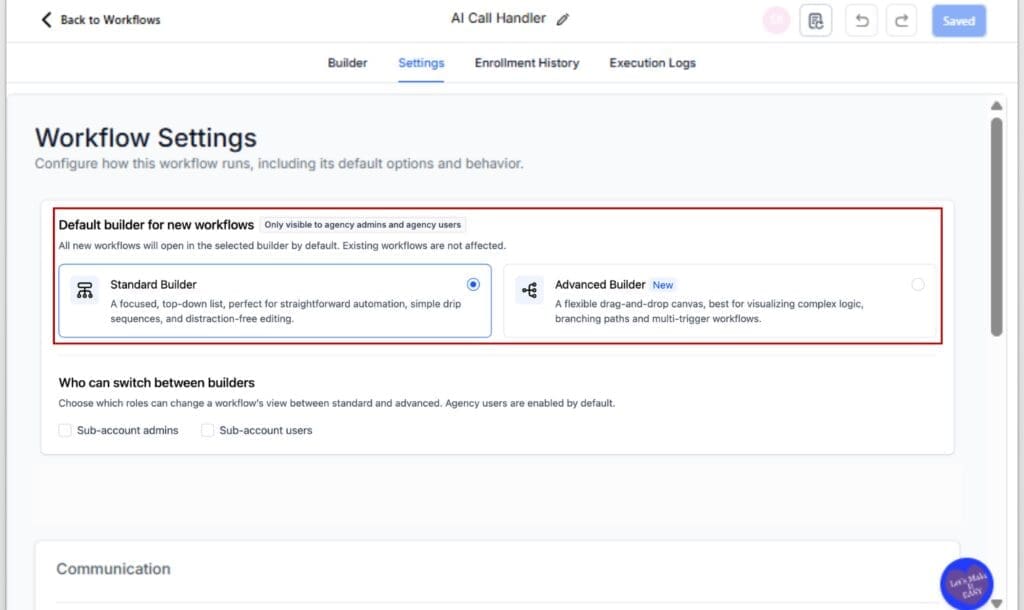
Step 04 – Define Who Can Switch Builders
4.1 Scroll to the Role Permissions section
4.2 Use the dropdown to choose which roles can toggle between Standard and Advanced Builders
• Example: Allow Admins only, or include Managers as well
4.3 Anyone not included here will be locked into the default builder
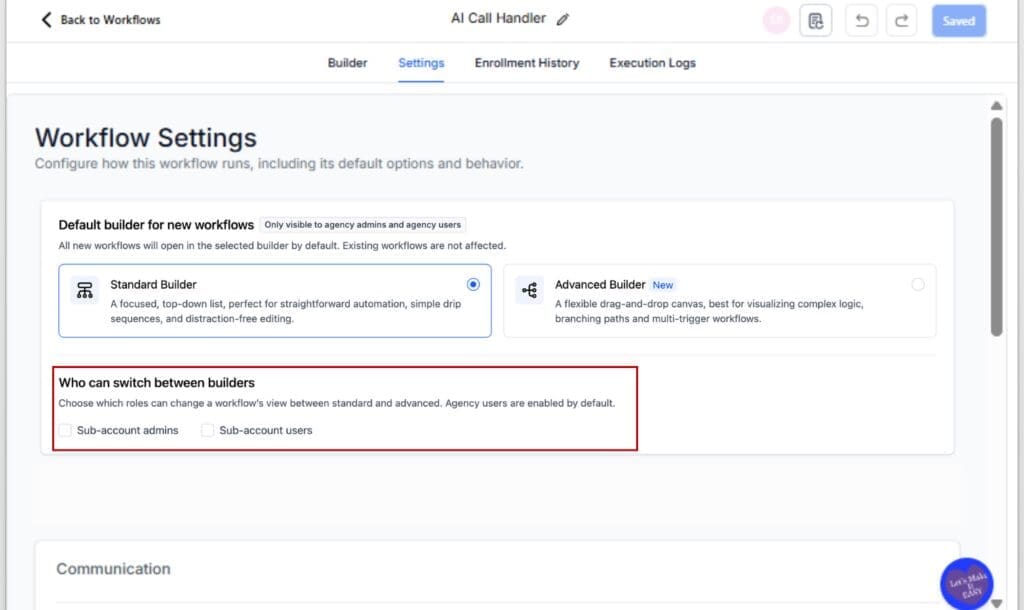
Step 05 – Save Your Settings
5.1 Click Save to confirm your default builder and role-based permissions
5.2 That’s it! These settings will apply to all new workflows going forward

Important Reminder:
The last saved builder view always wins. If someone changes the builder inside an individual workflow, it will open in that view next time, regardless of the default.
Quick Tips for Workflow Builder Control
Want to get the most out of the new Workflow Builder Settings? Here are some sharp, real-world tips for agency owners and ops managers:
Set Advanced as Default (When Ready)
If you’re moving your team into more complex automations, start them in Advanced Builder. But don’t rush it, Standard might still be best for beginners.
Lock Switching for Non-Tech Roles
Not every role needs builder-switching power. Keep it to Admins and Strategists. That way, you avoid someone accidentally switching and breaking flow logic.
Test New Permissions with a Dummy User First
Before rolling this out across your team, test it with a dummy account. See exactly what each role can and can’t do.
Use Workflow Templates to Standardize Further
Pair this setting with solid workflow templates. That way, you’re not just controlling where they build, but how they build too.
Document Your Defaults
Add your default Workflow Builder Settings policy to your internal SOPs. If someone opens a workflow and it “looks different,” they’ll know why.
Workflow Builder Settings FAQs
Final Thoughts on GHL Workflow Control
This update might look small at first glance, but it’s a game-changer for workflow management in GoHighLevel. Setting a default builder and limiting who can toggle between views gives agency owners something they’ve always needed, real control.
No more team members bouncing between builders randomly. No more inconsistent workflow experiences. And no more guessing which Workflow Builder Settings a user will land in.
Now you can:
- Set the right Workflow Builder Settings for your team’s skill level
- Lock in a consistent experience for every new workflow
- Let your power users explore Workflow Builder Settings at your pace
Building a dream team or just need things to stay simple? This lets you scale up without workflows turning into a mess.
Take 5 minutes today, set your defaults, and start working smarter, not harder.
Scale Your Business Today.
Streamline your workflow with GoHighLevel’s powerful tools.