- Introduction: Workflow Custom Values Just Got Smarter
- Quick Summary – Workflow Custom Values
- What’s New with Workflow Custom Values
- What Changed Inside Workflow Custom Values & If/Else
- Why Workflow Custom Values Matter for Automations
- Using Contact Engagement Score in Workflow Custom Values
- Using “Note Created By” in Workflow Custom Values
- Using Task ID in Workflow Custom Values
- How to Use Workflow Custom Values
- Pro Tips for Cleaner Workflow Custom Values Logic
- Workflow Custom Values FAQ
- What Workflow Custom Values Mean for Agencies
- Results You Can Expect from Workflow Custom Values
- Conclusion: Why Workflow Custom Values Are a Big Deal
Introduction: Workflow Custom Values Just Got Smarter
If you’ve ever been halfway through building a workflow and caught yourself thinking, “Man, I just need one more thing to branch on,” this update was made for you. A lot of workflows look fine at first glance, but behind the scenes they’re held together with extra tags and clunky workarounds. That’s usually where problems start once things scale.
With this update, Workflow Custom Values take a big step forward. GoHighLevel has expanded what you can pull into both Custom Values and If/Else conditions, giving you access to real, meaningful data right inside your workflows. No hacks. No duct tape. Just cleaner logic.
You can now use Contact Engagement Score, Attribution Medium ID, Task ID, and Note Created By anywhere you’d normally select a custom value or merge field. That means your automations can finally react to how engaged a contact actually is, where they really came from, who created an internal note, or which task is being referenced.
For agencies, this matters more than it might look at first glance. Workflow Custom Values now let you build automations that match real-world operations instead of forcing your processes to fit the tool. Whether you’re routing leads faster, syncing tasks to external systems, or tightening up internal notifications, this update removes friction where it used to be unavoidable.
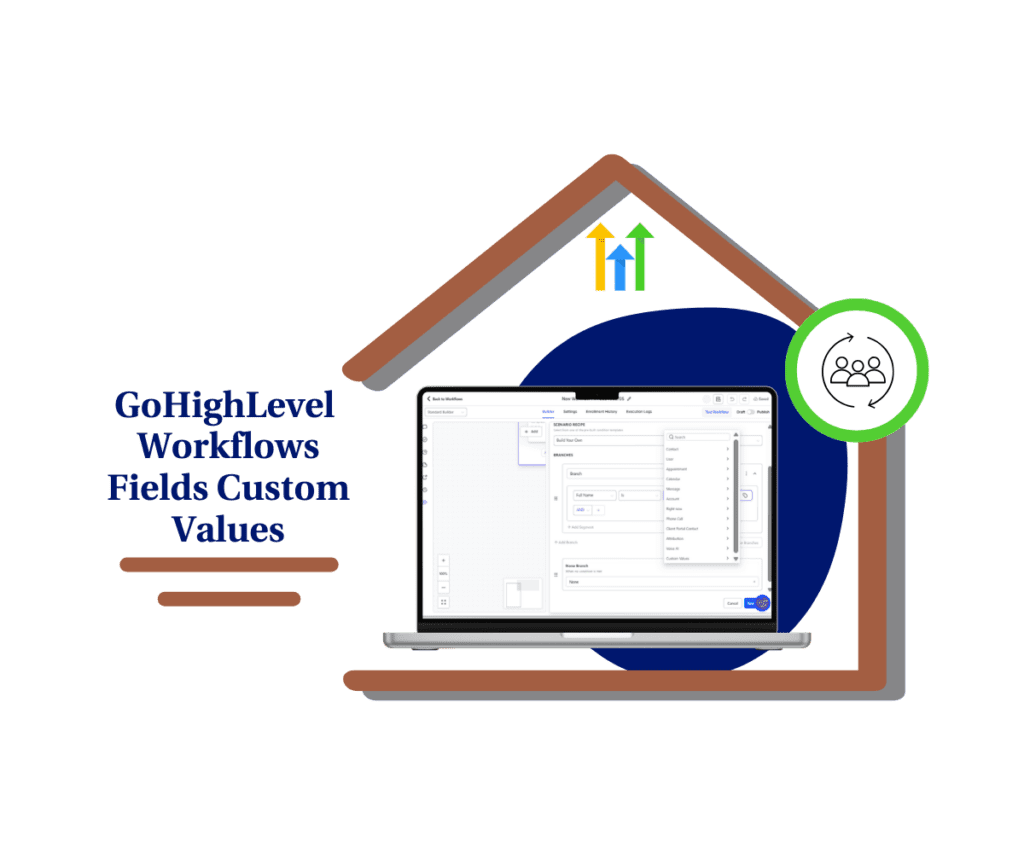
With Workflow Custom Values, GoHighLevel users can build cleaner, more precise automations using engagement scores, attribution data, tasks, and notes, without hacks or guesswork.
Quick Summary – Workflow Custom Values
Purpose: This update expands Workflow Custom Values so you can use Engagement Score, Attribution Medium ID, Task ID, and Note Created By directly inside workflows for smarter automation logic.
Why It Matters: Workflows can now react to real engagement, lead source, tasks, and internal activity instead of relying on tags or workarounds, which makes automations cleaner and more reliable.
What You Get: You gain more precise If/Else conditions, better routing, clearer notifications, and stronger integrations using native GHL data fields.
Time to Complete: Most workflows can be updated or improved in 10 to 20 minutes once you know where to apply the new values.
Difficulty Level: Beginner to intermediate, since the setup uses the same workflow builder and Custom Value picker you already use.
Key Outcome: Cleaner workflows, fewer tags, better decision-making, and automations that scale without becoming hard to manage.
What’s New with Workflow Custom Values
This update expands where and how you can use Workflow Custom Values inside GoHighLevel. Anywhere you normally pick a custom value or merge field, you now have access to four new data points that were previously unavailable or hard to act on in workflows.
The Custom Value picker and the If/Else condition builder both now include Contact Engagement Score, Attribution Medium ID, Task ID, and Note Created By. These fields behave like native data, not add-ons or special cases. You select them the same way you would a name, email, or tag, which keeps the workflow-building experience familiar.
Automate marketing, manage leads, and grow faster with GoHighLevel.

What makes this important is consistency. These new Workflow Custom Values show up across workflow actions, triggers, messages, and conditions. If you’re setting logic, inserting dynamic text, or passing data into another system, the fields are available wherever merge fields are supported.
Another key improvement is context awareness. Some of these values only appear when they’re relevant. For example, Task ID becomes available when the workflow is task-related or immediately after an Add Task action. Note Created By appears when you’re using a note-based trigger. That keeps the picker clean and prevents confusion while still giving you deeper access when it matters.
Most importantly, these additions are not limited to agency admins. Sub-account users building workflows will see the same options. If Engagement Scoring is enabled in the account, that score is now a first-class field inside workflow logic instead of something you had to work around.
In short, Workflow Custom Values are no longer just for simple personalization. They now expose the kind of operational data agencies actually need to build automations that reflect how work gets done.
What Changed Inside Workflow Custom Values & If/Else
Before this update, workflow logic in GoHighLevel was powerful, but it had blind spots. You could branch based on tags, custom fields, or basic contact data, but anything more operational often required workarounds. Agencies leaned heavily on extra tags, naming conventions, or manual checks just to make sure the right thing happened at the right time.
With the expanded Workflow Custom Values, those gaps are now closed. The biggest change is that real system-level data is available directly inside If/Else logic. Instead of guessing or translating data into tags first, workflows can now evaluate what’s already happening in the CRM.
For example, engagement scoring used to live mostly outside of workflow decisions. Now, the Engagement Score can directly control branches. Tasks were visible, but their IDs weren’t usable in logic or external syncing. Notes could trigger workflows, but you couldn’t easily tell who created them. Attribution data existed, but it wasn’t actionable inside automation.
Now it is.
The If/Else builder hasn’t changed visually, but it’s far more capable. You simply have more fields to choose from when defining conditions. That keeps the learning curve flat while dramatically increasing what your workflows can do.
Nothing broke with this update. Existing workflows keep running the same way they always have. This just adds new options if and when you want them. You can update older workflows, or ignore the new stuff entirely and move on.
The end result is cleaner automation logic. Fewer “helper” steps. Fewer tags used only for internal logic. And workflows that are easier to read, debug, and scale over time.
Why Workflow Custom Values Matter for Automations
Most workflow problems don’t come from missing triggers. They come from not having the right data when it’s time to make a decision. That’s exactly where Workflow Custom Values change the game.
With these new fields, workflows can finally react to what’s actually happening in the CRM instead of relying on indirect signals. Engagement Score tells you how active a contact really is. Attribution Medium ID shows where the lead came from. Task ID and Note Created By expose internal activity that used to be invisible to automation logic.
This matters because better data leads to better decisions. Instead of tagging a contact just so a workflow can “remember” something, you can now branch logic based on the source data itself. That means fewer tags, fewer helper steps, and far less cleanup later.
For agencies, this creates real operational clarity. High-engagement leads can move faster without manual review. Low-engagement contacts don’t clog up priority follow-ups. Internal notes can trigger the right notifications based on who actually wrote them. Tasks can be synced and tracked across systems without guessing which record belongs where.
Another underrated benefit is maintainability. As workflows grow, complexity becomes the enemy. Using Workflow Custom Values keeps logic readable because decisions are based on real fields instead of abstract tag names or hidden assumptions. Anyone opening the workflow later can understand why a branch exists.
In short, these new fields don’t just add options. They reduce friction, improve accuracy, and make your automations feel intentional instead of improvised.
Using Contact Engagement Score in Workflow Custom Values
Contact Engagement Score is one of the most practical additions to Workflow Custom Values because it lets your automations respond to intent, not just activity. Instead of treating every lead the same, workflows can now adjust based on how engaged a contact actually is.
Engagement Score is calculated using GoHighLevel’s scoring rules, which you configure under Settings and Manage Scoring. Once scoring is enabled, that score becomes a live data point tied to each contact. With this update, the score is now available directly inside workflow logic and merge fields.
Inside an If/Else step, you can compare the Engagement Score against a number and branch accordingly. That means high-intent contacts can move down a faster path, while lower-engagement contacts stay in a longer nurture flow. No tagging required. No manual checks. The workflow evaluates the score in real time.
One easy way to use this is with follow-up timing. If someone’s clearly engaged, you can push them straight to a faster response or flag them for sales. If they’re not there yet, they just stay in the normal follow-up until their activity picks up.
This also works well for filtering noise. Contacts who click once and disappear don’t get treated like hot leads anymore. Your automations stay focused on people who are actually interacting with your emails, messages, pages, or calls.
Quick thing to be aware of: you won’t see Engagement Score unless scoring is already set up in the account. Once it is, the score shows up wherever you need it inside workflows.
Using “Note Created By” in Workflow Custom Values
Notes are where most internal communication actually happens. Sales updates, support info, onboarding details—it all ends up there. Until now, workflows could react to a note being added, but they had no idea who wrote it. That’s what this update fixes.
When you use a note-based trigger in a workflow, the Note Created By field becomes available as a merge field and in If/Else conditions. This field pulls in the name of the user who created the note, giving your automations awareness of internal activity instead of treating all notes the same.
This is especially useful for routing and notifications. For example, if a note is created by someone on the Success team, the workflow can notify fulfillment or move the contact to the next onboarding stage. If the note comes from Ops or Sales, the workflow can follow a different path. The logic is clear, readable, and tied directly to who took action.
Another practical use is internal accountability. Workflows can log or forward notes differently depending on the author, helping managers understand where activity is coming from without digging through timelines manually. This keeps communication flowing without adding process overhead.
This one’s context-based. You’ll only see the Note Created By field when the workflow actually starts from a note. That way it doesn’t show up everywhere for no reason.
With Workflow Custom Values, notes are no longer just passive information. They become structured signals your automations can respond to intelligently.
Using Task ID in Workflow Custom Values
Tasks drive a lot of the day-to-day work, especially in agency accounts. Workflows could already interact with tasks, but the task itself didn’t have an ID you could actually use. That’s changed now.
The Task ID appears inside workflows when the workflow is task-related. This includes triggers like Task Added, Task Completed, or Task Reminder, as well as immediately after an Add Task action. When those conditions are met, Task ID becomes selectable as a custom value or usable in If/Else logic.
Being able to pass the Task ID out of GoHighLevel makes external syncing easier. Project tools and ticket systems can reference the same task instead of creating separate records.
Task ID is also useful for internal visibility. You can include it in notifications, logs, or internal messages so team members know exactly which task a workflow is referencing. That reduces confusion and eliminates the need to search manually when something needs attention.
Just like the other additions, context matters. The Task ID will only appear when a task exists in the workflow flow. If there’s no task involved, the value won’t be available, which keeps the experience clean and predictable.
With Workflow Custom Values, tasks move from being isolated actions to traceable, referenceable objects inside your automations. That makes task-driven workflows more reliable and far easier to scale.
How to Use Workflow Custom Values
If you’ve ever built a workflow and wished you could make decisions based on real data instead of tags or guesses, this update fixes that. Workflow Custom Values don’t require any special setup. Once they’re available in your account, you can start using them immediately inside workflows to create cleaner, smarter automation logic. You’ll use these just like any other merge field or If/Else condition. Nothing new to learn, just follow along.
Step 01 – Access the Workflow Builder
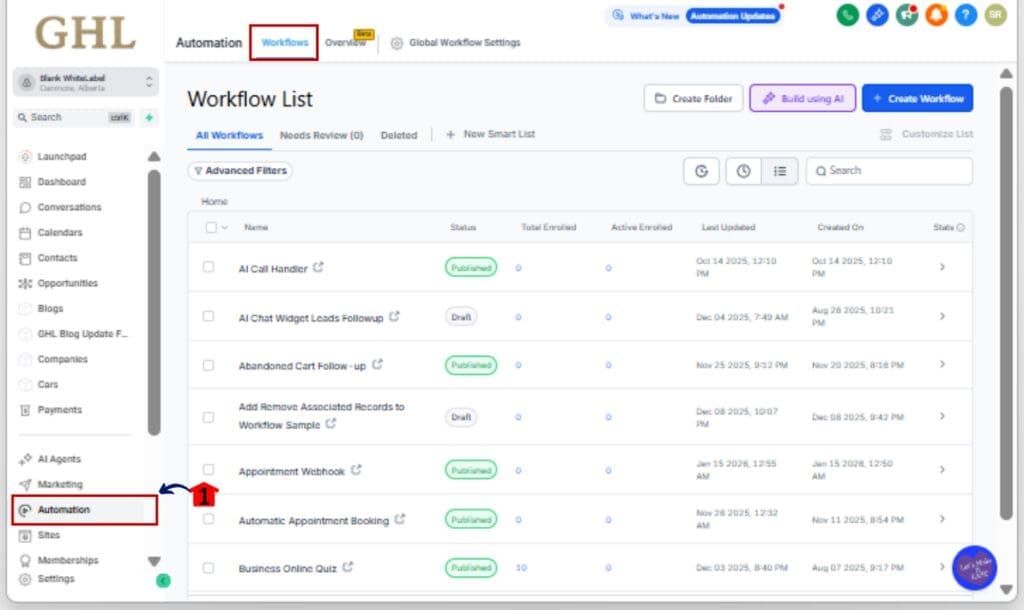
1.1 From your GoHighLevel account, open the main menu on the left.
1.2 Click Automation > Workflows.
Step 02 – Create or Open a Workflow
2.1 Click +Create Workflow to start fresh, or
2.2 Open an existing workflow where you want more precise logic.

Step 03 – Add or Edit a Workflow Step
3.1 Use the + button to add something new, like an action or condition.
3.2 Or open an existing step if you want to make changes.
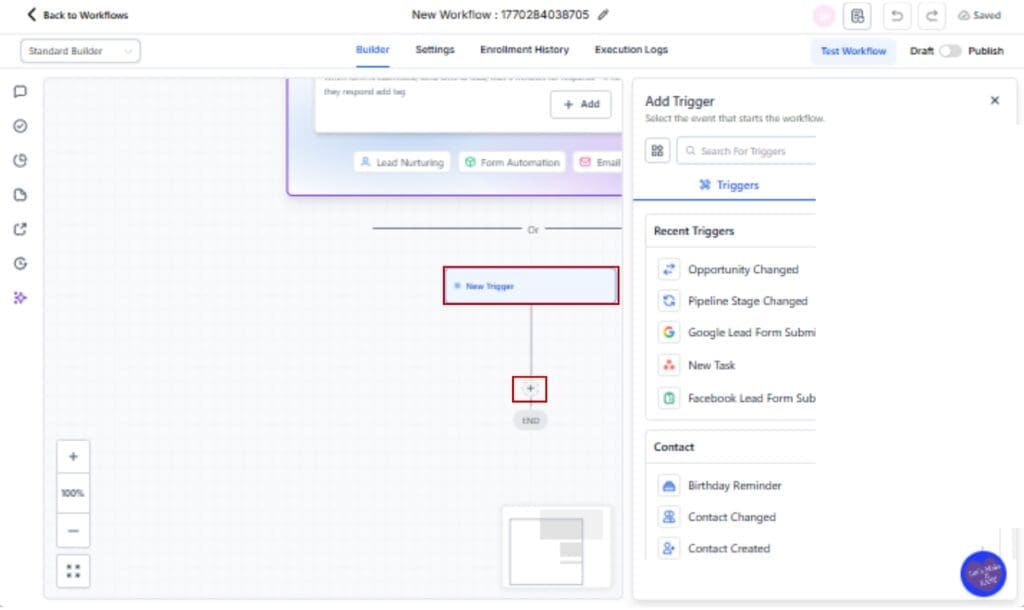
Step 04 – Use Workflow Custom Values in an Action
4.1 Open any field that supports merge fields, such as an internal notification, message, or webhook.
4.2 Click the Custom Value picker.
4.3 Select one of the new Workflow Custom Values, such as Engagement Score, Attribution Medium ID, Task ID, or Note Created By.

Step 05 – Use Workflow Custom Values in If/Else Logic
5.1 Add an If/Else condition to your workflow.
5.2 In the condition field, select a Workflow Custom Value.
5.3 Define your rule, such as greater than, contains, or equals.
5.4 Set the Yes and No paths based on how you want the workflow to branch.

Step 06 – Save and Test the Workflow
6.1 Click Save Action after each step.
6.2 Test the workflow to confirm values populate correctly.
6.3 If a value is unavailable, it will be empty, but the workflow will still run.

That’s it. No toggles. No extra setup. Workflow Custom Values simply give you better data to work with so your automations behave the way your business actually operates.
Pro Tips for Cleaner Workflow Custom Values Logic
When people first start using Workflow Custom Values, the instinct is to drop them into everything. That usually backfires. Fewer conditions, placed in the right spots, almost always work better than overbuilt logic.
Not every contact will have every value filled in. When something’s missing, the workflow doesn’t break, but the decision path can. That’s why it helps to always have a default route.
Give your branches names that actually mean something. “Yes” and “No” don’t help much later. Clear labels make it way easier to understand what’s happening when you come back to the workflow.
Combine Workflow Custom Values only when it adds clarity. For example, pairing Engagement Score with Attribution Medium ID can help you prioritize high-intent leads from paid traffic. Just don’t stack conditions unless each one serves a purpose. Complexity without intention is where workflows break down.
Avoid using tags as placeholders when a real value exists. If a Workflow Custom Value can be evaluated directly, use it. This reduces tag clutter and keeps your CRM cleaner over time.
Finally, revisit older workflows. Many automations built before this update can now be simplified by replacing tag-based logic with Workflow Custom Values. Fewer steps, fewer assumptions, and far fewer headaches down the road.
Workflow Custom Values FAQ
What Workflow Custom Values Mean for Agencies
For agencies, this update isn’t just a nice-to-have. Workflow Custom Values remove a lot of the friction that shows up once you’re managing multiple clients, teams, and automation paths at scale.
One of the biggest wins is clarity. When workflows can branch based on Engagement Score, Attribution Medium ID, Task ID, or Note Created By, your automations start reflecting real business logic instead of workarounds. That means fewer tags created “just in case” and far less tribal knowledge required to understand why a workflow behaves the way it does.
Clear workflows save time internally. They’re simpler to troubleshoot, easier to explain, and much easier to pass to someone new. You don’t have to decode tags to understand what’s happening.
Client reporting improves too. Attribution Medium ID makes it easier to prove where leads are coming from without manual reconciliation. Engagement-based routing shows clients that follow-up is prioritized intelligently, not randomly. Tasks tied to real IDs make operations more accountable.
Most importantly, Workflow Custom Values help agencies scale without chaos. As client volume grows, the margin for error shrinks. Cleaner automation logic means fewer missed follow-ups, fewer misrouted leads, and fewer late-night “why did this happen” conversations.
In short, this update gives agencies more control without adding complexity. That’s exactly what you want when automation is a core part of your service offering.
Results You Can Expect from Workflow Custom Values
Once you start using Workflow Custom Values consistently, the difference shows up fast. Not in flashy dashboards, but in how smoothly things run day to day.
First, you’ll see more accurate routing. High-engagement contacts move faster. Low-engagement contacts stop clogging priority follow-ups. Leads get handled based on intent and source, not assumptions. That alone can clean up a surprising amount of workflow noise.
Second, your automations become easier to manage. When logic is built on real fields like Engagement Score, Attribution Medium ID, Task ID, and Note Created By, workflows are easier to read and debug. You don’t have to remember what a tag was “supposed” to mean. The data explains itself.
You’ll also notice fewer edge-case failures. Because these values are native to the system, workflows behave more predictably. When a value doesn’t exist, it’s empty, not broken. That makes fallback paths easier to design and keeps automations running even when data isn’t perfect.
Internally, teams work with more confidence. Tasks can be referenced accurately. Notes trigger the right actions based on who created them. Notifications include the right context instead of vague messages that require digging.
Over time, the biggest result is scale without stress. Workflow Custom Values let you simplify older automations, reduce tag clutter, and build new workflows that hold up as volume increases. Less maintenance. Fewer mistakes. Better outcomes for both your team and your clients.
Conclusion: Why Workflow Custom Values Are a Big Deal
This update to Workflow Custom Values is one of those changes that doesn’t scream for attention, but quietly makes everything better. It gives workflows access to the kind of data agencies actually care about, without adding complexity or forcing new processes.
By bringing Engagement Score, Attribution Medium ID, Task ID, and Note Created By directly into Custom Values and If/Else logic, GoHighLevel removes a lot of the guesswork that used to live inside automation. Workflows can now respond to intent, source, and internal activity instead of relying on tags and assumptions.
For teams, that means clearer logic and fewer mistakes. For agencies, it means automations that scale cleanly across clients and use cases. Existing workflows can be simplified. New workflows can be built with confidence. And day-to-day operations become easier to understand and manage.
The biggest benefit is control. Your automations can finally line up with real processes instead of workarounds. Taking a pass through older workflows with these new fields usually saves time and removes a lot of clutter.
Scale Your Business Today.
Streamline your workflow with GoHighLevel’s powerful tools.