- Workflow Navigation Sidebar: Work Faster Inside GHL
- Quick Summary – Workflow Navigation Sidebar
- Here are this week's HighLevel Updates 🚀
- What Is the Workflow Navigation Sidebar?
- What's New in This Update?
- Why This Update Matters
- How to Use the Workflow Navigation Sidebar
- Pro Tips for Using the Workflow Navigation Sidebar
- What This Means for Your Business
- FAQs – Workflow Navigation Sidebar
- Conclusion – Workflow Navigation Sidebar
Workflow Navigation Sidebar: Work Faster Inside GHL
Want to make navigating GoHighLevel quicker and easier? The new Workflow Navigation Sidebar is a simple update that can save you time every day. Instead of leaving the Workflow Builder whenever you need another part of GHL, you can now open the familiar HighLevel sidebar directly inside your workflow.
Building workflows rarely happens in one place. It’s common to check a contact, open a conversation, look at a calendar, then jump straight back into your automation. Before long, you’re spending almost as much time navigating as you are building.
Getting to the sidebar only takes a second. The new toggle lives in the top-left corner, while the keyboard shortcut gives you an even quicker option. HighLevel hasn’t redesigned the menu either—it simply brings the existing sidebar into the Workflow Builder.
Here at GHL Growth Garage, we’re always excited when HighLevel releases updates that improve everyday productivity. While this isn’t a flashy new feature, it’s one of those small improvements that makes using GHL smoother, faster, and more enjoyable for agency owners, marketers, virtual assistants, and anyone building automations on a regular basis.
This update makes moving around GoHighLevel much less disruptive. Open the sidebar, go where you need to, and jump back into your workflow in seconds.
The latest GoHighLevel Changelog includes several other GHL feature updates that round out your daily workflow:
- Wait Action Enhancement: TikTok DM Replies
- India Recurring Mandate Support for Affiliate Indian Signup Pages
- Housecall Pro – More Workflow Actions & Triggers
- Email Services Dashboard for Agencies
- Email Sequences Now Available in Beta Labs
- Group Your Contacts by Source in Dashboards & Reporting
- MMLite Adoption Banner in Conversations
Keep reading for much more on all these updates and a deep dive into the Workflow Navigation Sidebar feature!
Quick Summary – Workflow Navigation Sidebar
Purpose: This guide explains how to use the new Workflow Navigation Sidebar in GoHighLevel to access other areas of the platform without leaving the Workflow Builder.
Why It Matters: The update reduces navigation friction, helping you move between workflows, contacts, conversations, calendars, and other GHL tools more efficiently.
What You’ll Learn: You’ll discover how to enable the Workflow Navigation Sidebar, use the new keyboard shortcuts, and apply simple productivity tips to speed up your daily workflow.
Time to Complete: Less than 5 minutes. The feature is available immediately and requires no additional setup.
Difficulty Level: Beginner. If you can open a workflow, you can start using the Workflow Navigation Sidebar right away.
Who Should Use It: Agency owners, marketers, virtual assistants, automation builders, and anyone who regularly works inside GoHighLevel workflows.
Key Outcome: You’ll spend less time navigating menus and more time building automations, creating a smoother and more productive experience inside GHL.
Here are this week’s HighLevel Updates 🚀
Wait Action Enhancement: TikTok DM Replies
What’s New:
Instead of continuing after a fixed delay, your workflow can pause until someone replies to your TikTok DM.
Where in GHL:
Found in Automation → Workflows using the Wait action after sending a TikTok DM.
Automate marketing, manage leads, and grow faster with GoHighLevel.

Impact:
Your automation responds when someone actually joins the conversation, rather than after a timer runs out.
Recommended For:
Anyone using TikTok DMs to start conversations with potential customers.
India Recurring Mandate Support for Affiliate Indian Signup Pages
What’s New:
Supports recurring payment mandates for Indian affiliates, helping subscriptions comply with local banking requirements.
Where in GHL:
Available on Affiliate Program signup pages for users in India.
Impact:
Creates a smoother signup experience while reducing payment failures for recurring subscriptions.
Recommended For:
Agencies, SaaS businesses, and affiliate programs onboarding customers in India.
Housecall Pro – More Workflow Actions & Triggers
What’s New:
Adds new workflow triggers and actions for the Housecall Pro integration, giving you more ways to automate field service processes.
Where in GHL:
Inside Automation → Workflows when using the Housecall Pro integration.
Impact:
Expands automation possibilities between HighLevel and Housecall Pro, reducing manual work and improving operational efficiency.
Recommended For:
Home service businesses, field service companies, and agencies managing Housecall Pro clients.
Email Services Dashboard for Agencies
What’s New:
Introduces a centralized dashboard where agencies can monitor email services across their accounts.
Where in GHL:
Found in the Agency View under the new Email Services Dashboard.
Impact:
Makes it easier to monitor email health, identify issues, and manage deliverability from one place.
Recommended For:
Agency owners, support teams, and admins managing multiple client email services.
Email Sequences Now Available in Beta Labs
What’s New:
Introduces Email Sequences as a Beta Labs feature, providing another way to create structured email follow-up campaigns.
Where in GHL:
Enable it from Settings → Labs, then access Email Sequences after activation.
Impact:
Cuts down the time spent checking different areas just to see how your email services are performing.
Recommended For:
Marketers, agencies, coaches, and businesses running nurture campaigns or onboarding emails.
Group Your Contacts by Source in Dashboards & Reporting
What’s New:
Lets you organize contact reports based on where your leads originated.
Where in GHL:
Available within Dashboards & Reporting when viewing contact analytics.
Impact:
Makes it easier to compare lead sources and identify which marketing channels are producing the best results.
Recommended For:
Marketing teams, agency owners, and businesses tracking campaign performance across multiple lead sources.
MMLite Adoption Banner in Conversations
What’s New:
Displays a helpful banner inside Conversations to encourage users to adopt the new MMLite messaging experience.
Where in GHL:
Appears within the Conversations module for eligible accounts.
Impact:
Helps users discover and transition to MMLite while highlighting its benefits directly inside the messaging interface.
Recommended For:
Current HighLevel users exploring the latest messaging experience and teams preparing to migrate to MMLite.
What Is the Workflow Navigation Sidebar?
The Workflow Navigation Sidebar is a new navigation feature inside the GoHighLevel Workflow Builder. It gives you direct access to the standard HighLevel sidebar without forcing you to leave the workflow you’re working on.
Before this update, opening another area of GHL usually meant exiting the Workflow Builder first. If you needed to check Contacts, review Conversations, update a Calendar, or open another tool, you had to navigate away and then return to your workflow afterwards. It wasn’t difficult, but it interrupted your momentum.
Now, that process is much smoother.
Opening the sidebar only takes a click. The new toggle sits in the upper-left corner of the Workflow Builder, and keyboard users can use Cmd + \ or Ctrl + \ instead.
Your automations don’t need updating after this release. The change is purely related to how you move around the platform while building them.
If you’re switching between workflows, contacts, conversations, and settings all day, this update saves you from repeatedly opening and closing the same screens. Everything feels a little easier to get to.
Some updates introduce big new features. Others simply make the platform easier to use. This one falls into the second category, and you’ll probably appreciate it every time you build a workflow.
What’s New in This Update?
The latest GoHighLevel release introduces a simple but useful enhancement to the Workflow Builder. You can now display the standard HighLevel navigation menu directly inside your workflow by enabling the new Workflow Navigation Sidebar.
The feature is easy to overlook until you realize how often you’re switching between different parts of GHL during the day.
This release introduces:
- A new sidebar toggle in the top-left corner of the Workflow Builder.
- Instant access to the standard HighLevel navigation sidebar.
- A keyboard shortcut for even faster navigation:
- Mac: Cmd + \
- Windows: Ctrl + \
- The ability to show or hide the sidebar whenever you need it.
- A navigation experience that matches the rest of the GoHighLevel platform.
Some days you just need as much room as possible to work. Other times, you need quick access to Contacts or Settings. The sidebar lets you switch between those two without much effort.
It’s also important to understand what this update doesn’t change.
The Workflow Navigation Sidebar does not affect workflow execution, automation logic, triggers, actions, or performance. Your existing workflows continue to operate exactly as before. This release is purely a navigation enhancement designed to improve usability and create a more consistent interface throughout GHL.
There’s nothing flashy about this release, but after a few days, it’s the sort of improvement you start using without even thinking about it.
Why This Update Matters
The changelog only gives this update a few lines, but after using it for a while, it’s easy to appreciate why it was added.
I found myself leaving the Workflow Builder more often than I realized. A quick look at a contact record or a conversation usually turned into several extra clicks before I was back editing the workflow.
You spend less time finding your way around GHL and more time actually working on your automation.
If your work regularly takes you from one part of GHL to another, this update helps those transitions feel much less disruptive.
One small change makes the Workflow Builder feel much more like the rest of GHL. The navigation stays familiar no matter where you are.
The time savings aren’t obvious on day one. After building a few dozen workflows, though, you start to notice how much less time you’re spending moving around the platform.
How to Use the Workflow Navigation Sidebar
The Workflow Navigation Sidebar is designed to make moving around GoHighLevel faster while you’re building automations. Instead of leaving the Workflow Builder every time you need another area of the platform, you can open the standard HighLevel sidebar whenever you need it.
The setup couldn’t be easier because there’s nothing to configure or enable. Simply open a workflow, display the sidebar, and continue working as normal. You can switch between products, pages, and settings without disrupting your workflow-building process.
- Access the Main Left-Hand Menu in GoHighLevel.
- Open the Workflow Builder.
- Show the Workflow Navigation Sidebar.
- Use the Keyboard Shortcut.
To start, make sure you are logged in to your GoHighLevel sub-account.
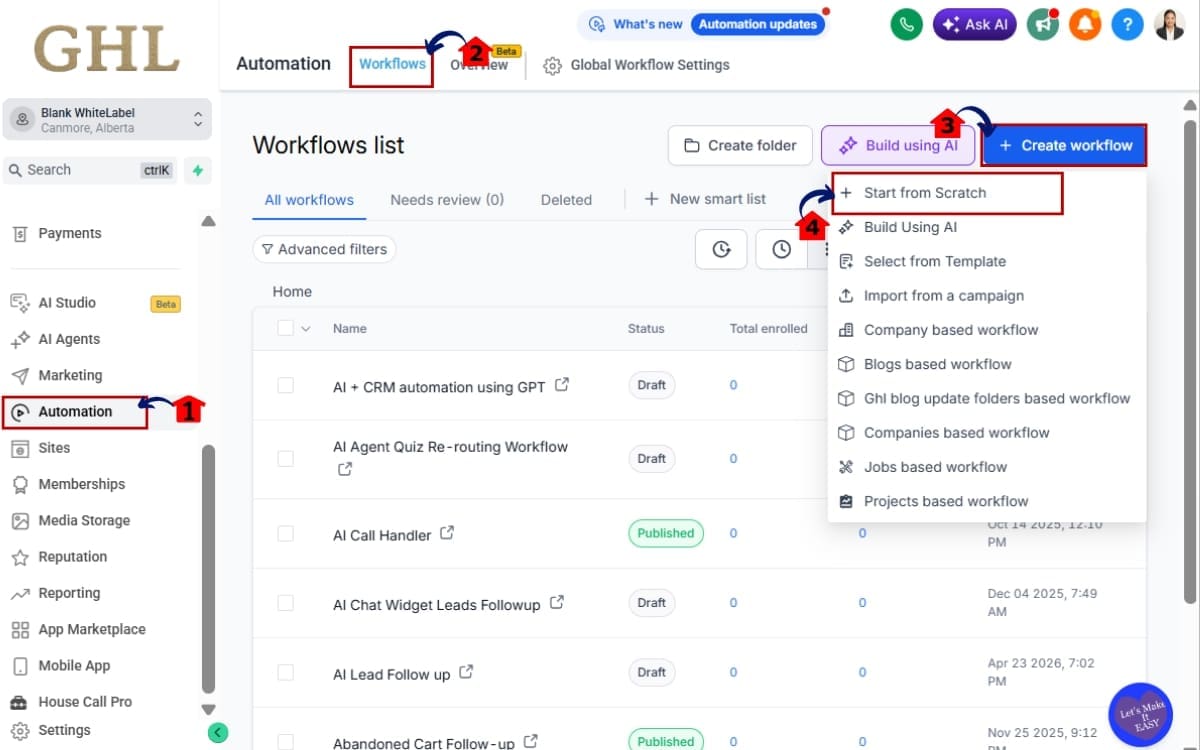
Step 01 – Access the Main Left-Hand Menu in GoHighLevel
- The Main Menu on the left side of your screen contains all the primary areas of your GoHighLevel account.
1.1 Click Automation from the left-hand navigation menu.
- This opens the section where all automation tools and workflow management features are located.
1.2 Select Workflows from the Automation menu.
- You’ll be taken to the Workflows dashboard where you can view, edit, and organize your existing automations.
1.3 Click Create Workflow to start a new one.
- This opens the workflow creation window so you can build a brand-new automation.
1.4 Click start from scratch
- Starting with a blank workflow gives you complete control over every trigger, action, and condition you want to add.
Step 02 – Open the Workflow Builder
- Once you’ve selected a workflow, you’ll enter the Workflow Builder where all your automation actions and triggers are managed. Wait for the Workflow Builder to load completely.
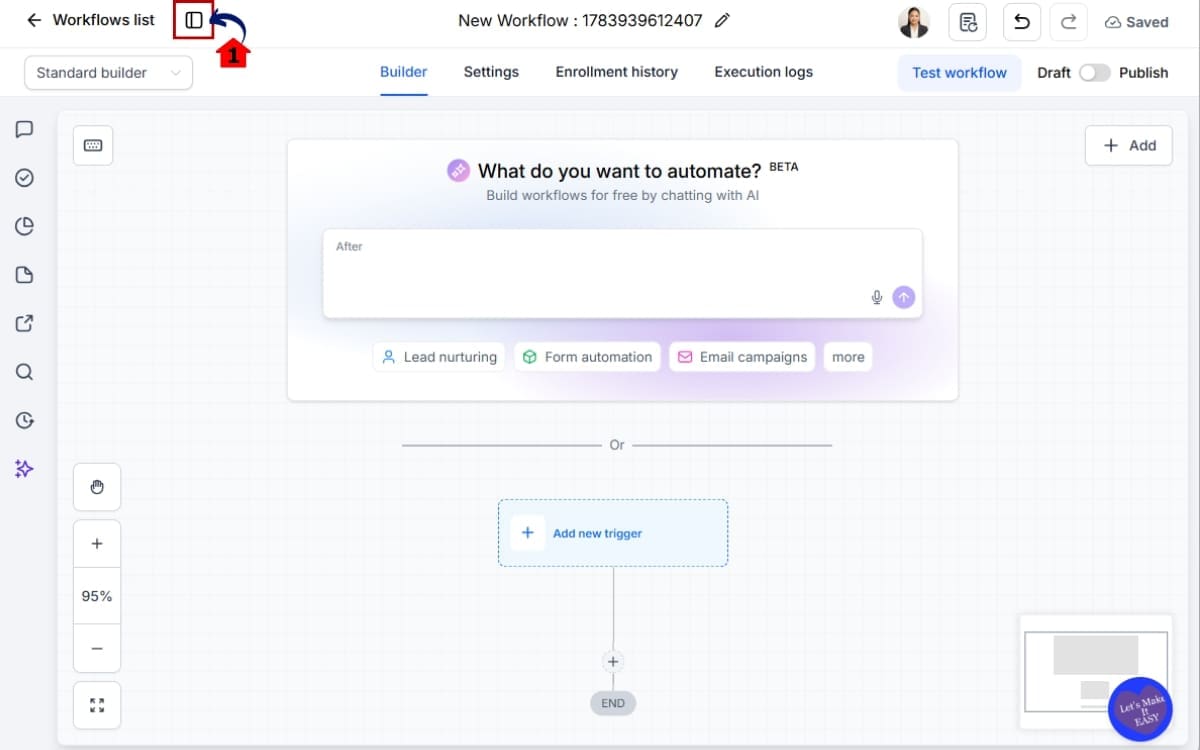
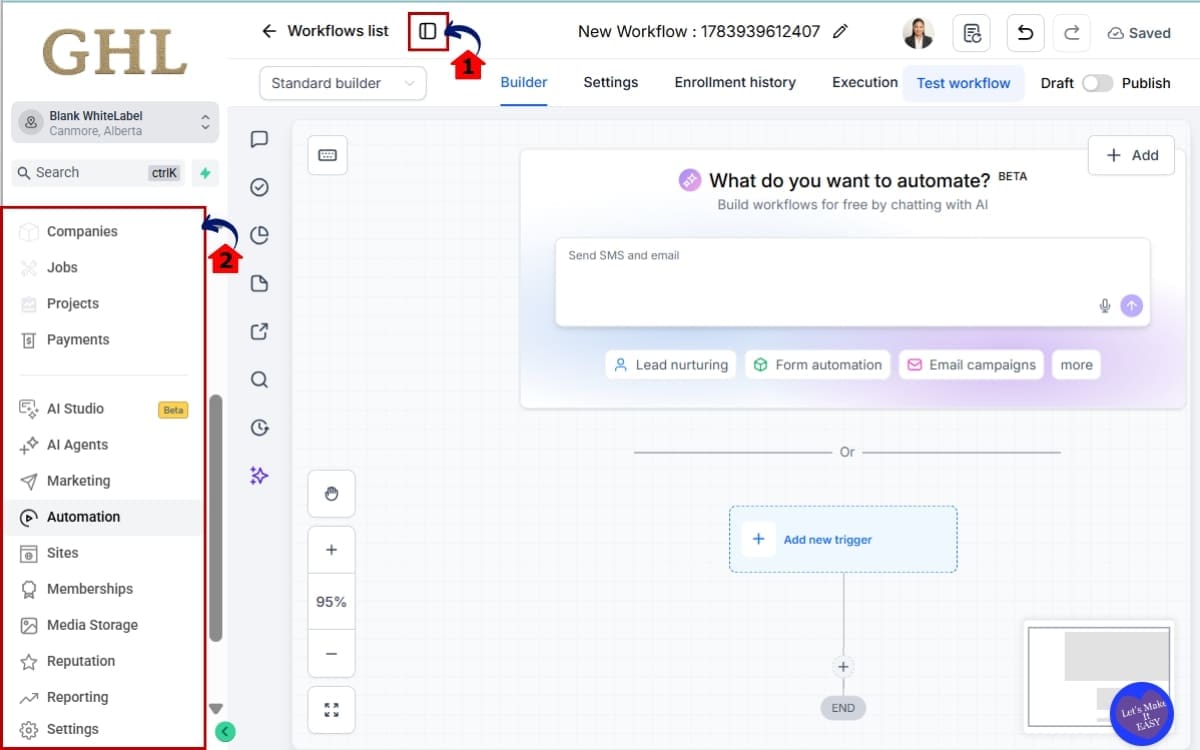
2.1 Locate the new Sidebar Toggle in the upper-left corner of the builder. Confirm you’re inside the workflow editing screen before continuing.
- The Sidebar Toggle lets you quickly show or hide the standard HighLevel navigation without leaving the Workflow Builder.
Step 03 – Show the Workflow Navigation Sidebar
- Now you’re ready to access the new navigation feature.
3.1 Click the Sidebar Toggle in the top-left corner.
- A single click displays the familiar HighLevel navigation menu directly inside the builder.
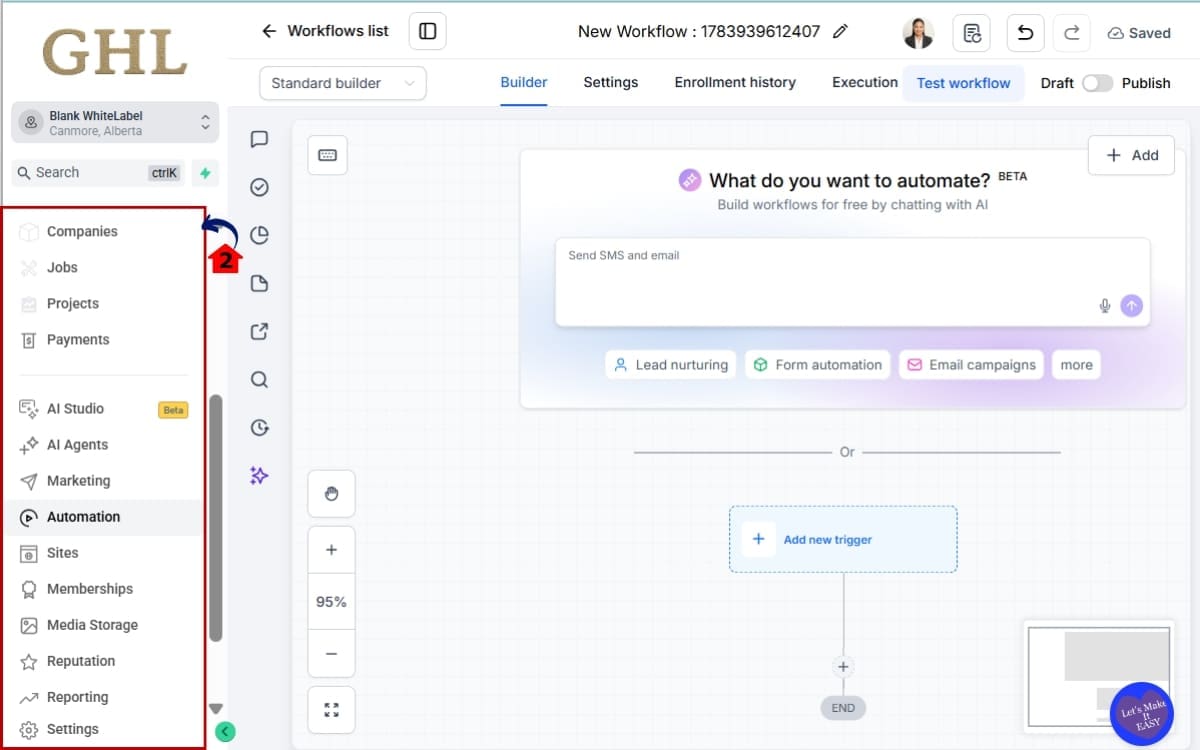
3.2 The standard HighLevel navigation sidebar will slide into view. Browse the available menu items just as you would anywhere else inside GHL.
- When you need more workspace, click the toggle again to hide the sidebar.
Step 04 – Use the Keyboard Shortcut
- If you like working with keyboard shortcuts, this update makes navigation even faster. On a Mac, press Cmd + \ to show or hide the sidebar. On Windows, press Ctrl + \ to perform the same action.
4.1 Repeat the shortcut whenever you want to toggle the sidebar without using your mouse.
- This is especially useful if you frequently switch between the Workflow Builder and other areas of GHL.
4.2 Practice using the shortcut while editing workflows to build muscle memory and speed up your workflow.
- After a few uses, the shortcut becomes second nature and helps you move around the platform with less effort.
Common Tips
- Leave the sidebar hidden while building large or complex workflows to maximize your workspace.
- Open the sidebar whenever you need quick access to another GHL product.
- Learn the keyboard shortcut to reduce mouse clicks throughout the day.
- Remember that this update only changes navigation—it does not affect workflow triggers, actions, conditions, or execution.
Within just a few minutes of using the Workflow Navigation Sidebar, it becomes second nature. It’s a simple improvement that helps you move around GoHighLevel more efficiently, allowing you to spend less time navigating menus and more time building powerful automations.
Pro Tips for Using the Workflow Navigation Sidebar
Whether you’re in GHL for ten minutes or ten hours a day, these ideas can help you make the most of the new sidebar.
Learn the Keyboard Shortcut
At first I kept clicking the toggle. After a few days, using the keyboard shortcut just felt easier.
- Mac: Press Cmd + \
- Windows: Press Ctrl + \
Before I knew it, I was using the shortcut almost every time I opened a workflow.
Hide the Sidebar When Building Large Workflows
Larger workflows can take up plenty of room on their own. Keeping the sidebar closed gives you a clearer view of everything.
A larger workspace makes it easier to follow workflow paths, edit actions, and spot issues without unnecessary distractions.
Show the Sidebar When You Need Another Tool
Instead of leaving the Workflow Builder, open the sidebar whenever you need to:
- View a contact record
- Check Conversations
- Open Calendars
- Access Marketing tools
- Jump into Settings
- Switch to another area of GHL
This keeps your navigation fast and reduces interruptions while you’re building automations.
Keep Your Workflow Moving
Those small detours around GHL don’t interrupt your workflow as much as they used to.
One shortcut won’t transform your day, but repeating it over and over starts to make a noticeable difference.
Remember What This Update Doesn’t Change
It’s worth remembering that this update is purely a navigation enhancement.
It does not:
- Change workflow triggers.
- Add new workflow actions.
- Affect automation performance.
- Modify workflow execution.
- Change existing workflow logic.
The update is all about making it easier to move around GHL while you’re working.
I stopped paying attention to the sidebar after a few days, and that’s probably the best compliment I can give it. It simply became part of the way I worked.
What This Means for Your Business
The Workflow Navigation Sidebar may not be the biggest feature GoHighLevel has released, but it’s one of those improvements that makes your daily work noticeably easier. By reducing unnecessary navigation, you can spend more time building automations and less time moving around the platform.
Working across multiple client accounts rarely keeps you on one screen for long. One moment you’re updating a workflow, the next you’re checking a conversation or opening a contact record.
Virtual assistants and operations teams will also appreciate the smoother workflow. Instead of repeatedly leaving the Workflow Builder to find another page, they can quickly access the areas they need and return to building automations with minimal disruption. It creates a more efficient process, especially when handling repetitive daily tasks across several client accounts.
Marketing teams benefit as well. While creating or updating automations, it’s common to verify contact information, review conversations, check appointment settings, or reference other assets inside GHL. The Workflow Navigation Sidebar makes these transitions feel seamless, helping campaigns and automations get built faster.
If someone on your team is new to GHL, the Workflow Builder will feel a lot more familiar from the start. The navigation works the same way they’re already seeing elsewhere in the platform.
Each trip back to your workflow becomes a little shorter. After enough workflows, those small savings become much easier to notice.
Nothing about your automations is different after this release. What changes is how easily you move between them and everything else you need in GHL.
FAQs – Workflow Navigation Sidebar
Conclusion – Workflow Navigation Sidebar
The Workflow Navigation Sidebar is a small update that delivers a big improvement to the everyday GoHighLevel experience. By bringing the standard HighLevel navigation directly into the Workflow Builder, you can move between products and pages without constantly leaving your automation.
If you’re bouncing between workflows and the rest of GHL throughout the day, having the sidebar close by makes those trips feel a lot less disruptive. Pair it with the keyboard shortcut and moving around soon becomes second nature.
At GHL Growth Garage, we love updates that make everyday work faster and more intuitive. The Workflow Navigation Sidebar may be a navigation enhancement, but it’s one you’ll quickly appreciate after using it for a few days.
Open your next workflow and see whether the new sidebar earns a place in your routine.
We’ll continue covering the latest GoHighLevel updates here at GHL Growth Garage, along with practical tips you can put to work right away.
I’d be interested to hear what you think after spending some time with the new sidebar.
Scale Your Business Today.
Streamline your workflow with GoHighLevel’s powerful tools.