- Introduction – GHL Email AI Templates Across All Locations
- Quick Summary – Email AI Templates
- Here are this week's HighLevel Updates 🚀
- Why GHL Email AI Templates Matter
- What's New with GHL Email AI Templates
- How to Use GHL Email AI Templates Across All Locations
- Pro Tips for Getting the Most from GHL Email AI Templates
- What This Means for Your Business
- FAQs – Email AI Templates
- Conclusion – Email AI Templates
Introduction – GHL Email AI Templates Across All Locations
Email AI Templates might seem like a small workflow improvement. Until you’re managing dozens of client accounts and creating the same email templates over and over again.
You’ve probably done it before. Create an Email AI Template in one location. Share it with another. Realize another client needs the same template. Copy it again. Then repeat the whole process for every new account.
The templates weren’t the problem. Email AI wasn’t the problem. The issue was where agency users were allowed to create them.
For agencies managing multiple clients, this meant extra clicks, unnecessary duplication, and more time spent maintaining templates instead of building campaigns that generate results.
Before this update, agency users could only access Email AI in locations where the feature had been enabled through Labs. If a client location didn’t have Email AI enabled, agencies had to create templates somewhere else and manually move them across.
That’s now changed.
GHL Email AI Templates can now be created and managed by agency users in every client location, regardless of that location’s Email AI Labs setting. Location users still follow the existing Labs permissions, while agency users get the flexibility they need to work efficiently. A new “Visible to Agency Users Only” label also makes it clear why agency users can access Email AI even when location users can’t.
The biggest win isn’t just easier access to Email AI Templates. It’s eliminating duplicate work, simplifying client management, and giving agencies back valuable time every single day.
Less copying. Less manual work. Better Email AI Templates.
The latest GoHighLevel Changelog includes several other GHL feature updates that round out your daily workflow:
- Wait Action Enhancement: TikTok DM Replies
- India Recurring Mandate Support for Affiliate Indian Signup Pages
- Housecall Pro – More Workflow Actions & Triggers
- Email Services Dashboard for Agencies
- Email Sequences Now Available in Beta Labs
- Group Your Contacts by Source in Dashboards & Reporting
- MMLite Adoption Banner in Conversations
Keep reading for much more on all these updates and a deep dive into the Email AI Feature!

Quick Summary – Email AI Templates
Purpose: This guide explains how the latest GHL Email AI Templates update allows agency users to create and manage templates across every client location without being restricted by Email AI Labs settings.
Why It Matters: Agencies no longer need to build templates in one location and manually copy them to another, saving time and reducing duplicate work while maintaining existing client permissions.
What You Get: You’ll learn what’s changed, how the new agency-level access works, how to use the feature, and the best practices for managing Email AI Templates more efficiently.
Time to Complete: Learning the new workflow takes around 10–15 minutes, with no additional setup required if you already have agency-level access.
Difficulty Level: Beginner. If you’re familiar with navigating GoHighLevel locations, you’ll be able to start using the new workflow immediately.
Key Outcome: Your agency can manage Email AI Templates directly inside every client location, streamline onboarding, reduce administrative tasks, and maintain cleaner, more scalable client accounts.
Here are this week’s HighLevel Updates 🚀
Wait Action Enhancement: TikTok DM Replies
What’s New:
Instead of continuing after a fixed delay, your workflow can pause until someone replies to your TikTok DM.
Where in GHL:
Found in Automation → Workflows using the Wait action after sending a TikTok DM.
Automate marketing, manage leads, and grow faster with GoHighLevel.

Impact:
Your automation responds when someone actually joins the conversation, rather than after a timer runs out.
Recommended For:
Anyone using TikTok DMs to start conversations with potential customers.
India Recurring Mandate Support for Affiliate Indian Signup Pages
What’s New:
Supports recurring payment mandates for Indian affiliates, helping subscriptions comply with local banking requirements.
Where in GHL:
Available on Affiliate Program signup pages for users in India.
Impact:
Creates a smoother signup experience while reducing payment failures for recurring subscriptions.
Recommended For:
Agencies, SaaS businesses, and affiliate programs onboarding customers in India.
Housecall Pro – More Workflow Actions & Triggers
What’s New:
Adds new workflow triggers and actions for the Housecall Pro integration, giving you more ways to automate field service processes.
Where in GHL:
Inside Automation → Workflows when using the Housecall Pro integration.
Impact:
Expands automation possibilities between HighLevel and Housecall Pro, reducing manual work and improving operational efficiency.
Recommended For:
Home service businesses, field service companies, and agencies managing Housecall Pro clients.
Email Services Dashboard for Agencies
What’s New:
Introduces a centralized dashboard where agencies can monitor email services across their accounts.
Where in GHL:
Found in the Agency View under the new Email Services Dashboard.
Impact:
Makes it easier to monitor email health, identify issues, and manage deliverability from one place.
Recommended For:
Agency owners, support teams, and admins managing multiple client email services.
Email Sequences Now Available in Beta Labs
What’s New:
Introduces Email Sequences as a Beta Labs feature, providing another way to create structured email follow-up campaigns.
Where in GHL:
Enable it from Settings → Labs, then access Email Sequences after activation.
Impact:
Cuts down the time spent checking different areas just to see how your email services are performing.
Recommended For:
Marketers, agencies, coaches, and businesses running nurture campaigns or onboarding emails.
Group Your Contacts by Source in Dashboards & Reporting
What’s New:
Lets you organize contact reports based on where your leads originated.
Where in GHL:
Available within Dashboards & Reporting when viewing contact analytics.
Impact:
Makes it easier to compare lead sources and identify which marketing channels are producing the best results.
Recommended For:
Marketing teams, agency owners, and businesses tracking campaign performance across multiple lead sources.
MMLite Adoption Banner in Conversations
What’s New:
Displays a helpful banner inside Conversations to encourage users to adopt the new MMLite messaging experience.
Where in GHL:
Appears within the Conversations module for eligible accounts.
Impact:
Helps users discover and transition to MMLite while highlighting its benefits directly inside the messaging interface.
Recommended For:
Current HighLevel users exploring the latest messaging experience and teams preparing to migrate to MMLite.
Why GHL Email AI Templates Matter
This update isn’t about adding new features. It’s about making an existing process faster and far less frustrating for agencies.
Think about how many email templates your agency creates. Welcome emails. Follow-ups. Appointment reminders. Sales sequences. Reactivation campaigns. Chances are you’ve built versions of these templates many times for different clients.
Before this update, agency users were limited to creating Email AI Templates only in locations where Email AI had been enabled through Labs. If another client location didn’t have Email AI available, you couldn’t simply create the template there. Instead, you had to build it elsewhere, then manually share or recreate it in the location where it was needed.
That process wasn’t just inconvenient. It also increased the chances of inconsistent messaging, outdated templates, and unnecessary maintenance. Every copied template became another version that needed updating later.
For agencies with a handful of clients, this was manageable. For agencies with dozens—or even hundreds—of locations, those extra steps quickly added up.
This update removes that bottleneck.
Agency users can now create and manage Email AI Templates directly inside any client location. There’s no need to jump between accounts or maintain duplicate versions just because Email AI is disabled for the client.
Even better, nothing changes for your clients. Location users still only have access to Email AI if it’s enabled in their location’s Labs settings. That means agencies gain flexibility without affecting the permissions or experience of individual client users.
It’s a smart balance between operational efficiency and access control. Agencies can work faster behind the scenes while clients continue to see only the features available to them.
For anyone managing multiple GoHighLevel accounts, that’s a welcome improvement.
What’s New with GHL Email AI Templates
The biggest change is simple. Agency users are no longer restricted by a location’s Email AI Labs settings when creating or managing Email AI Templates.
Previously, if Email AI was disabled in a client location, agency users couldn’t access the Email AI template area either. Even though they were responsible for building and maintaining client campaigns, they still had to work around this limitation by creating templates in another location and then sharing or recreating them later.
That extra step has now been removed.
There’s no need to jump between locations anymore. Agency users can build and manage Email AI Templates right inside the client account they’re working on.
Just as importantly, this update doesn’t change how your clients use GoHighLevel.
Your clients won’t notice any changes. They’ll continue using Email AI only if it’s enabled in their location, while agency users can keep working across every account.
GoHighLevel didn’t just change permissions. It also added a “Visible to Agency Users Only” label, so you won’t be left wondering why Email AI is available to you but not your client.
The AI writing tools themselves haven’t changed. What has changed is how much easier they are to use when you’re managing multiple client accounts.
Some updates add new tools. Others simply make the tools you already use easier to work with. This one falls into the second category.
How to Use GHL Email AI Templates Across All Locations
You can now create and manage Email AI Templates directly from any client location where you have agency access. The process is almost identical to before, but you no longer need to switch between locations or copy templates just because Email AI is disabled for a client.
The steps below show you how to access Email AI Templates, create or update templates inside a client location, and understand how agency access works alongside existing location permissions.
- Open the Email AI Templates Area.
- Look for Visible to Agency Users Only.
- Open a New Email AI Template.
- Create a New Email AI Template.
- Save your new template.
To start, make sure you are logged in to your GoHighLevel sub-account.
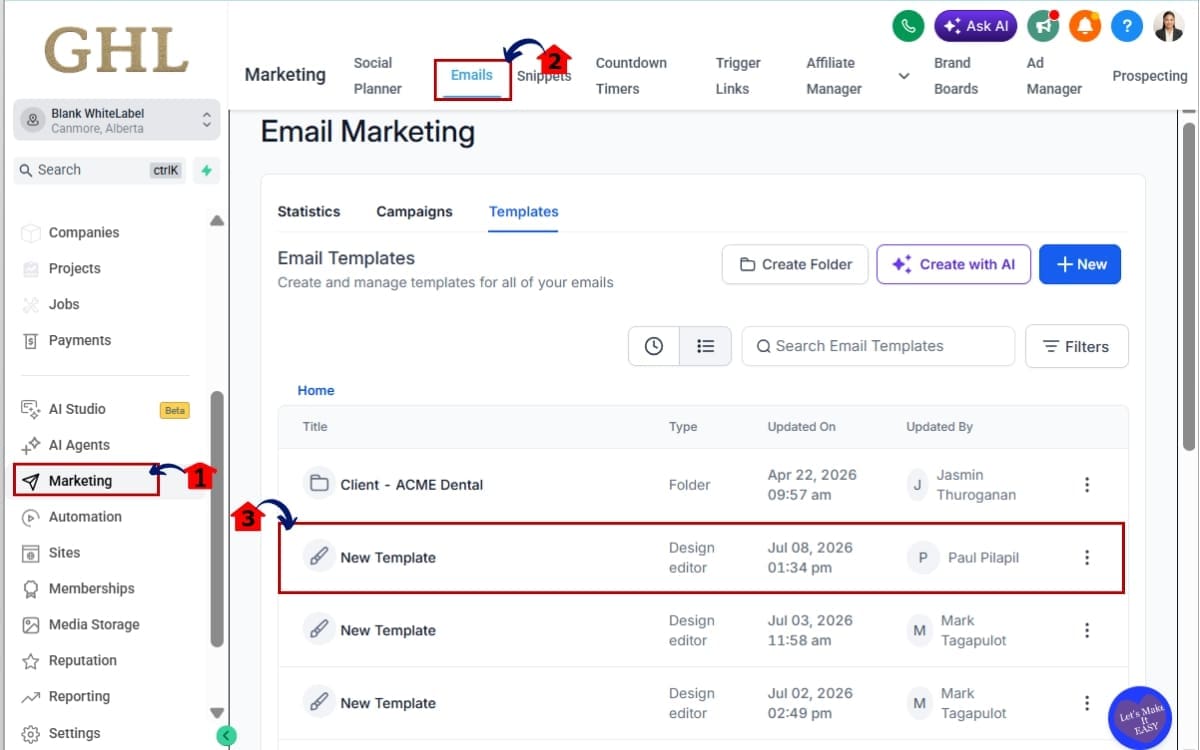
Step 01 – Open the Email AI Templates Area
- Once you’re inside the client location, navigate to the Email AI Templates section.
1.1 Click Marketing in the menu
- This opens the marketing tools available for the selected client location.
1.2 Click “Emails” in sub menu
- The Emails section is where you’ll find Email AI Templates and other email-related features.
1.3 Browse your existing templates.
- Review your current Email AI Templates or prepare to create a new one from this page.
Step 02 – Look for Visible to Agency Users Only
- If Email AI is disabled for the client location, agency users can still access Email AI Templates. This step helps you identify the indicator that confirms your agency-level access.
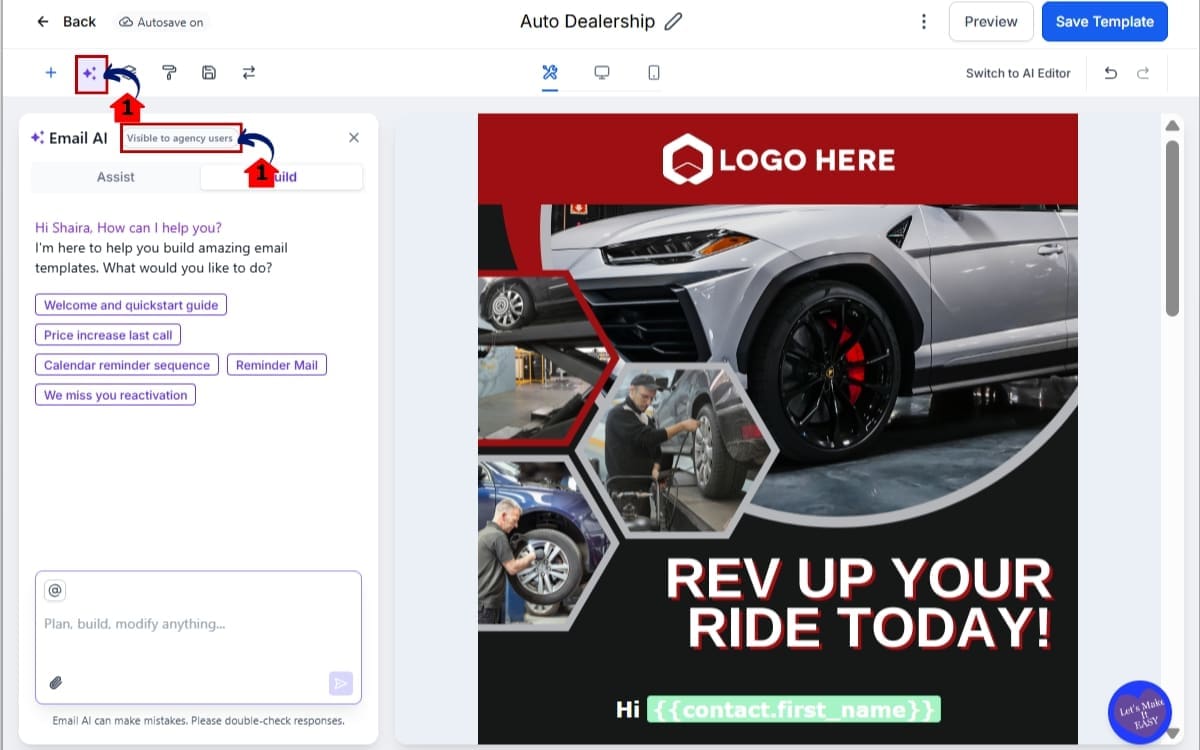
2.1 If Email AI is disabled for the location, you’ll still have access as an Agency user.
- Agency-level permissions let you create and manage Email AI Templates even when the feature isn’t available to location users.
2.2 Look for the “Visible to Agency Users Only” label if displayed.
- This label confirms that Email AI is available to agency users only and that location users will continue to follow their existing Labs settings.
Step 03 – Open a New Email AI Template
- Creating a template works exactly as it did before.
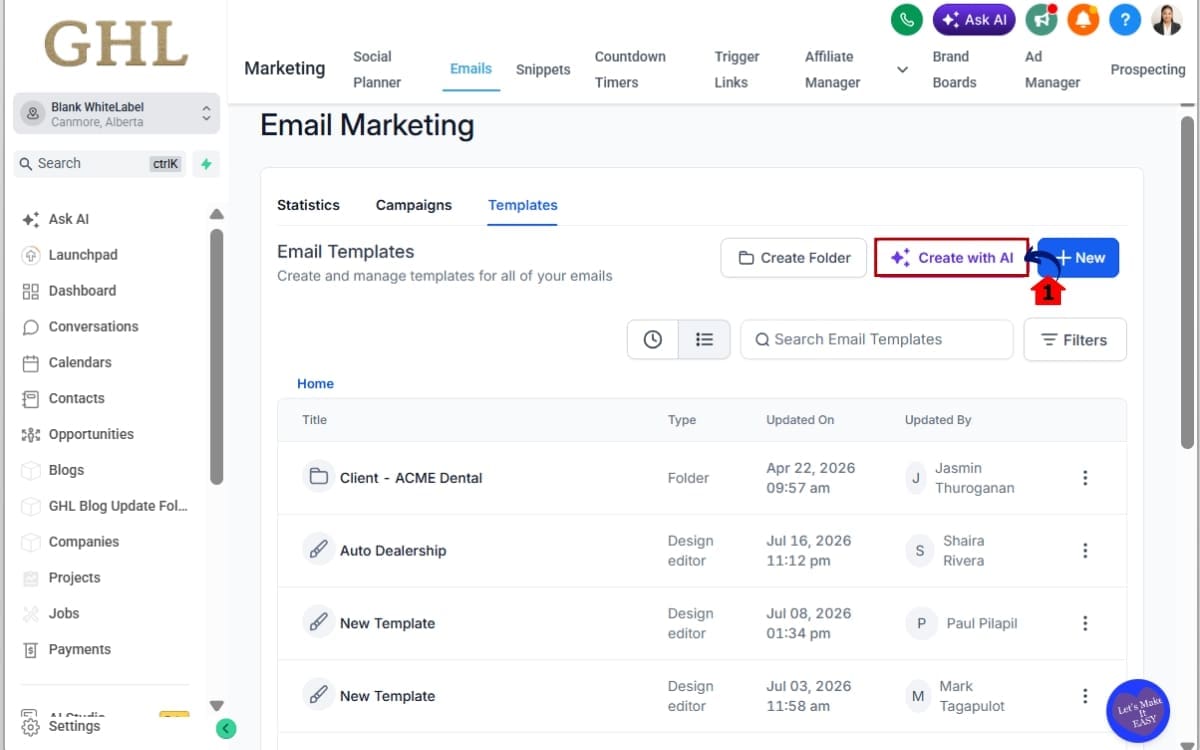
3.1 Click Create With AI.
- This opens the Email AI Template builder, where you can generate a new email template using AI.
Step 04 – Create a New Email AI Template
- Now you’re ready to generate a new Email AI Template. Enter a clear template name, describe the email you want AI to create, and review the generated content before saving it.
4.1 Enter a descriptive template name. Provide your AI prompt or generate your email using the available AI tools.
- Use a clear template name and a detailed prompt to help AI generate content that’s relevant to your campaign.
4.2 Click generate or arrow to generate template. Review the generated content and make any edits required.
- Check the generated email for accuracy, tone, branding, and any client-specific details before using it in your campaigns.
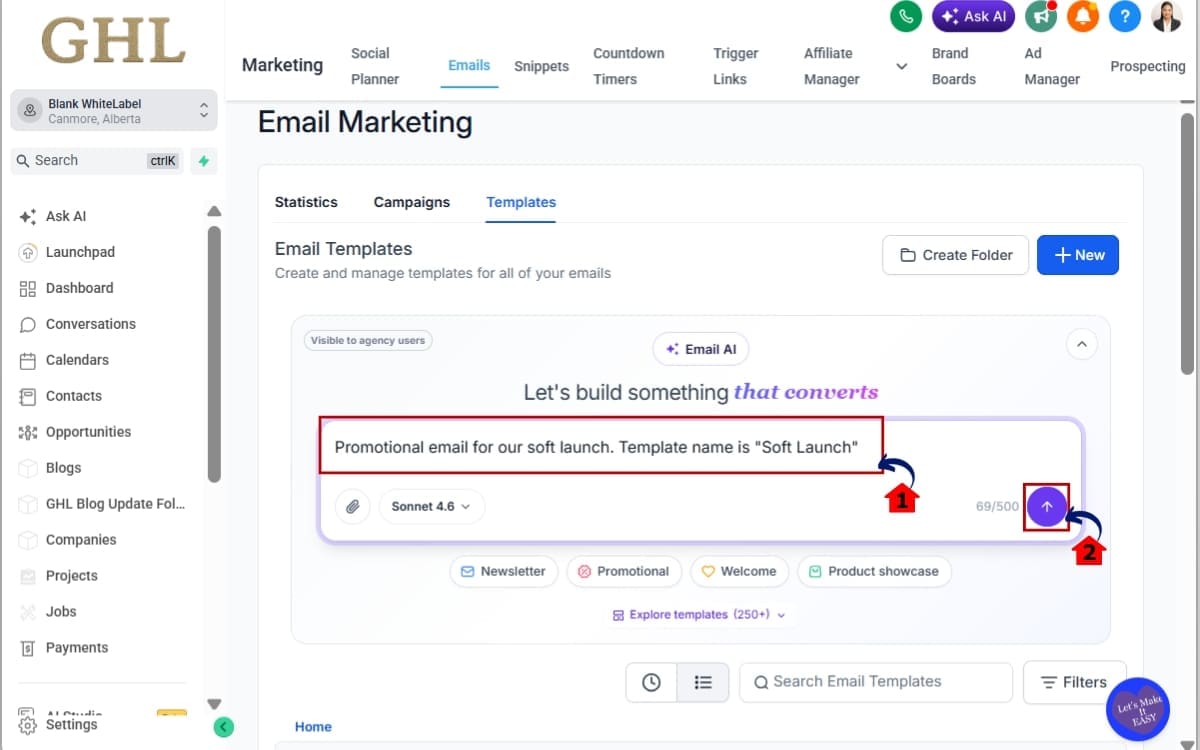
Step 05 – Save your new template
- Once you’re happy with the generated content, save your Email AI Template so it’s ready to use in future email campaigns.
5.1 Save your new Email AI Template.
- Your template will be saved to the current client location, where you can edit, reuse, or manage it whenever you need.
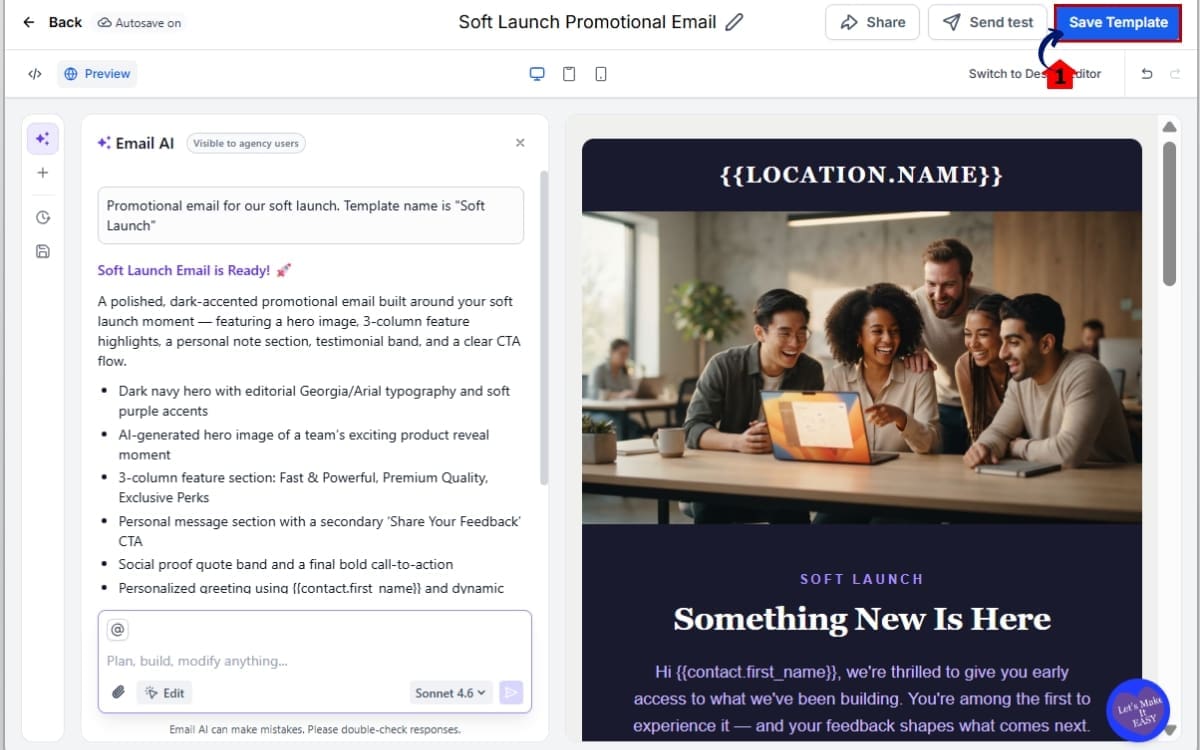
Understand How Permissions Work :
Although agency access has improved, your clients’ permissions remain unchanged. Agency users can create and manage Email AI Templates in every location. Location users only have access when Email AI has been enabled through that location’s Labs settings.
The new “Visible to Agency Users Only” label helps explain why Agency users can still access the feature. Continue managing client templates without changing the client’s existing permissions or workflow.
That’s all there is to it. The entire process is now faster because you no longer need to create templates in one location before moving them somewhere else. Everything can be managed exactly where it’s needed, reducing duplicate work and making client onboarding much more efficient.
Pro Tips for Getting the Most from GHL Email AI Templates
Now that agency users can manage Email AI Templates from every client location, it’s worth taking a few extra steps to keep everything organized. A little planning now can save your team hours of maintenance later.
Create a Standard Template Library
Your email library usually grows for a reason. The same campaign ideas keep proving useful across different clients.
The best email library grows over time. Every successful campaign becomes another resource for your team.
Give Your Templates Clear Names
If every template has a similar name, finding the right one quickly becomes a guessing game. A more descriptive title can save you a lot of scrolling later.
- Dental – New Patient Welcome
- Real Estate – Buyer Follow-Up
- Gym – Membership Renewal
- HVAC – Missed Call Follow-Up
A consistent naming system makes templates much easier to find, especially when multiple team members are working inside the same client account.
Review Your Templates Regularly
The first version AI produces isn’t always the version your client should receive.
Before you reuse an older template, give it a quick read. You might spot outdated wording, an old offer, or something that no longer fits the client’s business.
Keep Templates Inside the Right Client Account
Now that you can create Email AI Templates directly inside any location, there’s no reason to build them somewhere else first.
Managing templates where they’ll actually be used keeps each client account cleaner, reduces confusion, and makes ongoing maintenance much easier.
Don’t Change Client Permissions Unnecessarily
Remember, this update improves the agency workflow—it doesn’t replace your existing permission settings.
Location users will continue to access Email AI only if it’s enabled through their Labs configuration. If a client doesn’t need Email AI, there’s no need to enable it just because you’re creating templates as an agency user.
The result is the best of both worlds: agencies gain flexibility while clients continue working in the environment that’s been configured specifically for them.
A little organization now can save your team a lot of time later.
What This Means for Your Business
Every update that removes unnecessary steps gives your business something valuable back, time.
One shortcut doesn’t change your day. Hundreds of small shortcuts over the course of a month certainly do.
For agencies, the biggest advantage is a smoother workflow. Your team can now build Email AI Templates directly inside the client account they’re working on instead of creating them somewhere else and transferring them later. That means less jumping between locations, fewer duplicate templates, and a much simpler way to manage your clients.
Client onboarding also becomes faster.
When a new client signs up, your team can immediately create and customize Email AI Templates within that client’s location. There’s no need to wait until Email AI is enabled or spend time importing templates from another account. Everything happens where it belongs from the very beginning.
This also makes ongoing maintenance easier. Instead of trying to remember which location contains the latest version of a template, your team can confidently update the version stored in the client’s own account. That reduces mistakes and helps keep messaging consistent across every campaign.
Perhaps the biggest benefit is scalability.
One extra task doesn’t feel like a problem on its own. The trouble starts when your team repeats that task for every client, every week.
GoHighLevel has intentionally kept the existing location-level permissions in place, so clients continue using the platform exactly as before. Agency users simply gain the flexibility they need behind the scenes to deliver a better service without affecting the client experience.
It’s one of those updates that won’t dramatically change how your clients use GHL, but it can dramatically improve how your agency manages it every day.
FAQs – Email AI Templates
Conclusion – Email AI Templates
Not every GoHighLevel release comes with a long list of new features. Some simply make the platform easier to use, and those are often the updates you’ll appreciate the most.
That’s exactly what this Email AI Templates update delivers.
Agency users can now create and manage Email AI Templates directly inside any client location without worrying about whether Email AI is enabled through Labs. The result is fewer workarounds, less duplicate work, and a much cleaner process for managing client campaigns.
Just as importantly, your clients’ experience doesn’t change. Location users continue to follow their existing Labs permissions, while agency users gain the flexibility needed to build and maintain templates more efficiently behind the scenes.
If your agency manages multiple client accounts, this update is worth taking advantage of straight away. Review how your team currently creates and manages Email AI Templates, then update your workflow to make the most of this new capability. You’ll spend less time copying templates between locations and more time delivering results for your clients.
The team here at GHL Growth Garage will continue bringing you practical GoHighLevel feature guides, workflow tips, and step-by-step tutorials to help you get more from the platform.
Have you started using this new Email AI Templates workflow yet? We’d love to hear how much time it’s saving your agency.
Scale Your Business Today.
Streamline your workflow with GoHighLevel’s powerful tools.