

- Use the new Wait action reply condition to track team response times, trigger escalations, and keep sales or support conversations from slipping through the cracks.
- Quick Summary – User Replies Essentials
- What’s New With User Replies
- Why User Replies Matter for GHL Teams
- How to Use User Replies in GHL Workflows
- Pro Tips for Better User Replies Workflows
- What User Replies Mean for Your Business
- Frequently Asked Questions About User Replies
- Final Thoughts on User Replies
Use the new Wait action reply condition to track team response times, trigger escalations, and keep sales or support conversations from slipping through the cracks.
User Replies just got a lot more useful inside GoHighLevel workflows.
User Replies now give GoHighLevel users a cleaner way to track when team members respond inside workflow conversations.
This update adds a new wait condition to the existing Wait action in GHL workflows. Instead of only waiting for a contact to reply, you can now pause the workflow until a team member sends a response. That makes it much easier to manage first-response times without building messy workaround steps.
For sales and support teams, this is a simple but useful upgrade. You can set a timeout, watch for a team reply, and trigger the next step if no one responds in time. That could mean sending a reminder, creating a task, alerting a manager, or reassigning the conversation before the lead or customer gets left hanging.

User Replies help your team stop babysitting conversations and start automating response accountability. With this GHL Wait action update, you can pause workflows until a team member replies, or trigger escalations when your SLA window gets missed.
Quick Summary – User Replies Essentials
Purpose: This update helps GoHighLevel users track when a team member replies to a conversation inside a workflow.
Why It Matters: User Replies make it easier to manage first-response times without checking every conversation by hand.
What You Get: You can pause a workflow until a user replies, or send the contact down a timeout path if no one responds in time.
Time To Complete: Most users can set this up in about 5 to 10 minutes once they know where the Wait action is located.
Difficulty Level: This is beginner-friendly if you already know how to open and edit a workflow in GHL.
Key Outcome: Your team gets a cleaner way to handle missed replies, internal reminders, and SLA-style follow-up workflows.
What’s New With User Replies
User Replies are now available as a wait condition inside the GoHighLevel Wait action. This means a workflow can pause until someone from your team replies in the conversation. Simple idea, useful upgrade.
Before this update, the Wait action could already pause a workflow based on timing or a contact reply. But it could not clearly track whether your own team had responded. That meant more manual checks, more guesswork, and more chances for a lead or support request to sit too long.
Automate marketing, manage leads, and grow faster with GoHighLevel.

Now, you can add a timeout and let GHL handle the next move. If a team member replies in time, the workflow continues. If no one replies before the timeout ends, the workflow can trigger a reminder, task, alert, or reassignment.
Why User Replies Matter for GHL Teams
User Replies matter because fast response times are not just a “nice to have” anymore. If a new lead asks a question and no one replies, that lead may move on. If a support request sits too long, the customer may lose trust. That is where this update earns its keep.
For sales teams, this helps protect new opportunities. You can build a workflow that watches for a team reply and takes action if no one responds in time. That might mean alerting a manager, creating an urgent task, or moving the conversation to another team member.
For support teams, it helps keep service standards clear. Instead of checking conversations by hand, GHL can help track the response window for you. It is a cleaner way to manage SLAs, reduce missed replies, and keep your team accountable without hovering over every inbox.
How to Use User Replies in GHL Workflows
User Replies are set up inside the Wait action in GoHighLevel workflows. In this section, you’ll learn how to create the Wait step, choose the right reply settings, and add a timeout. This gives your team a simple way to track response times and route missed replies into the right follow-up path.
Here are the steps we will follow:
- Access the Workflows area in GoHighLevel.
- Add a New Workflow Step.
- Select the Wait Action.
- Configure the User Replied Wait Action.
- Review the User Replied and Time Out Paths.
To start, make sure you are logged in to your GoHighLevel sub-account.
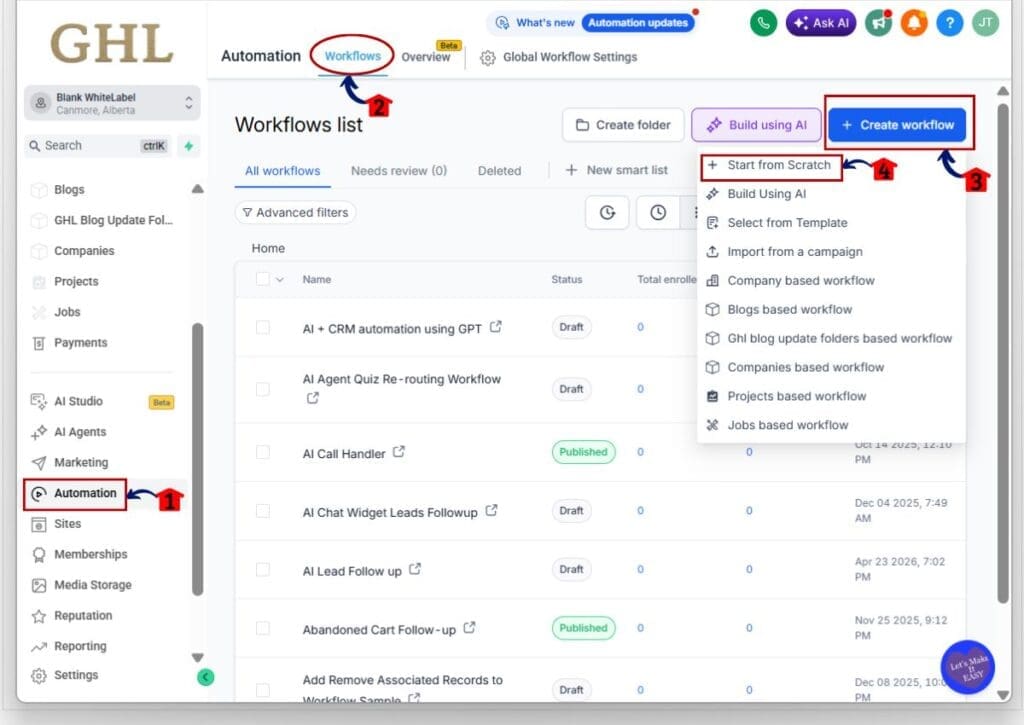
Step 01 – Access the Workflows Area in GoHighLevel
- The main menu on the left side of your screen has the core areas you work in when using GoHighLevel.
1.1 Click Automation in the left menu.
- This opens the Automation area inside GHL.
1.2 Click Workflows in the top navigation.
- This opens the Workflows list, where you can view and manage your workflows.
1.3 Click Create workflow button.
- This opens the workflow creation menu.
1.4 Click Start from Scratch.
- This creates a blank workflow that you can build from the ground up.
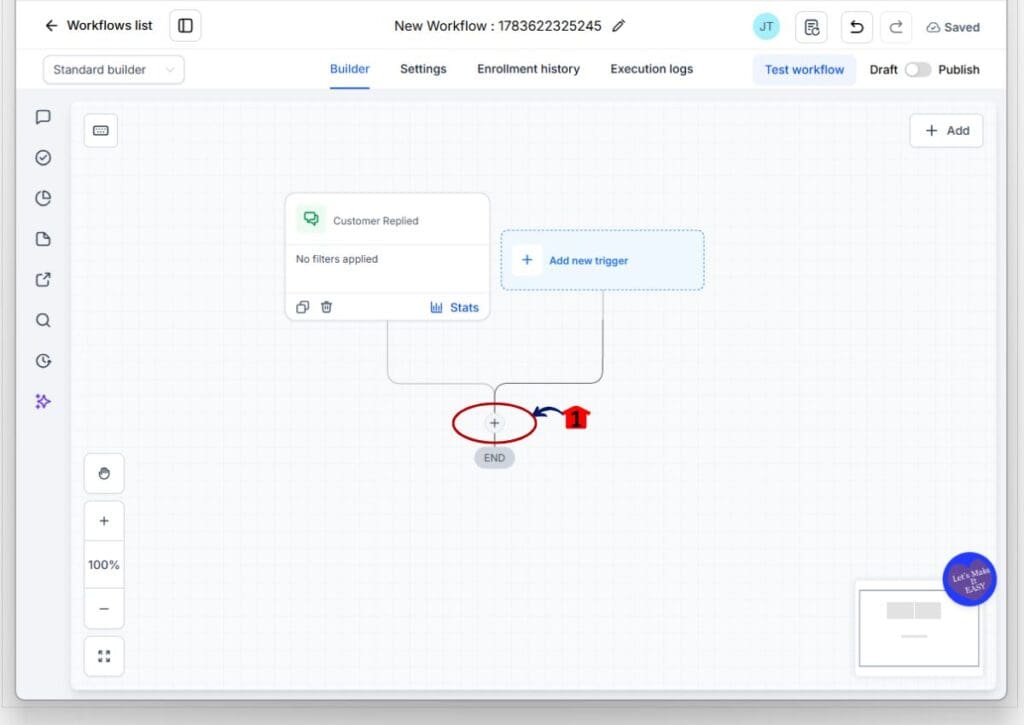
Step 02 – Add a New Workflow Step
- The workflow builder is where you add triggers, actions, and wait steps.
2.1 Find the plus icon under your workflow trigger area.
- This is where you will add the next workflow step.
2.2 Click the plus icon.
- This opens the action selection panel.
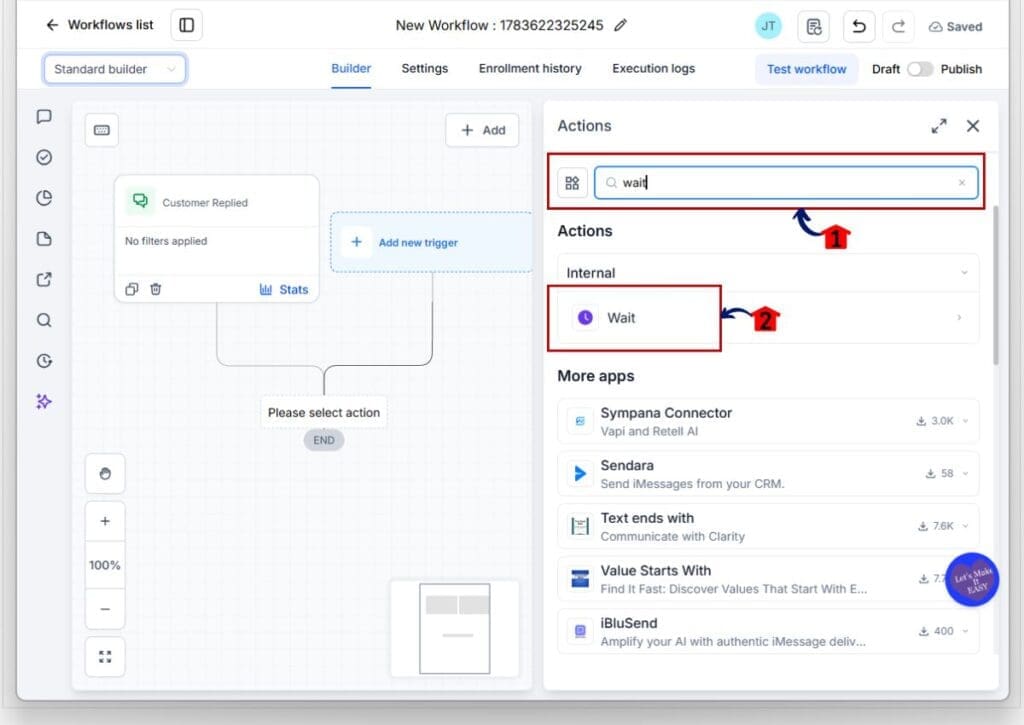
Step 03 – Select the Wait Action
- The Wait action tells GHL to pause the workflow until a set time or condition is met.
3.1 Click into the action search field.
- Use the search field to find the action faster.
3.2 Type Wait.
- This filters the action list.
3.3 Click Wait under the Internal actions section.
- This adds the Wait action to your workflow.
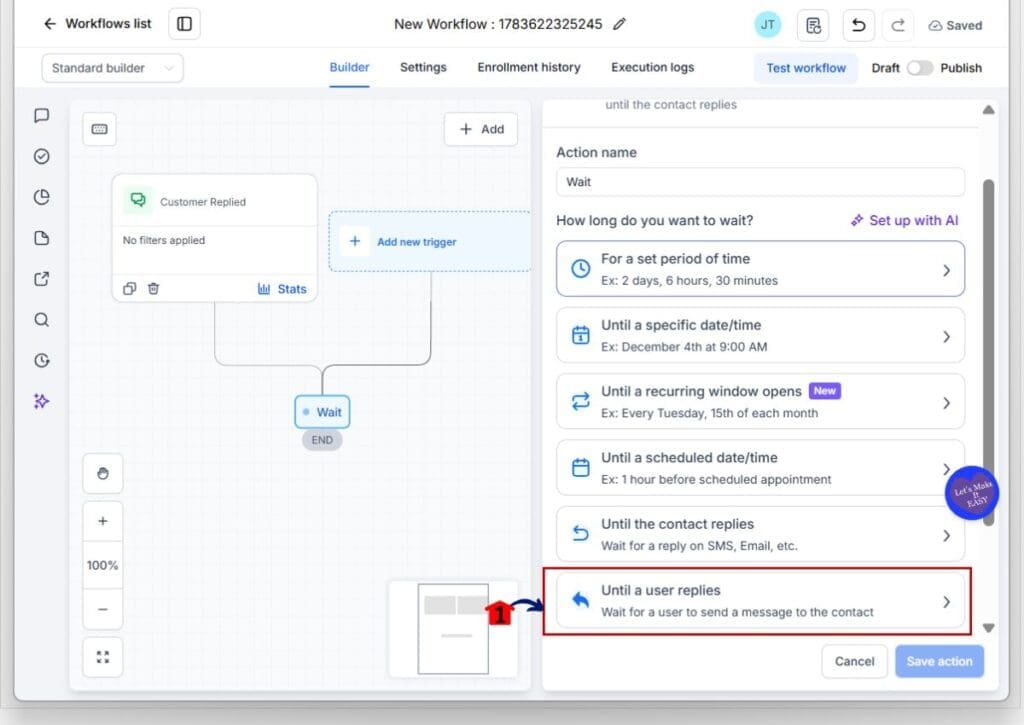
Step 04 – Configure the User Replied Wait Action
- The User Replied wait type tells GHL to pause the workflow until a staff user replies to the contact.
4.1 Find the wait type called Until a user replies.
- This option is listed inside the Wait action settings.
4.2 Click Until a user replies.
- This sets the Wait action to watch for a user reply instead of a contact reply.
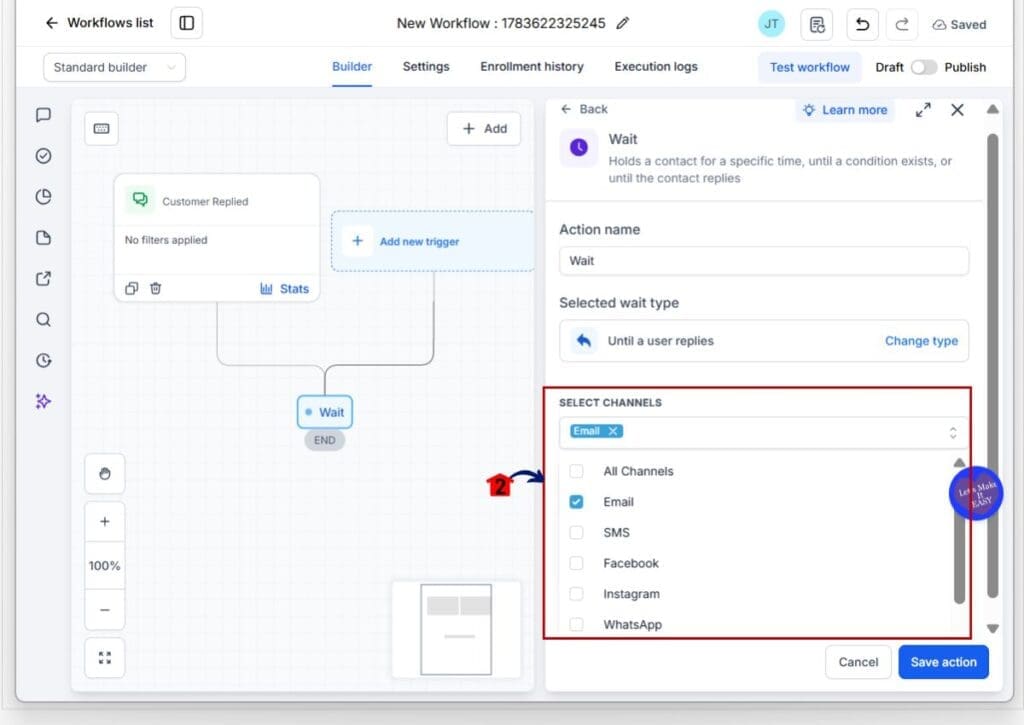
4.3 Select the reply channel.
- Choose the channel you want GHL to watch, such as Email, SMS, Facebook, Instagram, or WhatsApp. You can also choose All Channels if the reply can happen on any supported channel.
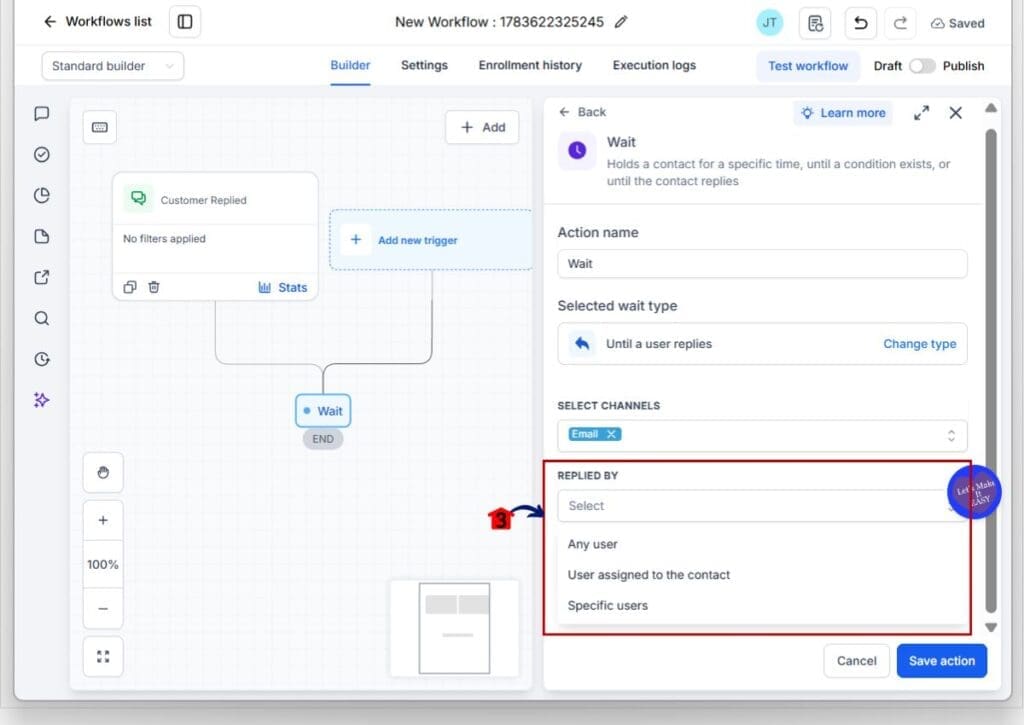
4.4 Choose who the reply should come from.
- Use the Replied By dropdown to choose the right rule. You can select Any user, User assigned to the contact, or Specific users.
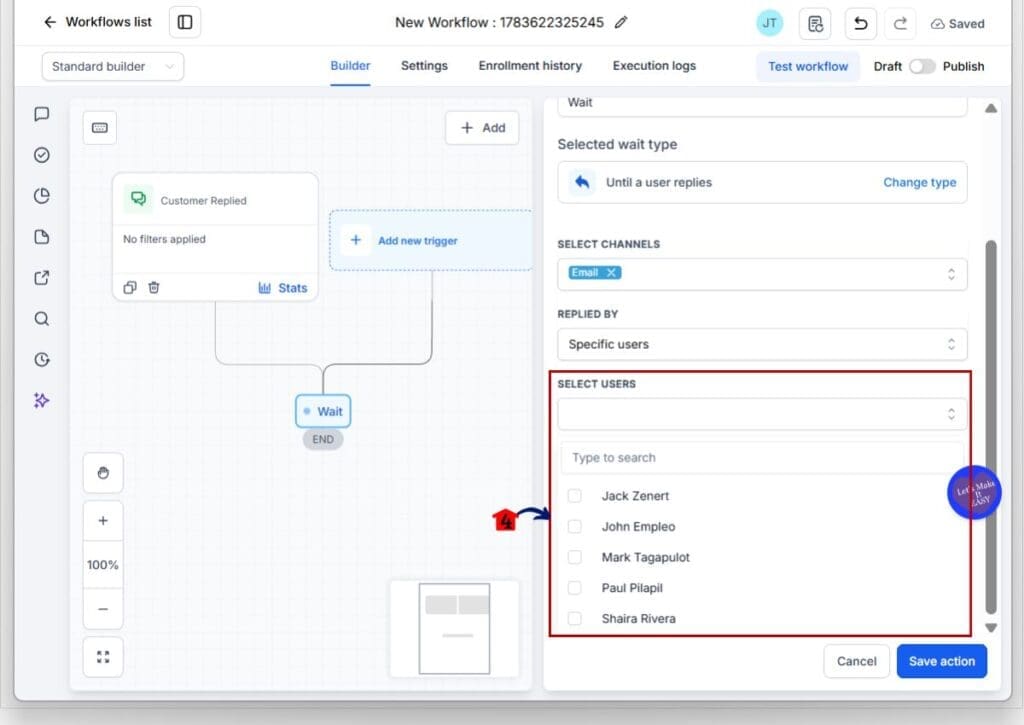
4.5 Select the user if you choose Specific users.
- Use the Select Users field to pick the staff member or team member the workflow should watch for.
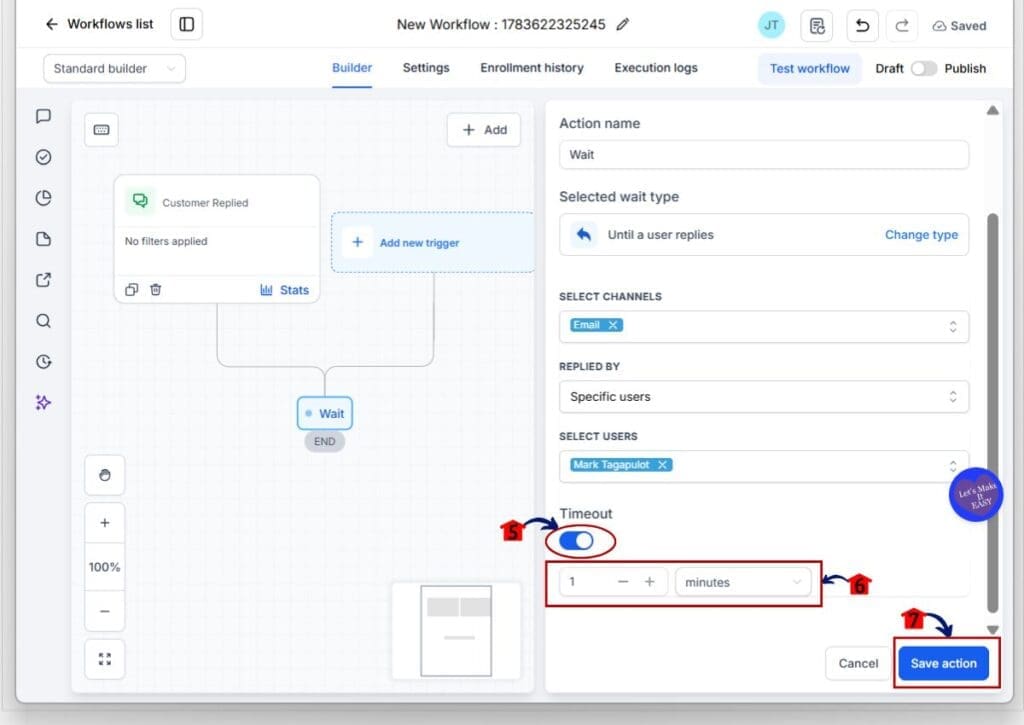
4.6 Turn on Timeout if you want the workflow to move forward when no user replies in time.
- This is useful for SLA workflows. For example, you may set a 15-minute timeout for new leads or a 30-minute timeout for support requests.
4.7 Set the timeout amount.
- Choose the number and time unit, such as 1 minute, 15 minutes, 30 minutes, or 1 hour.
4.8 Click Save action.
- This saves the Wait action and adds the User Replied logic to the workflow.
Step 05 – Review the User Replied and Time Out Paths
- After the Wait action is saved, GHL creates two paths in the workflow.
5.1 Review the User Replied path.
- This path runs when a staff user replies before the timeout ends.
5.2 Review the Time out path.
- This path runs when the timeout is reached before a staff user replies.
5.3 Add the next steps under each path.
- For the User Replied path, you may continue the workflow as normal. For the Time out path, you may add an internal notification, create a task, reassign the conversation, or alert a manager.
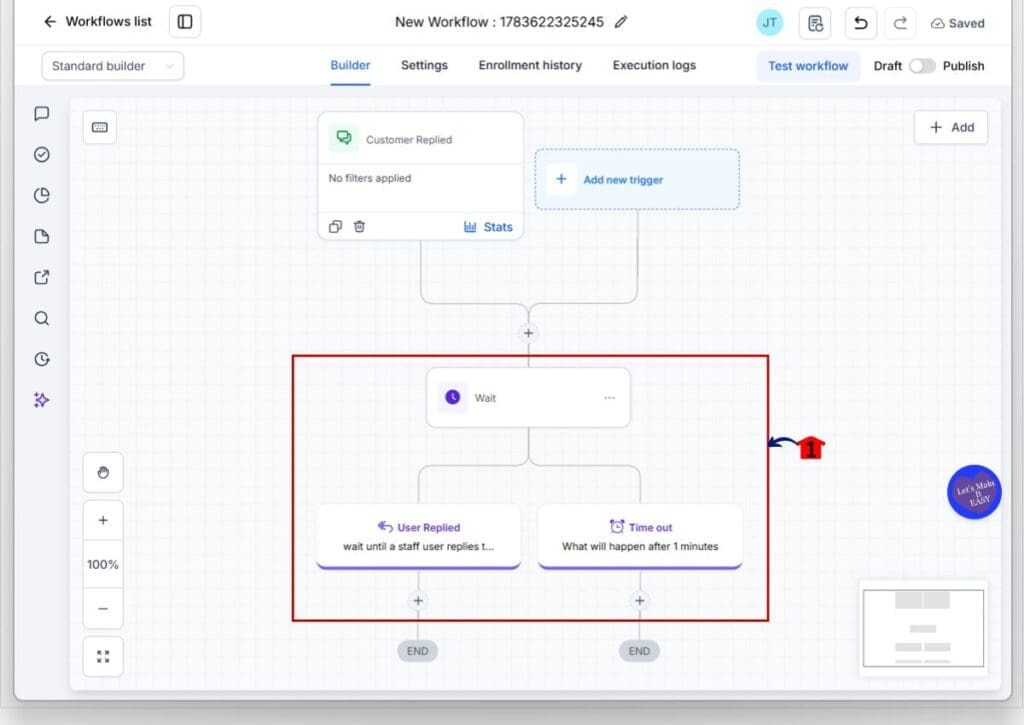
Once saved, test the workflow with a sample contact before using it live. This helps you confirm that User Replies are tracked correctly and that the timeout path works when no team member responds in time.
Pro Tips for Better User Replies Workflows
User Replies work best when your timeout rules match how your team actually handles conversations. For hot sales leads, keep the wait time short. A 10 or 15 minute window can help stop new leads from sitting too long. For support requests, a 30 minute or 1 hour window may make more sense.
Choose your Replied By setting with care. Any user is useful when anyone on the team can respond. User assigned to the contact works well when each lead or customer has an owner. Specific users are best when only certain staff members should handle that conversation.
Keep your timeout path simple. Do not build a giant mess of actions unless you need it. Start with one clear next step, such as creating a task, sending an internal notification, or reassigning the conversation. Then test it before you publish. Clean workflows beat clever workflows almost every time.
What User Replies Mean for Your Business
User Replies give your business a better way to protect important conversations. When a lead or customer reaches out, the clock starts ticking. A slow reply can cost you trust, sales, or both.
For agencies, this update makes client workflow builds stronger. You can create simple SLA automations for sales teams, support teams, appointment setters, and client success teams. That gives your clients a clearer system for handling replies without needing someone to watch the inbox all day.
Here is a simple example. A new lead sends a message, and the workflow waits 15 minutes for a staff user to reply. If the user replies, the workflow continues as planned. If not, GHL can alert the sales manager, create an urgent task, or reassign the conversation before the lead goes cold.
Frequently Asked Questions About User Replies
Final Thoughts on User Replies
User Replies give GoHighLevel users a simple way to track team response times inside workflows. It helps sales and support teams see when a staff member replies, and what should happen when no one does.
With this Wait action update, you can pause a workflow until a user responds. You can also set a timeout, so GHL can send the contact down the right path if your team misses the reply window. That could mean a reminder, a task, a manager alert, or a reassignment.
Start with one basic workflow and test both paths before using it with real contacts. Once it works, you can use User Replies for lead follow-up, support requests, appointment conversations, and client service workflows.
Scale Your Business Today.
Streamline your workflow with GoHighLevel’s powerful tools.


