- Easily assign and manage custom watermarks for each social account to keep your client branding consistent.
- Quick Summary – Social Media Watermark Essentials
- What’s New – Upload Per-Account Watermarks
- What’s Changed – From One Logo to Total Control
- Why This Matters – Efficiency Meets Brand Consistency
- How to Set Up Social Media Watermark Tools in GHL
- Pro Tips – Smart Ways to Use Watermarks
- What This Means – Better Workflows, Happier Clients
- Results You Can Expect – Consistency That Sells
- Frequently Asked Questions – Using Watermarks in Social Planner
- Upgrade Your Social Publishing Game
Easily assign and manage custom watermarks for each social account to keep your client branding consistent.
Social Media Watermark Tools
Social media watermark tools are now built into GoHighLevel’s Social Planner and that’s a big deal if you manage more than one brand or client account.
Before this update, you were stuck with a single watermark for all your social posts. That meant re-uploading logos, switching images around, or worse, posting without any watermark at all. Not ideal when you’re trying to keep your brand consistent across platforms.
Now, you can upload different watermarks for each social account. It’s simple. It works. And it saves you time.
This feature makes life easier for agencies juggling multiple brands. You get better control, fewer mistakes, and a more polished look on every post.
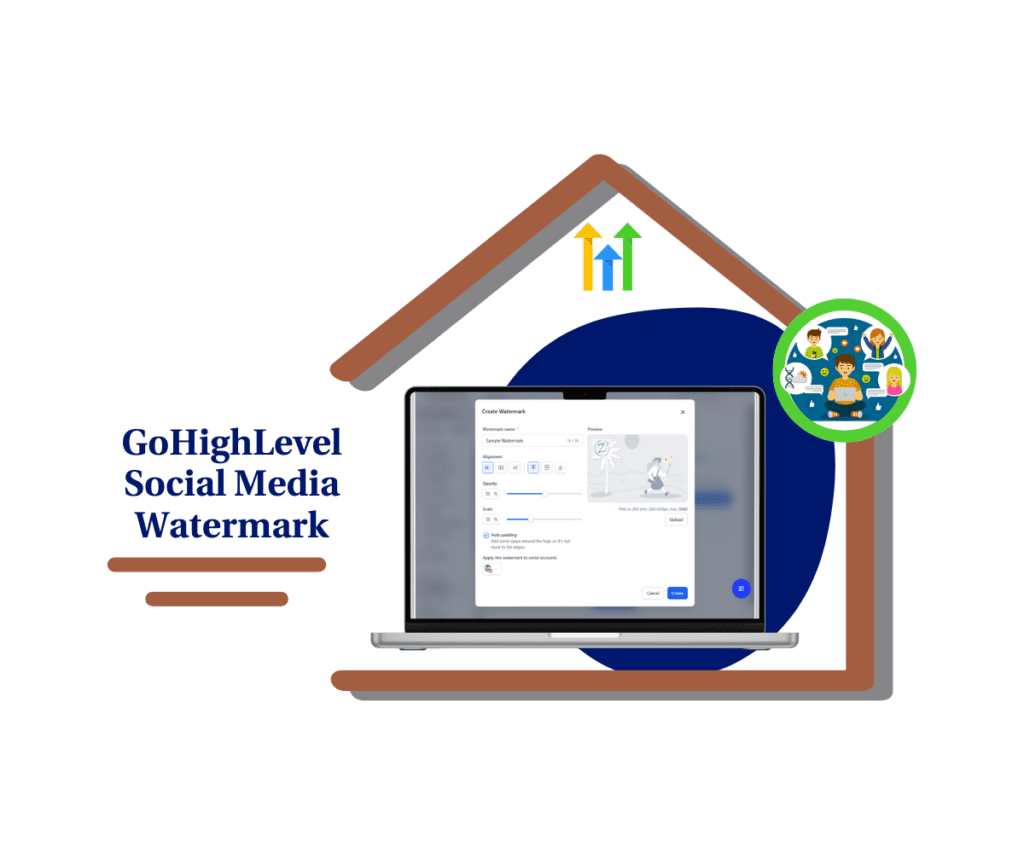
This new Social Planner feature helps agencies maintain visual brand identity across multiple accounts without repetitive uploads. With custom social media watermark tools, you can streamline your workflow and keep every post on-brand.
Quick Summary – Social Media Watermark Essentials
Purpose: This update lets you assign a unique social media watermark to each account inside the GoHighLevel Social Planner.
Why It Matters: It removes the need to upload the same logo over and over, and keeps your brand identity consistent across platforms.
What You Get: A faster, cleaner way to manage brand visuals for every social post, without extra steps or manual work.
Time to Complete: About 2–3 minutes to upload, name, and assign each watermark.
Difficulty Level: Beginner-friendly. No tech skills needed.
Key Outcome: Every post includes the right social media watermark, helping your brand or your client’s brand look polished and professional.
What’s New – Upload Per-Account Watermarks
GoHighLevel now gives you full control with new social media watermark tools built into the Social Planner.
You can upload a different social media watermark for each connected account. That means one watermark for Instagram, a different one for LinkedIn, and something else for Facebook if needed. No more one-size-fits-all logo on every post.
Automate marketing, manage leads, and grow faster with GoHighLevel.

Just go to the Watermark tab inside Social Planner settings. Click “Add Watermark,” upload a PNG (under 5MB), give it a clear name, and preview it. You’ll see all your uploaded watermarks listed in one place. You can edit or delete them anytime.
There’s also a “Select All” button if you want to apply the same social media watermark to every account at once. But if you’re managing multiple brands or clients, assigning a specific watermark to each social profile is the smarter move.
This update keeps your content clean, consistent, and on-brand without extra effort.
What’s Changed – From One Logo to Total Control
Before this update, you could only use one social media watermark across all your connected accounts in GoHighLevel. That worked fine for a single brand, but it created problems for agencies or businesses managing more than one identity.
You had to re-upload the right logo every time you switched accounts. If you forgot, you might end up posting the wrong watermark on the wrong content. It was slow and easy to mess up.
Now, the Social Planner lets you assign a different social media watermark to each account. The system also keeps your previous watermark and labels it as “All Socials,” so your old setup doesn’t disappear. You can still use that or switch to a more custom approach.
This update turns something basic into something flexible. You’re no longer stuck with one option. You can now fine-tune your posts to match each brand exactly how they want to show up online.
Why This Matters – Efficiency Meets Brand Consistency
Using the right social media watermark on your posts is one of the easiest ways to protect your brand online. It shows who the content belongs to and keeps your feed looking clean and professional.
For agencies, this update means less back-and-forth. You no longer have to upload the same logo repeatedly. Assign the correct social media watermark once per account, and it sticks. That saves time and reduces mistakes.
It also helps your team move faster. Whether you post daily or schedule content weeks ahead, your brand visuals stay on point. No more worrying about mixing up clients or forgetting to add the logo.
A simple change like this brings a big benefit. When your content is branded right, people notice.
How to Set Up Social Media Watermark Tools in GHL
This update lives inside the Social Planner settings. You don’t need to change any workflows or install new tools. Just follow these steps to upload and assign a unique watermark to each social media account.
This guide shows you exactly how to use the social media watermark tools inside GoHighLevel.
Here’s how to get started:
Step 01: Access the Main Left Hand Menu in GoHighLevel
- The Main Menu on the Left side of your screen has all the main areas that you work in when using GHL
1.1 Click on the Marketing Left hand Menu Item.
- Access the ‘Marketing’ section of GoHighLevel
1.2 Select Social Planner
- You’ll see a sub menus in Social Planner Dashboard
1.3 Click the Settings tab in the top right corner
- A new window will appear this is where watermark settings are located

Step 02: Add a New Watermark
- You can upload one PNG image per brand or client.
2.1 Click Add Watermark
- A new window will open

2.2 Upload your image (must be PNG, under 5MB)
- Make sure it has a transparent background for best results
2.3 Name your watermark
- Use something clear like “Client A Logo” example “ZedNow Logo”

Step 03: Assign to Social Accounts
- You can apply the watermark to all accounts or pick specific ones.
3.1 Click the arrow down button
- a pop-up selection will appear
3.2 Click Select All to assign one watermark across all platforms
3.3 Or choose individual accounts to assign the watermark manually
- Each account can now carry its own branding
3.4 Click Create Button to save the watermark

Step 04: Edit or Delete Watermarks
- All uploaded watermarks appear in a simple list view.
4.1 Click the edit icon to rename or change the image
4.2 Click delete to remove it from the system
- If it’s already assigned, you’ll be asked to confirm

Step 05: What Happens to Your Old Watermark
- If you used a watermark before this update, it won’t disappear.
5.1 It will now appear in the list as “All Socials”
- You can keep using it or replace it with specific watermarks
5.2 Update any assigned accounts at any time
That’s it. Now your social posts will carry the right branding, every time. No extra uploads. No guesswork.
Pro Tips – Smart Ways to Use Watermarks
Now that you can assign a different social media watermark to each account, here are a few ways to make the most of it.
Use transparent PNGs
- Watermarks with a transparent background blend better with your images. Avoid harsh white boxes or edges that look out of place.
Keep file sizes small
- Each social media watermark must be under 5MB. Smaller files upload faster and won’t slow you down.
Name your files clearly
- Use names like “BrandName-IG” or “ClientX-Logo” so you know exactly where to assign each one.
Assign once, not every time
- Set up your watermarks per account and forget about them. No more uploading the same logo with every new post.
Test on different image types
- Try out your watermark on both light and dark backgrounds to make sure it looks good across all types of content.
Update as branding changes
- If your client updates their logo or colors, just upload the new version and reassign it. You don’t have to redo old posts.
These small steps help your content look clean, professional, and always on-brand.
What This Means – Better Workflows, Happier Clients
With social media watermark tools built into GoHighLevel, managing brand visuals is finally easy.
You don’t need to double-check logos for every post or worry about switching files before scheduling. Once a watermark is set for each account, your content automatically carries the right branding.
This helps your team work faster and reduces room for error. It also keeps things clean and consistent, which your clients will appreciate. No more mixed-up posts or missing logos.
If you’re running multiple brands or managing social content for clients, this change gives you better control without adding more steps. It’s one less thing to think about, and one more way to keep your content sharp.
Results You Can Expect – Consistency That Sells
When you use social media watermark tools the right way, your brand stays consistent across every post. That’s a simple fix that goes a long way.
A clear, well-placed social media watermark helps people recognize your content right away. Whether they see it on Instagram, Facebook, or LinkedIn, they know it’s yours. That kind of recognition builds trust over time.
For agencies, this also makes your process smoother. You spend less time uploading logos, fixing errors, or chasing edits. Once each account has the right social media watermark assigned, your posts go out branded and ready.
The result is a better-looking feed, stronger brand identity, and fewer things to manage behind the scenes. It’s a small change that improves your workflow and your client’s results.
Frequently Asked Questions – Using Watermarks in Social Planner
Here are some common questions about the new social media watermark tools and how they work in GoHighLevel.
Upgrade Your Social Publishing Game
The new social media watermark tools in GoHighLevel are built to make your daily work easier. If you manage posts for different brands or clients, this update gives you the control you’ve been missing.
Now you can assign a different social media watermark to each account without re-uploading logos or fixing posts after the fact. It keeps your brand identity clear and your process simple.
It only takes a minute to set up, and once it’s done, every post goes out with the right logo in place.
If you’re looking for a way to keep your content clean and consistent across all platforms, start using the social media watermark tools today.
Scale Your Business Today.
Streamline your workflow with GoHighLevel’s powerful tools.