- This new update lets you control which contact form fields must be filled before a lead can start chatting.
- Why Required Contact Form Fields Matter
- Quick Summary – Required Contact Form Fields Overview
- What’s New With Required Contact Form Fields
- What’s Changed With Required Contact Form Fields
- Why Required Contact Form Fields Matter for Your Business
- How to Use Required Contact Form Fields in GHL
- Quick Tips for Required Contact Form Fields
- What Required Contact Form Fields Mean for Agencies
- Results You Can Expect From Required Contact Form Fields
- Frequently Asked Questions About Required Contact Form Fields
- Final Thoughts on Required Contact Form Fields
This new update lets you control which contact form fields must be filled before a lead can start chatting.
Why Required Contact Form Fields Matter
Required contact form fields are now available in the GoHighLevel Chat Widget and they’re a big deal if you’re serious about lead quality.
Until now, people could leave out key details like their email or phone number. That created problems. Incomplete forms break automations, slow down follow-ups, and clutter your CRM with half-finished records. It’s not just annoying. It’s costly.
This update fixes that. You can now make any field, even dropdowns and custom ones, required before someone starts chatting or sends in their info. That means every lead that hits your inbox will have the key details you need to take action.It’s a simple change, but it gives you more control and better data from the start.
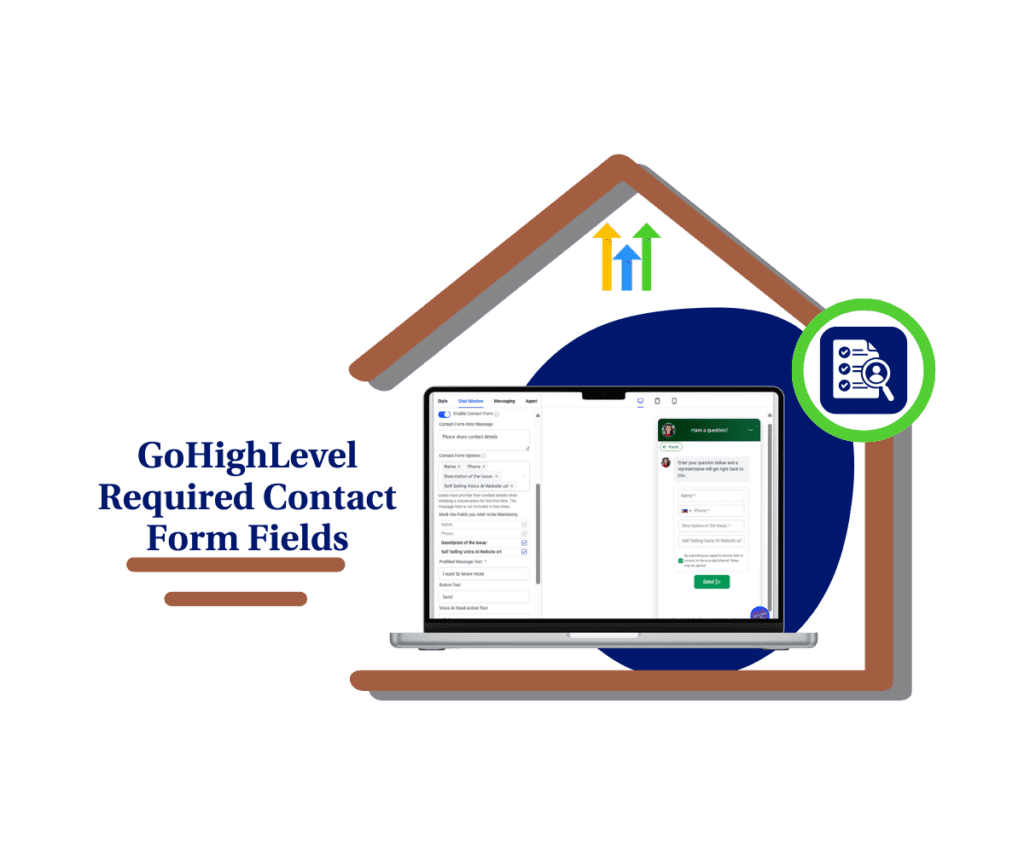
This update helps you avoid bad data and incomplete leads by letting you mark any contact form field as required inside the GoHighLevel Chat Widget. You’ll get cleaner submissions and stronger automation from the very first interaction.
Quick Summary – Required Contact Form Fields Overview
Purpose: This update lets you control which fields in your chat widget form must be filled before a lead can submit.
Why It Matters: It helps prevent incomplete lead forms and keeps your CRM clean from the start.
What You Get: Full control over required contact form fields, including custom and dropdown fields.
Time to Complete: Setup takes about 5 minutes per widget.
Difficulty Level: Easy for any GHL user with access to Chat Widget settings.
Key Outcome: More complete leads, fewer broken workflows, and cleaner automation.
What’s New With Required Contact Form Fields
GoHighLevel now lets you set required contact form fields inside the Chat Widget. This means you choose which fields must be filled out before someone can start or continue a conversation.
It works with all types of fields. You can make default, custom, or dropdown fields required. If the field is marked as required, the chat form will not submit until it is filled out.
Automate marketing, manage leads, and grow faster with GoHighLevel.

Required contact form fields show up with a small asterisk next to them. Visitors will see a warning if they try to skip them. They cannot send the form or move forward until every required contact form field is complete.
This update also applies when an agent asks for contact details during a live chat. If you have required contact form fields set, the visitor will need to fill those in before they can reply.You now have full control over which fields matter most. This gives you cleaner submissions and better data right from the start.
What’s Changed With Required Contact Form Fields
Before this update, only default fields like name and email were required in the GHL Chat Widget. Now you can mark any field as required. That includes dropdowns and custom fields you’ve added to your contact form setup.
Once you turn on required contact form fields, visitors won’t be able to submit the chat form until every required field is filled. This applies whether the form appears at the start of the chat or during a live request from an agent.
Required contact form fields also stay active across different chat flows. If an agent asks for contact info in the middle of a conversation, the system still checks that all required contact form fields are complete before letting the chat continue.
Your existing widgets won’t change unless you update them manually. But going forward, every form you touch can now be fully controlled with your required contact form field settings.It’s a quiet shift, but it gives you more confidence that every new lead comes in with the data you need.
Why Required Contact Form Fields Matter for Your Business
Required contact form fields solve a problem that most businesses deal with. You get a new lead, but they skipped the phone number or left the email blank. Now your automation won’t run, and someone on your team has to follow up manually.
With required contact form fields in the GHL Chat Widget, you control what’s needed before the conversation starts. If a field is required, it must be filled. That means no more guessing, no more gaps, and no more missing data.
This matters because your workflows rely on complete information. Automations need the right inputs. CRM records need to be clean. Required contact form fields make that possible without extra work.For agencies, it keeps things running smooth. You get better leads, better data, and less back-and-forth. It’s one of those small updates that makes everything work just a little better.
How to Use Required Contact Form Fields in GHL
Required contact form fields are built right into the Chat Widget settings. There’s no extra setup or plugin needed just a few quick steps inside the builder.
Here’s how to turn them on and control which fields are required:
Step 01: Access the Main Left Hand Menu in GoHighLevel
- The Main Menu on the Left side of your screen has all the main areas that you work in when using GHL
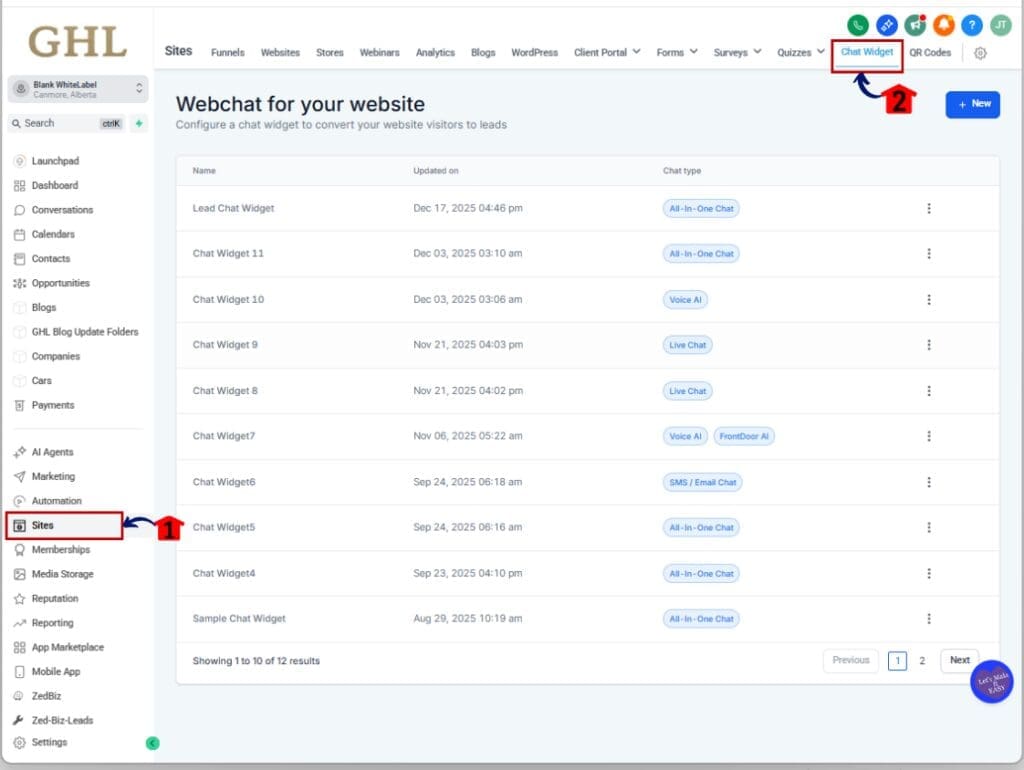
1.1 Click on the Sites Menu Item.
- Access the ‘Sites’ section of GoHighLevel
- This is where your Funnels, Websites, and Chat Widgets live.
1.2 Click on the “Chat Widget” from the top tabs
- This will show a list of all your current widgets.
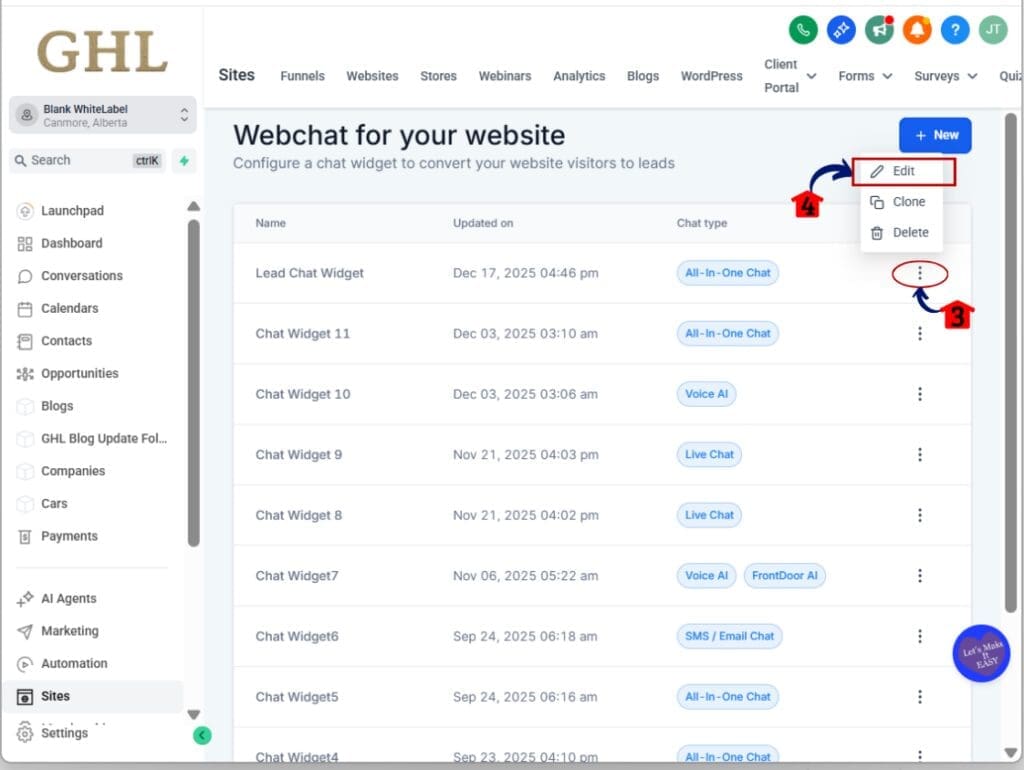
1.3 Click the “Edit” icon on the widget you want to update
- This opens the widget builder.
Step 02: Go to the Chat Window Settings
- This is where the contact form lives.
2.1 Click the “Chat Window” tab on the left
- You’ll see options for customizing the welcome screen and form.
2.2 Click on the Title & Intro Option
- A drop-down options will appear where you can customize the form chat widget
2.3 Choose a Chat option on the chat widget
- This will start the conversation and where you can see the required fields needed before you can continue
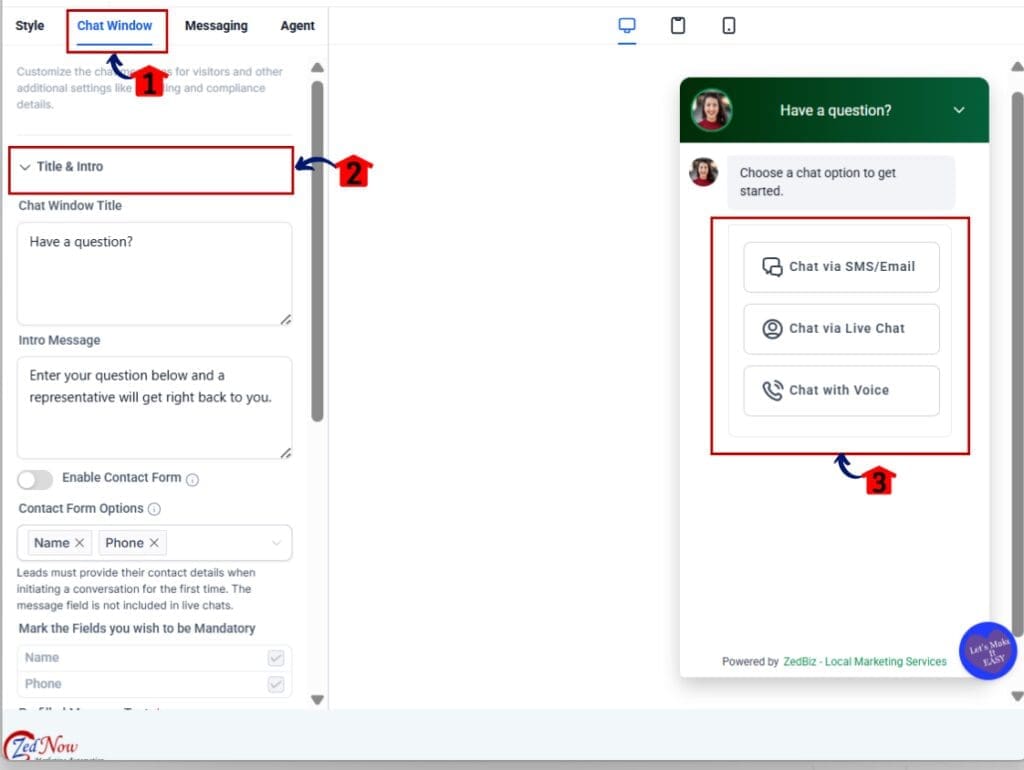
2.4 Toggle on the Enable Contact Form
- This will collect the visitors contact details
2.5 Add or edit your fields
- Use default fields like name and email, description of the issue, or add custom fields and dropdowns.
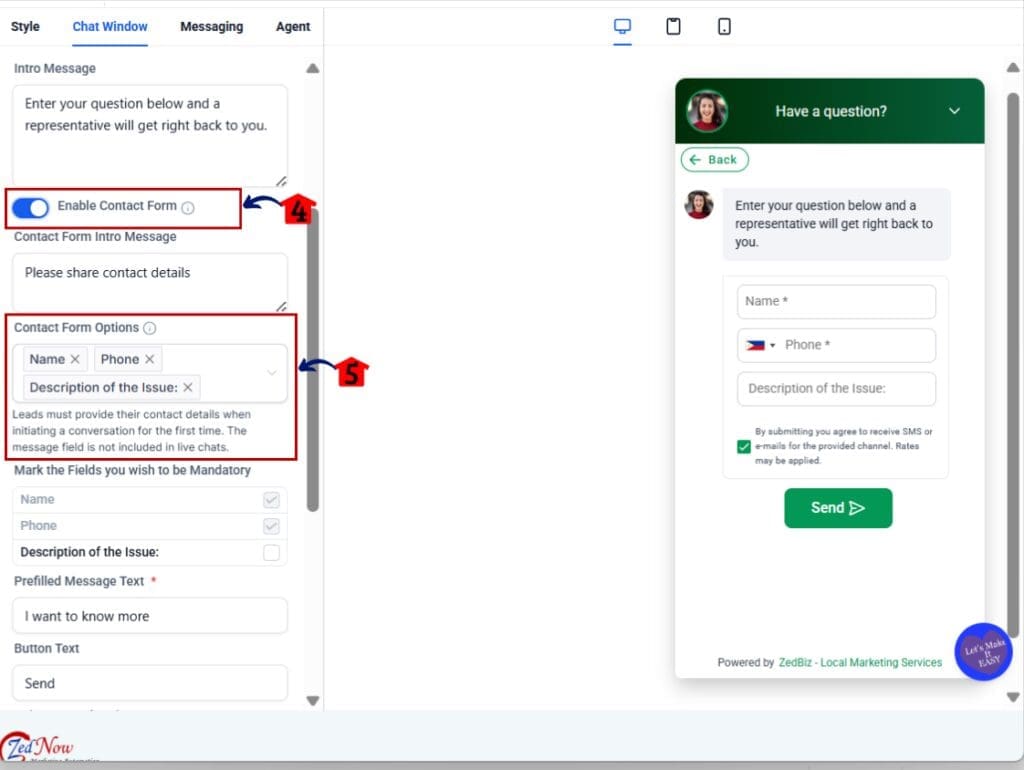
Step 03: Set Required Contact Form Fields
- Now you decide what’s mandatory.
3.1 Look for the section called “Mark the fields you wish to be mandatory”
- Every field listed here can be set to required.
3.2 Check the box next to each field you want to require
- This applies to both default and custom fields.
3.3 Required fields are now active
- They’ll show an asterisk in the widget and block submission if left empty.
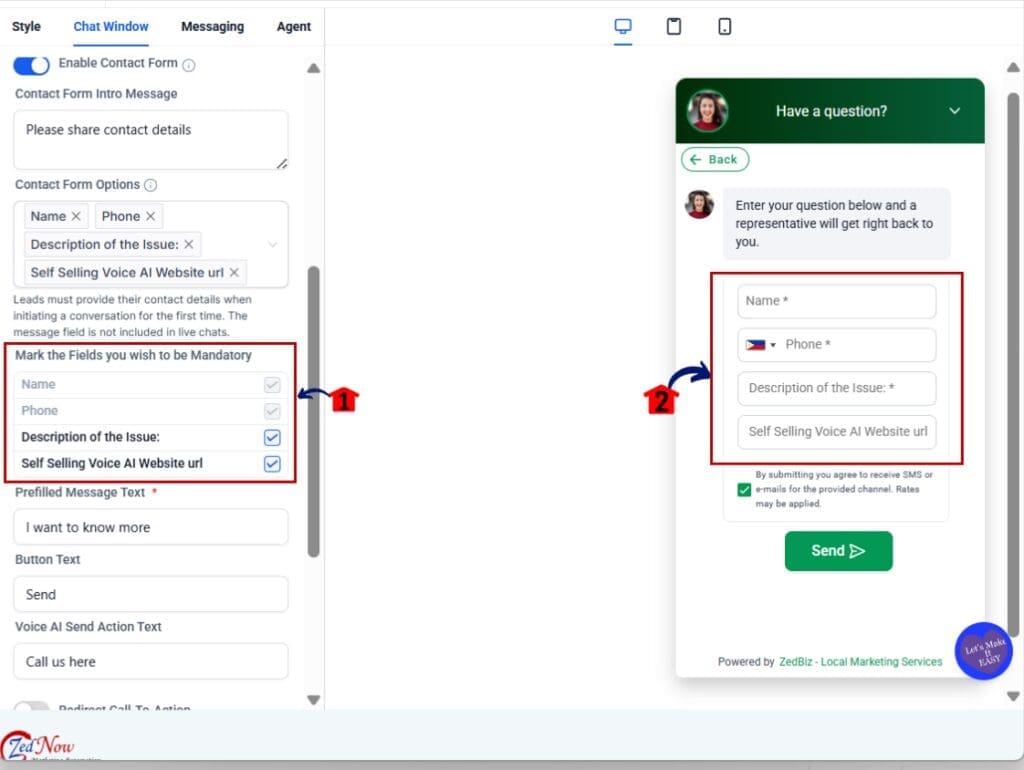
Step 04: Save and Preview the Widget
- Make sure everything works the way you want.
4.1 Click on Style Tab on the Left
- A new window will open
4.2 Click “Save” in the top right corner of the builder
- Your changes will apply immediately to the widget.
4.3 Open the widget on your website or funnel page
- Try to submit the form without filling the required fields. It should block submission and show a warning.
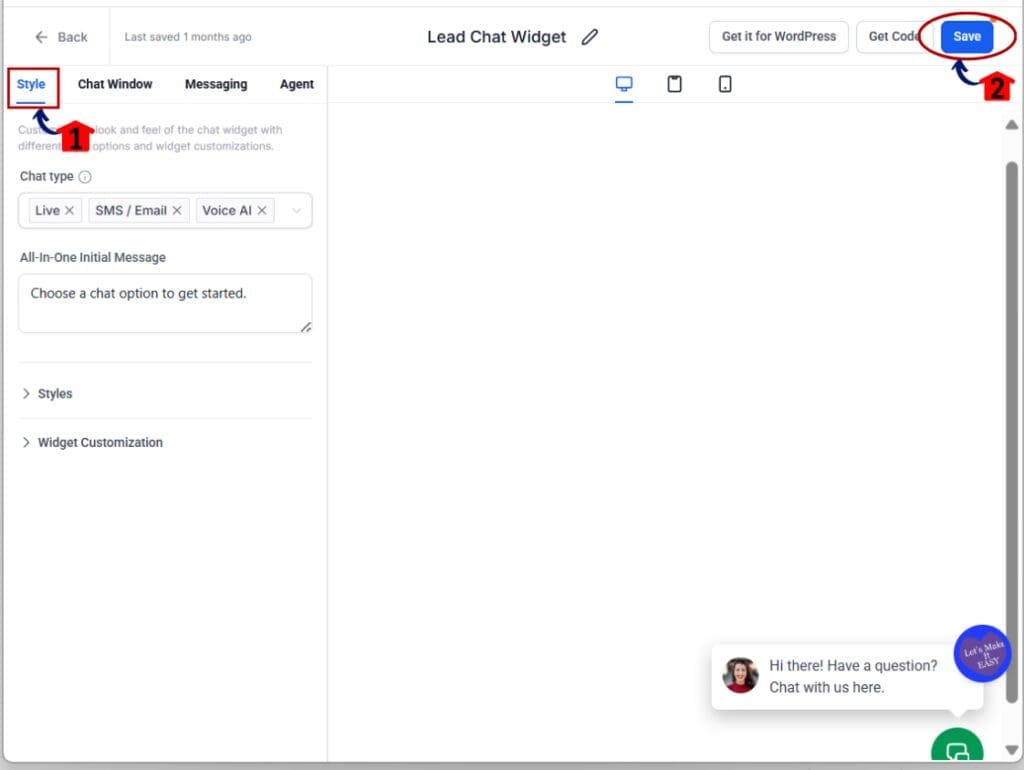
That’s it. Once you set required contact form fields in your widget, you’ll start collecting better data with less effort.
Quick Tips for Required Contact Form Fields
Using required contact form fields is simple, but a few small adjustments can help you get better results.
Pick only the fields you truly need
- The more required contact form fields you add, the more likely someone will leave the form. Focus on what matters most. Usually that’s name, email, and phone. Ask for anything else only if you really need it.
Use drop-downs when possible
- Dropdown fields keep your data clean. They prevent typos and help with sorting later. If a dropdown matters to your workflow, mark it as one of your required contact form fields.
Keep your form short and clear
- Too many required contact form fields can slow people down. Use clear labels and short questions. Make it easy to answer quickly.
Label custom fields in plain language
- Don’t overthink your wording. Just be clear. If people don’t understand what a required contact form field is asking, they’ll skip the form.
Always test before going live
- Fill out your own form and try to skip the required contact form fields. If it doesn’t stop you, something needs fixing. A quick test saves time later.
These tips help you make the most of required contact form fields without frustrating your visitors.
What Required Contact Form Fields Mean for Agencies
For agencies, required contact form fields can help fix problems before they start.
Every time a visitor skips a field, your team has to follow up, fill in the blanks, or fix broken workflows. That costs time and slows everything down. With required contact form fields, you control what gets collected and when.
This helps your systems work better. Automations run cleaner. Sales teams don’t have to ask for missing details. Support doesn’t have to go digging for answers. Everyone gets what they need right away.
Required contact form fields also make it easier to deliver results for clients. You can set specific fields for each sub-account and know every lead will come in with the right info. This keeps your data clean and your process tight.It’s a small step that brings big returns. Required contact form fields give you control where it counts.
Results You Can Expect From Required Contact Form Fields
Once you start using required contact form fields, you’ll notice a few things change for the better.
You’ll get fewer incomplete submissions. The chat widget will block forms that don’t have the required contact form fields filled out. That means every new lead comes in with the info you need.
Your automations will run smoother. Workflows that rely on email, phone, or dropdown choices won’t get stuck because of missing data. Required contact form fields help keep things moving without manual fixes.
You’ll also reduce back-and-forth with leads. When your form asks the right questions upfront, your team spends less time chasing details later.
And over time, you’ll see better results from your CRM. Required contact form fields help build cleaner, more useful contact records. That makes follow-up, reporting, and targeting more accurate.It’s a simple change, but the benefits are real. Start using required contact form fields, and let your system do the heavy lifting.
Frequently Asked Questions About Required Contact Form Fields
Final Thoughts on Required Contact Form Fields
Required contact form fields help you collect better data without adding more work. When a lead fills out your chat form, you get the key details you need right away.
This means fewer broken workflows, less chasing down contacts, and more reliable results. The setup takes just a few minutes, but the payoff lasts a long time.
If you want to clean up your lead process, start using required contact form fields. Set the rules once, and the widget takes care of the rest.
It’s a small move that improves your entire flow.
Scale Your Business Today.
Streamline your workflow with GoHighLevel’s powerful tools.