- Your Guide to Workflow Bulk Actions in GoHighLevel's Advanced Builder
- Quick Summary – Workflow Bulk Actions in the Advanced Builder
- How To Implement Workflow Bulk Actions in the Advanced Builder
- Step 02 – Access the advance builder
- Results You Can Expect
- Practical Application: A/B Testing a New Offer Sequence
- Practical Application: Post-Import Snapshot Cleanup
- Conclusion
Your Guide to Workflow Bulk Actions in GoHighLevel’s Advanced Builder
Listen up, because if you’ve ever felt like you needed three extra hands and a whole lot more coffee just to manage one of those massive, sprawling GoHighLevel workflows, this one’s for you. You know the drill: clicking on individual nodes one-by-one, manually cleaning up spacing after an import, or desperately trying to label sections before your memory fails you. That repetitive, micro-management stuff is the enemy of growth, and frankly, we’re better than that.
The good news is, the Advanced Builder in GoHighLevel just got a serious upgrade focused on workflow bulk actions. This foundational improvement is designed to give you back hours of your life and keep your automations neat as a pin. Instead of spending twenty minutes cleaning up a section, you can now do it in about five seconds. The update introduces three core features: Bulk Enable/Disable Selected Nodes, Selective Formatting, and the Quick-Add Sticky Note feature. You’re building world-class client systems; your tools should feel world-class, too. Stop being a janitor of nodes and start being the architect of scale.
The new Advanced Builder update allows you to manage, clean, and document complex GoHighLevel workflows in seconds instead of minutes, dramatically increasing your operational efficiency and reducing your stress.
Quick Summary – Workflow Bulk Actions in the Advanced Builder
The Advanced Builder in GoHighLevel has received a significant update introducing three new workflow bulk actions designed to improve efficiency and organization.
Key Updates:
- Bulk Enable/Disable Nodes: Select multiple nodes and toggle them on or off instantly, ideal for A/B testing and managing complex branches.
- Selective Formatting: Clean up specific, messy areas of a workflow by snapping spacing and aligning connections without altering the entire canvas.
- Quick-Add Sticky Notes: Rapidly document and label selected sections by right-clicking to add sticky notes directly behind the selection.
Impact: These features reduce manual clicking, streamline the cleanup of imported snapshots, and facilitate better workflow documentation, allowing users to build and manage scalable systems faster.
How To Implement Workflow Bulk Actions in the Advanced Builder
Okay, enough talk about the “why.” Let’s dive straight into the “how.” These new workflow bulk actions features are only available in the Advanced Builder version of the GoHighLevel workflow tool. So, the first thing you need to do is make sure your workflow is open in the most current builder environment. If you’ve created a new workflow recently, you’re probably already there.
If you’re working on an older one, just check the interface. The key to unlocking all this new power is a simple click-and-drag motion to select your nodes and a right-click to bring up the new context menu. It’s shockingly simple, and once you see it in action, you’ll wonder how you ever lived without it.
Automate marketing, manage leads, and grow faster with GoHighLevel.

The main actions we’re covering—Bulk Enable/Disable, Selective Formatting, and Quick Sticky Notes—all operate using the same basic selection method. Think of it like drawing a digital box around the exact part of the workflow you want to edit.
You don’t need to go to a separate settings page or change anything in the main workflow settings; everything you need is right there on the canvas. Just get to your workflow, hold down the left mouse button, drag to select, and then right-click on the selected nodes. That right-click menu is where all the magic is now stored!
Here are the easy-to-follow, step-by-step instructions for making your workflow management fast and furious. Pay close attention, because these simple moves will fundamentally change how you build and maintain your automations for the better.
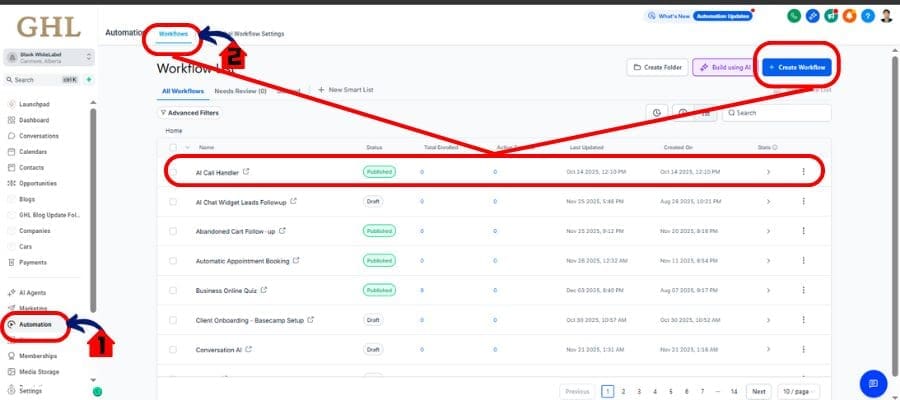
Step 01 – Access the Main Left Hand Menu in GoHighLevel
- The Main Menu on the Left side of your screen has all the main areas that you work in when using GHL
1.1 Click on the Automation Menu Item.
- Access the ‘Automation’ section of GoHighLevel
- You’ll now be in the ‘Automation’ section of GHL, where you can access the Funnels section from the top menu:
1.2 Click on the ‘Workflow’ menu link.
- Choose any workflow that you have or Create new to try this new update
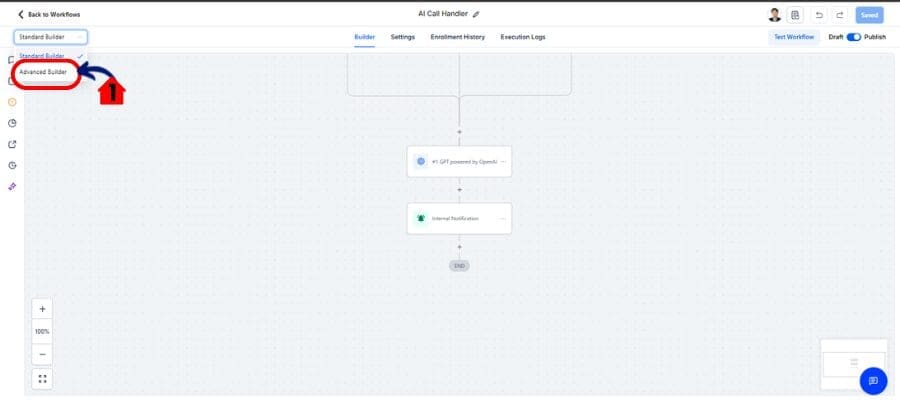
Step 02 – Access the advance builder
2.1 Click Advance Buidler
Bulk Enable or Disable a Group of Nodes
This is an absolute game-changer for A/B testing or temporarily pausing a branch of a sequence without deleting your hard work.
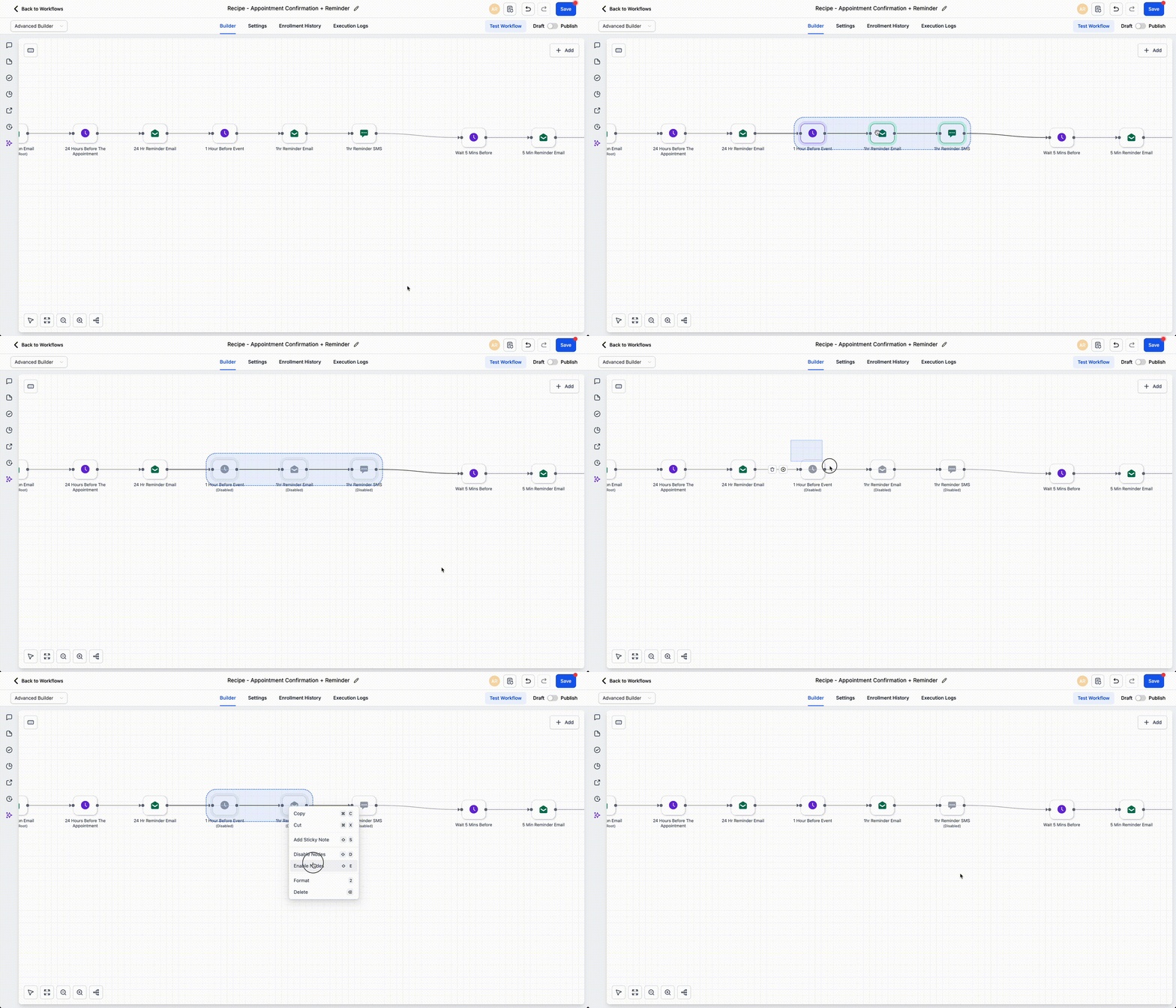
- Select Your Nodes: In your workflow, hold down the left mouse button and drag a box to select the group of nodes you want to enable or disable. A transparent blue box will appear, and the selected nodes will be highlighted.
- Right-Click on Selection: Right-click anywhere on one of the highlighted nodes to open the new context menu.
- Toggle the Action: You will see two new options: “Enable Selected Nodes” and “Disable Selected Nodes.” Click the one you need.
- Verify the Change: All selected nodes will instantly update to their new state. Nodes that are disabled will appear grayed out.
Format Only the Selected Area (The Workflow Cleanup Button)
Did you just import a complex, slightly messy snapshot? Or maybe you just got done testing and now the whole canvas is a mess? Use this feature to clean up the chaos without affecting the rest of the workflow.
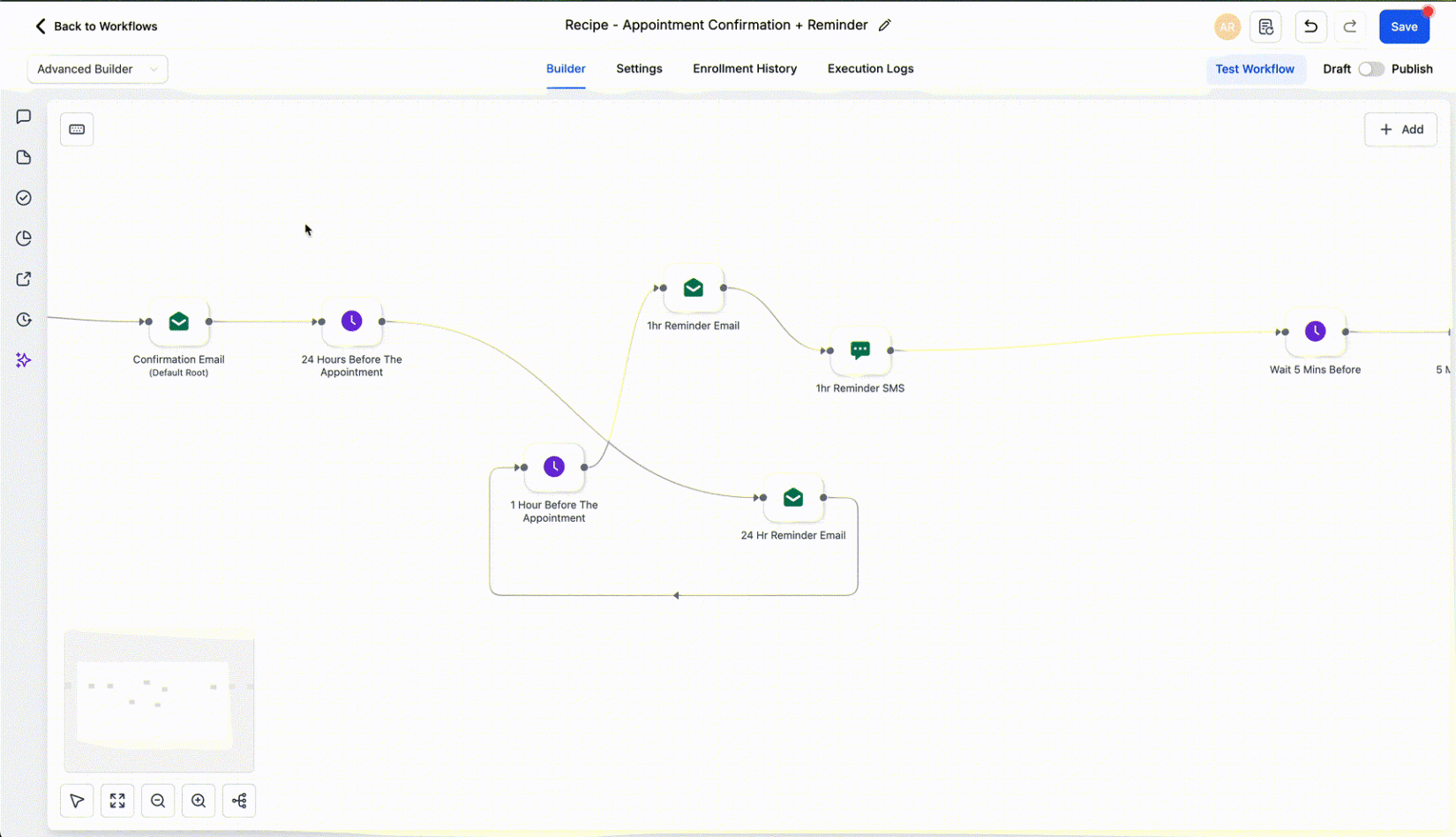
- Select the Messy Area: Hold down the left mouse button and drag a box to select the specific, messy section you want to clean up.
- Open the Context Menu: Right-click on one of the highlighted nodes to open the menu.
- Click Format: Select the “Format Selected Area” option.
- Watch the Magic: The builder will instantly snap the spacing, align the connections, and clean up only the portion you selected, leaving the rest of your canvas exactly as it was.
Quick-Add a Sticky Note Behind Your Selection (The Instant Documentation Tool)
Documentation just got so much easier. This is the fastest way to add a label for a team member or a future self-reminder.
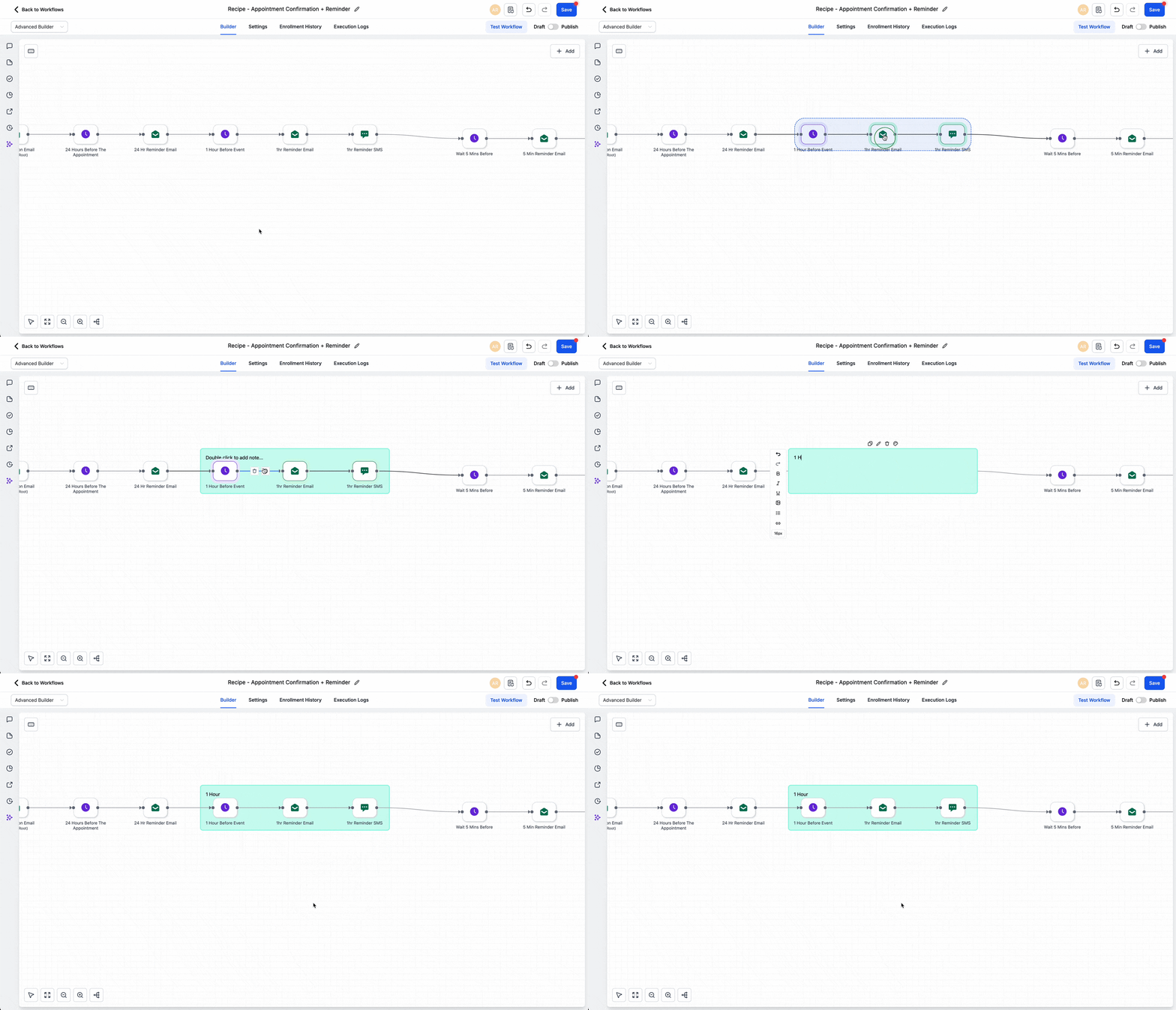
- Select the Area: Select the group of nodes you want to label using the click-and-drag method.
- Open the Context Menu: Right-click on the selected nodes.
- Add the Sticky Note: Click on “Add Sticky Note Behind Selection.”
- Customize Your Note: A new sticky note will instantly appear behind your selected nodes. Click on the note to add your label, description, or reminder for that specific section.
Results You Can Expect
This is where the rubber meets the road. These workflow bulk actions are not just nice-to-have features; they are tools that save you money by saving you time. Here are a couple of real-world scenarios where these new features will make you feel like a GHL wizard:
Practical Application: A/B Testing a New Offer Sequence
Let’s say you have a 30-day lead nurturing sequence, and you want to test a new offer in the last 10 days of the sequence. Instead of duplicating the entire workflow or manually deleting the old 10-day branch, you can do this in seconds:
- Select the Old Branch: Drag your mouse to select the 10-day branch with the original offer.
- Bulk Disable: Right-click and choose “Disable Selected Nodes.” The old branch is instantly paused and safely stored.
- Build the New Branch: Attach your new 10-day offer sequence to the workflow.
- If the new sequence underperforms, just delete the new nodes, select the old, disabled branch, and right-click to “Enable Selected Nodes” to reactivate your original, proven sequence.
This eliminates the risk of accidental deletion and makes A/B testing complex automation branches a simple toggle-switch operation. It keeps your workflow clean and your experiments fast.
Practical Application: Post-Import Snapshot Cleanup
You just bought or installed a massive, powerful Snapshot from a guru. It’s got everything—SMS, email, webhooks—but when you open the workflow, it’s a huge, messy canvas that looks like someone sneezed nodes all over the place.
- Zoom Out and Select: Zoom out of the workflow and use the click-and-drag box to select the area that needs an alignment.
- Selective Format: Right-click and choose “Format Selected Area.”
- Instant Order: Watch as the builder cleans up the spacing and connects the lines. You just saved yourself 20 minutes of tedious clicking and dragging.
- Label the Sections: As you go through the newly-cleaned sections, select a group of nodes (like the “Appointment Setting Branch”) and use the right-click “Add Sticky Note Behind Selection” feature to clearly label what that area does.
You’ve just turned a chaotic Snapshot import into an organized, labeled, and instantly understandable piece of high-performance automation. That’s the kind of efficiency that separates the pros from the rookies.
Conclusion
So there you have it. The Advanced Builder update is a massive win for anyone serious about scale and efficiency. You’ve been handed the power of workflow bulk actions—the ability to control entire sections with a single click. This means:
- Faster Workflow Edits: Save minutes on every major change, which turns into hours every week.
- Unmatched Organization: Keep your massive canvases clean, aligned, and easy to read for yourself and your team.
- Effortless Documentation: Quickly add sticky notes to complex branches for instant clarity.
- Stress-Free Testing: Safely disable and enable branches for A/B testing without the risk of deletion.
What are you waiting for? Time is money, and the GoHighLevel team just gifted you a huge time-saver. Log into your account right now, jump into your biggest, messiest workflow, and try out these new right-click workflow bulk actions for yourself. Once you feel the speed of bulk enabling an entire sequence or the pure satisfaction of watching a section instantly format itself, you’ll never go back. Go build something awesome and tidy!
What other bulk actions would you love to see next in the Advanced Builder? Drop a comment below and let’s talk!
Scale Your Business Today.
Streamline your workflow with GoHighLevel’s powerful tools.