- Filter scores, ages, and more with GHL triggers
- Quick Summary – Numeric Range Filters Overview
- The “Between” Operator in GHL
- Better Segmentation with Less Hassle
- Step-by-Step Setup of Numeric Range Filters
- Where to Use “Between” Filters
- Tips and Mistakes to Avoid for Success
- Smarter Workflows, Better Leads
- Common Questions About this Numeric Range Filters
- Better Filters, Better Automation
Filter scores, ages, and more with GHL triggers
GoHighLevel users can now use numeric range filters to trigger automations more accurately inside workflows. This new option is available through the “Between” operator in workflow trigger filters. It allows users to define a range using two numbers, such as a minimum and maximum score, age, or purchase value.
This means there is no longer a need to stack multiple conditions to catch a range of values. Instead, you choose one field, select “Between,” and enter your range. It works with any numeric field in GHL and includes both the start and end numbers in the logic.
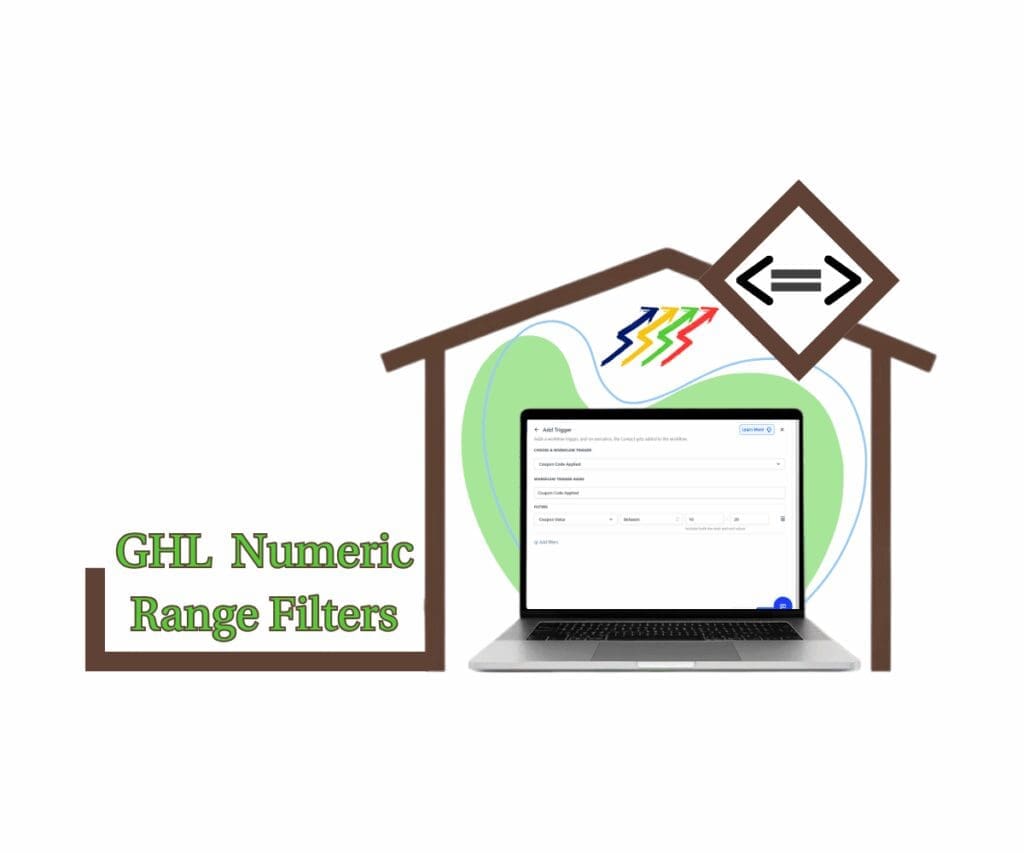
GoHighLevel’s new “Between” operator lets users filter contacts by numeric ranges like quiz scores or purchase amounts. With numeric range filters, agencies can segment smarter and automate with precision using fewer conditions.
Quick Summary – Numeric Range Filters Overview
Purpose: GoHighLevel added a “Between” option to workflow triggers so users can now apply numeric range filters without using extra conditions.
Why It Matters: This update helps users create cleaner workflows that are easier to manage and less likely to break.
What You Get: A simple two-box input that lets you filter contacts by number ranges like scores, ages, or dollar amounts.
Time to Complete: Updating a workflow with this filter takes just a few minutes.
Difficulty Level: Easy. Anyone comfortable with workflows can set it up.
Key Outcome: More accurate targeting and simpler logic inside your GoHighLevel automations
The “Between” Operator in GHL
GoHighLevel has rolled out a helpful new feature inside workflow trigger filters called the “Between” operator. It gives users a much simpler way to apply numeric range filters without stacking multiple conditions.
Previously, if a user wanted to filter based on a score or amount within a range, they had to add two separate filters: one for “greater than” and one for “less than.” Now, both values can be entered at once using a single filter.
Automate marketing, manage leads, and grow faster with GoHighLevel.

Here’s what users can expect:
- A new “Between” option now appears in the trigger filter dropdown for numeric fields
- It includes two input boxes, one for the minimum and one for the maximum value
- The range is inclusive, meaning it includes both the start and end values
- Validation checks are built in to avoid logic errors, like entering a minimum value that’s higher than the maximum
- A short message appears below the fields to explain that both values will be included
This update works with any numeric field in GoHighLevel, including:
- Default fields like Age, Opportunity Value, or Quiz Score
- Custom fields that are set to use number values
By using the new “Between” operator along with the other numeric range filters, users can now create cleaner and more accurate automations with fewer filters. It also helps reduce errors and makes workflows easier to manage.
Better Segmentation with Less Hassle
Before these numeric range filters update, setting up number-based filters in GoHighLevel took more steps than it should have. If someone needed to target contacts between two values, they had to build two separate filters. One for the minimum and another for the maximum. It worked, but it wasn’t the cleanest solution.
Now with numeric range filters available through the new “Between” operator, the process is much easier.
Here’s what makes it better:
- A single filter does the job of two
- Workflow logic becomes simpler to follow and adjust later
- It lowers the chance of mistakes in your automation rules
For agencies that rely on clean CRM workflows, this update saves time. It also makes it easier to build triggers based on real data like lead scores, customer age, or order value.
This small change helps users stay more organized, target the right people, and get better results without extra complexity.
Step-by-Step Setup of Numeric Range Filters
Using the new “Between” operator in GoHighLevel is a simple way to apply numeric range filters in any workflow. It only takes a few clicks, and there’s no need to use multiple conditions anymore.
Follow these steps to set it up:
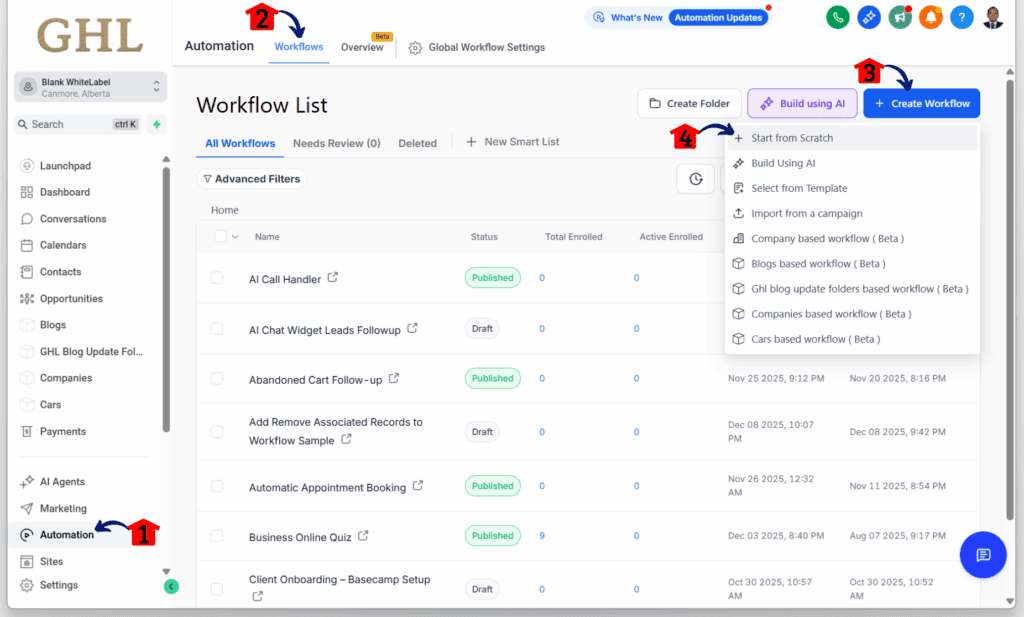
Step 01 – Access the Main Menu in GoHighLevel
- The main menu on the left side of your screen includes all the main areas you work in when using GoHighLevel (GHL).
1.1 Click on the Automation menu item to access the Workflows section.
- You’ll now be in the Automation section, where you can access the Workflows tab from the top menu.
1.2 Click the Workflows tab.
1.3 Click any existing workflow.
1.3 Click + Create Workflow.
1.4 Choose the Start from Scratch option.
Step 02: Open the Workflow Editor
- You should now be inside the workflow editor.
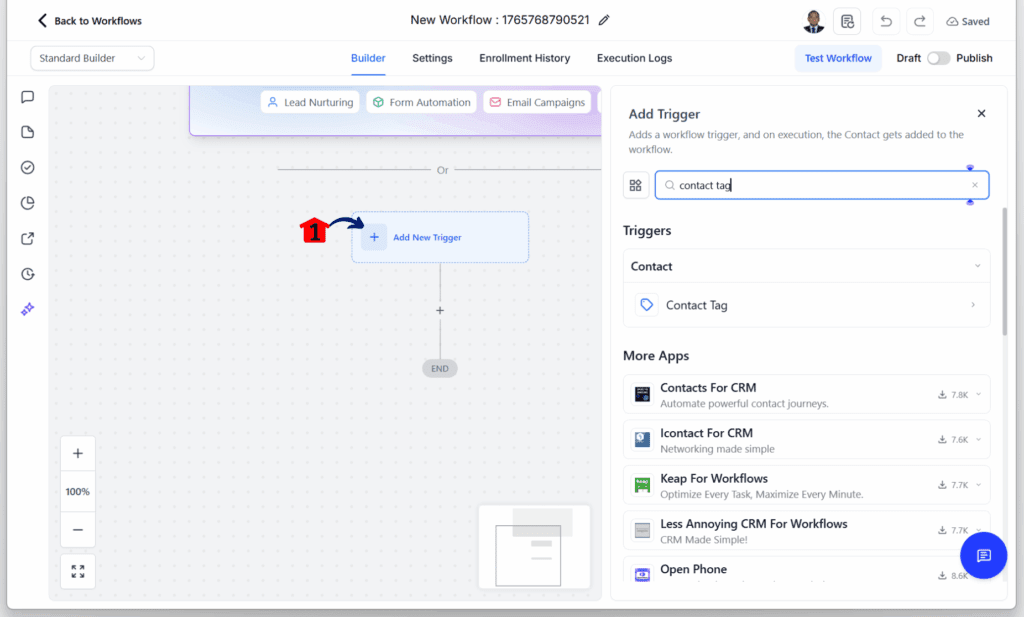
2.1 Add a trigger element to the canvas.
Step 03: Configure the Workflow Trigger
- The trigger configuration popup should slide in from the right.
3.1 Choose a workflow trigger that relates to a numeric function.
- For this example, the Coupon Code Applied trigger is used.
3.2 Add filters for this trigger.
- For this example, the Coupon Value filter is used since it supports numeric range filters.
- The Between operation should appear as the second dropdown option for this filter.
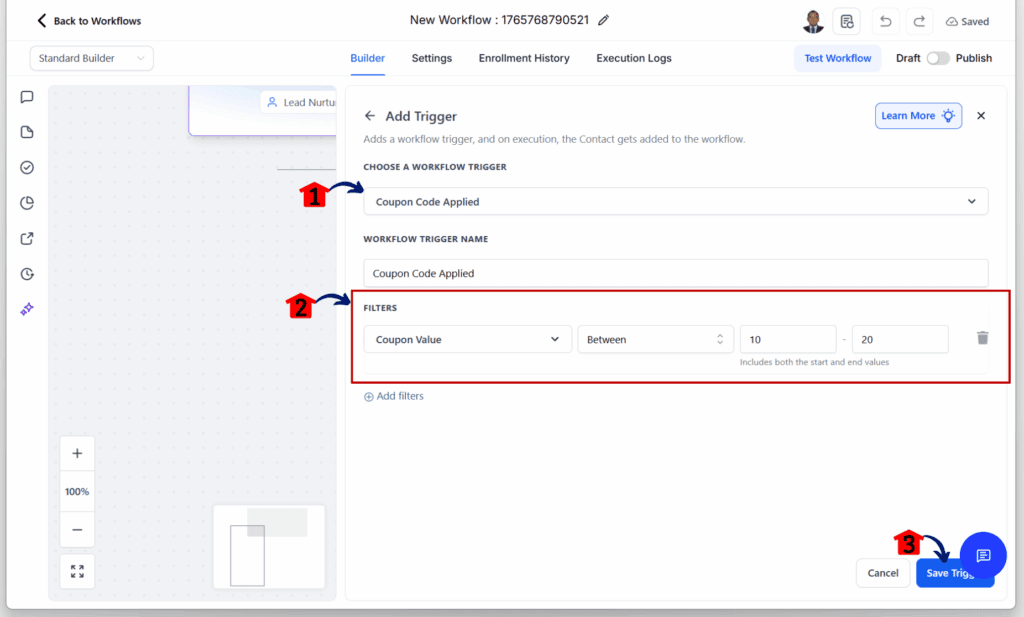
Once this is set up, GoHighLevel will use that numeric range to control when the workflow runs. It’s an easy way to build logic that responds to real data without cluttering your filter list.
Where to Use “Between” Filters
GoHighLevel’s new “Between” operator makes it easier to use numeric range filters in real-world workflows. This isn’t just a small technical tweak. It gives users more control over how and when automations fire based on actual data.
Here are a few practical ways to use it inside GHL:
- Quiz Score Follow-Up. If you’re running lead quizzes, you can now route contacts based on their scores. For example, scores between 30 and 60 might go into an educational nurture series. Higher scores might trigger a sales workflow.
- Target by Age Range. Need to reach a specific age group? Set a numeric range filter using the contact’s age field. This makes it easy to run age-based promotions or limit who receives certain messages.
- Purchase Amount Triggers. You can set up workflows that respond to how much someone spends. Use a “Between” filter to identify customers who spent between $100 and $500, then send them a thank-you email or a bonus offer.
- Lead Score Segmentation. If you use lead scoring, the “Between” filter helps you segment contacts by score ranges. A contact with a score between 50 and 70 could go into a re-engagement flow, while someone above 80 might get direct outreach from a rep.
- Session or Attendance Tracking. If you’re tracking how many times a contact shows up for calls, events, or webinars, you can filter by attendance count. That lets you target engaged contacts who show up more often.
Each of these examples shows how numeric range filters make targeting easier and more precise. Instead of stacking filters or guessing with broad rules, users can now build cleaner, more focused workflows.
Tips and Mistakes to Avoid for Success
The new “Between” operator makes using numeric range filters in GoHighLevel easier, but there are still a few things to check before you go live. These simple tips can help users avoid errors and build cleaner automations.
- Check the field type. Before using the “Between” filter, make sure the field is a numeric one. If it’s set as text or something else, the option won’t appear. This applies to both standard and custom fields.
- Test your edge values. The filter includes both the start and end values. If you enter 20 and 40, someone with a value of 20 or 40 should match. Run a quick test using sample contacts to be sure it behaves the way you expect.
- Keep it simple. Try not to overload your workflow with extra filters when one is enough. The point of the “Between” operator is to reduce clutter. Use it to focus your logic, not complicate it.
- Avoid setting the range backwards. If the minimum value is higher than the maximum, GoHighLevel will show a validation error. This is easy to fix, but still something to watch out for.
- Don’t use this with text fields. The “Between” option is only available for numeric fields. It will not work with text-based custom fields or dropdowns.
These tips are straightforward, but they go a long way. A well-set numeric range filter can keep your workflows on track and reduce confusion later.
Smarter Workflows, Better Leads
Adding numeric range filters to GoHighLevel workflows can make a big difference, especially for users who rely on detailed automation. It’s a small change that simplifies how triggers work without giving up control.
Here’s what users will likely see once they start using the new “Between” operator:
- Simpler workflows. Using one filter instead of two makes the workflow cleaner. It helps keep everything easy to read and quicker to update later.
- Faster setup. You no longer need to stack “greater than” and “less than” filters. Just set your start and end values in one step and move on.
- More accurate targeting. Setting a clear number range lets users target contacts who actually meet the right criteria. That means fewer mistakes and more meaningful automations.
- Fewer setup errors. GoHighLevel helps avoid common issues by showing an alert if the range is set incorrectly. This helps users catch problems early and keeps the automation running smoothly.
For agencies or teams managing lots of workflows, this update removes extra steps and cuts down on confusion. The result is better logic, better filters, and better outcomes without adding extra work.
Common Questions About this Numeric Range Filters
The new “Between” operator gives GoHighLevel users more control over how they apply numeric range filters in workflows. Here are a few common questions that come up when setting it up for the first time.
This feature keeps things flexible without adding extra steps. It’s a helpful way to make sure automations respond to the right data at the right time.
Better Filters, Better Automation
The new “Between” operator gives GoHighLevel users a simpler way to apply numeric range filters in their workflows. Instead of stacking multiple conditions, users can now define a clear range using just one filter.
This helps keep automation clean and easier to manage. Whether the goal is to filter by quiz scores, customer age, or spending levels, this update removes the extra steps that used to slow things down.
It also helps reduce mistakes. Since both values are included and validation is built in, the filter works as expected without confusion.
For users managing lots of workflows, this small feature can save time and reduce errors. It brings more clarity to how automations are built and makes it easier to target the right group of contacts.
Now is a good time to check your current filters. If you’re using stacked rules to define ranges, consider switching to the “Between” numeric range filters. It may be a simple change, but it can make a big difference.
Scale Your Business Today.
Streamline your workflow with GoHighLevel’s powerful tools.