- Workflow Error Detection Just Got Smarter
- Quick Summary – Workflow Error Detection
- Here are this weeks HighLevel Updates
- Expanded Workflow Error Detection Coverage
- Workflow Error Detection Now Happens on Save
- Why Workflow Error Detection Protects You
- How to Use Workflow Error Detection
- Pro Tips for Workflow Error Detection
- Business Impact of Workflow Error Detection
- Results from Better Workflow Error Detection
- Workflow Error Detection Explained
- Build with Confidence Using Workflow Error Detection
Workflow Error Detection Just Got Smarter
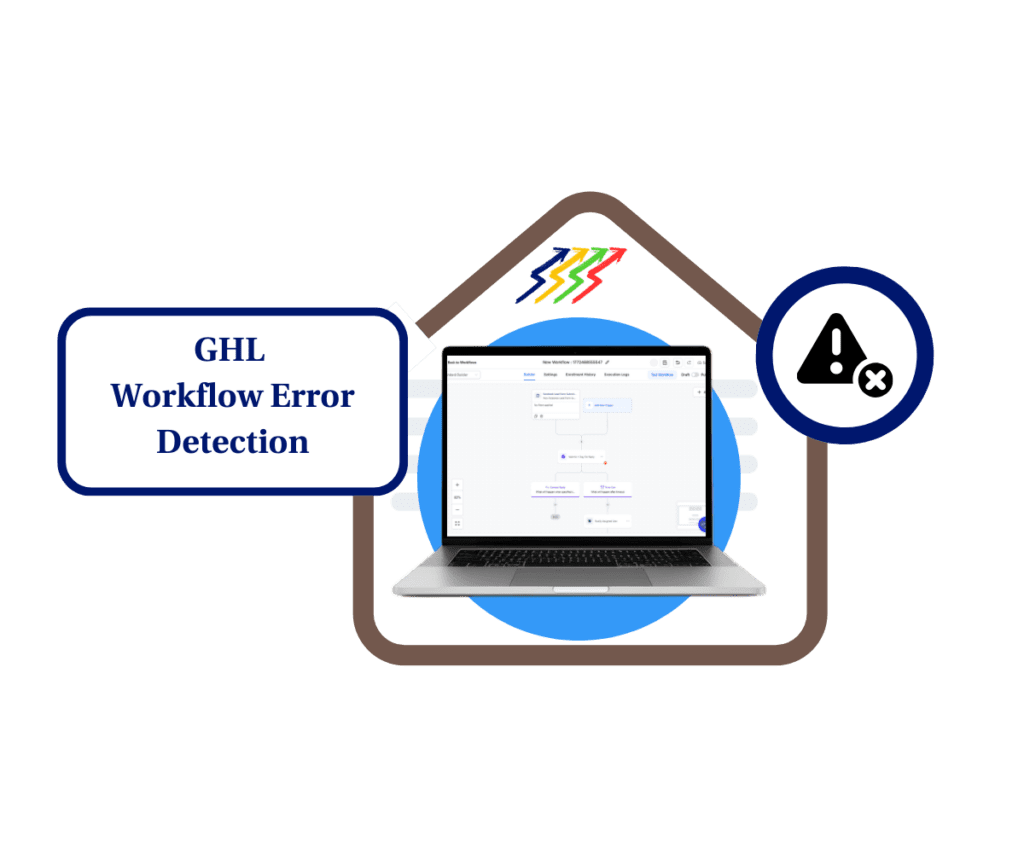
GoHighLevel just upgraded how automations are built inside Workflows by expanding Workflow Error Detection, so more misconfigurations get caught before they ever hit a live run.
This GHL update removes a common frustration in workflow building: finding out something is broken only after the workflow executes. Instead, GoHighLevel now flags more issues while you’re building, so you can fix them before they cost you leads, client trust, or hours of troubleshooting.
What changed: Workflow error highlighting now covers way more of the builder. Error highlighting expanded from 14 to 48 workflow actions, and trigger coverage expanded from 26 to 28. On top of that, enhanced validation for If/Else logic and Wait steps now fires when you click save, catching configuration problems at the point of commitment instead of during execution. There’s no extra setup required.
Who this is for: Agencies building client automations, teams that clone and reuse workflows across accounts, anyone managing complex If/Else paths, and users who want fewer workflow failures once automations are live in GoHighLevel.
What we’ll demonstrate: Where error highlighting appears inside the workflow builder, what happens when you save a misconfigured step, how the updated validation behaves with If/Else and Wait actions, what common issues it catches, and how agencies can use Workflow Error Detection to publish workflows with confidence.
The latest GoHighLevel Changelog includes several other GHL feature updates that round out your daily workflow:
- Deskphone-to-Deskphone Calling & Transfer
- AI Builder: Conversational Editing for If-Else & Wait Actions
- Voice Dictation in AI Builder & Assistant
- Highlight Contact Path, Enhanced Visual Debuggin
- New Email Template Update API 🚀
- Enhanced ESP Block Monitoring & Progressive Enforcement (AUP Update)
- Update – Agency Setup (SMTP Clarification) in Email Services setup
- AI-Powered WordPress Page Builder
- Show Complete Product Titles
Keep reading for much more on all these updates and a deep dive into the Workflows: Expanded Error Highlight feature!
Quick Summary – Workflow Error Detection
Purpose: This update expands Workflow Error Detection inside GoHighLevel so more misconfigured actions and triggers are flagged before workflows go live.
Why It Matters: Catching errors at the save stage prevents broken automations, missed leads, and client-facing issues before they impact your business.
What You Get: Expanded validation coverage from 14 to 48 actions, improved trigger checks, and enhanced If/Else and Wait validation that runs automatically when saving.
Time to Complete: No setup required. You simply build and click Save to activate the built-in validation checks.
Difficulty Level: Beginner-friendly. There are no new settings to configure, and the system highlights issues automatically.
Key Outcome: You publish workflows with greater confidence, reduce execution failures, and strengthen automation reliability across all sub-accounts.
Here are this weeks HighLevel Updates
Deskphone-to-Deskphone Calling & Transfer
- What It Does:
Allows users to place calls and transfer calls directly between assigned deskphones inside the GHL phone system without external forwarding. - Where in GHL:
Phone System → Conversations → Call Interface
(Where deskphones are configured and assigned to users.) - Impact:
Improves internal call routing, enables seamless live transfers, and creates a more professional inbound call experience. - Who It’s Great For:
Agencies with sales teams, front-desk environments, appointment setters, and client businesses using physical deskphones for inbound lead handling.
Automate marketing, manage leads, and grow faster with GoHighLevel.

AI Builder: Conversational Editing for If-Else & Wait Actions
- What It Does:
Lets users modify existing If/Else logic and Wait steps using natural language inside AI Builder instead of manually editing each field. - Where in GHL:
Automation → Workflows → AI Builder (inside workflow editing) - Impact:
Speeds up workflow edits, reduces configuration errors, and makes complex logic easier to adjust. - Who It’s Great For:
Agency owners, automation specialists, VAs, and non-technical team members who want to adjust workflow logic quickly without digging through settings.
Voice Dictation in AI Builder & Assistant
- What It Does:
Enables users to speak automation instructions instead of typing. GHL transcribes and generates workflows or edits based on voice input. - Where in GHL:
AI Builder prompt box (microphone icon)
AI Assistant interface - Impact:
Removes friction from workflow creation and allows faster automation building using voice commands. - Who It’s Great For:
Busy agency owners, global users who prefer speaking in their native language, and teams who build workflows quickly and want hands-free creation.
Highlight Contact Path — Enhanced Visual Debugging
- What It Does:
Visually shows the exact path a contact took through a workflow, including which branches executed. - Where in GHL:
Automation → Workflows → Execution History
(Contact-level workflow activity view) - Impact:
Makes troubleshooting dramatically faster and removes guesswork when diagnosing workflow behavior. - Who It’s Great For:
Agencies managing complex If/Else automations, teams handling high lead volume, and anyone troubleshooting automation performance issues.
New Email Template Update API 🚀
- What It Does:
Allows developers to update existing email templates programmatically through the API instead of manually editing them. - Where in GHL:
Developer/API Access → Email Template endpoints - Impact:
Improves scalability for agencies managing multiple sub-accounts and allows bulk template updates. - Who It’s Great For:
Developers, SaaS agencies, snapshot builders, and teams managing standardized email templates across many accounts.
Enhanced ESP Block Monitoring & Progressive Enforcement (AUP Update)
- What It Does:
Introduces stronger monitoring of ESP block rates and progressive enforcement tied to Acceptable Use Policy thresholds. - Where in GHL:
Email Services → Deliverability Monitoring
(Backend monitoring tied to email reputation controls) - Impact:
Protects platform-wide deliverability, reduces spam-related abuse, and maintains higher sending reputation standards. - Who It’s Great For:
Agencies sending large email volumes, SaaS resellers, cold outreach operators, and businesses that rely heavily on email marketing performance.
Update – Agency Setup (SMTP Clarification) in Email Services Setup
- What It Does:
Clarifies SMTP configuration steps at the agency level to reduce confusion between agency and sub-account sending setups. - Where in GHL:
Settings → Email Services → SMTP Configuration - Impact:
Reduces setup mistakes, prevents sending errors, and improves deliverability consistency across accounts. - Who It’s Great For:
Agency owners onboarding new clients, SaaS operators configuring email services at scale, and teams managing multiple sending domains.
AI-Powered WordPress Page Builder
- What It Does:
Allows users to generate WordPress page structure and content using AI prompts instead of building manually. - Where in GHL:
Sites → WordPress → AI Page Builder Interface - Impact:
Speeds up website creation, reduces technical barriers, and accelerates client website launches. - Who It’s Great For:
Agencies building client sites, freelancers, non-technical users, and teams that want faster page deployment without hiring developers.
Show Complete Product Titles
- What It Does:
Displays full product titles instead of truncated versions in product selection dropdowns and product management areas. - Where in GHL:
Payments → Products
Funnels → Product selection dropdowns
Order forms and checkout configurations - Impact:
Improves clarity during product selection and reduces mistakes when managing large product catalogs. - Who It’s Great For:
E-commerce users, agencies selling multiple offers, course creators, and businesses managing detailed product variations.
Expanded Workflow Error Detection Coverage
Workflow Error Detection now covers significantly more of the Workflow Builder than before.
Previously, error highlighting was limited. Some actions and triggers were validated. Others weren’t. That meant certain misconfigurations could slip through unnoticed until the workflow actually ran.
That gap just got much smaller.
Here’s what’s new:
- Actions with error highlighting expanded from 14 → 48
- Triggers with error highlighting expanded from 26 → 28
- More configuration checks across the workflow canvas
- Clear visual indicators directly inside the builder
That jump from 14 to 48 actions is the big one.
Most of the actions you use every day now come with automatic checks built in. If something’s missing or not set up properly, you’ll spot it right away inside the workflow.
Instead of guessing whether a step is properly configured…
You now get visual confirmation.
Error indicators appear directly on the misconfigured action inside the builder. No digging through logs. No waiting for a failed run. No wondering why a contact didn’t move forward.
It’s instant visibility.
This upgrade strengthens Workflow Error Detection at the structural level. It improves workflow integrity before anything goes live.
For agencies managing dozens of client automations, that’s not just convenient. It’s operational protection.
Workflow Error Detection Now Happens on Save
The biggest shift in this update is not just expanded coverage.
It’s when validation happens.
Before this upgrade, some workflow errors only revealed themselves during execution. That means the workflow could be published, turned on, and running — and only then would certain configuration problems surface.
That’s risky.
Now, Workflow Error Detection fires when you click save.
That small change makes a big difference.
Before, you might not notice a problem until the workflow actually ran. Now, GHL checks everything the moment you hit Save. If something’s off, it shows you right there in the builder.
This is especially important for:
- If/Else branches
- Wait conditions
- Required action fields
- Incomplete configurations
Enhanced If/Else validation now checks that both paths are properly configured.
Improved Wait validation ensures required timing or condition settings are not missing.
If something isn’t set correctly, the action is visually flagged inside the builder.
You fix it. You save again. You move forward confidently.
This change shifts Workflow Error Detection from reactive to proactive.
It’s no longer about catching failures after they happen.
It’s about preventing them before they ever run. For agencies building automation at scale, that’s a serious upgrade.
Why Workflow Error Detection Protects You
Workflow Error Detection is not just a visual improvement.
It’s protection.
When automations fail, they don’t usually fail loudly. They fail quietly. A lead doesn’t get tagged. An email doesn’t send. A pipeline stage doesn’t update.
And usually, by the time anyone catches it, it’s already caused problems.
For agencies, that can mean:
- Missed leads
- Missed appointments
- Angry clients
- Refund conversations
- Emergency troubleshooting calls
Expanded Workflow Error Detection dramatically reduces that risk.
By catching misconfigurations before workflows go live, GoHighLevel helps you prevent execution failures instead of reacting to them.
This is especially critical for:
- SaaS agencies reselling snapshots
- Teams cloning workflows across sub-accounts
- Complex automations with multiple branches
- High-volume lead generation systems
When you duplicate or import workflows, small configuration gaps can happen. A required field might not carry over. A condition might need adjusting. A wait step might be incomplete.
Before, some of those issues only showed up after contacts started flowing through.
Now, they’re flagged immediately.
That means:
- Less troubleshooting
- Less manual testing
- Fewer broken automations
- More confidence when publishing
Workflow Error Detection isn’t flashy.
But it quietly strengthens every automation you build.
And in automation, reliability is everything.
How to Use Workflow Error Detection
Workflow Error Detection runs automatically when you save a workflow inside the Workflow Builder. In this section, you’ll open a workflow, create a simple configuration mistake, and see how the system highlights the issue before it goes live.
You do not need to enable anything. You will simply build, save, and review the visual indicators that appear. Follow the steps below to see exactly how validation works and how to correct flagged actions before publishing.
- Access the Workflow Builder and Create a Workflow.
- Add a Trigger in the workflow.
- Save the Trigger in the workflow.
- Add an Action needed in the workflow.
- Save the Action with Missing Information.
- Check the highlight error.
To start make sure you are logged in to your GoHighLevel sub-account.
Step 01 – Access the Workflow Builder and Create a Workflow
- This step takes you to the Workflows section where automations are created and managed. You will start a new workflow from scratch.
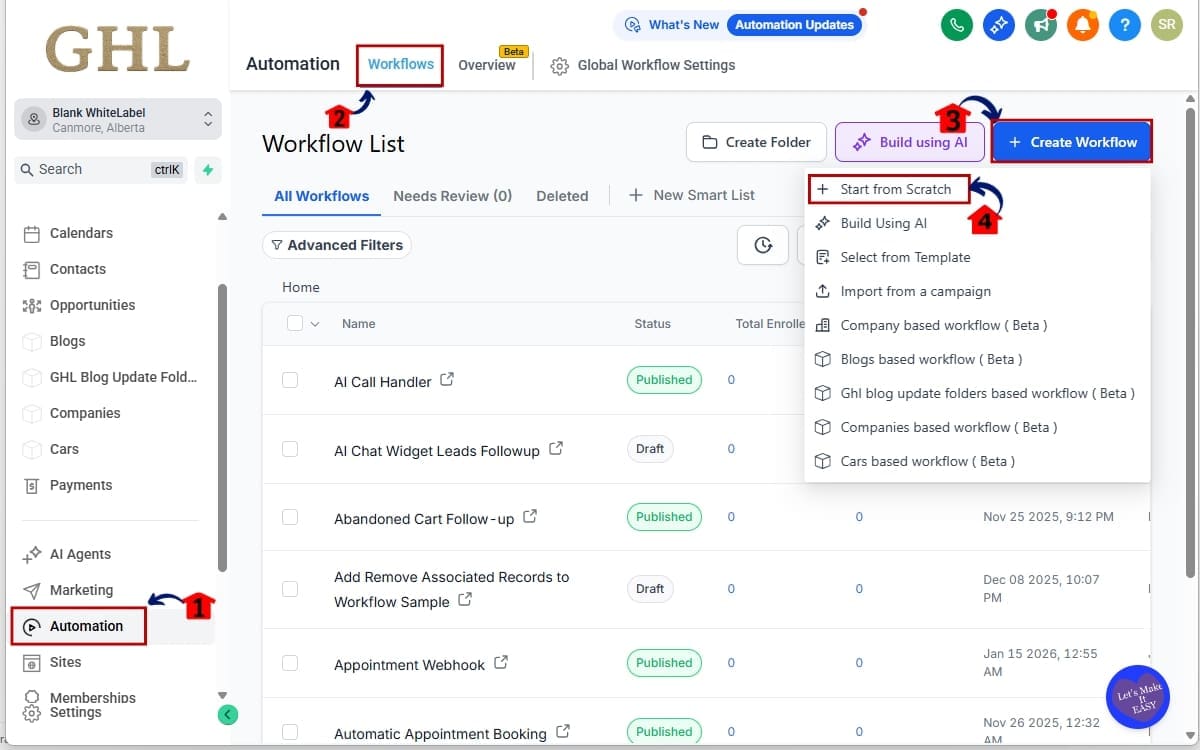
1.1 Go to the Main Menu on the left. Click on Automation.
- This opens the Automation section where all workflow-related tools are located.
1.2 The select Workflows
- This displays the list of all existing workflows in the sub-account.
1.3 Click + Create Workflow to start a new automation
- This opens the workflow creation panel so you can begin building a new automation.
1.4 Click Start from scratch
- This creates a blank workflow canvas with no preloaded triggers or actions so you can build it manually.
Step 02 – Add a Trigger in the workflow
- In this step, you will define the event that starts the workflow. A workflow cannot run without a trigger.
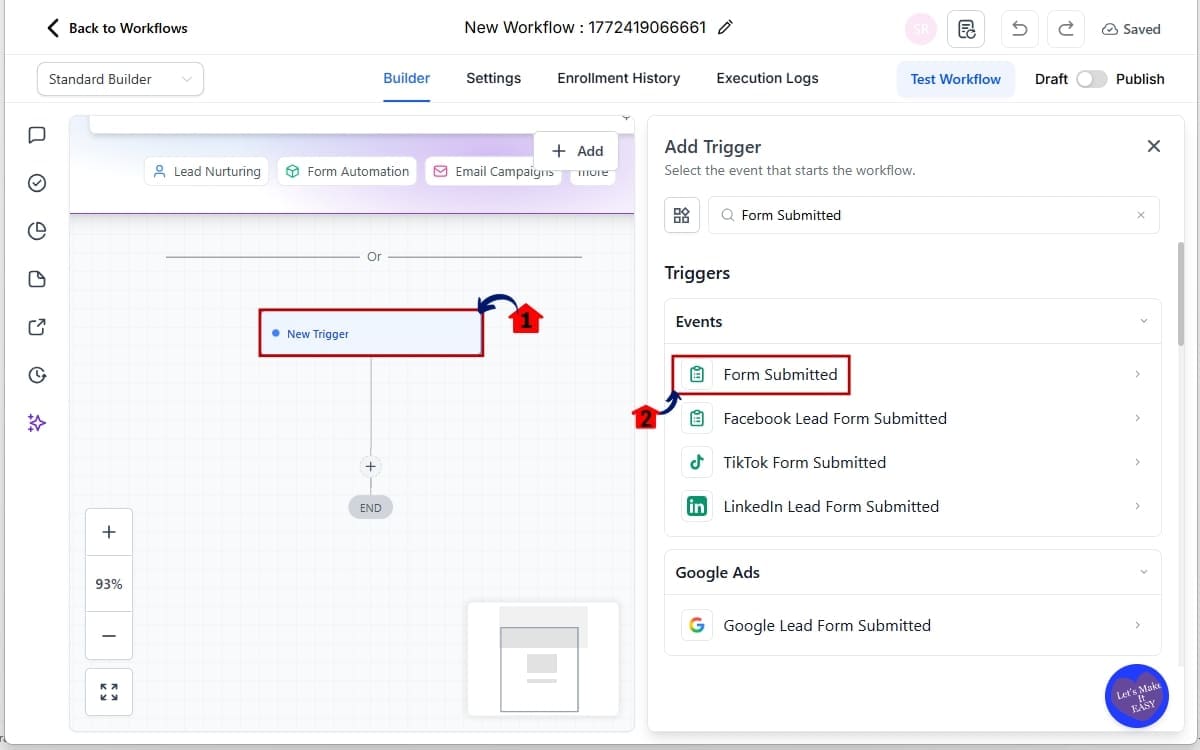
2.1 Click Add New Trigger.
- This opens the trigger selection panel where you can choose the event that will activate the workflow.
2.2 Select a trigger (example: Form Submitted).Choose the trigger that matches the action you want to track. For example, select “Form Submitted” if you want the workflow to start when a contact submits a form.
Step 03 – Save the Trigger in the workflow
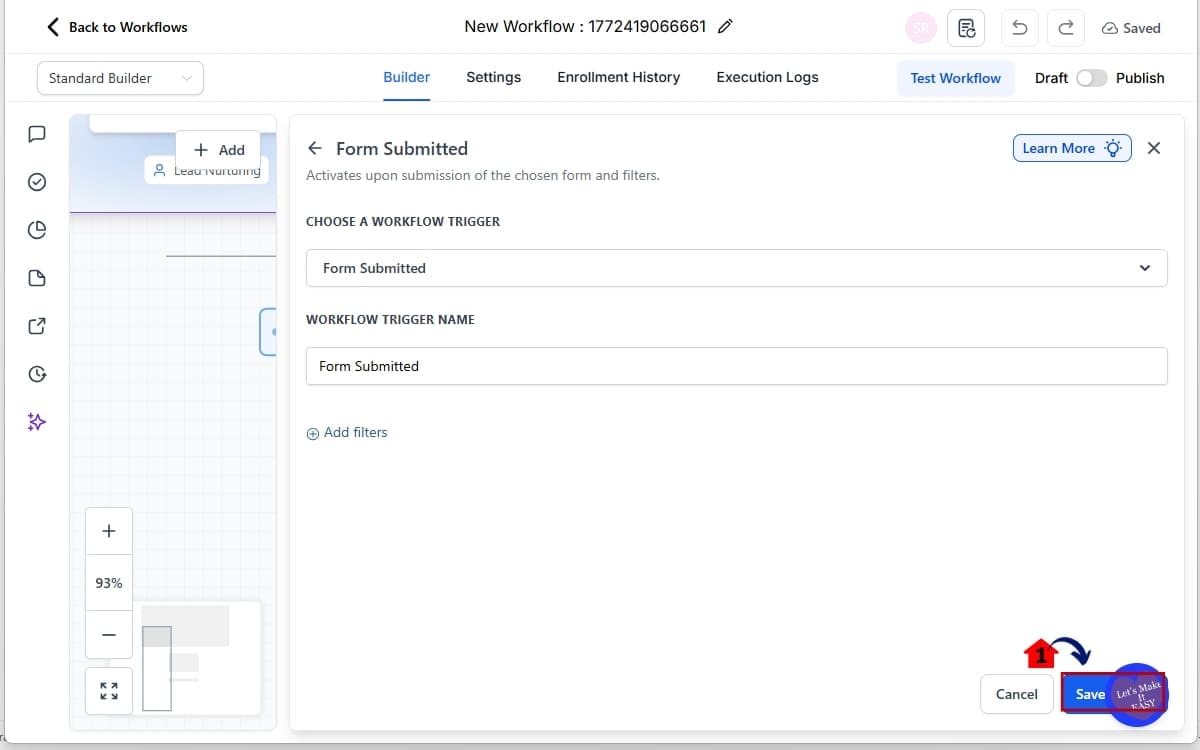
- In this step, you will confirm and apply the selected trigger so the workflow knows what event will start it.
3.1 Click Save Trigger.
- This saves the trigger configuration and adds it to the workflow canvas as the starting point of the automation.
Step 04 – Add an Action needed in the workflow
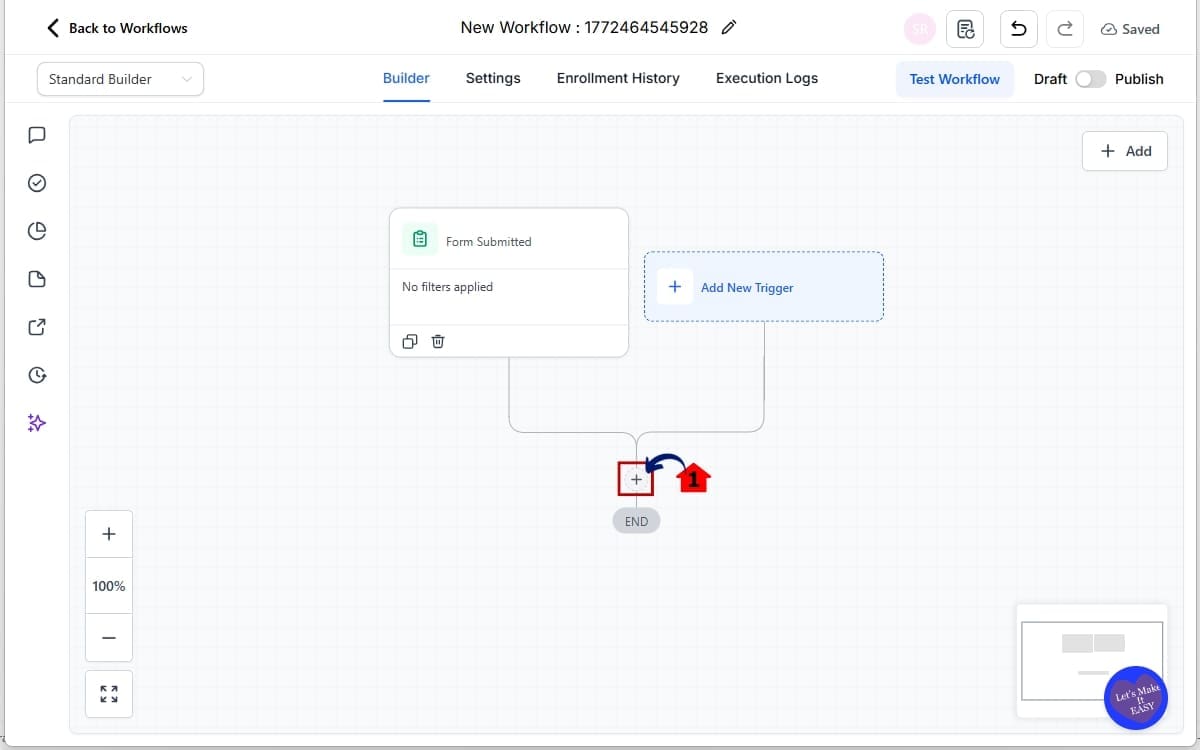
- In this step, you will add an action that runs after the trigger. Actions define what the workflow does once it starts.
4.1 Click the + icon below your trigger.
- This opens the action selection panel where you can choose the next step in the automation, such as Send Email, Add Tag, Wait, or Create Opportunity.
Step 05 – Save the Action with Missing Information
- In this step, you will add an action but leave a required field incomplete to trigger Workflow Error Detection.
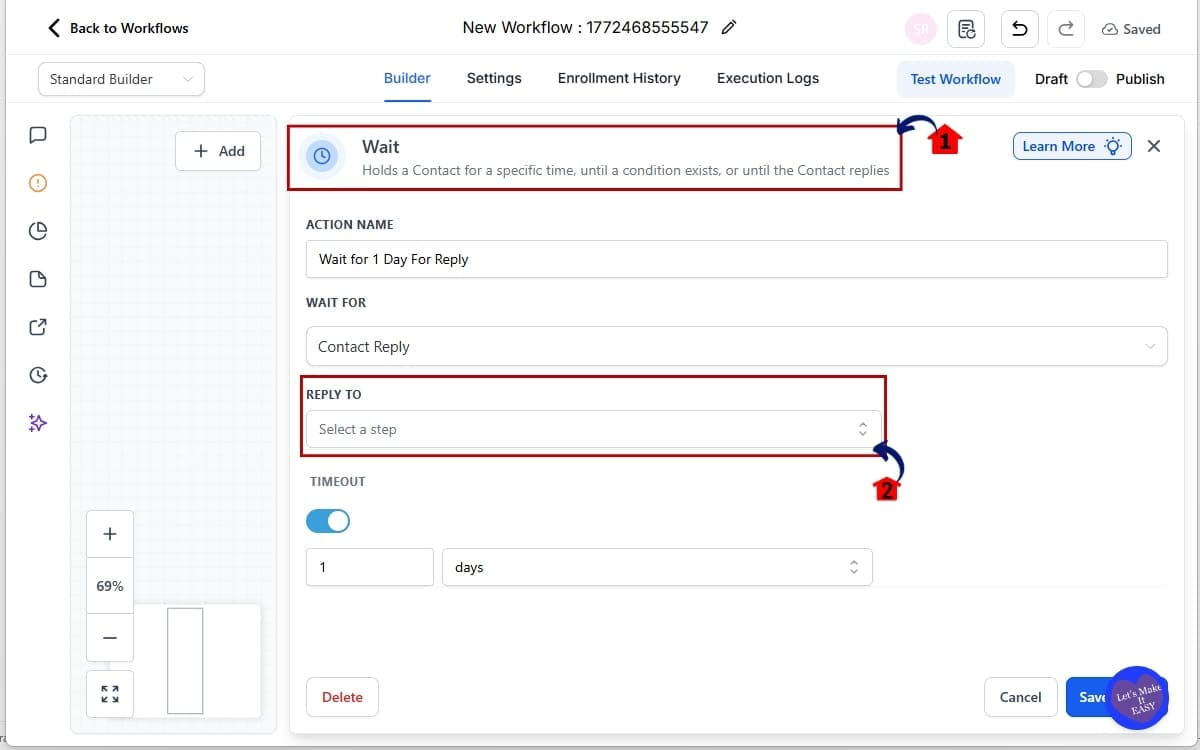
5.1 Select a common action like Wait
- From the action list, choose “Wait” to add a delay step to the workflow.
5.2 Intentionally leave a required field blank.
- Do not configure the required timing condition inside the Wait action.
- Examples: Add a Wait action but do not set the time duration (such as minutes, hours, or days).
This incomplete setup will allow you to see how the system flags the error when you save.
Step 06 – Check the highlight error
- In this step, you will confirm that the system detects the incomplete configuration and displays an error indicator.
6.1 Check the (!) in action.
- Look for the exclamation mark icon (!) displayed on the Wait action. This icon indicates the action is incomplete or misconfigured.
6.2 Click the Save button in the top-right corner of the workflow.
- This is where the upgraded validation runs. If something is misconfigured, the action will now be visually highlighted inside the builder. You’ll see a clear error indicator on that step.
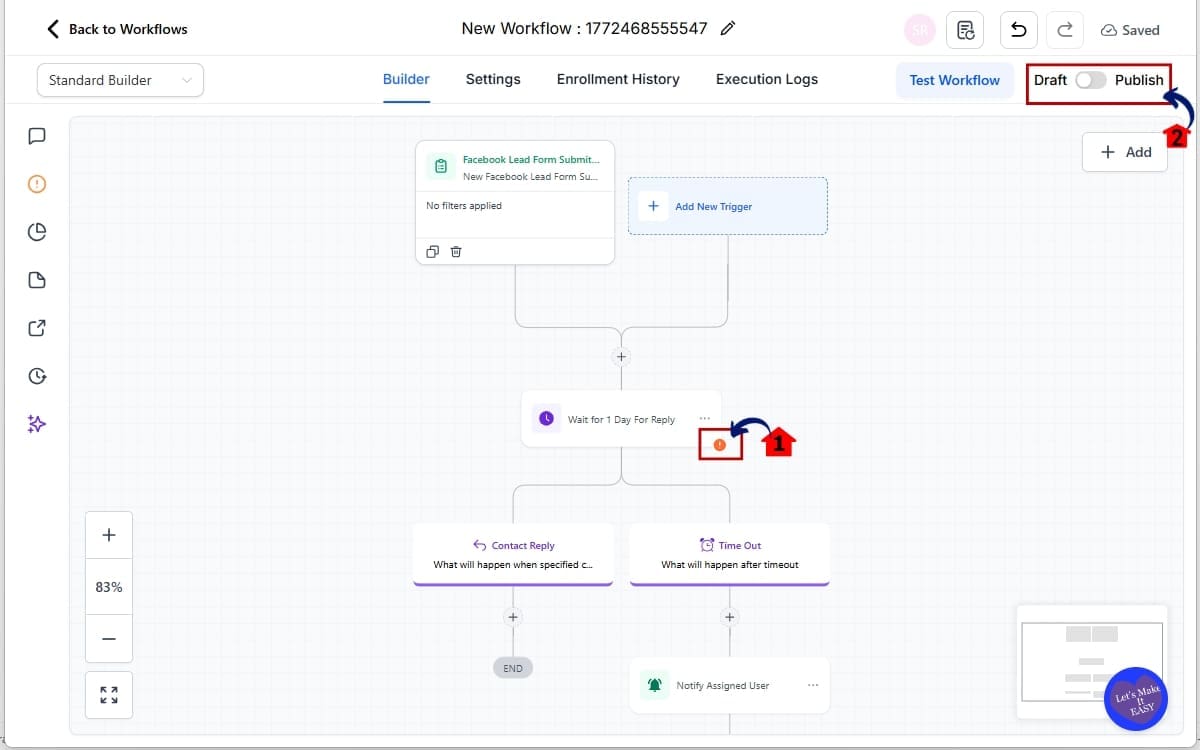
That’s it. No extra settings. No hidden switch. No manual validation needed. Workflow Error Detection now automatically protects your automations before they go live.
Pro Tips for Workflow Error Detection
Workflow Error Detection is powerful on its own. But if you use it strategically, it becomes a safety net for your entire automation system. Here’s how smart agencies are using it. Always Save Before Publishing. Don’t just build and toggle workflows live.
- Click Save.
- Look for highlights.
- Confirm nothing is flagged.
This simple habit prevents most execution failures. Review If/Else Branches Carefully. If/Else steps are where most logic errors happen.
Make sure:
- Both YES and NO paths are configured
- Each branch has a next action
- No path ends unintentionally
The enhanced validation now catches more of these issues, but you should still visually review complex branches.
Double-Check Wait Steps
Wait conditions often cause silent automation delays.
Confirm:
- Time-based waits have a duration set
- Conditional waits have a defined condition
- No empty Wait actions exist after duplication
Workflow Error Detection now flags incomplete Wait setups, use that to your advantage. Be Careful When Duplicating Workflows. Cloning workflows is efficient.
But duplicated automations sometimes lose required references, such as:
- Email templates
- Custom values
- Specific pipeline stages
After duplicating, always:
- Open the workflow
- Click Save
- Fix any highlighted actions immediately
Treat error highlighting as your duplication checklist. Test Snapshots Before Deploying to Clients.
If you sell SaaS or deploy snapshots across sub-accounts:
- Import the snapshot
- Open each workflow
- Click Save
Let Workflow Error Detection surface configuration gaps before a client ever sees them. Build a “Pre-Live” Checklist.
Smart agencies create a short checklist before turning workflows on:
- Save workflow
- Check for highlights
- Review triggers
- Confirm If/Else logic
- Confirm Wait timing
It takes two minutes. It can save hours of cleanup. Workflow Error Detection reduces risk. But disciplined workflow habits eliminate it.
Business Impact of Workflow Error Detection
Workflow Error Detection is not just a technical improvement. It’s a business safeguard. When automations fail, you lose more than time.
You lose momentum. You lose trust. You lose credibility. For agencies, that risk multiplies across every client account.
You’re less likely to flip the switch on a workflow that isn’t built right. And that keeps emails sending, tags firing, and pipelines moving like they should.
Here’s how that plays out in real life:
- Fewer Support Tickets – When workflows are validated before going live, clients experience fewer issues. That means less reactive support and fewer emergency troubleshooting sessions.
- Less Manual QA Time – Instead of manually testing every branch, you can rely on built-in validation to catch structural issues first. You still test strategy, but you don’t waste time hunting configuration mistakes.
- Safer SaaS Reselling – If you’re running SaaS Mode or deploying snapshots at scale, this update is huge. Every imported workflow gets an automatic configuration check when saved. That reduces onboarding friction and protects your reputation.
- Stronger Client Confidence – Clients don’t see Workflow Error Detection. But they feel its impact. Their automations run smoothly. Their leads move properly. Their notifications fire on time. Reliability builds trust. And trust keeps clients long-term.
- Scalable Automation Systems – As your agency grows, automation complexity grows with it. More branches. More triggers. More conditions. More moving parts.
Workflow Error Detection acts like structural reinforcement for that complexity. It gives you the confidence to build advanced automations without fearing silent breakdowns. This is one of those updates that doesn’t look flashy. But it quietly strengthens every workflow you create. And in automation, reliability is revenue.
Results from Better Workflow Error Detection
Workflow Error Detection is not just about cleaner visuals in the builder. It produces measurable improvements in how your automations perform.
Here’s what you can realistically expect.
- Reduced Execution Failures – When validation happens before publishing, fewer workflows break during live runs.
That means:
- Fewer emails that never send
- Fewer tags that never apply
- Fewer opportunities that never move
- Fewer stuck contacts
Instead of discovering errors after leads flow through, you catch them before activation.
- Cleaner Automation Logs -Execution logs become easier to interpret because you eliminate configuration errors at the source. You’re troubleshooting strategy, not broken setup. That’s a major shift.
- Faster Workflow Deployment – Agencies often hesitate before turning workflows live because of “what if something’s wrong?” Workflow Error Detection reduces that hesitation. You build. You save. You confirm no highlights. You publish. Confidence speeds execution.
- Stronger Multi-Branch Automation – Complex If/Else structures used to carry higher risk. Now, enhanced validation makes those branches safer to build and deploy. This encourages smarter automation design instead of oversimplifying workflows out of fear.
- Improved Snapshot Reliability – If you deploy workflows across multiple sub-accounts, this update dramatically reduces cross-account configuration issues. Imported workflows now get checked automatically when saved. That creates more consistent automation behavior across clients.
- More Predictable Results – Automation works best when it’s predictable. Expanded Workflow Error Detection improves structural integrity, which directly improves predictability. And predictability creates scalable systems.
This update doesn’t change your strategy. It strengthens your execution. And in automation, execution is everything.
Workflow Error Detection Explained
Build with Confidence Using Workflow Error Detection
Workflow Error Detection might not look flashy. But it’s one of the most important structural upgrades to GoHighLevel Workflows in a long time.
Expanded coverage from 14 to 48 actions. More trigger validation. Stronger If/Else and Wait checks. Validation that fires when you hit Save. That combination shifts automation building from reactive to proactive. Instead of finding problems after a workflow breaks… You catch them before they ever go live.
For agencies, this means:
- Fewer missed leads
- Fewer client complaints
- Fewer late-night troubleshooting sessions
- More predictable automation performance
Workflow Error Detection strengthens the foundation of every automation you build inside GHL. And when your foundation is solid, scaling becomes easier.
If you manage multiple sub-accounts, deploy snapshots, or build complex branching workflows, this update gives you something invaluable: Confidence.
Before your next workflow goes live:
- Open it.
- Click Save.
- Look for highlights.
Fix anything flagged. Then publish knowing your automation is structurally sound.
Have you tested your existing workflows with the new validation yet? Open one today and see what gets flagged, you might catch something before it costs you.
And if you want more practical, no-fluff GoHighLevel breakdowns like this, keep checking back with GHL Growth Garage for the latest updates and tactical guides.
Scale Your Business Today.
Streamline your workflow with GoHighLevel’s powerful tools.