

- Introduction – Workflow File Attachments in GHL
- Quick Summary – Workflow File Attachments
- Here are this weeks HighLevel Updates
- What’s New with Workflow File Attachments in GHL
- What’s Changed with Workflow File Attachments in GHL
- Why Workflow File Attachments Matter for Agencies
- How to Use Workflow File Attachments in GHL
- Pro Tips for Using Workflow File Attachments in GHL
- What Workflow File Attachments Mean for Your Business
- Real Results from Using Workflow File Attachments
- Frequently Asked Questions About Workflow Media Storage
- Smarter Systems with Workflow File Attachments
Introduction – Workflow File Attachments in GHL
Workflow File Attachments in GHL worked. You could attach media inside SMS, MMS, voicemail, and chat actions. On paper, it did the job. Add a file. Save the action. Move on.
But every time you needed that same PDF in another workflow? You uploaded it again. Or you copied and pasted a link from somewhere else.
That created friction.
If you were building multiple automations using the same lead magnet, onboarding guide, or promo graphic, you had to manually reattach it every time. No centralized reuse. No clean asset control. Just repetition. And if you updated the file? You had to track down every workflow using it. Agencies felt this the most.
Client campaigns with recurring assets. Nurture flows using the same brochure. Instagram DMs sending the same download link. Reminder systems delivering the same prep document. Every automation build meant more uploads. More duplication. More room for inconsistency.
It worked. But it wasn’t efficient. GHL has now fixed that.
Workflow file attachments now let you choose media directly from Media Storage inside supported workflow actions. Instead of re-uploading files or pasting links, you simply click Add Attachment and select from your stored assets.
The system validates the file type and size automatically. If you duplicate the action, the media carries over. Your workflows stay clean. Your assets stay centralized.
It’s a small update on the surface. But for agencies building scalable automations, this is a serious upgrade in speed, control, and consistency.
The latest GoHighLevel Changelog includes several other GHL feature updates that round out your daily workflow:
- New QR Code Styling Options: Shapes, Borders, and Rim Text
- Collapse & Resize Pipeline Stages in Kanban View
- Notes just got smarter for the contacts page!
- New Asana actions in workflows – Find Project and Find section
- Email AI + Knowledge Base Integration 🚀
- Dialer: Auto-minimize, Pin & Drag
- Schema Markup Using AI
Keep reading for much more on all these updates and a deep dive into the Media Storage feature!

Quick Summary – Workflow File Attachments
Purpose:
This update introduces workflow file attachments in GHL, allowing users to attach and reuse files directly from Media Storage inside supported workflow actions without repeated uploads.
Why It Matters:
Workflow file attachments eliminate repetitive file uploads, reduce automation build time, and centralize asset management for cleaner, more scalable systems.
What You Get:
You can now choose existing media from Media Storage or upload new files directly inside SMS, MMS, voicemail, chat, and Instagram DM workflow actions with automatic validation.
Time to Complete:
Setting up workflow file attachments takes less than 2 minutes per action once your files are organized in Media Storage.
Difficulty Level:
Beginner-friendly. If you can build a workflow in GHL, you can use workflow file attachments immediately.
Key Outcome:
Faster automation builds, fewer asset errors, and scalable reuse of approved media across multiple workflows and client accounts.
Here are this weeks HighLevel Updates
New QR Code Styling Options: Shapes, Borders, and Rim Text
What it does:
Lets you stop using boring QR codes. You can now tweak the shape, style the border, and add text around the edge.
Where in GHL:
Accessible via Sites → QR Codes and within QR tools embedded in Funnel and Website builders.
Automate marketing, manage leads, and grow faster with GoHighLevel.

Impact:
Improves visual presentation and brand alignment while increasing scan appeal.
Best suited for:
Agencies that care about branding, small businesses running local promotions, online stores, and teams pushing QR campaigns.
Collapse & Resize Pipeline Stages in Kanban View
What it does:
Lets you hide pipeline stages you’re not actively using and adjust column widths so your board fits the way you work.
Where in GHL:
Inside Opportunities when you’re viewing your pipeline in Kanban mode.
Impact:
No more dragging your screen forever just to find the deals that matter.
Best suited for:
Owners running multi-stage pipelines, reps working deals every day, and anyone fed up with a messy board.
Notes Just Got Smarter for the Contacts Page
What it does:
Upgrades the notes area so it’s easier to write, review, and keep things organized inside a contact record.
Where in GHL:
Found directly within each contact’s profile under Notes.
Impact:
Makes it simpler to see what’s been discussed and who added what — without digging through clutter.
Best suited for:
Teams collaborating on accounts and businesses that document every client touchpoint.
New Asana Actions in Workflows – Find Project & Find Section
What it does:
Lets your workflow check what already exists in Asana before adding anything new.
Where in GHL:
Go to Workflows, add an action, and choose the Asana integration.
Impact:
No more duplicate projects. No more messy task boards. Just cleaner automation.
Best suited for:
Operations teams and agencies that rely on Asana to manage client delivery.
Email AI + Knowledge Base Integration
- What it does:
Allows Email AI to reference your Knowledge Base for smarter, more accurate responses. - Where in GHL:
Found in Conversations → Email composer with AI enabled and Knowledge Base settings under AI configuration. - Impact:
Smarter email suggestions that understand your business and help you reply quicker. - Best suited for:
Support teams, agencies managing inboxes, and businesses scaling communication with AI.
Dialer: Auto-Minimize, Pin & Drag
- What it does:
Lets you auto-minimize the dialer during calls, pin it in place, and drag it anywhere on screen. - Where in GHL:
Found in Conversations → Dialer. - Impact:
Cleaner workspace and easier multitasking during sales or support calls. - Best suited for:
Sales teams, outbound callers, appointment setters, and agencies making daily calls.
Schema Markup Using AI
- What it does:
Generates structured schema markup automatically using AI for SEO enhancement. - Where in GHL:
Found in Sites → Website or Funnel settings within AI or SEO sections. - Impact:
Improves search visibility without manual coding. - This works well for:
Teams building websites that need stronger search visibility, from agencies to small local businesses.
What’s New with Workflow File Attachments in GHL
Workflow file attachments now connect directly to Media Storage inside supported workflow actions. That’s the core upgrade.
Inside any media-friendly action — SMS, MMS, voicemail, chat, or Instagram DM — the way you add files has been updated.
Instead of only uploading a new file, you now get two options:
- Upload a file
- Choose from Media Storage
That second option changes everything.
If the file’s in Media Storage, use it. No re-upload. No duplication.
Here’s what the system is actually doing in the background:
- The system checks the file type and size automatically.
- Validation rules remain specific to each action.
- Unsupported file types show an inline error immediately.
- Oversized files cannot be inserted.
- If you copy a workflow action, the attached media carries over.
No guessing. No broken links. No manual verification needed.
And this update works across supported workflow actions that allow media attachments. At launch, the Email action is not yet supported, but it is currently in progress and expected soon. One more important detail.
Existing workflows that already had uploaded media will continue to work exactly as they did before. Nothing breaks. Nothing resets. This is a clean enhancement, not a structural change.
On the surface, it’s just a new modal with an extra option.
In practice? It centralizes your workflow file attachments and makes your automation builds significantly faster.
What’s Changed with Workflow File Attachments in GHL
Before workflow file attachments were connected to Media Storage, attaching media inside automations was repetitive. Every single time you needed a file in a workflow action, you had to upload it again.
Even if it was the exact same PDF. The exact same image. The exact same guide.
There was no direct connection to a centralized asset library inside the workflow builder.
That meant:
- Duplicate files living across different workflow actions
- Manual URL copying if you stored assets elsewhere
- Extra clicks during every automation build
- Increased risk of attaching the wrong version of a file
It worked. But it created operational drag. Now, workflow file attachments pull directly from Media Storage.
Instead of managing assets outside the platform or uploading repeatedly, you select from your approved files in one clean modal. The file is validated instantly. And when you duplicate the workflow action, the attachment follows automatically.
Here’s the real shift:
- Old Process
Upload. Save. Repeat in the next workflow. - New Process
Choose from Media Storage. Attach. Done.
No restructuring. No re-uploading. No broken links.
And importantly, nothing breaks in existing workflows. Previously uploaded attachments continue functioning exactly as before. This is an enhancement, not a replacement.
The biggest change isn’t visual. It’s operational. Workflow file attachments are now centralized, reusable, and scalable inside GHL.
Why Workflow File Attachments Matter for Agencies
Workflow file attachments aren’t just a convenience feature. They remove operational friction.
If you’re building automations inside GHL every day, small inefficiencies compound fast. Re-uploading the same file across five workflows might only take a few minutes each time. But multiply that across clients, campaigns, and team members?
That’s real time lost. Workflow file attachments solve that.
For agencies, this means:
- You maintain one approved version of a file inside Media Storage.
- You reuse it across multiple automations.
- Your team stops duplicating assets.
That’s cleaner systems. And cleaner systems scale.
Think about common use cases:
- Lead magnets delivered via SMS
- Onboarding PDFs sent through chat
- Promotional graphics attached in Instagram DMs
- Pre-appointment guides included in reminder workflows
- Client resources reused across nurture sequences
Before, each workflow build required repetitive uploads. Now, workflow file attachments centralize that process. There’s also a brand consistency benefit.
When you reuse approved assets directly from Media Storage, you reduce the risk of attaching outdated files. Your messaging stays aligned. Your documents stay current. Your automations stay professional.
And for teams? It reduces human error.
New team members don’t need to hunt for files in random folders. They don’t need to paste external URLs. Everything lives inside GHL, ready to attach.
This update matters because it makes automation cleaner, faster, and more controlled.
It’s not flashy. But it’s powerful.
How to Use Workflow File Attachments in GHL
Using workflow file attachments happens directly inside the Workflow Builder in your GHL sub-account. You will be working within a media-supported workflow action such as SMS, MMS, voicemail, chat, or Instagram DM. The process involves opening a workflow, adding or editing a supported action, selecting a file from Media Storage (or uploading one), and confirming it passes validation before saving.
In the steps below, you will access the Workflow section, add a media-supported action, attach a file using Media Storage, and test the workflow to ensure it delivers correctly. Follow each step in order so your setup matches the screenshots and functions properly inside GoHighLevel.
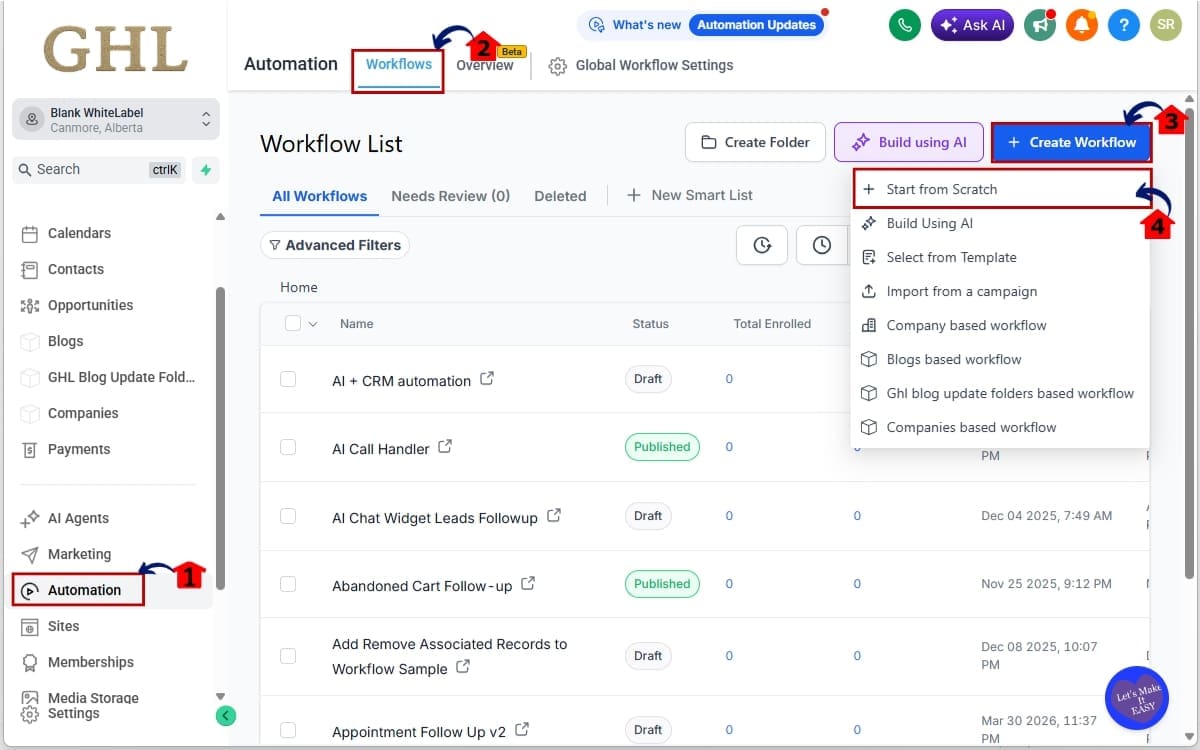
- Access the Main Left Hand Menu in GoHighLevel.
- Add a Media-Supported Action in the Workflow.
- Attach a File Using Workflow File Attachments.
- Select the File You Want to Attach.
- Save the Action in the Workflow.
- Duplicate the Action and Test the Workflow.
To start, make sure you are logged in to your GoHighLevel sub-account.
Step 01 – Access the Main Left Hand Menu in GoHighLevel
- The Main Menu on the left side of your screen contains all the primary sections you use inside GHL.
1.1 Click on the Automation menu item.
- This opens the automation area where all workflows and triggers are managed.
1.2 Click on “Workflows.”
- This takes you to your full list of existing workflows inside the sub-account.
1.3 Click “Create Workflow.”
- This allows you to start building a new workflow instead of editing an existing one.
1.4 Click “Start from Scratch.”
- This opens a blank workflow canvas so you can build your automation step by step.
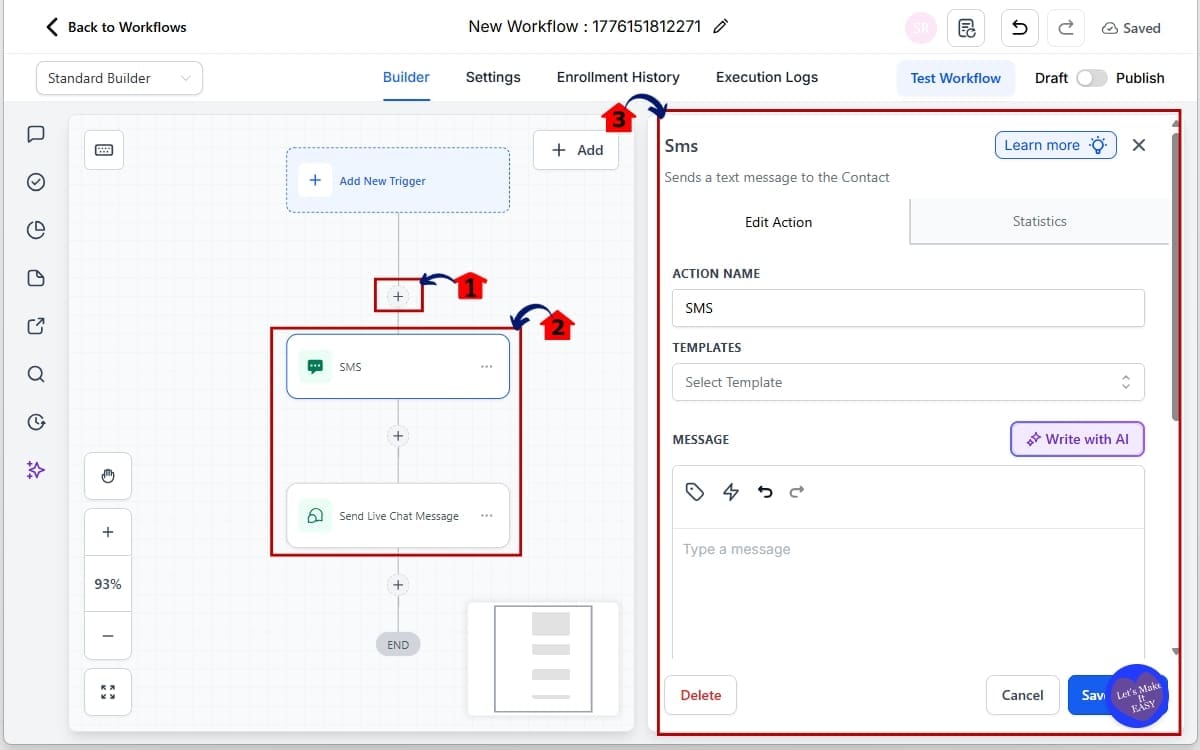
Step 02 – Add a Media-Supported Action in the Workflow
- This step adds the message type that will send your attachment. Choose a supported action like SMS/MMS or Live Chat so you can attach a media file in the next step.
2.1 Click the “+” icon inside the workflow builder.
- This opens the action menu where you can add steps to your workflow.
2.2 Choose a supported action such as:
- Send SMS/MMS
- Send Live Chat Message
- These actions allow you to attach media files directly inside the message.
Note: Email is not supported at launch.
2.3 Click the selected action to open its settings panel.
- This displays the configuration area where you will create the message and add the attachment.
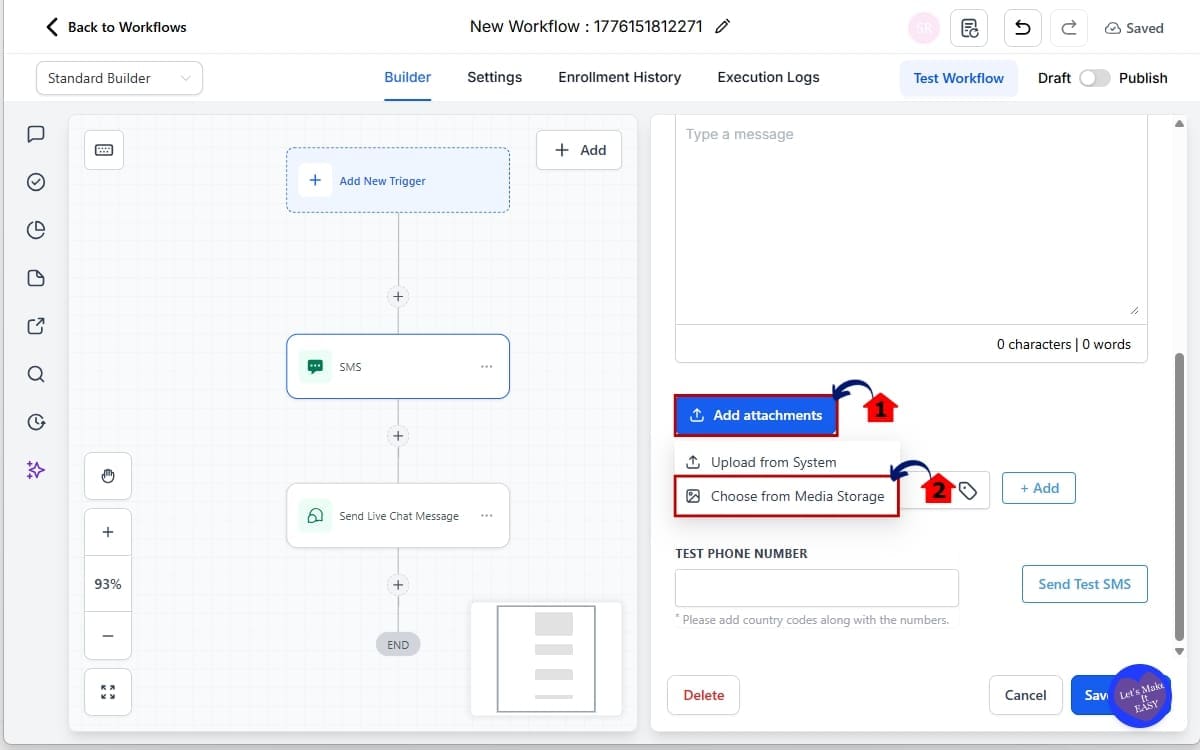
Step 03 – Attach a File Using Workflow File Attachments
- This step is where you add your media file to the selected workflow action.
3.1 Inside the action settings, locate and click “Add Attachment.”
- This opens the attachment options for the selected message action.
3.2 Click “Choose from Media Storage” if the file already exists inside GHL.
- This lets you reuse an existing file without uploading it again.
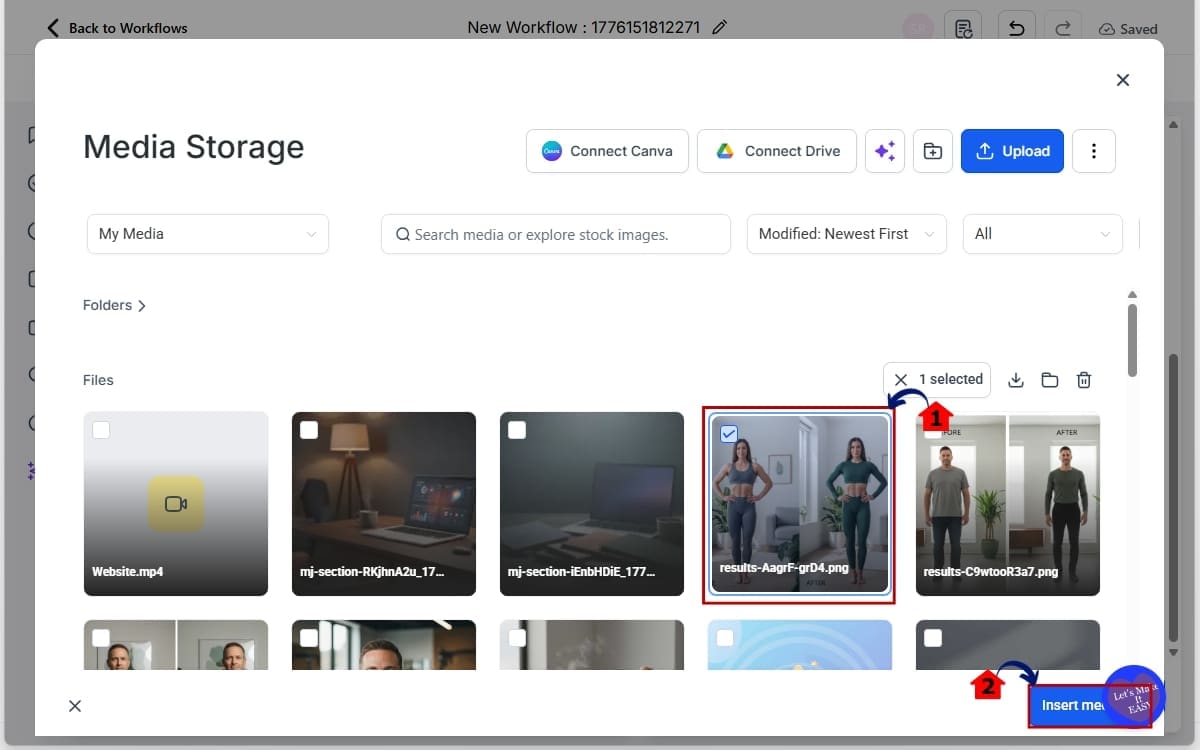
Step 04 – Select the File You Want to Attach
- This step confirms and inserts the selected media into your workflow action.
4.1 Select the file you want to attach.
- Click on the file inside Media Storage to highlight and choose it.
4.2 Click “Insert Media.”
- This attaches the selected file directly to the workflow action.
Step 05 – Save the Action in the Workflow
- This step confirms your attachment and applies the changes to the workflow.
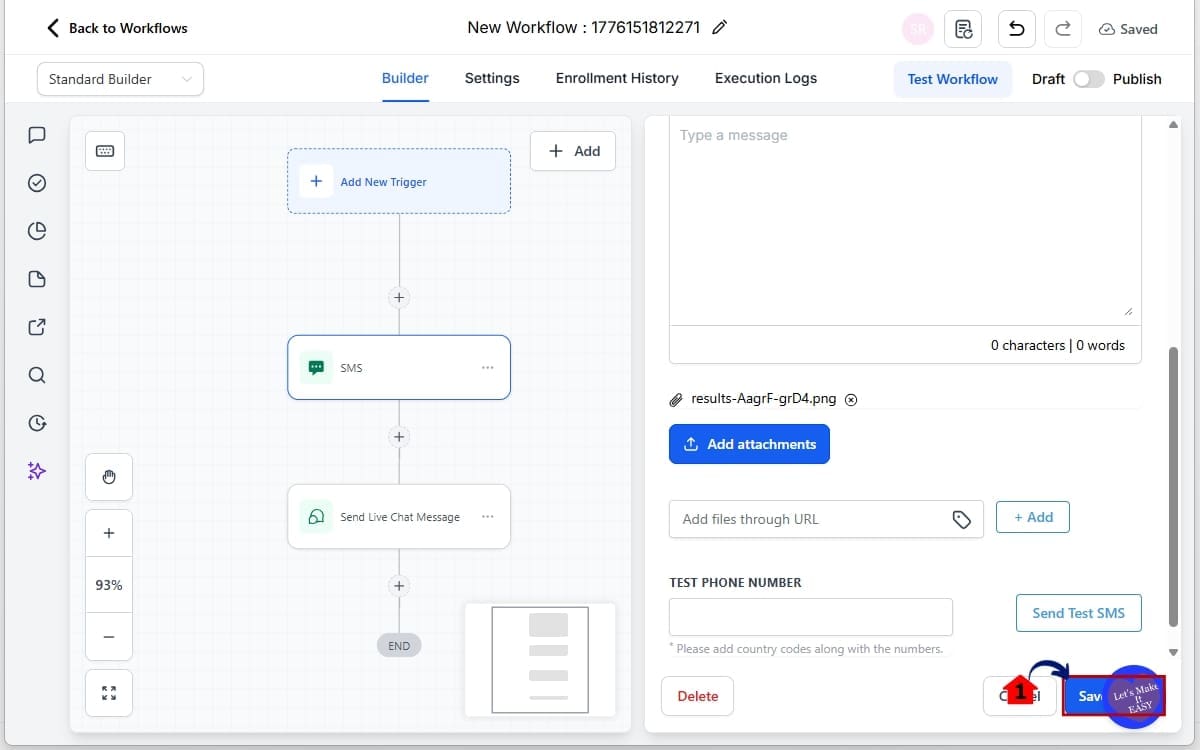
5.1 Click “Save” to confirm the action.
- This finalizes the attachment and updates the workflow step with the selected media file.
Step 06 – Duplicate the Action and Test the Workflow
- This step confirms that the attachment carries over correctly and delivers as expected.
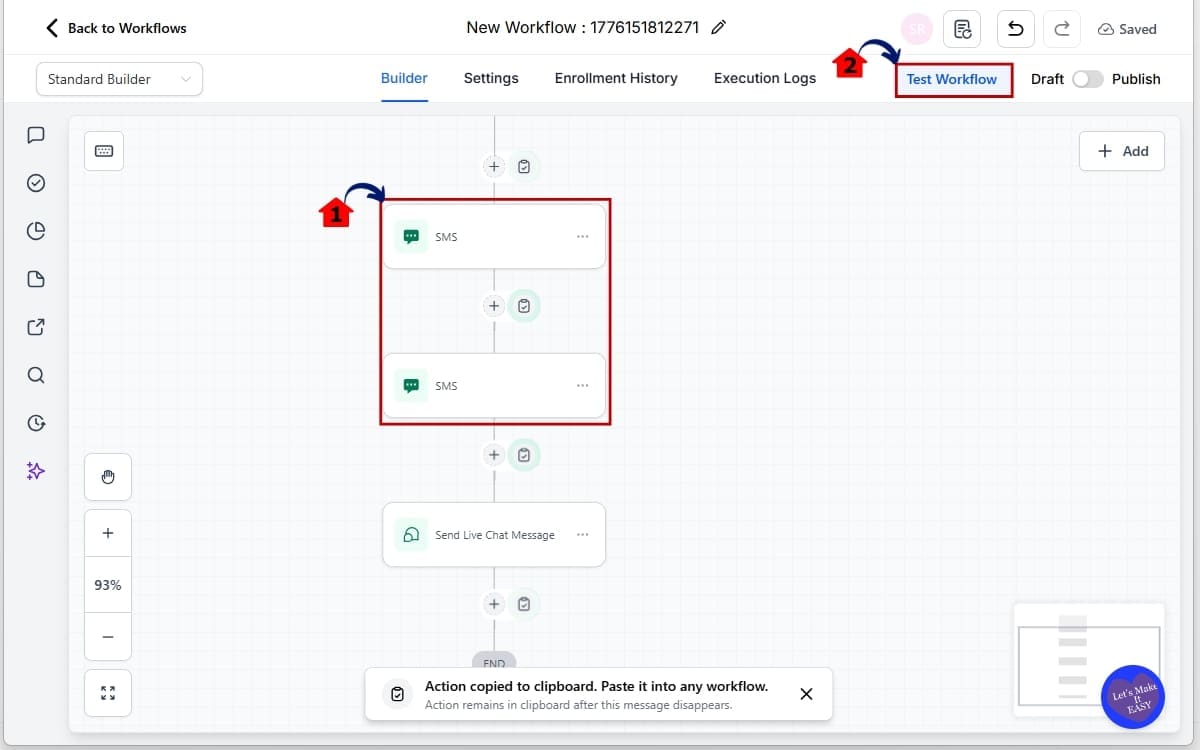
6.1 Duplicate the workflow action if needed.
- The attached file will carry over automatically. No re-upload required.
6.2 Click “Save” and then publish the workflow.
- This activates the workflow with the attached media included.
6.3 Run a test contact through the workflow.
- Confirm the message sends correctly and the attachment delivers properly in the selected channel.
That’s it. No manual URLs. No repetitive uploads. No external file management. Workflow file attachments now make asset reuse clean and controlled inside GHL.
Pro Tips for Using Workflow File Attachments in GHL
Workflow file attachments are simple. But if you use them strategically, they become a real system advantage.
Here’s how to get the most out of them.
Organize Media Storage First
Before building multiple workflows, clean up your Media Storage.
Use clear naming conventions like:
- ClientName_LeadMagnet_v1
- ClientName_OnboardingGuide_2026
- PromoGraphic_SpringCampaign
When your files are organized properly, workflow file attachments become faster to select and harder to misuse.
One messy Media Storage library can slow your whole team down.
Standardize Assets for Agencies
If you run multiple client accounts, create standardized asset templates.
Examples:
- Appointment confirmation PDFs
- Pre-call preparation guides
- Welcome packets
- Terms and service documents
Upload once. Reuse everywhere. Workflow file attachments shine when you build repeatable systems.
Avoid Oversized File Errors
Each action has its own validation rules.
If you see an inline error:
- Check file size
- Confirm supported file type
- Compress PDFs or images if needed
Don’t ignore validation errors. They prevent broken automations later.
Duplicate with Confidence
When you duplicate a workflow action, attachments carry over.
That means:
- Faster campaign builds
- Faster cloning inside sub-accounts
- Cleaner snapshot deployments
You don’t need to manually reattach media every time.
Use It for Lead Magnet Automation
This is where workflow file attachments immediately improve operations.
Example:
Lead submits form → Workflow triggers → SMS delivers PDF lead magnet.
Before this update, you’d re-upload the file across every funnel or workflow variation.
Now? Select from Media Storage. Done.
Update Control Strategy
If you ever need to replace a document across campaigns, update the file in Media Storage and standardize your usage going forward. Centralization reduces outdated asset risk.
Common Mistake to Avoid
Keep Media Storage clean. Five people uploading five copies of the same PDF? That defeats the whole purpose.
Assign ownership. Create naming rules. Keep it clean. Because clean systems scale.
What Workflow File Attachments Mean for Your Business
Workflow file attachments are not just about convenience. They’re about operational leverage.
If you build automations daily inside GHL, every repetitive task compounds. Every extra upload slows momentum. Every duplicate file increases the chance of inconsistency. This update removes that drag.
Now you can centralize approved media assets and deploy them across multiple workflows instantly. That means faster campaign launches. Faster onboarding systems. Faster client setup.
Speed wins in agencies.
Here’s what this looks like in real-world application:
Lead Generation Systems
A prospect opts in for a guide. Your workflow triggers instantly.
Instead of uploading the same PDF again, workflow file attachments let you pull it directly from Media Storage. The asset is clean, consistent, and delivered immediately.
Client Onboarding Automation
New client signs agreement. Workflow sends welcome PDF, onboarding checklist, and next-step guide through SMS or chat. You’re not hunting down files. You’re selecting and deploying.
Appointment Reminder Workflows
Reminder sequence includes a preparation document. Duplicate the workflow for another service? The attachment carries over automatically. No rebuild required.
Multi-Channel Campaigns
You’re running parallel nurture paths across SMS, Instagram DM, and chat. The same branded asset can now be reused without version confusion. Consistency builds authority. Authority builds trust. Trust builds conversions.
Operationally, this update:
- Reduces build time
- Reduces human error
- Improves asset control
- Increases workflow deployment speed
For agencies managing multiple sub-accounts, workflow file attachments eliminate repeated setup work across clients. Less repetition. More automation. Cleaner systems. This is how you scale without increasing workload.
Real Results from Using Workflow File Attachments
Workflow file attachments don’t just clean up your build process. They change how fast you operate.
Once you start using Media Storage inside workflows, you’ll notice the difference immediately.
Workflows Build Faster
Instead of pausing to locate files on your computer or re-upload the same asset, you select it in seconds.
Multiply that across:
- 10 workflows
- 5 clients
- 3 team members
That time adds up quickly. Agencies that build frequently will feel this right away.
Fewer Errors in Automation
Before, it was easy to:
- Upload the wrong version
- Attach outdated files
- Paste incorrect URLs
Workflow file attachments reduce those mistakes because assets are centralized. When your files live inside Media Storage, your team pulls from one approved source.
Cleaner Systems
When automations are clean, scaling becomes easier.
Duplicating workflows across sub-accounts becomes smoother. Snapshots deploy more consistently. Attachments carry over without manual intervention.
You’re not rebuilding pieces. You’re replicating systems.
Stronger Client Experience
From the client’s perspective, this means:
- Immediate document delivery
- Consistent branding
- Professional automation
Lead magnet? Delivered instantly. Onboarding packet? Attached correctly. Promo graphic? Sent without delay.
No broken links. No missing files.
Operational Momentum
The real win is momentum. Small friction points slow teams down. When those friction points disappear, builds become fluid.
Workflow file attachments remove one of those small but constant slowdowns inside GHL.
And when your systems move faster… Your agency moves faster.
Frequently Asked Questions About Workflow Media Storage
Smarter Systems with Workflow File Attachments
Workflow file attachments may look like a small interface update. They’re not.
They remove repetition from your automation builds. They centralize asset control. And they speed up how fast you deploy campaigns inside GHL.
Before this update, attaching media meant repeated uploads or manual links. It worked. But it created friction.
Now? You choose from Media Storage. You attach. You save. Done.
For agencies, this is about leverage. When you’re managing multiple clients, campaigns, and nurture sequences, small efficiencies compound into major time savings. Workflow file attachments reduce build time, reduce errors, and keep your systems cleaner.
That’s how scalable automation should feel.
If you’re already building workflows daily inside GoHighLevel, start using Media Storage attachments immediately. Clean up your asset naming. Standardize your documents. Build once and reuse properly.
That’s how you scale without adding workload. Have you started using workflow file attachments yet? How are you implementing them inside your automations?
And as always, check back with GHL Growth Garage for more step-by-step GoHighLevel feature guides designed to help agencies move faster.
Scale Your Business Today.
Streamline your workflow with GoHighLevel’s powerful tools.


