

- Build forms that store custom contact data
- Quick Summary – Custom Fields Form Builder Overview
- Video Walkthrough for GHL Custom Fields Forms
- Why custom field forms matter
- What custom fields do in GHL
- How to create a custom fields form
- Custom fields form builder tips
- Use the custom fields form builder for leads
- Custom fields form builder FAQs
- Final thoughts on the custom fields form builder
Build forms that store custom contact data
Use a custom fields form builder in GHL to create forms that collect the exact data you need and store it in your CRM. This step by step guide shows you how to build a form, add custom fields, and make sure every submission saves useful contact details you can actually use later.
When you start building forms in GHL, you will notice something fast. Most forms look fine, but they do not help you make better decisions. In real client setups, the problem is not the form. It is the type of data being collected.
Right now, most forms only ask for name, email, and phone. That limits how you qualify leads or follow up the right way. In many cases, forms that ask better questions can improve lead quality by around 30 percent without lowering conversions.
A custom fields form builder solves this by letting you choose what data matters. You can ask about the budget, service type, or timeline and store it directly in the contact record.
In this guide, you will learn how to use a custom fields form builder in GHL step by step. By the end, you will have forms that capture better data, help you qualify leads faster, and improve your follow-up.
Quick Summary – Custom Fields Form Builder Overview
Purpose: This guide walks you through how to use a custom fields form builder in GHL so you can collect the right contact data and store it in your CRM.
Why It Matters: Basic forms do not give you enough detail to work with. When you use a custom fields form builder, you collect better data that helps you qualify and respond faster.
What You Get: You get a clear process to build your form, create custom fields, and make sure everything saves correctly inside your GHL account.
Time To Complete: You can set this up in about 10 to 15 minutes once you follow each step.
Difficulty Level: This setup is simple and beginner-friendly, even if you are new to using forms in GHL.
Key Outcome: You end up with a working custom fields form builder that collects useful data and helps you improve your follow-up.
Video Walkthrough for GHL Custom Fields Forms
Build forms that collect the right data from the start. This quick guide shows you how to set it up inside GHL.
What you’ll see:
Automate marketing, manage leads, and grow faster with GoHighLevel.

- How to open the Forms section in GHL.
- How to create and name a custom field.
- How to add the custom field to your form.
- How to test your form and check saved data.
Why custom field forms matter
Most forms you build in GHL will collect the same basic details. Name, email, phone. That is fine, but it does not help you understand the lead. When you use a custom fields form builder, you start asking better questions that actually move the conversation forward.
When you work with real leads, you quickly see the gap. You are chasing people without knowing what they want or if they are even a good fit. In practice, the issue is not the number of leads. It is the quality of the information you collect at the start.
Using a custom fields form builder gives you more control over your data. You collect what matters, store it in your CRM, and use it right away. This helps you qualify faster and respond with more context.
- You can collect details like budget, service type, or timeline.
- You can qualify leads before you even speak to them.
- You can segment contacts based on real data, not guesses.
- You can trigger better automations using custom field data.
- You can spend less time chasing the wrong leads.
What custom fields do in GHL
Custom fields in GHL let you store the exact information you need, not just the basics. When you use a custom fields form builder, you are not stuck with name and email. You decide what data matters and make it part of your system.
When someone fills out your form, that data goes straight into their contact record. You do not have to guess or chase details later. Everything is saved, organized, and ready for you to use in follow ups or automation.
Think of custom fields as your way to shape your CRM around your business. You are not adjusting to the system. The system is adjusting to how you work.
- You can create field types that match your process.
- Single line text for short answers.
- Dropdown for set choices.
- Date fields for timelines or bookings.
- You can store all responses inside the contact record.
- You can use this data in workflows, emails, and campaigns.
- You can filter and segment contacts based on real inputs.
- You can track leads in a way that makes sense for your business.
How to create a custom fields form
Creating a custom fields form in GHL is done inside the Sites and Forms area of your sub-account. You will build a form from a template, create a custom field, and connect that field so the data is saved directly to the contact record.
It is important to follow each step in order so your form works correctly and your data is stored in the right place. Here are the steps to create and set up a custom fields form builder in GoHighLevel.
- Access the Add Form button in the Sites’ Forms tab.
- Click the Create button after choosing the From templates radio button.
- Choose a template from the Forms Template Library.
- Delete unnecessary elements in the form.
- Add a Custom Field from the elements Library.
- Choose a Custom Field input.
- Add the Name, Object, Group, and Placeholder of the Custom Field before saving it.
- Add more Custom Field elements and place them in the form canvas.
- Click the Settings tab after renaming your form.
- Type the Message before saving and testing the form.
To start, make sure you are logged in to your GoHighLevel sub-account.
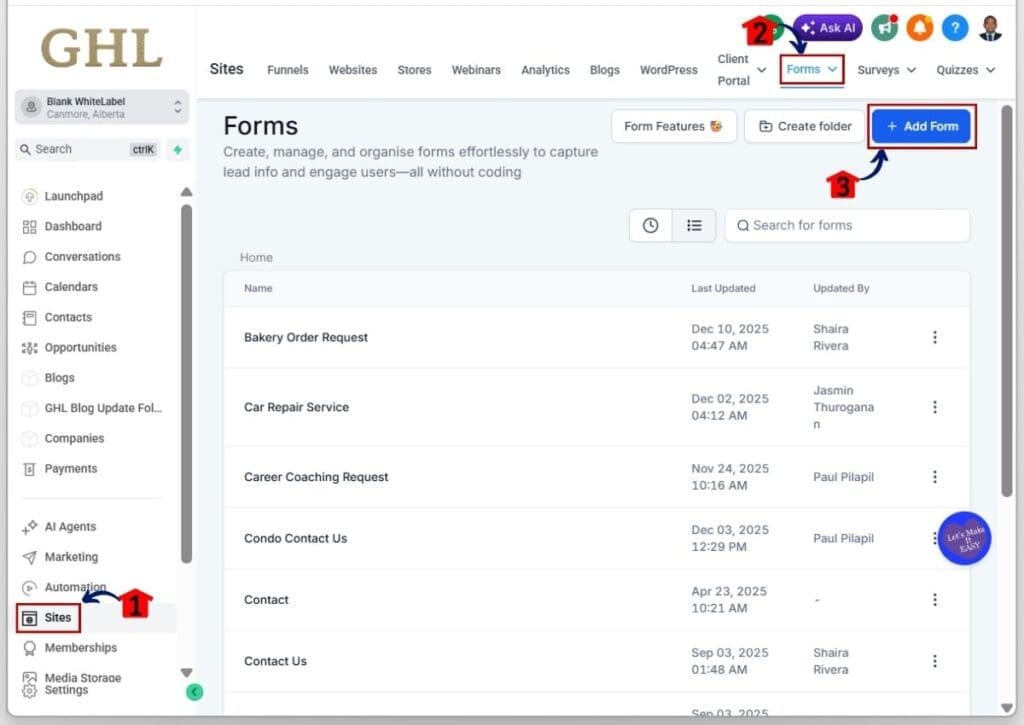
Step 01 – Access the Add Form button in the Sites’ Forms tab
- Start creating your form by clicking the Add Form button inside the Forms tab in the Sites section
1.1 Click the Sites section
- You will be directed to the Funnels tab by default
1.2 Click the Forms tab
- This is where you can see the list of your created forms
1.3 Click the + Add Form button
- The Create New Form pop-up will appear, where you can create a form using a template or from scratch
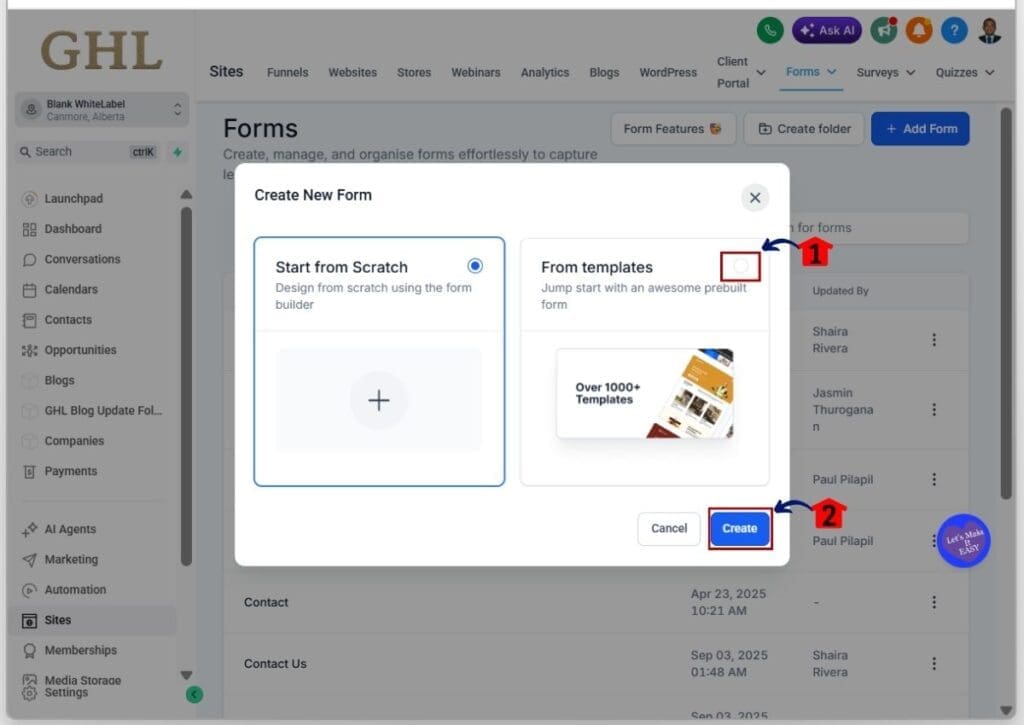
Step 02 – Click the Create button after choosing the From templates radio button
- Click the Create button in the Create New Form pop-up after selecting the From Templates option
2.1 Choose the From templates radio button
- A blue box will appear around the From templates option to confirm your selection
2.2 Click the Create button
- The Templates Library will open, showing a list of available form templates
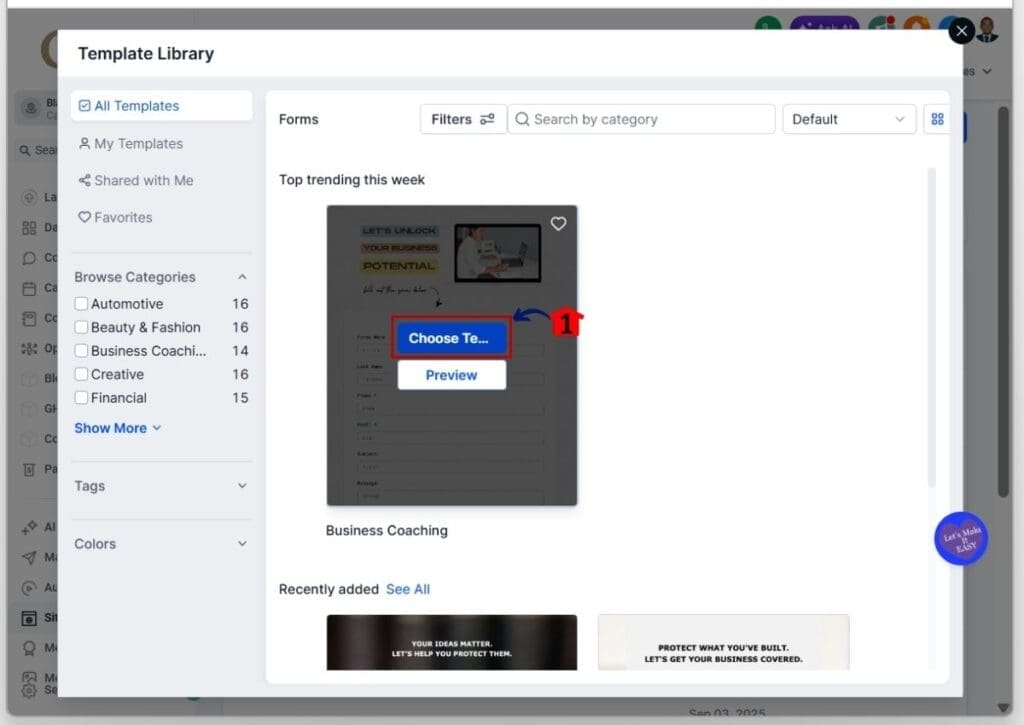
Step 03 – Choose a template from the Forms Template Library
- Select a form template that you want to use from the Template Library
3.1 Click the Choose Template button when you hover over a form template
- You will see two options when you hover over a template, including the Choose Template button
- You will be directed to the Forms Builder with the selected template loaded
Step 04 – Delete unnecessary elements in the form
- Remove any extra elements that you do not need in your form
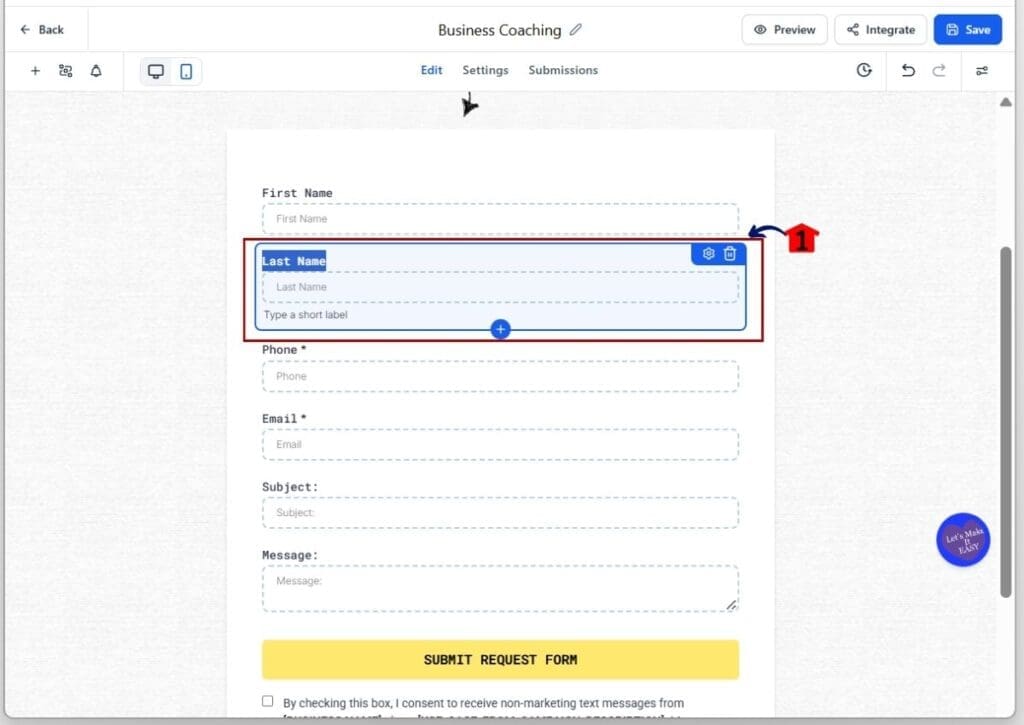
4.1 Click the delete icon when you hover over an element
- The delete icon looks like a garbage can
- A blue box will appear around the selected element with action buttons in the top right corner
Step 05 – Add a Custom Field from the elements Library
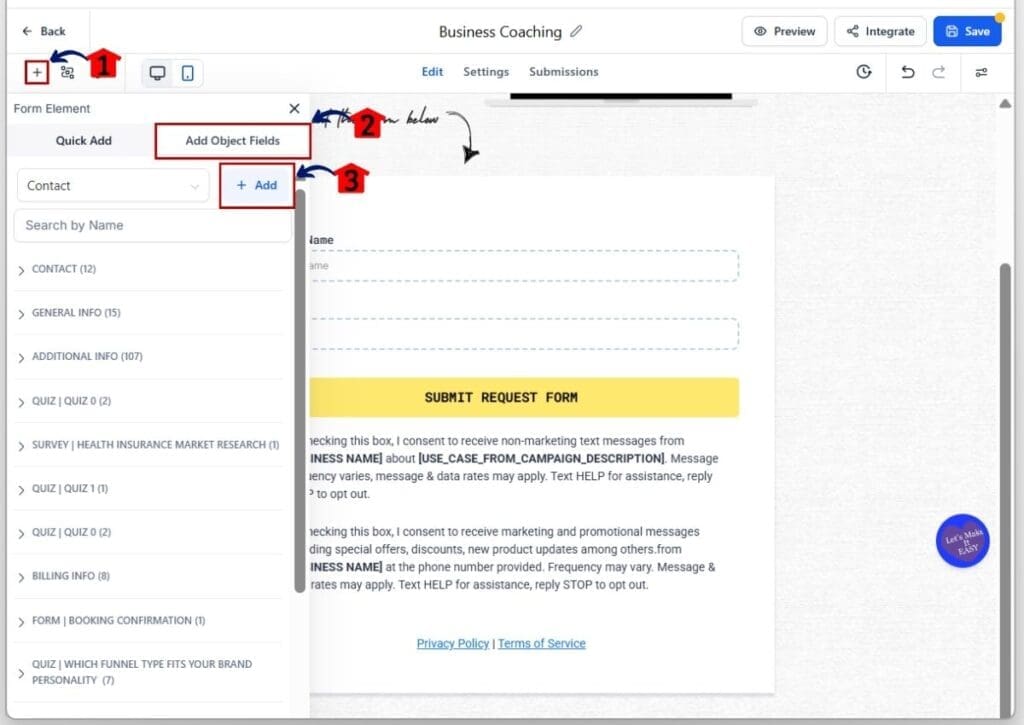
- Click the + Add button in the Object Fields tab inside the elements library
5.1 Click the Elements library button
- This is shown as a + icon in the upper left part of the Forms Builder
5.2 Click the Add Object Fields tab
- You will see a list of your Custom Fields along with a + Add button
5.3 Click the + Add button
- The New Custom Field pop-up will appear, showing a list of field types to choose from
Step 06 – Choose a Custom Field input
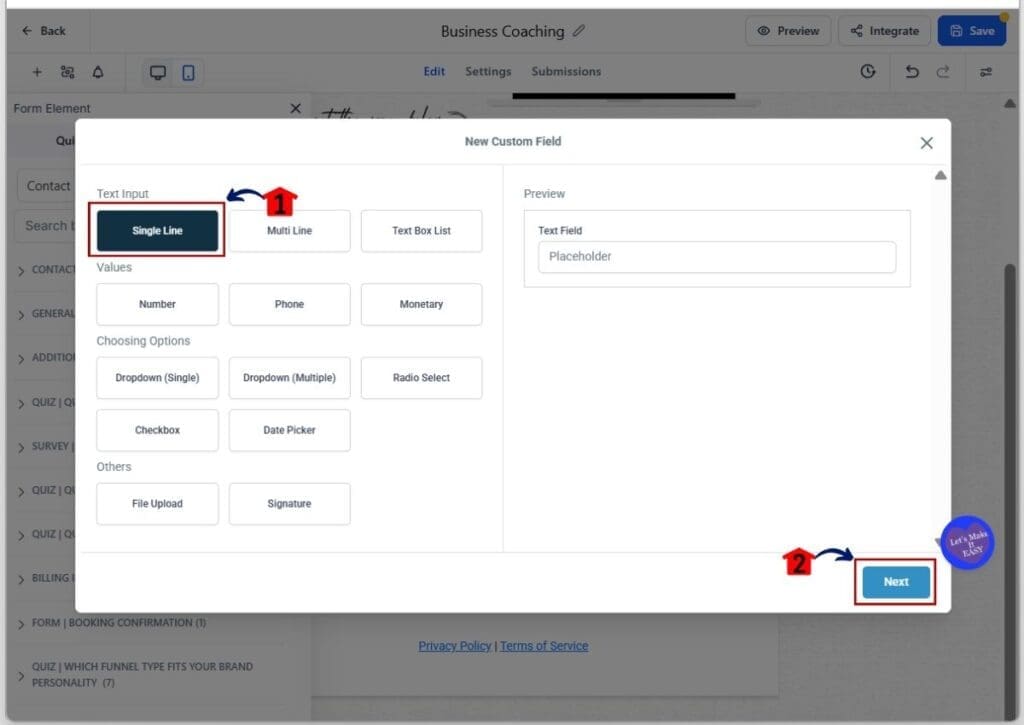
- Select a custom field input from the New Custom Field library
6.1 Click an input option
- For this example, choose the Single Line Text Input
- The Next button will appear in the lower right corner of the pop-up
6.2 Click the Next button
- You should now be in the New Custom Field configuration pop-up.
Step 07 – Add the Name, Object, Group, and Placeholder of the Custom Field before saving it
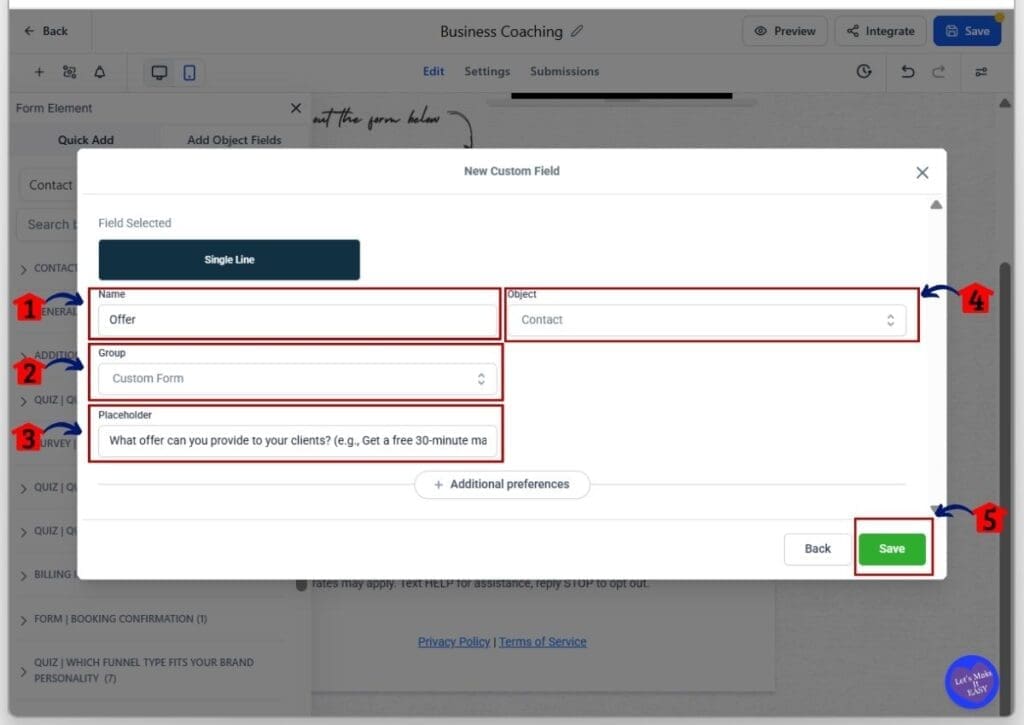
- Enter the required details for your Custom Field before clicking Save
7.1 Type the Name of the field
- This can be the question you want to ask in your form
7.2 Select a group for this input field
- This acts as the folder for your custom fields
7.3 Add a Placeholder for the custom field
- This shows an example answer to your form question
7.4 Set the Object for the Custom Field
- For this example, choose Contact since the data will be stored in the contact record
Step 08 – Add more Custom Field elements and place them in the form canvas
- Add more custom fields and arrange them based on your form goal
8.1 Drag and drop the custom field into the canvas
- Use the 9-dot icon to drag and place the element
8.2 Add more custom fields
- Repeat Steps 05 to 07 to create more questions based on your form goal

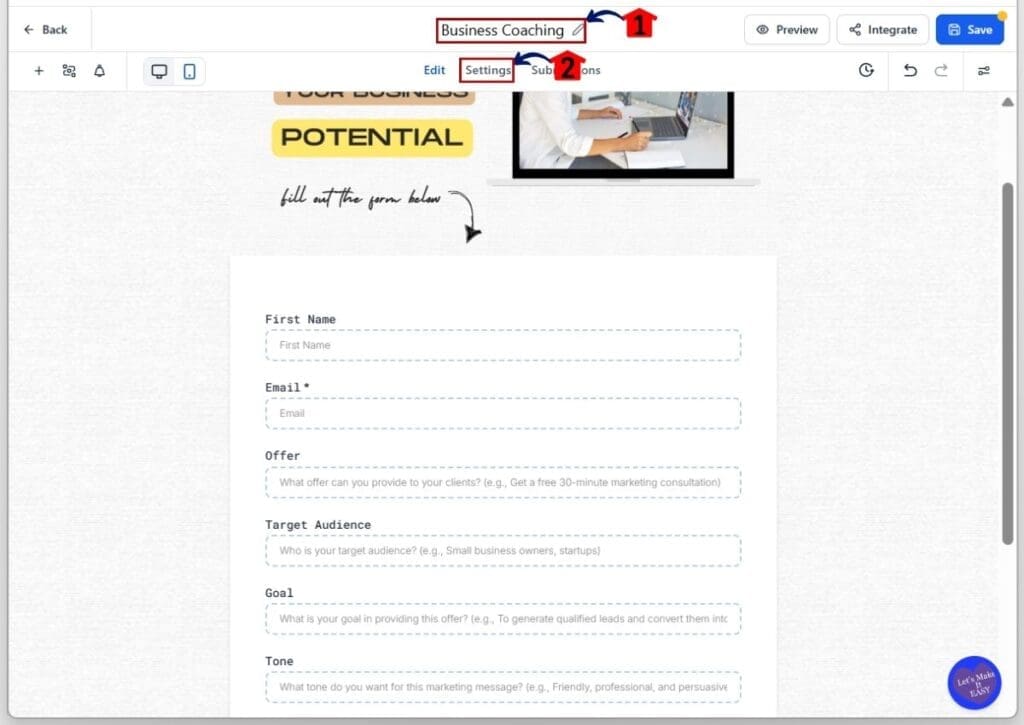
Step 09 – Click the Settings tab after renaming your form
- Open the Settings tab after you rename your form
9.1 Rename the form
- Click the pencil icon and enter a clear name for your form
9.2 Click the Settings tab
- You will see options to control what happens after the form is submitted
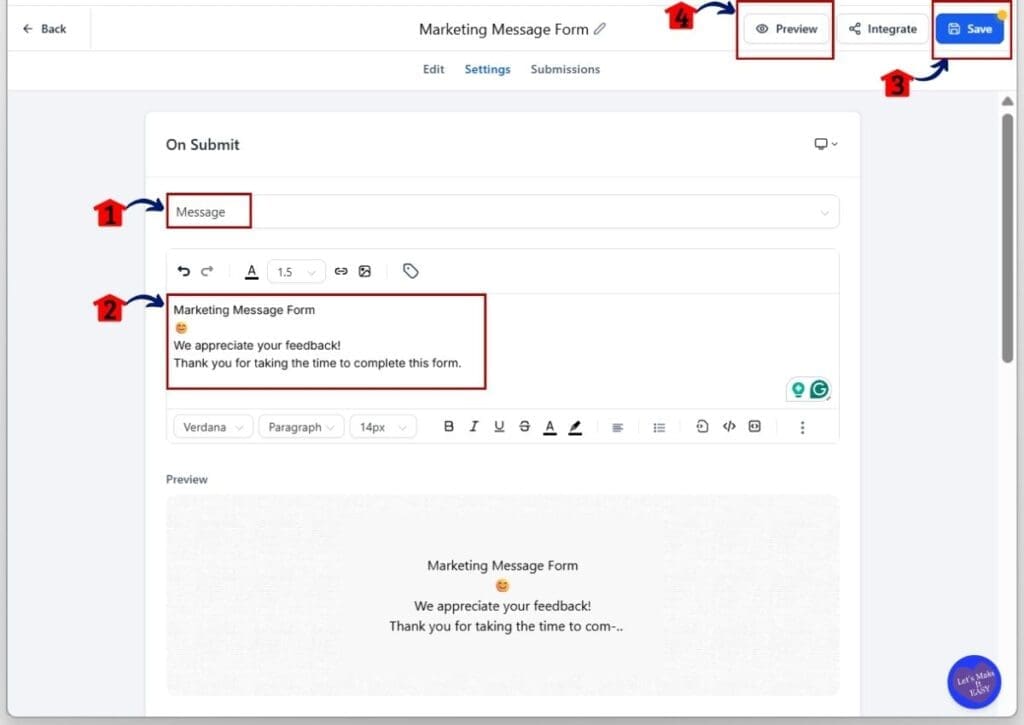
Step 10 – Type the Message before saving and testing the form
- Set your message, then save and test your form
10.1 Choose the action after form submission
- For this example, select the Message option
10.2 Type your thank you message
- Keep it short and let the user know what to do next
10.3 Click the Save button
- This is located in the upper right corner of the form
- The yellow dot will disappear to confirm your changes are saved
10.4 Click the Preview button
- A new browser tab will open to show how your form looks to users
Custom fields form builder tips
When you use a custom fields form builder in GHL, small changes can improve your results fast. You are not trying to collect more data. You are trying to collect better data that helps you take action.
As you build your forms, think about how each field helps your process. If a field does not help you qualify a lead or guide your next step, it should not be there. In real setups, simple forms with clear questions almost always perform better.
A custom fields form builder works best when it stays focused and easy to use. The cleaner your form, the easier it is for people to complete it and for you to use the data.
- Keep your form short and focused.
- Only ask for data you will actually use.
- Use clear field names so people know what to enter.
- Match your fields to your sales or onboarding process.
- Place important fields near the top of the form.
- Avoid adding too many custom fields at once.
- Test your form to check if the data you get is useful.
Use the custom fields form builder for leads
When you use a custom fields form builder in GHL, you stop collecting random leads and start collecting useful ones. You get real details before you even start the conversation. That puts you in a better position right away.
In real use, this means you already know what the lead wants, what they need, and if they are a good fit. You are not guessing or asking the same basic questions again. You are starting with context, which makes your follow-up faster and more direct.
A custom fields form builder works well across different types of businesses. The goal is always the same. Collect the right details early so you can act with confidence.
- Agencies can ask about budget, service type, and timeline.
- Local businesses can collect job details before giving a quote.
- Coaches can use intake forms to understand client goals.
This also improves how your automation works inside GHL. When your custom fields form builder collects clear data, you can use that data to guide your next step.
- Send follow-ups based on the service selected.
- Move leads into the right pipeline stage.
- Assign leads to the right person.
- Personalize messages using the data collected.
Over time, this makes your process smoother. You spend less time figuring out each lead and more time moving them forward.
Custom fields form builder FAQs
When you start using a custom fields form builder in GHL, a few common questions come up. These answers will help you understand how things work and avoid simple mistakes.
Final thoughts on the custom fields form builder
When you use a custom fields form builder in GHL, you are making a small change that has a real impact. You are not rebuilding your system. You are improving how your forms collect and store data from the start.
In practice, this means you stop guessing what your leads want. You already have the key details before you reach out. This helps you respond faster and with more confidence in every conversation.
The real value comes from how you use the data after it is collected. A well-set-up custom fields form builder gives you cleaner data, better follow-up, and more control over your pipeline.
Start simple. Build one form, add a few custom fields, and test how the data flows into your CRM. Once you see how it works, you can keep improving your setup based on what your business needs.
Scale Your Business Today.
Streamline your workflow with GoHighLevel’s powerful tools.


