- Smarter Store Builder Elements in GHL
- Quick Summary – Store Builder Elements
- Here are this weeks HighLevel Updates
- What’s New with Store Builder Elements Ranking
- Why Store Builder Elements Placement Matters
- How to Use Store Builder Elements in GHL
- Pro Tips for Using Store Builder Elements Faster
- What This Means for Ecommerce Agencies
- Store Builder Elements FAQ for GHL Users
- Smarter Store Builder Elements, Faster Builds
Smarter Store Builder Elements in GHL
Store Builder Elements Just Got Smarter in GHL. If you’ve ever built ecommerce pages inside the Store Builder, you know the real frustration isn’t adding products. It’s finding the right elements fast enough to keep your flow moving.
Especially when you’re scrolling through the Add Elements panel looking for Featured Products… or the Cart… or a Collection block that should be obvious but isn’t.
Store components didn’t always feel prioritized. They were there. They worked. But they weren’t front and center when you needed them.
And when a store wasn’t connected yet? The layout could feel slightly disconnected. Logical, but not optimized for speed.
Now, the upgraded Store Builder Elements behavior inside GHL fixes that. When a store exists in your sub-account, Store Builder Elements automatically rise to the top of the Add Elements panel. No digging. No friction. Just instant access to ecommerce blocks.
If no store exists, those same elements are placed neatly between Blog and Media. Clean. Organized. Intentional.
For agencies building multiple client stores, this is a serious workflow upgrade. Smarter Store Builder Elements reduce scroll time, speed up builds, and make the entire page creation process feel tighter and more controlled.
What used to feel slightly buried now feels prioritized.
The latest GoHighLevel Changelog includes several other GHL feature updates that round out your daily workflow:
- New QR Code Styling Options: Shapes, Borders, and Rim Text
- Collapse & Resize Pipeline Stages in Kanban View
- Notes just got smarter for the contacts page!
- New Asana actions in workflows – Find Project and Find section
- Email AI + Knowledge Base Integration 🚀
- Dialer: Auto-minimize, Pin & Drag
- Schema Markup Using AI
Keep reading for much more on all these updates and a deep dive into the Field Pickers feature!
Quick Summary – Store Builder Elements
Purpose:
This update improves how Store Builder Elements appear inside the GHL Store Builder by dynamically ranking them based on store presence in your sub-account.
Why It Matters:
When a store is connected, Store Builder Elements automatically move to the top of the Add Elements panel, reducing scroll time and improving build speed.
What You Get:
Smarter element placement, faster ecommerce page building, cleaner workflows, and better onboarding clarity for teams and VAs.
Time to Complete:
Less than 2 minutes to verify inside your builder. No setup required.
Difficulty Level:
Beginner-friendly. This is an automatic UI improvement with no configuration needed.
Key Outcome:
Faster ecommerce page production inside GHL with improved visibility of revenue-driving store components.
Here are this weeks HighLevel Updates
New QR Code Styling Options: Shapes, Borders, and Rim Text
What it does:
Lets you stop using boring QR codes. You can now tweak the shape, style the border, and add text around the edge.
Where in GHL:
Accessible via Sites → QR Codes and within QR tools embedded in Funnel and Website builders.
Automate marketing, manage leads, and grow faster with GoHighLevel.

Impact:
Improves visual presentation and brand alignment while increasing scan appeal.
Best suited for:
Agencies that care about branding, small businesses running local promotions, online stores, and teams pushing QR campaigns.
Collapse & Resize Pipeline Stages in Kanban View
What it does:
Lets you hide pipeline stages you’re not actively using and adjust column widths so your board fits the way you work.
Where in GHL:
Inside Opportunities when you’re viewing your pipeline in Kanban mode.
Impact:
No more dragging your screen forever just to find the deals that matter.
Best suited for:
Owners running multi-stage pipelines, reps working deals every day, and anyone fed up with a messy board.
Notes Just Got Smarter for the Contacts Page
What it does:
Upgrades the notes area so it’s easier to write, review, and keep things organized inside a contact record.
Where in GHL:
Found directly within each contact’s profile under Notes.
Impact:
Makes it simpler to see what’s been discussed and who added what — without digging through clutter.
Best suited for:
Teams collaborating on accounts and businesses that document every client touchpoint.
New Asana Actions in Workflows – Find Project & Find Section
What it does:
Lets your workflow check what already exists in Asana before adding anything new.
Where in GHL:
Go to Workflows, add an action, and choose the Asana integration.
Impact:
No more duplicate projects. No more messy task boards. Just cleaner automation.
Best suited for:
Operations teams and agencies that rely on Asana to manage client delivery.
Email AI + Knowledge Base Integration
- What it does:
Allows Email AI to reference your Knowledge Base for smarter, more accurate responses. - Where in GHL:
Found in Conversations → Email composer with AI enabled and Knowledge Base settings under AI configuration. - Impact:
Smarter email suggestions that understand your business and help you reply quicker. - Best suited for:
Support teams, agencies managing inboxes, and businesses scaling communication with AI.
Dialer: Auto-Minimize, Pin & Drag
- What it does:
Lets you auto-minimize the dialer during calls, pin it in place, and drag it anywhere on screen. - Where in GHL:
Found in Conversations → Dialer. - Impact:
Cleaner workspace and easier multitasking during sales or support calls. - Best suited for:
Sales teams, outbound callers, appointment setters, and agencies making daily calls.
Schema Markup Using AI
- What it does:
Generates structured schema markup automatically using AI for SEO enhancement. - Where in GHL:
Found in Sites → Website or Funnel settings within AI or SEO sections. - Impact:
Improves search visibility without manual coding. - This works well for:
Teams building websites that need stronger search visibility, from agencies to small local businesses.
What’s New with Store Builder Elements Ranking
The big change here is simple — but powerful. Store Builder Elements are now dynamically ranked inside the Add Elements panel based on whether a store exists in your sub-account.
Before this update, store elements had a static position. They didn’t adjust based on context. They were available… but not optimized for visibility. Now they adapt.
Dynamic Element Ranking
When a store is connected to your sub-account, Store Builder Elements automatically move to the top of the Add Elements panel.
That means:
- Featured Products appear immediately
- Cart blocks are instantly visible
- Collection sections are prioritized
- No unnecessary scrolling
GHL is essentially saying, “You’re building a store page? Let’s surface what matters most.”
It’s contextual intelligence inside the builder.
Contextual Default Placement
What if no store exists yet? GHL doesn’t remove the Store Builder Elements. It simply repositions them logically.
When there’s no store in the sub-account, those elements appear between the Blog and Media sections in the Add Elements panel. Not hidden. Not removed. Just placed where they make structural sense.
Consistent Builder Experience
Important: Nothing about the functionality of Store Builder Elements has changed. Products still behave the same. Carts still function the same. Collections still display the same.
This is a discoverability and workflow upgrade — not a feature redesign. And that’s exactly why it’s valuable.
Small UI improvements like this compound over time. Especially if you’re building ecommerce pages weekly.
Why Store Builder Elements Placement Matters
This might look like a small interface tweak. It’s not.
If you build ecommerce pages inside GHL regularly, speed matters. Flow matters. And friction adds up fast.
Faster Page Builds
When Store Builder Elements are ranked at the top, you don’t waste time scrolling through unrelated sections.
No hunting for:
- Featured Products
- Cart blocks
- Collection displays
They’re immediately visible. That might save you 5–10 seconds per page. But if you’re building dozens of pages per month across multiple sub-accounts, that adds up quickly.
Less Builder Friction
Context switching slows you down. When you’re in ecommerce mode, your brain expects store components first. Not blog blocks. Not media elements. Now GHL matches your intent.
If a store exists, the builder prioritizes store logic. That alignment reduces mental friction and keeps momentum high while building.
Cleaner Onboarding for Teams
If you run an agency, you already know this pain.
New VAs ask: “Where are the product blocks?” “Why can’t I find the cart?”
Now the answer is simple. If the store is connected, Store Builder Elements are right at the top. Easy to explain. Easy to train.
Better Logic for Sub-Accounts Without Stores
When no store exists, the elements aren’t pushed to the top unnecessarily. Instead, they’re placed between Blog and Media.
That prevents confusion for users who aren’t actively building ecommerce pages yet. It’s organized. Predictable. Clean. Small Change. Real Workflow Impact.
This update doesn’t add new tools. It makes the existing tools easier to use. And in ecommerce page building, clarity beats complexity every time.
How to Use Store Builder Elements in GHL
We’ll start inside the Store Builder and open the Add Elements menu. The system automatically shifts the position of Store Builder Elements based on whether a store is connected.
Active store? They’re at the top. No store yet? They’re grouped between Blog and Media. Here’s how to check.
- Access the Main Left-Hand Menu in GoHighLevel.
- Open the Add Elements Panel and Add Store Builder Elements to Your Page.
- Edit element in Store Builder Websites.
- Troubleshooting Store Builder Elements Visibility.
To start, make sure you are logged in to your GoHighLevel sub-account.
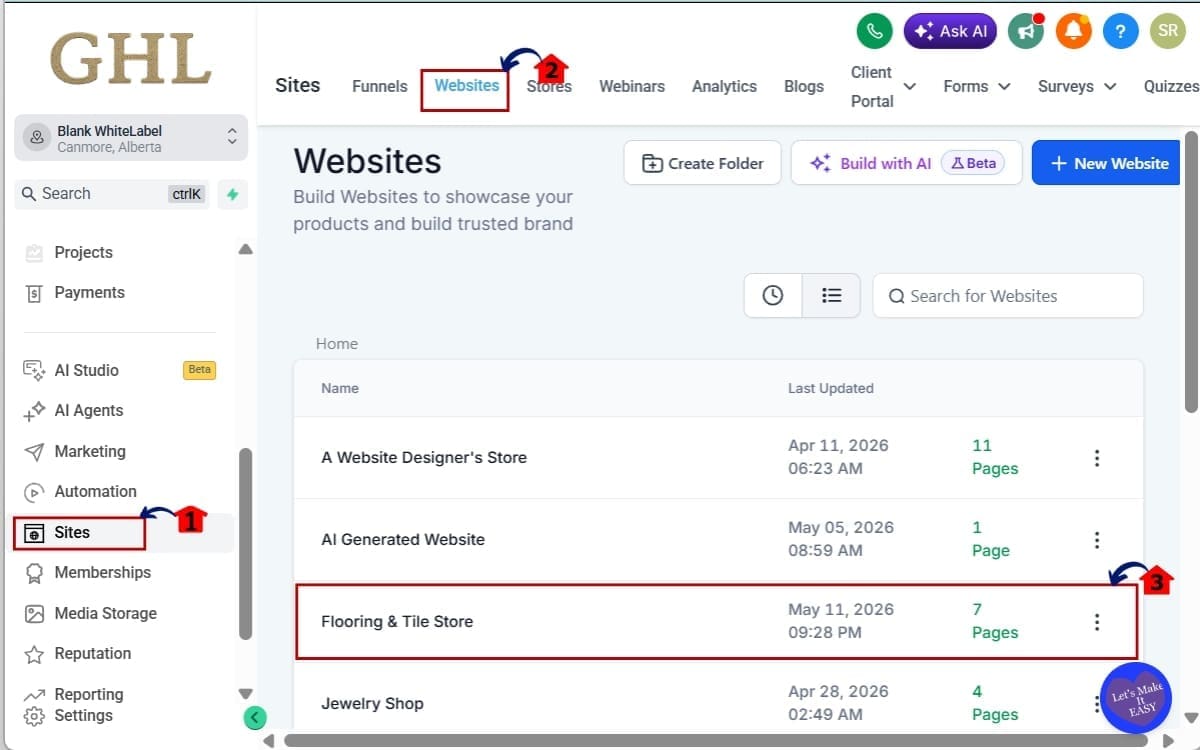
Step 01 – Access the Main Left-Hand Menu in GoHighLevel
- The Main Menu on the left side of your screen contains all the core areas you work in inside GHL.
1.1 Click on the Sites menu item.
- This is where your funnels, websites, and store pages live.
1.2 Click websites
- This will open the existed or you will create new websites.
1.3 Open an existing Store page or create a new page inside your Store Builder.
- If you already have a store connected, open a store-related page.
- If you don’t have a store yet, you can still open the builder to see placement behavior.
You are now inside the page builder.
Step 02 – Open the Add Elements Panel and Add Store Builder Elements to Your Page
- In this step, you will open the element library inside the builder and add store components to your page layout.
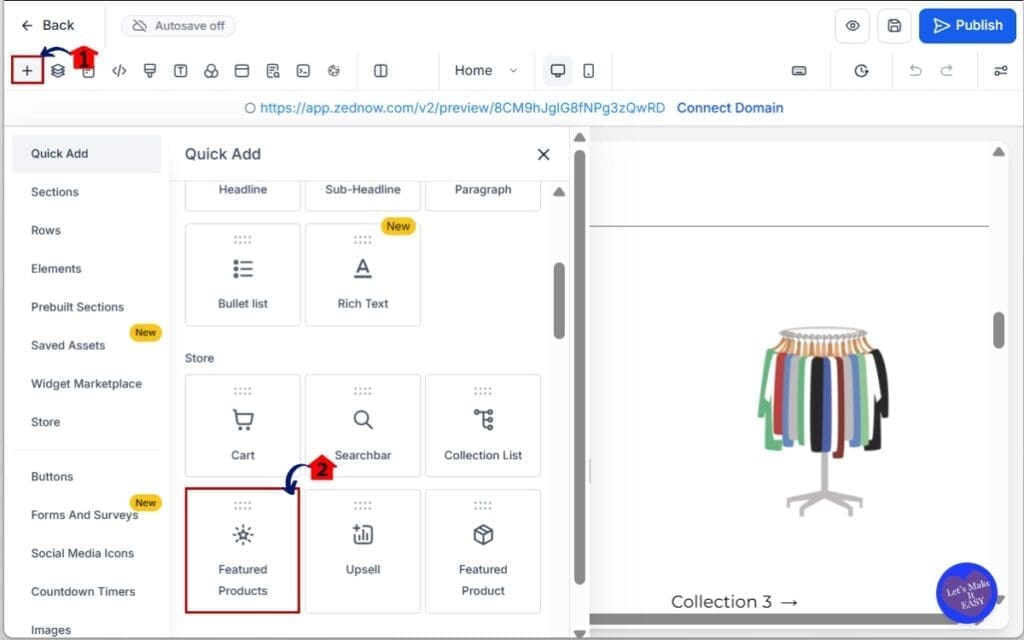
2.1 Look to the left-hand side of the builder interface and click on “Add Elements.”
- This opens the full elements panel where all available sections and blocks are listed, including Store Builder Elements.
2.2 Click on a Store Builder Element such as “Featured Products.”
- Select the store component you want to use, then drag and drop it onto your page to begin customizing it.
Step 03 – Edit element in Store Builder Websites
- In this step, you will customize the Store Builder Element after placing it on your page.
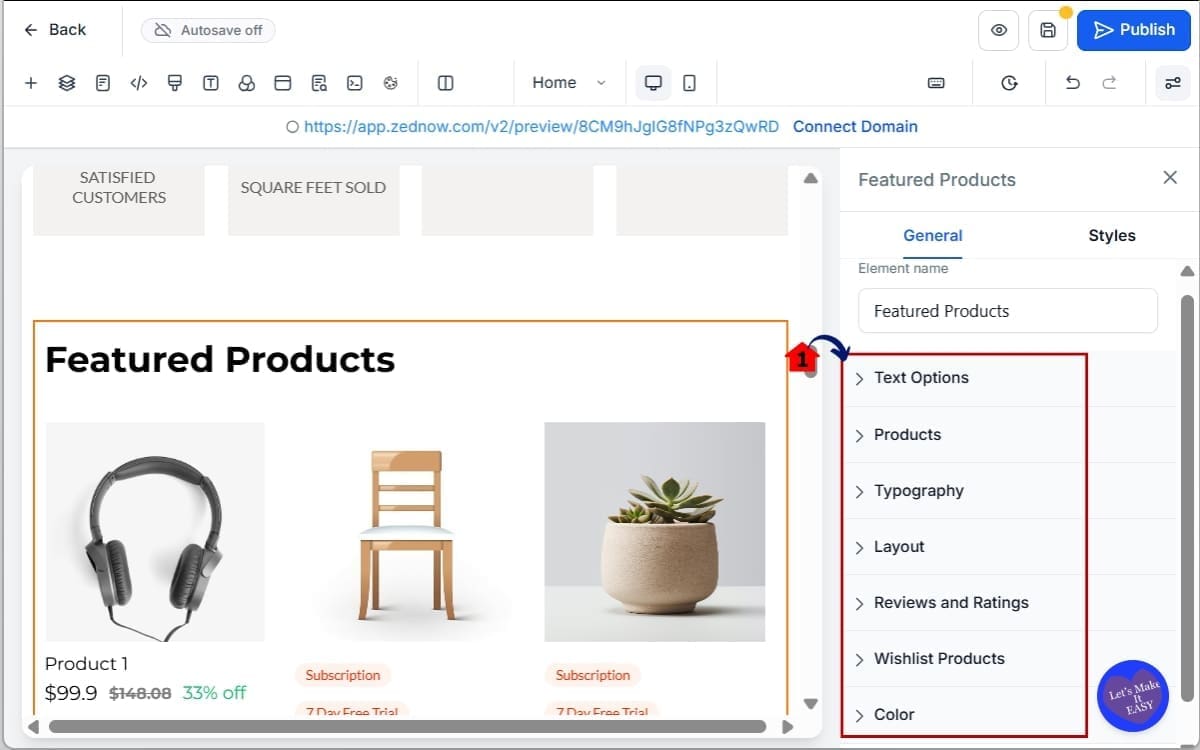
3.1 Click on the element once placed to customize:
- Adjust layout
- Select specific products
- Reviews and rating
- Wishlists Products
Nothing about the element functionality has changed. Only its visibility inside the panel.
Step 04 – Troubleshooting Store Builder Elements Visibility
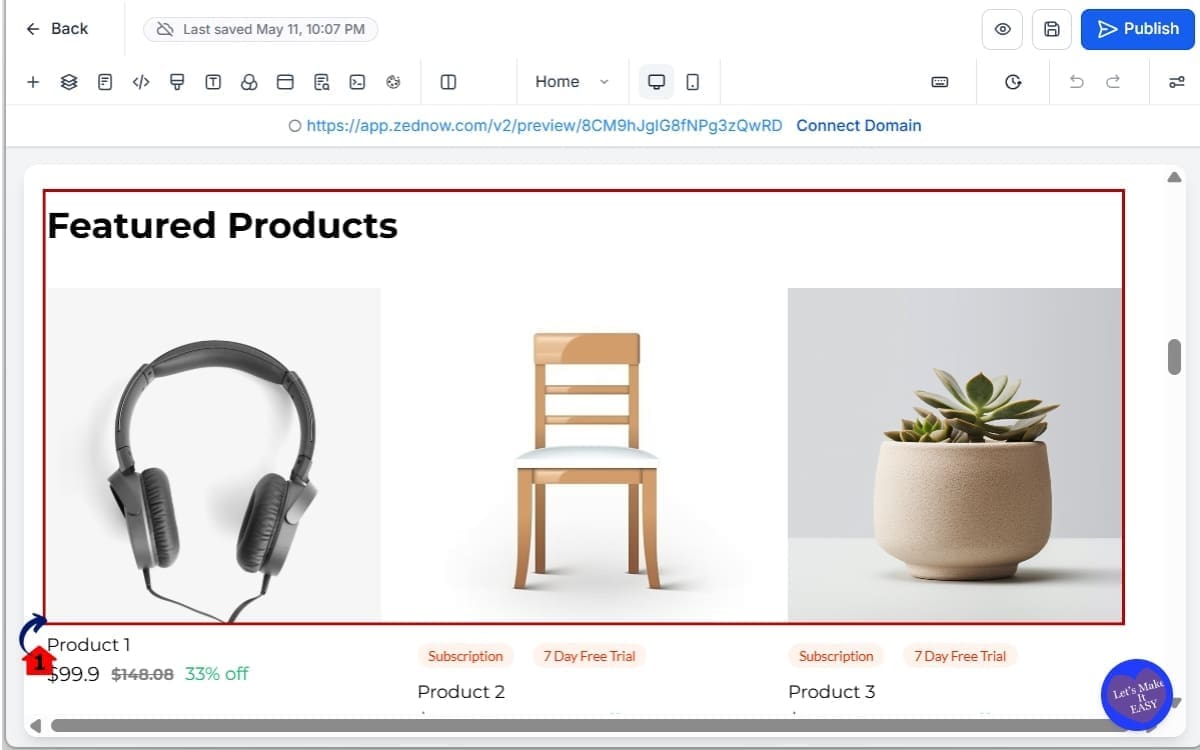
- If you do not see Store Builder Elements at the top:
4.1 Check the products if it is correct.
- Once a store is active in the sub-account, the ranking will automatically update.
That’s it. No settings to configure. No feature to enable. Just smarter builder behavior.
Pro Tips for Using Store Builder Elements Faster
Now that Store Builder Elements are dynamically ranked, here’s how to actually take advantage of it. Because visibility is one thing. Efficiency is another.
Connect Your Store First
If you’re building ecommerce pages, always connect your store before designing layouts.
Why? Because once a store exists in the sub-account, Store Builder Elements jump to the top automatically.
That means:
- Faster drag-and-drop workflow
- Less scrolling
- Cleaner build experience
If you design first and connect later, you miss the ranking advantage while building.
Place Your Money-Making Sections Near the Top
Just because Store Builder Elements are easier to access doesn’t mean you should overload the page.
Focus on:
- Featured Products
- A clear Collection section
- A visible Cart access point
Show your best stuff first. The further people have to scroll, the more you lose them.
Use Featured Products Strategically
The Featured Products block isn’t just decorative.
Use it to:
- Highlight best sellers
- Promote limited-time offers
- Push high-margin items
Pair it with urgency elements like countdown timers or limited stock messaging for better results.
Train Your Team on the New Behavior
If you run an agency, update your SOPs.
Tell your team: “If a store is connected, Store Builder Elements are at the top.”
This eliminates confusion during onboarding and reduces internal questions. Less training friction = more production speed.
Don’t Confuse Placement with Functionality
This update improves discoverability.
It does not:
- Change product logic
- Modify checkout behavior
- Adjust pricing rules
- Alter cart functionality
Everything works the same. It’s just easier to find. And in a builder environment, that matters more than most people think.
What This Means for Ecommerce Agencies
If you build one store a year, this is nice. If you build stores every month, this is leverage. Because speed compounds.
Faster Client Builds
When Store Builder Elements are automatically prioritized, your build time drops.
You’re not:
- Explaining where elements are
- Scrolling through unrelated blocks
- Fixing layout confusion
You open the builder. Store elements are at the top. You build. That’s production efficiency.
Cleaner White-Label Workflows
If you’re reselling GHL or running white-label ecommerce builds, this makes your system feel tighter. Small UI improvements create the perception of polish. And polish builds trust with clients.
Better VA & Team Onboarding
New team member? Instead of: “Scroll down a bit… no, past that… okay now find Featured Products…”
You now say: “If the store is connected, it’s at the top.”
That’s a cleaner internal process.
Reduced Training Time
Every unnecessary click increases training friction. This update removes friction. Less friction = faster output. Faster output = higher margins. That’s the real win.
Scalable Ecommerce Systems
When your builder environment aligns with your workflow, scaling becomes easier.
You can:
- Clone store pages faster
- Standardize ecommerce layouts
- Deploy templates efficiently
- Move between sub-accounts without confusion
It’s not just about placement. It’s about momentum. And momentum is everything in agency production.
Store Builder Elements FAQ for GHL Users
Smarter Store Builder Elements, Faster Builds
Store Builder Elements inside GHL are now ranked based on context, and that’s a bigger upgrade than it sounds.
When a store exists, ecommerce components rise to the top. When no store exists, they’re logically grouped between Blog and Media. No toggles. No setup. Just smarter placement.
This isn’t about adding new tools. It’s about making the tools you already use easier to access.
And when you’re building ecommerce pages regularly, fewer clicks matter. Less scrolling matters. Cleaner workflow matters.
For agencies, this means:
- Faster production time
- Easier team onboarding
- Reduced internal confusion
- More consistent store builds
Small UI improvements like this don’t scream for attention. But they compound.
And in ecommerce production environments, compounded efficiency wins.
If you’re building inside the Store Builder this week, open the Add Elements panel and see the difference for yourself.
Have you noticed the updated Store Builder Elements ranking yet? Does it speed up your builds? Let me know how it’s working for you.
And check back to the GHL Growth Garage blog for more practical GoHighLevel feature guides designed to make your workflows tighter and more scalable.
Scale Your Business Today.
Streamline your workflow with GoHighLevel’s powerful tools.