

- GHL Image Alt Text in Social Planner Guide
- Quick Summary – Image Alt Text Essentials
- Here are this weeks HighLevel Updates
- What Is Image Alt Text in GHL Social Planner?
- Why Image Alt Text Matters for Your Business
- How to Use GHL Image Alt Text in Social Planner
- Pro Tips for Writing Better Image Alt Text
- Real-World Agency Use Cases for Image Alt Text
- Common Mistakes When Using Image Alt Text
- Frequently Asked Questions About Image Alt Text in GHL
- Conclusion – Image Alt Text Makes You Better
GHL Image Alt Text in Social Planner Guide
Image Alt Text matters. Until you ignore it. You’ve seen it. Beautiful social post. Strong caption. Great design. But no description behind the image. For some users? That post doesn’t even exist.
If you manage social media inside GHL, you’ve probably skipped alt text before. Not because you don’t care. Because switching platforms just to add it is annoying.
Open native app. Edit media. Add description. Publish again. It slows you down. So most people skip it.
Now that changes. You can now add Image Alt Text directly inside GHL Social Planner. Hover the image. Click Alt Text. Add your description. Done.
Single image? Works. Carousel post? Each image gets its own description. Need to edit it? Click again. Update it. And GHL handles the rest.
If the platform supports alt text, it sends it. If it doesn’t, it ignores it safely. No errors. No extra steps.
One small feature. Big accessibility impact. Your posts become more inclusive. More professional. More complete. And you never leave Social Planner.
This update makes your content feel intentional. Clean. Accessible. Better experience. Better standards. Better results inside GHL.
The latest GoHighLevel Changelog includes several other GHL feature updates that round out your daily workflow:
- New QR Code Styling Options: Shapes, Borders, and Rim Text
- Collapse & Resize Pipeline Stages in Kanban View
- Notes just got smarter for the contacts page!
- New Asana actions in workflows – Find Project and Find section
- Email AI + Knowledge Base Integration 🚀
- Dialer: Auto-minimize, Pin & Drag
- Schema Markup Using AI
Keep reading for much more on all these updates and a deep dive into the Image Alt Text feature!
Quick Summary – Image Alt Text Essentials
Purpose:
This guide explains how to use Image Alt Text inside GHL Social Planner to create accessible and inclusive social media posts.
Why It Matters:
Image Alt Text improves accessibility, supports modern publishing standards, and helps agencies deliver more professional social media content.
What You Get:
Step-by-step instructions, best practices, real-world agency use cases, and common mistakes to avoid when adding alt text to social posts.
Time To Complete:
5–10 minutes to implement on your next post.
Difficulty Level:
Beginner-friendly and easy to implement.
Key Outcome:
More inclusive, professional, and complete social media publishing directly inside GHL.
Here are this weeks HighLevel Updates
New QR Code Styling Options: Shapes, Borders, and Rim Text
What it does:
Lets you stop using boring QR codes. You can now tweak the shape, style the border, and add text around the edge.
Where in GHL:
Accessible via Sites → QR Codes and within QR tools embedded in Funnel and Website builders.
Automate marketing, manage leads, and grow faster with GoHighLevel.

Impact:
Improves visual presentation and brand alignment while increasing scan appeal.
Best suited for:
Agencies that care about branding, small businesses running local promotions, online stores, and teams pushing QR campaigns.
Collapse & Resize Pipeline Stages in Kanban View
What it does:
Lets you hide pipeline stages you’re not actively using and adjust column widths so your board fits the way you work.
Where in GHL:
Inside Opportunities when you’re viewing your pipeline in Kanban mode.
Impact:
No more dragging your screen forever just to find the deals that matter.
Best suited for:
Owners running multi-stage pipelines, reps working deals every day, and anyone fed up with a messy board.
Notes Just Got Smarter for the Contacts Page
What it does:
Upgrades the notes area so it’s easier to write, review, and keep things organized inside a contact record.
Where in GHL:
Found directly within each contact’s profile under Notes.
Impact:
Makes it simpler to see what’s been discussed and who added what — without digging through clutter.
Best suited for:
Teams collaborating on accounts and businesses that document every client touchpoint.
New Asana Actions in Workflows – Find Project & Find Section
What it does:
Lets your workflow check what already exists in Asana before adding anything new.
Where in GHL:
Go to Workflows, add an action, and choose the Asana integration.
Impact:
No more duplicate projects. No more messy task boards. Just cleaner automation.
Best suited for:
Operations teams and agencies that rely on Asana to manage client delivery.
Email AI + Knowledge Base Integration
- What it does:
Allows Email AI to reference your Knowledge Base for smarter, more accurate responses. - Where in GHL:
Found in Conversations → Email composer with AI enabled and Knowledge Base settings under AI configuration. - Impact:
Smarter email suggestions that understand your business and help you reply quicker. - Best suited for:
Support teams, agencies managing inboxes, and businesses scaling communication with AI.
Dialer: Auto-Minimize, Pin & Drag
- What it does:
Lets you auto-minimize the dialer during calls, pin it in place, and drag it anywhere on screen. - Where in GHL:
Found in Conversations → Dialer. - Impact:
Cleaner workspace and easier multitasking during sales or support calls. - Best suited for:
Sales teams, outbound callers, appointment setters, and agencies making daily calls.
Schema Markup Using AI
- What it does:
Generates structured schema markup automatically using AI for SEO enhancement. - Where in GHL:
Found in Sites → Website or Funnel settings within AI or SEO sections. - Impact:
Improves search visibility without manual coding. - This works well for:
Teams building websites that need stronger search visibility, from agencies to small local businesses.
What Is Image Alt Text in GHL Social Planner?
Image Alt Text is a short written description added behind an image. It’s not visible in the caption. It’s not part of the graphic. It lives in the background.
If the image contains important information, promotions, or visual context, alt text helps make sure everyone gets the same message.
Inside GHL Social Planner, Image Alt Text is now built directly into the publishing workflow.
That means:
- Every image you upload can have its own description
- Each image in a carousel can have a unique description
- You can edit or remove alt text before publishing
- You can see a visual indicator when it’s been added
This isn’t just about compliance. It’s about clarity.
Imagine a local landscaping company is running a seasonal promotion.
A good alt text description could be:
“Summer lawn care promotion advertising a 30% discount on landscaping services.”
Now a visually impaired user understands the offer. That’s the difference.
And because this lives inside Social Planner, you don’t have to log into Facebook, Instagram, or LinkedIn to fix accessibility later.
You handle it once. Right where you schedule your content.
Image Alt Text inside GHL keeps your publishing process tight, clean, and complete.
Why Image Alt Text Matters for Your Business
Image Alt Text isn’t just a technical feature. It’s a standards feature.
More industries now expect accessible content. Healthcare. Government. Education. Non-profits. Even local service businesses working with municipalities.
If you’re managing content for clients, this matters. Accessibility is no longer “nice to have.” It’s professional baseline.
When you use Image Alt Text in GHL Social Planner, you:
- Help more people engage with your content
- Make your content more inclusive
- Follow modern social media best practices
- Keep your publishing workflow streamlined
And here’s the agency angle. If you’re selling social media management, accessibility can become part of your value proposition.
Instead of saying, “We post for you,” you can say: “We publish fully accessible social media content that meets modern digital standards.”
That hits differently. It positions you above freelancers who are just posting and hoping. It also reduces cleanup work.
Before this update, if you forgot alt text, you had to edit posts natively after publishing. That adds friction. It wastes time. And when you manage multiple clients, friction multiplies fast.
Now it’s handled at the source. Inside GHL. Image Alt Text helps you look sharper, more intentional, and more complete as an agency.
Small feature. Professional difference.
How to Use GHL Image Alt Text in Social Planner
Image Alt Text is added directly inside Social Planner while creating a social media post. You can add a description to each image you upload, make changes before publishing, and use different descriptions for images in a carousel or multi-image post.
The following steps will show you how to access Social Planner, upload images, add Image Alt Text, and prepare your post for scheduling or publishing in GoHighLevel.
- Access Marketing and Create a New Social Post.
- Create and edit the post.
- Add Image Alt Text in the image.
- Edit or Remove Image Alt Text.
- Publish or Schedule Your Post.
To start, make sure you are logged in to your GoHighLevel sub-account..
Step 01 – Access Marketing and Create a New Social Post
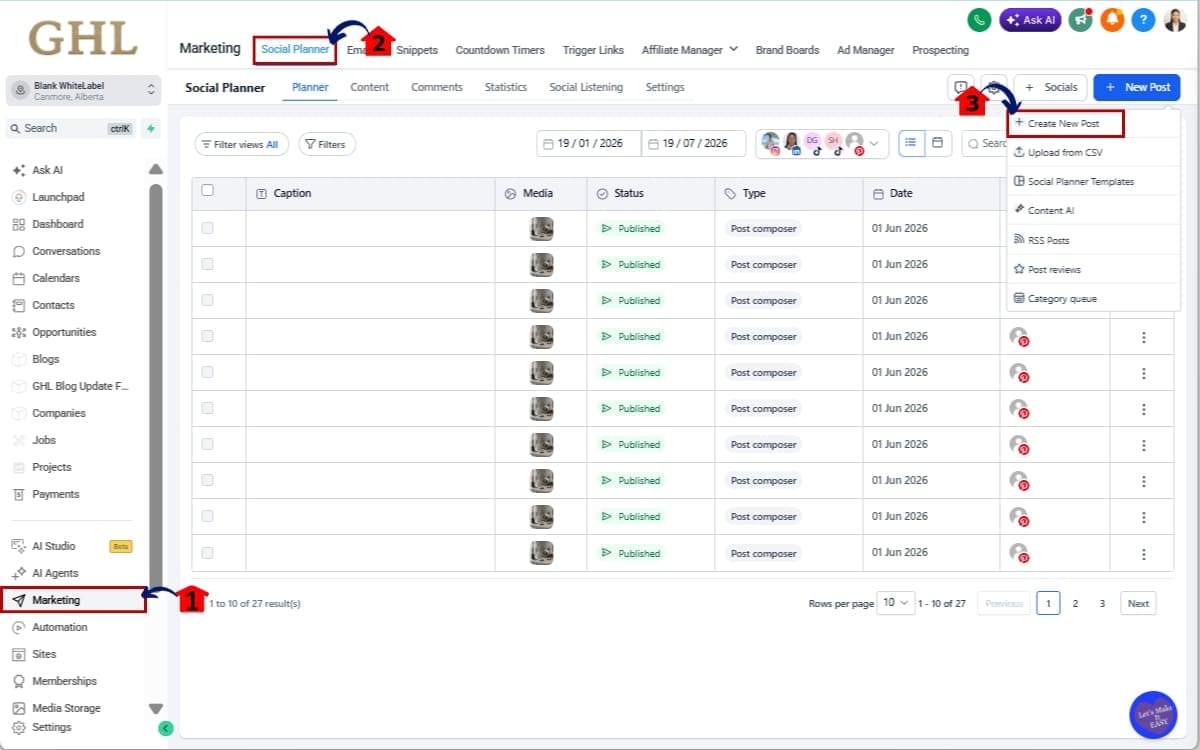
- The Main Menu on the left side of your screen has all the main areas you work in when using GHL.
1.1 Click on the “Marketing” menu item.
- This is where your campaigns, emails, and social tools live.
1.2 Click on “Social Planner.”
- You’ll now be inside the Social Planner dashboard where you can create and manage posts.
1.3 Click the “Create New Post” button.
- This opens the post builder where you can write your content, upload images, and configure Image Alt Text before publishing.
Step 02 – Create and edit the post
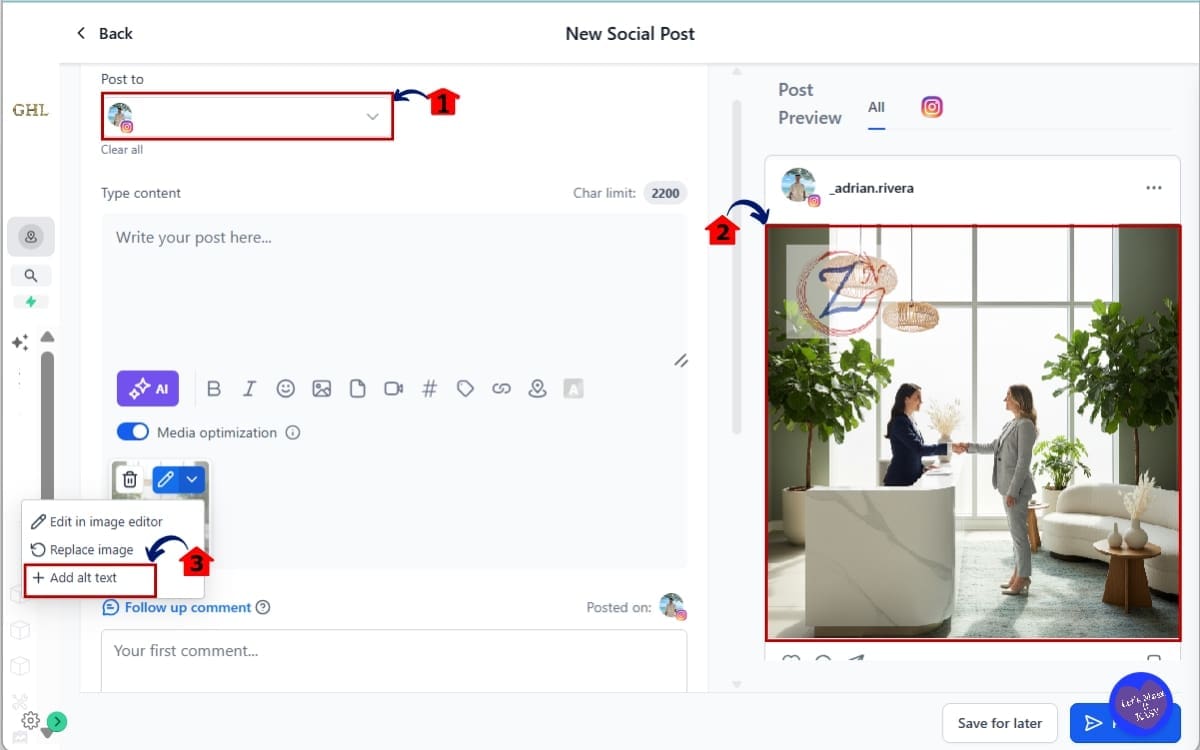
- This opens the post creation window.
2.1 Select the social accounts you want to publish to.
- Choose the connected platforms (Facebook, Instagram, LinkedIn, etc.).
2.2 Upload one or more images.
- Click the media upload area.
- Select your image files.
- Wait for them to finish uploading.
You will now see your images displayed inside the post editor.
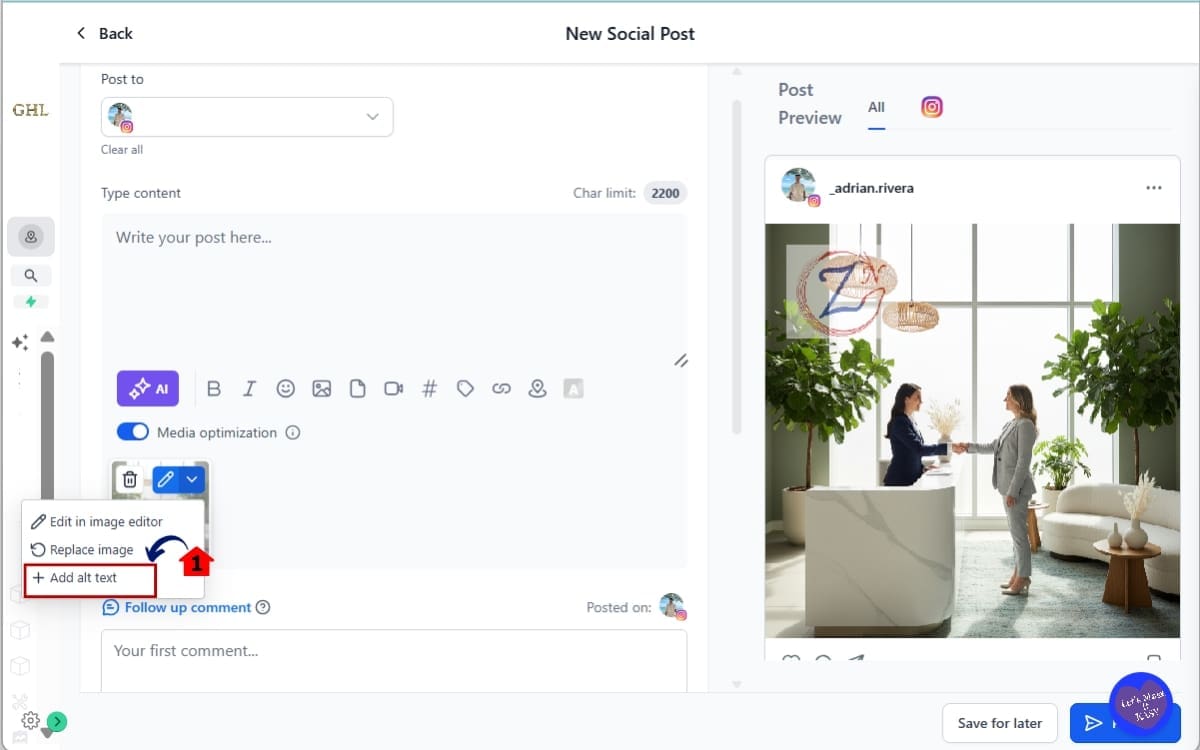
2.3 Hover your mouse over the uploaded image. Click the “Alt Text” icon.
- You will see an “Alt Text” option appear.
Step 03 – Add Image Alt Text in the image
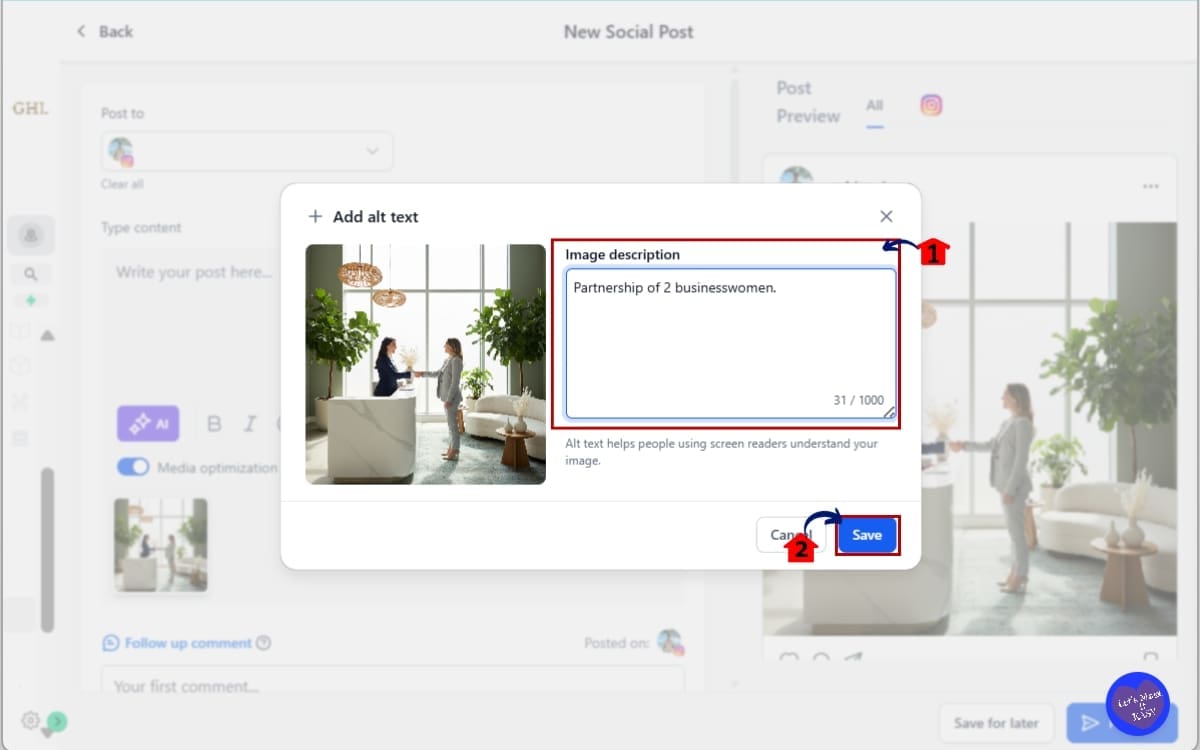
- A text field will open for that specific image.
3.1 Enter your description.
- Clearly describe what the image shows.
- Keep it short but meaningful.
- Avoid stuffing keywords.
3.2 Save your alt text.
- Once saved, a visual indicator will show that Image Alt Text has been configured for that image.
If you uploaded multiple images or a carousel, repeat these steps for each one. Each image can have its own unique description.
Step 04 – Edit or Remove Image Alt Text
- If you need to make changes to an existing description, you can update or remove it before your post is published.
4.1 Hover over the image again and click the “Alt Text” icon. Edit the description or remove it if necessary.
This will reopen the Image Alt Text editor for that specific image.
Step 05 – Publish or Schedule Your Post
- Before publishing, take a moment to review your content and make sure everything is ready to go.
5.1 Review your images and captions.
- Check that your images, captions, and Image Alt Text descriptions are accurate and ready for publishing.
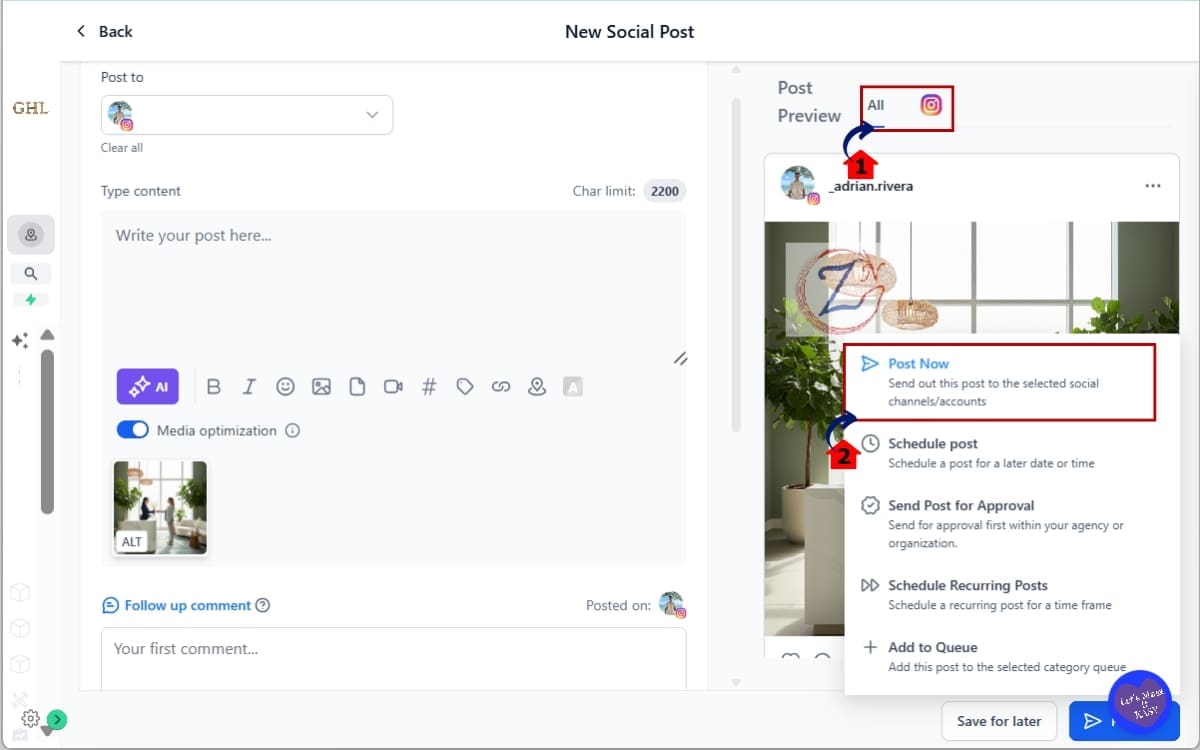
5.2 Click “Post Now” or schedule your post.
- Choose “Post Now” to publish immediately or select a future date and time to schedule your content.
GHL will automatically:
- Send Image Alt Text to platforms that support it.
- Ignore it safely on platforms that do not.
No extra settings required. No extra integrations. It works inside your normal Social Planner workflow.
Pro Tips for Writing Better Image Alt Text
Now that you know how to add Image Alt Text inside GHL, let’s make sure you do it well. Because not all alt text is good alt text.
If you’re managing content for clients, this is where you separate yourself from average social managers.
Here’s how to do it right. Be descriptive, not decorative Describe what’s actually in the image.
If it’s a photo of a contractor installing shingles, say that.
Example: “Roofing contractor installing dark grey shingles on a residential home.”
That’s clear. That’s useful.
Don’t keyword stuff
Image Alt Text is not a place to cram SEO phrases.
Bad example: “Best roofing contractor roofing company roof repair services.”
Try reading it out loud. If it sounds strange in conversation, simplify it.
Say what matters and leave out the rest
You don’t need a paragraph. One clean sentence is usually enough.
Focus on what matters most in the image:
- The subject
- The action
- Any visible text
- The context
Make each image unique in carousels
A carousel is made up of individual images, not copies of the same image. Describe each one based on its content.
Every image shows something different.
Use the unique-per-image feature inside GHL properly. That’s one of the biggest upgrades in this update.
Include visible promotional text
If your image says: “Free Consultation – Book Today”
Your Image Alt Text should mention that. Screen reader users deserve the same marketing message as everyone else.
Think accessibility first
Look at the image and ask yourself what’s worth mentioning. Start there.
You don’t need a perfect description. You just need one that explains the image clearly.
Real-World Agency Use Cases for Image Alt Text
This is where Image Alt Text stops being a “nice feature” and starts becoming a selling point.
If you run an agency, manage sub-accounts, or offer white-label services, this upgrade gives you leverage.
Here’s how.
Local Service Businesses
Think roofing companies. Dentists. Chiropractors. Contractors.
They post photos of:
- Completed jobs
- Before-and-after projects
- Team members
- Promotions
Most of them never think about accessibility. You can.
By adding Image Alt Text inside GHL, you ensure every project photo and promo graphic is fully described. That positions your agency as more professional and detail-oriented.
Healthcare and Government Clients
These industries care about compliance and accessibility standards.
When you use Image Alt Text in Social Planner, you show that your content strategy includes accessibility best practices. That builds trust.
Non-Profits and Community Brands
Inclusivity matters deeply in these spaces. Accessible social media content isn’t optional. It aligns with their mission.
Using Image Alt Text helps you serve that mission better.
High-Volume Content Agencies
If you manage 10, 20, or 50 client accounts, switching into native apps just to add alt text kills efficiency.
Now it’s handled at the publishing level inside GHL. One workflow. One platform.
Consistent standards across every sub-account.
White-Label SaaS Agencies
If you resell GHL, this becomes part of your onboarding pitch.
“We publish accessible, inclusive social media content using built-in Image Alt Text controls.”
That’s not just posting. That’s publishing with standards.
Real-Time Marketing Application
Here’s how to implement this immediately:
- Add Image Alt Text to your internal social media SOP
- Train VAs to write one-sentence descriptions per image
- Include accessibility in your content approval checklist
- Mention accessibility in your service proposals
Small tweak. Stronger positioning. Image Alt Text inside GHL isn’t flashy. But it quietly upgrades your agency’s professionalism.
Common Mistakes When Using Image Alt Text
Image Alt Text is simple. But simple doesn’t mean people use it correctly.
Here are the most common mistakes agencies make when adding Image Alt Text inside GHL.
Leaving it blank
This is the biggest one. You upload the image. You schedule the post. You forget the alt text.
Now your content is only accessible to some users.
Treat it like any other step before you hit publish.
Using generic descriptions
“Image” “Photo” “Graphic”
That tells no one anything. Be specific. Describe what’s actually happening.
Copy-pasting the same text across a carousel
Each image has its own purpose.
If you post:
- Slide 1 – Promotion
- Slide 2 – Customer testimonial
- Slide 3 – Before and after
Each one needs a unique description. That’s why GHL allows alt text per image. Use it properly.
Keyword stuffing
Alt text is not a ranking hack. If it sounds robotic, it’s wrong.
Write like you’re explaining the image to a real human.
Forgetting visible text in the graphic
If your image includes words like:
- “Limited Time Offer”
- “Free Audit”
- “Book Now”
That should be included in your Image Alt Text description. Otherwise, screen reader users miss the entire message.
Rushing through it
It takes 10–15 seconds per image. That small effort changes the quality of your content.
The tool is there. The real value comes from actually using it.
Frequently Asked Questions About Image Alt Text in GHL
Conclusion – Image Alt Text Makes You Better
Image Alt Text inside GHL Social Planner is one of those updates that seems small… Until you realize what it changes.
You’re no longer just posting content. You’re publishing accessible content. You’re no longer skipping steps because switching platforms is annoying. You’re handling everything in one clean workflow.
Inside GHL.
With Image Alt Text, you can:
- Make your social posts more inclusive
- Improve accessibility standards
- Keep everything inside Social Planner
- Elevate your agency’s professionalism
- Deliver more complete marketing for clients
And it takes seconds per image. That’s it. Small action. Higher standard.
If you manage social accounts inside GoHighLevel, start adding Image Alt Text to every image you publish. Make it part of your checklist. Train your team. Build it into your SOP.
Your content becomes cleaner. Your process becomes stronger. Your agency becomes sharper.
Have you started using Image Alt Text in GHL Social Planner yet? If not, log in and test it on your next post.
And check back to the GHL Growth Garage blog for more step-by-step GoHighLevel feature guides that help you work smarter, not harder.
Scale Your Business Today.
Streamline your workflow with GoHighLevel’s powerful tools.


