- Pinterest Multi Board Without Duplicate Posting
- Quick Summary – Pinterest Multi Board
- Here are this weeks HighLevel Updates
- Why Pinterest Multi Board Saves Agencies Time
- How to Use Pinterest Multi Board in GHL
- How Pinterest Multi Board Protects Your Publishing
- Pinterest Multi Board Works Across Every Flow
- Pro Tips to Maximize Pinterest Multi Board
- Pinterest Multi Board for Agency Scaling
- Real Results Using Pinterest Multi Board
- Pinterest Multi Board FAQs for GHL Users
- Start Using Pinterest Multi Board Today
Pinterest Multi Board Without Duplicate Posting
Publishing to Pinterest Multi Board used to mean one thing. Duplicate the post. If you’ve managed Pinterest inside GHL, you know the drill. Same pin. Same image. Same description. Create post. Choose board. Publish.
Need it on another board? Create again. Another board? Duplicate again. It worked. But it wasn’t efficient.
And when you’re managing multiple boards, multiple niches, or multiple clients, “just duplicate it” isn’t a system.
It creates repetition. It creates risk. It wastes time. Pinterest Multi Board fixes that gap.
Instead of recreating the same post over and over, you now select up to 25 boards inside one composer. One post. Multiple boards. Done.
Click the Boards dropdown. Select multiple boards. They appear as chips at the top. Remove any with the × icon. Publish once.
And here’s the part agencies will love. Each board becomes its own published pin automatically. That means separate analytics. Separate tracking. And if one board fails? The others still go live.
No blocked campaigns. No broken workflows. No manual cleanup. Pinterest Multi Board makes your Social Planner cleaner, faster, and easier to scale inside GHL.
Less duplication. Less friction. More leverage.
The latest GoHighLevel Changelog includes several other GHL feature updates that round out your daily workflow:
- New QR Code Styling Options: Shapes, Borders, and Rim Text
- Collapse & Resize Pipeline Stages in Kanban View
- Notes just got smarter for the contacts page!
- New Asana actions in workflows – Find Project and Find section
- Email AI + Knowledge Base Integration 🚀
- Dialer: Auto-minimize, Pin & Drag
- Schema Markup Using AI
Keep reading for much more on all these updates and a deep dive into the Pinterest Multi Board feature!

Quick Summary – Pinterest Multi Board
Purpose: Pinterest Multi Board allows you to publish one pin to up to 25 boards at once inside GHL Social Planner without duplicating posts manually.
Why It Matters: This feature eliminates repetitive posting, protects campaigns from board-level failures, and keeps analytics separated for cleaner reporting.
What You Get: Independent per-board publishing, support across all publishing flows, and faster content distribution without rebuilding posts.
Time to Complete: Once your Pinterest account is connected, publishing to multiple boards takes the same time as creating a single post.
Difficulty Level: Beginner-friendly. If you can create a social post in GHL, you can use Pinterest Multi Board immediately.
Key Outcome: Save hours of manual duplication, scale Pinterest distribution faster, and maintain clear board-level performance tracking.
Here are this weeks HighLevel Updates
New QR Code Styling Options: Shapes, Borders, and Rim Text
What it does:
Lets you stop using boring QR codes. You can now tweak the shape, style the border, and add text around the edge.
Where in GHL:
Accessible via Sites → QR Codes and within QR tools embedded in Funnel and Website builders.
Automate marketing, manage leads, and grow faster with GoHighLevel.

Impact:
Improves visual presentation and brand alignment while increasing scan appeal.
Best suited for:
Agencies that care about branding, small businesses running local promotions, online stores, and teams pushing QR campaigns.
Collapse & Resize Pipeline Stages in Kanban View
What it does:
Lets you hide pipeline stages you’re not actively using and adjust column widths so your board fits the way you work.
Where in GHL:
Inside Opportunities when you’re viewing your pipeline in Kanban mode.
Impact:
No more dragging your screen forever just to find the deals that matter.
Best suited for:
Owners running multi-stage pipelines, reps working deals every day, and anyone fed up with a messy board.
Notes Just Got Smarter for the Contacts Page
What it does:
Upgrades the notes area so it’s easier to write, review, and keep things organized inside a contact record.
Where in GHL:
Found directly within each contact’s profile under Notes.
Impact:
Makes it simpler to see what’s been discussed and who added what — without digging through clutter.
Best suited for:
Teams collaborating on accounts and businesses that document every client touchpoint.
New Asana Actions in Workflows – Find Project & Find Section
What it does:
Lets your workflow check what already exists in Asana before adding anything new.
Where in GHL:
Go to Workflows, add an action, and choose the Asana integration.
Impact:
No more duplicate projects. No more messy task boards. Just cleaner automation.
Best suited for:
Operations teams and agencies that rely on Asana to manage client delivery.
Email AI + Knowledge Base Integration
- What it does:
Allows Email AI to reference your Knowledge Base for smarter, more accurate responses. - Where in GHL:
Found in Conversations → Email composer with AI enabled and Knowledge Base settings under AI configuration. - Impact:
Smarter email suggestions that understand your business and help you reply quicker. - Best suited for:
Support teams, agencies managing inboxes, and businesses scaling communication with AI.
Dialer: Auto-Minimize, Pin & Drag
- What it does:
Lets you auto-minimize the dialer during calls, pin it in place, and drag it anywhere on screen. - Where in GHL:
Found in Conversations → Dialer. - Impact:
Cleaner workspace and easier multitasking during sales or support calls. - Best suited for:
Sales teams, outbound callers, appointment setters, and agencies making daily calls.
Schema Markup Using AI
- What it does:
Generates structured schema markup automatically using AI for SEO enhancement. - Where in GHL:
Found in Sites → Website or Funnel settings within AI or SEO sections. - Impact:
Improves search visibility without manual coding. - This works well for:
Teams building websites that need stronger search visibility, from agencies to small local businesses.
Why Pinterest Multi Board Saves Agencies Time
Pinterest Multi Board is not just a convenience feature. It’s a workflow upgrade.
If you manage one Pinterest board, duplication is annoying. If you manage ten? It becomes a bottleneck.
Before this update, posting to multiple boards meant creating separate pins manually. That increases the chance of mistakes. Wrong board. Missed board. Wrong schedule. Duplicate captions.
Now? One composer controls up to 25 boards per Pinterest account.
That means:
- No repetitive post creation
- No manual duplication
- No missed scheduling windows
- No inconsistent publishing times
But here’s where it really matters. Each selected board creates its own published pin automatically. That means analytics stay separated. You can see exactly which board performs best.
For agencies, that’s powerful. You can segment boards by niche, product, audience intent, or campaign type, and still publish in one action.
Even better? If one board fails to publish, the others still go live. One error doesn’t block your campaign.
That protects your client results. Pinterest Multi Board isn’t just faster. It’s cleaner. It’s safer. And it’s built for scale inside GHL.
How to Use Pinterest Multi Board in GHL
Using Pinterest Multi Board inside GHL is a simple process, but you need to know exactly where to access it and how it applies across different publishing flows. In this section, you will learn where to find the feature inside Social Planner, how to select up to 25 boards, and how to publish using instant, scheduled, recurring, approval, queue, and CSV upload options.
Before you begin, make sure your Pinterest account is already connected inside GHL under Settings → Integrations. Once connected, you can create a post, select multiple boards from the dropdown, and publish using your preferred workflow. Follow the steps below to implement Pinterest Multi Board correctly and avoid publishing errors.
- Access the Marketing Menu in GoHighLevel.
- Create a New Pinterest Post in Social Planner.
- Select Multiple Boards in Pinterest.
- Choose Your Publishing Flow in Social Planner.
To start, make sure you are logged in to your GoHighLevel sub-account.
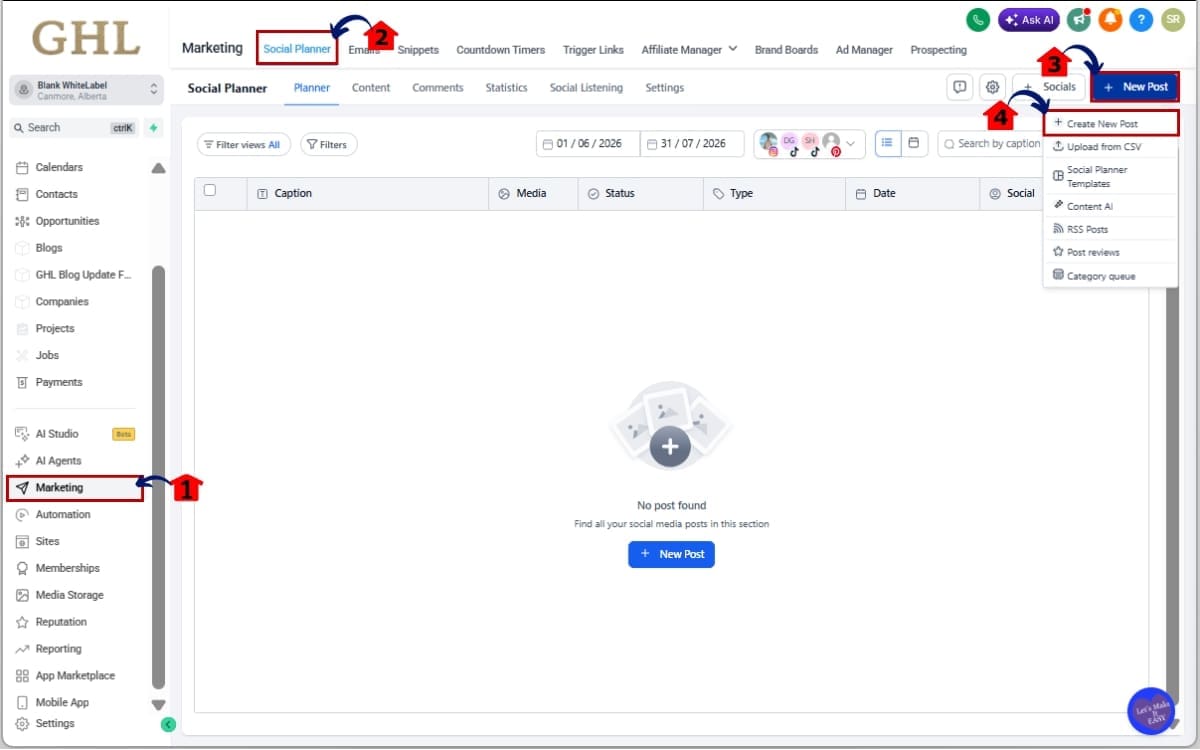
Step 01 – Access the Marketing Menu in GoHighLevel
- The Main Menu on the left side of your screen has all the main areas that you work in when using GHL.
1.1 Click on the “Marketing” menu item.
- This is where your campaign tools live.
1.2 Click on “Social Planner.”
- You’ll now be inside the Social Planner dashboard where you create and manage social posts.
1.4 Click + New post button
- Drop down will show how you will post in social planner.
1.3 Click the “Create Post” button.
- This opens the post composer.
Step 02 – Create a New Pinterest Post in Social Planner
- In this step, you will open the Social Planner composer and choose Pinterest as your publishing channel. This is where Pinterest Multi Board becomes available and where you control board selection and publishing options.
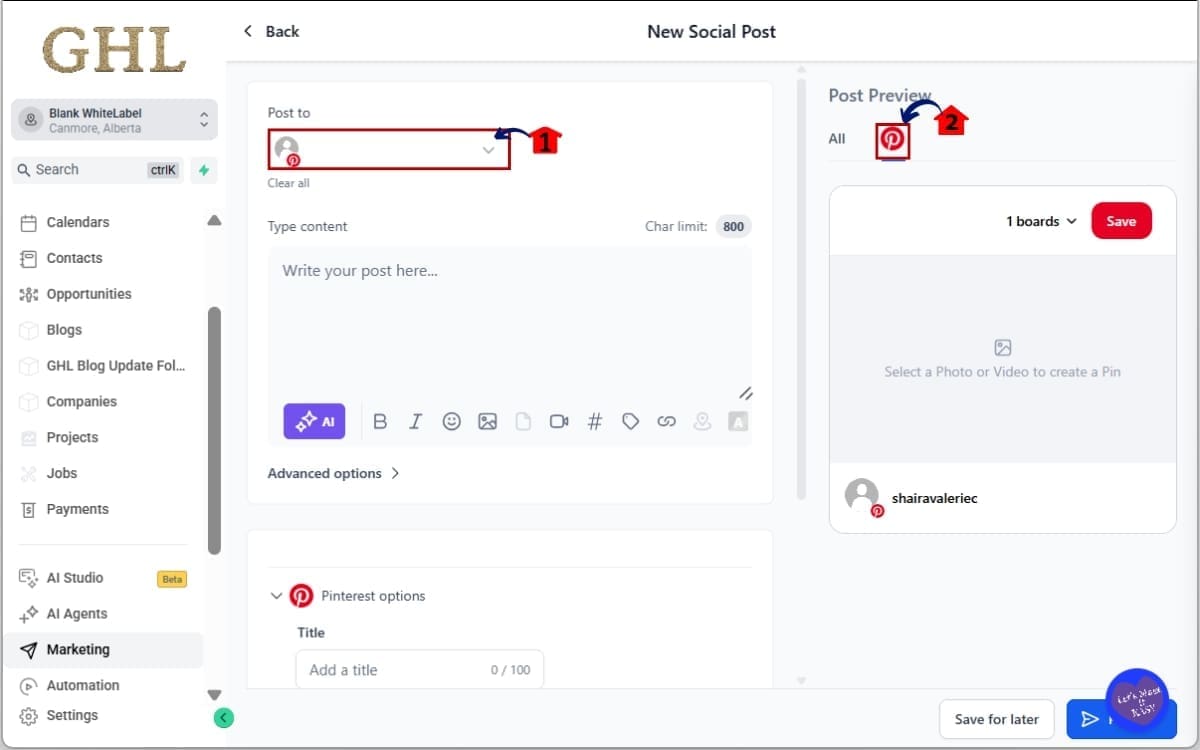
2.1 Select “Pinterest” as your channel.
- If you have multiple Pinterest accounts connected, choose the account you want to use.
2.2 Confirm the selected Pinterest account at the top of the composer.
- The board selector will now become available. You are now inside the composer where Pinterest Multi Board works.
Step 03 – Select Multiple Boards in Pinterest
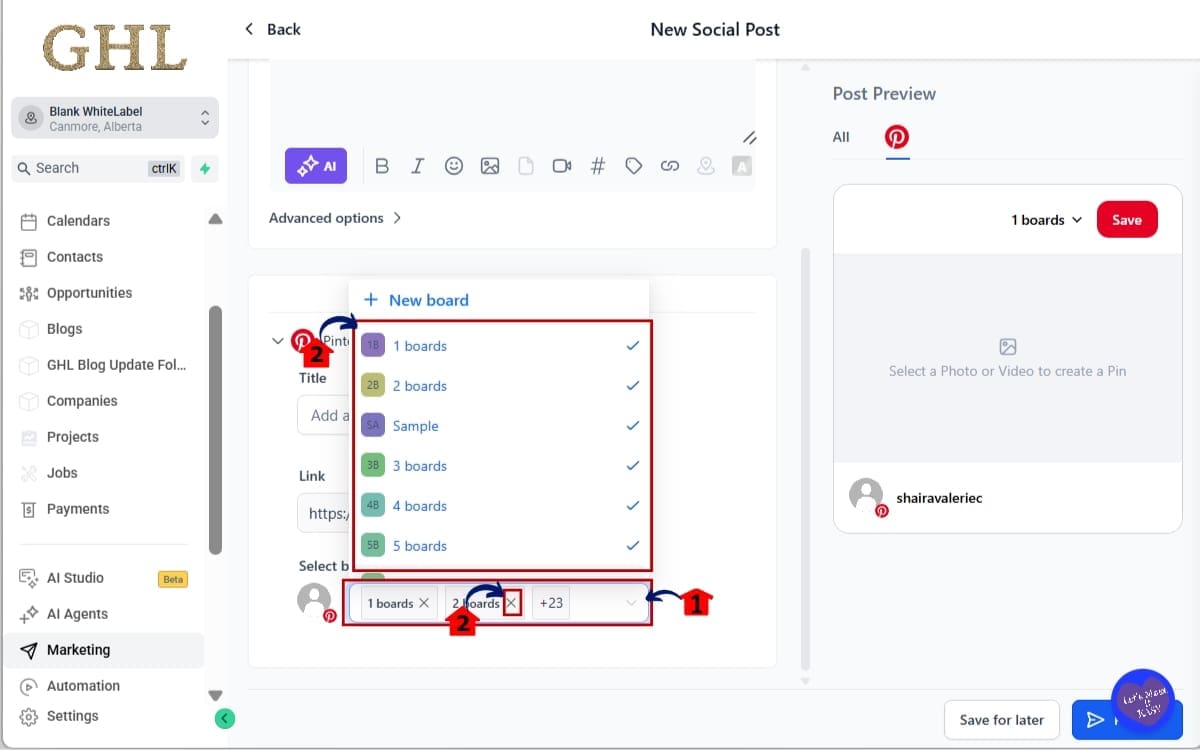
- In this step, you will choose the Pinterest boards where your pin will be published. This is where Pinterest Multi Board allows you to select up to 25 boards at once without duplicating the post.
3.1 Click on the “Boards” dropdown selector.
- You will now see a multi-select list of available boards.
3.2 Select up to 25 boards.
- Each selected board appears as a chip at the top of the selector. Selected boards stay pinned at the top for quick visibility.
3.3 Remove any board by clicking the “×” icon on the chip.
- This makes adjustments fast without reopening the dropdown. This is the core of Pinterest Multi Board. One composer. Multiple boards selected at once. No duplication required.
Step 04 – Choose Your Publishing Flow in Social Planner
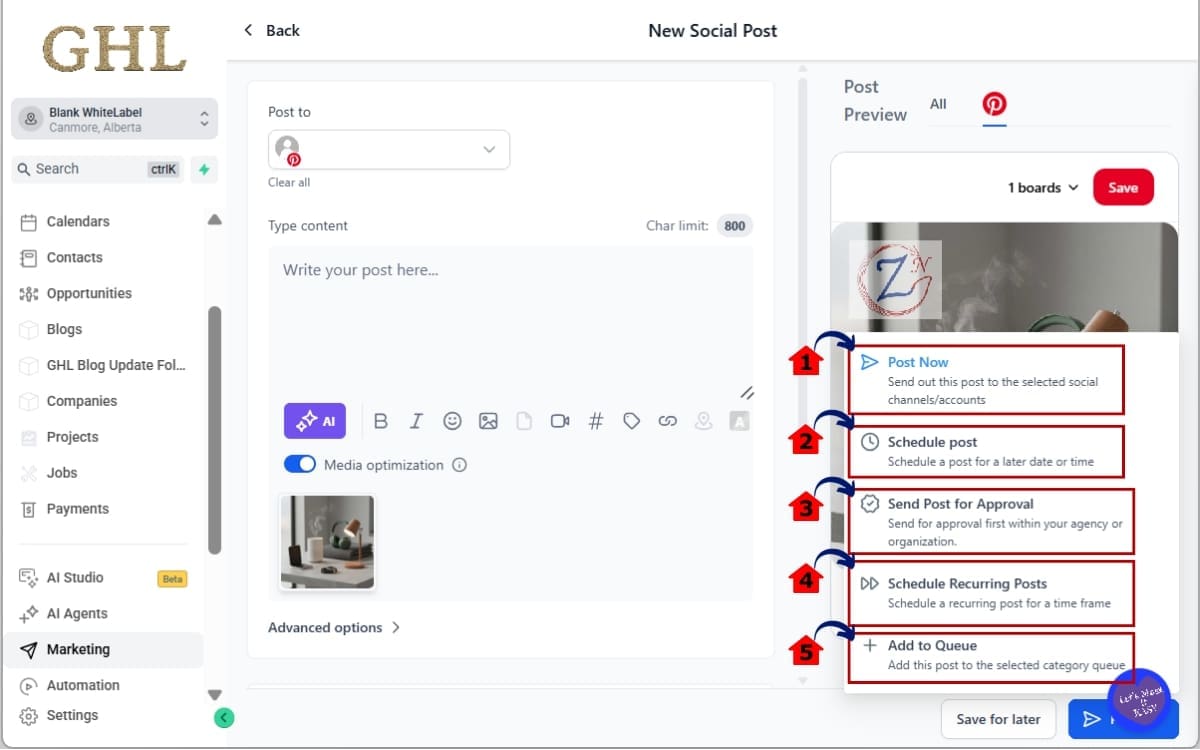
- In this step, you will decide how and when your Pinterest post will be published. Pinterest Multi Board works across every publishing option inside Social Planner, so your selected boards will follow whichever flow you choose.
4.1 Choose “Post Now” for instant publishing.
- Your pin will publish immediately to each selected board.
4.2 Choose “Schedule Post” to set a future date and time.
- Each selected board will receive its own scheduled pin at the time you choose.
4.3 Submit for “Send Post for Approval” if your account requires approval.
- Once approved, GHL will publish separate pins to each selected board automatically.
4.4 Use “Schedule Recurring Post” if this content repeats.
- The system will publish individual pins to each selected board on every recurrence cycle.
4.5 Add to “Category Queue” for automated content rotation.
- The post will rotate through your queue and publish independently across the selected boards.
Step 05 – Publish and Confirm Independent Pins
- In this step, you will verify that Pinterest Multi Board has created separate published posts for each selected board. This confirms that each board is operating independently for tracking and reporting.
5.1 Open the Social Planner calendar view.
- You will see separate posts generated for each board.
5.2 Check analytics after publishing.
- Each board’s pin is tracked independently.
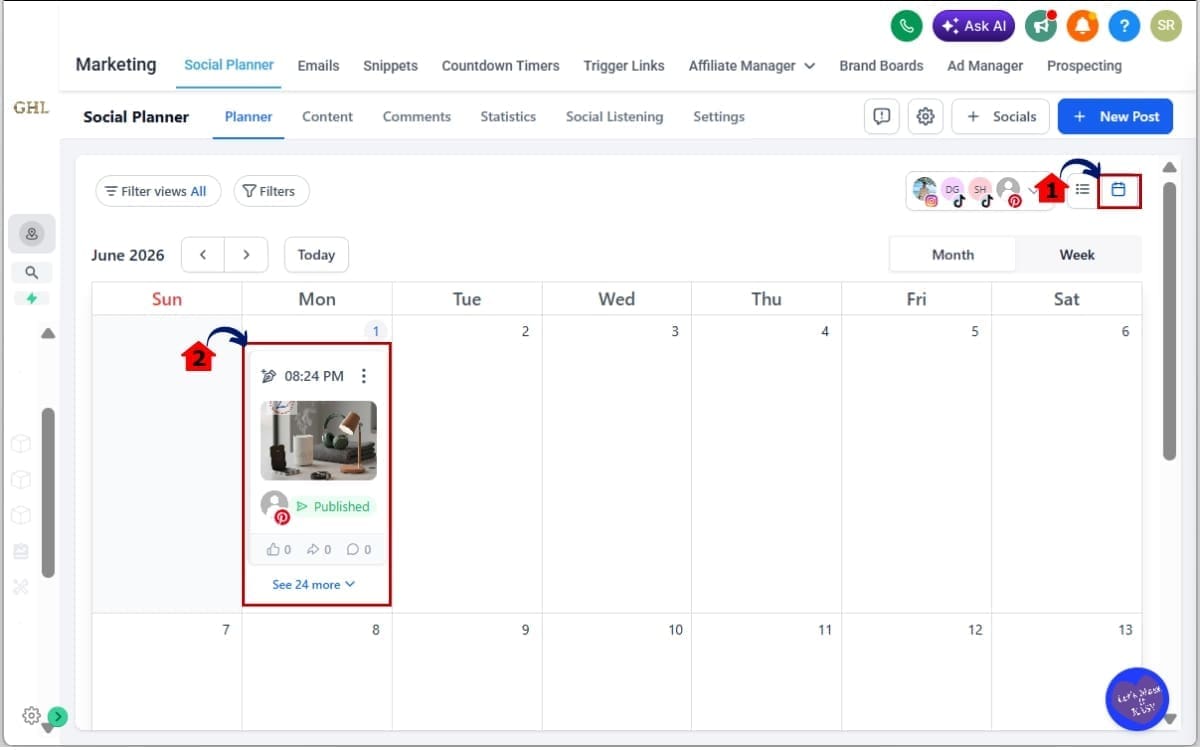
If one board fails for any reason, the others will still publish successfully. This is what makes Pinterest Multi Board scalable and safe.
How Pinterest Multi Board Protects Your Publishing
Here’s the important part most people miss.
When you use Pinterest Multi Board inside GHL, you’re not sending one single post out to a bunch of boards at the same time. That’s not how it works.
You’re creating multiple independent pins automatically. That’s a big difference.
Here’s what that means.
Each selected board generates its own published post inside Social Planner. Even though you used one composer, GHL separates them at the publishing level.
So instead of: One post. Multiple boards attached.
You get: One board. One post. Repeated for every board selected.
Why does this matter? Because independence protects performance. If one board fails due to a Pinterest API issue, permission error, or temporary connection problem, it does not stop the others.
No chain reaction. No full-post failure. No blocked campaign.
Each board operates on its own publishing instance.
Now let’s talk analytics. Since every board becomes its own published pin, performance tracking stays clean and separated.
You can see:
- Which board drives the most clicks
- Which board gets the most saves
- Which niche segment performs best
- Which campaign board underperforms
For agencies, this is gold. You can test the same creative across multiple audience segments without rebuilding the post manually.
You get:
- Speed from the single composer.
- Clarity from separated analytics.
- Protection from board-level failure isolation.
That’s what makes Pinterest Multi Board more than just a time saver. It’s operational control.
Pinterest Multi Board Works Across Every Flow
Here’s where Pinterest Multi Board really stands out. This isn’t limited to “Publish Now.”
This works across the entire Social Planner.
So however your agency likes to publish, scheduled, recurring, approvals, bulk uploads, this feature slides right into your existing process without changing how you operate.
Let’s break it down.
Instant Publishing
If you need content live immediately, select your boards and click Publish Now.
GHL will instantly generate separate pins for each selected board. Fast. Clean. Done.
Scheduled Posts
Planning ahead? Choose your date and time. Pinterest Multi Board will create independent scheduled posts for each board.
Each board follows the same schedule you selected. No extra setup required.
Approval Workflows
Managing client approvals? Submit your multi-board post for approval. Once approved, GHL publishes separate pins for each board automatically. No rebuilding after approval.
Recurring Posts
Running evergreen content? Set your recurrence schedule. The system applies Pinterest Multi Board logic every time the post repeats. One setup. Ongoing distribution.
Category Queue
Using automated rotation? Add your post to a Category Queue. Pinterest Multi Board ensures each time the queue runs, pins are distributed independently across your selected boards.
CSV Bulk Uploads
Managing content at scale? Import your posts via CSV. Pinterest Multi Board applies during bulk publishing too.
Even high-volume content strategies stay streamlined. This matters because agencies don’t all publish the same way.
Some schedule weekly. Some bulk import monthly. Some require approvals. Some automate everything.
Pinterest Multi Board supports all of it inside GHL. No limitations. No workarounds. No special setup. Just select your boards and publish.
Pro Tips to Maximize Pinterest Multi Board
Pinterest Multi Board is powerful on its own. But agencies that use it strategically will get way more out of it.
Here’s how to use it like a pro.
Segment Boards by Intent
Don’t just select 25 random boards. Group boards by audience intent.
For example:
- Product-focused boards
- Educational content boards
- Seasonal boards
- Niche-specific boards
This helps you test which audience segment responds best, without changing the creative.
Track Board-Level Performance Weekly
Since each board creates its own published pin, review analytics per board. Look for patterns.
Which boards drive saves? Which boards drive clicks? Which boards underperform? Pause weak boards. Double down on strong ones.
Use the 25-Board Limit Strategically
Just because you can select 25 boards doesn’t mean you should every time. Start with 5–10 relevant boards. Test performance. Then scale. More distribution isn’t always better distribution.
Align Recurring Posts Carefully
If you’re using recurring publishing, make sure your content is evergreen. Pinterest Multi Board will republish across all selected boards each cycle. That’s powerful. But only if the content still makes sense months later.
Avoid Overlapping Audience Boards
If multiple boards target the exact same audience, you may dilute performance. Instead, use Pinterest Multi Board to diversify reach, not repeat exposure to the same users.
Use It for Campaign Launches
Launching a product? Select all relevant boards at once. You get immediate distribution across your segmented ecosystem.
Faster launch. Wider coverage. No duplication. Pinterest Multi Board isn’t just about saving time.
It’s about smarter distribution. Less manual work. More controlled scaling. Better reporting clarity.
Pinterest Multi Board for Agency Scaling
If you run an agency, Pinterest Multi Board changes how you distribute content. Before this update, scaling meant adding more manual steps.
More boards? More duplication. More clients? More repetitive posting. More campaigns? More room for error.
Now? One composer handles up to 25 boards per Pinterest account.
That means your VA doesn’t have to rebuild the same post 12 times. Your strategist doesn’t have to double-check every board manually. And your reporting stays clean because each board creates its own tracked post.
This is especially powerful if you:
- Manage multiple niche boards per client
- Run ecommerce campaigns with category-based boards
- Segment audiences by interest
- Operate recurring content schedules
- Use approval workflows for client review
Pinterest Multi Board removes operational friction. Less clicking. Less rebuilding. Less chance of publishing mistakes.
And when you multiply that across multiple client accounts? That’s hours saved every week. It also improves campaign testing.
You can push one creative across multiple audience boards and see which segment performs best, without rebuilding the post each time.
That’s not just efficiency. That’s smarter marketing inside GHL. Pinterest Multi Board helps agencies scale distribution without scaling busywork.
Real Results Using Pinterest Multi Board
Let’s look at how Pinterest Multi Board works in the real world.
Example 1 – Ecommerce Brand with Category Boards
Imagine you manage a fashion ecommerce client. They have boards for:
- Summer Dresses
- Fall Jackets
- Workwear
- Casual Outfits
- Accessories
Before Pinterest Multi Board, launching a new collection meant duplicating the same pin across each category board.
Five boards? Five posts. Now? Create one pin. Select all five boards. Publish once. Each board receives its own tracked pin.
You can now see which category board drives the most clicks and saves, without rebuilding the post. That’s smarter segmentation with less effort.
Example 2 – Agency Managing 10 Client Boards
Now imagine you manage a single client with 12 niche boards.
Educational. Promotional. Testimonials. Seasonal. Product-specific.
Before this feature, posting one piece of content across 8 relevant boards could take 10–15 minutes of repetitive setup. Now it takes one composer and one action.
Multiply that by:
- 3 posts per week
- 4 clients
- 12 months
That’s hours saved every month.
Example 3 – Campaign Launch Day
Launching a webinar or product? Select all campaign-related boards at once. Pinterest Multi Board ensures every board publishes independently.
If one board fails due to a connection issue, the others still go live. Your campaign doesn’t stall.
This is what operational leverage looks like. Less manual posting. More consistent distribution. Cleaner analytics for client reporting.
Pinterest Multi Board isn’t just a feature. It’s a scaling tool inside GHL.
Pinterest Multi Board FAQs for GHL Users
Start Using Pinterest Multi Board Today
Pinterest Multi Board removes one of the biggest inefficiencies in Pinterest publishing inside GHL.
No more duplicating the same post across multiple boards. No more rebuilding pins just to change the board selection. No more messy analytics that combine everything into one performance bucket.
Now you get:
- One composer.
- Up to 25 boards.
- Independent publishing per board.
- Separated analytics.
- Failure protection built in.
That’s not just convenience. That’s control.
For agencies, this means faster campaign launches. Cleaner reporting. Easier segmentation. And less time spent on repetitive setup work.
For marketers, it means you can test one creative across multiple audience boards without rebuilding the post every time.
Less duplication. More efficiency. Better data.
Pinterest Multi Board works across instant publishing, scheduled posts, approval workflows, recurring posts, category queues, and CSV bulk uploads.
No matter how you run your Social Planner, this feature fits into your workflow.
If you haven’t tested it yet, go inside GHL right now and try it on your next Pinterest post. Select multiple boards. Publish once.
Watch how much smoother your process feels. Have you tried Pinterest Multi Board yet? Let me know how many boards you’re managing, and how much time this just saved you.
Scale Your Business Today.
Streamline your workflow with GoHighLevel’s powerful tools.