- Build AI-powered workflows with more confidence by restoring previous changes, testing new ideas, and bringing edits back without rebuilding from scratch.
- Quick Summary – Workflow Undo Redo at a Glance
- What’s New With Workflow Undo Redo
- Why Workflow Undo Redo Matters
- How to Use Workflow Undo Redo in GHL
- Practical Uses for Workflow Undo Redo
- Quick Tips for Workflow Undo Redo
- What Workflow Undo Redo Means for Your Business
- Frequently Asked Questions about Workflow Undo Redo
- Build Safer With Workflow Undo Redo
Build AI-powered workflows with more confidence by restoring previous changes, testing new ideas, and bringing edits back without rebuilding from scratch.
Workflow Undo Redo Makes AI Building Safer
Workflow Undo Redo makes it much safer to build automations with AI in GoHighLevel. You can test new ideas, reverse changes you do not like, and restore a version that was already working.
The AI Builder can add actions, edit steps, or change the flow of a workflow in seconds. That speed is helpful, but it can also cause trouble when the result is not what you expected. Now, you can press Ctrl+Z on Windows or Cmd+Z on Mac to go back to the previous AI-generated version. You can also use Ctrl+Y or Cmd+Y to bring the newer version back.
This update gives agencies more freedom to test AI changes without the usual risk. Workflow Undo Redo helps you compare ideas, fix mistakes faster, and keep building without starting over.
Workflow Undo Redo gives you a safer way to test AI-generated workflow changes without losing a working version. You can explore new ideas, reverse unwanted edits, and restore changes during the same building session.
Quick Summary – Workflow Undo Redo at a Glance
Purpose: Workflow Undo Redo helps you reverse or restore AI-generated changes inside the GoHighLevel Workflow Builder.
Why It Matters: You can test new AI ideas without losing a workflow version that already works.
What You Get: You can use keyboard shortcuts or the Recent Changes panel to review, undo, and redo workflow edits.
Time to Complete: You can learn and use this feature in about two minutes.
Difficulty Level: Beginner-friendly. No technical setup is required.
Key Outcome: Workflow Undo Redo gives your team more control while building and testing AI-powered automations.
What’s New With Workflow Undo Redo
Workflow Undo Redo is now built into the AI Builder inside GoHighLevel Workflows. It lets you reverse AI-generated changes during the same building session, so you do not have to rebuild an earlier version by hand.
The feature works across different types of AI edits. You can undo a new action, restore an edited step, or roll back a larger change to the full workflow structure.
Automate marketing, manage leads, and grow faster with GoHighLevel.

Each AI-generated version is saved in your session history as you continue working. You can also open the Recent Changes tab in the top-right corner of the Workflow Builder to review what changed.
Why Workflow Undo Redo Matters
Workflow Undo Redo removes one of the biggest risks of building with AI. You can try a new idea without worrying that it will replace a version that already works.
This matters when you are working on a complex automation. One small change can affect delays, actions, conditions, and follow-up steps. If the AI Builder takes the workflow in the wrong direction, you can quickly go back instead of rebuilding the full setup.
For agencies, this can save time and reduce stress. Your team can test different workflow ideas, compare the results, and keep the best version. You still need to review and test the final workflow, but you now have more control while you build.
How to Use Workflow Undo Redo in GHL
Workflow Undo Redo lets you reverse AI-generated workflow changes or restore a change you removed. In this guide, you’ll learn how to open the AI Workflow Builder, review recent changes, and use Undo or Redo.
Here are the steps we will follow:
- Access the Workflows area in GHL.
- Review and Restore Workflow Changes.
To start, make sure you are logged in to the correct GoHighLevel sub-account.
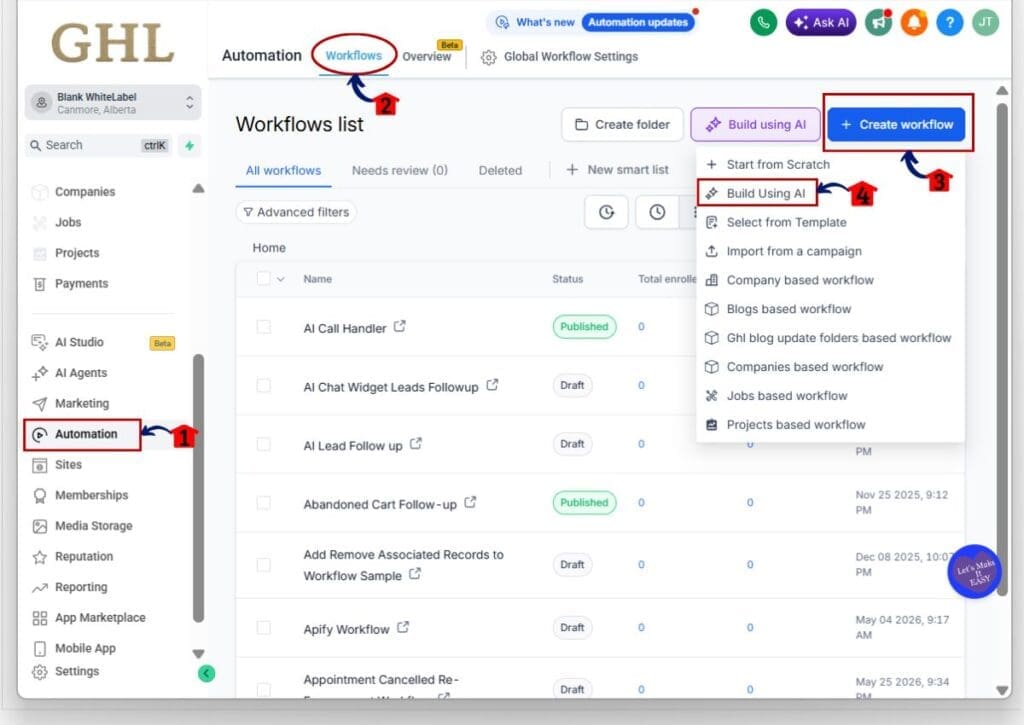
Step 01 – Access the Workflows area in GHL.
- The main menu on the left side of your screen includes the core areas you use in GoHighLevel.
1.1 Click Automation in the left menu.
- This opens the main Automation section.
1.2 Click Workflows in the top navigation.
- This opens the Workflows list, where you can view and manage your current workflows.
1.3 Click the Create workflow button.
- A menu with several workflow options will open.
1.4 Click Build Using AI.
- This opens the AI Workflow Builder, where you can create or edit a workflow with AI.
- Use the AI Builder to add actions, update existing steps, or change the structure of the workflow.
Step 02 – Review and Restore Workflow Changes
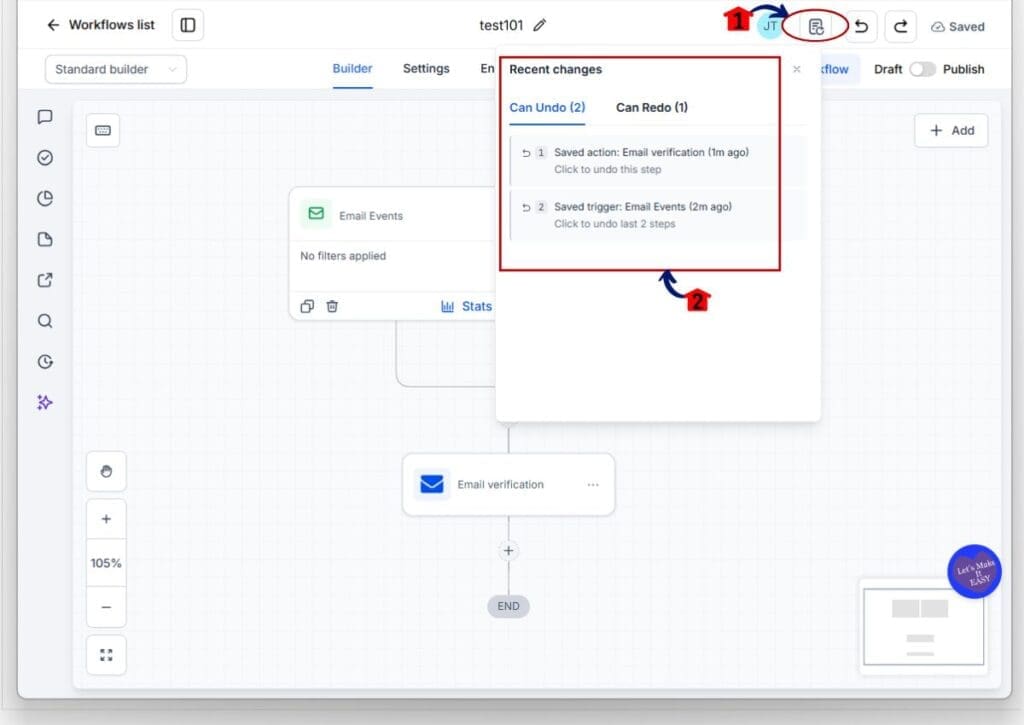
- The Recent Changes panel shows the workflow changes that can be undone or restored during your current session.
2.1 Click the Recent Changes icon in the top-right corner of the Workflow Builder.
- The Recent Changes panel will open.
2.2 Review the Can Undo tab.
- This tab shows the changes that you can reverse. Each item explains what changed and when the change was saved.
2.3 Click the change you want to undo.
- You can undo the latest change or select an earlier point in the list. For example, choosing the second item may undo the last two saved changes.
- You can also press Ctrl+Z on Windows or Cmd+Z on Mac to undo the latest AI-generated change.
2.4 Open the Can Redo tab when needed.
- This tab shows the changes you removed with Undo and can still restore.
2.5 Click the change you want to bring back.
- The selected workflow version will return.
- You can also press Ctrl+Y on Windows or Cmd+Y on Mac to redo the change you just removed.
Once you have restored the right version, review the full workflow before you publish it. Check every trigger, action, delay, and condition to make sure the automation still works as planned.
Practical Uses for Workflow Undo Redo
Workflow Undo Redo is useful when your agency is testing different ways to build a client automation. You might ask AI to shorten a lead follow-up sequence, add a new condition, or change the order of several actions. If the result feels off, you can go back without rebuilding the workflow by hand.
It also helps when your team is working on more complex automations. A small AI edit can affect delays, triggers, filters, or follow-up steps. With Workflow Undo Redo, your team can compare versions and keep the one that works best.
This is especially helpful for agencies that manage many client accounts. You can test new ideas faster, train team members with less risk, and avoid losing a working setup. The goal is not to make careless changes. It is to give your team more room to test, review, and improve each workflow before it goes live.
Quick Tips for Workflow Undo Redo
Workflow Undo Redo works best when you make one clear change at a time. Smaller AI requests are easier to review, compare, and reverse if the result is not right.
Use Ctrl+Z on Windows or Cmd+Z on Mac as soon as you spot a bad change. Use Ctrl+Y on Windows or Cmd+Y on Mac when you want to restore the version you just removed.
Check the Recent Changes panel when you are not sure which version is active. The Can Undo and Can Redo tabs make it easier to see what changed during the current session.
Do not treat Undo as a replacement for workflow testing. Before you publish, check every trigger, action, delay, filter, and condition. Run a test contact through the workflow to make sure everything still works as planned.
What Workflow Undo Redo Means for Your Business
Workflow Undo Redo gives your team more room to test ideas without creating more work. You can try an AI change, review the result, and go back if it does not fit the workflow.
For agencies, this can save time when building or improving client automations. Your team does not need to rebuild a working version because one AI edit went wrong. You can compare versions, keep the better option, and avoid small mistakes turning into bigger problems.
The main benefit is control. Workflow Undo Redo helps your team test changes, protect working automations, and make better choices before a workflow goes live.
Frequently Asked Questions about Workflow Undo Redo
Build Safer With Workflow Undo Redo
Workflow Undo Redo gives GoHighLevel users a simple way to test AI changes without losing a working version. You can reverse an edit, bring it back, and compare options before choosing the best setup.
For agencies, this means less time rebuilding workflows and more control during the editing process. The feature is easy to use, but you should still review every trigger, action, delay, and condition before you publish.
Try Workflow Undo Redo the next time you use the AI Builder. Have you tested the new Undo and Redo options in your GoHighLevel workflows yet?
Scale Your Business Today.
Streamline your workflow with GoHighLevel’s powerful tools.