- Delete old field choices while keeping existing CRM data intact.
- Quick Summary – Custom Field Options at a Glance
- Custom Field Options Give You More Control
- Why Custom Field Options Matter for Your CRM
- How to Delete Custom Field Options in GoHighLevel
- What Happens to Existing Custom Field Options
- Pro Tips for Managing Custom Field Options
- What Custom Field Options Mean for Your Business
- Frequently Asked Questions About Custom Field Options
- Clean Up Custom Field Options With Less Risk
Delete old field choices while keeping existing CRM data intact.
Custom Field Options Are Easier to Clean Up
Custom Field Options can get messy as your CRM grows. Old services, duplicate choices, and outdated answers can build up over time. GoHighLevel now lets you delete options from Dropdown, Multi-select, Radio, and Checkbox fields for Custom Objects and Companies.
The best part is that you can clean up these fields without losing old data. If a deleted option is already used on a record, that value stays on the record. GHL simply removes the option from future selection. You can also see how many records use an option before you delete it.
This gives agencies a safer way to keep CRM data clean and easy to manage. Existing filters, Smart Lists, and workflows will continue to work, so you can remove old choices without disrupting the systems you already use.

Custom Field Options are now easier to manage in GoHighLevel. You can remove old or incorrect choices from Companies and Custom Objects without losing values already saved on existing records.
Quick Summary – Custom Field Options at a Glance
Purpose: This update gives you more control over Custom Field Options in GoHighLevel by letting you remove old choices from Company and Custom Object fields.
Why It Matters: You can clean up outdated field options without deleting values that are already saved on existing records.
What You Get: You can delete options from Dropdown, Multi-select, Radio, and Checkbox fields, while GHL keeps historical values in place.
Time to Complete: Most field cleanups should only take a few minutes, depending on how many options you need to review.
Difficulty Level: Easy. The process is simple and only requires a quick review before confirming each deletion.
Key Outcome: Your CRM stays cleaner and easier to manage without breaking existing filters, Smart Lists, or workflows.
Custom Field Options Give You More Control
Custom Field Options are now easier to manage for Custom Objects and Companies in GoHighLevel. You can delete old choices from Dropdown, Multi-select, Radio, and Checkbox fields instead of leaving outdated options in place.
If an option has never been used, you can remove it completely. If it has already been used, GHL keeps the value on those existing records but removes it from future selection. This means you can clean up your fields without changing old CRM data.
Automate marketing, manage leads, and grow faster with GoHighLevel.

GoHighLevel also shows how many records are using an option before you delete it. Existing filters, Smart Lists, and workflows that already use that value will continue to work, which makes this a safer way to clean up your CRM.
Why Custom Field Options Matter for Your CRM
Custom Field Options often need to change as a business grows. Services change, processes improve, and some choices are no longer useful. Until now, those old options could make Company and Custom Object fields harder to keep clean.
This GHL update gives you a simple way to remove those choices without losing the data already stored on past records. That matters when your team relies on old CRM data for reference, reporting, or customer history.
It also helps reduce mistakes during data entry. Your team will only see the Custom Field Options that are still relevant when working with new records. For agencies managing larger GoHighLevel accounts, that can make the CRM easier to use and maintain.
How to Delete Custom Field Options in GoHighLevel
Custom Field Options are now easier to clean up for Companies and Custom Objects in GoHighLevel. In this section, you’ll see how to open the Custom Fields area, choose the correct object, open the field you want to edit, and remove an old option.
The goal is simple: clean up outdated field choices without losing values already saved on existing records.
Here are the main steps to delete Custom Field Options:
- Access the Settings Area in GoHighLevel.
- Open the Custom Fields Area.
- Delete the Custom Field Option.
To start, make sure you are logged in to the correct GoHighLevel sub-account.
Step 01: Access the Settings Area in GoHighLevel
- Go to the bottom of the Main Menu on the left-hand sidebar.
1.1 Click the Settings gear icon ⚙️.
- This opens the main Settings area for your sub-account.

Step 02: Open the Custom Fields Area
- Inside Settings, use the menu on the left-hand side.
2.1 Click Custom Fields.
- This opens the Custom Fields area where you can view and manage fields for different objects in your account.
2.2 Choose the object you want to manage from the options across the top.
- You can select Contact, Opportunity, Business, or another available object.
- For this update, select a Company or Custom Object field.
2.3 Find the field you want to update in the field list.
- Use the Field name column to locate the correct field.
- Check the Field type to make sure it is a Dropdown, Multi-select, Radio, or Checkbox field.
2.4 Click the pencil icon in the Actions column.
- This opens the field so you can edit its current options.

Step 03: Delete the Custom Field Option
- Inside the field editor, review the current Custom Field Options.
3.1 Find the option you no longer want to use.
- Check the wording carefully before removing it.
3.2 Click the delete option beside the field choice.
- If the option has already been used, GoHighLevel will show how many records are affected.
3.3 Review the affected record count.
- Existing records will keep the value already saved.
- The deleted option will no longer be available for future selection.
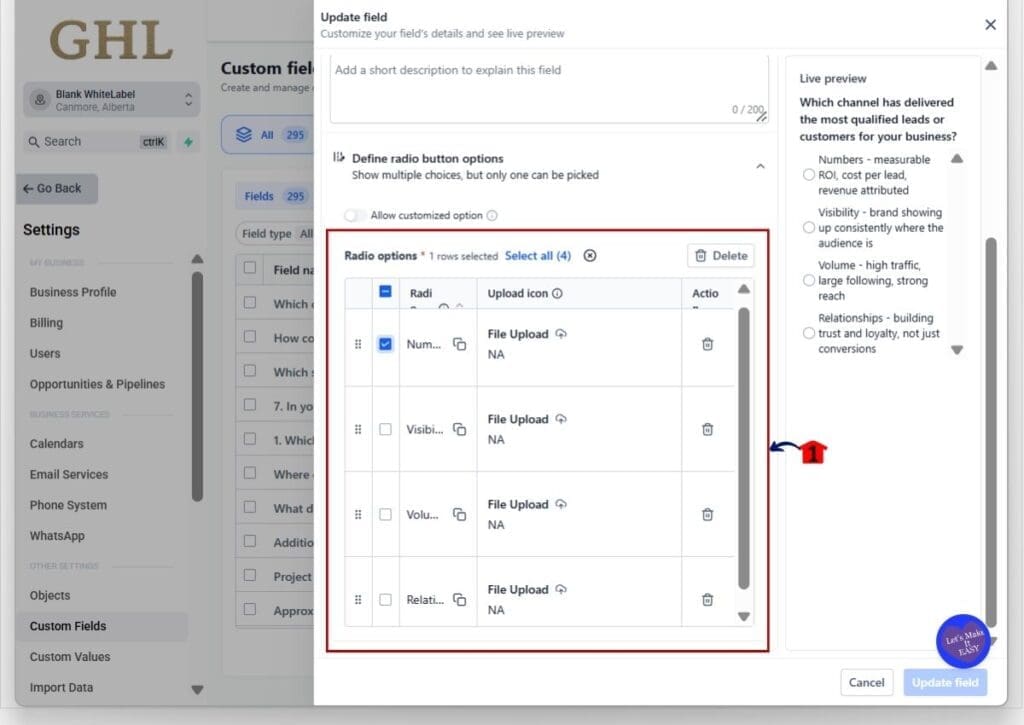
That’s it. Your Custom Field Options are now cleaner and easier to manage, while your existing CRM data stays intact.
What Happens to Existing Custom Field Options
Deleting Custom Field Options in GoHighLevel won’t remove values that are already saved on existing records. If a Company or Custom Object record already uses the deleted option, that value will stay in place. This helps you keep important CRM history while cleaning up the choices your team sees.
Once deleted, the option won’t be available for future selection. It also won’t appear as a choice when creating new filters or workflow conditions. This helps prevent your team from using an old or incorrect value again.
Existing filters, Smart Lists, and workflows that already use the deleted value will continue to work. So you can clean up outdated options without having to rebuild the systems that already depend on them.
Pro Tips for Managing Custom Field Options
Before deleting Custom Field Options, check how many records are using them. GoHighLevel shows the affected record count when an option is already in use. This gives you a quick way to check the impact before you confirm the change.
For larger GHL accounts, clean up old options in small groups. Start with choices that are clearly outdated, duplicated, or no longer used by your team. It’s also worth checking any important filters, Smart Lists, and workflows connected to the field before making several changes at once.
Keep new Custom Field Options short and clear. Simple names make data entry easier and help prevent duplicate choices later. And remember, deleting an option stops future use, but it doesn’t remove that value from records where it was already saved.
What Custom Field Options Mean for Your Business
Cleaner Custom Field Options make day-to-day CRM work easier. When your team only sees choices that still matter, there is less chance of picking the wrong value or adding messy data to new records.
For agencies, this also makes client accounts easier to maintain. You can remove an old service type, status, or category without wiping it from past Company or Custom Object records. That keeps useful history in place while giving your team a cleaner setup moving forward.
The result is simple. Your GoHighLevel account becomes easier to manage, your data stays more consistent, and your team spends less time working around outdated field choices.
Frequently Asked Questions About Custom Field Options
Clean Up Custom Field Options With Less Risk
Custom Field Options are easier to manage now that GoHighLevel lets you remove old choices from Company and Custom Object fields. You can clean up Dropdown, Multi-select, Radio, and Checkbox options without wiping values that are already saved on existing records.
That gives you a cleaner CRM without breaking the history behind it. Existing filters, Smart Lists, and workflows will keep working, while deleted options are removed from future use.
If your GHL account has old field choices that your team no longer needs, this is a good time to clean them up. A few small changes can make your CRM easier to use and much easier to maintain.
Scale Your Business Today.
Streamline your workflow with GoHighLevel’s powerful tools.