

- Intro – Why GHL Added Workflow Keyboard Shortcuts
- Quick Summary – Workflow Keyboard Shortcuts
- What’s New – Overview of shortcut categories and overlay
- What’s Changed – New capabilities vs. old way of building
- Why It Matters – Speed, accuracy, and power users
- How to Use Workflow Keyboard Shortcuts
- Pro Tips: Copy/Paste Across Tabs, Branch Logic Tricks
- What This Means: Better Training, Better Builds
- Results You Can Expect: Faster Builds, Fewer Errors
- FAQ – Real Answers About Shortcuts, Devices, and Layouts
- Conclusion: Recap and CTA to Try It in Advanced Builder
Intro – Why GHL Added Workflow Keyboard Shortcuts
Every agency wants to move faster, but most automation tools slow you down with endless clicking, dragging, and zooming just to get things done. So we need Workflow Keyboard Shortcuts.
That friction adds up.
This update cuts out the extra steps. Now you can handle everything from navigation to edits using just your Workflow Keyboard Shortcuts, perfect whether you’re building solo or scaling with a team.
This isn’t just about speed. It’s about creating systems you can trust and scale.

This GHL update introduces workflow keyboard shortcuts in Advanced Builder, letting you zoom, copy, paste, and navigate like a pro. The result? Faster builds, smoother collaboration, and fewer mistakes.
Quick Summary – Workflow Keyboard Shortcuts
Purpose: This update introduces Workflow Keyboard Shortcuts to GoHighLevel’s Advanced Builder, letting users speed up workflow creation and navigation without using the mouse.
Why It Matters: It massively reduces build time, lowers error rates, and creates a scalable way for agencies to onboard new builders with ease.
What You Get: A full suite of categorized shortcuts (Edit, View, Navigation, Tools, Essentials), an overlay to learn them quickly, and smart logic control via the Workflow Keyboard Shortcuts.
Time to Complete: Under 5 minutes to learn the overlay. Mastery comes with use.
Difficulty Level: Easy, No setup required. Just open a workflow and press “K.”
Key Outcome: Build workflows 20–40% faster with fewer mistakes, better structure, and improved team collaboration.
What’s New – Overview of shortcut categories and overlay
Need to move faster in builds? GHL’s new shortcut overlay in Advanced Builder gives you instant access to the commands that keep your workflows moving.
Shortcuts are neatly split into groups, so you can get to the right action without hunting through a list.
Automate marketing, manage leads, and grow faster with GoHighLevel.

- Navigation: Pan and zoom your workflow without using the mouse
- Editing: Copy, cut, and undo with simple keystrokes
- Connections: Quickly link actions or redirect flows
- Canvas Tools: Organize your layout, toggle views, or clear up your screen
Press “K” at any time to open the full shortcut guide. It updates based on where you are in the builder, so you only see what’s relevant. It’s all part of GHL’s push to give power users a smoother, faster building experience, no coding required.
What’s Changed – New capabilities vs. old way of building
Before this update, building workflows in GHL felt like being stuck on a single track, you had to force everything into a straight line, and complex flows quickly became hard to manage or follow.
Now?
You’ve got full creative control.
Here’s what’s new vs. old:
- Old Way: Every node had to be physically connected to the one before it. That meant long chains, tangled logic, and endless scrolling.
- New Way: De-Linked Nodes let you place actions anywhere, without tying them to the main flow. Each mini-flow can live on its own island and still run perfectly.
- Old Way: All logic had to run in one long sequence unless you built awkward conditional detours.
- New Way: Go-To connections now allow you to jump across the canvas, starting any branch from any trigger.
- Old Way: Visual clutter made it hard to troubleshoot or explain automations to clients or team members.
- New Way: Each cluster can now be neatly labeled, color-coded, and grouped, so your logic is instantly readable.
In short, you’ve gone from building on a whiteboard to designing on a smart canvas.
Why It Matters – Speed, accuracy, and power users
This isn’t just about looking pretty. The new de-linked branching system and Workflow Keyboard Shortcuts directly impact how fast, and how accurately, you build automations.
Here’s why it matters:
1. Speed:
For agencies running dozens or hundreds of workflows, every second saved is time earned. Power users can now fly through builds with Workflow Keyboard Shortcuts commands, place actions wherever they need them, and stop wasting time zooming and dragging. Need to duplicate a branch for another offer? Done in seconds. Want to route a trigger to a specific cluster? One Go-To link, no rework.
2. Accuracy:
No more crossing wires or breaking flows. With each branch visually separated and Go-To lines clearly marked, it’s nearly impossible to misroute a contact. And since actions aren’t forced into a single chain, each outcome stays clean and focused.
3. Power User Mode Activated:
This update turns the builder into a power tool. With modular clusters, fast Workflow Keyboard Shortcuts access, and a cleaner canvas, agencies can design complex logic faster than ever, and hand off pieces of it to team members with less risk of breaking things.
Bottom line? Your workflow builder is now a sandbox, not a maze.
How to Use Workflow Keyboard Shortcuts
If clicking around has ever slowed you down, or made complex workflows feel like a chore, this new update is exactly what you need. Setting up workflow keyboard shortcuts in GHL lets you build faster, cleaner, and more confidently, right from your Workflow Keyboard Shortcuts. No mouse required. You can use this in any automation workflow in just a few quick steps.
Step 01 – Access the Workflow Builder
1.1 From your GHL account, go to the Main Menu on the left.
1.2 Click on Automation > Workflows.
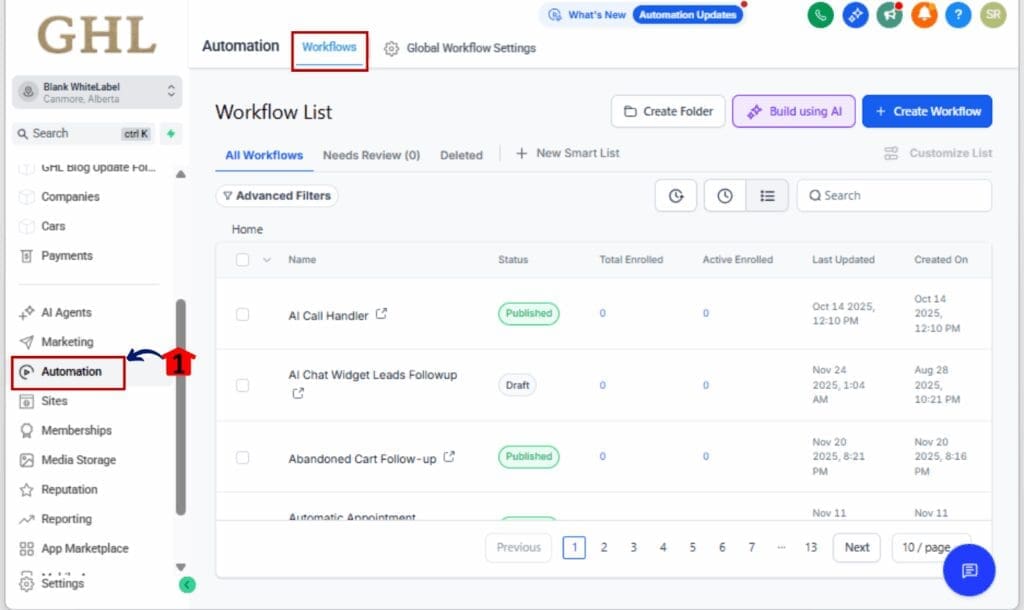
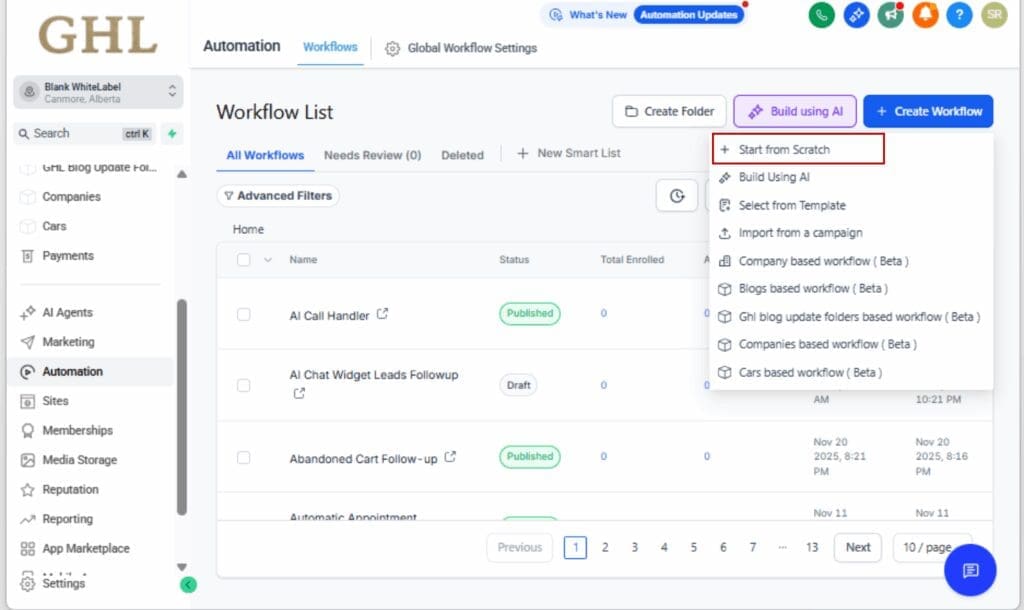
Step 02 – Create or Open a Workflow
2.1 Hit “+Create Workflow” to start fresh, or pick one you’ve already made to jump back in.
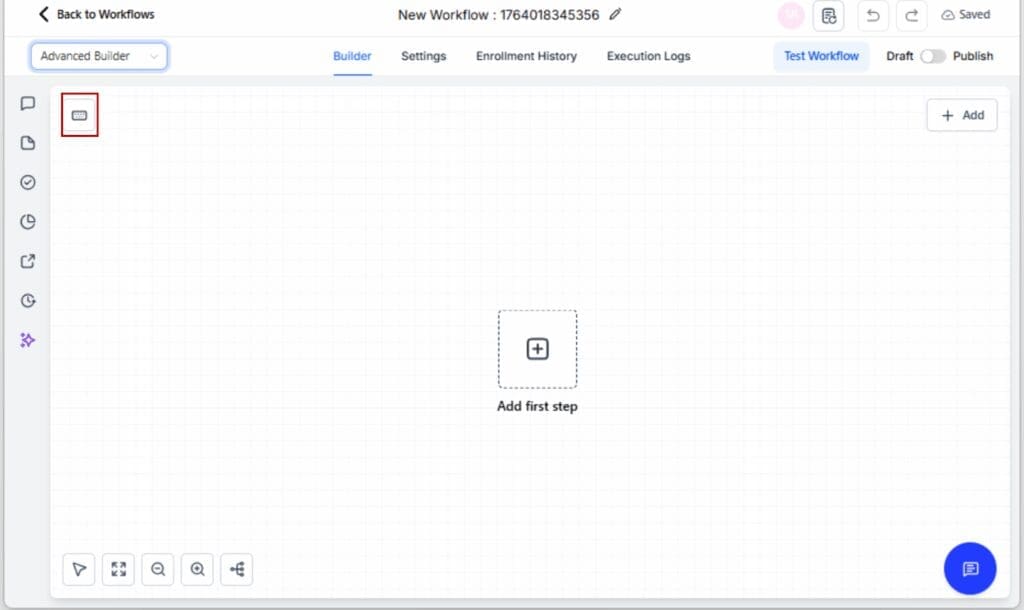
Step 03 – Launch the Workflow Keyboard Shortcuts Overlay
3.1 Look at the top of the builder and click the “Keyboard Shortcuts” pill.
3.2 You can also press the K key to launch the shortcut menu.
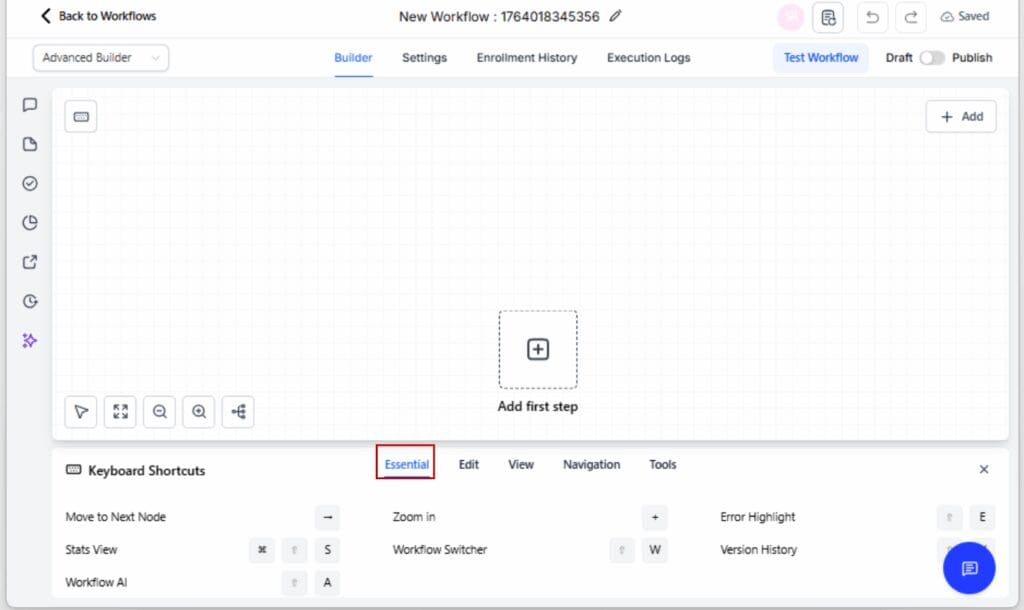
Step 04 – Explore Shortcut Categories
4.1 View the 5 tabs: Essentials, Edit, View, Navigation, and Tools.
4.2 These are grouped by action type so you can learn faster.


Step 05 – Use These Key Commands Immediately
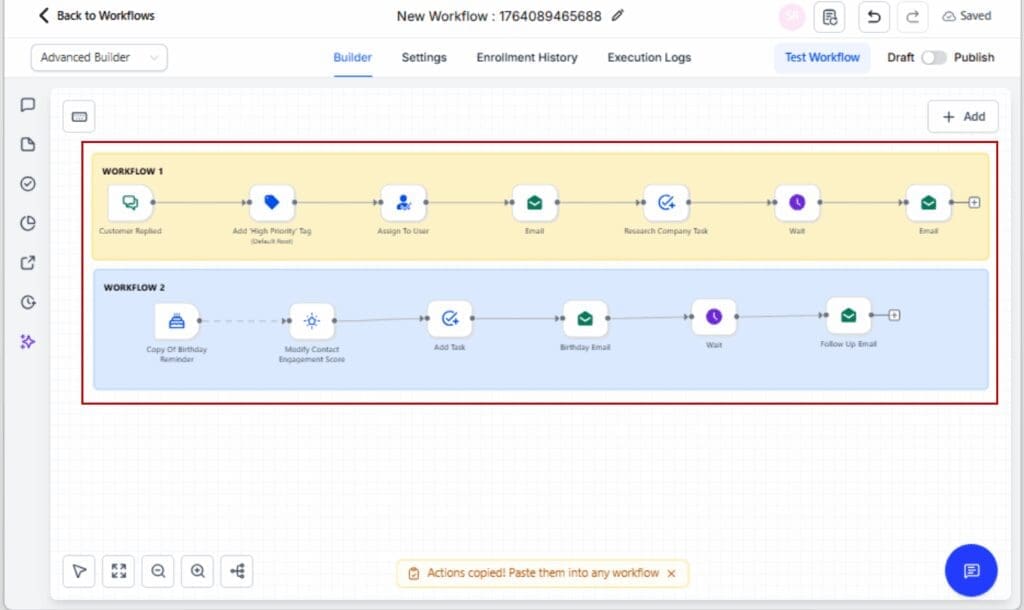
5.1 Copy node: Cmd/Ctrl + C
5.2 Press Cmd or Ctrl + V to drop in your copied node or action.
5.3 Tap “1” on your keyboard to auto-fit the entire workflow into view.
5.4 Navigate Nodes: Arrow Keys
5.5 Select multiple: Shift + ← / →

Step 06 – Copy Between Workflows (Pro Tip)
6.1 Open another workflow in a second tab using Workflow Switcher.

6.2 Copy from one workflow, then paste logic into the other tab.

That’s it. You’re now building like a Workflow Keyboard Shortcuts-first automation pro.
Pro Tips: Copy/Paste Across Tabs, Branch Logic Tricks
Use these quick power moves to push the workflow builder even further:
- Split Logic with Branches – When using conditionals, you can duplicate entire branches with Cmd/Ctrl + Shift + C, then paste with Cmd/Ctrl + V to fork logic for split-testing, qualification, or timing scenarios.
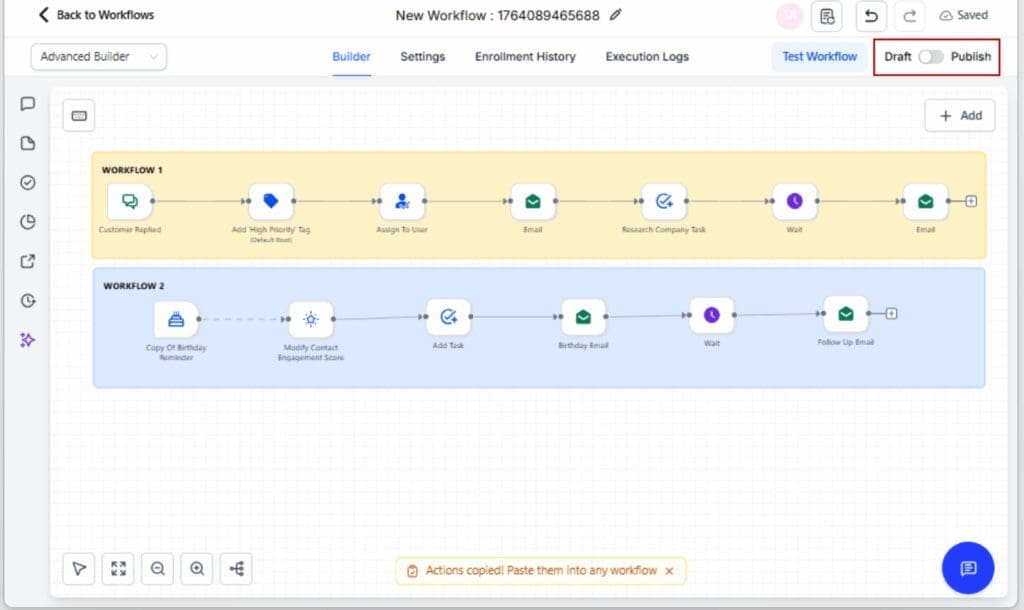
- Copy Between Workflows – Use the Workflow Switcher to open another workflow in a second tab. Copy logic from one, paste it straight into another. It’s a perfect way to reuse proven logic or templates across client accounts.
- Multi-Node Selection – Use Shift + Left/Right Arrow to select entire sequences or branches. Great for bulk-moving, duplicating, or deleting without dragging.
- Zoom + Navigate in Sync – Zoom to Fit (1) before pasting logic to ensure it aligns cleanly. Then use the Arrow Keys to make micro-adjustments or verify your logic path without jumping around manually.
Work these into your usual process, and you’ll pick up speed and consistency without extra effort.
What This Means: Better Training, Better Builds
This feature isn’t just a nice productivity boost, it lays the groundwork for better agency operations.
With Workflow Keyboard Shortcuts built into GHL, you can now teach team members how to follow structured logic paths without needing hours of walkthroughs. That means:
- Easier SOP creation with consistent logic structures
- Faster onboarding for new hires or contractors
- Less fatigue and more output from your build team
This isn’t just about moving faster, it’s about setting up a process you can reuse, teach to others, and grow with.
That’s how good teams become great agencies.
Results You Can Expect: Faster Builds, Fewer Errors
Shifting to keyboard-first workflows in GHL gives you real-world advantages you can feel from day one.
- Building used to be a slow grind of clicks and drags. Now you can fly through workflows in seconds, whether it’s a client setup or an internal system.
- Improve Workflow Accuracy – Every shortcut is precise. You’re less likely to misclick, delete the wrong action, or lose your place. This means fewer corrections during QA and more confidence in your logic.
- Onboard New Team Members Faster – Teach shortcuts once and your team can build consistent, structured automations without needing constant check-ins. It’s a plug-and-play training method.
- Staying on the Workflow Keyboard Shortcuts keeps you in rhythm. Less switching around means better focus, and better builds.
These aren’t abstract wins, they’re measurable gains that improve output, performance, and quality across your agency workflows.
FAQ – Real Answers About Shortcuts, Devices, and Layouts
Conclusion: Recap and CTA to Try It in Advanced Builder
You already understand how much time these can save, but the real value comes when you start using them in real builds.
So here’s your action step:
Open the Advanced Workflow Builder in GoHighLevel, press K, and start testing these commands in your next build. Try copying a branch. Move between nodes with arrows. Zoom to fit and keep your logic tight.
You’ll pick it up fast, and once you do, it’ll save time on every workflow you build.
Better builds start with better tools. This one’s already in your hands. Try it today.
Scale Your Business Today.
Streamline your workflow with GoHighLevel’s powerful tools.


