

- Monitor automations live inside GoHighLevel
- Quick Summary – Workflow Performance Dashboard Essentials
- New Workflow Dashboard Features
- Key Changes to Workflows
- Why Workflow Insights Matter
- How to Use the Workflow Dashboard
- Workflow Performance Tips
- What This Means for GHL Users
- Results from Workflow Performance Dashboard
- Workflow Performance Dashboard FAQ
- Final Thoughts About the Workflow performance Dashboard Update
Monitor automations live inside GoHighLevel
The new workflow performance dashboard in GHL gives users a clear view of how their automations are running. It answers a common question: are these workflows actually working the way they should? With this update, users no longer have to dig through individual workflows or guess what’s going wrong.
Everything is in one place. From total enrollments and trigger activity to specific errors, the dashboard shows how each automation is performing. It’s especially useful for agencies managing multiple workflows, since it highlights issues before they become major problems.
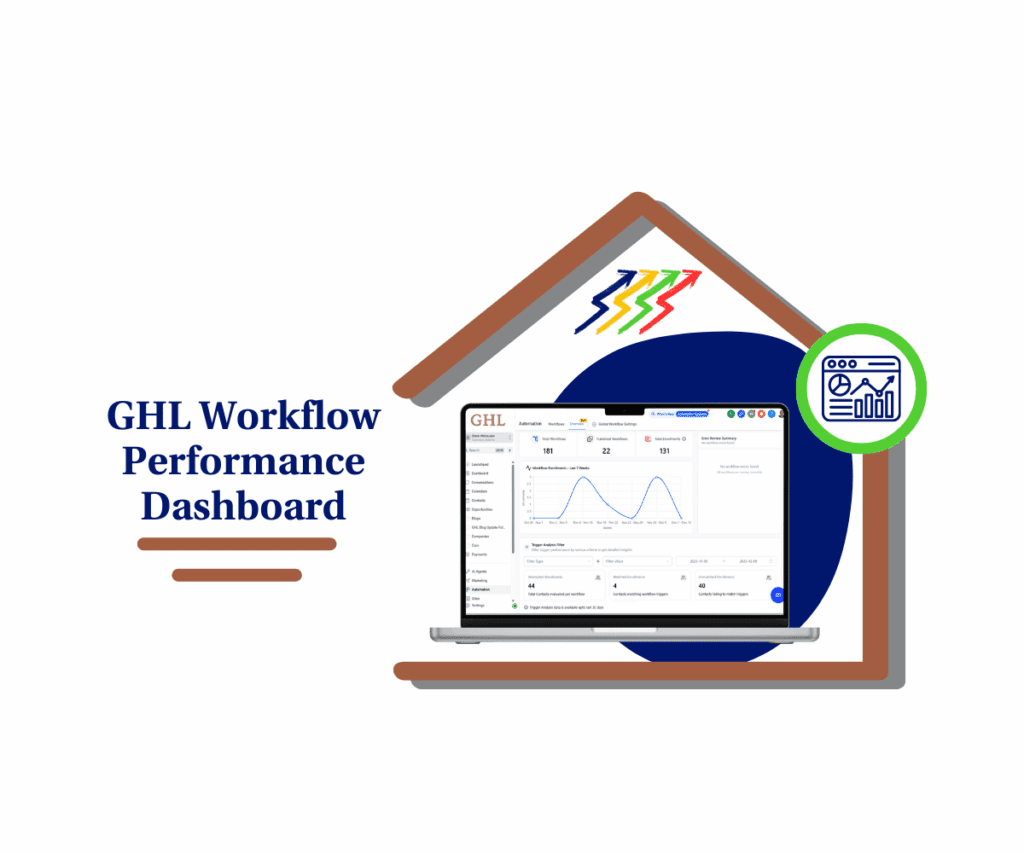
The Workflow Performance Dashboard in GoHighLevel gives real-time visibility into automations. Users can spot errors quickly, track trigger activity, and manage workflows with more confidence and less confusion.
Quick Summary – Workflow Performance Dashboard Essentials
Purpose: Helps users monitor automation performance quickly
Why It Matters: Makes it easier to spot errors and manage workflows
What You Get: Real-time insights into enrollments, triggers, and issues
Time To Complete: Takes just a few minutes to check each day
Difficulty Level: Easy to use
Key Outcome: More control and fewer errors in workflow automations
New Workflow Dashboard Features
The new workflow performance dashboard in GHL is found under Automations in the “Overview” section. It gives users a fast way to see how their workflows are doing without needing to open each one.
Right at the top, the dashboard shows three key stats:
Automate marketing, manage leads, and grow faster with GoHighLevel.

- Total workflows created
- Published workflows that are currently live
- Total enrollments across all workflows
These numbers give a quick picture of automation activity in the account. Below that, there’s a chart that tracks enrollment trends by week. It helps users understand when workflows are most active and if trigger volume is changing over time.
To dig deeper, users can filter the dashboard by:
- Type of trigger
- Specific forms or surveys
- A custom date range
- The account’s local time zone
One of the most useful parts is the error summary. If a workflow runs into a problem, it gets flagged under “Needs Review.” Clicking that link pulls up every workflow with issues, so the user can review and fix them faster.
Overall, the workflow performance dashboard gives GHL users one place to monitor automation activity, spot trends, and catch problems before they slow things down.
Key Changes to Workflows
Before the workflow performance dashboard was added to GHL, tracking automation results took more time and effort. Users had to open individual workflows, look through steps, and guess what might be working or broken. There was no single view to check performance, which made things harder, especially for busy teams.
This update changes how workflows are managed.
Now users can:
- See all workflow activity in one dashboard
- Get alerts for workflows that need attention
- Track enrollments and trigger behavior over time
- Filter data by trigger type, form, survey, or date
The biggest improvement is that users no longer have to guess. If something stops working, the dashboard shows where the issue is and which workflows are affected.
This update helps users spend less time troubleshooting and more time improving their automation strategy. The workflow performance dashboard gives them a clear path to keep things running smoothly.
Why Workflow Insights Matter
When automations run without issues, everything feels smooth. But when a workflow breaks or a trigger fails, it can create a mess. Leads might not get follow-ups. Sales steps might stall. Sometimes, no one notices until it’s too late.
That’s where the workflow performance dashboard in GHL makes a real difference. It gives users a clear view of how workflows behave, so they don’t have to rely on guesswork or wait for complaints.
Having insight into each workflow means users can:
- Catch problems early and fix them fast
- Understand how often triggers are firing
- See trends in enrollments over time
- Avoid losing leads due to hidden issues
For agencies, this matters even more. It helps protect client results and supports better reporting. It also saves time by showing exactly where to look when something feels off.
The workflow performance dashboard turns what used to be a manual, time-consuming process into a clear, ongoing check-in. It keeps automations on track and gives teams more confidence in how their systems are performing.
How to Use the Workflow Dashboard
The workflow performance dashboard in GHL is built to be simple and useful. It gives users one place to check how their automations are working without needing to open each workflow.
To get started:
Step 01 – Access the Main Menu in GoHighLevel
- The main menu on the left side of your screen includes all the main areas you work in when using GoHighLevel (GHL).
1.1 Click on the Automation menu item to access the Overview section.
- You’ll now be in the Automation section, where you can access the Overview tab from the top menu.
1.2 Click the Overview tab.
1.3 Check your Workflow numbers.
1.4 Inspect your Workflow graph data.
1.5 Examine your Error Review Summary.
1.6 Look into your Analysis filters.

At the top of the screen, users will see three numbers:
- Total workflows in the account
- Published workflows that are active
- Total enrollments across all workflows
Just below, there’s a chart showing how enrollments change each week. This is helpful for spotting patterns and seeing how often workflows are triggered.
To filter the data, users can sort by:
- Trigger type
- Form or survey
- Time range
- Account time zone
For error checking, scroll down to the Error Review Summary. If something isn’t working, it will be flagged with a Needs Review label. Clicking that will open a list of affected workflows, along with details on what went wrong.
Many users find it helpful to check this dashboard once a week. It’s a fast way to make sure everything is running correctly, especially before launching new ads or email campaigns.The workflow performance dashboard gives users an easy, reliable way to monitor and manage automations inside GHL. It replaces guesswork with clear data.
Workflow Performance Tips
The workflow performance dashboard in GHL is a helpful tool on its own. But with a few simple habits, users can get even more value from it.
Here are some practical tips:
- Filter by trigger when testing. If a new workflow is live, filtering by trigger type helps check if it’s firing as expected. This keeps testing focused and avoids confusion.
- Check enrollment trends weekly. The chart shows how often workflows are triggered. A drop in enrollments could mean a form is disconnected or traffic has slowed down.
- Always review errors before launching a campaign. A quick look at the “Needs Review” section can catch issues before sending leads into a broken workflow.
- Set custom date ranges for reports. This is useful for anyone tracking monthly results or preparing updates for clients. It also helps compare performance over time.
- Share insights with the team. Even if one person handles the automation setup, keeping others in the loop helps catch issues earlier.
These small steps help users stay ahead of problems. They also make the workflow performance dashboard in GHL more than just a report. It becomes a regular part of how automations are managed and improved.
What This Means for GHL Users
Setting up a workflow is one thing. Knowing it actually works is another. That’s why the workflow performance dashboard in GHL matters.
With this update, users can now see how their automations are running without guessing. The dashboard shows if triggers are firing, how many contacts are moving through, and whether any steps are failing. It takes the mystery out of automation.
For most users, this means fewer surprises. If something breaks, it shows up right away. That helps avoid delays, missed leads, or unhappy clients.
It also makes teams more efficient. Instead of digging through workflows or reading contact activity one by one, they can go straight to what needs fixing. That saves time and keeps campaigns moving.
Agencies will also benefit from better reporting. Having real data makes it easier to show value, catch problems early, and support results with clear numbers.
The workflow performance dashboard gives GHL users a steady way to track automation health. It keeps systems running right and builds trust across the board.
Results from Workflow Performance Dashboard
After using the workflow performance dashboard in GHL, most users start to see results right away. Managing automations becomes less of a guessing game and more of a clear process.
Instead of wondering if a trigger is working or if contacts are getting stuck, users can check the data and know for sure. They can fix errors faster, test changes with more control, and feel more confident about what’s happening behind the scenes.
Some key benefits users can expect:
- Faster response when something breaks
- Clear insights into how workflows are performing
- Easier tracking of workflow activity over time
- Better reports to show results to clients or teams
For agencies, it also makes client conversations smoother. With real numbers to back up performance, teams can explain what’s working, what was fixed, and how improvements are being made.
The workflow performance dashboard helps users take control of their automations. It makes things easier to manage and easier to explain, which leads to better results all around.
Workflow Performance Dashboard FAQ
Final Thoughts About the Workflow performance Dashboard Update
The workflow performance dashboard in GHL solves a common problem. It shows users how their automations are working without needing to guess or dig through every workflow.
Instead of looking at data one piece at a time, users can now view enrollments, triggers, and errors all in one place. It makes daily tasks easier and helps catch problems before they turn into bigger issues.
For agencies, this tool supports faster decisions and better communication with clients. It gives the team a clear picture of what’s working and what needs attention.
The workflow performance dashboard is simple but effective. It gives users more control, more clarity, and less stress when managing automations inside GHL.
Scale Your Business Today.
Streamline your workflow with GoHighLevel’s powerful tools.


