

- Set up AI comment replies with GHL step by step
- Quick Summary – Facebook Auto Reply Essentials
- Benefits of Facebook Auto Reply
- New Features in GHL
- Setting Up Your Workflow
- Tips for Using Facebook Auto Reply
- Expected Results from Facebook Auto Reply
- Facebook Auto Reply FAQ
- Conclusion on Facebook Auto Reply
Set up AI comment replies with GHL step by step
In just five minutes, readers can learn how to set up a Facebook auto reply workflow that uses AI in GHL. This guide gives a clear answer to the headline by showing how GoHighLevel can automatically respond to comments on your Facebook posts. By creating this workflow, users can ensure that every comment receives a timely reply without constant manual effort.
Facebook auto reply in GHL allows agencies and business owners to manage engagement efficiently. The AI can send personalized messages, answer common questions, and even direct followers to relevant links. This keeps interactions consistent and professional while saving time that would otherwise be spent manually responding to each comment.
This guide will walk users through every step of creating the workflow. It covers how to access GHL’s workflow tools, set up triggers, add AI actions, and test the system. Each step is designed to be simple and actionable, so even users with limited experience in GHL can follow along.

Using this Facebook auto reply workflow in GHL allows users to automate comment responses, improve engagement, and save hours of manual social media work. By following this guide, readers can leverage AI to maintain consistent communication and maximize their social media presence without added effort.
Quick Summary – Facebook Auto Reply Essentials
Purpose: Show users how to set up a Facebook auto reply workflow in GHL to handle comments efficiently.
Why It Matters: Automating replies saves time, ensures consistent engagement, and keeps interactions professional.
What You Get: Clear step-by-step instructions for creating a workflow, adding AI replies, and customizing triggers.
Time To Complete: About 10 to 15 minutes to set up and test the workflow.
Difficulty Level: Beginner to intermediate, no coding required.
Key Outcome: Automated Facebook auto reply in GHL that saves time, maintains engagement, and supports better lead management.
Benefits of Facebook Auto Reply
A Facebook auto reply workflow in GHL helps agencies, marketers, and business owners save time by automatically responding to comments. Instead of manually replying to each interaction, the AI handles responses quickly and accurately. This keeps engagement steady and allows teams to focus on other important tasks.
The workflow also makes audience interaction more consistent. Every comment receives a timely reply, which helps build trust and keeps conversations moving. Key benefits of using Facebook auto reply include:
Automate marketing, manage leads, and grow faster with GoHighLevel.

- Immediate responses to comments without manual work
- Personalized replies that fit the context of each comment
- Consistent engagement even when the team is busy
- Better lead nurturing through prompt replies
This system is especially useful for small teams or virtual assistants managing multiple pages. It can answer common questions, share links, or send prewritten messages efficiently. By setting up this workflow, businesses can avoid missed opportunities and ensure no comment goes unanswered.
New Features in GHL
GoHighLevel has added new options for Facebook auto reply workflows that make managing comments easier for agencies and business owners. The AI can now reply automatically to comments on posts using triggers set in the workflow. This ensures every comment gets a timely response while saving time.
The updates also allow users to customize how replies work. Key features include:
- Prewritten message templates for quick setup
- Variables to personalize replies based on the comment
- Options to include links or call-to-actions in responses
- Triggers for specific posts or keywords to control when replies are sent
These features keep responses relevant and professional without adding extra work. Users can now define exactly when and how the AI replies, giving full control over automated engagement.
Setting Up Your Workflow
Setting up a Facebook auto reply workflow in GHL is straightforward. Users start by accessing the Workflows section in their GoHighLevel account. This is where all automation and AI actions are managed. By following each step, the workflow can be created to respond to comments automatically, making engagement more efficient and consistent.
Steps to create the workflow include:
Step 01 – Access the Main Menu in GoHighLevel
- The main menu on the left side of your screen includes all the main areas you work in when using GoHighLevel (GHL).
1.1 Click on the Automation menu item to access the Workflows section.
- You’ll now be in the Automation section, where you can access the Workflows tab from the top menu.
1.2 Click the Workflows tab.
1.3 Click the + Create Workflow button.
- A popup will appear with the + Start from Scratch option.
1.4 Select the + Start from Scratch option.

Step 02 – Set Up a New Workflow
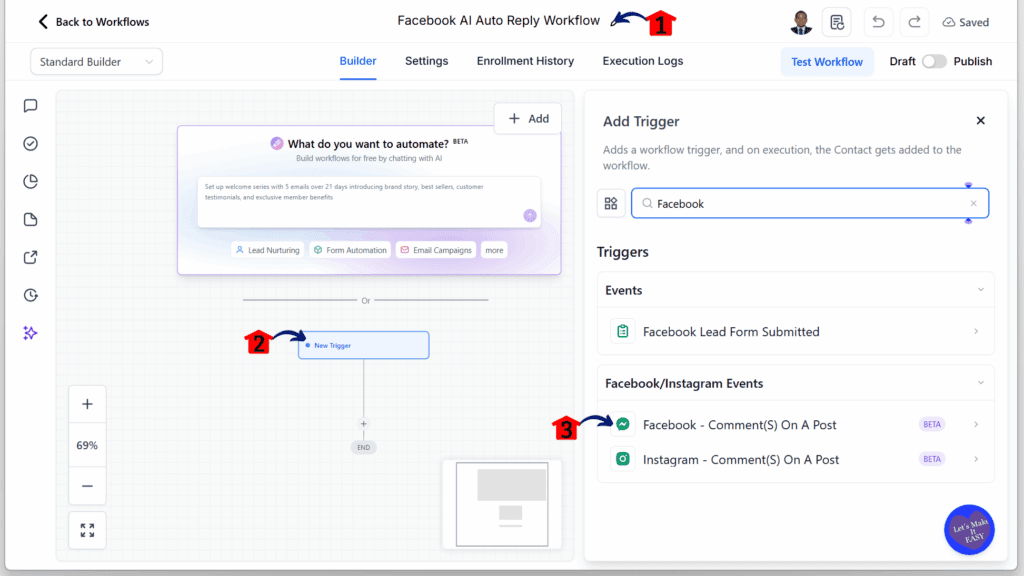
- You will be directed to the Workflow Builder.
2.1 Rename the workflow.
2.2 Click the New Trigger button.
- The triggers library will appear, allowing you to search for available workflow triggers.
2.3 Add the Facebook – Comment(s) On a Post trigger.
Step 03 – Configure the Facebook Comment Trigger
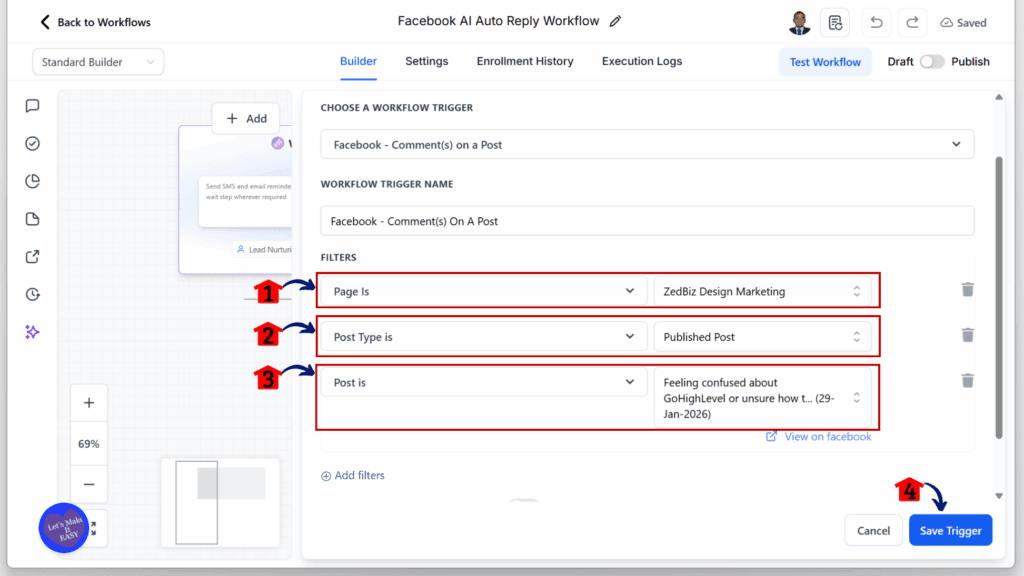
- You will be taken to the Facebook – Comment(s) On a Post trigger settings, where filters can be applied.
3.1 Choose the Facebook page to use for this workflow.
- The Facebook account must be integrated into the GoHighLevel sub-account. Refer to the blog post titled Effortless GHL Guide to Facebook Messenger Integration if needed.
3.2 Select Published Post as the post type.3.3 Filter and choose the specific post to use for this trigger.
Step 04 – Add the GPT Action
- The trigger should now appear on the workflow canvas.
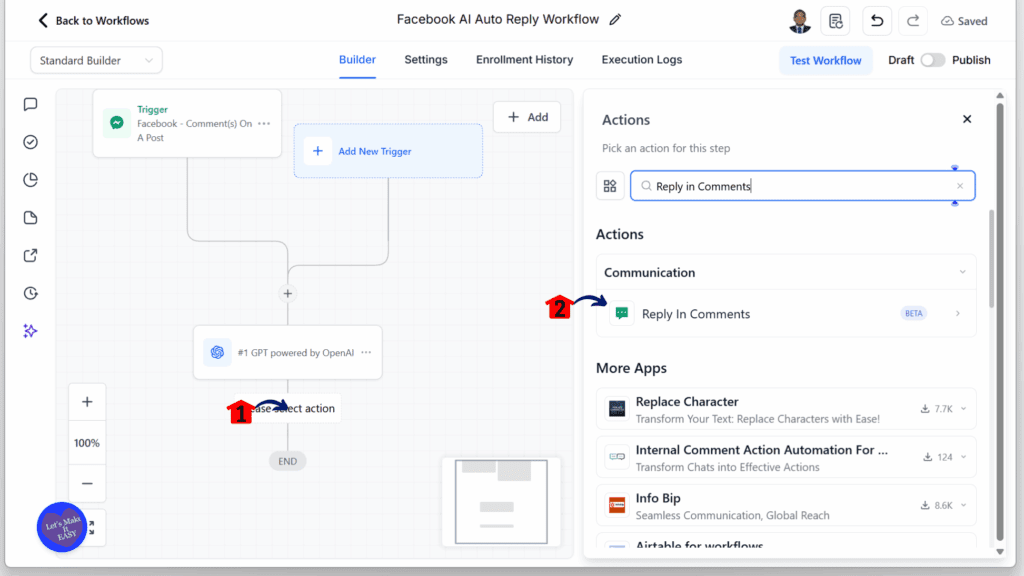
4.1 Click the Add Action element button.
- This button is shown as a plus icon on the workflow flow.
4.2 Search for and add the GPT Powered by OpenAI action.

Step 05 – Configure the GPT Prompt
- You will now be in the GPT Powered by OpenAI configuration settings.
5.1 Enter the prompt for the reply.
5.2 Click the Custom Variable Picker button.

Step 06 – Select the Facebook Comment Variable
- Additional options from the Custom Variable Picker will appear in a popup.
6.1 Select the Facebook – Comment(s) on a Post option.
6.2 Click the Comment Body option.

Step 07 – Insert the Variable Syntax
- The selected syntax from the Custom Variable Picker will appear in the prompt field.
7.1 Place the syntax in the correct position within the prompt so it reads clearly.

Step 08 – Add the Reply Action
- The GPT Powered by OpenAI action should now appear on the workflow canvas.
8.1 Click the Actions Library button again.
8.2 Search for and add the Reply in Comments action.
Step 09 – Link the GPT Response
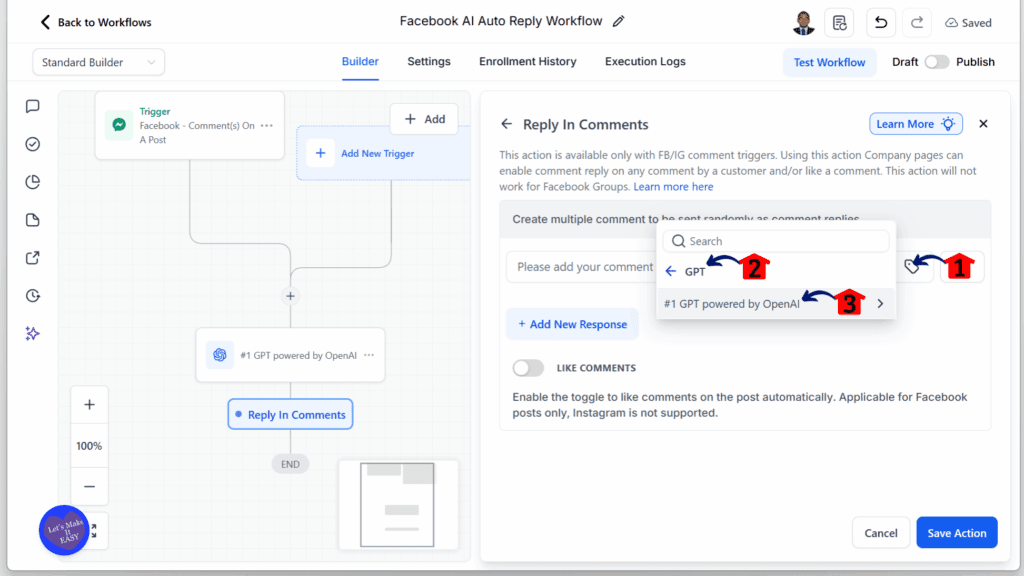
- The Reply in Comments configuration screen will appear.
9.1 Click the Custom Variable Picker inside the search bar.
9.2 Select the GPT option.
9.3 Click the #1 GPT Powered by OpenAI option.
- The name may differ if the GPT action was renamed earlier.
Step 10 – Choose the GPT Response Output
- The Response option will appear in a small popup.
10.1 Click the Response option.

Step 11 – Finalize the Reply Settings
- The syntax from the Custom Variable Picker should now be visible.
11.1 Confirm that the syntax appears in the search bar field.
11.2 Toggle on the Like Comment option if needed.
11.3 Click the Save Action button.

Step 12 – Publish the Workflow
- Review the trigger and action elements added to the workflow canvas.
12.1 Toggle on the Publish button.
12.2 Click the Save button.

Tips for Using Facebook Auto Reply
A Facebook auto reply workflow in GHL works best when it is set up thoughtfully. Even though the AI handles replies, timing and tone are important. Messages should feel natural and match the business’s brand voice to keep engagement professional.
Some practical tips include:
- Send replies during hours when users are most active to keep conversations timely
- Use variables to personalize messages with names or comment context
- Avoid multiple replies to the same comment to prevent a spammy impression
- Test and adjust message templates based on audience response
Regular monitoring also helps. Reviewing workflow logs can show which comments may need manual follow-up or adjustments. By refining triggers and templates over time, businesses can maintain smooth, high-quality engagement without extra effort.
Expected Results from Facebook Auto Reply
Using a Facebook auto reply workflow in GHL can make social media management more efficient for agencies and business owners. Comments on posts get answered quickly, which keeps followers engaged and helps maintain a professional presence online.
The workflow also saves time. Instead of manually responding to every comment, the AI handles routine messages automatically. Teams can focus on creating content, managing campaigns, or other important tasks while keeping audience interactions consistent.
Automated replies also support better lead nurturing. Quick and relevant responses give potential clients the information they need without delay. Over time, this can lead to stronger connections and more opportunities for conversion.
Facebook Auto Reply FAQ
Setting up a Facebook auto reply workflow in GHL can raise common questions. Knowing the answers helps agencies and business owners use the tool effectively while keeping engagement consistent.
By understanding these points, businesses can confidently use Facebook auto reply in GHL to manage comments efficiently, maintain engagement, and respond to followers promptly.
Conclusion on Facebook Auto Reply
A Facebook auto reply workflow in GHL helps agencies and business owners manage comments more efficiently. By automating replies, every comment receives a timely response without the need for constant manual effort.
This workflow saves time, keeps engagement consistent, and supports stronger connections with followers. Using AI in GHL ensures replies feel relevant and professional, giving businesses confidence that their social media interactions are handled properly.
By following the steps in this guide, users can set up a workflow that automatically responds to comments, improves lead nurturing, and maintains high engagement. Facebook auto reply in GHL is an effective tool for managing social media professionally while reducing workload.
Scale Your Business Today.
Streamline your workflow with GoHighLevel’s powerful tools.


