

- Step-by-step guide to edit and arrange your dashboard
- Quick Summary Box – Customize Dashboard Widgets
- Video Walkthrough: Customize GHL Dashboard Widgets
- What’s New in Dashboard Customization
- Why This Feature Matters to You
- How to Customize Dashboard Widgets
- Pro/Quick Tips about Dashboard Customization
- What This Means for Your Business
- FAQs about Dashboard Customization
- Conclusion and Your Next Steps
Step-by-step guide to edit and arrange your dashboard
To customize dashboard widgets in GHL, start by opening your dashboard and clicking Edit Dashboard. From there, add or arrange widgets, pick the chart types you need, embed content, adjust the theme, and create custom metrics. Save your changes after setting everything up to make your dashboard easy to read and practical for daily tracking.
When I work with dashboards, I often see them cluttered and hard to use. By placing the most important widgets up front and embedding content directly, you can spot trends faster. I have found this approach can cut the time spent navigating between pages by almost a third.
To customize Dashboard Widgets matters because most users, around 68 percent, spend too much time searching for the metrics they need. Organizing widgets and metrics clearly will help you track performance without extra effort. By following this guide, you will create a dashboard that shows key data quickly, saves time, and helps you make smarter decisions every day.
Quick Summary Box – Customize Dashboard Widgets
Purpose: This guide shows you how to customize dashboard widgets in GHL so you can see your key metrics clearly and quickly.
Why It Matters: A well-organized dashboard helps you save time, track performance, and keep your team focused on the right data.
What You Get: Step-by-step instructions to add, edit, arrange widgets, embed content, and create custom metrics for your dashboard.
Time To Complete: About 10–20 minutes, depending on how many widgets and custom metrics you add.
Difficulty Level: Beginner to intermediate GHL users.
Key Outcome: A clean, personalized dashboard that makes your data easy to access, monitor, and act on each day.
Video Walkthrough: Customize GHL Dashboard Widgets
Learn how to organize your GHL dashboard so you can track the numbers that matter most to you. In this video, you will see a simple, step by step guide to customize dashboard widget and set everything up with ease.
Inside this video:
Automate marketing, manage leads, and grow faster with GoHighLevel.

- How to add and arrange widgets for contacts, sales, and campaigns.
- How to add elements that make your data easy to read.
- How to change your dashboard’s theme.
- How to create custom metrics and formulas for your business.
This walkthrough makes it easy to set up a dashboard that saves time and shows your key metrics clearly.
What’s New in Dashboard Customization
GHL makes it easier for you to customize dashboard widgets so your most important metrics are front and center. You can add new widgets, edit existing ones, and move them around to match how you work. This helps you see the data you need without hunting for it.
Here’s what you can do now:
- Add and arrange widgets as contacts count, sales metrics, or campaign performance.
- Pick the chart type that best shows your data for each widget.
- Embed external websites or dashboards directly into GHL.
- Choose dashboard themes that fit your workflow and brand.
- Create custom metrics with your own formulas and data types.
These updates turn your dashboard into a workspace that actually works for you. You can track trends faster, see insights at a glance, and make decisions with confidence, all from one screen.
Why This Feature Matters to You
When you customize dashboard widget settings in GHL, you make your daily work easier. Instead of searching for the data you need, you can place the most important metrics right in front of you. This helps you focus on the actions that drive real results.
As you organize your widgets in a clear way, it becomes easier to spot trends and issues early. You can track contacts, sales, and campaigns from one screen, so you do not have to switch between different pages.
Many users struggle with dashboards that feel crowded or confusing. When you customize dashboard widget layouts, you get a cleaner view of your key numbers. This makes reporting simpler, keeps your team aligned, and helps you respond quickly to what matters most.
How to Customize Dashboard Widgets
Customizing dashboard widgets in GHL is a multi-step process that lets you set up your dashboard to match your workflow. You’ll add widgets, select chart types, embed external content, adjust themes, and create custom metrics so your key data is easy to access and interpret.
It is important to follow each step carefully to ensure your dashboard reflects the information you need most. The steps below will guide you through the full process of editing and arranging widgets in GHL.
- Access the Dashboard Editor in the GHL Dashboard section.
- Choose a set of widgets to add to your dashboard.
- Choose a specific widget of that type to add.
- Configure the settings of the widget before saving.
- Check the added widget before returning to the Dashboard Editor.
- Add an element to your GHL Dashboard.
- Configure the element before saving.
- Choose a theme for your GHL Dashboard.
- Create a custom metric for your GHL Dashboard.
- Create a Custom Metric from scratch.
- Set up your Custom Metric.
- Arrange all widgets on your dashboard before saving.
To start, make sure you are logged in to your GoHighLevel sub-account.
Step 01 – Access the Dashboard Editor in the GHL Dashboard section
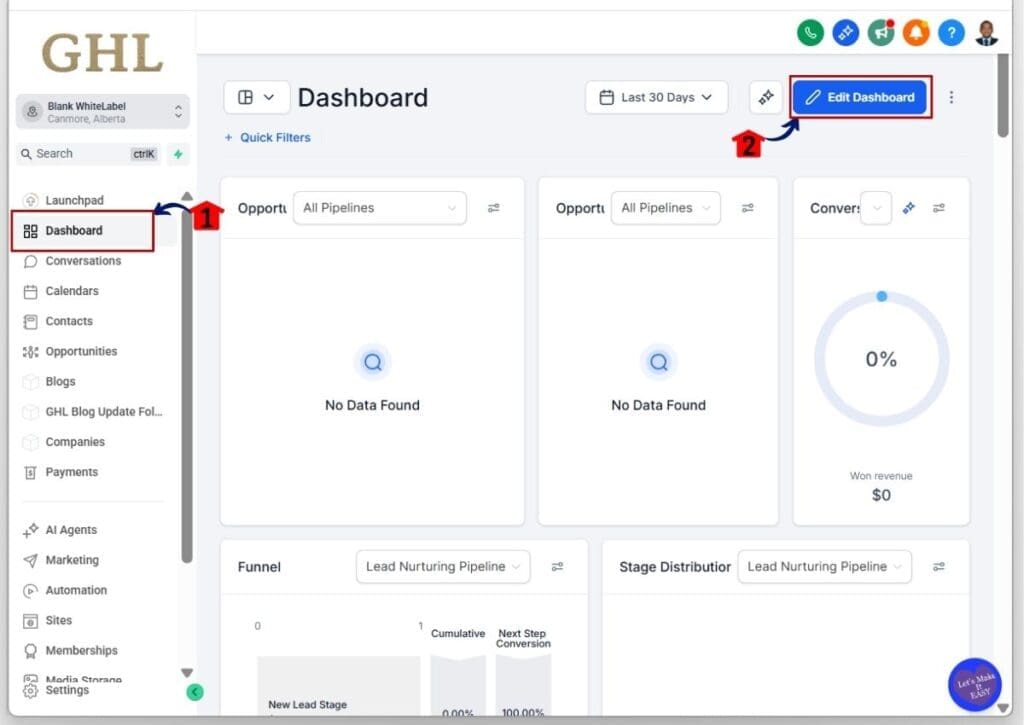
- Access the Edit Dashboard button inside the Dashboard section of your GoHighLevel account.
1.1 Click the Dashboard section
- Inside the Dashboard, you will see default widgets set by GoHighLevel, such as Opportunity Status, Opportunity Value, and other widgets.
- If needed, you also have the option to customize dashboard widget settings so they better match what you want to see.
1.2 Click the Edit Dashboard button
- This button is located in the upper right corner of your GHL dashboard.
- The Add New Widget pop-up will appear with a list of widgets you can add.
Step 02 – Choose a set of widgets to add to your dashboard
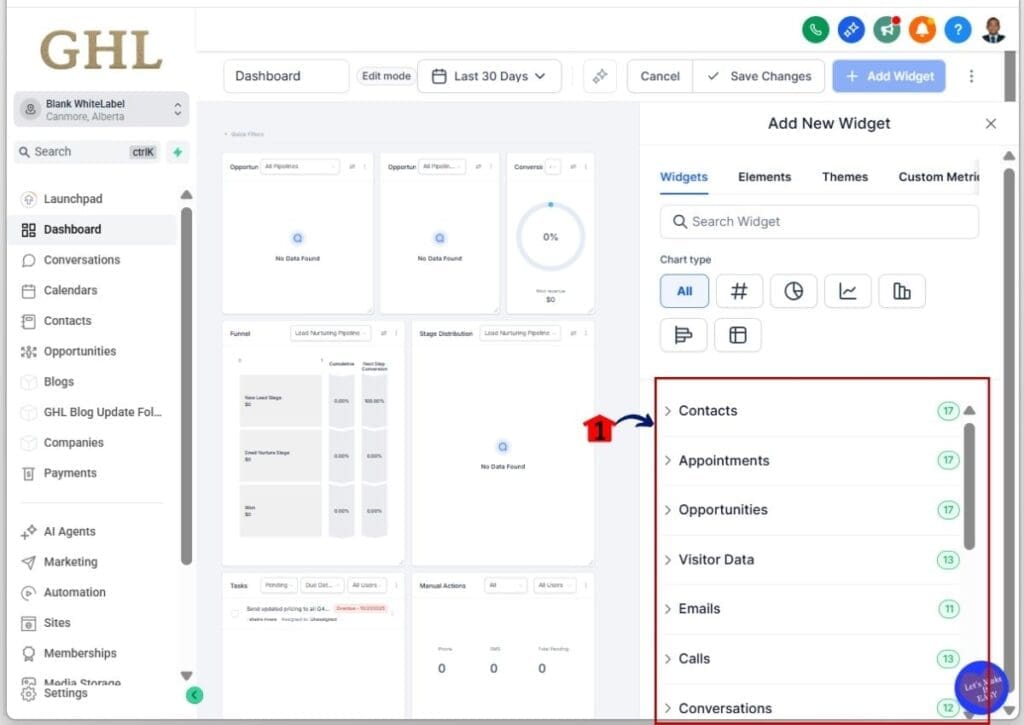
- You will go to the widgets library, where you can pick the widgets you want for your dashboard.
- This is where you can customize dashboard widget options to match your needs.
2.1 Click a widget type you want to add
- Another list for that widget type will appear once you click it.
- For this example, the Contacts widget type is chosen.
Step 03 – Choose a specific widget of that type to add
- Each widget type has a list of specific widgets you can choose from.
3.1 Click a specific widget
- For this example, the Contacts Count widget is chosen.
- You will be directed to that widget’s configuration settings.
- From there, you can adjust how it looks and what it shows. This helps you Customize dashboard widget in a way that works best for you.

Step 04 – Configure the settings of the widget before saving
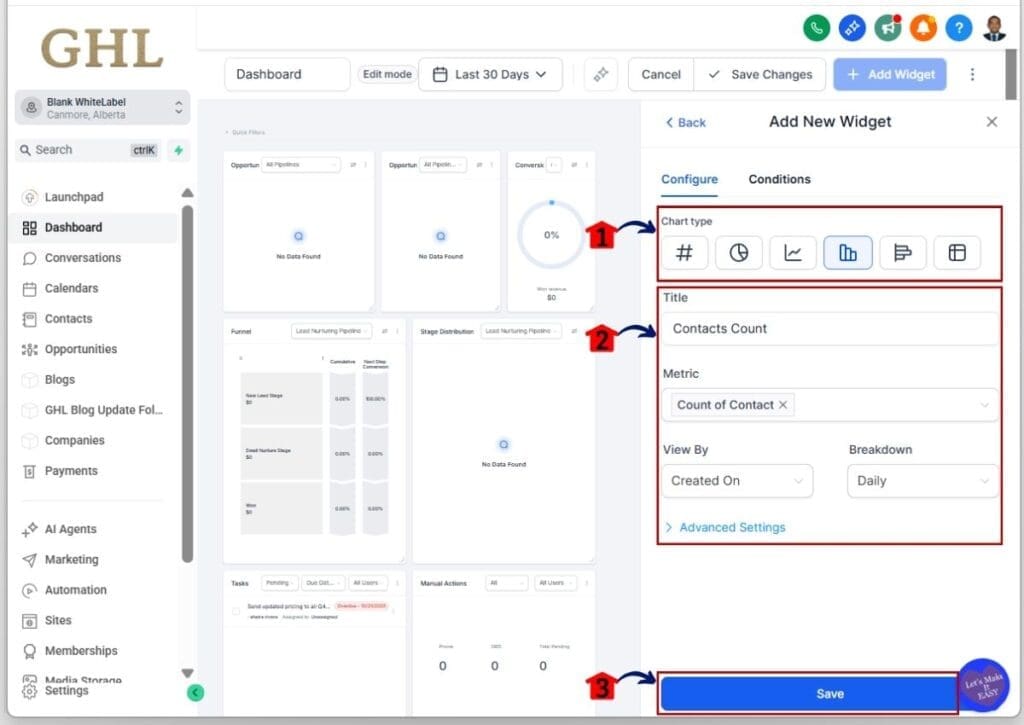
- Each widget has configuration settings you can adjust.
4.1 Choose a chart type for the widget
- The chart type will turn blue once you click this icon.
4.2 Add the Title, Metric, View By, and other settings
- Each widget has different configuration options. Check and edit them if needed.
4.3 Click the Save button
- The widget should appear on your dashboard.
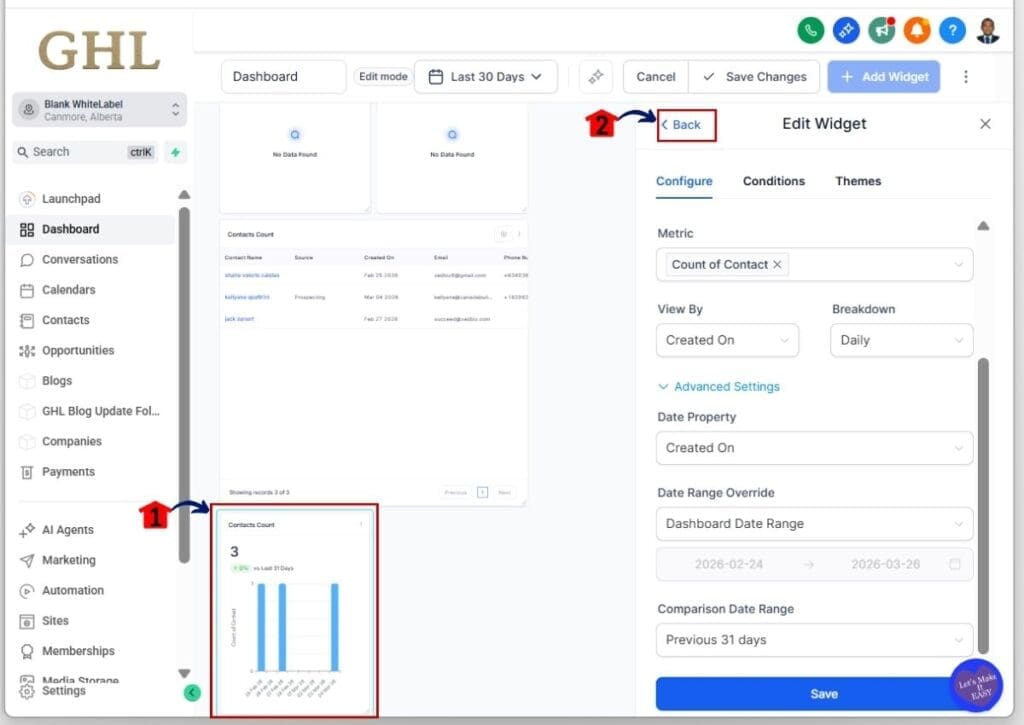
Step 05 – Check the added widget before returning to the Dashboard Editor
- The new widget will appear at the bottom of your dashboard.
5.1 Confirm the widget appears
- For this example, the Contacts Count widget should appear at the bottom.
5.2 Click the Back button
- You will return to the Dashboard Editor.
- You should see the Widgets, Elements, Themes, and Custom Metrics tabs.
- From here, you can easily Customize dashboard widget settings to match your needs.
Step 06 – Add an element to your GHL Dashboard
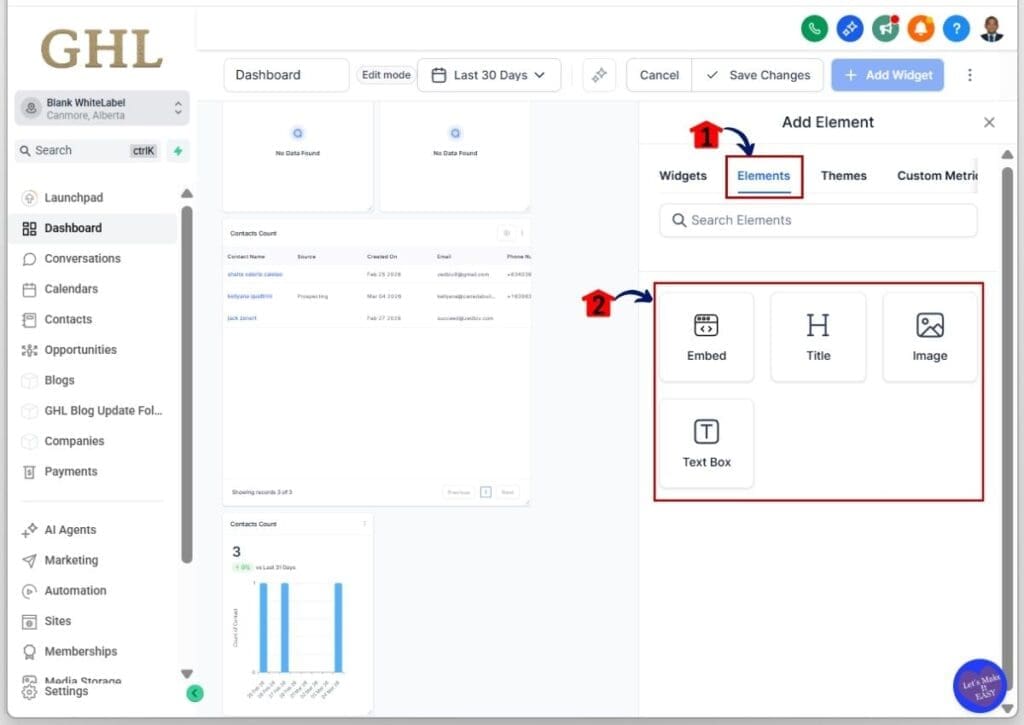
- Click the Elements tab to access options like Embed, Title, Image, and Text Box.
6.1 Click the Elements tab
- This tab is located between the Widgets and Themes tabs.
6.2 Choose an element
- For this example, select the Embed element.
Step 07 – Configure the element before saving
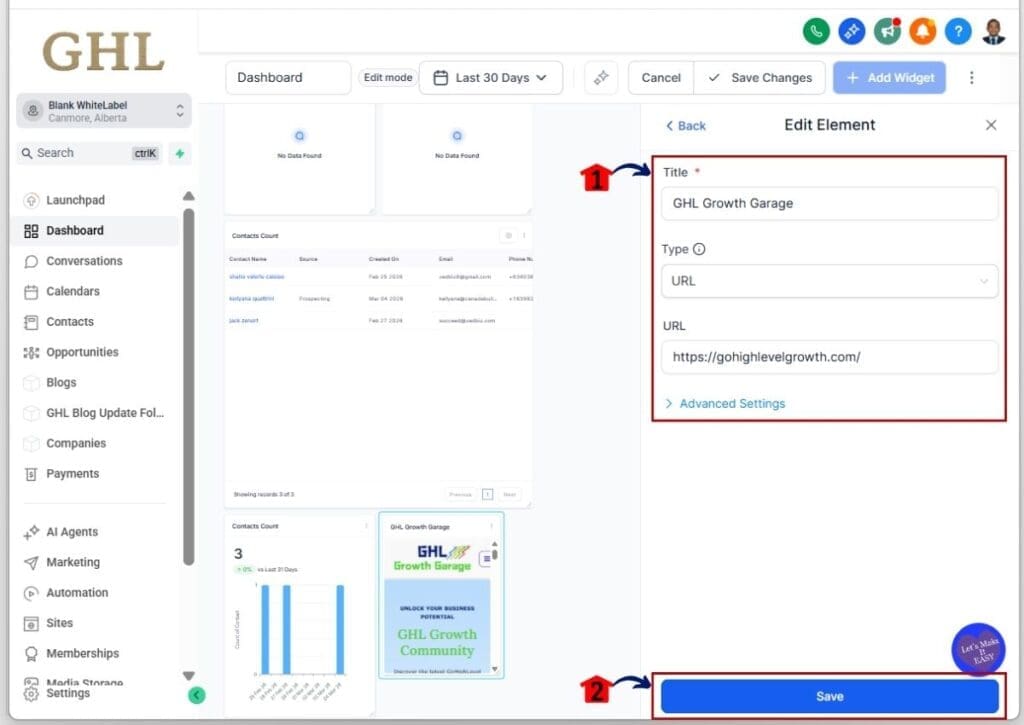
- Edit the element’s configuration settings before adding it to your dashboard.
7.1 Edit the Title, Type, and other settings of the Embed element
- Each element has different configuration options. Check and adjust them as needed.
7.2 Click the Save button
- The element should now appear on your dashboard.
- From here, you can start to customize dashboard widget settings based on what you need.
Step 08 – Choose a theme for your GHL Dashboard
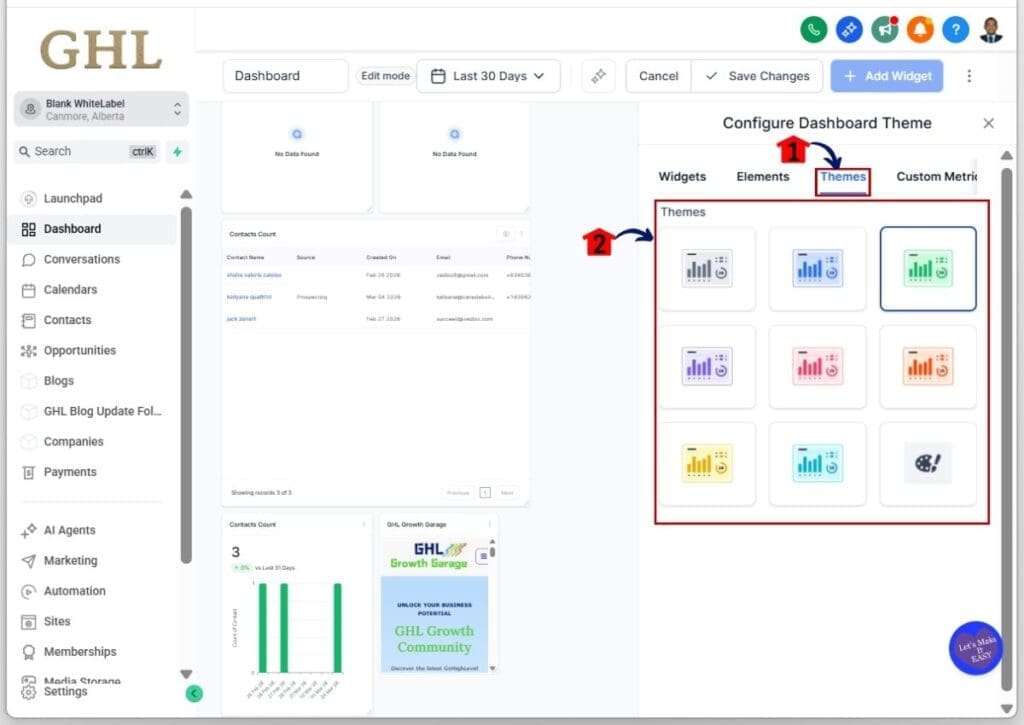
- Select or customize the color theme of your dashboard.
8.1 Click the Themes tab
- This tab is between the Elements and Custom Metrics tabs.
8.2 Choose a theme
- The selected theme will be highlighted with a blue box.
- Some widget colors, like graphs or percentages, will follow your theme color. This helps keep your dashboard clean and easy to read.
- When you customize dashboard widget settings, you can make sure everything matches your preferred style while still showing clear data.
Step 09 – Create a custom metric for your GHL Dashboard
- You can create metrics, formulas, and comparisons for page views, contacts added, and more.
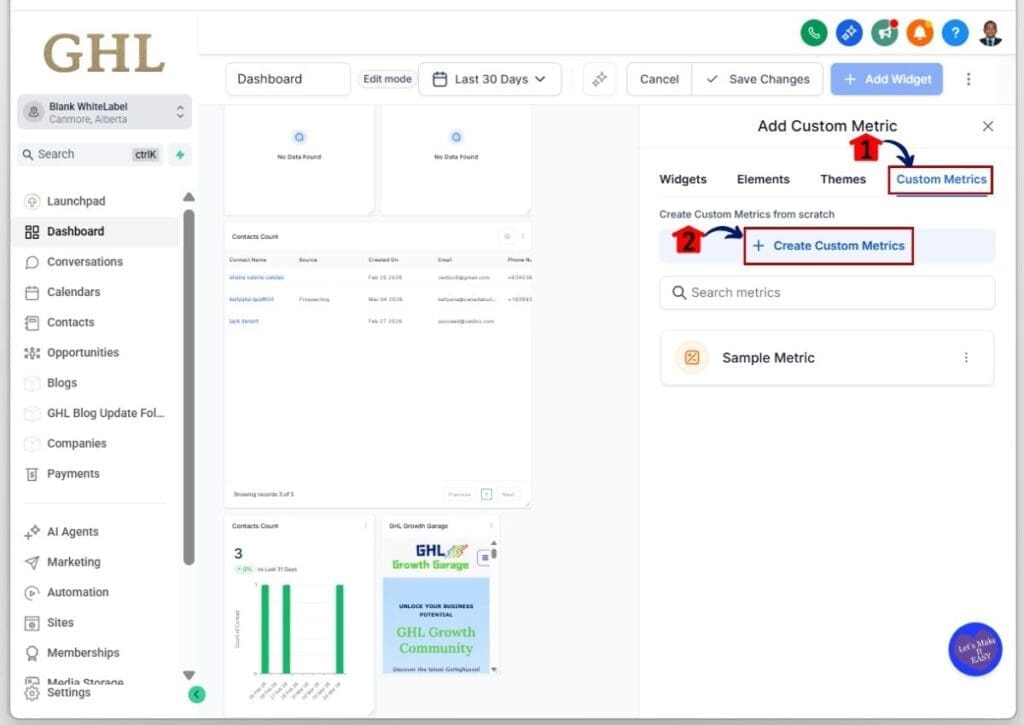
9.1 Click the Custom Metrics tab
- You will see the + Create Custom Metrics button along with any existing metrics.
9.2 Click the + Create Custom Metrics button
- A pop-up will appear to choose between creating from scratch or using an existing metric.
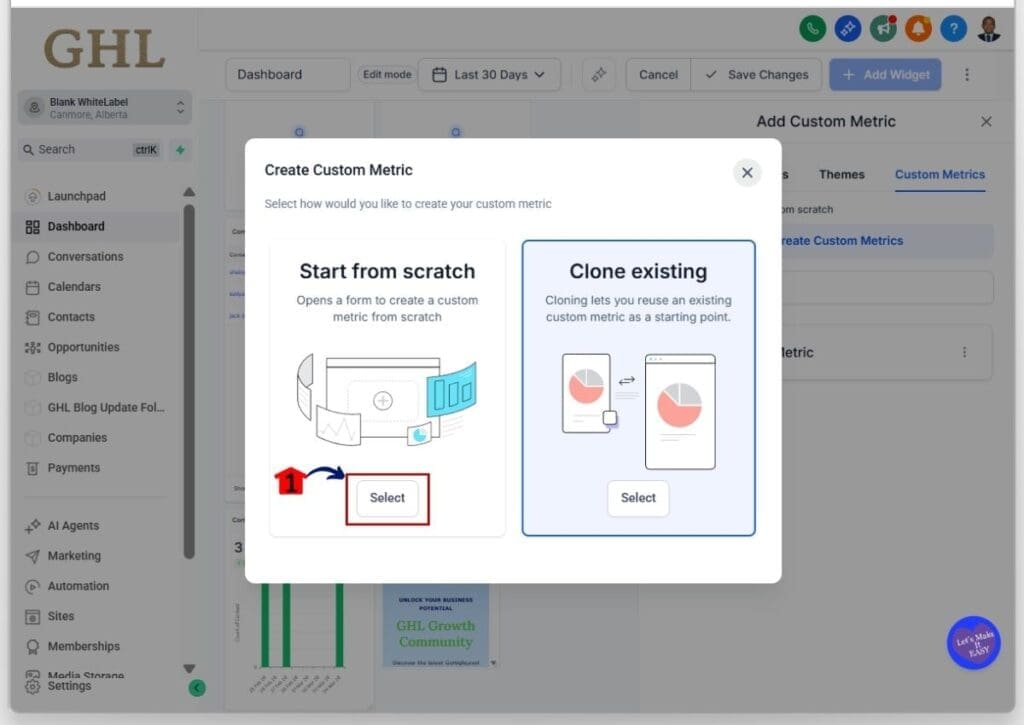
Step 10 – Create a Custom Metric from scratch
- Alternatively, you can base it on an existing metric.
10.1 Click Select for the Start from Scratch option
- The option will be highlighted with a blue box when selected.
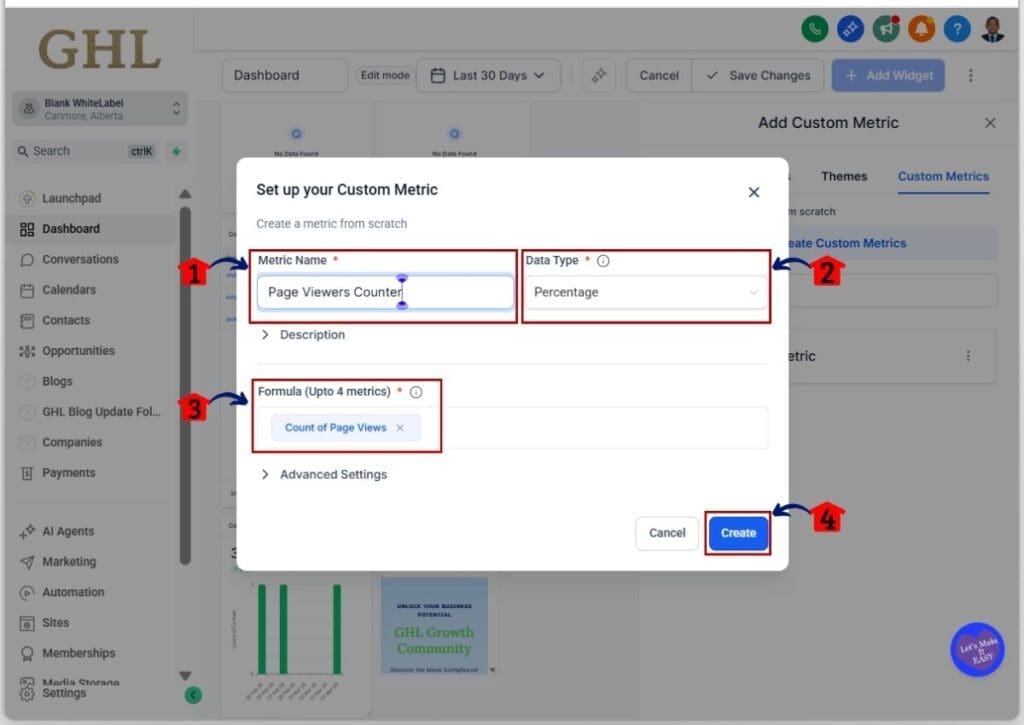
Step 11 – Set up your Custom Metric
- Configure your custom metric before adding it to your dashboard.
11.1 Type the Metric Name
- Example: Track how many people viewed a page on your website.
11.2 Choose the Data Type
- Options include Percentage, Integer, or others.
11.3 Add formulas and comparisons
- For this example, select Count of Page Views.
11.4 Click the Create button
- This finalizes your custom metric.
- You can now use it to Customize dashboard widget and see the data that matters most to you.
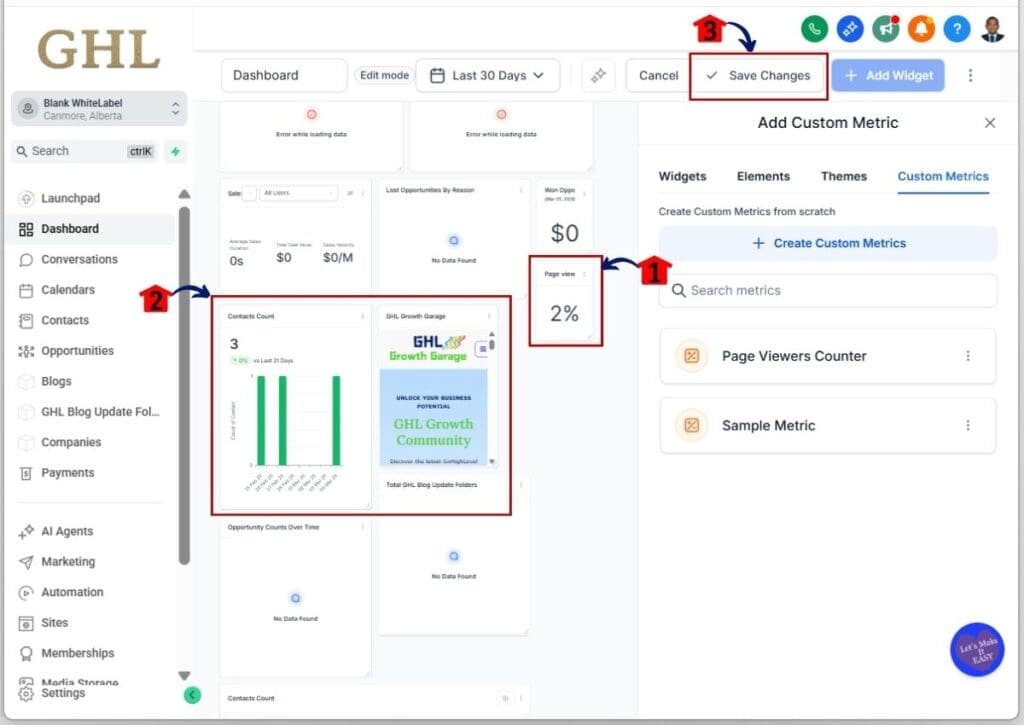
Step 12 – Arrange all widgets on your dashboard before saving
- Drag and drop widgets to arrange them as you prefer.
12.1 Confirm your new custom metric appears
- It usually appears at the bottom of your dashboard.
12.2 Arrange other widgets
- Make sure widgets are aligned neatly without gaps.
12.3 Click Save Changes
- The Customize dashboard widgets Editor will close.
- All added widgets and changes will now appear on your GHL dashboard.
Pro/Quick Tips about Dashboard Customization
Once your dashboard is ready, a few simple changes can make it easier to use every day. These tips will help you stay organized, read your data faster, and move through your GHL dashboard with less effort. When you customize dashboard widget placements the right way, your setup works better for you.
- Start by placing your most-used widgets at the top or on the left side. This makes them easy to find right away.
- Try to use the same chart style for similar data. This helps you compare numbers quickly without confusion.
- Only embed external websites if they give you live updates or data you check often. This keeps your dashboard clean and useful.
- When you create custom metrics, use clear names. Make sure your formulas match how you review your business data.
- Group related widgets together. For example, keep contacts and lead metrics in one area so you can spot trends faster.
- Review your dashboard from time to time. Remove widgets you do not use often so your space stays simple.
- Always save your layout after making big changes. This helps you avoid losing your setup.
- Before you rely on custom metrics, test them with a few data points. This helps you confirm they are correct.
- With these steps, you can customize dashboard widget layouts in a way that saves time and keeps your data clear.
What This Means for Your Business
When you Customize dashboard widget in GHL, you make it easier to see what really matters in your business. You get quick access to your key numbers, so you can spot trends, track your campaigns, and make decisions without jumping between screens.
A clear dashboard also helps your team stay on track. When everyone sees the same data in real time, there is less confusion. It becomes easier to focus on the actions that drive results.
Here’s what you gain when you customize your dashboard:
- You can check trends and key metrics quickly without extra clicks.
- You can track your campaigns in one place.
- You keep your team aligned with real-time data.
- You plan and report faster with organized information.
- You make better decisions with a dashboard built around your priorities.
FAQs about Dashboard Customization
When you customize dashboard widgets in GHL, you may have questions about adding, arranging, or managing them. This FAQ section covers the most common questions and provides clear answers to help you get the most out of your dashboard setup.
Conclusion and Your Next Steps
When you customize dashboard widgets settings in GHL, you make your dashboard fit the way you work. You can add widgets, move them around, edit what they show, and even include your own data. This helps you keep the most important numbers clear and easy to read.
A clean and simple dashboard saves you time. You can check your metrics faster and help your team stay on the same page. When everything is in one place, you get a better view of your contacts, campaigns, and overall performance.
Start to customize dashboard widgets options today. With the right setup, your daily work becomes easier, and you can focus more on what matters most.
Scale Your Business Today.
Streamline your workflow with GoHighLevel’s powerful tools.


