

- AI Workflow Builder Just Removed Workflow Friction
- Quick Summary – AI Workflow Builder Overview
- Here are this weeks HighLevel Updates
- What’s New in the AI Workflow Builder
- What’s Changed in the AI Workflow Builder
- Why the AI Workflow Builder Matters for GHL Users
- How to Use the AI Workflow Builder in GHL
- Pro Tips to Get the Most from the AI Workflow Builder
- What the AI Workflow Builder Means for Agencies
- Results You Can Expect from the AI Workflow Builder
- FAQs About AI Workflow Builder
- Conclusion – Build Smarter, Deploy Faster
AI Workflow Builder Just Removed Workflow Friction
Before this update, if you used the AI Workflow Builder inside GHL, you still had to finish the job manually. The AI could generate actions and logic. But naming the workflow, configuring re-entry settings, adjusting business hours, and updating sender details all required extra clicks. It worked… but it wasn’t fully automated.
For agencies building multiple workflows every week, this created friction. One team member would generate the workflow with AI. Another would open the settings panel to adjust toggles. Someone else would double-check sender information. It slowed down production and increased the risk of small configuration mistakes.
GHL has now removed that limitation.
The AI Workflow Builder can now configure workflow settings and rename workflows directly from a single natural language prompt. That means naming, re-entry rules, business hours, sender details, and additional actions can all be handled in one step. No bouncing between tabs. No digging through settings.
What changed: The AI Workflow Builder now has access to core workflow settings. It can enable or disable re-entry, manage multiple opportunity settings, configure stop-on-response, set time zones, adjust business hours, update sender information, and rename workflows during editing. Everything can be described in one complete prompt and applied instantly.
Who this is for: Agency owners building automations at scale. Marketing teams creating appointment reminders and follow-ups. Virtual assistants managing workflow libraries. And any GHL user who wants to go from idea to production-ready automation without manual cleanup.
What we’ll demonstrate: In this guide, we’ll break down what’s new inside the AI Workflow Builder, explain why it matters for agencies, walk through step-by-step instructions for using it inside GHL, and share practical tips to help you build faster, cleaner, fully configured workflows in one prompt.
The latest GoHighLevel Changelog includes several other GHL feature updates that round out your daily workflow:
- Version History Improvements: View & Restore Versions Across Builders
- [Compliance] Stay compliant with ACH payment on Stripe
- Canva Integration In Media Storage
- Bulk Import for Companies
- AI Builder: 52% Faster Workflow Generation
- Record IDs – Improved Visibility in Lists & Record Details
- Reselling Reporting on Agency Dashboard
- Blogs – Revamped URL Blog Importer Experience 🚀
Keep reading for much more on all these updates and a deep dive into the AI Builder feature!
Quick Summary – AI Workflow Builder Overview
Purpose: This update expands the AI Workflow Builder so it can configure workflow settings and rename workflows directly from a single prompt inside GHL.
Why It Matters: It removes manual configuration steps like adjusting re-entry, business hours, and sender details, reducing setup time and preventing small but costly workflow mistakes.
What You Get: Full control over naming, time zones, time windows, re-entry rules, stop-on-response, sender information, and workflow actions without navigating the settings panel.
Time to Complete: Most workflows can now be built and fully configured in under five minutes when using a clear, structured prompt.
Difficulty Level: Beginner to Intermediate. If you can describe what you want in plain English, the AI Workflow Builder can apply it.
Key Outcome: Faster deployment of production-ready automations with cleaner configuration, fewer errors, and better scalability for agencies managing multiple sub-accounts.
Here are this weeks HighLevel Updates
Version History Improvements: View & Restore Versions Across Builders
- What it does:
Access old versions and restore them across builders. - Where in GHL:
Found in Funnels, Websites, and other builders under version history. - Impact:
Quick fixes when changes don’t go as planned. - Who it’s great for:
Agencies and users making frequent updates.
Automate marketing, manage leads, and grow faster with GoHighLevel.

[Compliance] Stay compliant with ACH payment on Stripe
- What it does:
Helps make sure your ACH payments through Stripe follow the right rules by adding compliance checks. - Where in GHL:
You’ll see this when configuring ACH payments in the Payments and Stripe settings. - Impact:
Keeps you protected from potential compliance problems and makes payments more secure. - Who this is for:
Anyone collecting ACH payments, especially agencies and SaaS businesses.
Canva Integration In Media Storage
- What it does:
Allows you to access and import Canva designs directly into GHL’s media storage. - Where in GHL:
Media Library / Storage section when uploading or selecting files. - Impact:
Speeds up content creation by removing the need to download and re-upload assets. - Who this is for:
Marketers, designers, and agencies creating visual assets for funnels, emails, and ads.
Bulk Import for Companies
- What it does:
Enables bulk uploading of company records into GHL instead of adding them one by one. - Where in GHL:
CRM under Companies section (import/upload functionality). - Impact:
Saves time and simplifies onboarding large datasets or migrating client information. - Who this is for:
Agencies, sales teams, and businesses handling large volumes of company data.
AI Builder: 52% Faster Workflow Generation
- What it does:
Improves AI workflow generation speed, cutting build time by over half. - Where in GHL:
AI Workflow Builder inside Automation > Workflows. - Impact:
Speeds up automation creation, allowing faster testing and deployment. - Who this is for:
Agencies, automation builders, and marketers creating workflows frequently.
Record IDs – Improved Visibility in Lists & Record Details
- What it does:
Makes record IDs easier to see within lists and detailed views. - Where in GHL:
CRM records, lists, and detail pages. - Impact:
Improves tracking, integrations, and debugging when working with specific records. - Who this is for:
Developers, advanced users, and teams working with integrations or data tracking.
Reselling Reporting on Agency Dashboard
- What it does:
Adds reporting insights for reselling activities directly in the agency dashboard. - Where in GHL:
Agency Dashboard under reporting/analytics sections. - Impact:
Gives better visibility into revenue and performance from resold services. - Who this is for:
Agencies running SaaS mode or reselling GHL services.
Blogs – Revamped URL Blog Importer Experience 🚀
- What it does:
Improves the blog importer tool for pulling content from URLs into GHL. - Where in GHL:
Sites > Blogs > Import via URL. - Impact:
Makes moving your blogs over quicker and a lot easier to handle. - Who this is for:
Agencies, content marketers, and businesses migrating blogs into GHL.
What’s New in the AI Workflow Builder
The AI Workflow Builder now does more than generate workflow actions. It controls the actual workflow settings inside GHL.
That’s the big shift.
Before this update, you could ask AI to build an appointment reminder or follow-up sequence. But you still had to open the settings panel to configure re-entry, adjust business hours, rename the workflow, or update sender details.
Now you don’t.
The AI Workflow Builder can rename workflows automatically during creation. If you give it a name, it applies it instantly. If you don’t, it generates a contextual name based on your prompt. You can even tell it to rename a workflow while you’re editing it.
It also has full access to core workflow settings.
Want to stop contacts from looping back through? You can. Need multiple opportunities turned off? Done. Prefer the workflow to pause once someone replies? Easy. You can even decide what time zone it follows and limit it to your real business hours instead of letting it run 24/7.
You can update sender details too. That includes From Name, From Email, and From Number, all without touching the settings tab.
Even smaller settings like “Mark Conversations as Read” can now be controlled with a simple instruction.
In short, the AI Workflow Builder now manages both the logic and the configuration. That turns a multi-step manual setup into one clean prompt.
What’s Changed in the AI Workflow Builder
The AI Workflow Builder used to help you build workflows. Now it helps you deploy them.
That’s the difference.
Before this update, the AI could generate triggers, delays, emails, SMS steps, and logic paths. But once it finished, your work wasn’t done. You still had to open the workflow settings panel and configure everything manually.
- You had to rename the workflow.
- You had to enable re-entry.
- You had to check stop-on-response.
- You had to set time zones and business hours.
- You had to update sender details.
Each one required extra clicks. Extra review. Extra room for error.
For agencies building multiple automations weekly, this added up fast. Small settings were easy to forget. A workflow might look complete but still run outside business hours. Or send from the wrong email. Or fail to re-enter when it should.
Now the AI Workflow Builder handles both structure and configuration in one step.
You can describe the entire workflow setup in a single natural language instruction. Naming. Settings. Timing. Actions. All applied instantly.
This moves the AI Workflow Builder from being a build assistant to becoming a workflow control layer inside GHL.
That’s not an improvement. That’s a workflow evolution.
Why the AI Workflow Builder Matters for GHL Users
The AI Workflow Builder is no longer just about speed. It’s about control.
If you build automations regularly, you know small settings can cause big problems. A workflow running outside business hours can frustrate leads. A missing re-entry toggle can kill follow-up sequences. Wrong sender details can hurt deliverability and branding.
Those mistakes usually happen in the settings panel.
Now the AI Workflow Builder eliminates that gap.
Before, you’d build the workflow and then go back in to clean everything up. Now you handle it all in one shot. That alone saves a few extra minutes every time — and those minutes add up fast.
For agencies, this matters even more.
When you are onboarding new clients, cloning snapshots, or building niche-specific automations, consistency is critical. The AI Workflow Builder helps you standardize naming conventions, time windows, and communication settings without relying on manual review.
It also improves team efficiency. A VA can describe the full setup in one instruction. A marketer can update sender details mid-edit without digging into menus.
This isn’t just about convenience.
It’s about building cleaner, more scalable automations inside GHL with less friction and fewer mistakes.
How to Use the AI Workflow Builder in GHL
The AI Workflow Builder enables you to create and configure a complete workflow using a single natural language prompt. In this section, you will learn how to access the Workflows area, use the AI Builder to define settings, and publish a fully configured automation inside GoHighLevel.
Follow the step-by-step instructions below to build, customize, and deploy a production-ready workflow efficiently within GHL.
- Access the Main Left Hand Menu Automation in GoHighLevel.
- Use the AI Workflow Builder Prompt.
- Review Contact Workflow Settings.
- Review Communication Workflow Settings.
- Test and Publish the Workflow.
To start make sure you are logged in to your GoHighLevel sub-account.
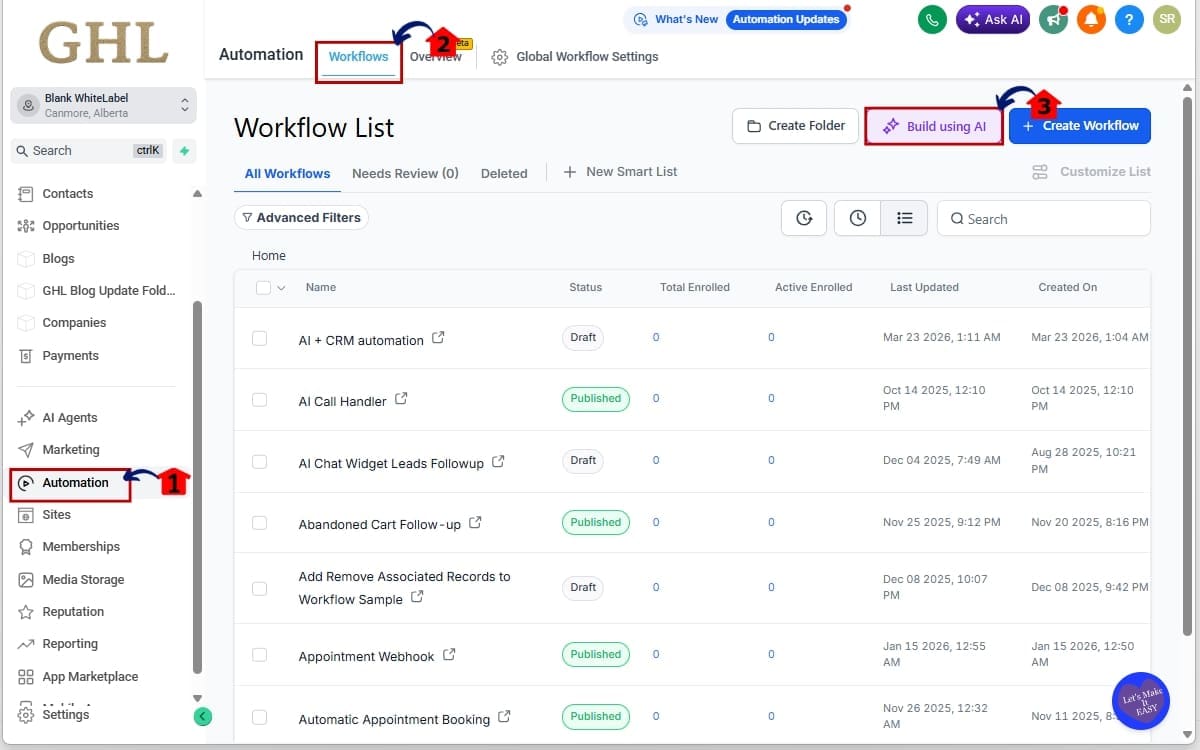
Step 01 – Access the Main Left Hand Menu Automation in GoHighLevel
- The Main Menu on the left side of your screen contains all major working areas inside GHL.
1.1 Click on “Automation” in the left menu.
- This is where all your workflows live.
1.2 Click on “Workflows” from the top menu bar.
- You are now inside the Workflow dashboard where you can create or edit automations.
1.3 Click on build using AI
- This opens the prompt input field.
Step 02 – Use the AI Workflow Builder Prompt
- Clearly describe the workflow name, required settings, timing rules, and actions in one instruction so the AI can configure everything correctly without needing revisions.
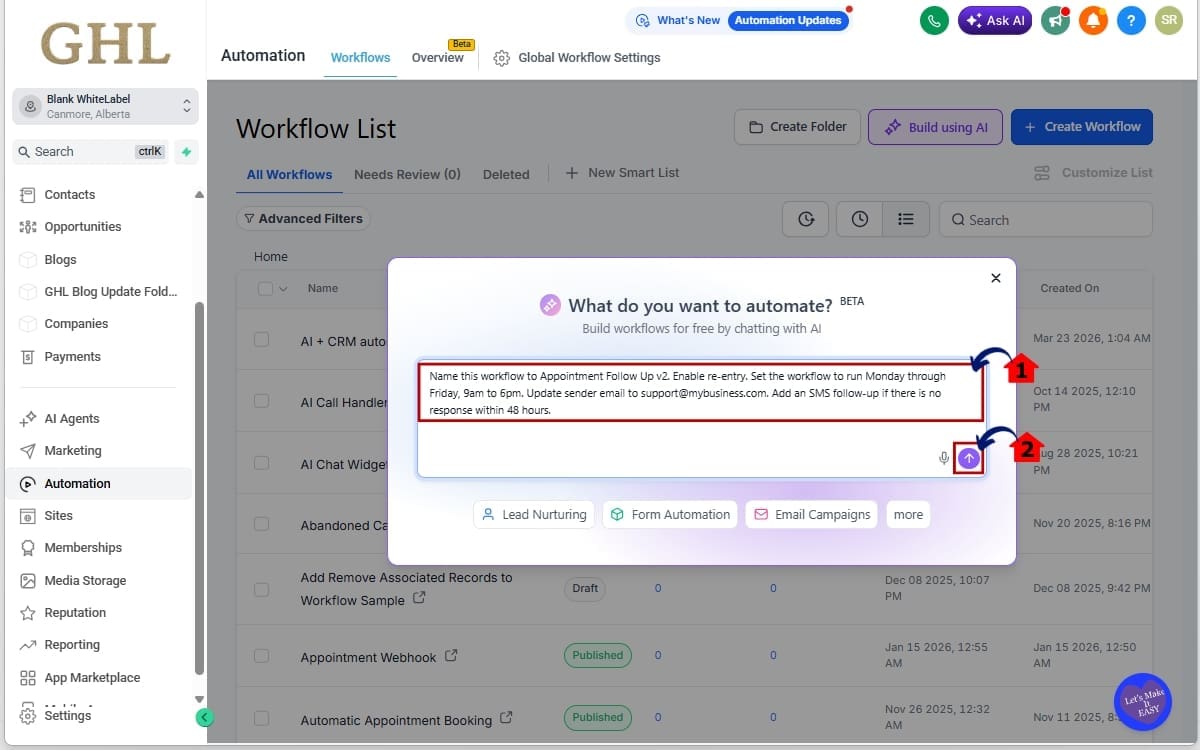
2.1 Enter a complete instruction that includes naming, settings, and actions.
Example Prompt:
“Name this workflow to Appointment Follow Up v2. Enable re-entry. Set the workflow to run Monday through Friday, 9am to 6pm. Update sender email to [email protected]. Add an SMS follow-up if there is no response within 48 hours.”
- Notice how everything is described in one instruction.
2.2 Submit the prompt.
- The AI Workflow Builder will apply the name, update workflow settings, and add the requested actions automatically. This takes 3-5 minutes.
Step 03 – Review Contact Workflow Settings
- Before publishing your workflow, review the contact workflow settings to confirm everything was applied correctly. This ensures your automation runs as expected and follows the rules you defined in your AI prompt.
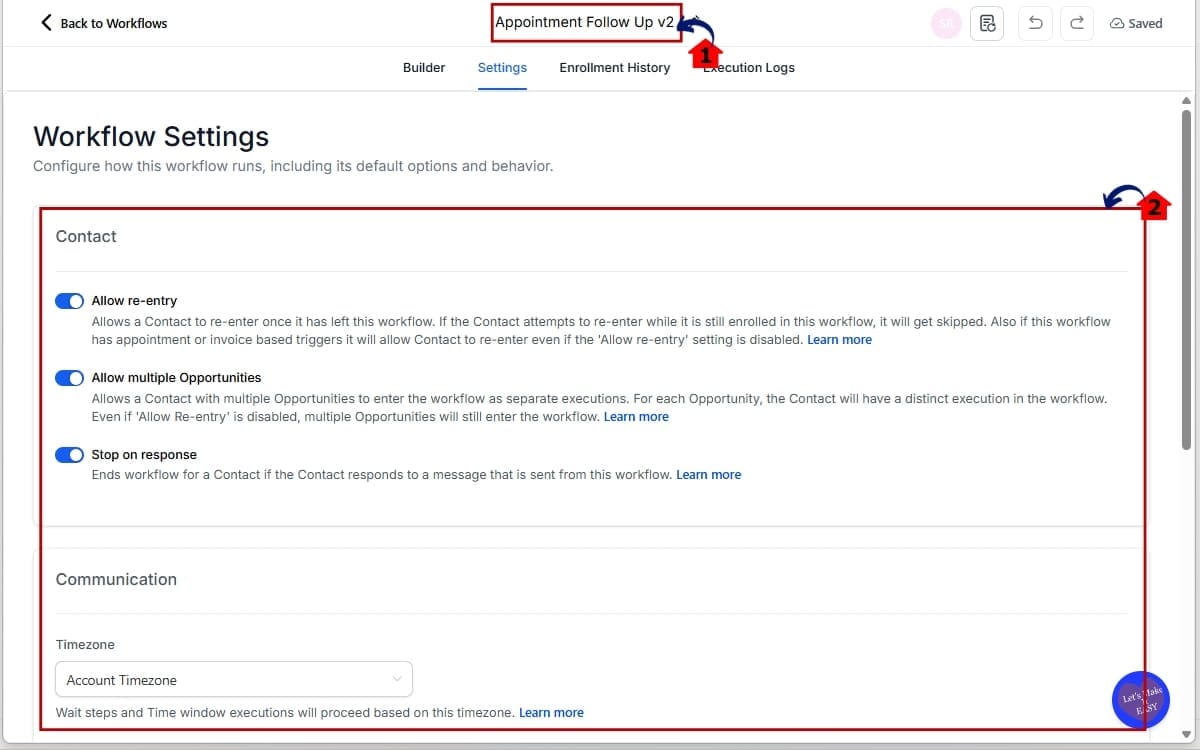
3.1 Click on the workflow name at the top to confirm it updated correctly.
- This is where you can review configuration details applied by the AI Workflow Builder.
3.2 Click into “Settings” to review toggles such as:
- Allow re-entry
- Allow multiple Opportunities
- Stop on response
- Time zone
Step 04 – Review Communication Workflow Settings
- The AI Workflow Builder should have already applied your instructions. You are simply verifying.
4.1 Confirm sender details under communication settings.
- From Name
- From Email
- From Number
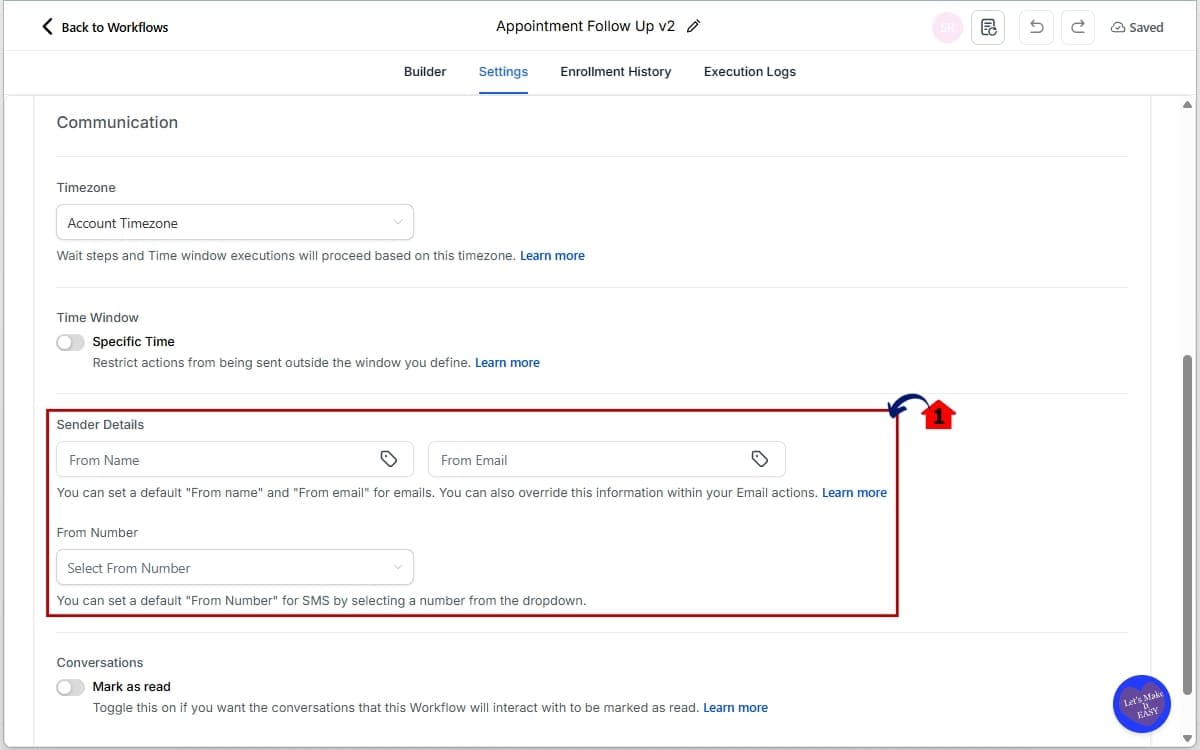
Step 05 – Test and Publish the Workflow
- Before going live, run a quick test to make sure everything triggers correctly. Once confirmed, publish the workflow so it can begin running automatically.
5.1 Click the “Test Workflow” button to confirm that all triggers, delays, and actions fire as expected.
- Run a quick test contact through the workflow to verify timing and logic.
5.2 Click “Publish” in the top right corner.
- Double-check naming, settings, and sender details before going live.
5.3 Click “Save” to confirm all updates.
- Your workflow is now live and fully configured inside GHL.
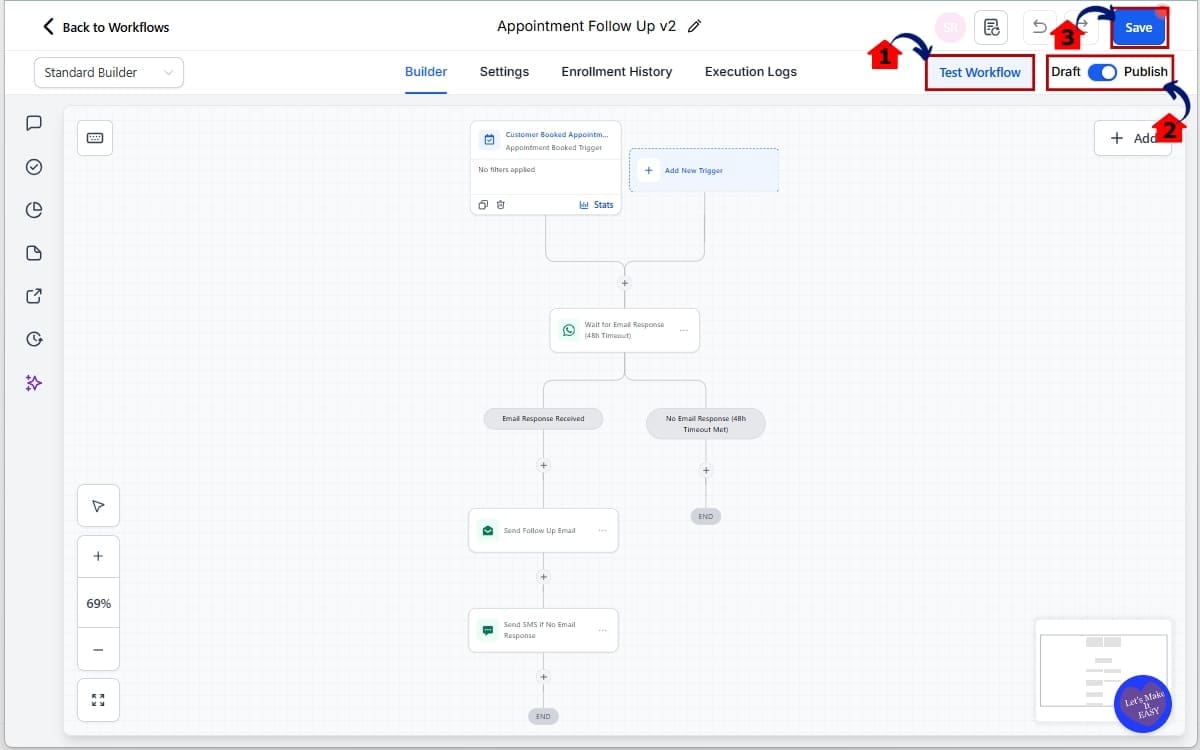
Your workflow is now fully configured and ready to run. Everything is set up exactly as defined in your prompt.
Pro Tips to Get the Most from the AI Workflow Builder
If you take a second to explain exactly what you need, it usually gets it right the first time. When you rush the prompt, that’s when revisions happen.
Be direct.
Vague gets vague results. Instead of saying “set business hours,” define the actual schedule you want — weekdays, 9 to 6, Eastern. The more specific you are, the fewer edits you’ll make.
Combine naming, settings, and actions in one prompt. Don’t break it into multiple requests unless you need to refine something. The AI Workflow Builder performs best when it understands the full outcome you want.
Always specify time zone when restricting hours. If you manage clients in different regions, this prevents scheduling mistakes.
Have a naming rule and follow it. If that means adding versions or labeling by campaign type, mention it when you build the workflow. It will keep everything aligned.
Common mistakes to avoid:
- Forgetting to enable or disable re-entry when building follow-ups
- Not specifying sender details for client-specific workflows
- Leaving business hours open when compliance matters
- Using vague prompts like “Make it better”
Treat the AI Workflow Builder like a production assistant. The clearer your instructions, the cleaner your automation library becomes.
What the AI Workflow Builder Means for Agencies
The AI Workflow Builder changes how agencies scale automation inside GHL.
Before this update, building client workflows required both creative thinking and technical cleanup. You built the automation. Then you adjusted settings. Then you reviewed toggles. Then you double-checked sender details.
Now that entire process compresses into one structured prompt.
For agencies managing multiple sub-accounts, this means faster onboarding. You can describe a full appointment reminder system, lead nurture sequence, or reactivation campaign and have it fully configured in seconds.
That reduces build time dramatically.
It also improves consistency. The AI Workflow Builder allows you to standardize naming conventions, time windows, re-entry rules, and communication settings across every client account. That makes your automation library cleaner and easier to manage long term.
For teams, this improves delegation. A VA does not need to memorize every setting toggle. They can describe the workflow requirements clearly, and the AI applies the configuration correctly.
For snapshot builders, this is even more powerful. You can build fully production-ready workflows before exporting them, reducing cleanup work after import.
The AI Workflow Builder is not just a faster tool.
It is a scalability upgrade for agencies building automation at volume.
Results You Can Expect from the AI Workflow Builder
The AI Workflow Builder delivers real efficiency gains almost immediately.
First, you will notice faster workflow creation. What used to take ten to fifteen minutes, build, configure, rename, review settings — can now be completed in one structured prompt. That alone can cut workflow setup time by 50% or more.
Second, you will see fewer configuration mistakes.
When settings are handled manually, small errors slip through. Re-entry left off. Wrong time zone. Sender email not updated. The AI Workflow Builder reduces that risk by applying everything at once based on your instruction.
Third, your workflow library becomes cleaner.
When your workflows follow the same naming style and time rules, things just feel easier to manage. That becomes especially important if you’re running several client accounts at once.
You will also gain more confidence in delegation. Team members can describe outcomes instead of memorizing every toggle inside GHL.
Most importantly, you move from “building workflows” to deploying production-ready automation faster.
The AI Workflow Builder is not just about speed.
It is about building smarter systems with fewer manual touchpoints inside GHL.
FAQs About AI Workflow Builder
Conclusion – Build Smarter, Deploy Faster
The AI Workflow Builder just moved from helpful to powerful.
You are no longer building workflows and then configuring them after. You are describing the entire automation, name, settings, timing, sender details, and actions, and letting GHL handle the execution in one step.
That saves time.
It reduces mistakes.
And it makes your automation library cleaner and more scalable.
For agencies, this is a serious upgrade. Faster onboarding. Better standardization. Easier delegation. Cleaner snapshots. Fewer configuration errors slipping through the cracks.
This is what real automation looks like.
If you haven’t tested the new AI Workflow Builder capabilities yet, open a workflow today and try giving it a full production-level instruction. Rename it. Restrict it. Configure it. Add logic. Do it all in one prompt.
Then compare that to how you built workflows last month.
Big difference.
The team here at GHL Growth Garage will keep breaking down every major GoHighLevel update so you can stay ahead and build smarter systems.
Have you tested the new AI Workflow Builder yet? What workflow are you upgrading first?
Scale Your Business Today.
Streamline your workflow with GoHighLevel’s powerful tools.


