- Build Email Templates Fast with GHL Email AI Builder
- Quick Summary – Email AI Builder at a Glance
- Video Guide: Create Emails Fast with GHL Email AI Builder
- What’s New in GoHighLevel Email AI Builder
- Why GHL Email AI Builder Matters
- How to Build an Email Using Assist Mode
- How to Build an Email Using Build Mode
- Pro Tips in Using the GHL Email AI Builder
- How Does GHL Email AI Builder Improve Efficiency
- Common Questions About GHL Email AI Builder
- Final Thoughts on Using this Tool
Build Email Templates Fast with GHL Email AI Builder
GHL Email AI Builder lets you quickly create email templates by generating subject lines, body copy, and full emails using simple prompts. You can review, edit, and save these templates directly in GoHighLevel, making it easy to produce consistent, ready-to-send emails for any campaign.
When I tested this feature while building email templates for live campaigns, I found that providing clear, specific prompts produces more usable and on-brand content than generic or vague instructions.
Email content quality matters because marketers see up to 40 percent higher open rates when emails match audience intent. Many users struggle to write emails fast and still stay on brand. This guide gives clear steps you can follow to create ready‑to‑send email templates with less effort. You will finish this tutorial with usable templates that improve your campaign workflow and save time.
Quick Summary – Email AI Builder at a Glance
Purpose: The GHL Email AI Builder helps agencies and marketers create email templates quickly. It uses AI-generated prompts to produce subject lines and body content while keeping messaging consistent.
Why It Matters: This tool reduces time spent writing emails manually, improves workflow efficiency, and keeps campaigns on brand across multiple accounts.
What You Get: Step-by-step access to the Email AI Builder, editable subject lines and body copy, reusable templates, and Brand Board integration.
Time To Complete: Creating and saving your first email template usually takes 5–10 minutes per campaign.
Difficulty Level: Easy to use for beginners, no advanced copywriting skills needed.
Key Outcome: Agencies and marketers can produce professional, ready-to-send email templates faster, maintain consistent branding, and improve overall campaign performance.
Video Guide: Create Emails Fast with GHL Email AI Builder
Create professional email templates fast using GHL Email AI Builder. Save time and maintain consistent messaging across campaigns.
Inside this video:
Automate marketing, manage leads, and grow faster with GoHighLevel.

- How to open and access the Email AI Builder in GHL.
- Writing clear prompts to generate subject lines and email body copy using the Assist and Build tools.
- Editing each element with AI suggestions to match your email marketing goal.
- Saving email templates for your live campaigns.
This video gives you a practical, step-by-step guide to producing ready-to-send emails efficiently.
What’s New in GoHighLevel Email AI Builder
GoHighLevel Email AI Builder now includes guided email template creation and reference‑based generation to help you build email templates faster with clear inputs. Applies to GoHighLevel Version 2.0 Beta. The feature produces complete subject lines and body text based on prompts so you can save templates for campaigns using predictable, editable drafts that match client voice.
Reference Email Start
You can begin with a reference URL or image of an existing email so the system builds off proven designs instead of starting from blank. This reduces guesswork by up to 50 percent when you reuse layouts that fit your niche or client. This matters for agencies that need consistent branding across multiple clients.
Assist Mode for Better Inputs
The AI now offers assistive prompts that guide you toward clearer user input. Instead of vague prompts, you get suggestions that help generate cleaner drafts with fewer rewrites. This reduces revision time and improves writer confidence for team members with varying skill levels.
Brand Board Integration
Brand Board rules are automatically applied during generation, so fonts, colors, and messaging tone align with your saved brand settings. This ensures consistency in client deliverables and cuts manual formatting steps.
Conversational Editing Tools
You can refine copy, adjust messaging tone, or simplify content through conversational editing directly within the builder. Every change is versioned, and undo/redo is available so experimentation is low risk.
Why GHL Email AI Builder Matters
AI tools like GHL’s Email AI Builder save marketers up to 40 percent of time spent creating email templates manually. This is the most efficient way to produce subject lines, body copy, and layouts for campaigns while maintaining brand consistency. Agencies using reusable templates see faster campaign deployment and reduced manual work.
In my experience managing multiple client accounts, teams generate higher-quality emails when prompts are specific and clear. Vague instructions often require multiple revisions, which slows campaign rollout. Using step-by-step guidance in GHL Email AI Builder ensures consistent, actionable templates across campaigns.
Key benefits include:
- Faster Template Creation: Generate professional emails in minutes rather than hours for newsletters or drip sequences.
- Consistent Branding: Automatically apply brand rules to every template, improving client satisfaction and recognition.
- Reduced Revision Time: AI-generated drafts cut editing by up to 30 percent, helping teams focus on strategy and testing.
These practical advantages mean you can produce high-quality email templates efficiently, improve campaign performance, and save valuable time for other marketing priorities.
How to Build an Email Using Assist Mode
Using Assist mode in GHL Email AI Builder helps you improve your AI-generated email templates by providing guidance and suggestions for clearer, more effective prompts. This feature ensures your subject lines and body copy better match your campaign goals and maintain brand consistency.
In the steps below, you will access Assist mode, apply your Brand boards, set the foundations, sound, and visual layout, make any necessary edits, and save the template for use in your email campaigns. This process helps you create professional, ready-to-send emails more efficiently.
- Access the Email AI Builder in the GHL Marketing Email Templates section.
- Apply your Brand boards in the Assist tab of the Email AI Builder.
- Review and confirm your Brand board details before personalizing.
- Set the Language and Tone of your email before proceeding to the Visual Design setup.
- Customize the visual style of your email.
- Adjust the layout settings and generate your email.
- Rename, edit and refine your email elements using AI.
- Review, finalize, and save your email template.
- Check responsiveness and return to the email editor.
To start, make sure you are logged in to your GoHighLevel sub-account.
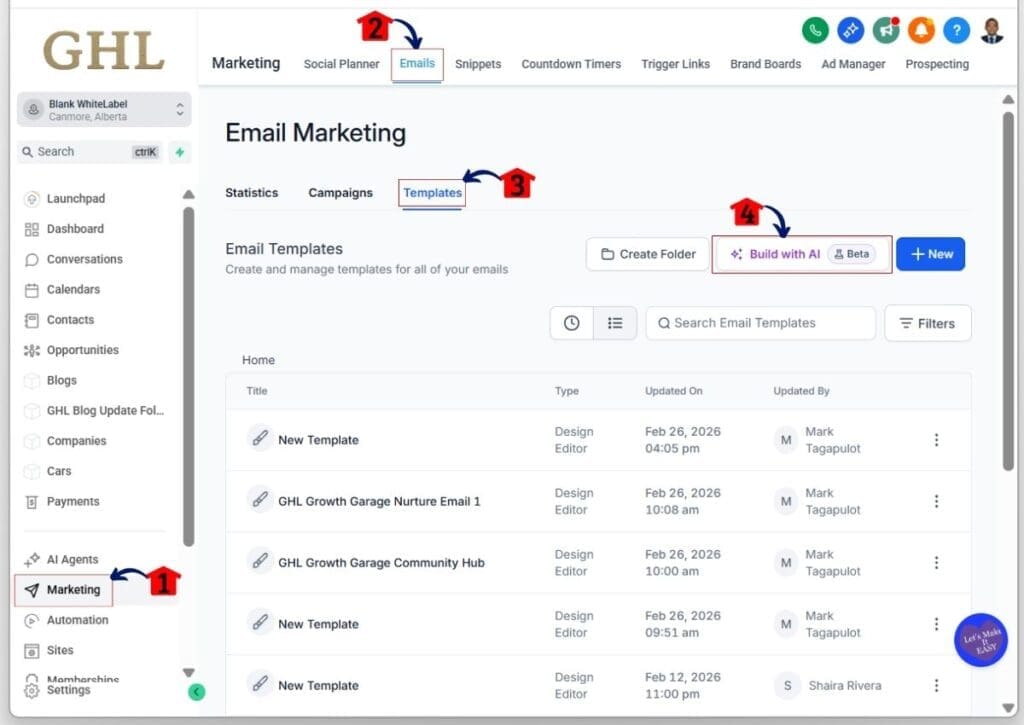
Step 01 – Access the Email AI Builder in the GHL Marketing Email Templates section
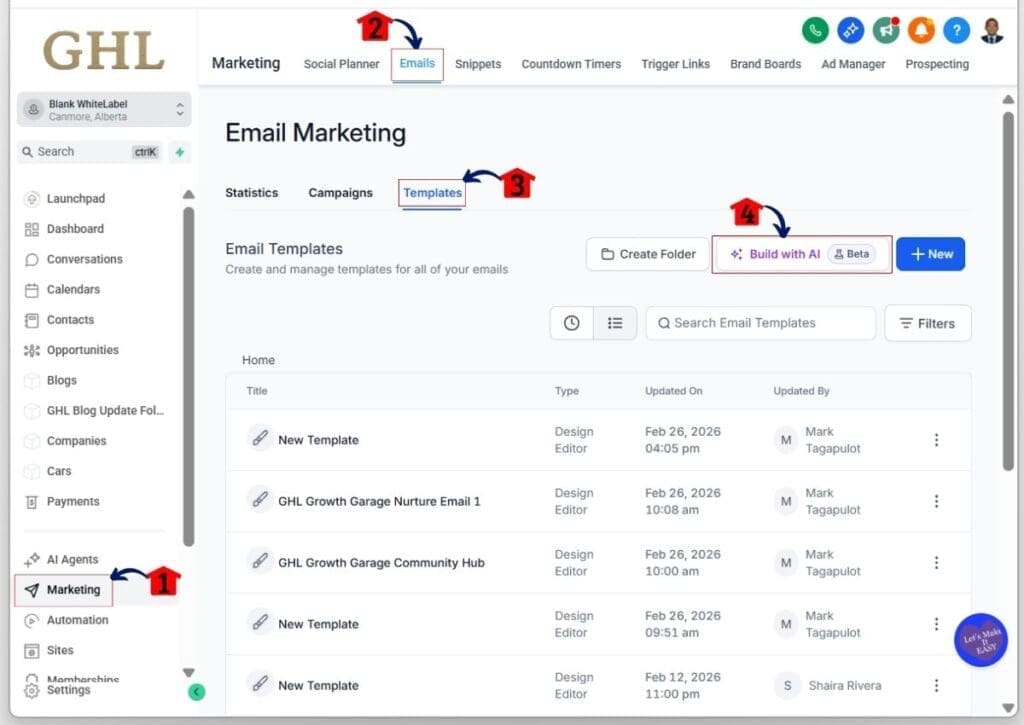
- The Email AI Builder is located between the Create Folder and + New buttons in the Templates tab of the Email section.
1.1 Click the Marketing menu item.
- Inside the Marketing section, you will see Social Planner, Emails, Snippets, and more.
1.2 Click the Emails tab in the top menu.
- The Emails tab is between Social Planner and Snippets in the top menu.
- The Emails tab has three subtabs: Statistics, Campaigns, and Templates.
1.3 Click the Templates subsection under the Emails menu.
- It is located beside the Campaigns subtab.
1.4 Click the Build with AI button in the Templates subsection.
- This button is between the Create Folder and + New buttons.
- You will be taken to the email builder where you can create and edit templates using the Email AI Builder.
Step 02 – Apply your Brand boards in the Assist tab of the Email AI Builder
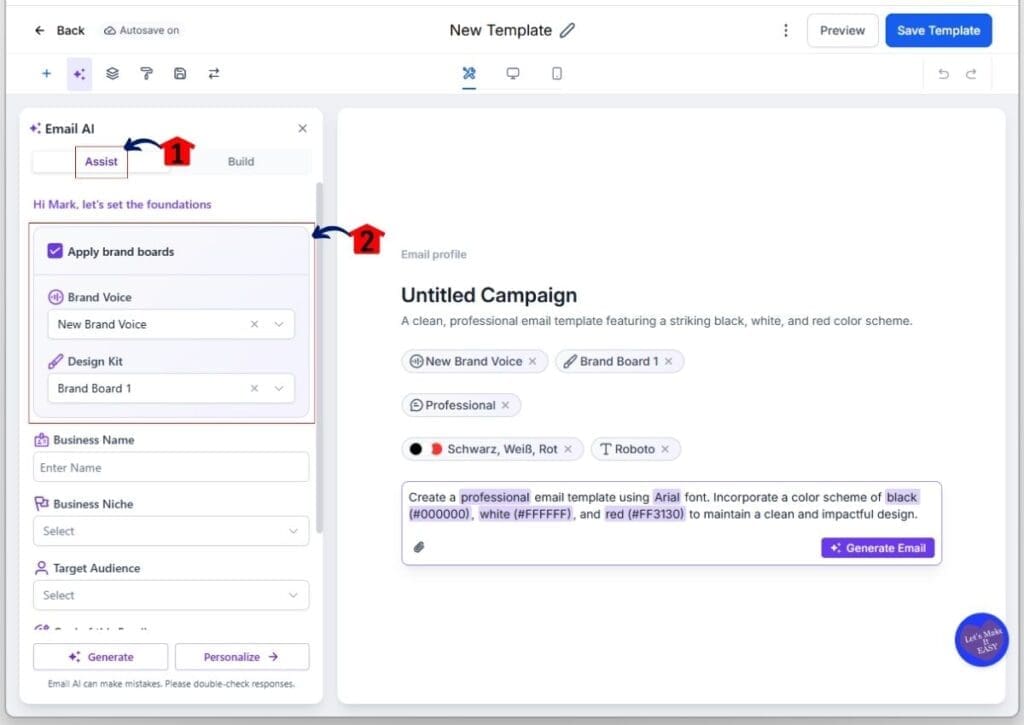
- Add your Brand Voice and Brand Kit inside the Assist tool of the Email AI Builder.
2.1 Make sure you are in the Assist tab of the Email AI Builder.
- By default, the Email AI Builder opens in Assist mode.
2.2 Set your Brand Voice and Design Kit.
- If you do not have Brand boards yet, check the Brand Boards GHL Complete Guide blog post for setup steps.
- You can select your Brand Voice and Design Kit by clicking their respective dropdown buttons and choose your created Brand Boards.
Step 03 – Review and confirm your Brand board details before personalizing
- Specific details from your chosen Brand Board should automatically reflect on the Assist mode’s foundation details.
- Update any item before moving forward.
3.1 Check the details of your business name, niche, target audience, and other information from the selected Brand boards.
- You can also edit each foundation element by clicking its dropdown menu and choosing another option.
3.2 Click the Personalize button.
- You will move to the next stage where you can set the sound of your email.

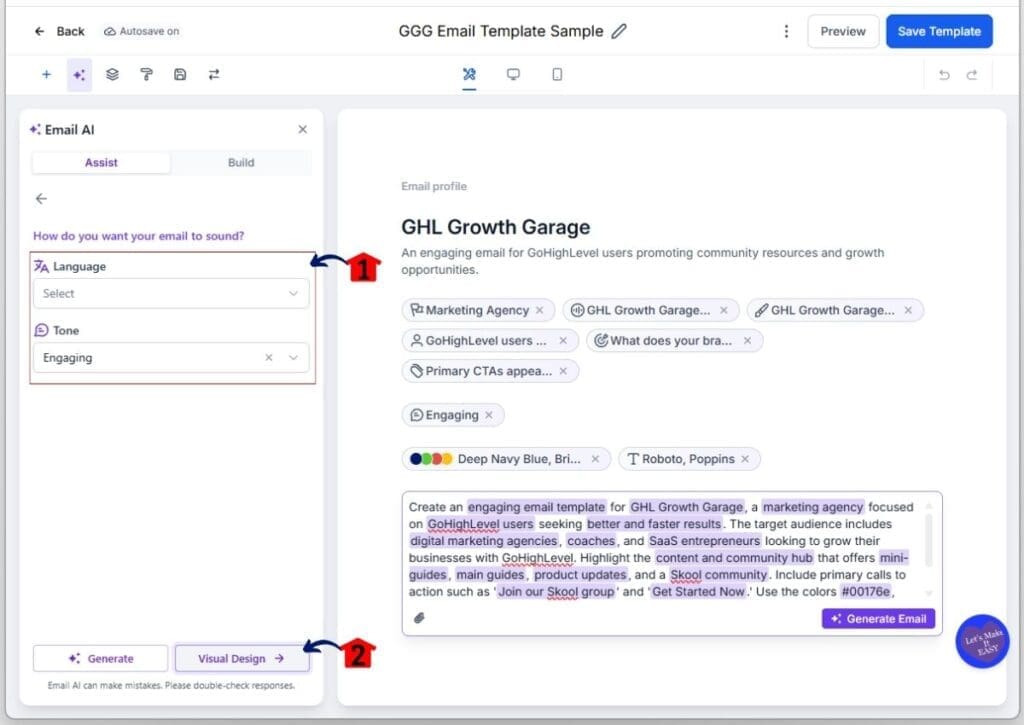
Step 04 – Set the Language and Tone of your email before proceeding to the Visual Design setup
- Choose the Language and Tone options that match your marketing goal.
- Make sure your message fits your audience.
4.1 Set the Language and Tone of your email.
- You can choose from the dropdown options for each setting to align with your marketing goal.
4.2 Click the Visual Design button once your email sound is set.
- You will move to the final step of the Email AI Builder Assist mode.
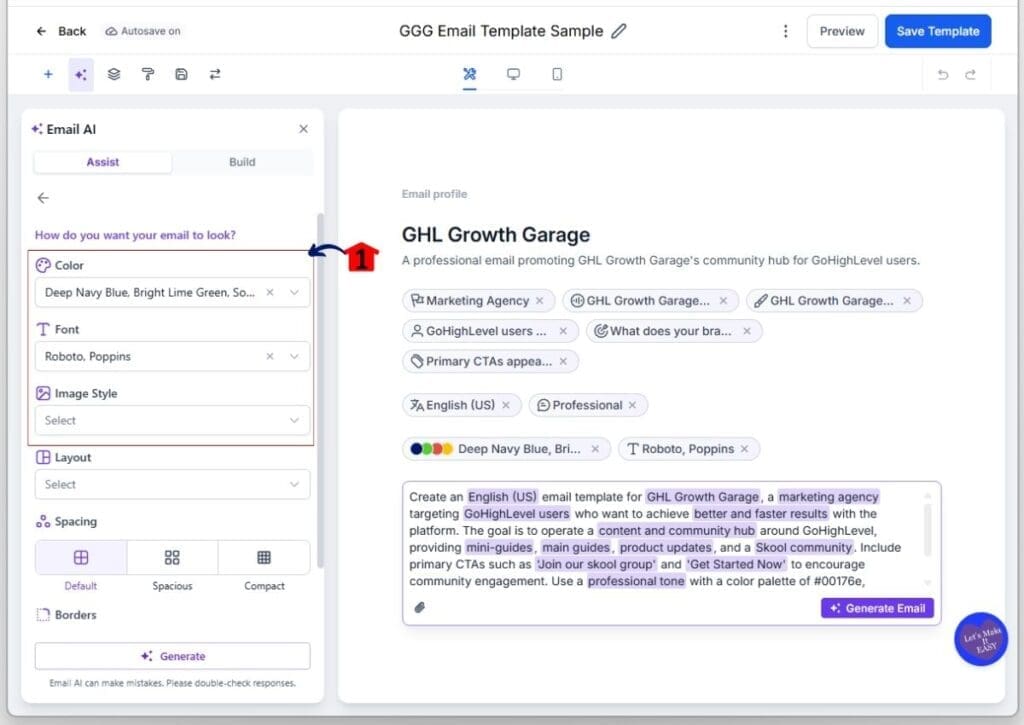
Step 05 – Customize the Visual Design of your email
- Choose styles that match your brand identity.
- Keep your design clean and consistent.
5.1 Set the color, font, and image style for your email.
- Make sure your design matches your brand voice.
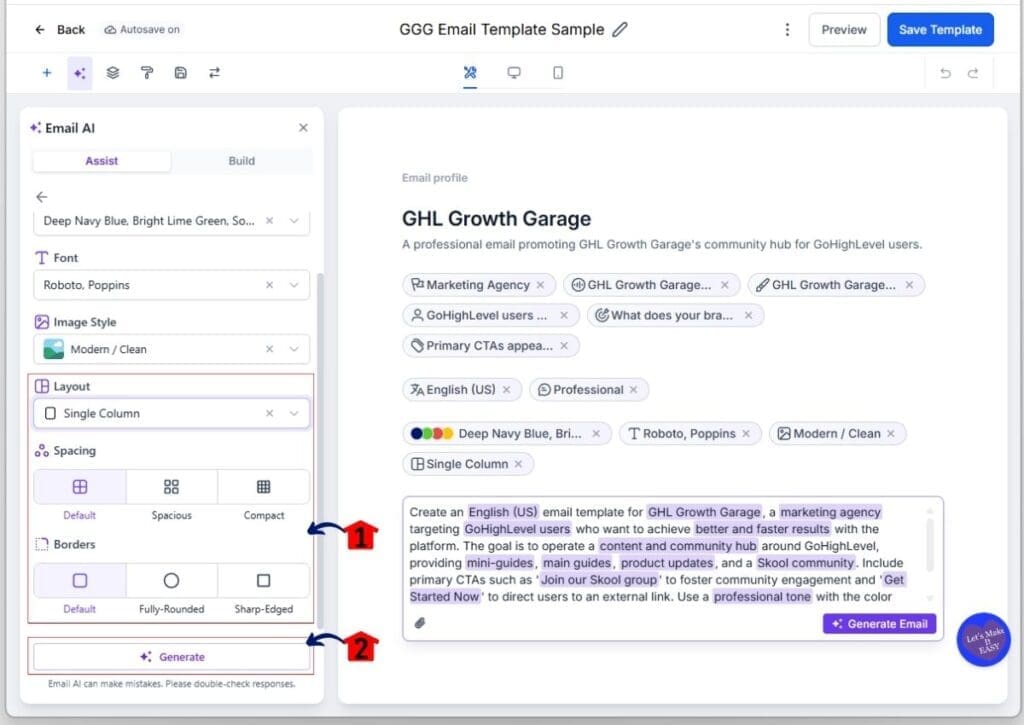
Step 06 – Adjust the layout settings and generate your email
- Review your layout before finalizing the design.
- Make sure spacing and borders look balanced.
6.1 Set the Layout, Spacing, and Borders of your email.
- Adjust each setting to improve readability and flow.
6.2 Click Generate once you finish setting up your email.
- The Email AI Builder will create your email based on your inputs.
- The result will appear on your Email Builder canvas.
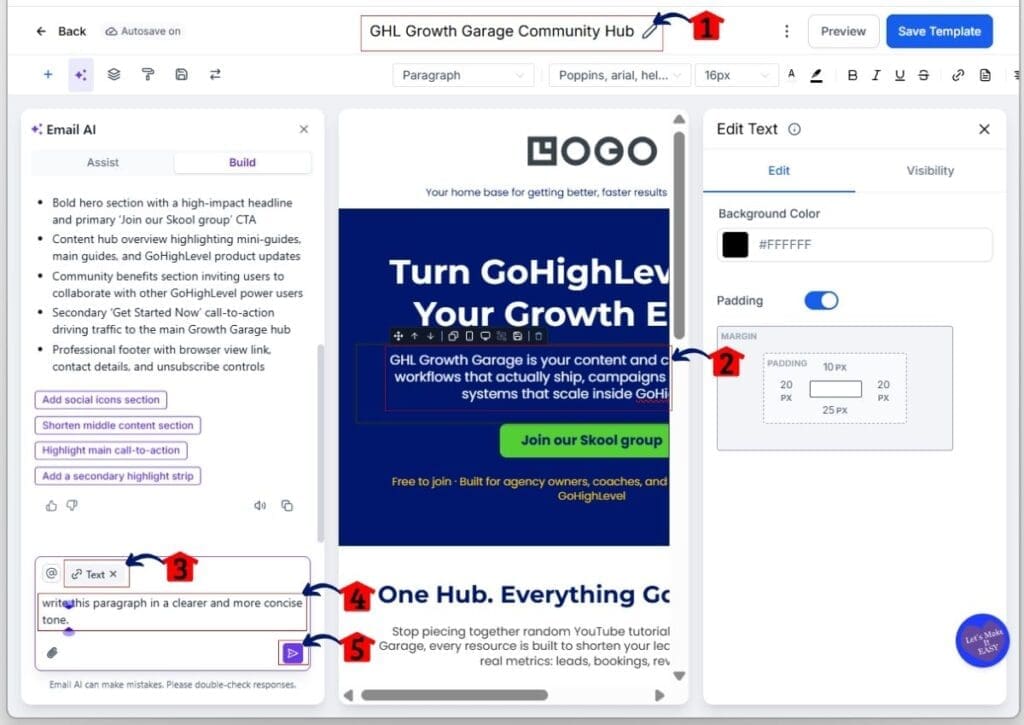
Step 07 – Rename, edit, and refine your email elements using AI
- You can adjust any section of your email.
- Use clear prompts for better results.
7.1 Rename the default email name provided by the Email AI Builder.
- You may keep the default name if you prefer.
7.2 Click the element in the email builder canvas that you want to edit.
- The element settings panel will slide in from the left.
- You can edit it manually, but in this tutorial, we will use the Email AI Builder.
7.3 The element type will appear in the prompt box of the Email AI Builder.
- This shows the type of element you selected.
7.4 Type the prompt describing the changes you want for that element.
- Provide a detailed prompt so the Email AI Builder can give a more accurate result.
7.5 Click the Generate button in the Email AI Builder.
- This button is shown as an arrow icon in the lower right corner of the prompt box.
- The AI Builder will apply the changes based on your prompt.
Step 08 – Review, finalize, and save your email template
- Check your edits before saving the template.
- Make sure everything looks correct.
8.1 Review and confirm the AI changes made to the element.
- The result may not always match your exact idea, so write clear and detailed prompts.
8.2 Edit other elements that need changes.
- Update text, layout, or colors based on your marketing goal.
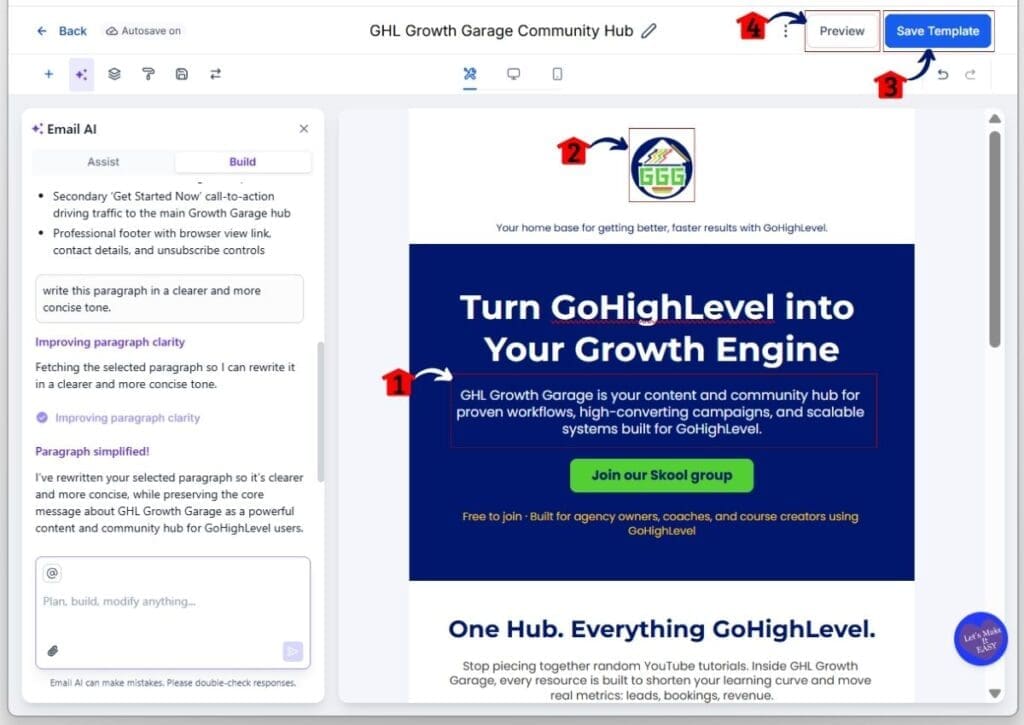
8.3 Click the Save Template button once you finish editing.
- The Save Template button is in the upper right corner of the Email Editor beside the Preview button.
8.4 Click the Preview button to view your email design.
- You will enter preview mode where you can check desktop, tablet, and mobile views.
Step 09 – Test responsiveness and return to the editor
- Check how your email looks on all devices.
- Go back if you need more edits.
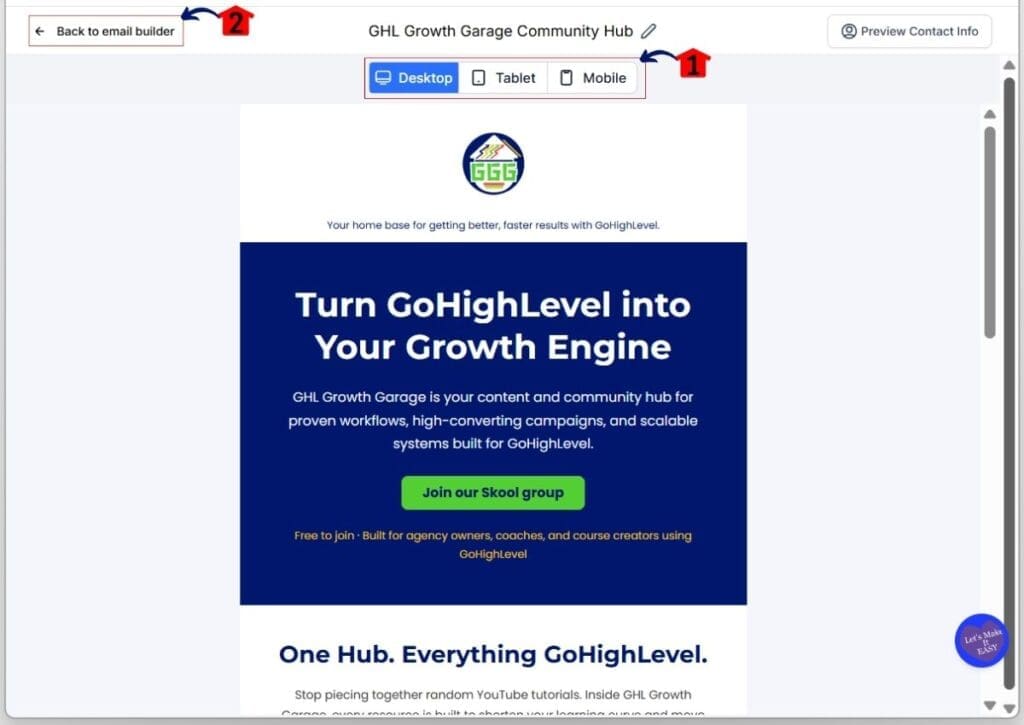
9.1 Click each device view to check responsiveness.
- Review the desktop, tablet, and mobile layouts carefully.
9.2 Click the Email Builder back button to return to the editor canvas.
- You will return to the editor where you can make more changes if needed.
How to Build an Email Using Build Mode
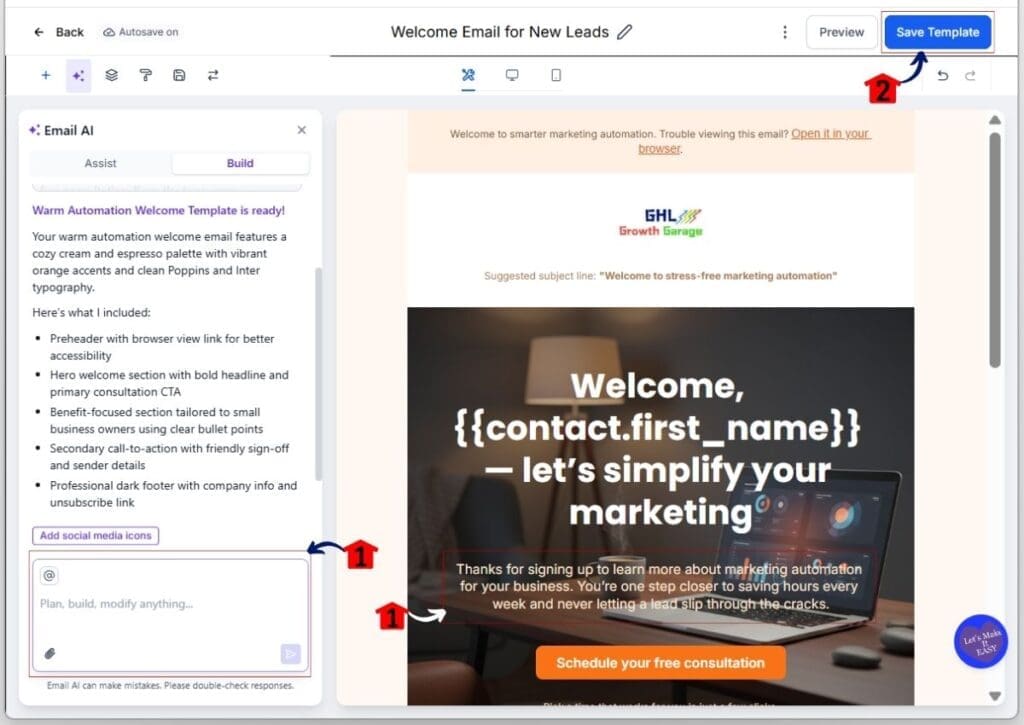
The GHL Email AI Builder’s Build mode helps you create full email templates from scratch using AI-generated suggestions. This feature allows you to create an email using your detailed prompt, and the AI Email Builder will generate it in seconds.
In the steps below, you will access Build mode in GHL Email AI Builder, enter your complete prompt, review AI-generated content, customize the email as needed, and save it for use in your campaigns. This method helps you produce professional, ready-to-send emails efficiently while maintaining control over tone and content.
- Open the Email AI Builder from the GHL Marketing Email Templates section.
- Generate your email template using the Build tab.
- Edit and save your generated email template.
To begin, make sure you are inside your GoHighLevel sub-account.
Step 01 – Open the Email AI Builder from the GHL Marketing Email Templates section
- The Email AI Builder can be found between the Create Folder and + New buttons inside the Templates tab of the Email section.
1.1 Click the Marketing menu item.
- In the Marketing section, you will see options like Social Planner, Emails, Snippets, and more.
1.2 Click the Emails tab in the top menu.
- The Emails tab is located between Social Planner and Snippets in the top navigation bar.
- Inside the Emails tab, you will find three subtabs: Statistics, Campaigns, and Templates.
1.3 Click the Templates subsection under the Emails tab.
- This subtab is located next to the Campaigns subtab.
1.4 Click the Build with AI button inside the Templates subsection.
- This button appears between the Create Folder and + New buttons.
- You will then be directed to the email builder, where you can create and customize templates using the Email AI Builder.
Step 02 – Build your email template using the Build tab
- Describe your email clearly for better results.
- Include tone, layout, and purpose.
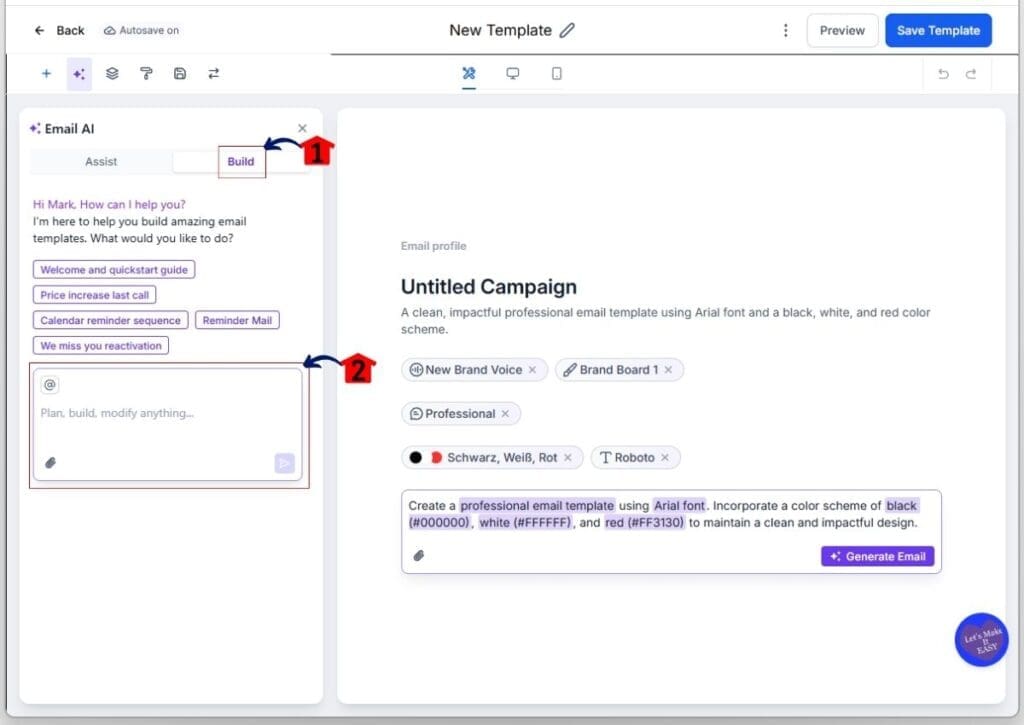
2.1 Click the Build tab inside the Email AI Builder box.
- It is located beside the Assist tab.
2.2 Type a detailed prompt describing the email you want to build.
- Explain how you want your email template to function, from tone to layout.
- The clearer and more detailed your prompt is, the better the Email AI Builder will perform.
Step 03 – Edit and save your generated email template
- Refine your email before finalizing it.
- Preview the design before saving.
3.1 Edit each element the same way you did in Step 08 using Assist mode.
- Click the element on the canvas and enter a prompt to update it.
3.2 Click the Save Template button once you are done.
- Make sure to preview your email design, just like in Step 08.
Pro Tips in Using the GHL Email AI Builder
These tips show how to generate better email templates, maintain consistency, and reduce time spent on repetitive tasks. Each tip is actionable and designed to improve your email campaign outcomes.
- Use Clear Prompts Always. Provide specific campaign goals in the prompt field. This ensures the AI generates accurate, relevant email templates.
- Start With Reference Templates. Use previous successful emails as a base. It guides the AI to match proven formatting and style.
- Generate Multiple Subject Lines. Create at least three options for testing. Subject line variations improve open rates by up to 15 percent.
- Save Templates for Reuse. Keep multiple templates for similar campaigns. This reduces repetitive work and maintains brand consistency.
- Apply Brand Board Rules. Ensure brand colors, fonts, and tone are set. AI automatically applies them to every generated template.
- Review AI Output Carefully. Check copy for accuracy and brand alignment. Small edits can prevent errors in client-facing campaigns.
- Experiment With Tone Adjustments. Adjust tone and style in the editor. Testing different tones often increases engagement more than generic content.
- Test Emails in Small Batches. Send a few test emails before full rollout. This helps verify formatting, links, and performance metrics.
How Does GHL Email AI Builder Improve Efficiency
GoHighLevel Email AI Builder helps you create email templates fast and with better consistency for campaigns. According to GoHighLevel’s official documentation, you can generate complete email content in seconds with simple prompts and editable drafts.
This efficient method reduces the time you spend on manual email writing and lets you focus on optimizing engagement and conversions.
- The Email AI Builder can generate full emails from brief descriptions.
- This makes it the best way to build email templates for workflows and campaigns.
- You can insert generated emails directly into CRM automated sequences.
- The easy-to-use solution helps you maintain on-brand content with less effort.
- It supports consistent messaging across multiple client accounts.
- AI-generated templates free you to analyze results and refine strategy.
- This practical method can improve operational efficiency for teams.
- The tool complements broader email analytics and campaign optimization practices.
Common Questions About GHL Email AI Builder
This FAQ section answers the most common questions about using Email AI Builder in GoHighLevel. Each answer is based on official GoHighLevel documentation and reputable sources.
Final Thoughts on Using this Tool
The GHL Email AI Builder allows you to create professional email templates quickly using AI-generated subject lines and body content. By following prompts and editing suggestions, you can produce consistent, ready-to-send templates that improve campaign efficiency, maintain brand voice, and reduce manual email creation time.
- Generate complete email templates using GHL Email AI Builder.
- Customize subject lines and body copy for accuracy and tone.
- Save templates for reuse in multiple campaigns and workflows.
- Integrate Brand Board rules for consistent styling and messaging.
- Use clear prompts to improve AI-generated content quality and relevance.
Start using GHL Email AI Builder today to produce email templates faster and improve overall campaign performance.
Scale Your Business Today.
Streamline your workflow with GoHighLevel’s powerful tools.