- Create and assign tasks to your team
- Quick Summary – Task Management Essentials
- Video Walkthrough: Using Task Management in GHL
- Understanding Task Management in GHL
- Why Task Management Matters
- How to Use Task Management
- Task Management Pro Tips
- Impact of Task Management on Your Business
- Task Management FAQs
- Conclusion on Task Management
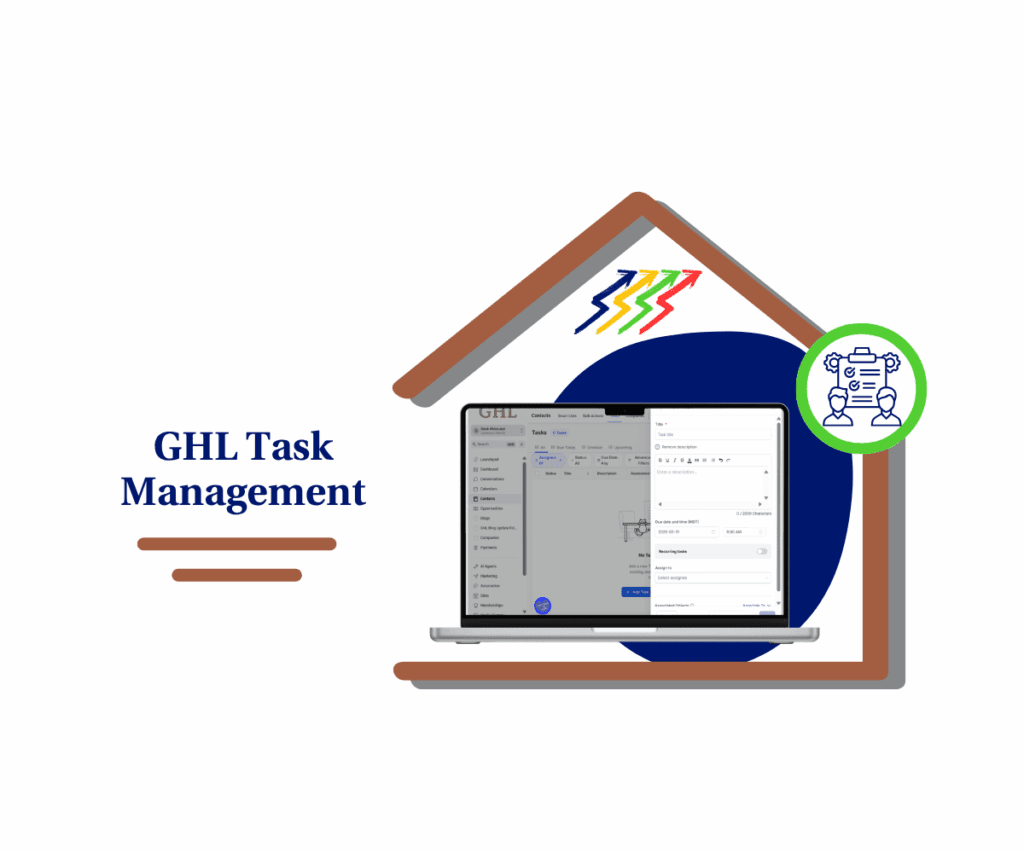
Create and assign tasks to your team
Task Management in GHL helps you easily create, assign, and track tasks for your team. You can set task names, descriptions, due dates, and notifications so every team member knows what to do. Using this simple step-by-step method keeps your work organized and ensures deadlines are always met.
When I started using GHL Task Management, I noticed tasks got completed faster and follow-ups were missed far less often. Assigning tasks to the right team member and turning on notifications made accountability clear. These small steps revealed gaps that most teams miss in daily workflows.
Task Management matters because teams often lose around 15 percent of their time due to missed or unclear tasks. Setting up tasks in GHL lets you monitor progress, assign responsibilities clearly, and keep everyone on track. By following this guide, you will save time, reduce mistakes, and make sure tasks get done on schedule.
Quick Summary – Task Management Essentials
Purpose: Show you how to use Task Management in GHL to create, assign, and track team tasks easily.
Why It Matters: Helps your team stay accountable, meet deadlines, and keep work organized.
What You Get: Clear steps, practical tips, and guidance to manage tasks effectively.
Time To Complete: About 10–15 minutes to set up notifications and create your first tasks.
Difficulty Level: Easy for anyone familiar with the GHL interface.
Key Outcome: Your team knows what to do, tasks get completed on time, and projects run smoothly.
Video Walkthrough: Using Task Management in GHL
Keep your team organized and never miss a task again. This video shows how to set up and use GHL Task Management effectively.
Inside this video:
Automate marketing, manage leads, and grow faster with GoHighLevel.

- How to enable notifications for your team in GHL.
- Steps to create tasks with titles, descriptions, and due dates.
- Assign tasks to team members and set recurring schedules.
This walkthrough is simple, practical, and easy to follow for any GHL user.
Understanding Task Management in GHL
Task Management in GHL is how you keep your team organized and on track. You can create tasks, assign them to the right team member, set due dates, and add clear descriptions. You can even make tasks repeat for ongoing projects, so nothing gets forgotten.
Here’s what you can do with Task Management in GHL:
- Assign tasks to specific team members and track progress.
- Link tasks to contacts, deals, or projects for context.
- Set due dates and reminders to avoid missed deadlines.
- Turn on email and in-app notifications to keep everyone accountable.
- Make tasks recurring for repeating projects or follow-ups.
Using Task Management this way helps you monitor your team, reduce missed deadlines, and stay organized. It keeps work visible and ensures everyone knows their responsibilities, making your workflow smoother and more reliable.
Why Task Management Matters
If your team does not have a clear system for tasks, things get missed and time is wasted. On average, employees lose almost 60 percent of their workday to interruptions and unclear responsibilities. Task Management in GHL puts everything in one place, so you know what needs to be done and who is handling it.
Here’s why using Task Management in GHL makes a difference:
- Stop missing deadlines and important follow-ups.
- Keep client communications organized and on schedule.
- Reduce confusion when multiple people work on the same project.
- Give visibility into each team member’s responsibilities.
By using GHL Task Management consistently, you keep your team accountable and productive. Tasks are completed on time, nothing gets overlooked, and your workflow becomes smoother and more reliable.
How to Use Task Management
Using Task Management in GHL allows you to create, assign, and monitor tasks for your team in one central place. You will set up notifications, add task details, assign tasks to specific team members, and optionally schedule recurring tasks.
The steps below walk you through enabling notifications, creating tasks, assigning them, and saving all settings. Following these instructions ensures your team stays organized and every task is tracked efficiently.
- Access the Settings section of your GohighLevel sub-account.
- Open the assignee’s configuration and manage settings in the My Staff section.
- Toggle on the assignee’s In-app and Email in the Notification Settings.
- Open the Add Task button from the Contacts section.
- Add your Task Title, Description, Due date, and Assignee.
- Click the Save button to save the task.
To start, make sure you are logged in to your GoHighLevel sub-account.
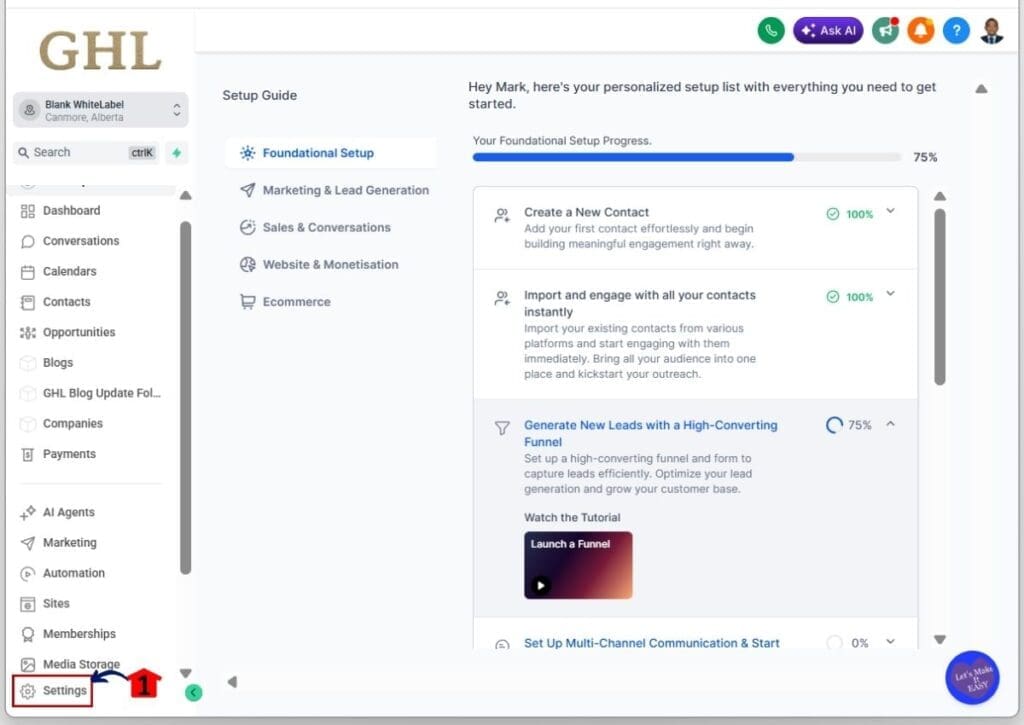
Step 01 – Access the Settings section of your GohighLevel sub-account
- Go to the Settings section of your sub-account to configure the notification settings for your task assignee.
1.1 Click the Settings section
- You will enter the Settings section of your GHL sub-account.
- You will see options such as Business Profile, My Profile, Billing, My Staff, and other sub-account settings.
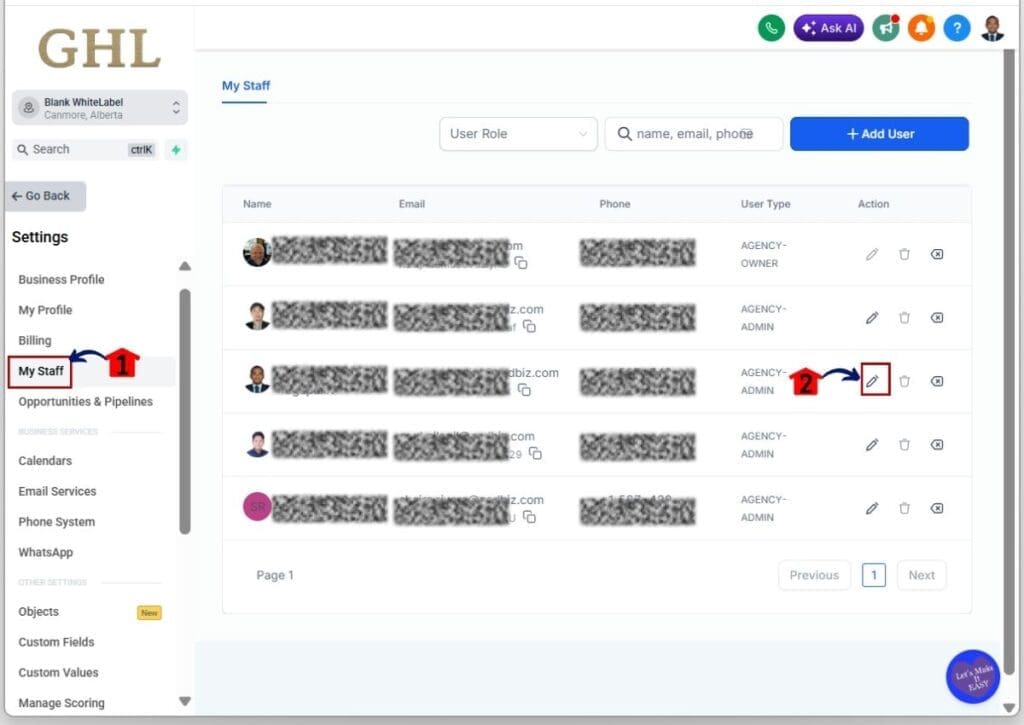
Step 02 – Open the assignee’s configuration and manage settings in the My Staff section
- Edit or manage the assignee’s configuration in the My Staff section.
2.1 Click the My Staff section in Settings
- You will see a list of your users or team members.
- This is where you can assign members for Task Management.
2.2 Click the edit icon on the assignee you want to assign a task
- You will open the settings for that specific assignee.
- Here you can see options such as User Info, Roles & Permissions, and other settings.
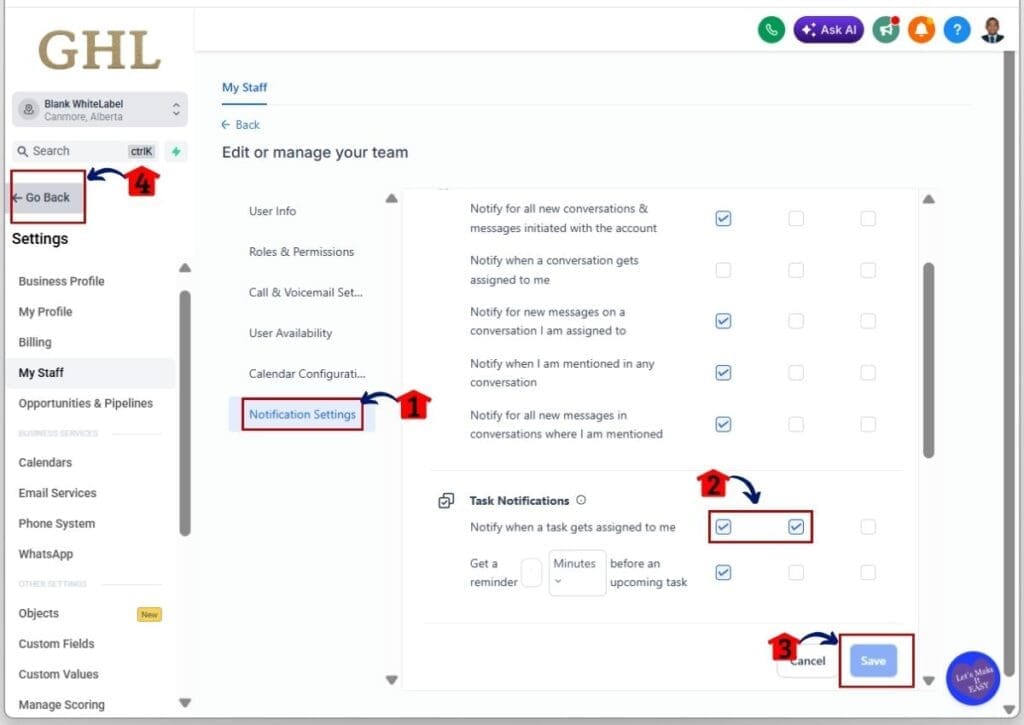
Step 03 – Toggle on the assignee’s In-app and Email in the Notification Settings
- Turn on the In-app and Email notifications so the assignee receives alerts when a task is assigned.
3.1 Click the Notification Settings
- You will see a list of checkboxes for the assignee, including the Task Notification section.
3.2 Toggle on the In-app and Email checkboxes under Task Notification
- A check will appear, showing the notifications are active.
3.3 Click the Save button
- The Save button will now be clickable because you made changes.
3.4 Click the Go Back button
- You will return to your GohighLevel sub-account dashboard.
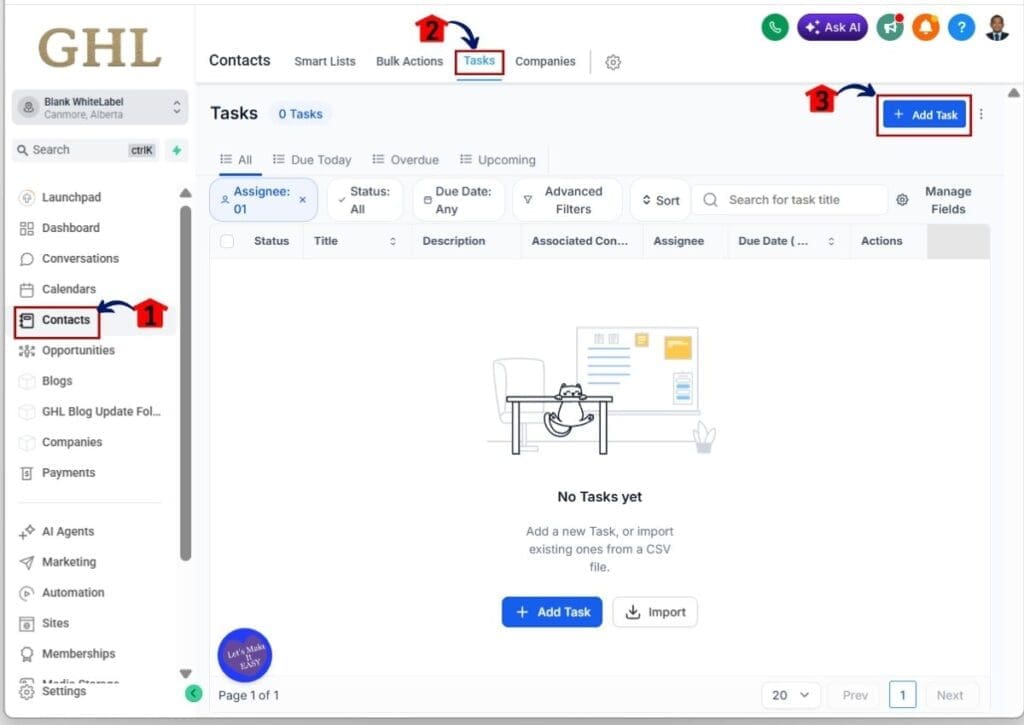
Step 04 – Open the Add Task button from the Contacts section
- Open the Add Task button under the Task tab in Contacts to start creating and assigning a task.
4.1 Click the Contacts section
- By default, you will land on the Smart Lists tab, where you can see your enrolled contacts.
4.2 Click the Tasks tab
- You will enter the Task dashboard where your created tasks appear.
- This is where you manage all tasks.
4.3 Click the + Add Task button
- A pop-up will appear on the right side.
- Here you can type the Task Title, Description, set the Due date, and other Task settings.
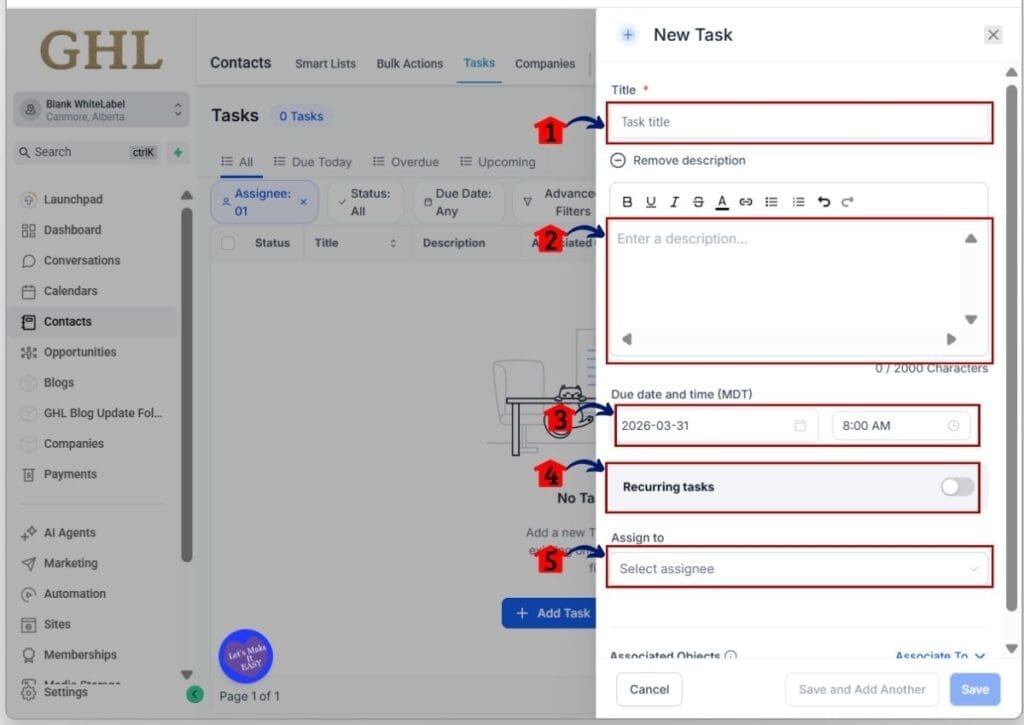
Step 05 – Add your Task Title, Description, Due date, and Assignee
- Enter this information clearly to create a task successfully.
5.1 Type in your Task Title
- Write a brief and clear title for your assignee.
5.2 Add the Task Description
- Include full details of the task.
- Use bullet points if needed to make it easy to understand.
5.3 Set the Due Date of the task
- Pick the date and time the task should be completed.
5.4 Set the Recurring Task option if needed
- Toggle on Recurring Task.
- Choose the day, week, month, and time for the task to repeat.
5.5 Assign an assignee for this task
- Select a team member from the drop-down list populated from My Staff.
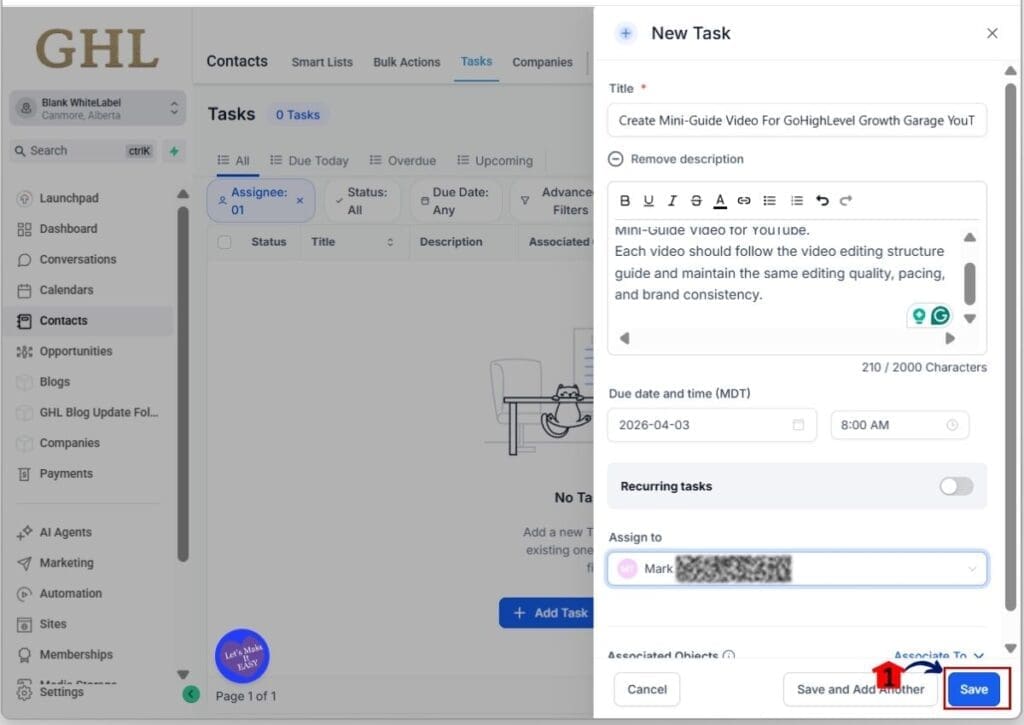
Step 06 – Click the Save button to save the task
- Click Save to add the task to the Task Management dashboard.
6.1 Click the Save button after setting up the task
- The Save button will be clickable after you fill in the required task fields.
Task Management Pro Tips
Using Task Management in GHL is straightforward, but a few practical adjustments make it much more effective. How you organize and assign tasks can save time and keep your team accountable.
- Use recurring tasks for projects that happen regularly to avoid recreating them each time.
- Add tags or custom values to sort and filter tasks quickly.
- Make sure notifications are turned on for every team member, so no task gets missed.
- Assign tasks based on each team member’s workload and skills.
- Link tasks to contacts or deals to provide context and track progress easily.
Applying these tips helps you keep your team organized, ensures deadlines are met, and prevents tasks from falling through the cracks. Task Management in GHL becomes a tool that keeps your workflow smooth and your team accountable.
Impact of Task Management on Your Business
Using Task Management in GHL helps your team work smarter and stay focused. When tasks are clear and tracked, your team knows exactly what to do and when to do it, saving time and reducing confusion.
It also reduces missed deadlines and keeps client projects moving smoothly. You will see fewer errors, less wasted effort, and more consistent progress on important work.
By using GHL Task Management regularly, you get better visibility into your workflow. Tasks get completed on time, your team stays aligned, and your business operations become more predictable and reliable.
Task Management FAQs
Managing tasks in GHL comes with a lot of features, and it’s normal to have questions as you start using them. This FAQ section answers the most common questions about Task Management so you can get the most out of it and keep your team organized.
This FAQ section helps you understand Task Management in GHL better so you can assign, track, and complete tasks efficiently while keeping your team accountable.
Conclusion on Task Management
Task Management in GHL gives you a simple system to create, assign, and track all your team’s tasks. Using it regularly helps your team stay accountable, meet deadlines, and keep work on schedule.
Linking tasks to contacts, deals, or projects provides context for every assignment. Turning on notifications and setting recurring tasks ensures nothing gets missed, and you spend less time manually following up.
By using Task Management in GHL consistently, you make your workflow more organized and predictable. Your team knows what to focus on, tasks get completed on time, and your business runs more smoothly and reliably.
Scale Your Business Today.
Streamline your workflow with GoHighLevel’s powerful tools.