- AI Image Analysis Comes to GHL Workflows
- Quick Summary – AI Image Analysis
- Here are this week's HighLevel Updates 🚀
- What’s New With AI Image Analysis
- Why AI Image Analysis Matters for GHL Users
- How to Use AI Image Analysis in a GHL Workflow
- Quick Tips for Better AI Image Analysis Results
- What AI Image Analysis Means for Your Automations
- AI Image Analysis Frequently Asked Questions
- Put AI Image Analysis to Work
AI Image Analysis Comes to GHL Workflows
Images inside a workflow just became a lot more useful. GoHighLevel has added AI Image Analysis through the new AI Analyze Image action, giving your workflows the ability to examine an image and return what it finds as text.
Images don’t have to just pass through your workflow anymore. GHL can now look at what’s in them and give you useful information back. It could read a receipt, pick out details from an invoice, check a screenshot, or tell you what an image shows.
Getting it working doesn’t take much. Add the image link, tell GHL what you want the AI to find, then pick how closely you want it to examine the image. Your prompt can also pull in custom values, so the instructions don’t have to stay the same every time the workflow runs.
This opens up some interesting automation options for agencies. Once GHL turns the image into text, that result can be passed into other workflow actions instead of leaving someone on your team to manually review every image.
AI Image Analysis gives your GHL workflows the ability to understand what’s inside an image and return that information as usable text. You can extract details, describe visual content, and pass the results into later workflow actions without manually reviewing every image.
The latest GoHighLevel Changelog includes several other GHL feature updates that round out your daily workflow:
- Wait Action Enhancement: TikTok DM Replies
- India Recurring Mandate Support for Affiliate Indian Signup Pages
- Housecall Pro – More Workflow Actions & Triggers
- Email Services Dashboard for Agencies
- Email Sequences Now Available in Beta Labs
- Group Your Contacts by Source in Dashboards & Reporting
- MMLite Adoption Banner in Conversations
Keep reading for much more on all these updates and a deep dive into the AI Image Analyze feature!

Quick Summary – AI Image Analysis
Purpose: AI Image Analysis lets GHL workflows examine an image from a public URL and return useful information as text.
Why It Matters: Your workflows can now understand information inside receipts, invoices, screenshots, documents, and other images instead of simply moving or storing the image.
What You Get: The AI Analyze Image action gives you flexible prompts, custom values, Auto, High, and Low detail levels, and a choice between GPT-5.6 Luna and GPT-5.6 Tera.
Time To Complete: You can add and configure the AI Analyze Image action in just a few minutes once you have a public, direct image URL and know what information you want the AI to return.
Difficulty Level: Beginner-friendly. The setup is straightforward, but writing a clear prompt and choosing the right detail level will help you get more useful results.
Key Outcome: AI Image Analysis turns visual information into text that you can save to custom fields, send by email or SMS, pass through a webhook, or use in another AI action.
Cost Consideration: AI Analyze Image is a premium workflow action, so each execution has an additional charge. Consider workflow volume when deciding where and when the action should run.
Here are this week’s HighLevel Updates 🚀
Wait Action Enhancement: TikTok DM Replies
What’s New:
Instead of continuing after a fixed delay, your workflow can pause until someone replies to your TikTok DM.
Where in GHL:
Found in Automation → Workflows using the Wait action after sending a TikTok DM.
Automate marketing, manage leads, and grow faster with GoHighLevel.

Impact:
Your automation responds when someone actually joins the conversation, rather than after a timer runs out.
Recommended For:
Anyone using TikTok DMs to start conversations with potential customers.
India Recurring Mandate Support for Affiliate Indian Signup Pages
What’s New:
Supports recurring payment mandates for Indian affiliates, helping subscriptions comply with local banking requirements.
Where in GHL:
Available on Affiliate Program signup pages for users in India.
Impact:
Creates a smoother signup experience while reducing payment failures for recurring subscriptions.
Recommended For:
Agencies, SaaS businesses, and affiliate programs onboarding customers in India.
Housecall Pro – More Workflow Actions & Triggers
What’s New:
Adds new workflow triggers and actions for the Housecall Pro integration, giving you more ways to automate field service processes.
Where in GHL:
Inside Automation → Workflows when using the Housecall Pro integration.
Impact:
Expands automation possibilities between HighLevel and Housecall Pro, reducing manual work and improving operational efficiency.
Recommended For:
Home service businesses, field service companies, and agencies managing Housecall Pro clients.
Email Services Dashboard for Agencies
What’s New:
Introduces a centralized dashboard where agencies can monitor email services across their accounts.
Where in GHL:
Found in the Agency View under the new Email Services Dashboard.
Impact:
Makes it easier to monitor email health, identify issues, and manage deliverability from one place.
Recommended For:
Agency owners, support teams, and admins managing multiple client email services.
Email Sequences Now Available in Beta Labs
What’s New:
Introduces Email Sequences as a Beta Labs feature, providing another way to create structured email follow-up campaigns.
Where in GHL:
Enable it from Settings → Labs, then access Email Sequences after activation.
Impact:
Cuts down the time spent checking different areas just to see how your email services are performing.
Recommended For:
Marketers, agencies, coaches, and businesses running nurture campaigns or onboarding emails.
Group Your Contacts by Source in Dashboards & Reporting
What’s New:
Lets you organize contact reports based on where your leads originated.
Where in GHL:
Available within Dashboards & Reporting when viewing contact analytics.
Impact:
Makes it easier to compare lead sources and identify which marketing channels are producing the best results.
Recommended For:
Marketing teams, agency owners, and businesses tracking campaign performance across multiple lead sources.
MMLite Adoption Banner in Conversations
What’s New:
Displays a helpful banner inside Conversations to encourage users to adopt the new MMLite messaging experience.
Where in GHL:
Appears within the Conversations module for eligible accounts.
Impact:
Helps users discover and transition to MMLite while highlighting its benefits directly inside the messaging interface.
Recommended For:
Current HighLevel users exploring the latest messaging experience and teams preparing to migrate to MMLite.
What’s New With AI Image Analysis
The new AI Analyze Image action brings AI Image Analysis directly into GoHighLevel workflows. You’ll find the action under AI Actions, where you can give GHL an image URL and a prompt explaining exactly what you want the AI to find.
A handy part of this update is the ability to read text straight from an image. So if a receipt, invoice, document, or screenshot comes into your workflow, GHL can pick up the words and details shown on it. That information can then be used in the steps that follow.
AI Image Analysis can also describe what an image contains. Your prompt controls what the AI focuses on, and custom values can be added to make those instructions dynamic. This gives you more control than simply asking the AI to provide a generic image description.
You can also choose between Auto, High, and Low detail levels. Auto lets the AI determine the appropriate level, while High can help when accuracy matters for smaller text. Low is designed for situations where faster analysis is more important.
The action also gives you a choice between GPT-5.6 Luna and GPT-5.6 Tera. Keep in mind that AI Analyze Image is a premium action. Each time the action executes, an additional charge applies, so usage and workflow volume should be considered when building your automation.
Why AI Image Analysis Matters for GHL Users
The real value of AI Image Analysis isn’t just that GHL can look at an image. It’s what your workflow can do with the information after the image has been analyzed.
Before this action, an image could move through an automation as a file or URL, but the workflow couldn’t understand what was inside it. Now, GoHighLevel can examine that visual content and turn the result into text that later workflow actions can use.
Think about the little image-checking jobs your team handles during the day. Opening a screenshot. Reading a receipt. Checking a document someone photographed with their phone. This action gives you a way to hand some of those jobs over to the workflow and specify exactly what needs to be found.
Once GHL has looked at the image, the information doesn’t just sit there. The text it finds can move straight into the next step. Save it to a custom field, drop it into a message, send it somewhere with a webhook, or let another AI action work with it.
For agencies, this creates new ways to automate processes that previously needed a human to look at an image first. It won’t remove the need for human review in every situation, but it can reduce repetitive image-checking tasks and make visual information much easier to use inside GHL automations.
How to Use AI Image Analysis in a GHL Workflow
AI Image Analysis is set up inside the GoHighLevel Workflow Builder using the AI Analyze Image action. You’ll choose the AI model, add the image URL, write a prompt telling the AI what to look for, and select the level of detail for the analysis.
Before you start, make sure you have a public URL that links directly to the image file, not a webpage displaying the image. Here are the steps to set up and use AI Image Analysis in a GoHighLevel workflow.
- Access Workflows in GoHighLevel.
- Add the AI Analyze Image Action.
- Configure the settings of the action.
To start, make sure you are logged in to your GoHighLevel sub-account.
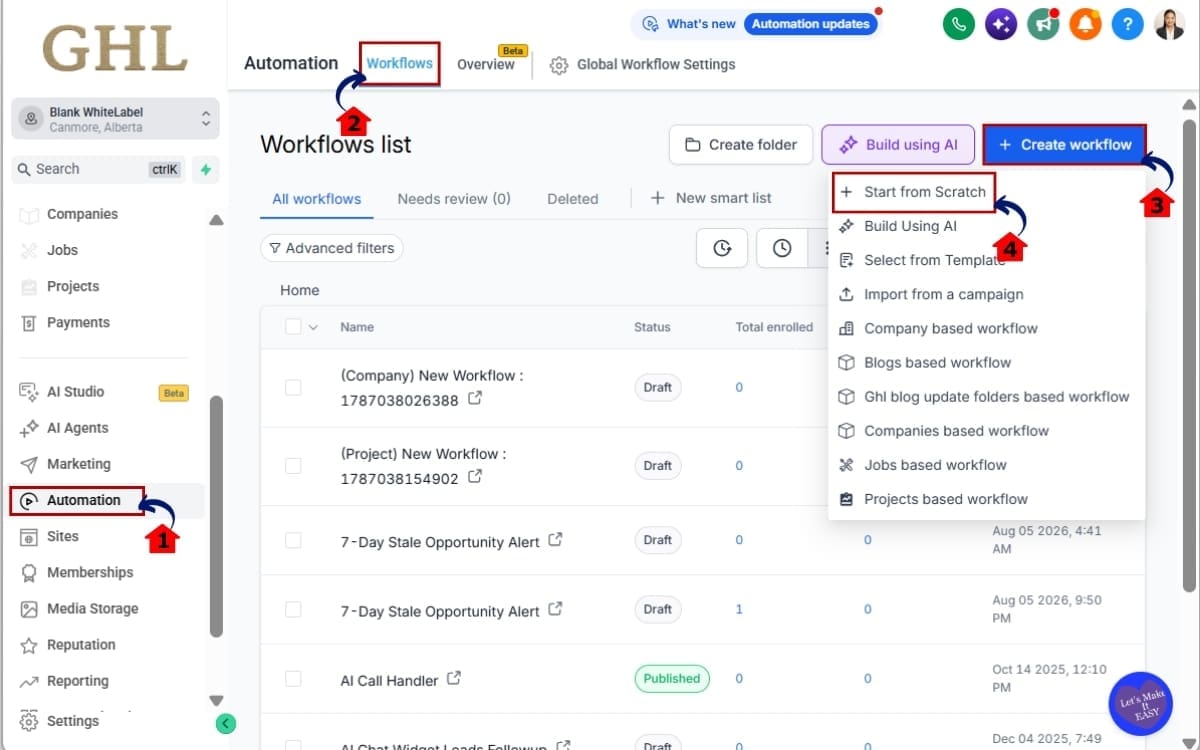
Step 01 – Access Workflows in GoHighLevel
- Start by logging in to the GoHighLevel sub-account where you want to build your automation.
1.1 Go to the main menu on the left side of your screen. Click Automation.
- This opens the Automation area where you can access and manage your GHL Workflows.
1.2 Open the Workflows section.
- This is where you’ll find your existing automations and the option to create a new Workflow.
1.3 Create a new Workflow.
- Starting a new Workflow gives you a clean setup for building your workflow from the beginning.
1.4 Click Start from Scratch.
- This opens a blank Workflow so you can add your triggers, RCS actions, and follow-up steps exactly where you need them.
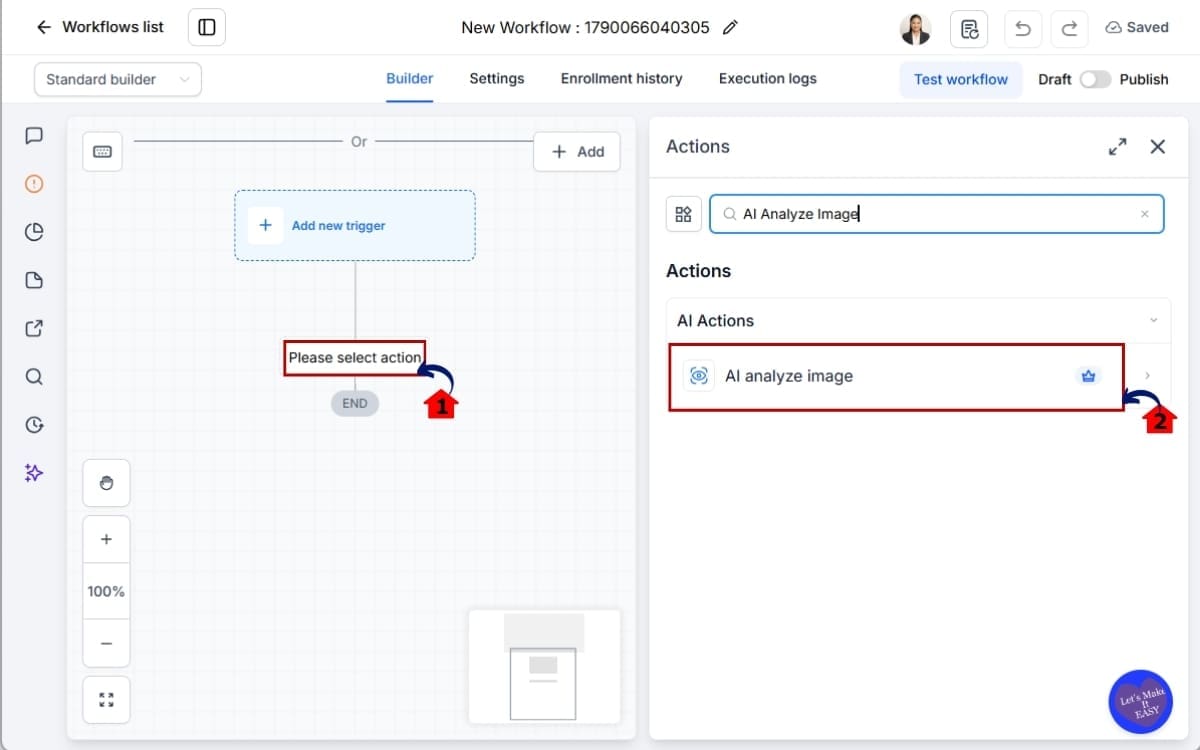
Step 2.0 – Add the AI Analyze Image Action
- This is where you add the new AI action to the exact point in your workflow where you want the image analyzed.
2.1 Click the + button to add a new workflow action.
- The + icon opens the list of workflow actions you can add at that stage of the automation.
2.2 Open AI Actions and select AI Analyze Image.
- AI Analyze Image is the action that lets GHL examine an image and return the requested information as text.
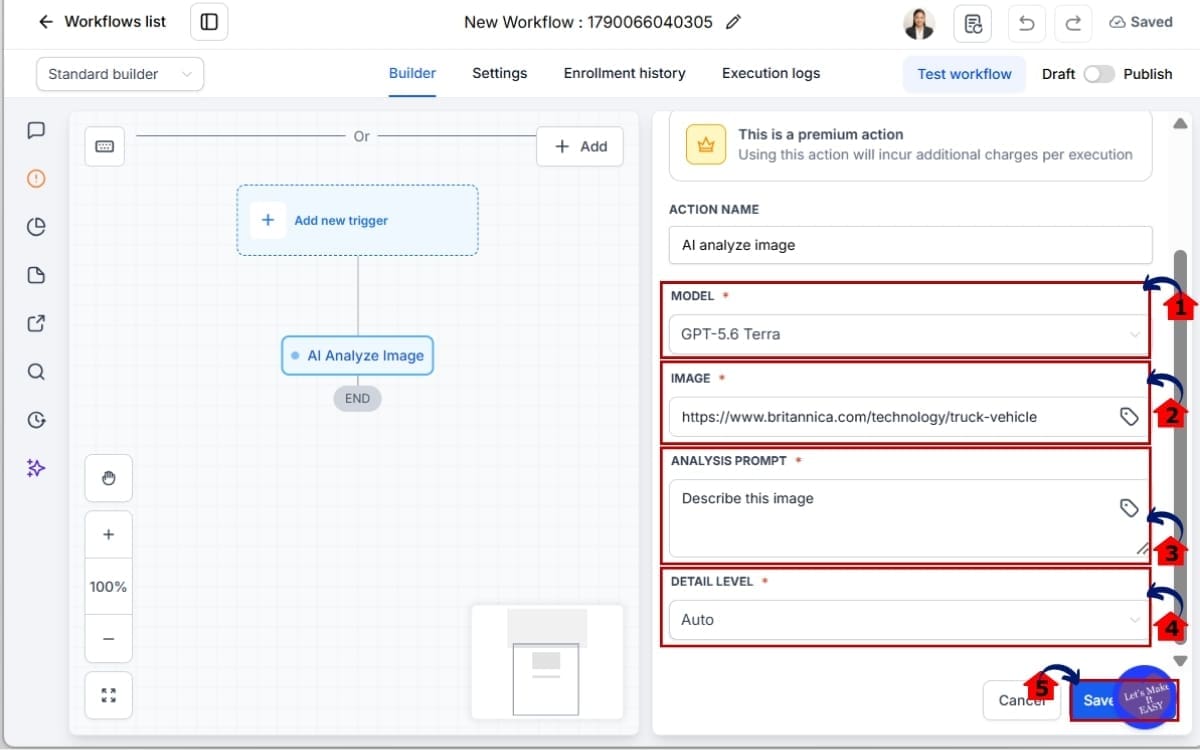
Step 3.0 – Configure the settings of the action
- This section controls which image GHL will analyze, what the AI should look for, and how detailed the analysis should be.
3.1 – Select Your AI Model
- Choose the model you want to handle the image analysis before configuring the rest of the action.
3.2 – Enter the Image URL
- Enter the public URL of the image you want to analyze. This can come from an earlier workflow step or be inserted using a custom value.
3.3 – Write Your AI Image Analysis Prompt
- Be clear about what you want returned so the AI knows which details in the image matter to your workflow.
3.4 – Choose the Detail Level
- Select Auto, High, or Low. Auto is the default. High is useful when you need greater accuracy with details such as small text, while Low provides faster analysis.
3.5 – Save the AI Analyze Image Action
- Once you’ve checked your image URL, prompt, model, and detail level, save the action.
The AI Image Analysis result comes back as text. You can use that output in later workflow actions, including saving it to a custom field, adding it to an email or SMS, sending it through a webhook, or passing it into another AI action.
That’s where this feature becomes especially useful: the image doesn’t just sit inside the workflow. Its contents can become usable data for the rest of your automation.
Quick Tips for Better AI Image Analysis Results
Getting useful results from AI Image Analysis starts with giving GHL the right image and clear instructions. A few small changes to your setup can make the output much more useful for the rest of your workflow.
One thing to watch is the image link. GHL needs a URL that opens the image itself, not a page where the image happens to appear. If the file is already sitting in GHL Media Storage, you’re good to go because those files are public.
Think about what you actually want back before writing the prompt. “Analyze this image” leaves things pretty wide open. Asking “What’s the invoice number?” or “Read the text in the top-right corner” gives the AI a much clearer job to do.
The detail setting depends on what you’re asking the AI to look at. Auto works well when you’re not sure what you need. If there’s tiny text or something easy to miss, try High. For simpler images where speed matters more, Low may be all you need.
Finally, think about what happens after the analysis. Structure your prompt so the returned text is useful in the next workflow action. And because AI Analyze Image is a premium action with an additional charge for each execution, consider how often it needs to run before adding it to a high-volume workflow.
What AI Image Analysis Means for Your Automations
GHL workflows aren’t limited to the usual typed-in information anymore. Details sitting inside an image can now become part of the automation too. So alongside form answers, messages, and contact fields, your workflow can work with what the AI finds in a screenshot, photo, receipt, or document.
The image doesn’t hit a dead end once the AI has checked it. GHL sends the answer back as text, which means your workflow can pick it up and carry on from there. That’s where this feature starts becoming much more useful.
The result doesn’t need to sit unused in the workflow. GHL can take what the AI found and store it for later, send it to someone, or move it into another system. If the information needs another round of AI processing, you can do that too.
Agencies probably have plenty of little tasks that start with someone saying, “Can you check this image?” A client sends a screenshot, a customer uploads a receipt, or a document comes through as a photo. Some of those checks can now happen inside the workflow instead.
Before adding this action everywhere, figure out what job you actually want it to do. What should GHL pull from the image, and where does that answer need to go? Once you know both, it’s much easier to build AI Image Analysis into a workflow that does something useful.
AI Image Analysis Frequently Asked Questions
Put AI Image Analysis to Work
AI Image Analysis adds another useful layer to GoHighLevel automation. Your workflows can now do more than receive and move images. They can examine what’s inside those images and turn the results into text that other workflow actions can use.
That creates plenty of practical possibilities. You could extract details from a receipt, read information from an invoice, analyze a screenshot, describe an uploaded image, or pull specific information from a document. More importantly, the result doesn’t have to stop with the analysis.
Once the AI gives you an answer, GHL can do something with it. Maybe you store it in a custom field, send it in a text, or add it to an email. You can also push it somewhere else with a webhook or hand it off to another AI step. That can save your team from having to open and check every image themselves.
Start with one simple use case. Decide what image your workflow needs to analyze, write a clear prompt describing the information you want back, and then decide what GHL should do with the result.
Just remember that AI Analyze Image is a premium action with an additional charge for each execution. Build it where the automation provides real value, especially when working with higher workflow volumes.
With the right prompt and workflow setup, information that was previously trapped inside an image can now become useful data your GHL automation can act on.
Scale Your Business Today.
Streamline your workflow with GoHighLevel’s powerful tools.