

- Give GHL’s AI Image Generation action real visual context using uploaded images, Media Library assets, or dynamic URLs for more consistent, personalized creative.
- Quick Summary – AI Reference Images Key Takeaways
- Why AI Reference Images Matter for GHL Users
- What’s New With AI Reference Images
- How to Use AI Reference Images in GHL
- Practical AI Reference Images Example
- Pro Tips for Better AI Reference Images
- What AI Reference Images Mean for Your Business
- Frequently Asked Questions About AI Reference Images
- Conclusion: Put AI Reference Images to Work
Give GHL’s AI Image Generation action real visual context using uploaded images, Media Library assets, or dynamic URLs for more consistent, personalized creative.
Creating AI images from a text prompt is useful, but words can only take you so far. When you need a specific logo, person, product, or location in your creative, describing it perfectly can be difficult. That’s where AI reference images can make a big difference. GoHighLevel has updated its AI Image Generation workflow action so you can now add up to five AI reference images alongside your prompt. Instead of asking the AI to guess what something should look like, you can give it actual visual context to work from. You can add those images using a system upload, an existing asset from your GHL Media Library, or an image URL. Even better, URLs can use dynamic values pulled from places like a contact field, webhook payload, or previous workflow action. That opens the door to generating different visuals automatically for different contacts.
GHL also keeps the images in the order you add them. This means your prompt can tell the AI how to use the first image, second image, third image, and so on. You get much more control over how each reference contributes to the final result. AI reference images give your GHL workflows real visual context, helping you create more controlled and relevant AI-generated graphics. With up to five references and support for dynamic image URLs, you can also build personalized visual campaigns that automatically use different source images for different contacts. For agencies, this update can make AI Image Generation far more practical. You can combine existing client assets with automation instead of relying on text prompts alone, whether you’re working with branded graphics, product shots, locations, or personalized campaign creative.

AI reference images give your GHL workflows real visual context, helping you create more controlled and relevant AI-generated graphics. With up to five references and support for dynamic image URLs, you can also build personalized visual campaigns that automatically use different source images for different contacts.
Quick Summary – AI Reference Images Key Takeaways
Purpose: This GHL update lets you add up to five AI reference images to the AI Image Generation workflow action, giving your prompts real visual context.
Why It Matters: You can guide AI-generated creative with specific people, products, locations, logos, and other visual assets instead of relying on text descriptions alone.
What You Get: You can add reference images using System Upload, the GHL Media Library, or an image URL, with support for dynamic URL values in automated workflows.
Time To Complete: You can add and configure AI reference images in an existing workflow action in just a few minutes, depending on how many images and prompt instructions you need.
Difficulty Level: Beginner-friendly. The basic setup is simple, while dynamic URLs give advanced users more options for personalized automation.
Key Outcome: AI reference images give your GHL workflows more visual context and control, helping you build more relevant AI-generated creative using existing client assets.
Why AI Reference Images Matter for GHL Users
AI reference images solve one of the biggest challenges with AI-generated creative: getting the AI to understand exactly what you want. A detailed text prompt can describe a scene, but it can’t always communicate the exact appearance of a client’s product, logo, location, or other visual asset.
With this GHL update, you can give the AI something concrete to work from. Instead of describing a restaurant interior, for example, you can provide an actual photo of the restaurant. If a campaign needs a particular product, you can supply the product image rather than hoping the AI creates something similar.
Automate marketing, manage leads, and grow faster with GoHighLevel.

That extra context makes AI reference images especially useful for agencies managing creative across multiple client accounts. You can pull reusable assets from the Media Library, upload something specifically for the workflow, or provide an image through a URL.
Dynamic URLs take the idea further. Because the URL can come from a webhook payload, contact field, or previous action, the reference image can change as the workflow runs. One contact could have one source image while the next contact uses something completely different.
This doesn’t mean every generated image will automatically be perfect. Your prompt still matters. But you’re giving GHL’s AI Image Generation action more useful visual information than a text-only instruction can provide.
For agencies, that creates an interesting mix of automation and creative control. AI reference images can help you build workflows around real client assets while still using AI to produce new campaign visuals at scale.
What’s New With AI Reference Images
The big change is simple: GHL’s AI Image Generation workflow action can now accept up to five AI reference images. Those images are sent alongside your prompt, giving the AI visual context before it creates the final image.
You have three ways to add a reference. You can upload an image directly from your system, select an existing asset from the GHL Media Library, or provide an image URL. This gives you flexibility depending on where your client assets are stored and how often they need to change.
The URL option is especially useful for automation. GHL allows the URL to contain custom or dynamic values pulled from a webhook payload, contact field, or previous workflow action. That means your workflow doesn’t have to use the same reference image every time. The image can change based on the contact moving through the automation.
GHL also passes AI reference images to the generator in the same order you add them. This lets you write more precise prompts using instructions such as “use the first reference image for the location” and “use the second reference image for the person.”
You can mix these roles across as many as five references. For example, one image could establish the setting, another could provide the subject, and a third could supply a logo or other visual element.
That combination of multiple references, positional prompting, and dynamic image URLs is what makes this update useful. You’re not just adding pictures to a prompt. You’re giving your GHL workflow structured visual context it can use when generating new creative.
How to Use AI Reference Images in GHL
Adding AI reference images happens inside the AI Image Generation action in a GoHighLevel workflow. You’ll first open the workflow, then open the AI Image Generation action, add your reference images, and tell the AI how each image should be used inside your prompt.
You can add up to five reference images from your computer, the GHL Media Library, or a URL. The order matters because GHL passes the images to the model in the same order you add them.
- Access the GoHighLevel Workflows page
- Open the workflow with the AI Image Generation action
- Open the AI Image Generation action
- Add your reference images
- Set the image order and update your prompt
- Save the AI Image Generation action
To start make sure you are logged in to your GoHighLevel sub-account.
Step 01 – Access the Workflows page in GoHighLevel
The Main Menu on the left side of your screen includes the main areas you work in when using GHL.
1.1 Click Automation in the Main Menu.
- Inside the Automation section, you can access your workflows and other workflow-related tools.
1.2 Click Workflows in the top menu if the Workflow List page is not already showing.
- The Workflow List page displays the workflows available inside your sub-account.
- From here, you can open an existing workflow or create a workflow for your AI Image Generation automation.
1.3 Click the workflow where you want to add AI Image Generation.
- The selected workflow opens in the Workflow Builder.
- If you’re building a new automation instead, create the workflow you want to use and open it in the Workflow Builder.

Step 02 – Open the AI Image Generation action
The AI reference image settings are found inside the AI Image Generation action.
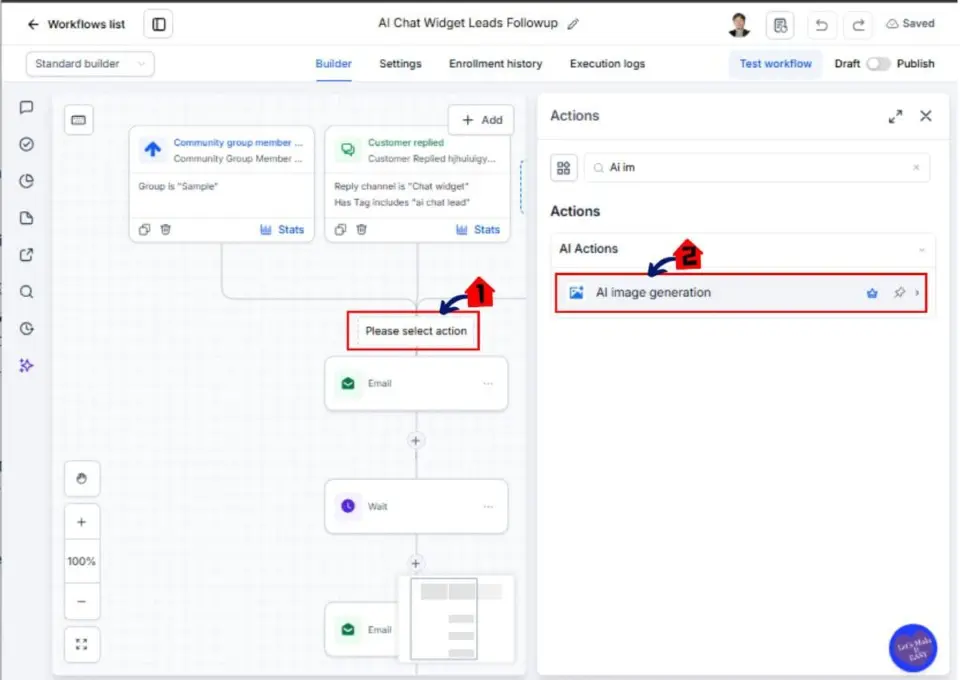
2.1 Find the AI Image Generation action inside your workflow.
- If the action already exists, you can open it and update its settings.
2.2 Click the AI Image Generation action.
- The action settings will open.
- This is where you can review or update the image prompt and add your reference images.
Step 03 – Add your reference images
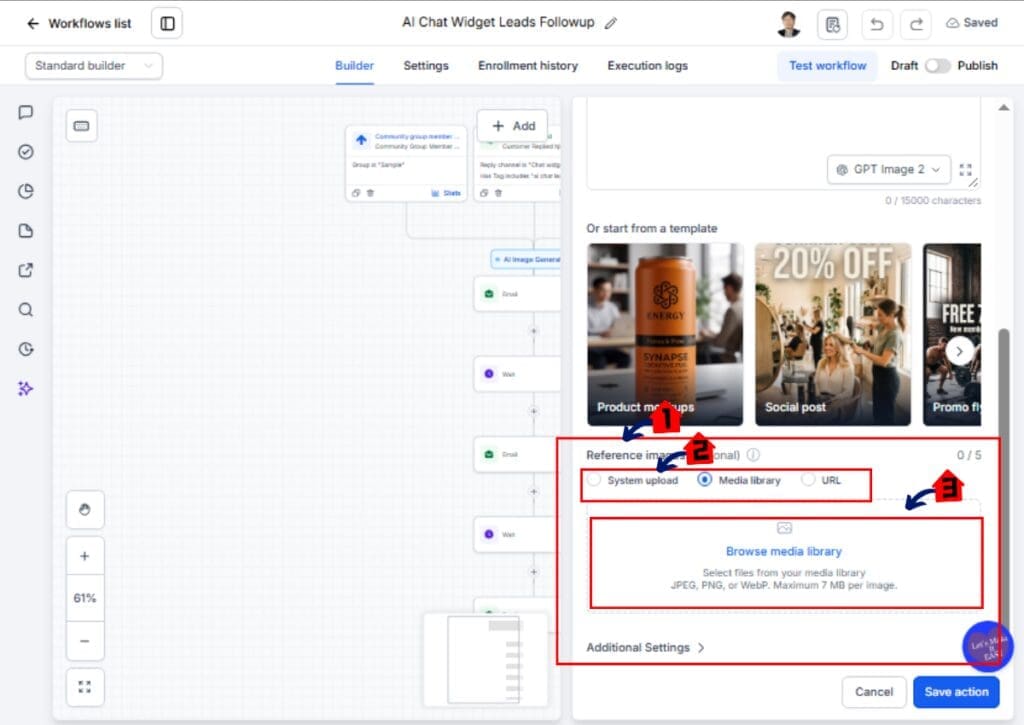
The new Reference images section appears inside the AI Image Generation action below the available templates.
4.1 Scroll down to the Reference images section.
- This is where you can add the visual assets you want the AI model to use as context.
- You can add up to five reference images to one AI Image Generation action.
4.2 Choose how you want to add the first reference image.
- Select System upload to upload an image from your computer.
- Select Media library to choose an image already stored inside GHL.
- Select URL to use an image hosted at a web address.
4.3 Add the image using the source you selected.
- The image will be added to the Reference images area.
- The counter on the right shows how many reference images you have added out of the five available.
4.4 Repeat the process for any additional images you want to use.
- You can add up to five reference images in total.
- You can use different image sources inside the same action.
Step 05 – Set the image order and update your prompt
GHL passes your reference images to the model in the order you add them. Your prompt should clearly explain what each image is being used for.
5.1 Check the order of the images inside the Reference images section.
- The first image you add becomes the first reference image.
- The second image becomes the second reference image, and so on.
5.2 Update your image prompt so it refers to each image by its position.
- For example, you could tell the AI to use the first reference image for the setting.
- You could use the second reference image for the subject.
- You could use the third reference image for the logo.
5.3 Make sure the image order matches the instructions in your prompt.
- If the prompt says the first image is the location, the location image must actually be first.
- Incorrect ordering can cause the AI to use the wrong reference for part of the generated image.
Step 06 – Save the AI Image Generation action
Once your prompt and reference images are set correctly, save the action so the workflow can use the updated configuration.
6.1 Review your prompt and reference images.
- Confirm that every reference image has the correct purpose.
- Check that the image order matches the positional wording used in your prompt.
6.2 Click Save.
- The updated AI Image Generation action will be saved to your workflow.
- The workflow can now use the reference images whenever this action runs.
Practical AI Reference Images Example
A simple way to understand AI reference images is to see how several different assets can work together in one GHL image-generation action. Instead of trying to describe every visual detail in your prompt, you can give the AI actual images for the setting, subject, and branding.
For example, imagine you’re creating a promotional image for a restaurant client. You want the final visual to feature a specific seaside restaurant, a particular person, and the client’s ACME logo.
You could add three AI reference images to the action. The first reference could be a photo of the seaside restaurant. The second could be a portrait of the person you want featured. The third could be the ACME logo.
Your prompt can then explain the role of each reference. Tell the AI to use the first reference image as the location, the second reference image as the subject, and the third reference image as the logo.
The important part is keeping the order of your AI reference images aligned with your prompt. If you change the order of the images without updating the instructions, the AI may receive different visual context than you intended.
This approach can be used well beyond restaurant promotions. An agency could combine a client location, product photo, person, or brand asset depending on the campaign. And because GHL supports dynamic image URLs, one of those references can even change based on the contact moving through the workflow.
You’re still using a text prompt to direct the creative. The difference is that AI reference images give that prompt real visual context, so you don’t have to rely on words alone
Pro Tips for Better AI Reference Images
Getting better results with AI reference images starts with giving GHL clear visual context. The stronger your source images and instructions are, the easier it is for the AI Image Generation action to understand what you want each reference to contribute.
Use clear reference images whenever possible. If you’re providing a product, person, logo, or location, choose an image where the important subject is easy to identify. Avoid making the AI figure out which part of a cluttered image matters when you can provide a cleaner reference.
Be specific about the role of each image in your prompt. Don’t just add three AI reference images and expect the generator to decide how they should work together. Tell it that the first reference is the setting, the second is the subject, and the third is the logo or other asset.
Keep the order consistent. GHL passes the references in the order they were added, so positional instructions only work as intended when your prompt matches that order. If you replace or rearrange an image, double-check your prompt before saving the action.
For assets you’ll use repeatedly, the GHL Media Library can make reference management easier. This can be useful for client logos, product images, location photos, and other visual assets you already keep inside the sub-account.
For more advanced automation, look at dynamic URLs. A URL can use a custom value from a contact field, webhook payload, or previous workflow action. This lets AI reference images change between contacts without manually editing the workflow each time.
Start simple when testing. Use one or two references first, confirm how GHL interprets your prompt, and then add more visual elements as needed. That makes it easier to identify which reference or instruction needs adjusting when the generated result isn’t what you expected.
What AI Reference Images Mean for Your Business
AI reference images make GHL’s image generation more useful when your creative needs to start with something specific. Instead of depending entirely on a written description, your workflow can provide actual visual assets for the AI to work from.
For agencies, that can make it easier to build repeatable creative processes around client assets. A workflow could use a product photo, location image, logo, or other approved visual as context while the prompt controls how the new image should be created.
The dynamic URL option adds another layer to the automation. Because an image URL can come from a contact field, webhook payload, or previous workflow action, the reference doesn’t have to stay the same for every person entering the workflow.
That creates opportunities for more personalized campaigns. For example, a workflow could receive a different product or property image for each contact and use that image as visual context when generating the next piece of creative. You can change the input without building a separate workflow for every variation.
AI reference images can also help you get more value from assets already stored in the GHL Media Library. Rather than treating those images only as finished files, you can use them as visual references when creating new campaign assets.
The key benefit is control combined with automation. You still need a clear prompt, useful source images, and testing. But now your GHL workflows can provide both written instructions and visual context when generating images, giving agencies more flexibility when building automated creative processes.
Real-World Ways to Use AI Reference Images
AI reference images become especially useful when you connect them to real campaigns. You’re not limited to generating a generic image from a prompt. You can give GHL existing visual assets and explain how those assets should influence the new creative.
For local businesses, you could use a photo of the actual location as a reference. A restaurant, gym, salon, hotel, or other business could provide its real environment while the prompt describes the promotional scene you want to create. This can help keep the generated visual connected to the business instead of relying only on an AI-created setting.
Product campaigns are another practical option. Add an existing product photo as one of your AI reference images, then use your prompt to describe the campaign concept around it. Additional references could provide a setting, person, or other visual context.
Agencies can also use client assets stored in the GHL Media Library. A workflow could pull together existing visual references and use them as context for new campaign creative without requiring you to upload the same files each time.
Dynamic URLs open up more personalized use cases. For example, a real estate workflow could receive a property image through a custom field or previous action. That image could then become a reference when the AI Image Generation action runs. The next contact could provide a completely different image while using the same workflow structure.
The same concept can apply whenever your workflow has access to a changing image URL. Instead of building separate automation for every visual, you can let the reference change while keeping the core AI reference images process and prompt structure consistent.
Frequently Asked Questions About AI Reference Images
Conclusion: Put AI Reference Images to Work
AI reference images give you a practical way to add real visual context to GHL’s AI Image Generation action. Instead of relying on a text prompt to describe every detail, you can show the AI the people, products, locations, logos, or other assets you want it to consider.
You can add up to five references using System Upload, the GHL Media Library, or an image URL. Because those images are passed to the generator in the order you add them, you can also build clearer prompts that explain exactly how the first, second, third, and additional references should be used.
For more advanced workflows, dynamic URLs are where this update gets particularly useful. A reference URL can come from a contact field, webhook payload, or previous workflow action. That means the visual context can change automatically as different contacts move through the same workflow.
You don’t need to start with a complicated automation. Try AI reference images with one or two existing client assets first. Test the generated result, adjust your prompt, and then introduce additional references as you learn how the images influence your output.
For agencies, this update adds another useful tool for combining AI with existing client assets and workflow automation. With the right references and clear prompts, you can create more controlled AI-generated visuals without building every piece of creative manually.
Scale Your Business Today.
Streamline your workflow with GoHighLevel’s powerful tools.


