- Create and schedule in-app banners that your sub-accounts actually notice, with targeting, priority, and click-to-action buttons.
- Quick Summary – Banner Notifications Essentials
- What Banner Notifications Are in GoHighLevel
- Why the Announcements Builder Matters for Agencies
- What’s New in the Announcements Builder
- How to Use the Announcements Builder for Banner Notifications in GoHighLevel
- Pro / Quick Tips for Better Visibility and Clicks
- Real Agency Use Cases You Can Copy
- Frequently Asked Questions about Banner Notifications
- Banner Notifications You Can Launch Today
Create and schedule in-app banners that your sub-accounts actually notice, with targeting, priority, and click-to-action buttons.
Banner Notifications
Banner Notifications are the simplest way to get your message seen inside GoHighLevel. If you manage sub-accounts, you already know the problem. You send updates by email or chat, and people still miss them.
The new Announcements Builder fixes that. It lets your agency create in-app banner messages that show right inside the platform. You can control the look, pick who sees it, and preview it as you build.
You also get scheduling, frequency, and a CTA button that can send users to the right page or an outside link. Add priority levels, and the most important banners show first. In this guide from GHL Growth Garage, I’ll show you how to set it up step by step.
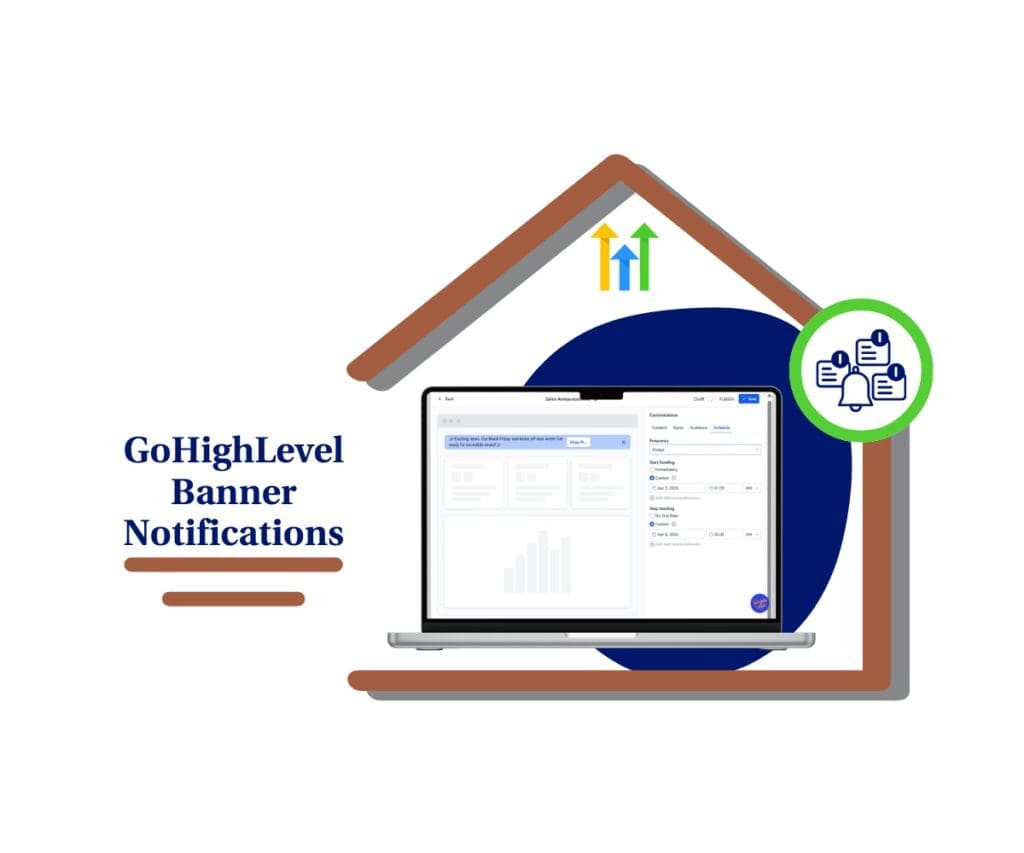
Banner Notifications give your agency a simple way to push the right message inside GoHighLevel, exactly where users can’t miss it. With targeting, scheduling, and CTAs, you can drive actions fast without chasing people down.
Quick Summary – Banner Notifications Essentials
Purpose: This guide shows how to create Banner Notifications using the Announcements Builder so your sub-accounts see important updates inside GoHighLevel.
Why It Matters: It prevents missed messages and reduces repeat support questions by placing the right instruction where users are already working.
What You Get: You get a clear setup flow for content, style, audience, scheduling, frequency, CTA clicks, and priority rules.
Time To Complete: Most agencies can publish their first banner in about 10 to 15 minutes once the message and link are ready.
Difficulty Level: This is an easy setup, as long as you keep the banner text short and target the correct accounts.
Key Outcome: You can push one clear call-to-action across the right sub-accounts, at the right time, without manual follow-ups.
What Banner Notifications Are in GoHighLevel
Banner Notifications are in-app messages that show inside the GoHighLevel platform. Think of them as a clean banner at the top of the screen that users see while they work. Since it lives inside GHL, it does not rely on someone opening an email or noticing a chat message.
These banners are built for short, targeted updates. You can use them to share an important notice, point users to the right place, or tell them what to do next. Because Banner Notifications can include a CTA button, you can turn a message into action instead of just “FYI.”
Automate marketing, manage leads, and grow faster with GoHighLevel.

The big difference is control. With the Announcements Builder, agencies decide who sees the banner, how long it runs, and how often it repeats. You can also set priority levels, so urgent messages show first when more than one banner is active.
Why the Announcements Builder Matters for Agencies
Banner Notifications solve a problem agencies deal with every week. Users miss messages. They skip emails, mute chats, and forget updates the moment they leave a call. When that happens, you get repeat questions, delayed tasks, and more support tickets than you need.
The Announcements Builder gives you a direct line to every sub-account inside GoHighLevel. You can post a message where users already work, and you can make it specific. That means you can send one banner to all sub-accounts, or keep it limited to the ones that actually need it.
It also helps you drive action, not just awareness. Add a CTA button and point users to the exact page, workflow, form, or external doc they need. Then use scheduling, frequency, and priority so the message shows at the right time and does not get buried.
What’s New in the Announcements Builder
The big change is that Banner Notifications are now built with a real builder, not a patchwork workaround. You get a guided setup flow that walks you through Content, Style, Audience, and Schedule. While you build, you also get a live preview, so you can see exactly what your sub-accounts will see before you publish anything.
Targeting is also more flexible than most agencies expect. You can show banners at the agency level, the sub-account level, or both. That matters because not every message should go to everyone. Some updates are global, like a platform change. Others are local, like “Client A, connect your Google Business Profile.”
Scheduling and behavior controls are where this gets powerful. You can set start and end times, choose how often the banner shows (Always, Weekly, Monthly), and add a CTA button that routes users to an in-app page or an external URL. On top of that, priority levels (Critical, Warning, General) help ensure the most important message shows first when multiple banners are active.
How to Use the Announcements Builder for Banner Notifications in GoHighLevel
Banner Notifications are created in the Announcements Builder at the agency level. You are not posting messages one by one inside each sub-account. You are building a banner once, then choosing who sees it, when it runs, how often it repeats, and what happens when someone clicks the CTA.
Here are the steps to set it up Announcement in GoHighLevel:
- Access the Settings area in GoHighLevel.
- Open the Announcements Builder in Agency Settings.
- Create a new Banner Notification.
- Set the Banner Style.
- Choose the Audience and display level.
- Set Schedule, Frequency, and Publish.
To start, make sure you are logged in to your GoHighLevel Agency account.
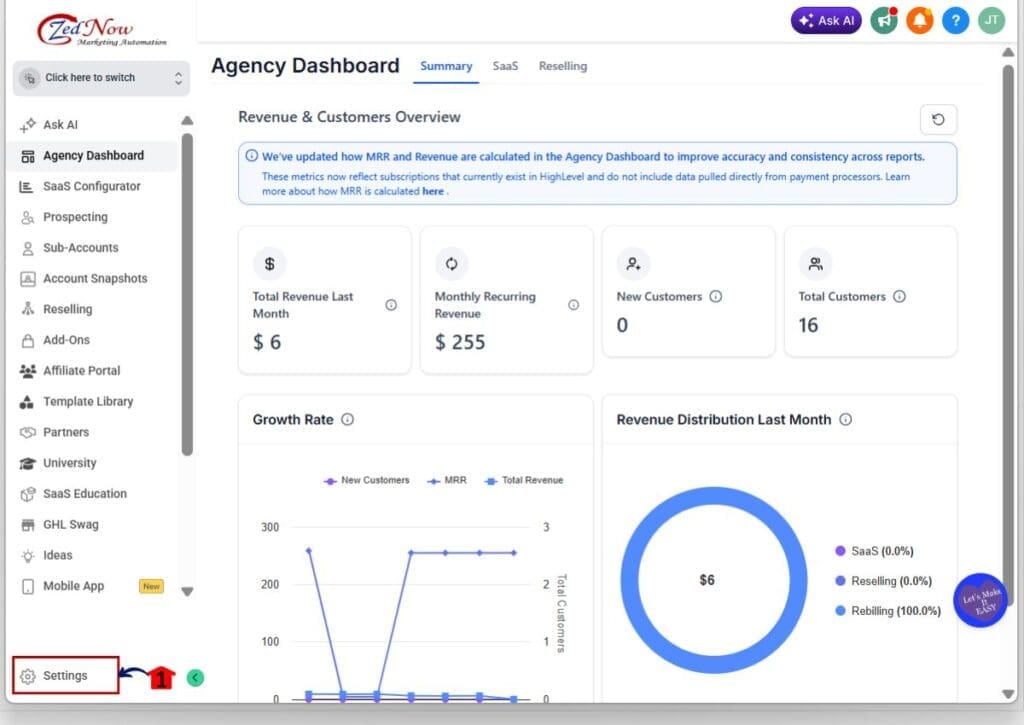
Step 01 – Access the Settings area in GoHighLevel
- Go to the bottom of the Main Menu on the left-hand sidebar.
1.1 Click the Settings gear icon ⚙️.
- This opens the Settings dashboard.
Step 02 – Open the Announcements Builder in Agency Settings
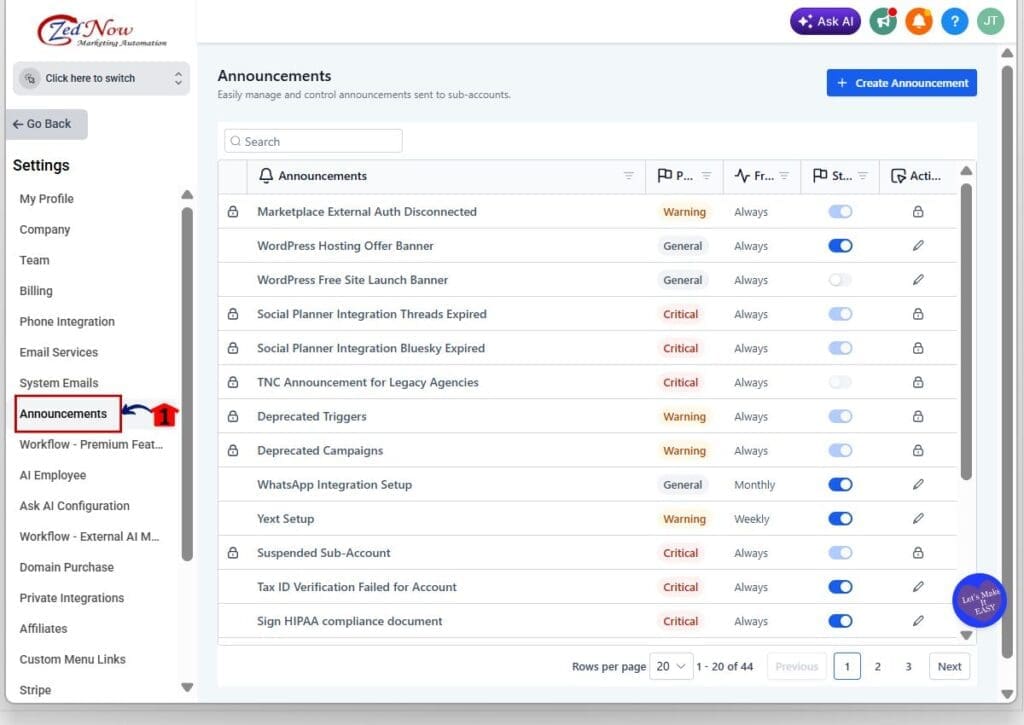
- This is where Banner Notifications are created and managed.
2.1 In the Settings dashboard, Click Announcements.
- This opens the Announcements dashboard where Draft and Active banners are listed.
Step 03 – Create a new Banner Notification
- This starts the step-by-step builder flow.
3.1 Click Create Announcement button.
- This opens the builder flow.
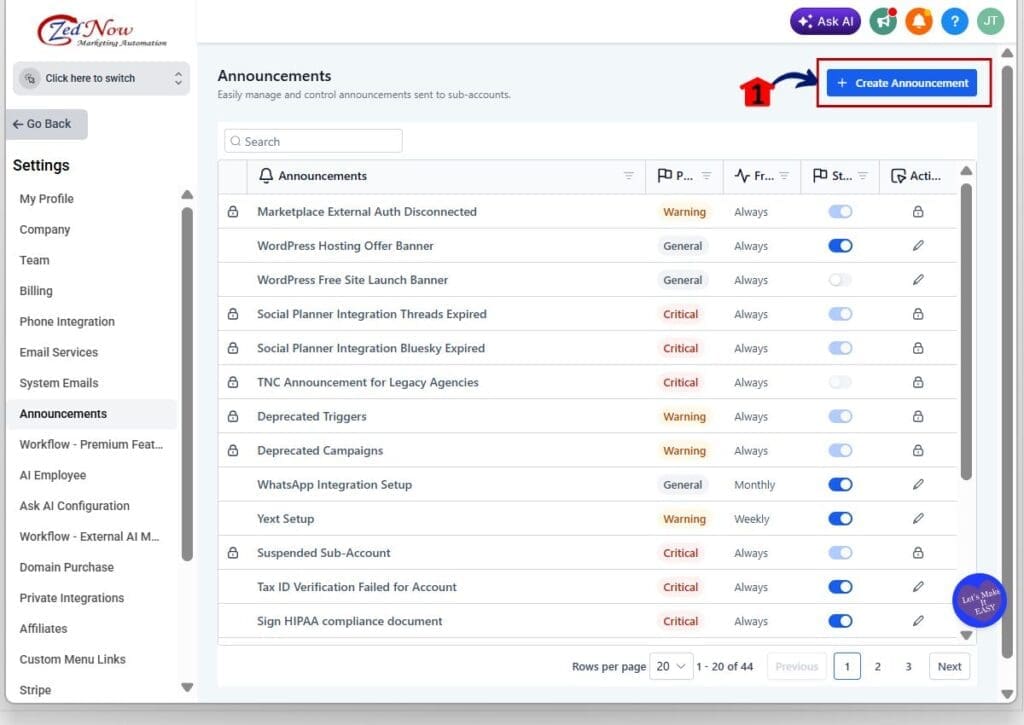
3.2 Enter an internal name for the announcement.
- Use a name you will recognize later.
3.3 Click on the Content Tab.
3.4 Type your banner message in Body Text Box.
- Keep it short so it can be read fast.
3.5 Click Save button.
Step 04 – Set the Banner Style
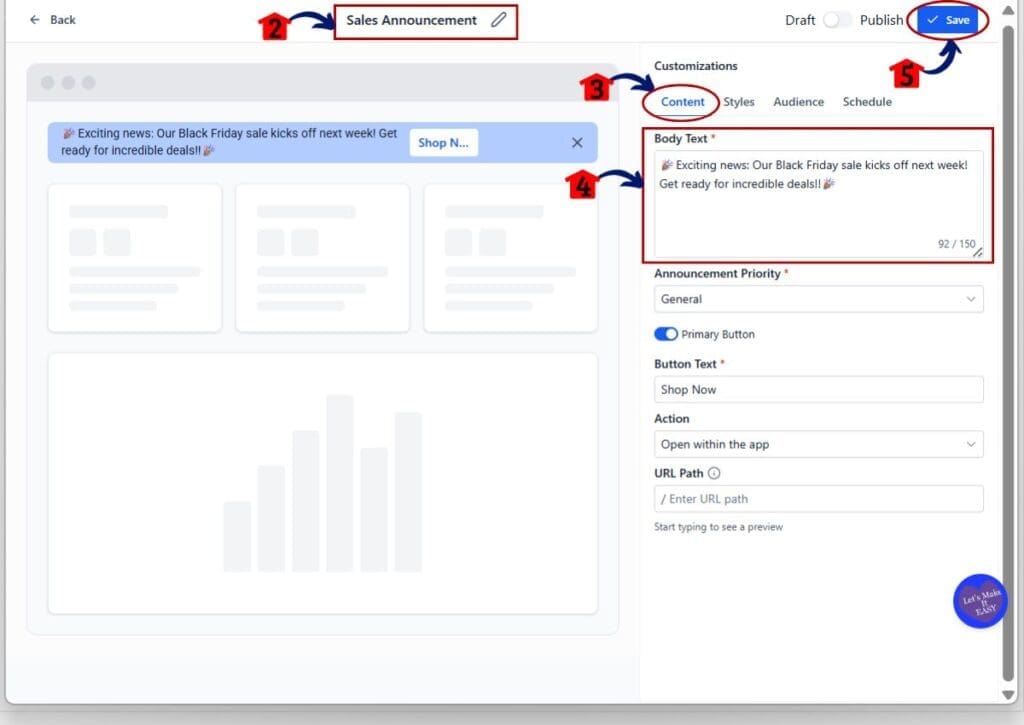
- This controls how the banner looks inside GoHighLevel.
4.1 In the Style Tab, choose the visual style for the banner.
4.2 Customize the Background Color, Text Color, Button Background Color, Button Text Color.
4.3 Click Save button.
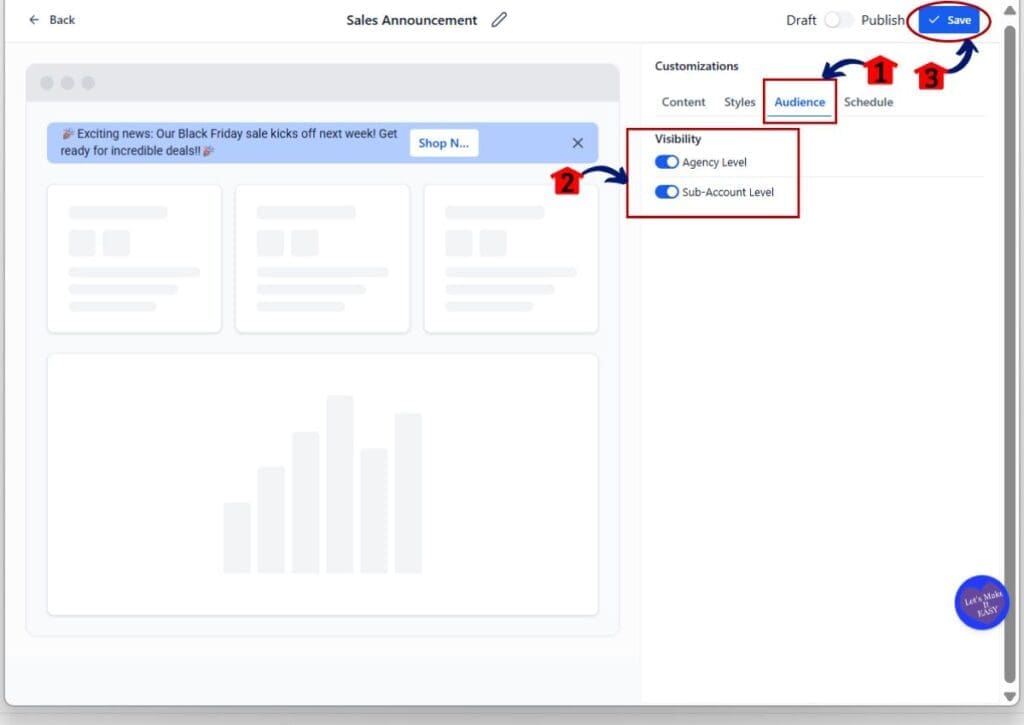
Step 05 – Choose the Audience and display level
- This controls who sees the banner and where it appears.
5.1 In the Audience Tab, choose where to show the banner:
5.2 Toggle on the Visibility.
- Select Agency level to show it only to agency users.
- Select Sub-account level to show it to location users.
- Select Both to show it to both groups.
5.3 Click Save button.
Step 06 – Set Schedule, Frequency , and Publish
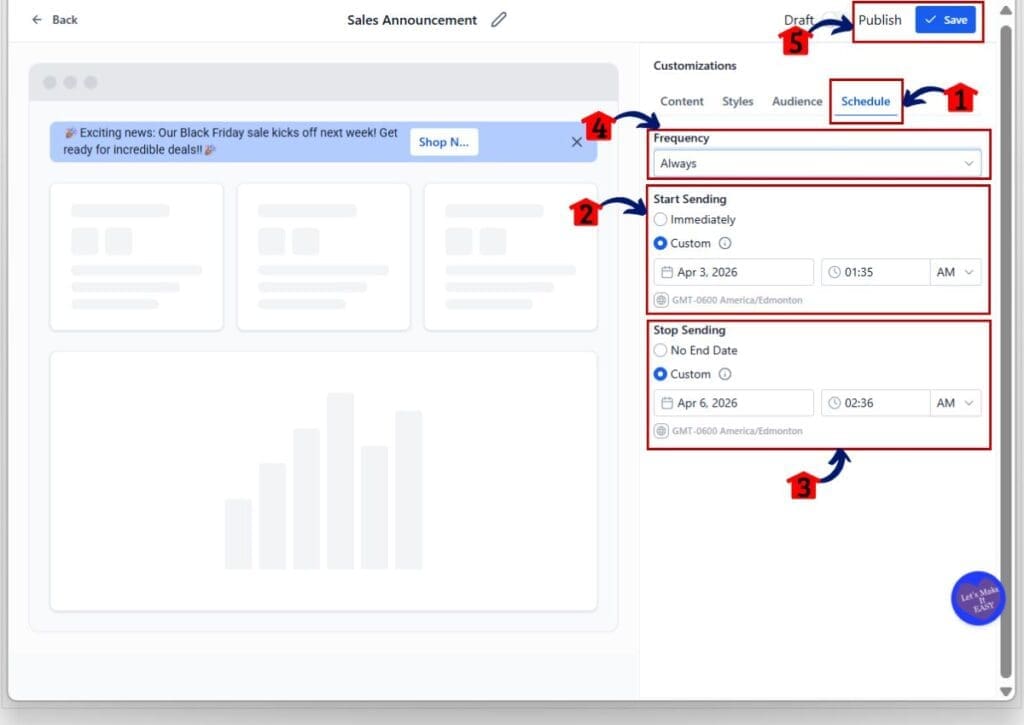
- This controls when the banner runs and how often it shows.
6.1 Click on the Schedule Tab.
6.2 Set the Start date and time under the Start Sending.
- This is when the banner begins showing.
6.3 Set the End date and time if it should stop automatically.
6.4 Choose Frequency: Always, Weekly, or Monthly.
- Always is best for short-term actions.
- Weekly or Monthly is better for reminders.
6.5 Click Save and Click Publish to make it live.
Pro / Quick Tips for Better Visibility and Clicks
Banner Notifications work best when they feel helpful and not noisy. If your banner sounds like a long email, people will ignore it fast. Keep the message tight, make the action obvious, and only run the banner as long as it’s needed.
Write the banner like a clear instruction, not an announcement. Lead with the action and keep the reason short. If the user has to read it twice to understand it, it is too long. One banner should point to one outcome. If you need two outcomes, make two banners and schedule them at different times.
Use priority the right way so it still means something. If everything is set to Critical, users stop paying attention. Save Critical for true must-act items like broken integrations, billing issues, or urgent setup changes. Use Warning for important notices, and General for helpful guidance. Then match frequency to the goal so your banner does not become background noise.
Real Agency Use Cases You Can Copy
Banner Notifications work best when they solve a real problem, fast. If your banner is only “an update,” people will tune it out. If it tells them what to do next, it gets read, and it gets clicks.
A simple rule: one banner, one action. Keep the text short, use a clear CTA, and point them to the exact spot in GoHighLevel where they can fix it. If you try to pack three instructions into one banner, you will get confusion instead of results.
Here are a few agency use cases that work well: onboarding steps for new sub-accounts, reconnecting broken integrations, billing reminders, and quick training links for new rollouts. These are the kinds of messages that cut down support tickets and keep clients moving.
Frequently Asked Questions about Banner Notifications
Banner Notifications You Can Launch Today
Banner Notifications give you a clean way to communicate inside GoHighLevel without chasing users across email, chat, and reminders. With the Announcements Builder, you can build the banner once, choose the audience, set the timing, add a CTA, and control priority so the right message shows first.
If you want a quick win, start with one banner that removes a common support issue. Pick one action your sub-accounts often miss, like reconnecting an integration, finishing onboarding, or updating billing. Keep it short, add a clear CTA, and schedule it for a limited time so it stays useful.
Next step: build one Banner Notification and test it in a single sub-account today. Once you like how it looks and clicks, roll it out to the rest. Check back on GHL Growth Garage for more Mini-Guides you can use to keep your agency system clean and predictable.
Scale Your Business Today.
Streamline your workflow with GoHighLevel’s powerful tools.