- How to Use Bulk Company Imports to Migrate, Clean, and Scale Your CRM Data Faster
- Quick Summary – Bulk Company Import at a Glance
- What Is Bulk Company Import in GoHighLevel?
- Why Bulk Company Import Matters for Agencies
- How to Use Bulk Company Import in GoHighLevel
- What This Means for Your Business
- Frequently Asked Questions About Bulk Company Import in GoHighLevel
- Conclusion
How to Use Bulk Company Imports to Migrate, Clean, and Scale Your CRM Data Faster
Bulk Company Import in GoHighLevel just made CRM migrations a whole lot easier. If you manage B2B clients or work with company-level data, this Bulk Company Import feature is something you’re going to use often. For years, agencies could bulk import contacts. But companies? That meant manual work, workarounds, or messy data fixes later. Not anymore. GoHighLevel now allows you to import Company records in bulk using a structured CSV workflow. You can create new companies, update existing ones, or do both at the same time. And the entire process is guided step by step.
This feature lives behind Labs inside your sub-account. Once enabled, you get a 4-step guided import flow: Start, Upload, Map, and Verify. It includes duplicate detection, smart field mapping, overwrite protection, and detailed import tracking. If you handle CRM migrations, onboarding, or B2B sales pipelines, this is a serious upgrade. Bulk Company Import lets you migrate, update, and organize company records inside GHL with precision. With guided mapping, duplicate protection, and detailed tracking, you can scale your CRM without breaking your data.
Bulk Company Import lets you migrate, update, and organize company records inside GHL with precision. With guided mapping, duplicate protection, and detailed tracking, you can scale your CRM without breaking your data.
Quick Summary – Bulk Company Import at a Glance
Purpose:
Bulk Company Import allows you to upload, create, and update Company records in bulk using a guided CSV workflow inside GoHighLevel.
Why It Matters:
It eliminates manual company creation, reduces duplicate records, and protects your CRM from data loss during migrations or onboarding.
What You Get:
You get a 4-step guided import process with field mapping preview, duplicate detection using Company ID, overwrite protection, and a downloadable audit report.
Time to Complete:
Most imports can be completed in 5–15 minutes depending on file size and preparation.
Difficulty Level:
Beginner to Intermediate. If you can prepare a clean CSV file, you can use this feature confidently.
Key Outcome:
You can migrate and manage company-level CRM data faster, safer, and with full visibility into your import results.
What Is Bulk Company Import in GoHighLevel?
Bulk Company Import is a guided CSV workflow that lets you create and update Company records inside the GHL CRM in bulk.
This is not just a basic upload button. It is a structured process designed to protect your data while giving you control over how company records get created or updated.
Automate marketing, manage leads, and grow faster with GoHighLevel.

The workflow follows four stages: Start, Upload, Map, and Verify. Each stage is built to help you confirm your file, match your fields, and catch mistakes before anything is written into your CRM.
You can choose how the import behaves. You can create new companies only, update existing companies only, or create and update in one pass. That flexibility is huge during migrations or onboarding.
Duplicate detection uses Company ID. That means GHL checks for existing company records before adding new ones. If it finds a match, it can update instead of creating a duplicate.
Field mapping is also smarter than most imports. You get column-to-field matching with preview data, so you can see what will happen before you run the import.
There is also protection against overwriting fields with empty values. If your CSV has blanks, you can stop those blanks from wiping out good data already in GHL.
Before the import runs, you get a final review screen. After it runs, you can track the full results inside Bulk Actions for Companies, including success counts, errors, warnings, and a downloadable report.
Why Bulk Company Import Matters for Agencies
If you run an agency, you deal with data. Lots of it.
When onboarding a new client, especially in B2B industries, you are not just importing contacts. You are importing companies, accounts, locations, and structured business data.
Before this update, company-level imports were either manual or messy. That meant more admin time, more human error, and more cleanup later.
Bulk Company Import fixes that.
Now you can migrate full company lists from another CRM in one controlled process. You can bring in hundreds or thousands of company records without rebuilding everything by hand.
This is especially powerful for agencies working with:
• B2B service providers
• Franchises
• Multi-location businesses
• Wholesale or distributor models
• Account-based sales teams
It also improves onboarding speed. Instead of spending days entering company data manually, you can prepare a clean CSV and upload it in minutes.
Data accuracy improves too.
Duplicate detection based on Company ID prevents accidental double entries. Overwrite protection stops blank fields from wiping out good data. The review screen gives you one last safety check before anything goes live.
That means fewer mistakes. Fewer support tickets. Fewer angry clients asking why data disappeared.
It also gives you visibility.
With the dedicated Bulk Actions – Companies page, you can see exactly what happened during your import. Success counts. Errors. Warnings. Downloadable reports.
This is not just a convenience update.
It is a scalability update.
When your agency grows, your processes must grow with it. Bulk Company Import gives you the structure to handle larger CRM migrations without chaos.
How to Use Bulk Company Import in GoHighLevel
Bulk Company Import allows you to upload, map, verify, and execute company record imports inside your CRM using a structured 4-step workflow. In this section, you will enable the feature (if not already enabled), access the Companies page, upload your CSV file, map fields correctly, review duplicate detection settings, and execute your import safely.
Because this feature is currently behind Labs, make sure it is enabled before starting.
Here are the steps to use Bulk Company Import inside GoHighLevel:
• Enable Company and Custom Object Import in Labs
• Access the Companies Page
• Start a New Bulk Company Import
• Upload Your CSV File
• Select Import Mode
• Map CSV Columns to Company Fields
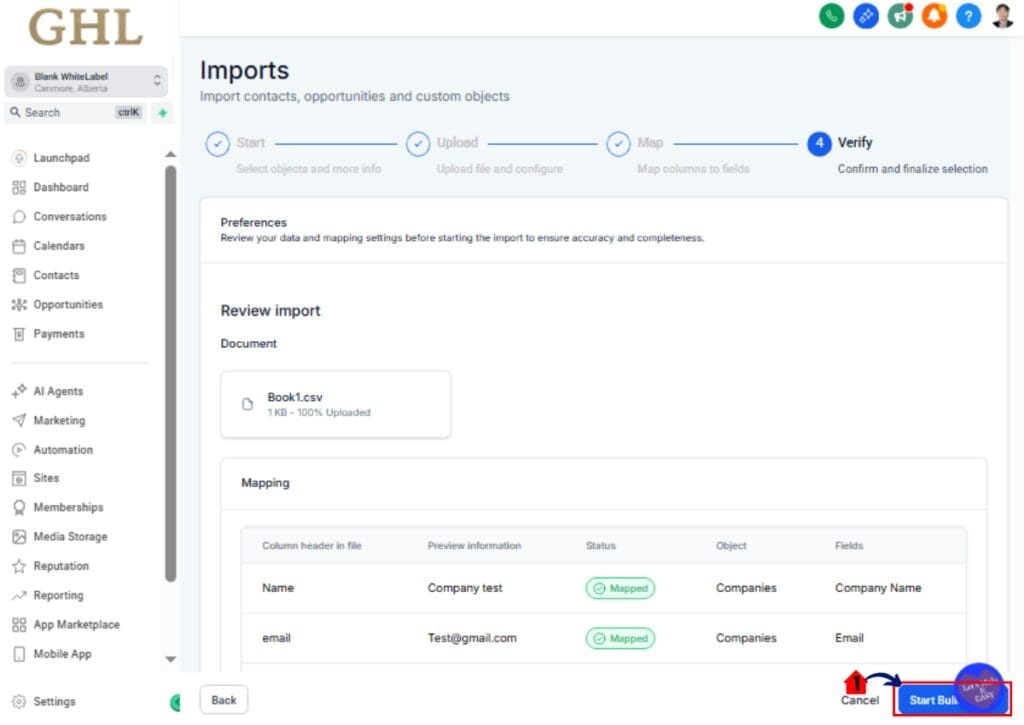
• Verify Import Settings
• Execute the Bulk Company Import
• Review Import Results in Bulk Actions
To start make sure you are logged in to your GoHighLevel sub-account.
Step 01 – Enable Company and Custom Object Import in Labs
This feature must be turned on before you can access it.
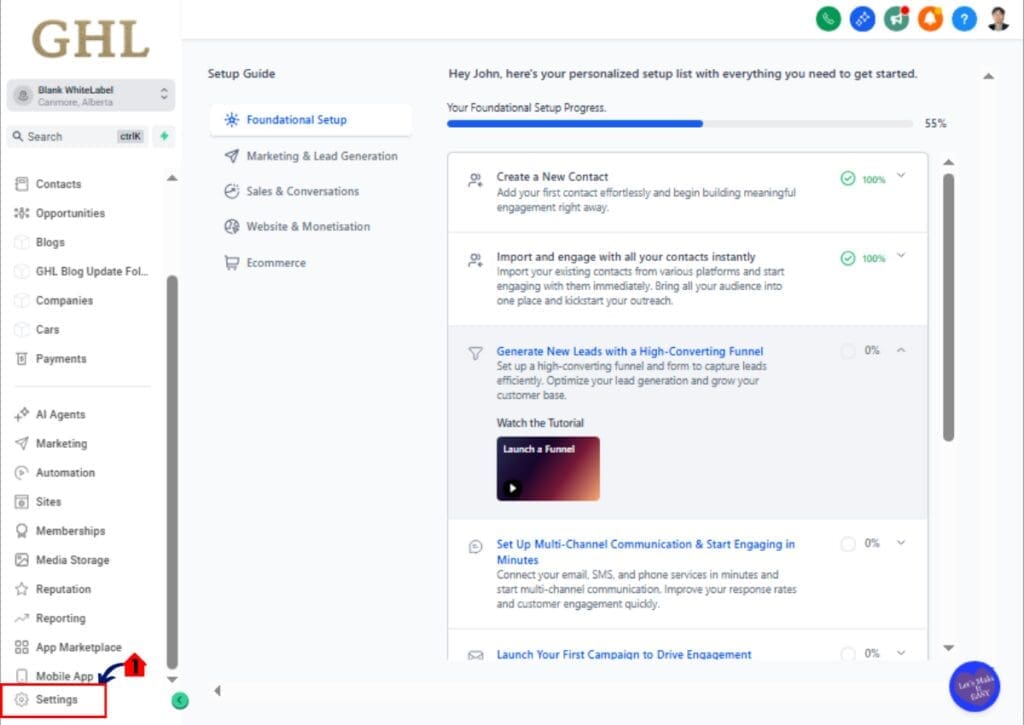
1.1 Click Settings in the bottom left corner of the Main Menu.
- This opens the Settings dashboard.
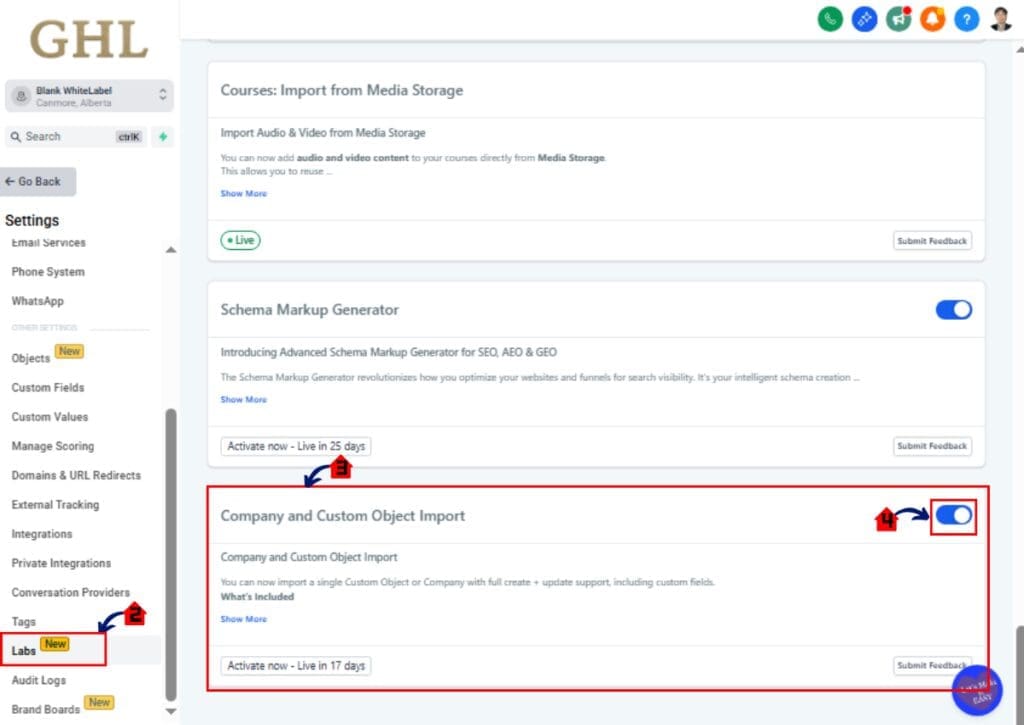
1.2 Click Labs in the left-hand Settings menu.
- Scroll Down and Find the Labs section in the left-hand Settings menu.
- The Labs page shows available beta and early access features.
- Inside Labs section find the Bulk Company Import
1.3 Locate Company and Custom Object Import.
1.4 Toggle the feature ON.
- Once enabled, Company import functionality becomes available inside your CRM.
Step 02 – Access the Companies Page
- The Main Menu on the left side of your screen includes all the main areas you work in when using GHL.
2.1 Click Contacts main menu item.
- Inside the Contacts section you will find Contacts, Companies, Smart Lists, and more.
2.2 Click Companies in the top menu.
- The Companies Page displays all company records currently inside your CRM.
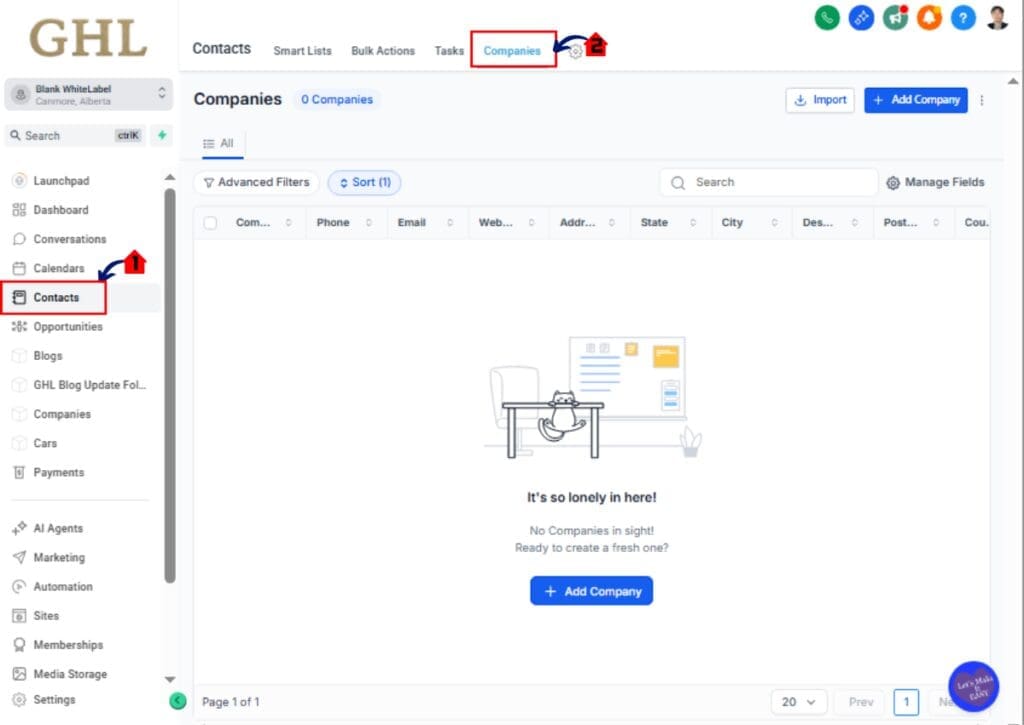
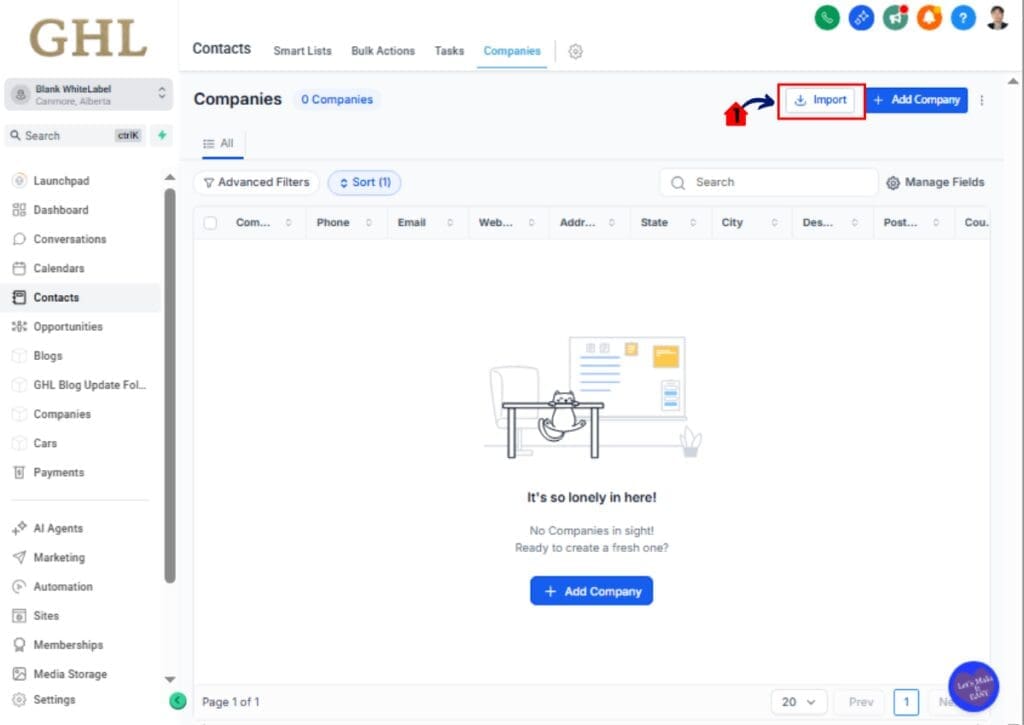
Step 03 – Start a New Bulk Company Import
3.1 Click Import
- You will be Prompted to Companies Import Page
- This opens the Bulk Company Import workflow screen and Hit Next.
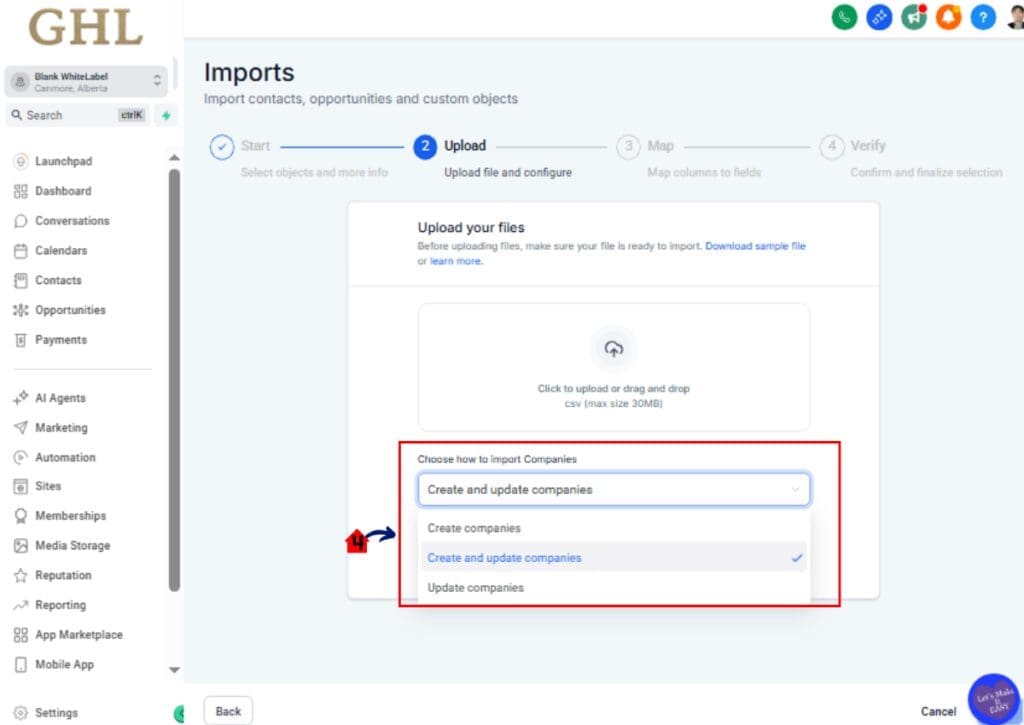
Step 04 – Upload Your CSV File
4.1 Click Upload File.
4.2 Select your structured CSV file from your computer.
- Once uploaded, the system validates the file format.
4.3 Click Next to proceed to field mapping.
- If your file format is incorrect, the system will display an error message. Review your CSV formatting before proceeding.

4.4 Choose your preferred import option:
- Each option controls how GHL handles matching Company IDs.
- Create New Companies
- Update Existing Companies
- Create & Update Companies
- Click Next to proceed to mapping.
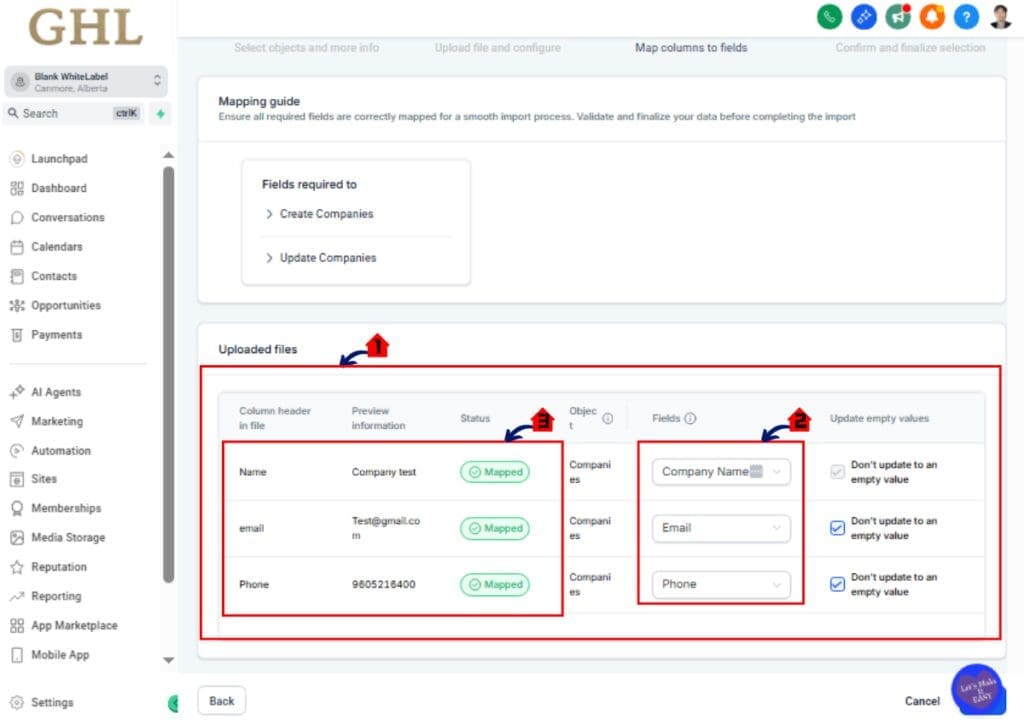
Step 05 – Field Mappings
5.1 Review the automatically suggested field mappings.
5.2 Match each CSV column to the correct Company field using the dropdown selectors.
5.3 Review the preview data shown beside each mapping.
- This preview allows you to confirm correct alignment before proceeding.
- Click Next once mapping is complete.
Step 06 – Review Import Settings
This is your final safety check before records are created or updated.
- Review duplicate detection settings.
- Confirm overwrite behavior.
- You can prevent blank values from overwriting existing data.
- Review the import summary screen carefully.
6.1 Click Start Bulk Import if everything looks correct.
Step 09 – Review Import Results in Bulk Actions
- Return to the Companies page to review your imported files
9.1 Click Import
- You will be Prompted to Companies Import Page
- This opens the Bulk Company Import workflow screen
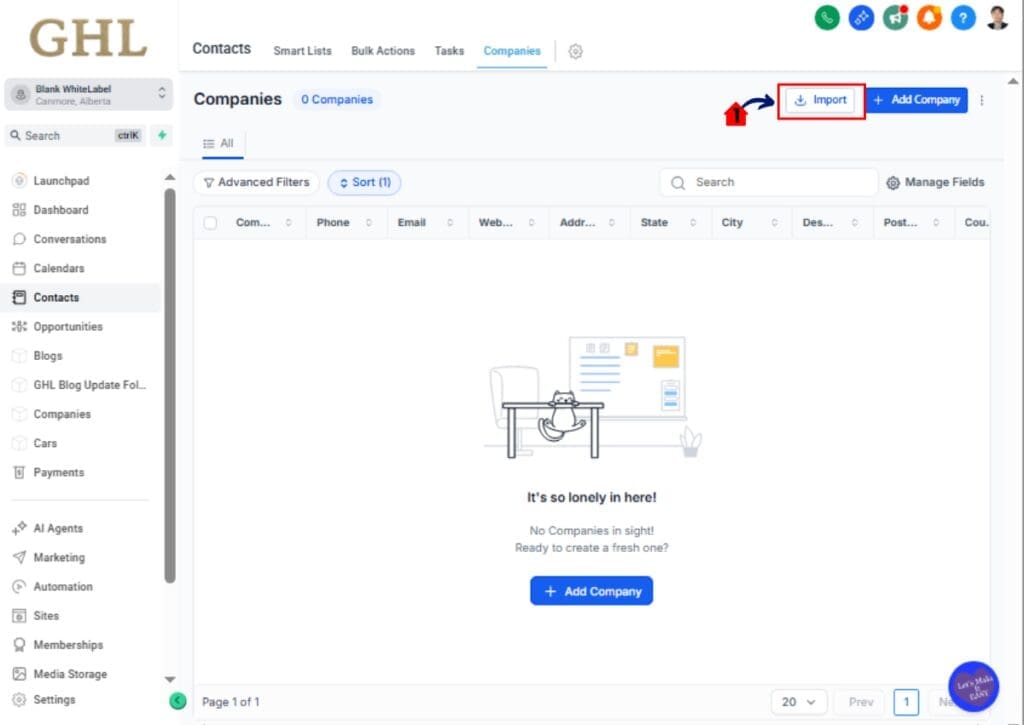
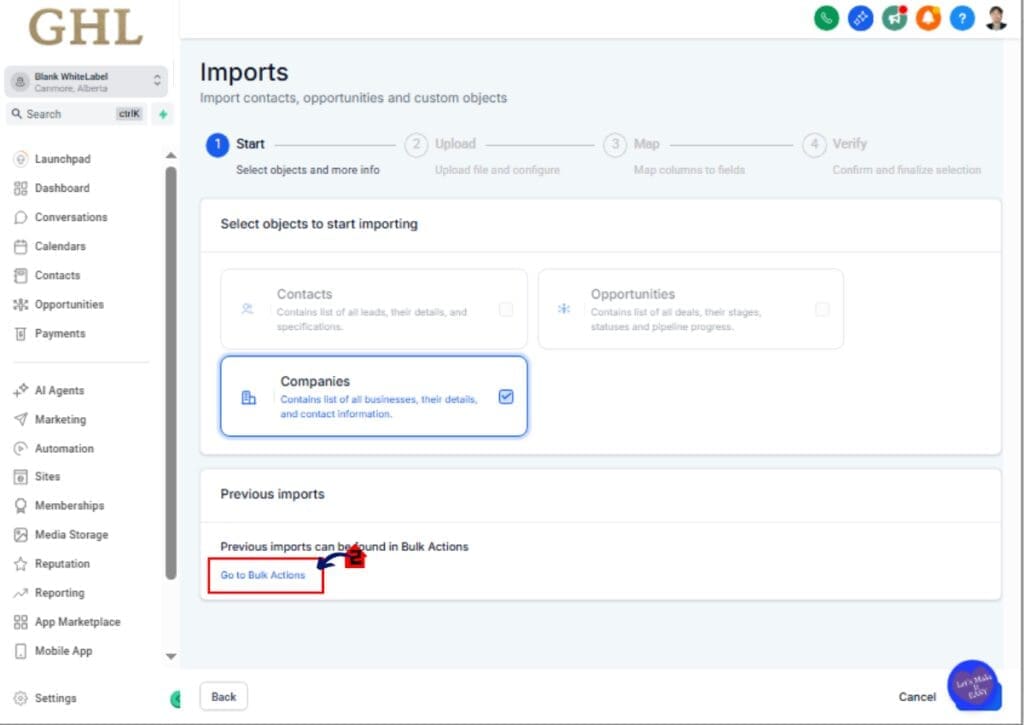
9.2 Go to Bulk Actions.
- This is the area where you can see Previous imports in Bulk Actions
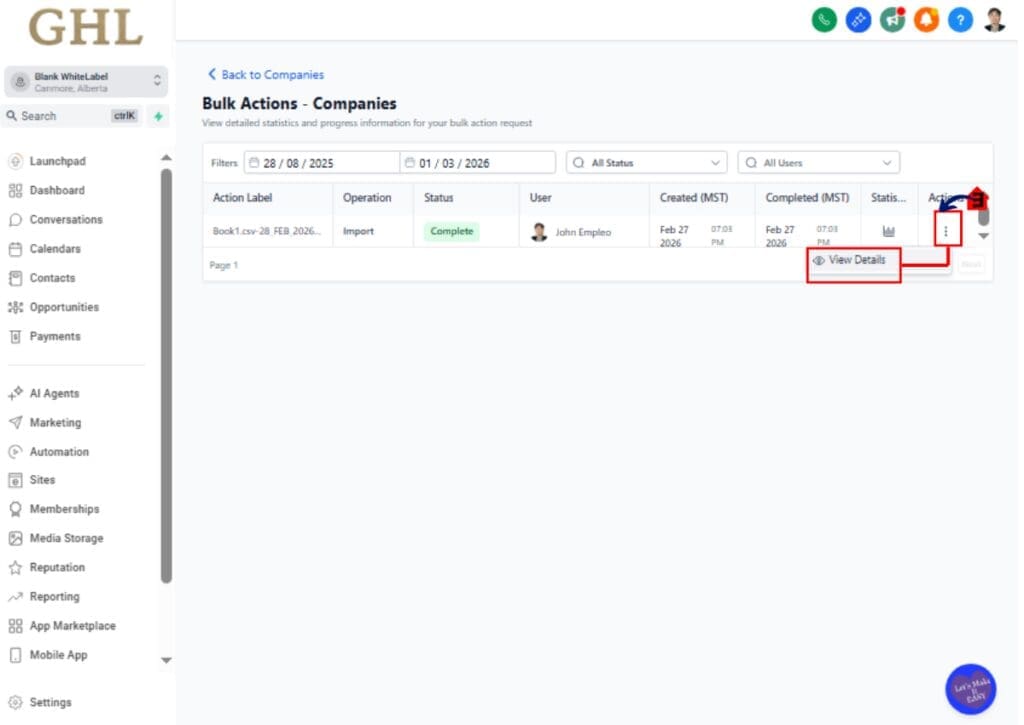
9.3 Click the Three dots button
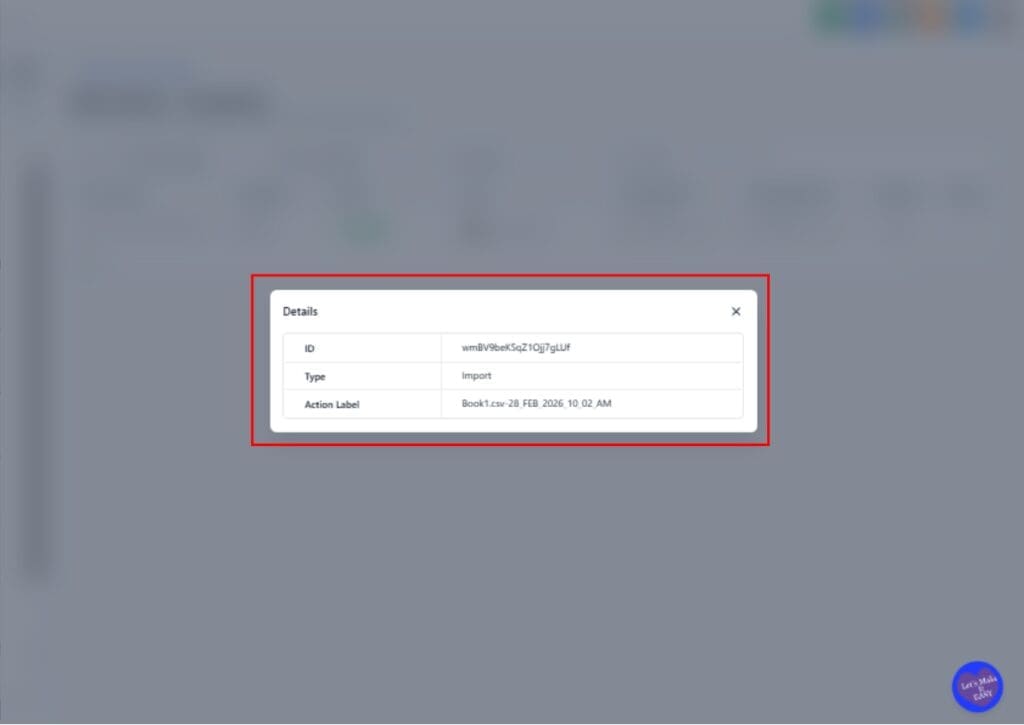
- View the recent import job by clicking the three dots button on the right side
- You will see detailed statistics including:
- Success count
- Error count
- Warning countThis report allows you to correct errors and re-import if needed.
Pro Tips for Using Bulk Company Import Effectively
Bulk Company Import is powerful. But like any data tool, it works best when you prepare properly.
Start with a clean CSV file.
Remove duplicate rows before uploading. Standardize company names. Make sure your Company ID column is consistent. Small cleanup steps now will prevent big problems later.
Always test with a small batch first.
If you are importing 2,000 companies, test with 10 to 20 records first. Confirm that mapping works correctly. Review the results. Then proceed with the full file.
Be careful with the “Update Existing Companies” option.
If Company IDs are incorrect or missing, updates may fail or skip records. Always verify that your unique identifier is mapped correctly during the mapping stage.
Use overwrite protection wisely.
If your CSV contains blank cells, enable the setting that prevents blank values from overwriting existing data. This protects good information already inside your CRM.
Download your import report every time.
Even if everything looks clean, keep the report for documentation. It helps with troubleshooting and client reporting.
If you manage multiple sub-accounts, create a standard import template.
Build a reusable CSV structure with predefined headers. This speeds up onboarding and keeps your data consistent across accounts.
Bulk Company Import is not just about speed.
It is about control.
When you treat it like a structured process instead of a quick upload, your CRM stays clean and scalable.
What This Means for Your Business
Bulk Company Import is not just about uploading a file.
It changes how you scale your CRM operations inside GoHighLevel.
If you onboard B2B clients, franchises, or multi-location businesses, company-level data matters. Sales teams track accounts. Automations trigger from company fields. Reporting depends on clean structure.
When company records are messy, everything downstream breaks.
Bulk Company Import gives you control at the account level.
You can migrate data from another CRM without rebuilding records one by one. You can clean up existing company records in bulk. You can standardize naming, update fields, and remove inconsistencies in a controlled workflow.
That means faster onboarding.
Instead of spending hours manually entering companies, your team prepares a structured CSV and uploads it through a guided process. The review screen and duplicate detection reduce risk. The tracking page gives you visibility.
This also improves reporting accuracy.
When Company IDs are mapped correctly and duplicates are prevented, your CRM becomes more reliable. Pipelines tied to company records stay clean. Automations trigger properly. Dashboards reflect real data.
And when something goes wrong?
You have an import report. You have warnings. You have error logs. You are not guessing.
That level of visibility makes you look professional to clients.
This is how agencies scale without chaos.
Real-World Agency Use Case
Let’s say you onboard a B2B service client moving from another CRM.
They have 1,200 company accounts.
Before Bulk Company Import, your team might:
• Manually recreate company records
• Import contacts but miss company structure
• Deal with duplicate accounts
• Spend days cleaning up mismatched data
Now, you request a properly formatted CSV export.
You structure the file with Company ID, Company Name, Address, Industry, and Custom Fields.
You upload it using Bulk Company Import.
You choose “Create & Update Companies.”
You map fields with preview data.
You confirm duplicate detection using Company ID.
You review the summary screen.
Then you run the import.
Within minutes, all 1,200 company records are inside GHL.
You download the report.
You fix 12 formatting errors.
You re-upload those 12.
Done.
That is the difference between reactive admin work and scalable systems.
Bulk Company Import turns CRM migration into a controlled process instead of a stressful guessing game.
Frequently Asked Questions About Bulk Company Import in GoHighLevel
Conclusion
Bulk Company Import is one of those updates that looks simple at first, but has massive impact once you start using it.
It removes manual work.
It reduces duplicate errors.
It protects your data.
And it gives you a controlled, trackable way to migrate or clean company records inside GoHighLevel.
For agencies working with B2B clients, franchises, or multi-location businesses, this is a real operational upgrade. You can now import company data with structure, verify everything before it runs, and download a full report afterward.
That is how scalable systems are built.
No more guessing.
No more messy imports.
No more rebuilding company records by hand.
If you have not enabled Bulk Company Import yet, go into Labs and turn it on. Run a small test import. Get comfortable with the workflow. Then build it into your onboarding process.
Your future self will thank you.
Have you tested Bulk Company Import in your sub-account yet? What was your experience like?
Scale Your Business Today.
Streamline your workflow with GoHighLevel’s powerful tools.