

- Add modern gradient styles to form, survey, and quiz buttons in minutes, no code needed.
- Quick Summary – Button Gradient Background Overview
- What’s New: Button Gradient Background
- Why This Matters to You: Button Gradient Background
- How to Use Button Gradient Background in GoHighLevel
- Pro / Quick Tips: Button Gradient Background
- What This Means for Your Business: Button Gradient Background
- Frequently Asked Questions about Button Gradient Background
- Conclusion: Button Gradient Background
Add modern gradient styles to form, survey, and quiz buttons in minutes, no code needed.
Introduction: Button Gradient Background
Button Gradient Background is the quickest way to make your GHL buttons look cleaner and more modern, without touching custom code.
If you build forms, surveys, or quizzes in GoHighLevel, you already know the button is the moment of truth. It is the click that turns a visitor into a lead. The problem is that a plain, flat button can look dated, especially when the rest of your page looks sharp.
This update adds gradient background styling right inside the button settings in the Form Builder, Survey Builder, and Quiz Builder. You can switch between a solid color and a gradient, then pick the gradient type (linear, radial, or angular). You can also adjust the angle where it applies, and add multiple color stops so the button matches your brand instead of looking like a random preset.
In this guide, you’ll see where to find Button Gradient Background, how to set it up step-by-step, and how to use it in a way that still looks professional and easy to read.
Button Gradient Background gives your GHL forms, surveys, and quizzes a more modern look fast. You can style better-looking buttons without custom code and keep your branding consistent.
Quick Summary – Button Gradient Background Overview
Purpose: This guide shows you how to turn on Button Gradient Background for buttons inside GHL Forms, Surveys, and Quizzes, so your buttons look more modern without custom code.
Why It Matters: A button is the action point on your form or quiz, so improving how it looks can make the next step feel clearer and more intentional for the visitor.
What You Get: You get a simple setup process, best-practice tips for clean gradients, and the key checks to make sure your button text stays readable on desktop and mobile.
Time To Complete: Most users can update a button in about 5 to 10 minutes per asset, once they know where the settings are.
Difficulty Level: Beginner friendly because everything is done inside the builder settings with clicks, not code.
Key Outcome: You end up with consistent, brand-matched gradient buttons across Forms, Surveys, and Quizzes that look polished and are easy to read.
What’s New: Button Gradient Background
Before this update, button styling in the Form, Survey, and Quiz Builder was mostly about picking a solid color and adjusting basics like size, border, and text style. It worked, but it could look flat, especially on modern landing pages.
Now you can add a Button Gradient Background right inside the button settings. You do not need CSS. You do not need custom code. You just choose the style you want and set the colors.
Automate marketing, manage leads, and grow faster with GoHighLevel.

Here’s what’s been added:
- You can switch a button background from solid color to a gradient.
- You can choose the gradient type: linear, radial, or angular.
- You can adjust the gradient angle for the styles that support it.
- You can add and edit multiple color stops, so the gradient is not limited to only two colors.
- You can fine-tune the look until it matches your brand, instead of settling for “close enough.”
The best part is nothing breaks. If you already have existing buttons styled with a solid color, they stay the same. This update simply adds more design options when you want them.
Why This Matters to You: Button Gradient Background
Button Gradient Background matters because most forms do not fail on the offer. They fail at the moment of action. If the button blends in, people pause, scroll, and leave.
This update gives you a clean way to make that button stand out without custom code. With Button Gradient Background, you can switch from a solid color to a gradient, pick the style, adjust the angle when it applies, and add color stops that match your brand.
Use it when you want a more modern look, faster client approvals, and a more consistent design across forms, surveys, and quizzes. Keep it simple, keep it readable, and let the button do its job.
How to Use Button Gradient Background in GoHighLevel
Button Gradient Background is managed inside the Form Builder, Survey Builder, and Quiz Builder in GoHighLevel. You will open the builder you want, select your button, open the Colors and Background settings, and then enable Gradient. After that, you can choose the gradient type and adjust the color stops to get the exact look you want.
Here are the steps to enable Button Gradient Background in GHL.
- Open the Forms Area in Sites.
- Open the Form You Want to Edit.
- Select the Button Element.
- Enable Button Gradient Background.
To start make sure you are logged in to your GoHighLevel sub-account.
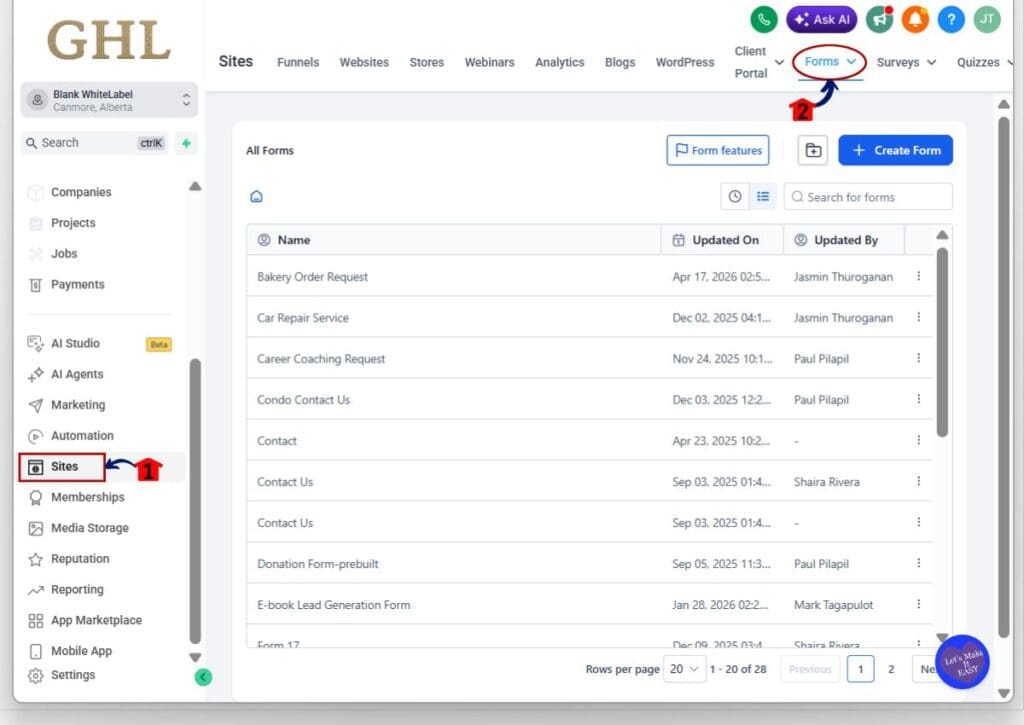
Step 01 – Open the Forms Area in Sites
- The Main Menu on the left side of your screen has all the main areas that you work in when using GHL.
1.1 Click Sites in the left-hand menu.
- This opens the Sites section where you can access Forms, Surveys, and Quizzes.
1.2 Click Forms from the top menu.
- This opens the Forms list where all your forms are shown.
- For our example we will use Forms as it often used.
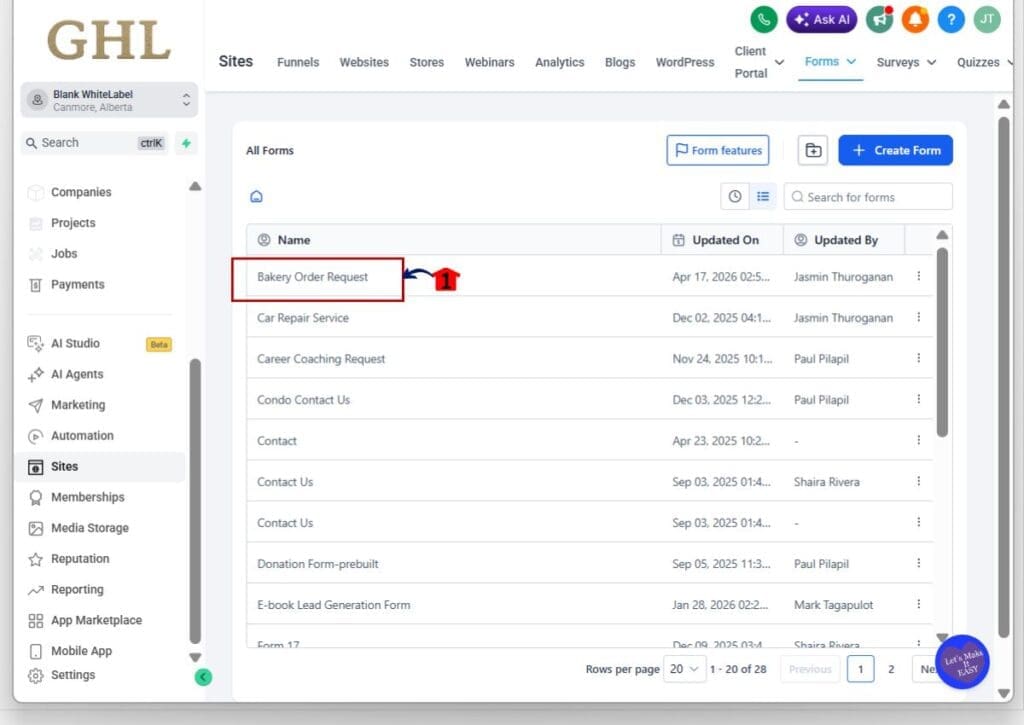
Step 02 – Open the Form You Want to Edit
2.1 Find the form you want to update from the list.
- This should be the form that contains the button you want to style.
2.2 Click the form name to open it.
- This opens the form editor where you can edit fields and buttons.
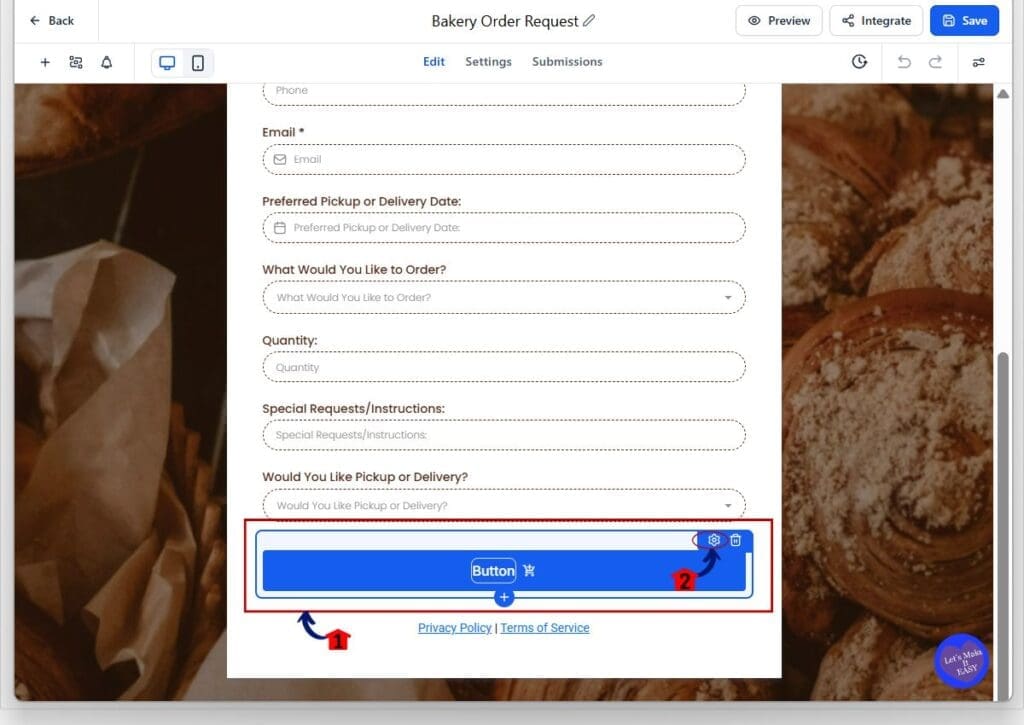
Step 03 – Select the Button Element
3.1 Click the button inside the form canvas.
- This highlights the button and opens the Button settings panel on the right.
3.2 Confirm you are editing the button.
- You should see the Button panel with sections like Content, Alignment, and Colors and Background.
Step 04 – Enable Button Gradient Background
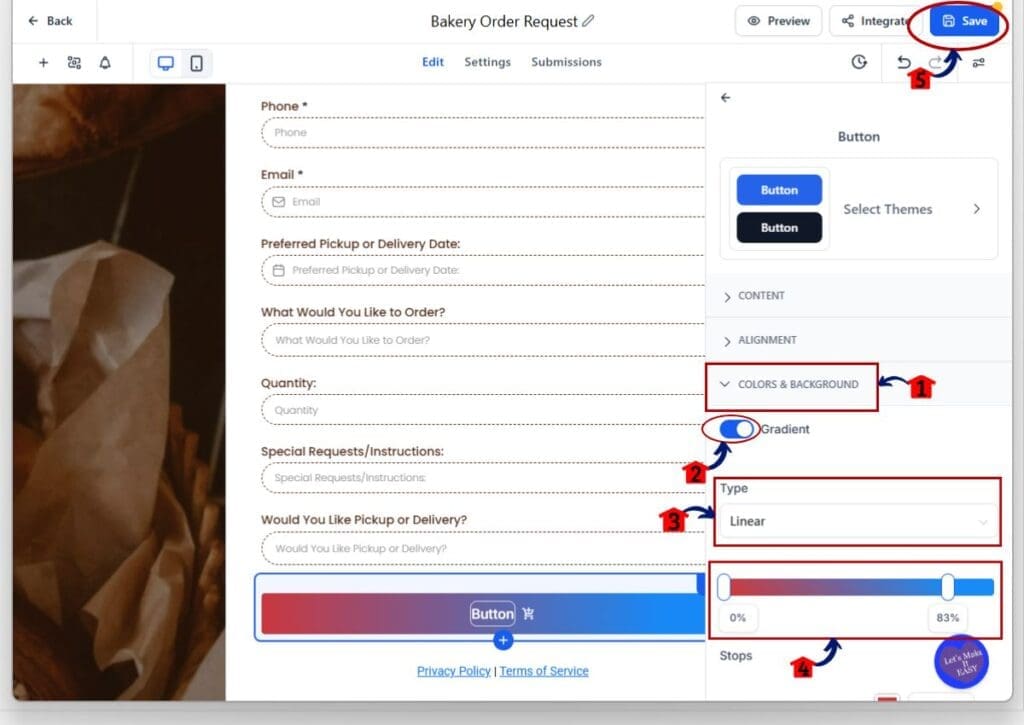
4.1 Expand the Colors and Background section.
- This is where the Gradient toggle is located.
4.2 Turn Gradient ON.
- The button background switches from a solid color to a gradient.
4.3 Set the Type to the gradient style you want.
- Common options include Linear, Radial, and Angular.
4.4 Adjust the color stops.
- Drag the stop markers to change the blend, and edit each stop color to match your brand.
4.5 Click Save.
- This applies the Button Gradient Background to your form button.
Important note: Existing buttons will keep their current styling unless you turn Gradient ON for that button.
Pro / Quick Tips: Button Gradient Background
Keep your Button Gradient Background simple. Two colors is usually enough. If you add too many stops, the button can look messy fast, and the text becomes harder to read.
Always check contrast before you save. Your button text should be easy to read at a quick glance, especially on mobile. If the gradient is bright, use dark text. If the gradient is dark, use white text. If you have to squint, your leads will not click.
If you build lots of assets, pick one gradient style and reuse it. Use the same colors and type across your forms, surveys, and quizzes so everything looks consistent. It saves time, and it makes the whole funnel feel like it belongs together.
What This Means for Your Business: Button Gradient Background
Button Gradient Background makes it easier to ship pages that look modern without slowing down your build. You can improve the look of a form, survey, or quiz in a few clicks, and it instantly feels more polished.
If you run an agency, this is a simple upgrade that reduces revisions. Clients often ask for “more modern” design, but they rarely give clear direction. A clean gradient button is one of those small changes that most people notice right away, and it helps your work look more premium without extra effort.
For results, keep expectations realistic. A better-looking button will not fix a weak offer. But it can improve clarity and focus, which helps more visitors take the next step. That means more submissions, smoother quiz completions, and fewer people dropping off at the finish line.
Frequently Asked Questions about Button Gradient Background
Conclusion: Button Gradient Background
Button Gradient Background is a simple upgrade, but it gives you a lot more control over how your buttons look in GHL forms, surveys, and quizzes. You can switch from solid to gradient, pick the type, and fine-tune the colors so the button matches the page instead of fighting it.
If you want the best result, start with one key form first. Keep the gradient clean, keep the text easy to read, and preview on mobile before you publish. Small design changes like this work best when they stay consistent across the whole funnel.
Have you tried Button Gradient Background yet, or are you sticking with solid buttons for now?
Scale Your Business Today.
Streamline your workflow with GoHighLevel’s powerful tools.


