- Workflow File Attachments Without Re-Uploading
- Quick Summary – Workflow File Attachments
- Here are this weeks HighLevel Updates
- What Are Workflow File Attachments?
- What’s Changed in Workflow File Attachments
- Why Workflow File Attachments Matter
- How to Use Workflow File Attachments in GHL
- Pro Tips for Workflow File Attachments
- Real-World Automation Example Using Workflow
- FAQs About Workflow File Attachments
- Workflow File Attachments Without Re-Uploading
Workflow File Attachments Without Re-Uploading
Attaching files inside Workflow File Attachments used to mean one thing. Upload it again. If you’ve built automations inside GHL, you know the drill. Same PDF. Same guide. Same brochure.
Upload. Save. Repeat. New workflow? Upload again. New action? Upload again. Duplicate campaign? Yep. Upload again. It worked. But it wasn’t efficient.
And when you’re running multiple client accounts, scaling automations, or building snapshots, “just re-upload it” isn’t a system.
It creates clutter. It creates duplication. It wastes time. Workflow File Attachments fixes that gap.
Instead of re-uploading the same asset every time, you can now pull files directly from Media Storage inside supported workflow actions.
Click Add Attachment. Choose Upload… or choose from Media Storage. Done. The system validates the file type and size automatically. If it passes, it attaches. If it doesn’t, you see the error instantly.
And here’s the part agencies will love. If you duplicate the workflow action, the attachment carries over with it. No rebuilding. No reattaching. No extra steps.
Workflow File Attachments make your automation builds cleaner, faster, and more controlled inside GoHighLevel. Less duplication. Less friction. More leverage.
The latest GoHighLevel Changelog includes several other GHL feature updates that round out your daily workflow:
- New QR Code Styling Options: Shapes, Borders, and Rim Text
- Collapse & Resize Pipeline Stages in Kanban View
- Notes just got smarter for the contacts page!
- New Asana actions in workflows – Find Project and Find section
- Email AI + Knowledge Base Integration 🚀
- Dialer: Auto-minimize, Pin & Drag
- Schema Markup Using AI
Keep reading for much more on all these updates and a deep dive into the Workflow File Attachments feature!
Quick Summary – Workflow File Attachments
Purpose: Workflow File Attachments allow you to reuse stored media inside supported workflow actions without re-uploading the same file repeatedly. This update connects Media Storage directly to workflow steps for cleaner automation builds.
Why It Matters: Agencies and automation builders waste time uploading duplicate files across multiple campaigns. Workflow File Attachments remove that friction and protect your system structure.
What You Get: Direct access to Media Storage inside supported workflow actions, automatic file validation, and attachment carry-over when duplicating actions.
Time to Complete: Setup takes less than five minutes inside any supported workflow action.
Difficulty Level: Beginner-friendly. No advanced settings or technical skills required.
Key Outcome: Faster workflow builds, reduced duplication, improved version control, and cleaner automation systems inside GoHighLevel.
Here are this weeks HighLevel Updates
New QR Code Styling Options: Shapes, Borders, and Rim Text
What it does:
Lets you stop using boring QR codes. You can now tweak the shape, style the border, and add text around the edge.
Where in GHL:
Accessible via Sites → QR Codes and within QR tools embedded in Funnel and Website builders.
Automate marketing, manage leads, and grow faster with GoHighLevel.

Impact:
Improves visual presentation and brand alignment while increasing scan appeal.
Best suited for:
Agencies that care about branding, small businesses running local promotions, online stores, and teams pushing QR campaigns.
Collapse & Resize Pipeline Stages in Kanban View
What it does:
Lets you hide pipeline stages you’re not actively using and adjust column widths so your board fits the way you work.
Where in GHL:
Inside Opportunities when you’re viewing your pipeline in Kanban mode.
Impact:
No more dragging your screen forever just to find the deals that matter.
Best suited for:
Owners running multi-stage pipelines, reps working deals every day, and anyone fed up with a messy board.
Notes Just Got Smarter for the Contacts Page
What it does:
Upgrades the notes area so it’s easier to write, review, and keep things organized inside a contact record.
Where in GHL:
Found directly within each contact’s profile under Notes.
Impact:
Makes it simpler to see what’s been discussed and who added what — without digging through clutter.
Best suited for:
Teams collaborating on accounts and businesses that document every client touchpoint.
New Asana Actions in Workflows – Find Project & Find Section
What it does:
Lets your workflow check what already exists in Asana before adding anything new.
Where in GHL:
Go to Workflows, add an action, and choose the Asana integration.
Impact:
No more duplicate projects. No more messy task boards. Just cleaner automation.
Best suited for:
Operations teams and agencies that rely on Asana to manage client delivery.
Email AI + Knowledge Base Integration
- What it does:
Allows Email AI to reference your Knowledge Base for smarter, more accurate responses. - Where in GHL:
Found in Conversations → Email composer with AI enabled and Knowledge Base settings under AI configuration. - Impact:
Smarter email suggestions that understand your business and help you reply quicker. - Best suited for:
Support teams, agencies managing inboxes, and businesses scaling communication with AI.
Dialer: Auto-Minimize, Pin & Drag
- What it does:
Lets you auto-minimize the dialer during calls, pin it in place, and drag it anywhere on screen. - Where in GHL:
Found in Conversations → Dialer. - Impact:
Cleaner workspace and easier multitasking during sales or support calls. - Best suited for:
Sales teams, outbound callers, appointment setters, and agencies making daily calls.
Schema Markup Using AI
- What it does:
Generates structured schema markup automatically using AI for SEO enhancement. - Where in GHL:
Found in Sites → Website or Funnel settings within AI or SEO sections. - Impact:
Improves search visibility without manual coding. - This works well for:
Teams building websites that need stronger search visibility, from agencies to small local businesses.
What Are Workflow File Attachments?
Workflow File Attachments allow you to add media directly inside supported workflow actions without manually re-uploading the same file every time.
Before this update, attaching files inside workflows was clunky. If you wanted to send a PDF in an SMS, drop a guide inside an Instagram DM, or include media in a voicemail step, you had to upload that file directly inside the action.
Every. Single. Time. Even if the file already existed in your Media Storage.
That meant:
- Duplicate uploads.
- Scattered assets.
- Version confusion.
- Wasted build time.
Now, Workflow File Attachments connect Media Storage directly to your workflow actions. When you click “Add Attachment” inside a supported step, you’ll see two options:
- Upload a file
- Choose from Media Storage
If the file already lives in your Media Storage, you simply select it. The system checks file size and type using the same validation rules that already apply to that action.
If it passes validation, it attaches instantly. If it doesn’t, you get an inline error. Nothing changes about the upload rules. The only difference is how you access your assets.
This update works in supported workflow actions such as:
- Send SMS / MMS
- Send Instagram DM
- Send Chat
- Voicemail
- Other media-enabled steps
Small limitation for now — email workflow steps don’t support this yet. It’s currently being built out and should roll out shortly.
And here’s something agencies will appreciate. If you copy or duplicate a workflow action, the attached media carries over with it. No re-selecting. No re-uploading. It stays attached.
Existing workflows that already had uploaded media will continue to work exactly as before. Nothing breaks. Nothing needs to be rebuilt.
Workflow File Attachments don’t reinvent workflows. They just remove friction. And when you build automations every day, friction matters.
What’s Changed in Workflow File Attachments
This update didn’t add a flashy new feature. It removed friction. Here’s exactly what changed inside Workflow File Attachments.
When you open a supported workflow action and click “Add Attachment,” you now see a modal with two clear options:
Upload a file – Choose from Media Storage
Before, you could only upload directly into that action. Even if the file already existed in your Media Storage. Now, Workflow File Attachments let you pull from your existing approved assets instantly.
No digging through your computer. No re-uploading the same file five times. No creating duplicate versions with “_final_v2_REALfinal.pdf”.
Once you select a file, the system automatically checks:
- File type
- File size
- Action-level restrictions
Nothing changed with the file rules. Whatever limits were already there still apply. If your file fits the requirements, it’ll attach. If not, GHL will flag it and stop you.
Simple. Controlled. Predictable. Another important improvement inside Workflow File Attachments is duplication behavior.
If you copy a workflow action that includes an attachment, the media now carries over with it.
That means:
- Cloning campaigns is faster.
- Duplicating steps doesn’t break attachments.
- Scaling across sub-accounts becomes cleaner.
Existing workflows are not affected. If you previously uploaded media directly into actions, those workflows continue to work exactly as expected. Nothing breaks. Nothing disappears.
One limitation to note. Email actions are not supported at launch. That feature is currently in progress and will be released soon. Everything else that supports media attachments now benefits from this upgrade. Workflow File Attachments didn’t change how workflows function.
They changed how efficiently you build them. And for agencies, efficiency compounds fast.
Why Workflow File Attachments Matter
Workflow File Attachments are one of those updates that don’t look big on the surface. But they solve a real operational problem.
If you build one workflow a month, this saves minutes. If you build workflows every day for multiple clients, this saves hours.
Before Workflow File Attachments, agencies had to manage assets outside the system or repeatedly upload the same files inside each workflow action.
That created:
- Duplicate files in Media Storage
- Version confusion
- Extra build time
- Unnecessary manual steps
Now you reuse what already exists. And that changes how you scale.
When your approved assets live inside Media Storage, you create one clean source of truth. One PDF. One brochure. One pricing sheet.
Then reuse it across:
- Lead magnet workflows
- Instagram DM automations
- SMS follow-ups
- Appointment reminders
- Nurture campaigns
No rebuilding. No asset sprawl. This matters even more for agencies running structured systems.
Think about this. You create a standard onboarding PDF for a client. That file needs to go into:
- New lead SMS
- Missed call text-back
- Instagram keyword trigger
- Appointment confirmation workflow
Without Workflow File Attachments, you upload it into each one. With this update, you select it once from Media Storage each time. Done.
It also reduces human error. When VAs or team members upload files manually, you risk uploading outdated versions. Now you can control the version in Media Storage and reuse the same approved file everywhere.
Cleaner systems mean fewer mistakes. Fewer mistakes mean fewer support tickets. And when you duplicate workflow actions, the attachment carries over automatically.
That’s huge for:
- Snapshot builders
- Multi-location agencies
- Franchise models
- White-label SaaS setups
Workflow File Attachments don’t just save time. They protect your structure. They reduce friction. They make your automation builds feel intentional instead of patched together. And when your systems are clean, scaling gets easier.
How to Use Workflow File Attachments in GHL
Using Workflow File Attachments inside GoHighLevel is straightforward. You will complete everything directly inside the Workflows area of your sub-account. There are no advanced settings to configure and nothing extra to activate. You will simply access a supported workflow action and use the new attachment option connected to Media Storage.
In the steps below, you will learn how to open the Workflows section, add a supported action, attach a file from Media Storage, confirm it passes validation, and duplicate the action correctly. Follow each step carefully to ensure your attachments work properly and your workflow stays clean and organized.
- Access the Main Left Hand Menu in GoHighLevel.
- Add or Edit a Media-Supported Workflow Action.
- Attach a File Using Workflow File Attachments.
- Test the Workflow File Attachment.
To start, make sure you are logged in to your GoHighLevel sub-account.
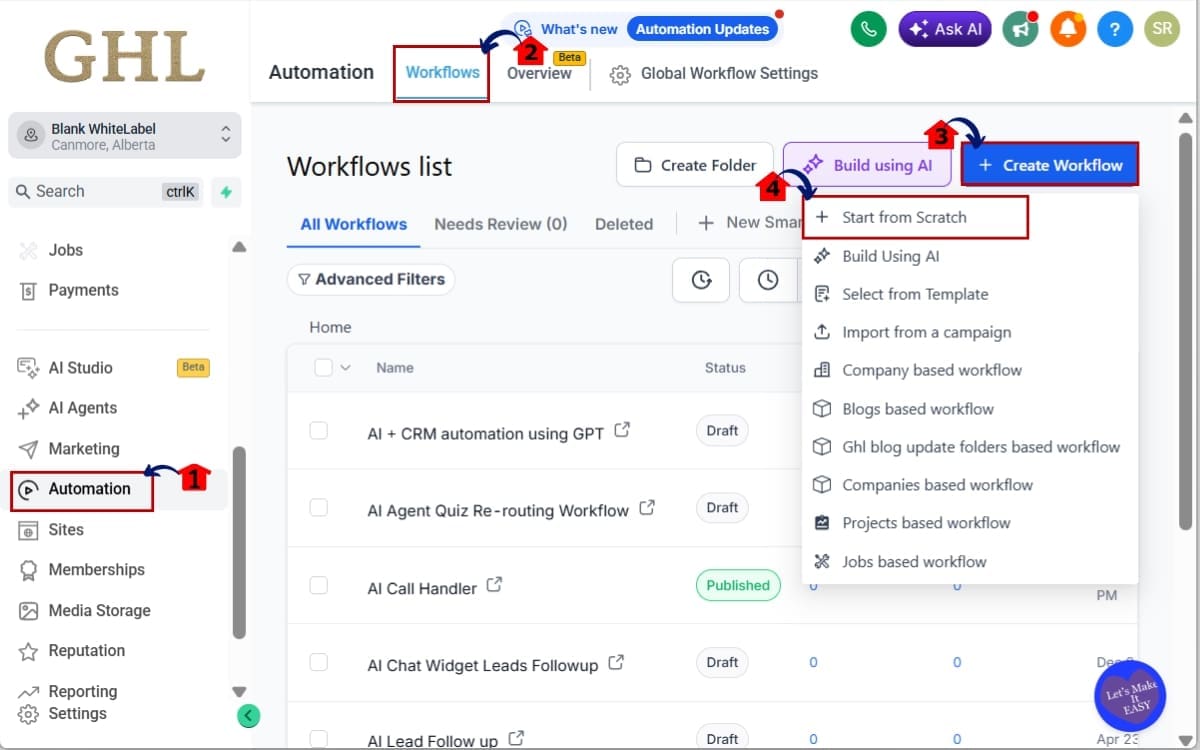
Step 01 – Access the Main Left Hand Menu in GoHighLevel
- The Main Menu on the left side of your screen contains all the core areas you use inside GHL.
1.1 Click on “Automation” in the left-hand menu.
- This opens the automation dashboard where workflows are created and managed.
1.2 Click on “Workflows.”
- This takes you to the main workflow list where you can view, edit, or build automations.
1.3 Click on “Create Workflow.”
- This allows you to build a new workflow from scratch or select a template.
1.4 Choose “Start from Scratch.”
- This opens a blank workflow canvas so you can build your automation step by step.
Step 02 – Add or Edit a Media-Supported Workflow Action
- Not all workflow actions allow attachments. You must select one that supports media files. Only media-enabled actions will display the attachment option.
2.1 Click the “+” icon inside your workflow to add a new action.
- This opens the action selection panel where you can choose the next step in your automation.
2.2 From the action list, select a supported action such as:
- Send SMS
- Send Instagram DM
- Send Chat Message
- Voicemail
- Other media-enabled actions
In this example, we will use Send SMS. The Send SMS action allows file attachments, making it ideal for testing this feature.
2.3 Scroll down inside the action settings until you see the “Add Attachment” option.
- This is where you can attach files that will be delivered with your message.
2.4 Click “Add Attachment” and select “Choose from Media Storage.”
- This opens your Media Storage so you can select an existing file instead of uploading a new one.

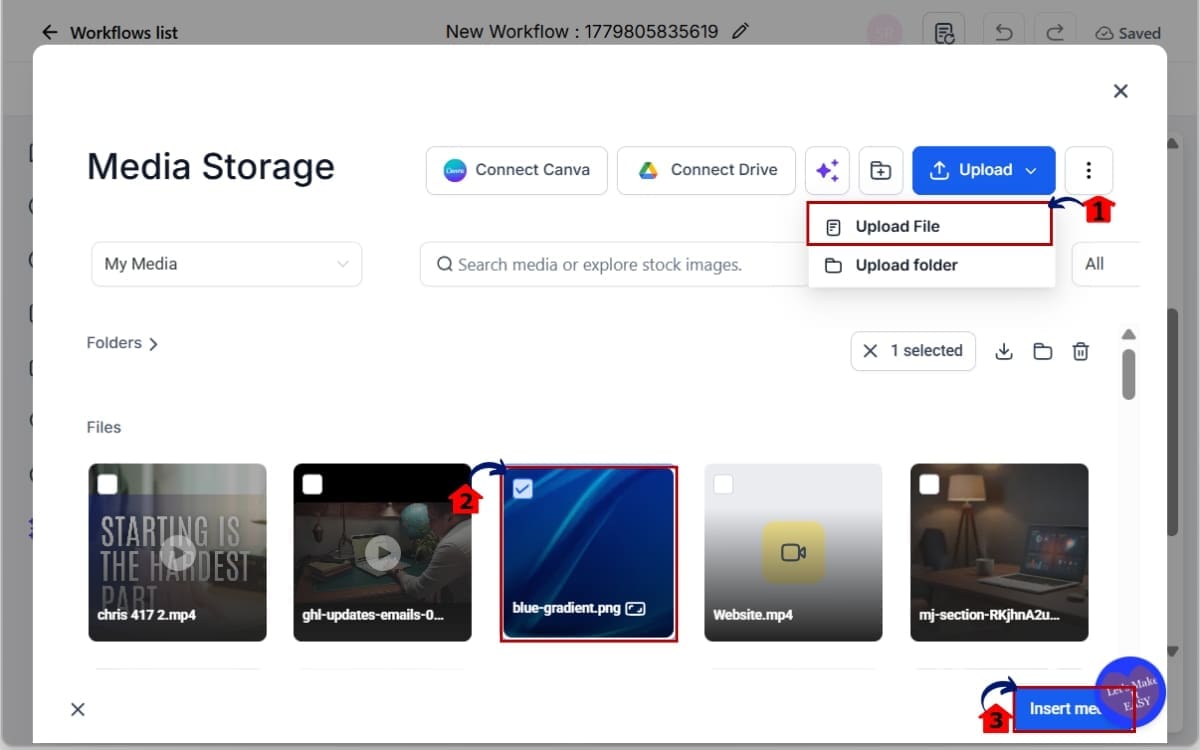
Step 03 – Attach a File Using Workflow File Attachments
- You can either upload a new file or select one that already exists in Media Storage. This step connects your selected file directly to the workflow action.
3.1 If the file does not exist yet, click “Upload a File.”
- This allows you to add a new file directly from your computer into Media Storage. Select the file from your computer and Wait for the upload to complete before proceeding.
3.2 Click the file you want to use.
- This selects the file from Media Storage and prepares it to be attached to the workflow action.
3.3 Click “Insert Media.”
- This confirms your selection and attaches the file to the workflow step.
Step 04 – Test the Workflow File Attachment
- Always test your workflow before publishing it live.Testing confirms your attachment sends correctly and avoids delivery issues.
4.1 Click “Test Workflow.”
- This runs the workflow using a test contact so you can verify that the message and attachment are working properly.
4.2 Click “Publish.”
- This makes the workflow live so it can trigger for real contacts.
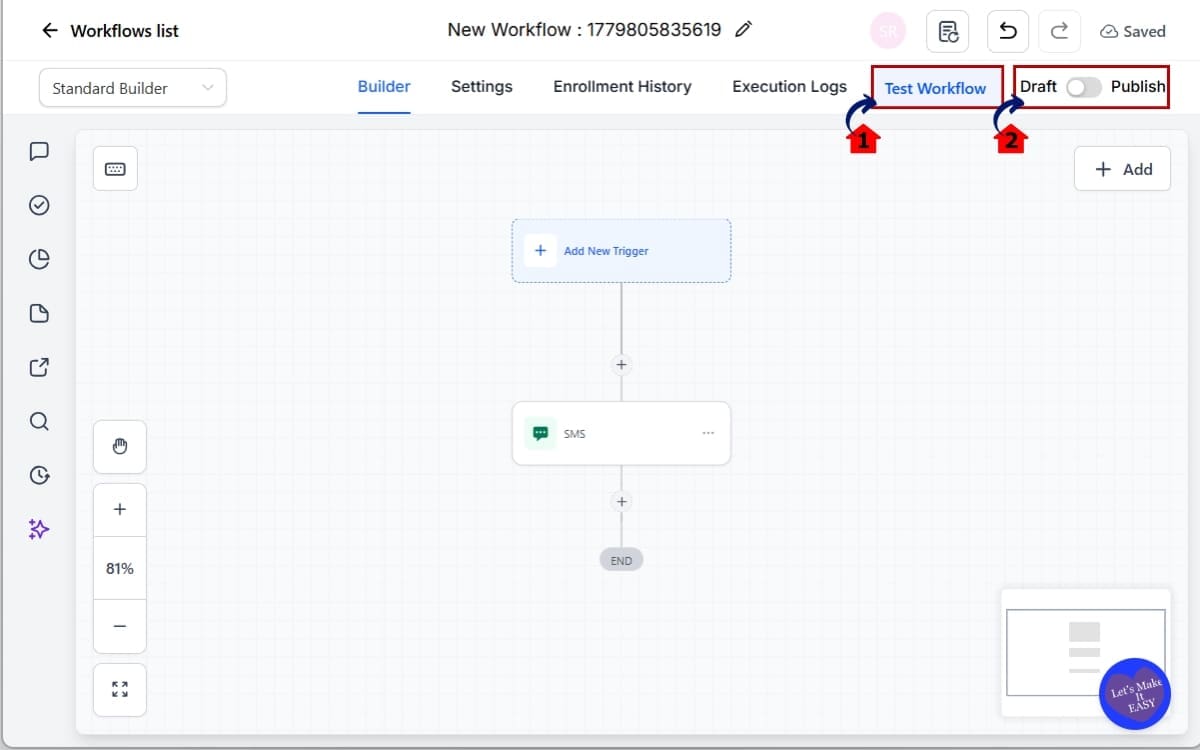
That’s it. Workflow File Attachments are not complicated. They simply remove unnecessary steps from your automation build process. And when you build at scale, fewer steps equals faster execution.
Pro Tips for Workflow File Attachments
On the surface, this is a simple feature. Used the right way, it becomes part of a smarter system.
Here’s how to get the most out of them.
Create a Structured Media Naming System
If your Media Storage is messy, this feature won’t feel powerful. Use a naming structure like:
- ClientName_LeadMagnet_v1
- ClientName_OnboardingGuide_2026
- Agency_Template_Brochure
Clear names prevent version confusion. And when your team selects files inside Workflow File Attachments, they won’t guess which one is correct.
Use One Source of Truth Per Asset
Don’t keep uploading the same file over and over with tiny name changes. Pick one approved version and stick with it in Media Storage.
If something changes, replace the master file and update workflows intentionally.
This keeps your automations clean.
Build Reusable Asset Libraries for Snapshots
If you create snapshots for clients or sell white-label systems, preload commonly used assets into Media Storage first.
Examples:
- Welcome PDF
- Pricing Overview
- Service Guide
- Case Study
Then use Workflow File Attachments inside your snapshot workflows. This makes duplication across sub-accounts much smoother.
Watch File Size Limits
The limits for each action are still there. If your file’s too big, it simply won’t go through.
Keep PDFs compressed. Avoid oversized media. Test before publishing. Workflow File Attachments do not bypass action-level limits.
They simply streamline how you access files. Train VAs on the System
If you run an agency, make this part of your SOP:
- Never upload the same file twice.
- Always check Media Storage first.
- Use approved naming conventions.
That small discipline prevents chaos six months from now.
Avoid Deleting Active Assets
If you delete a file from Media Storage that is attached to live workflows, you risk broken deliveries. Before deleting anything:
- Search where it is used.
- Confirm it is not attached to active automations.
- Control beats cleanup.
Use Attachments Strategically in SMS and DMs
Attachments increase engagement. Instead of saying: “Here’s the guide.” Send the guide.
Instead of saying: “Here’s our brochure.” Attach the brochure.
Workflow File Attachments make this seamless.
More value. Less friction. Higher response rates. Small system upgrades create long-term leverage. This is one of them.
Real-World Automation Example Using Workflow
Let’s walk through a real agency scenario. You run a marketing agency. One of your clients offers a free downloadable guide called “The Home Buyer Checklist.”
When someone comments “Guide” on Instagram, you trigger a workflow. Here’s how Workflow File Attachments change the build process.
Before This Update
You create the Instagram DM action. You upload the PDF directly into that step.
Now you duplicate that workflow for:
- Facebook DM
- SMS follow-up
- Missed call text-back
- New lead nurture
Each time? Upload the file again. That creates multiple copies of the same PDF across different actions.
Now Multiply That
Five clients. Three lead magnets each. Multiple automations per campaign.
You now have dozens of duplicate uploads floating around. That’s not scalable.
After Workflow File Attachments
You upload the “Home Buyer Checklist” once into Media Storage. Then inside each supported workflow action:
- Click Add Attachment.
- Choose from Media Storage.
- Select the checklist.
- Save.
That’s it. When you duplicate the Instagram DM action to reuse the campaign structure, the attachment carries over automatically.
No rebuilding. No re-uploading. No wasted steps.
Here’s What That Workflow Looks Like
- Trigger: Instagram Comment “Guide”
- Action 1: Send Instagram DM with attached PDF
- Action 2: Wait 10 Minutes
- Action 3: Send SMS reminder with same attached PDF
- Action 4: Notify Sales Team
One file. Multiple delivery points. Zero duplication.
Now Let’s Talk Scale
If you use snapshots to deploy systems to multiple sub-accounts, Workflow File Attachments make duplication cleaner.
Instead of rebuilding attachments inside every account manually, your structure stays intact when duplicating workflow actions.
That means:
- Faster onboarding
- Cleaner builds
- More predictable systems
For SaaS agencies or white-label providers, this is huge. And here’s the bigger picture.
Workflow File Attachments aren’t just about attaching PDFs. They’re about system control.
When your automation system is clean, your team moves faster. When your team moves faster, you scale without chaos. And when you remove small friction points, you build real leverage.
FAQs About Workflow File Attachments
Workflow File Attachments Without Re-Uploading
Workflow File Attachments may not look flashy. But they fix a real operational problem inside GoHighLevel.
No more re-uploading the same file into every workflow step. No more duplicate PDFs floating around. No more version confusion when scaling campaigns.
You upload once to Media Storage. Then reuse it anywhere inside supported workflow actions.
That means:
- Cleaner systems.
- Faster automation builds.
- Better control across client accounts.
And when you duplicate actions, the attachment carries over automatically. That’s leverage.
If you build workflows occasionally, this saves time. If you build workflows daily, this compounds. Small friction points slow teams down.
Workflow File Attachments remove one of them. Log into your sub-account. Open a workflow. Test it. You’ll feel the difference immediately.
Have you started using Workflow File Attachments yet? How are you structuring your Media Storage for scale?
Drop your thoughts and let’s compare systems. And if you want more practical, step-by-step GoHighLevel feature breakdowns, check back regularly for the next update guide.
Scale Your Business Today.
Streamline your workflow with GoHighLevel’s powerful tools.