- See what changed in the refreshed GHL dashboard and reporting layout, and how to turn it on in Labs.
- Quick Summary – Dashboard Reports Essentials
- What Changed in Dashboard Reports?
- Why Dashboard Reports Matter to You
- How to Enable Dashboard Reports in GoHighLevel Labs
- Pro Tips for Cleaner Dashboard Reports
- What Dashboard Reports Mean for Your Business
- Dashboard Reports Frequently Asked Questions
- Final Thoughts on Dashboard Reports
See what changed in the refreshed GHL dashboard and reporting layout, and how to turn it on in Labs.
Cleaner Dashboard Reports in GoHighLevel
Dashboard Reports in GoHighLevel just got cleaner, and that is good news if you spend time checking client results, ad data, or custom reports.
This update does not change your data, widgets, filters, or reporting workflows. It simply gives Dashboards and Custom Reports a more consistent look across headers, navigation, breadcrumbs, side panels, modals, widgets, filters, datepicker, report builder, schedule pages, and the custom metric builder.
That may sound small, but it matters. Cleaner Dashboard Reports help your team move through reporting screens faster, spot what they need, and present a more polished view when reviewing results with clients. You can turn it on inside Settings → Labs in your GoHighLevel sub-account.

Cleaner Dashboard Reports help your team review data faster, move through reports with less friction, and present a more polished experience to clients. This update does not change your data or workflows, but it makes the reporting area feel easier to use.
Quick Summary – Dashboard Reports Essentials
Purpose: This update refreshes the Dashboard Reports experience in GoHighLevel so Dashboards and Custom Reports look more consistent and easier to use.
Why It Matters: Cleaner reporting screens help your team review data faster and reduce small points of confusion during client or internal reviews.
What You Get: You get updated styling for dashboards, widgets, filters, datepicker, report builder screens, side panels, modals, and Custom Reports.
Time To Complete: This should take about 2 to 5 minutes to enable and review inside Settings → Labs.
Difficulty Level: Easy. You only need to turn on one Labs toggle and check your main dashboards.
Key Outcome: Your Dashboard Reports keep the same data and setup, but the reporting area feels cleaner, more polished, and easier to follow.
What Changed in Dashboard Reports?
Dashboard Reports now have a more consistent layout across GoHighLevel. The main change is not what the reports do. It is how the reporting area looks and feels while you use it.
GHL refreshed the visual design for key parts of Dashboards and Custom Reports. This includes the header, navigation, breadcrumbs, side panel, modals, widget cards, loading states, and error states. Charts and widgets also got the same cleanup, including numeric widgets, bar charts, donut charts, line charts, tables, funnels, Google Ads, Facebook, Google Analytics, and Widget AI Summary.
Automate marketing, manage leads, and grow faster with GoHighLevel.

Before this update, some reporting screens could feel a bit uneven. One page might look slightly different from another. Now, Dashboard Reports feel more connected from start to finish. The report builder, report list, schedule page, clone flows, filters, datepicker, and custom metric builder all follow the same visual style.
The best part is that your setup stays intact. Your dashboards, reports, widgets, filters, custom metrics, and data do not change. This is a cleaner coat of paint, not a rebuild of the house.
Why Dashboard Reports Matter to You
Dashboard Reports are where your numbers either make sense or turn into a mess. When the layout is clean, your team can read the data faster and make better calls without digging around the screen.
This update helps reduce small points of friction. Filters look more consistent. Widgets feel more aligned. Report pages are easier to move through. That matters when you are checking leads, ad results, sales numbers, booked calls, or campaign performance.
For agencies, this also helps with client trust. A cleaner report area feels more polished during reviews. You are not changing the data, but you are making the experience easier to follow.
This is useful for agency owners, VAs, marketers, and teams that manage reports across many sub-accounts. It also gives GoHighLevel a stronger base for future reporting updates, which means cleaner work now and better improvements later.
How to Enable Dashboard Reports in GoHighLevel Labs
This is a Labs toggle. You are not changing your dashboard data, report setup, widgets, filters, or custom metrics. You are simply turning on the refreshed Dashboard Reports UI so the cleaner reporting experience becomes available in your Dashboards and Custom Reports area.
Here are the steps to set it up:
- Access the Settings area in GoHighLevel.
- Open Labs in Settings and Turn on the Dashboard Reports UI Update.
- Confirm the Dashboard Reports Refresh Is Active.
To start, make sure you are logged in to your GoHighLevel sub-account.
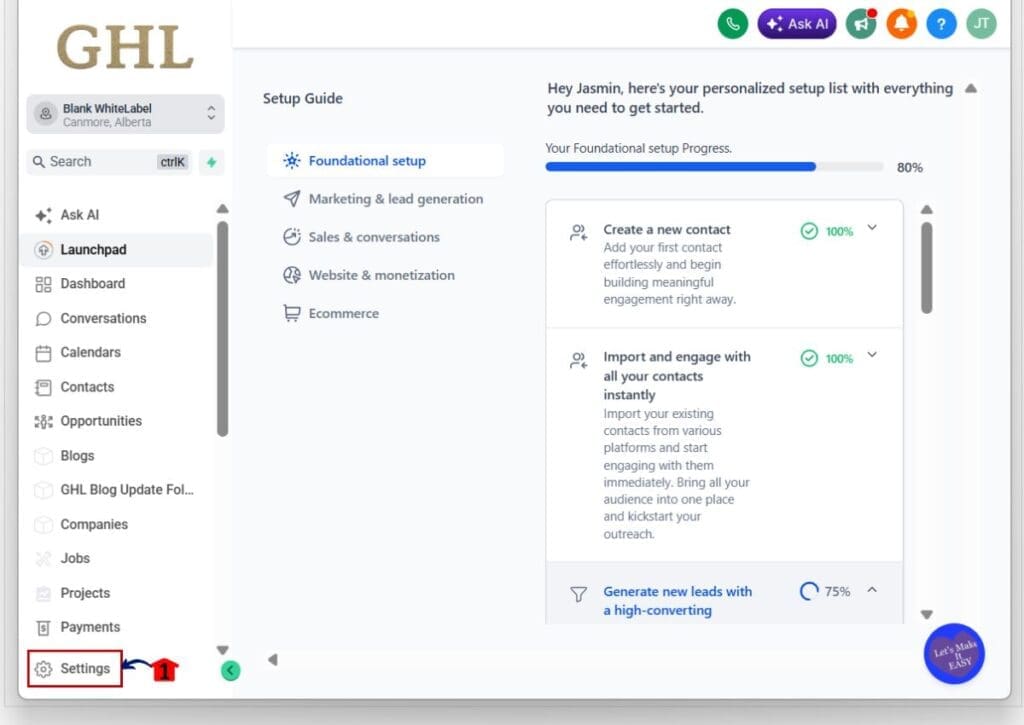
Step 01: Access the Settings area in GoHighLevel
- Go to the bottom of the Main Menu on the left-hand sidebar.
1.1 Click the Settings gear icon ⚙️.
- This opens the Settings dashboard for your sub-account.
Step 02: Open Labs in Settings and Turn on the Dashboard Reports UI Update
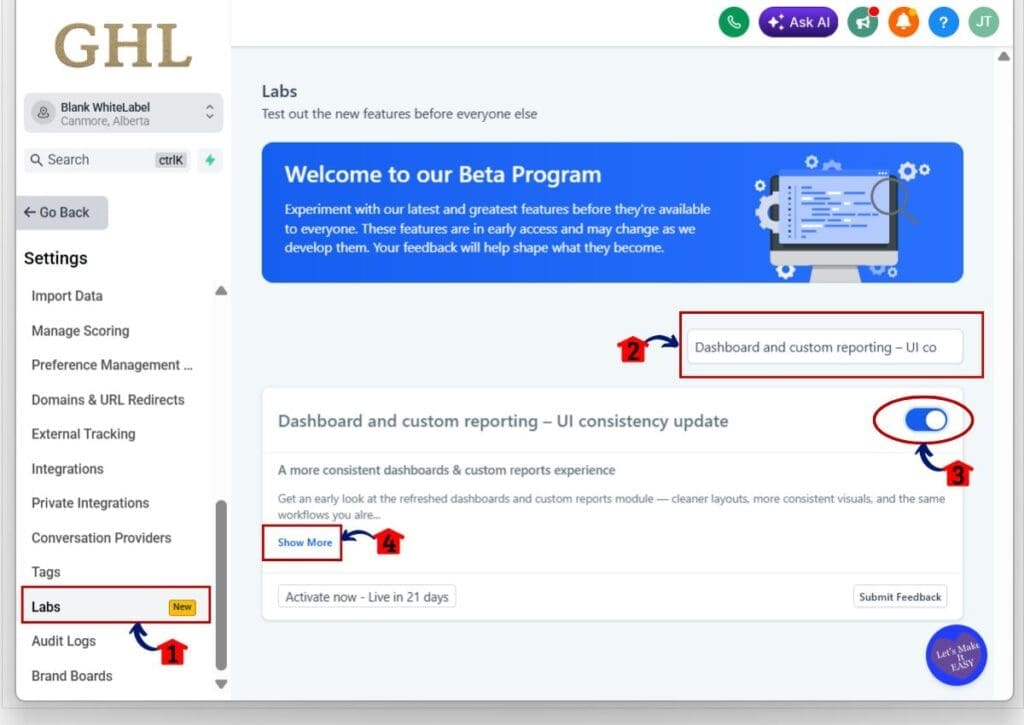
2.1 Inside Settings, scroll toward the bottom of the menu.
2.2 Click Labs.
- This opens the Labs feature list.
2.3 Look for Dashboard and custom reporting – UI consistency update in the list.
2.4 Use search bar, type Dashboard and custom reporting to find it faster.
2.5 Toggle Dashboard and custom reporting – UI consistency update to ON.
- The toggle should turn blue when the setting is active.
2.6 Click Show More if you want to review the update details.
- This lets you see more information about what is included in the refreshed reporting layout.
Step 03: Confirm the Dashboard Reports Refresh Is Active
- This makes sure you are seeing the new reporting experience.
3.1 Go to the Main Menu on the left-hand sidebar.
3.2 Click Dashboard.
- This opens the Dashboard area inside your sub-account.
3.3 Confirm the layout looks cleaner and more consistent.
- Check the dashboard header, date picker, quick filters, widget cards, loading states, empty states, and report styling.
This is the main benefit of the update. Dashboard Reports now look more consistent across Dashboards and Custom Reports. Your data stays the same, but the reporting area feels cleaner, easier to follow, and more polished for team or client reviews.
Pro Tips for Cleaner Dashboard Reports
After you turn on the refreshed Dashboard Reports layout, start with the reports your team uses most. Check the dashboards tied to client calls, ad reviews, lead tracking, sales numbers, and monthly reports first. Those are the screens where a cleaner layout will matter the most.
If you use custom CSS, review those dashboards before sharing them with clients. This update changes the visual style of dashboard components, so some custom styling may need a small adjustment. It is better to catch that early than explain a strange layout during a client review.
Also test your datepicker, quick filters, ad widgets, analytics widgets, tables, funnels, and custom metrics. These are common areas your team will click often. If something looks off, use the feedback button inside GHL so the team can review it while the update is still in Labs.
What Dashboard Reports Mean for Your Business
Cleaner Dashboard Reports will not fix bad data, weak tracking, or messy reporting habits. But they do make it easier for your team to read the numbers, move through reports, and spot what needs attention.
For agencies, this can make client reviews feel more polished. When you open a dashboard with clean cards, clear filters, and a consistent layout, the conversation stays focused on results. You spend less time explaining the screen and more time explaining what the numbers mean.
This is also helpful for internal work. Your team can check leads, ad results, funnel progress, sales activity, and campaign performance with fewer visual distractions. It is a small update, but small friction adds up when you manage reports every week.
Dashboard Reports Frequently Asked Questions
Final Thoughts on Dashboard Reports
Dashboard Reports in GoHighLevel now feel cleaner, more consistent, and easier to use. This update does not change your data or rebuild your reports. It simply improves the way Dashboards and Custom Reports look as you move through them.
That is useful for agency owners, marketers, VAs, and teams that spend time checking results. A cleaner reporting area helps you review numbers faster, catch issues sooner, and present reports with more confidence.
Turn it on in Settings → Labs, then review your key dashboards before your next client call. Have you tested the refreshed Dashboard Reports layout in GoHighLevel yet?
Scale Your Business Today.
Streamline your workflow with GoHighLevel’s powerful tools.