

- Automate GHL group approvals with workflow triggers, membership question filters, and AI-powered screening.
- Quick Summary – Community Join Requests at a Glance
- What’s New With Community Join Requests
- Why Community Join Requests Matter
- How to Automate Community Join Requests in GoHighLevel
- Pro Tips for Smarter Community Join Requests
- What Community Join Requests Mean for Your Business
- Frequently Asked Questions About Community Join Requests
- Smarter Community Join Requests in GHL
Automate GHL group approvals with workflow triggers, membership question filters, and AI-powered screening.
Community Join Requests Get Smarter in GoHighLevel
Community Join Requests are now much easier to manage in GoHighLevel. Instead of checking every request by hand, you can now use a new workflow trigger to review, sort, and act on them automatically.
The new “Requested to Join Group” trigger works with your group membership questions, so you can route people based on the answers they give. You can also send those answers into a GPT action to help spot spam, weak responses, or requests that need a closer look.
This gives community admins a simple way to save time without giving up control. Good requests can move forward faster, while anything questionable can still be sent for manual review.

Community Join Requests can now be screened and routed automatically inside GoHighLevel. This gives community admins a faster way to approve strong applicants, flag questionable requests, and reduce repetitive manual review.
Quick Summary – Community Join Requests at a Glance
Purpose: This update helps you automate Community Join Requests inside GoHighLevel instead of reviewing every request by hand.
Why It Matters: It can save admin time, speed up approvals, and give you a more consistent way to manage who joins your community.
What You Get: You get the new Requested to Join Group workflow trigger, membership question filters, optional GPT screening, and the option to use If/Else routing.
Time To Complete: Most users should be able to set up and test a basic workflow in about 10 to 15 minutes.
Difficulty Level: Beginner to intermediate. The trigger itself is simple, while GPT and If/Else are optional extra steps.
Key Outcome: New join requests can be screened and routed automatically while you still keep control over requests that need manual review.
What’s New With Community Join Requests
Community Join Requests can now start a workflow as soon as someone asks to join a group. The new “Requested to Join Group” trigger lets admins automate the next step instead of checking every request by hand.
After you choose a group, GoHighLevel pulls in the membership questions linked to that group. You can use those answers as filters, so each request can follow a different path based on what the person submitted.
Automate marketing, manage leads, and grow faster with GoHighLevel.

You can also send those answers into a GPT action for a quick quality check. From there, an If/Else step can approve strong requests, send weak ones for review, or trigger other actions like adding tags or granting group access.
Why Community Join Requests Matter
Community Join Requests can become a real time drain once your group starts to grow. Checking every answer, deciding who should get access, and handling each request by hand may work at first, but it gets harder to manage as volume increases.
This update helps by moving that review process into Workflows. You can use membership answers to sort requests, send some through GPT for screening, and route others to manual review when needed. That gives you a more consistent process without losing control over who joins.
For agencies, coaches, course creators, and community managers, the main benefit is simple. You save time, speed up approvals, and keep the quality of your group more consistent as it grows.
How to Automate Community Join Requests in GoHighLevel
Community Join Requests can now start a workflow as soon as someone asks to join your group. In this walkthrough, we’ll create the workflow, add the new join request trigger, and show you how to optionally use GPT to review the request.
Here are the steps we will follow:
- Create a new workflow.
- Add a new workflow trigger.
- Select the Requested to Join Group.
- Configure the Join Request Trigger.
- Optional: Add the GPT Powered by OpenAI Action.
- Configure the GPT Screening Action.
- Review and Test the Workflow.
To start, make sure you are logged in to the correct GoHighLevel sub-account.
Step 01 – Create a New Workflow
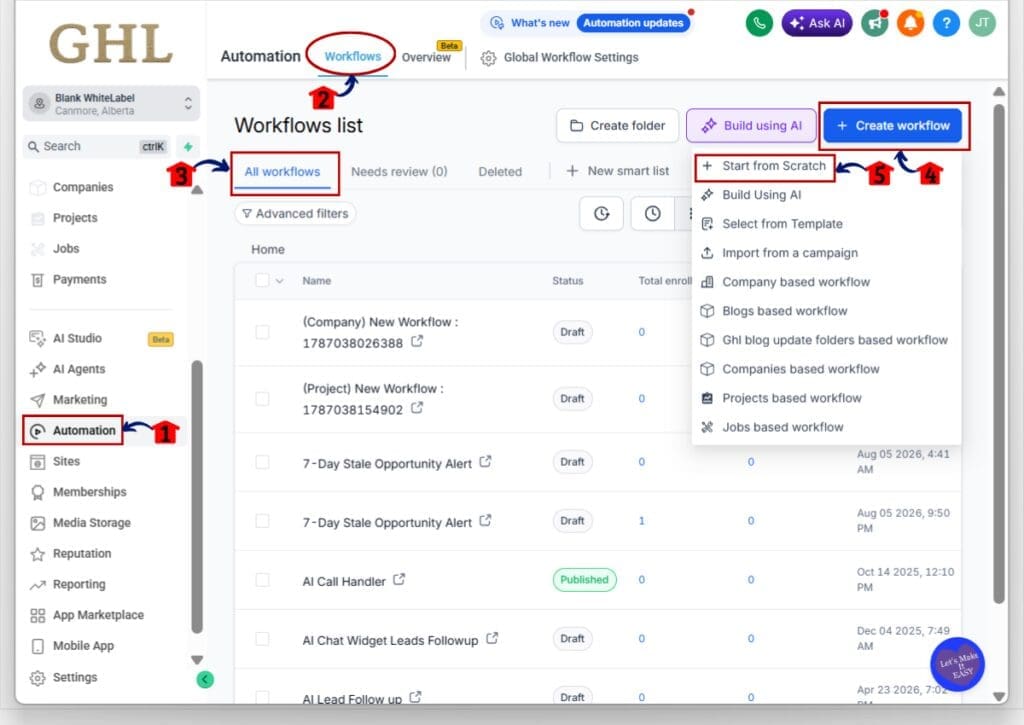
- The main menu on the left side of your screen includes the main areas you use in GoHighLevel.
1.1 Click Automation.
- This opens the Automation area in your GHL sub-account.
1.2 Click Workflows in the top menu.
- The Workflows section will open.
1.3 Click All workflows.
- This shows the workflows available inside the sub-account.
1.4 Click Create workflow.
- A menu will open with several options for creating your workflow.
1.5 Click Start from Scratch.
- This opens a blank workflow in the Workflow Builder.
Step 02 – Add a New Workflow Trigger
- A workflow needs a trigger that tells GHL when the automation should begin.
2.1 Click Add new trigger.
- The Add Trigger panel will open on the right side of the Workflow Builder.
- This is where you can choose what event will start the workflow.

Step 03 – Select Requested to Join Group
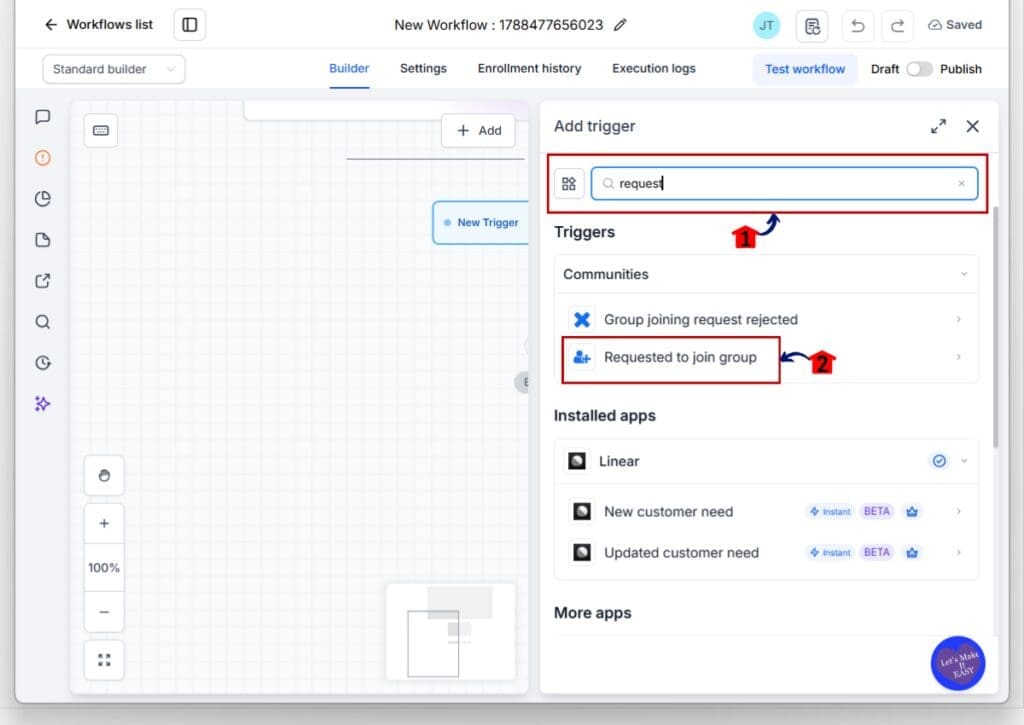
- The new Requested to Join Group trigger is located under the Communities trigger options.
3.1 Click the search field at the top of the Add Trigger panel.
3.2 Type request into the search field.
- GHL will filter the available triggers.
3.3 Click Requested to join group.
- This opens the settings for the new Community Join Requests trigger.
- The trigger fires when a user requests to join a group.
Step 04 – Configure the Join Request Trigger
- The trigger settings let you choose which community group this workflow should monitor.
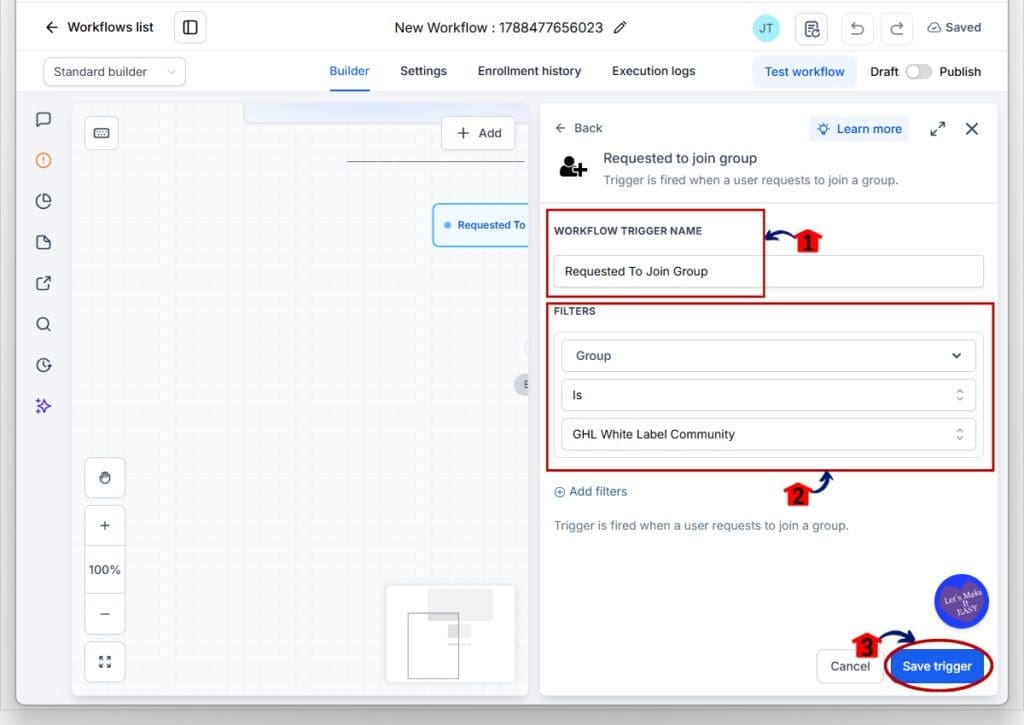
4.1 Review or update the Workflow Trigger Name.
- You can keep the default name, such as Requested To Join Group, or give it a name that is easier to identify later.
4.2 Set the first filter to Group.
4.3 Set the condition to Is.
4.4 Select the community group you want this workflow to monitor.
- In this example, the selected group is GHL White Label Community.
- The workflow will now respond to join requests for that group.
4.5 Click Save trigger.
- The trigger will be added to your workflow.
- Once the join request trigger is in place, you can stop there or add more workflow actions. If you want an extra screening layer, you can optionally add GPT to review the request information.
Step 05 – Optional: Add the GPT Powered by OpenAI Action
- Once the join request trigger is in place, you can add GPT to review the request information.
5.1 Click Please select action below the trigger.
- The Actions panel will open on the right side of the Workflow Builder.
5.2 Click the search field.
5.3 Type gp into the search field.
- GHL will show matching actions.
5.4 Click GPT powered by OpenAI.
- This opens the settings for the GPT action.

Step 06 – Configure the GPT Screening Action
- The GPT action can review information from the join request and return a simple result for the workflow to use.
6.1 Review the Action Name.
- You can keep GPT powered by OpenAI or rename it to make the purpose of the action clearer.
6.2 Select the GPT model you want to use.
- In this example, GPT 5 Mini is selected.
6.3 Set the Action Type to Custom.
- This lets you write your own prompt for the screening process.
6.4 Enter your instructions in the Prompt field.
- Add the join request information you want GPT to review.
- In this example, the prompt asks GPT to decide whether the submitted information appears genuine or looks like spam.
- Keep the expected result simple so it is easy to use later in the workflow.
- For example, you could tell GPT to return Yes if the request appears to be spam and No if it does not.
- GPT powered by OpenAI is a premium workflow action.
- Using this action can result in additional charges for each execution.
6.5 Click Save action.
- The GPT action will now appear below the Requested to Join Group trigger.
- You can also use an If/Else condition after this step to branch the workflow based on the GPT output or the member’s response values. For this guide, we’ll keep the focus on the Requested to Join Group trigger and the optional GPT screening setup.

Step 07 – Review and Test the Workflow
- Before using the workflow with live Community Join Requests, review the setup and make sure each step is connected correctly.
7.1 Review the workflow flow.
- Confirm that Requested To Join Group appears as the trigger.
- Confirm that GPT powered by OpenAI appears below it as the next action.
7.2 Click Test workflow.
- Run a test before publishing the workflow.
- This helps you confirm that the trigger and GPT screening action work as expected.
7.3 Review the test results and make any needed changes.
- Check the trigger settings, selected group, GPT model, and prompt if the workflow does not return the result you expect.
7.4 When you are satisfied with the workflow, switch it from Draft to Publish.
- The workflow can now begin processing new Community Join Requests for the selected group.

Once this setup is live, GHL can start the workflow each time someone requests to join the selected community group. The GPT action can then review the request information behind the scenes, helping you screen requests before deciding what should happen next.
Pro Tips for Smarter Community Join Requests
Community Join Requests work best when the rules are simple and clear. Use membership questions that help you spot the right people quickly, and avoid asking things that do not help with approval decisions.
If you use GPT, keep the prompt short and specific. Ask it to return a simple result such as “Yes” or “No” so you can use that output later in the workflow. You can also add an If/Else condition to route requests based on the GPT result or the member’s answers.
Before turning the workflow on, test it with a few different Community Join Requests. Try a strong response, a weak response, and something that looks like spam. This helps you catch problems before real members start using the process.
What Community Join Requests Mean for Your Business
Community Join Requests are easier to manage when the review process is built into your workflow. Instead of checking every request by hand, you can use membership answers, GPT screening, and workflow logic to handle more of the process for you.
For a coaching group, paid community, or client group, this can save a lot of admin time as membership grows. Strong requests can move forward faster, while weak or questionable ones can still be checked by a person before access is granted.
The biggest win is consistency. Everyone goes through the same process, which makes approvals easier to manage and helps you keep better control over who joins your community.
Frequently Asked Questions About Community Join Requests
Smarter Community Join Requests in GHL
Community Join Requests are now much easier to manage inside GoHighLevel. The new Requested to Join Group trigger gives admins a simple way to start automations as soon as someone asks to join a community.
You can use membership question responses to filter requests, add GPT as an optional screening step, and use If/Else logic if you want different approval paths. That gives you more control without adding more manual work.
If you manage a growing community, this update is worth testing. Set up the trigger, run a few sample requests, and see where automation can save you time while keeping your approval process consistent.
Scale Your Business Today.
Streamline your workflow with GoHighLevel’s powerful tools.


