

- Record, upload, and play audio directly inside GHL Community posts and comments for faster, more personal member conversations.
- Quick Summary – Community Voice Notes at a Glance
- Community Voice Notes Make Replies Faster and More Personal
- What’s New with Community Voice Notes
- Why Community Voice Notes Matter
- How to Use Community Voice Notes in GoHighLevel
- Pro Tips for Better Community Voice Notes
- What Community Voice Notes Mean for Your Business
- Frequently Asked Questions About Community Voice Notes
- Community Voice Notes Keep Conversations Simple
Record, upload, and play audio directly inside GHL Community posts and comments for faster, more personal member conversations.
Community Voice Notes Make Replies Faster and More Personal
Community Voice Notes are now available in GoHighLevel Communities, giving members a simple way to reply without typing long messages. Members can record audio right inside a post or comment, pause or resume before sending, and cancel if they want to start again.
GoHighLevel also lets members upload audio files along with images, videos, and other attachments. More than one audio file can be added to a post, and everything plays right inside the Community feed. Recorded voice notes show a waveform, while uploaded files use a timeline view. Members can also listen at 1x, 1.5x, or 2x speed.
This update makes Community Voice Notes useful for quick feedback, detailed answers, coaching, and member updates. It gives people a more natural way to communicate while keeping the conversation inside GHL, instead of moving to another chat or messaging tool.

Community Voice Notes give your members a faster, more personal way to share feedback, answer questions, and join discussions. You can keep more conversations inside your GoHighLevel Community without forcing members to type long replies or jump to another messaging tool.
Quick Summary – Community Voice Notes at a Glance
Purpose: Community Voice Notes let members record or upload audio directly inside GoHighLevel Community posts and comments.
Why It Matters: They give members a faster and more personal way to reply when typing a long message is not practical.
What You Get: Members can record, pause, resume, cancel, upload audio files, and play audio directly inside the Community feed.
Time To Complete: You can record and publish a Community Voice Note in just a few minutes.
Difficulty Level: Beginner. The feature is simple to use and works directly inside the post or comment editor.
Key Outcome: Community Voice Notes help keep more feedback, updates, and discussions inside GHL without moving members to another messaging app.
Community Voice Notes Make Replies Faster and More Personal
Community Voice Notes are now available in GoHighLevel Communities, giving members a simple way to reply without typing long messages. Members can record audio right inside a post or comment, pause or resume before sending, and cancel if they want to start again.
GoHighLevel also lets members upload audio files along with images, videos, and other attachments. More than one audio file can be added to a post, and everything plays right inside the Community feed. Recorded voice notes show a waveform, while uploaded files use a timeline view. Members can also listen at 1x, 1.5x, or 2x speed.
Automate marketing, manage leads, and grow faster with GoHighLevel.

This update makes Community Voice Notes useful for quick feedback, detailed answers, coaching, and member updates. It gives people a more natural way to communicate while keeping the conversation inside GHL, instead of moving to another chat or messaging tool.
What’s New with Community Voice Notes
Community Voice Notes add a new way for members to communicate inside GoHighLevel Communities. Instead of typing every reply, members can now record audio right from the post or comment box using the new mic button.
The recording controls are simple. Members can start, pause, resume, or cancel before posting. They can also upload audio files from their device, just like they would add an image or video. More than one audio file can be attached to a single post, which is useful for longer updates, training notes, or step-by-step feedback.
GoHighLevel also added inline playback, so audio can be played without leaving the Community feed. Recorded Community Voice Notes show a waveform, while uploaded audio files use a timeline view. Members can listen at 1x, 1.5x, or 2x speed, and audio can continue to the next track for a smoother listening experience.
Why Community Voice Notes Matter
Community Voice Notes make it easier for members to share more detail without writing a long reply. That can save time for both the person sending the message and the person reading it.
Voice also adds tone, which is often missing from text. A quick audio reply can feel more personal and can help explain ideas that are hard to put into a short comment. This can be useful for coaching, client feedback, support answers, and community discussions.
For agency owners, coaches, course creators, and community managers, this update can help keep more conversations inside GoHighLevel. Instead of sending members to another messaging app, you can give them a simple way to speak and respond right where the discussion is already happening.
How to Use Community Voice Notes in GoHighLevel
Community Voice Notes are used inside GoHighLevel Communities. Members can open a Community, create a post, record a voice note, and publish it without leaving the post editor.
In this walkthrough, we’ll show you how to open your Community, start a post, record a voice note, and publish it with a title and description.
Here are the steps we will follow:
- Open Your GoHighLevel Community.
- Start a New Community Post.
- Record and Confirm Your Voice Note.
- Add Your Post Details and Publish.
To start, make sure you are logged in to the correct GoHighLevel account and can access the Communities area.
Step 01 – Open Your GoHighLevel Community
- Start from the main GoKollab or Communities area inside GoHighLevel.
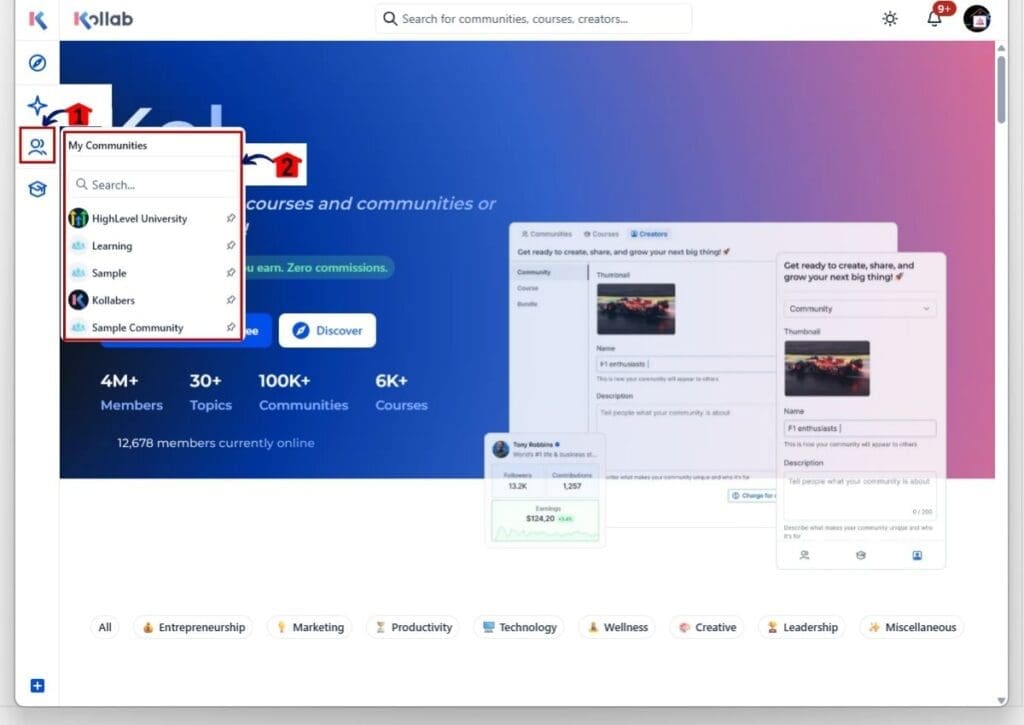
1.1 Click the Communities icon on the left-hand menu.
- This opens the My Communities panel.
- You will see the Communities you have access to.
1.2 Click the Community you want to open.
- This takes you into the selected Community.
- From here, you can view discussions, channels, learning content, and members.
Step 02 – Start a New Community Post
- Once you are inside the Community, open the post editor.
2.1 Start a new post in the Community.
- This opens the Create a post window.
- You can add a title, description, attachments, and other content.
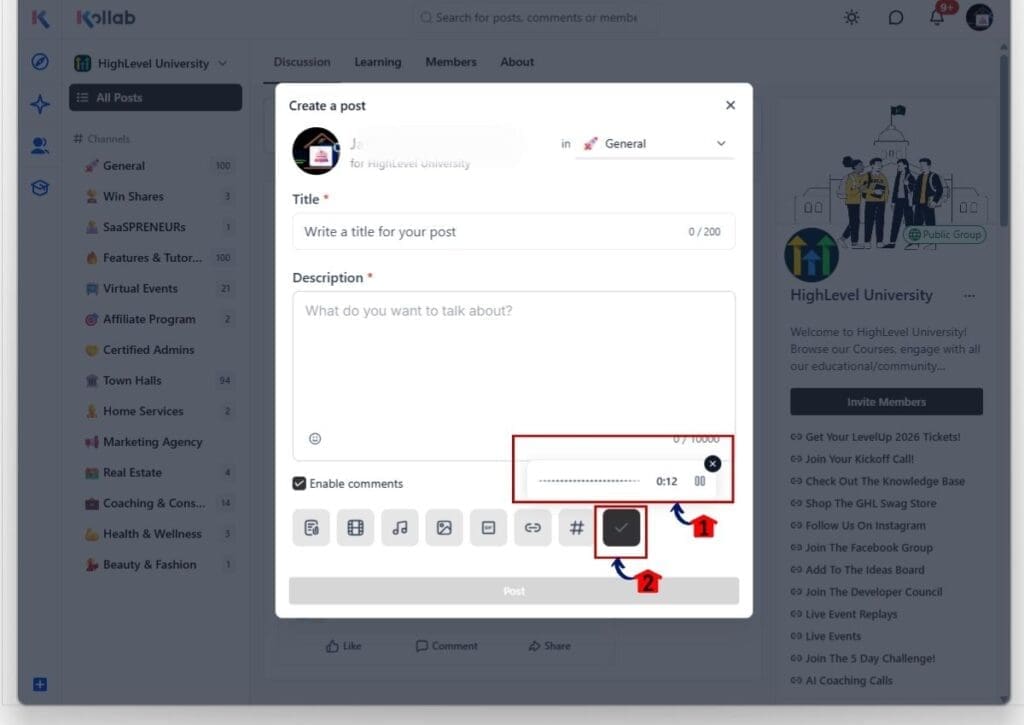
2.2 Click the microphone icon at the bottom of the post editor.
- The microphone button is used to record Community Voice Notes.
- Recording starts directly inside the post window.

Step 03 – Record and Confirm Your Voice Note
- Once recording starts, the voice note controls appear inside the post editor.
3.1 Record your voice message.
- Speak normally while the timer tracks the length of your recording.
- You can pause the recording if needed before continuing.
3.2 Click the checkmark when your recording is complete.
- This confirms the recording and adds it to the post.
- If you do not want to keep the recording, you can cancel it before confirming.
Step 04 – Add Your Post Details and Publish
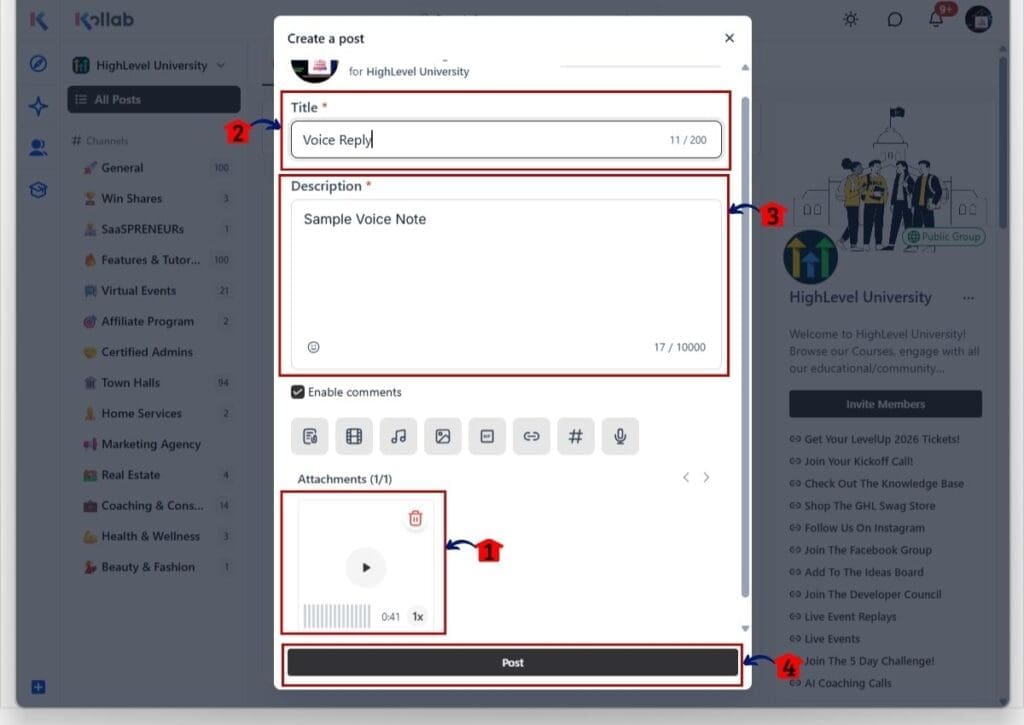
- After you confirm the recording, the voice note appears as an attachment inside the post.
4.1 Review the voice note attachment.
- You can play the recording before publishing.
- The voice note shows its length and playback controls.
4.2 Enter a title for your post.
- Use a short title that tells members what the voice note is about.
4.3 Add a description.
- Include a short message or extra context for the recording.
- This helps members understand the topic before they press play.
4.4 Click Post.
- Your Community Voice Note is now published inside the selected Community.
- Members can play the recording directly from the Community post.
Once published, the voice note stays with the post, so members can listen without moving to another app or message thread. This gives you a simple way to share updates, feedback, coaching, or longer explanations directly inside your GoHighLevel Community.
Pro Tips for Better Community Voice Notes
Community Voice Notes work best when they are short and focused. Use them for feedback, quick updates, coaching, or replies that would take too long to type. If the topic is longer, split it into smaller recordings so members can follow along more easily.
Add a short text note when the audio needs context. A clear title and one or two lines of text can help members know what the recording covers before they press play. You can also use more than one audio file if you want to break a topic into simple parts.
The main goal is to make communication easier. Use Community Voice Notes when audio adds something useful, such as tone or detail. If a short written reply is enough, keep it simple and use text instead.
What Community Voice Notes Mean for Your Business
Community Voice Notes can make client and member communication feel more direct. Instead of writing a long reply, you can explain an idea in your own voice and keep the conversation inside GoHighLevel.
For agencies, coaches, and course creators, this can save time when giving feedback, answering questions, or sharing updates. It can also make your Community feel more personal, since members can hear your tone instead of reading plain text.
The real value is simple. Community Voice Notes give you another way to communicate without adding another app or tool to the process. That can help you keep more activity inside GHL and make Community discussions easier to manage.
Frequently Asked Questions About Community Voice Notes
Community Voice Notes Keep Conversations Simple
Community Voice Notes give GoHighLevel users a simple way to make Community discussions more natural. Members can record audio, upload files, reply in comments, and listen without leaving the feed.
For agencies, coaches, and course creators, that means less typing and fewer reasons to move conversations into another app. Voice can also make feedback and updates easier to understand when tone matters.
If you use GoHighLevel Communities, this is a useful feature to test with your members. Try Community Voice Notes for quick replies, coaching, or updates and see where they fit best in your own Community.
Scale Your Business Today.
Streamline your workflow with GoHighLevel’s powerful tools.


