

- Resize your GHL Conversations panels to give messages, contact details, or your inbox more room and keep that layout saved for next time.
- Quick Summary – Conversation Layout at a Glance
- What’s New With the Conversation Layout
- What’s Changed in the Conversation Layout
- Why the Conversation Layout Matters
- How to Use the Conversation Layout in GoHighLevel
- Pro Tips for Your Conversation Layout
- What This Conversation Layout Means for Your Business
- Results You Can Expect From Your Conversation Layout
- Frequently Asked Questions About Conversation Layout
- Make Your Conversation Layout Work for You
Resize your GHL Conversations panels to give messages, contact details, or your inbox more room and keep that layout saved for next time.
Customize Your Conversation Layout
Your Conversation Layout in GoHighLevel is now easier to control. You can resize the main panels inside Conversations, giving more space to your inbox, message thread, or contact details when you need it.
This may seem like a small update, but it makes daily work much easier. Sales reps may want more room for long email threads. Support teams may want a wider contact panel. You can now adjust the screen to fit the way you work instead of working around a fixed layout.
GoHighLevel also saves your panel sizes, so your setup stays the same when you return. In this guide, we’ll show you what changed, why it matters, and how to set up your Conversation Layout in just a few simple steps.
Your Conversation Layout can now be adjusted around the information you use most, whether that’s your inbox, message thread, or contact details. GHL saves your panel sizes too, so your preferred workspace is ready the next time you open Conversations.
Quick Summary – Conversation Layout at a Glance
Purpose: The new Conversation Layout update lets you resize the main panels inside GoHighLevel Conversations so the workspace fits the way you work.
Why It Matters: You can give more room to your inbox, message thread, or contact details panel, which can make daily work easier to manage.
What You Get: You can drag the panel dividers left or right, adjust the layout to suit your role, and keep that setup saved for future sessions.
Time To Complete: Most users can adjust their Conversation Layout in less than a minute.
Difficulty Level: Easy. No extra settings or setup are required.
Key Outcome: You get a cleaner Conversations workspace that keeps the information you use most easier to see.
What’s New With the Conversation Layout
The new Conversation Layout update gives you more control over how the Conversations screen looks and feels. You can now drag the divider between the conversation list, message thread, and contact details panel to make each area wider or narrower.
This gives you a simple way to create more room where you need it. If you work with long email threads, you can widen the message panel. If you spend more time checking contact details, you can give that panel more space instead.
Automate marketing, manage leads, and grow faster with GoHighLevel.

GoHighLevel also saves your panel sizes after you adjust them. That means your Conversation Layout stays the same the next time you open Conversations, so you do not have to set it up again.
What’s Changed in the Conversation Layout
Before this update, the Conversations screen gave you a more fixed workspace. Now, the Conversation Layout is flexible, so you can adjust the width of the main panels to suit the way you work.
You can make the conversation list wider when you need to scan more inbox items. You can expand the message thread when you are reading longer emails or SMS conversations. You can also give the contact details panel more room when you need to review lead or customer information.
The other useful change is that GHL remembers your panel sizes. Once you set your Conversation Layout, it stays that way when you come back. You can still change it again at any time if your workflow changes.
Why the Conversation Layout Matters
A better Conversation Layout can make everyday work feel much smoother. If your team spends a lot of time inside GHL Conversations, even a small change to the screen can help you move through messages with less effort.
Different users need different things. A sales rep may want a wider message thread to read longer emails. A support rep may prefer more space for contact details. Someone managing a busy inbox may want a wider conversation list so they can scan more conversations at once.
The main benefit is simple. You can shape the workspace around the task in front of you. That can mean less scrolling, easier reading, and faster access to the information you use most.
How to Use the Conversation Layout in GoHighLevel
Using the new Conversation Layout controls in GoHighLevel is simple. You can resize the conversation list, message thread, and contact details panel by dragging the divider between each section.
Here are the steps we will follow:
- Open the Conversations and Resize the Panels.
To start, make sure you are logged in to the correct GoHighLevel sub-account.
Step 01 – Open Conversations and Resize the Panels
- The Conversation Layout controls are found inside the main Conversations workspace.
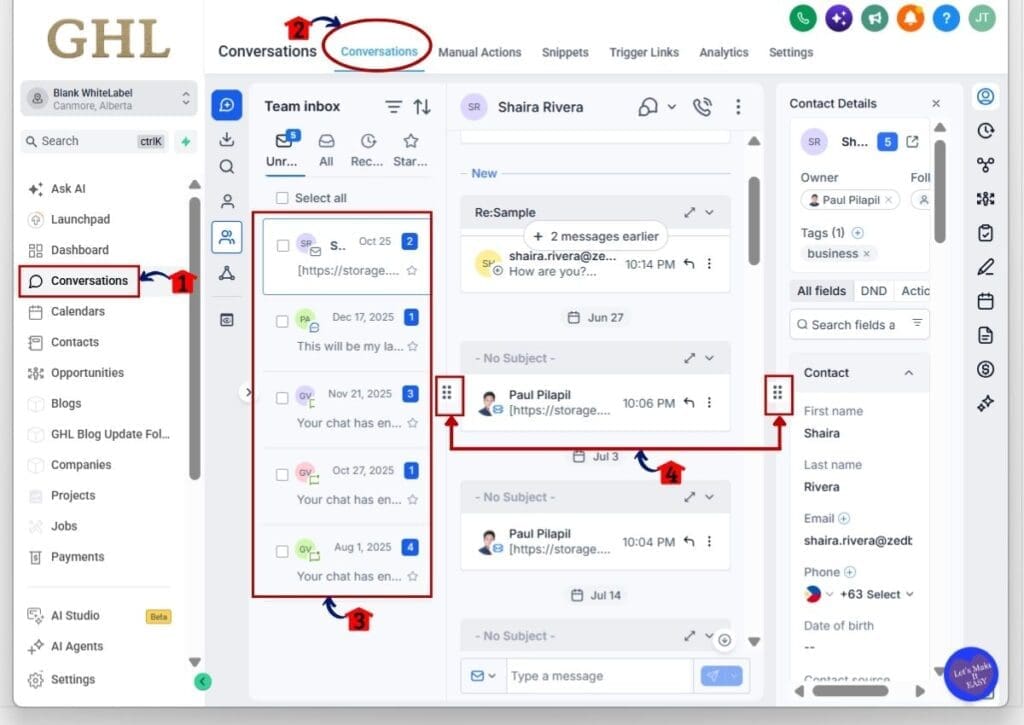
1.1 Click Conversations from the main left-hand menu.
- This opens the Conversations area in your GoHighLevel sub-account.
1.2 Click Conversations from the top menu.
- This opens the main inbox where you can view and manage your conversations.
1.3 Review the main Conversation Layout.
- The workspace includes three main panels:
- Conversation list
- Message thread
- Contact details panel
1.4 Find the resize controls between the panels.
- Look for the small resize icon between the conversation list and message thread.
- You will also see another resize icon between the message thread and contact details panel.
1.5 Click and drag a resize control left or right.
- Dragging the divider changes the width of the panels on either side.
- Make a panel wider when you need more room.
- Make it narrower when you want to give more space to another panel.
1.6 Adjust the panels until the Conversation Layout fits the way you work.
- Make the conversation list wider if you want more room to scan your inbox.
- Make the message thread wider if you often read longer conversations.
- Make the contact details panel wider if you need more room to review contact information.
GoHighLevel saves your panel sizes after you adjust them, so your Conversation Layout stays the same the next time you return to Conversations.
Each panel also has a minimum and maximum width. This keeps the workspace easy to read while still giving you enough control to set it up the way you prefer.
Pro Tips for Your Conversation Layout
Your Conversation Layout should match the way you actually work. If you spend most of your time reading long messages, make the message panel wider. If you check contact details often, give that panel more room.
Keep the setup balanced. Making one panel too wide can make the others harder to use. A simple layout that keeps the key information easy to see will usually work best.
If you work in a team, let each person adjust their own Conversation Layout. A sales rep, support rep, and account manager may all need a different setup based on the work they handle each day.
What This Conversation Layout Means for Your Business
A better Conversation Layout can make daily work a little easier for your team. When the right information is easier to see, your reps can spend less time adjusting the screen and more time replying to leads and customers.
For example, a sales rep can keep the message thread wide for longer follow-ups, while a support rep can give more space to contact details. An inbox manager may prefer a wider conversation list so they can move through new messages faster.
It is a small change, but it can make the Conversations area feel more practical. Each person can set up the workspace around the job they do most often.
Results You Can Expect From Your Conversation Layout
A better Conversation Layout can make the Conversations screen easier to use each day. You can keep the parts you use most in view, reduce screen clutter, and spend less time moving back and forth between panels.
You may also find it easier to read long messages, scan your inbox, and check contact details without changing screens as often. Since GHL saves your panel sizes, your preferred setup is ready when you come back.
This update will not change your automations or messaging process, but it can make the workspace feel cleaner and more practical. For teams that spend a lot of time in Conversations, that small improvement can add up.
Frequently Asked Questions About Conversation Layout
Make Your Conversation Layout Work for You
The new Conversation Layout update gives you more control over how the Conversations screen feels day to day. You can make the inbox, message thread, or contact details panel wider or narrower, depending on what you need to see most.
Because GoHighLevel saves your panel sizes, you only need to set it up once and then adjust it later if your workflow changes. It is a small update, but for teams that spend a lot of time in Conversations, it can make the workspace easier to use.
Try a few different layouts and see what works best for you. Which panel do you prefer to keep wider when you are working in GHL Conversations?
Scale Your Business Today.
Streamline your workflow with GoHighLevel’s powerful tools.


