

- Introduction: Edit Service Bookings Without Starting Over
- Quick Summary – Edit Service Bookings
- Here are this week's HighLevel Updates 🚀
- What’s New With Edit Service Bookings in GHL
- Why Edit Service Bookings Matters to GHL Users
- How to Edit Service Bookings in GoHighLevel
- Quick Tips for Editing Service Bookings
- What Edit Service Bookings Means for Your Business
- FAQs About Edit Service Bookings
- Conclusion – Easier Service Booking Management
Introduction: Edit Service Bookings Without Starting Over
Edit Service Bookings in GHL just got a whole lot easier. You can now update both paid and unpaid service appointments without canceling the original booking and starting again.
Customers change their minds after they book. They might decide they want another service, drop an add-on, apply a coupon, or have the appointment handled by someone else.
Until now, making those changes could create extra work.
That’s where the improved service booking editor comes in.
Open an existing Service Booking and you can now make changes directly to the appointment. You can add or remove services, update add-ons, change the assigned staff member, apply or remove coupons, and adjust other booking details while keeping the original appointment in place.
The payment side gets handled too. When you Edit Services Bookings, GHL automatically recalculates the total and updates the appointment to show whether an additional payment is required, the booking is fully paid, or a refund is due.
If the changes result in a refund, you can process it directly from the appointment modal. There’s no need to leave the booking just to settle the payment difference.
One thing to watch with refunds: once one is being processed, you won’t be able to make any more changes to the booking until it’s finished. Rescheduling is still available, though.
Your order records also stay cleaner. Instead of creating another order whenever you Edit Service Bookings, GHL updates the existing order connected to that appointment. Your services, payments, booking details, and order remain linked throughout the booking lifecycle.
For agencies managing appointment-based businesses, that could mean a lot less admin work. Your client’s staff can handle normal customer changes from the existing booking instead of canceling appointments, rebuilding orders, and trying to keep payment records straight.
That makes this more than a small Calendar update. It gives service businesses a much more flexible way to handle the changes that happen after a customer has already booked.
The latest GoHighLevel Changelog includes several other GHL feature updates that round out your daily workflow:
- Wait Action Enhancement: TikTok DM Replies
- India Recurring Mandate Support for Affiliate Indian Signup Pages
- Housecall Pro – More Workflow Actions & Triggers
- Email Services Dashboard for Agencies
- Email Sequences Now Available in Beta Labs
- Group Your Contacts by Source in Dashboards & Reporting
- MMLite Adoption Banner in Conversations
Keep reading for much more on all these updates and a deep dive into the Edit Service Bookings feature!

Quick Summary – Edit Service Bookings
Purpose: Edit Service Bookings in GHL after an appointment has been created, without canceling the original booking and starting over.
Why It Matters: Your team can handle customer changes faster while keeping the appointment, payment details, and existing order connected.
What You Get: You can add or remove services, change add-ons, switch staff members, update coupons, and automatically recalculate the booking total.
Payment Handling: GHL shows whether an additional payment is required, the booking is fully paid, or a refund is due. Applicable refunds can be processed directly from the appointment modal.
Time to Complete: Most simple booking changes should only take a few minutes once you’ve located and opened the existing Service Booking.
Difficulty Level: Beginner. The editing process happens directly from the existing appointment and doesn’t require rebuilding the booking.
Key Outcome: Your team gets a faster way to manage booking changes while GHL keeps the appointment, order, and payment information synchronized.
Here are this week’s HighLevel Updates 🚀
Wait Action Enhancement: TikTok DM Replies
What’s New:
Instead of continuing after a fixed delay, your workflow can pause until someone replies to your TikTok DM.
Where in GHL:
Found in Automation → Workflows using the Wait action after sending a TikTok DM.
Automate marketing, manage leads, and grow faster with GoHighLevel.

Impact:
Your automation responds when someone actually joins the conversation, rather than after a timer runs out.
Recommended For:
Anyone using TikTok DMs to start conversations with potential customers.
India Recurring Mandate Support for Affiliate Indian Signup Pages
What’s New:
Supports recurring payment mandates for Indian affiliates, helping subscriptions comply with local banking requirements.
Where in GHL:
Available on Affiliate Program signup pages for users in India.
Impact:
Creates a smoother signup experience while reducing payment failures for recurring subscriptions.
Recommended For:
Agencies, SaaS businesses, and affiliate programs onboarding customers in India.
Housecall Pro – More Workflow Actions & Triggers
What’s New:
Adds new workflow triggers and actions for the Housecall Pro integration, giving you more ways to automate field service processes.
Where in GHL:
Inside Automation → Workflows when using the Housecall Pro integration.
Impact:
Expands automation possibilities between HighLevel and Housecall Pro, reducing manual work and improving operational efficiency.
Recommended For:
Home service businesses, field service companies, and agencies managing Housecall Pro clients.
Email Services Dashboard for Agencies
What’s New:
Introduces a centralized dashboard where agencies can monitor email services across their accounts.
Where in GHL:
Found in the Agency View under the new Email Services Dashboard.
Impact:
Makes it easier to monitor email health, identify issues, and manage deliverability from one place.
Recommended For:
Agency owners, support teams, and admins managing multiple client email services.
Email Sequences Now Available in Beta Labs
What’s New:
Introduces Email Sequences as a Beta Labs feature, providing another way to create structured email follow-up campaigns.
Where in GHL:
Enable it from Settings → Labs, then access Email Sequences after activation.
Impact:
Cuts down the time spent checking different areas just to see how your email services are performing.
Recommended For:
Marketers, agencies, coaches, and businesses running nurture campaigns or onboarding emails.
Group Your Contacts by Source in Dashboards & Reporting
What’s New:
Lets you organize contact reports based on where your leads originated.
Where in GHL:
Available within Dashboards & Reporting when viewing contact analytics.
Impact:
Makes it easier to compare lead sources and identify which marketing channels are producing the best results.
Recommended For:
Marketing teams, agency owners, and businesses tracking campaign performance across multiple lead sources.
MMLite Adoption Banner in Conversations
What’s New:
Displays a helpful banner inside Conversations to encourage users to adopt the new MMLite messaging experience.
Where in GHL:
Appears within the Conversations module for eligible accounts.
Impact:
Helps users discover and transition to MMLite while highlighting its benefits directly inside the messaging interface.
Recommended For:
Current HighLevel users exploring the latest messaging experience and teams preparing to migrate to MMLite.
What’s New With Edit Service Bookings in GHL
Edit Service Bookings in GHL now gives you much more control over an appointment after the customer has already booked. The big change is that this works with both paid and unpaid service bookings, so you’re not locked into the original setup once payment has been made.
You can open an existing Service Booking and change the services included in the appointment. Add another service when a customer wants more, or remove one when their plans change. You can also add, update, or remove add-ons without rebuilding the appointment.
Staff assignments can be changed too. If the original team member becomes unavailable or another staff member is a better fit, you can update the assigned person directly from the booking.
Got a coupon after the customer already booked? No problem. You can add it to the existing booking, swap out the coupon that’s already there, or remove it altogether.
GHL handles the knock-on effect of those changes automatically. When an edit changes the price, the booking total is recalculated and its payment status is updated. You’ll see whether the customer needs to make an additional payment, is fully paid, or is due a refund.
The order itself doesn’t get replaced either. GHL updates the existing order linked to the service booking, helping keep the appointment, services, payments, and order history connected instead of creating duplicate orders.
That’s what makes the ability to Edit Service Bookings useful. You’re not just changing a few appointment details. GHL is keeping the important pieces of the booking synchronized as those changes happen.
Why Edit Service Bookings Matters to GHL Users
If you work with service appointments, you’ve probably seen this plenty of times. The booking is done, then the customer calls with a change. Add this. Remove that. Can I use this coupon? Is someone else available? Those little requests can quickly turn into unnecessary admin.
That’s where this update saves some hassle. Rather than scrapping a perfectly good appointment, your team can open it, make the change, and carry on.
The automatic payment reconciliation is especially useful. If you add a service or paid add-on, GHL recalculates the booking total and shows when an additional payment is required. If everything balances, the appointment shows as fully paid. If the new total is lower, GHL shows that a refund is due.
When a refund is required, you can process it directly from the appointment modal. That keeps the booking and payment process together instead of making your staff jump between different areas just to settle the difference.
Once you hit refund, there’s a short waiting period before you can change the booking again. GHL locks those edits while the refund goes through. You can still move the appointment to another date or time, though.
The existing order stays connected throughout the process too. When you Edit Service Bookings, GHL updates that order rather than creating a brand-new one.
For agencies, that can make service-based client accounts easier to manage. Your clients get more flexibility for everyday booking changes, while their appointments, orders, and payments stay connected behind the scenes.
How to Edit Service Bookings in GoHighLevel
The new Edit Service Bookings options make it much easier to handle changes after an appointment has already been created. Instead of canceling the appointment and building another one, you can open the existing Service Booking and make the required changes from there.
You can update services, add-ons, staff assignments, coupons, and other booking details. Once you save those changes, GHL recalculates the booking total and tells you what needs to happen with the payment.
- Access the Calendar in GoHighLevel.
- Open the Service Booking Editor.
- Edit Service Bookings in Calendar.
- Save and Review the Payment Status.
To start, make sure you’re logged in to the correct GoHighLevel sub-account.
Step 01 – Access the Calendar in GoHighLevel
- Start by opening the Calendar area where you can find and manage your existing service appointments.
1.1 Go to the main menu on the left side of your GHL dashboard. Click Calendars to access your appointments.
- This takes you to the Calendar area where your scheduled bookings and appointments are managed.
1.2 Find the existing Service Booking you want to change.
- Locate the customer’s appointment that needs to be updated before opening the booking.
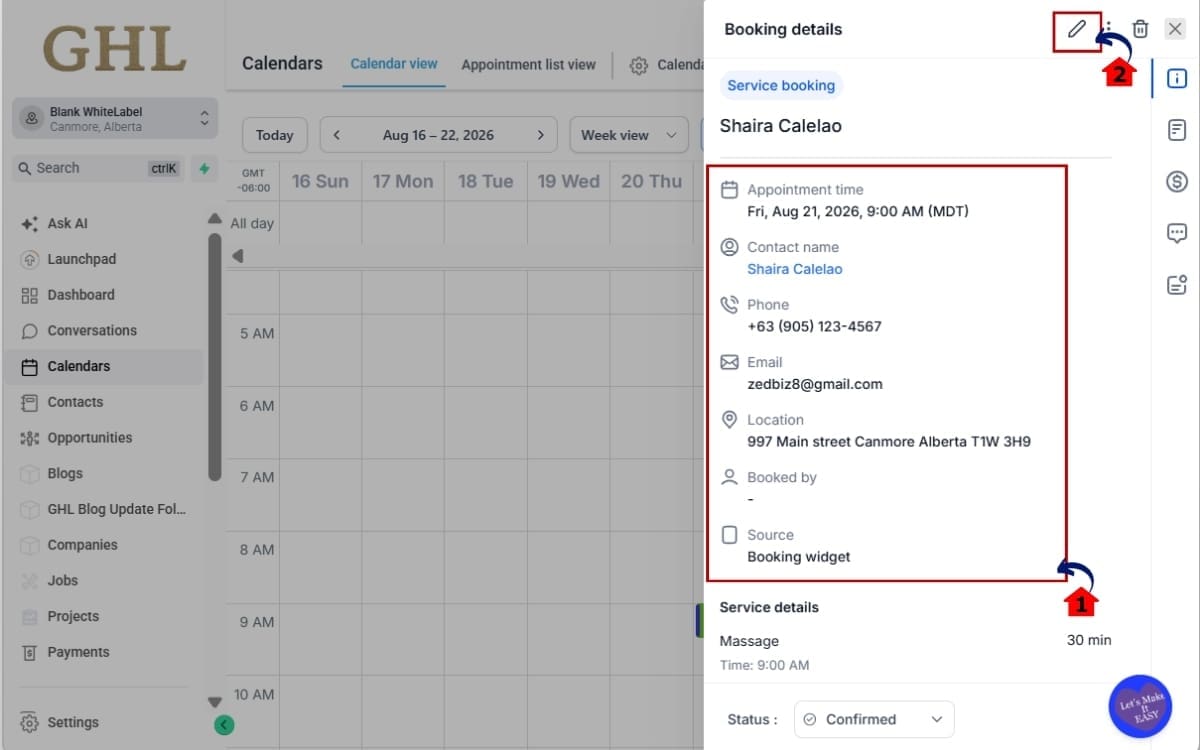
1.3 Click the appointment to open its details.
- The appointment details will open so you can review the current booking information before making any changes.

Step 02 – Open the Service Booking Editor
- Open the booking editor so you can review what’s already booked and make the required changes.
2.1 Review the existing appointment details before making any changes.
- Take a quick look over the booking first to confirm you’ve opened the correct customer, service, and appointment.
2.2 Click Edit to open the available booking options.
- This opens the editing controls where you can make changes to the existing Service Booking.
Step 03 – Edit Service Bookings in Calendar
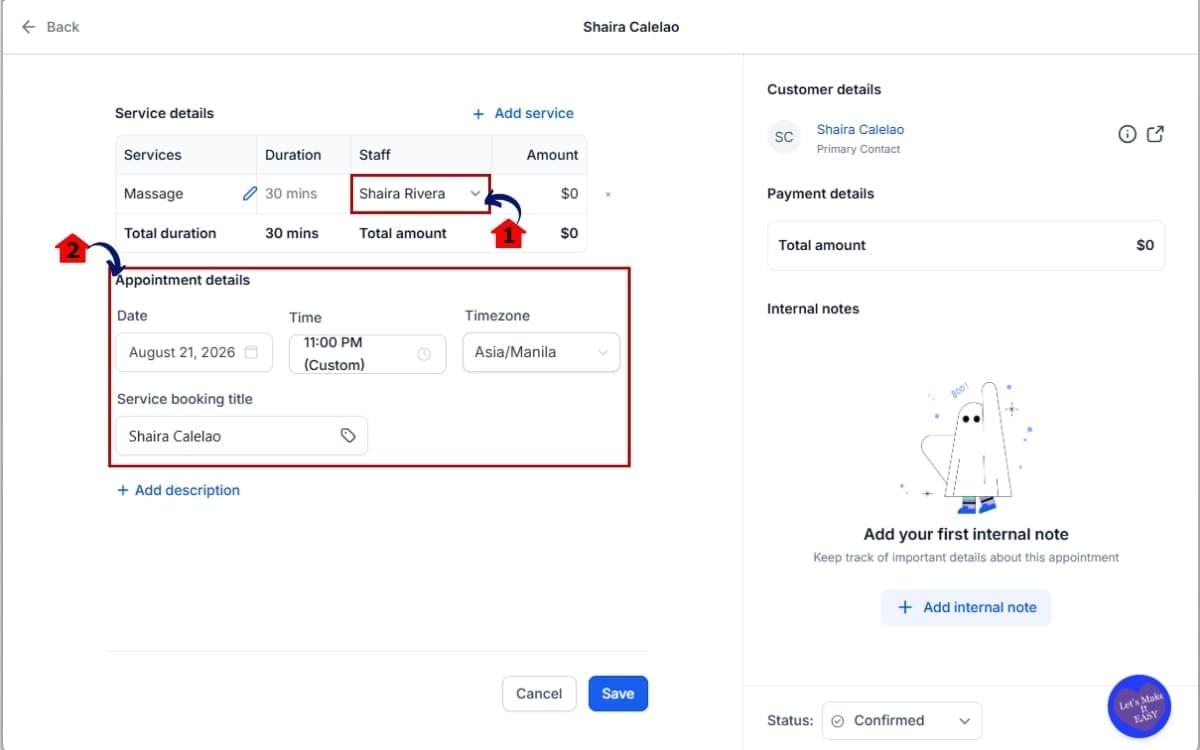
- Make the requested changes directly to the existing booking without having to cancel the appointment and start again.
3.1 Change the assigned staff member when another team member needs to handle the appointment.
- Select the staff member who’ll be taking over the appointment and confirm the correct person is assigned.
3.2 Review the rest of the appointment and make any other necessary booking changes.
- Give the booking one final check to make sure the appointment details match what the customer requested.
Step 04 – Save and Review the Payment Status
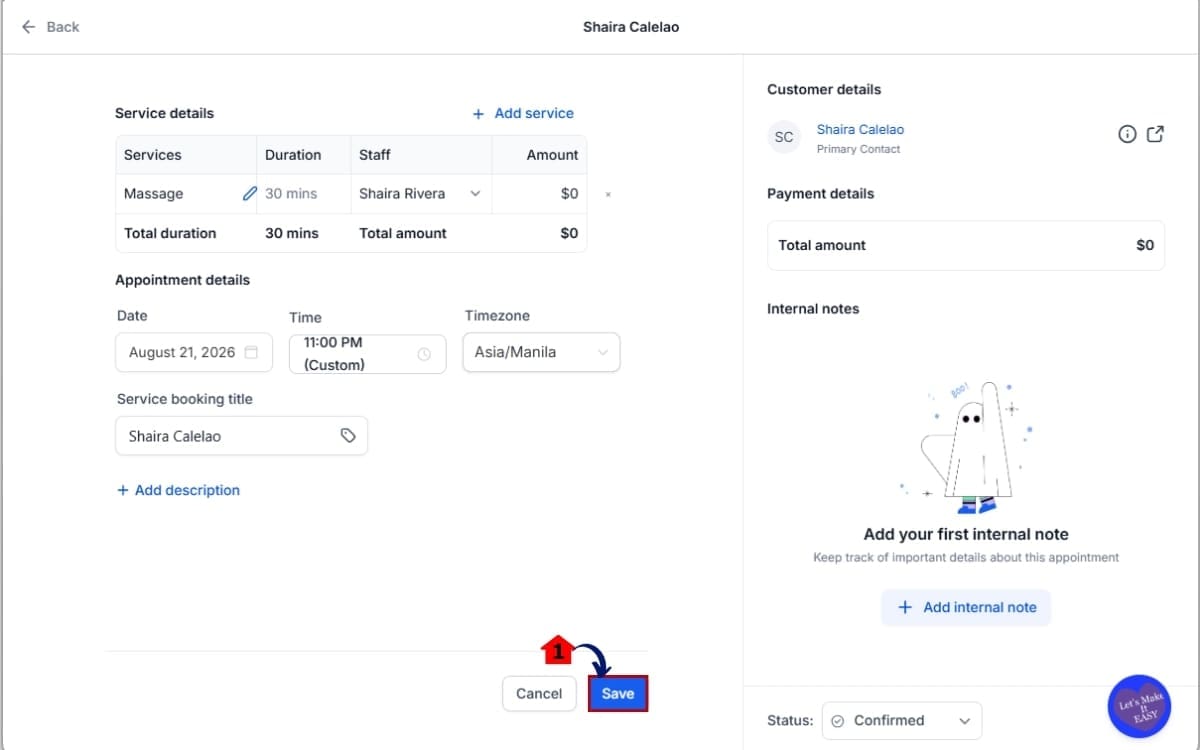
- Once everything looks right, save the booking so GHL can apply your changes and update the related order.
4.1 Save the changes.
- This confirms your edits and updates the existing Service Booking with the new appointment details.
You can still reschedule the appointment while the refund is processing if the customer needs a different appointment time.
That’s the whole process. You can Edit Service Bookings while keeping the original appointment, associated order, and payment information connected throughout the update.
Quick Tips for Editing Service Bookings
Edit Service Bookings in GHL gives your team more flexibility, but a few simple habits can make the feature even more useful. The goal is to make the change once, check the details, and keep the customer’s appointment moving without creating more work.
Start by confirming all the customer’s requested changes before you edit the booking. If they want to switch services, add an extra, change staff, and use a coupon, collect those changes first. That helps your team avoid opening and editing the same appointment several times.
Always check the payment status after making changes. Adding a service or add-on could mean an additional payment is required. Removing something or applying a coupon could result in a refund. Don’t assume the original payment still covers the updated booking.
Pay extra attention when changing the assigned staff member. Make sure the new staff member is the correct person for the service before saving the appointment. It’s a small check that can prevent scheduling headaches later.
If GHL shows that a refund is due, review the amount before processing it from the appointment modal. Once the refund has been initiated, editing is temporarily disabled until processing is complete. You can still reschedule the appointment during that time.
Here’s another nice part: editing the appointment doesn’t leave you with a second order to sort through. GHL updates the original one, so you’ve still got one order tied to the booking.
It’s worth showing your client’s front-desk team how this works. A five-minute walkthrough could save them from unnecessarily deleting and rebuilding bookings every time a customer asks for a change.
What Edit Service Bookings Means for Your Business
Edit Service Bookings in GHL can make a real difference for businesses that deal with appointment changes every day. It cuts out unnecessary admin work while giving staff more flexibility to handle what customers actually need.
Imagine a customer books and pays for a standard service. A day later, they call and decide they want to add another service and an extra add-on. Instead of canceling their original appointment and rebuilding everything, your staff can open the existing Service Booking and make the changes.
GHL then recalculates the booking total and shows that an additional payment is required. The existing order stays connected to the appointment, so your team doesn’t have to create another order just to handle the change.
It works the other way too. Say the customer drops an extra or remembers a coupon that brings their total down. If they’ve already paid too much, GHL will flag the amount that needs to go back, and you can handle the refund right from the appointment.
That’s useful for agencies working with salons, consultants, home service companies, wellness businesses, and other appointment-based clients. These businesses regularly deal with customers changing what they want after booking.
The biggest win isn’t just having another Edit button. It’s removing several manual steps from a common customer service task.
Staff can Edit Service Bookings, GHL can reconcile the payment difference, and the original order remains connected to the appointment.
That means fewer unnecessary cancellations, cleaner order records, and less time spent fixing bookings manually. More importantly, your client’s staff can say “Yes, we can change that” without turning a simple customer request into a messy back-office job.
FAQs About Edit Service Bookings
Conclusion – Easier Service Booking Management
Edit Service Bookings in GHL removes a lot of the unnecessary work that used to come with changing an existing service appointment. Instead of canceling the booking and starting again, your team can make the changes directly from the original appointment.
That includes adding or removing services, changing add-ons, assigning another staff member, and applying or removing coupons. Better yet, these changes work with both paid and unpaid service bookings.
GHL also takes care of the important stuff happening behind the scenes. The booking total is recalculated, the latest payment status is displayed, and the existing order is updated to match the changes.
If the new total means money needs to go back to the customer, your team can process the applicable refund directly from the appointment modal. That keeps the booking and payment adjustment in one place.
For agencies managing appointment-based clients, this is the kind of GHL improvement that can make everyday operations easier. Your clients get a more flexible booking process, their staff spend less time rebuilding appointments, and their order records stay cleaner.
If your clients regularly deal with customers changing services after booking, show their team how to Edit Service Bookings using the new process. It could replace a frustrating multi-step job with a much simpler workflow.
Have you tried editing a paid Service Booking in GHL yet? See how it fits into your client’s booking process and where it could save their team time.
Scale Your Business Today.
Streamline your workflow with GoHighLevel’s powerful tools.


