

- Why AI Workflow Automation Just Got Smarter
- Quick Summary – AI Workflow Automation
- Here are this weeks HighLevel Updates
- Problems Inside AI Workflow Automation Before
- Smarter AI Workflow Automation Data Linking
- Why AI Workflow Automation Now Scales
- How to Use AI Workflow Automation in GHL
- Pro Tips for Cleaner AI Workflow Automation
- AI Workflow Automation That Actually Scales
- Questions and answers about AI Workflow Automation
- AI Workflow Automation Is Now Production-Ready
Why AI Workflow Automation Just Got Smarter
AI Workflow Automation inside GHL just became reliable. Before this update, AI Builder could generate workflows fast. It looked impressive. It felt automated. But under the hood, it wasn’t always clean.
Instead of passing simple variables into AI actions, the system often injected full prompts into input fields. That meant redundant instructions, unpredictable outputs, messy task descriptions, and sometimes empty decision branches.
It worked. But it wasn’t production-ready. Now AI Builder passes the actual variable directly into each action field. No extra prompts. No duplicated instructions. No confusion about what the AI should process. Clean input. Clean output.
What It Does: This update improves how AI Workflow Automation links data into AI actions like Summarize, Translate, Intent Detection, and Decision Maker. Instead of inserting full instruction prompts into action fields, GHL now passes only the relevant variable, such as {{message.body}}.
The Create Task action was also upgraded. Task descriptions are now human-readable and actionable, not system prompts telling the AI what to create.
Impact: This removes redundant instructions from your workflows. It improves AI accuracy. It prevents broken branches. It eliminates confusing task descriptions.
Workflows generated by AI Builder are now production-ready out of the box. Less cleanup. Fewer surprises. More predictable automation.
For agencies building scalable systems, that’s a serious upgrade.
Who This Is For: This is for agencies running multi-step AI automations. For marketers using sentiment-based branching. For teams assigning follow-up tasks automatically. For SaaS builders who need reliability across snapshots. And for any GHL user tired of debugging “almost working” AI workflows.
This may look like a small backend improvement. It’s not. It’s an AI Workflow Automation stability upgrade.
The latest GoHighLevel Changelog includes several other GHL feature updates that round out your daily workflow:
- New QR Code Styling Options: Shapes, Borders, and Rim Text
- Collapse & Resize Pipeline Stages in Kanban View
- Notes just got smarter for the contacts page!
- New Asana actions in workflows – Find Project and Find section
- Email AI + Knowledge Base Integration 🚀
- Dialer: Auto-minimize, Pin & Drag
- Schema Markup Using AI
Keep reading for much more on all these updates and a deep dive into the AI Builder feature!

Quick Summary – AI Workflow Automation
Purpose
This update improves how AI Workflow Automation passes data into AI actions and task creation inside GoHighLevel. It removes redundant prompts and ensures actions receive clean variables for more reliable execution.
Why It Matters
Cleaner data linking prevents broken decision branches, inconsistent outputs, and confusing task descriptions. This makes your automations stable enough for real production use.
What You Get
You get predictable AI outputs, properly populated Decision Maker branches, and human-readable task descriptions that your team can act on immediately.
Time to Complete
Auditing and cleaning an existing AI workflow typically takes 15–30 minutes depending on complexity.
Difficulty Level
Beginner to Intermediate. The steps are simple, but reviewing logic carefully is important.
Key Outcome
Your AI Workflow Automation becomes scalable, reliable, and production-ready with less debugging and fewer manual corrections.
Here are this weeks HighLevel Updates
New QR Code Styling Options: Shapes, Borders, and Rim Text
What it does:
Lets you stop using boring QR codes. You can now tweak the shape, style the border, and add text around the edge.
Where in GHL:
Accessible via Sites → QR Codes and within QR tools embedded in Funnel and Website builders.
Automate marketing, manage leads, and grow faster with GoHighLevel.

Impact:
Improves visual presentation and brand alignment while increasing scan appeal.
Best suited for:
Agencies that care about branding, small businesses running local promotions, online stores, and teams pushing QR campaigns.
Collapse & Resize Pipeline Stages in Kanban View
What it does:
Lets you hide pipeline stages you’re not actively using and adjust column widths so your board fits the way you work.
Where in GHL:
Inside Opportunities when you’re viewing your pipeline in Kanban mode.
Impact:
No more dragging your screen forever just to find the deals that matter.
Best suited for:
Owners running multi-stage pipelines, reps working deals every day, and anyone fed up with a messy board.
Notes Just Got Smarter for the Contacts Page
What it does:
Upgrades the notes area so it’s easier to write, review, and keep things organized inside a contact record.
Where in GHL:
Found directly within each contact’s profile under Notes.
Impact:
Makes it simpler to see what’s been discussed and who added what — without digging through clutter.
Best suited for:
Teams collaborating on accounts and businesses that document every client touchpoint.
New Asana Actions in Workflows – Find Project & Find Section
What it does:
Lets your workflow check what already exists in Asana before adding anything new.
Where in GHL:
Go to Workflows, add an action, and choose the Asana integration.
Impact:
No more duplicate projects. No more messy task boards. Just cleaner automation.
Best suited for:
Operations teams and agencies that rely on Asana to manage client delivery.
Email AI + Knowledge Base Integration
- What it does:
Allows Email AI to reference your Knowledge Base for smarter, more accurate responses. - Where in GHL:
Found in Conversations → Email composer with AI enabled and Knowledge Base settings under AI configuration. - Impact:
Smarter email suggestions that understand your business and help you reply quicker. - Best suited for:
Support teams, agencies managing inboxes, and businesses scaling communication with AI.
Dialer: Auto-Minimize, Pin & Drag
- What it does:
Lets you auto-minimize the dialer during calls, pin it in place, and drag it anywhere on screen. - Where in GHL:
Found in Conversations → Dialer. - Impact:
Cleaner workspace and easier multitasking during sales or support calls. - Best suited for:
Sales teams, outbound callers, appointment setters, and agencies making daily calls.
Schema Markup Using AI
- What it does:
Generates structured schema markup automatically using AI for SEO enhancement. - Where in GHL:
Found in Sites → Website or Funnel settings within AI or SEO sections. - Impact:
Improves search visibility without manual coding. - This works well for:
Teams building websites that need stronger search visibility, from agencies to small local businesses.
Problems Inside AI Workflow Automation Before
AI Workflow Automation looked smart. But under the surface, it had a consistency problem.
When AI Builder generated workflows, it didn’t always pass clean variables into action fields. Instead of inserting something simple like {{message.body}}, it would often inject full instruction prompts into the input field.
For example:
Instead of just passing the message content into AI Summarize, it would insert something like:
“Summarize the following text into bullet points…”
It doesn’t look like an issue at first. But the action already understands it needs to summarize. Adding more directions only clutters the input. And clutter leads to unpredictable results.
Here’s what that caused:
- Unexpected formatting in outputs
- Inconsistent summaries
- Double-instruction confusion
- Translation actions receiving layered prompts
- Intent Detection analyzing modified text instead of raw input
It worked most of the time. But not all the time. Now let’s talk about the bigger issue — AI Decision Maker.
The Decision Maker action depends on clean input to determine branches. When extra prompts were inserted, sometimes branch names were left empty. That meant broken logic paths.
No branch. No decision. No action.
If you were building sentiment-based AI Workflow Automation, that could completely derail the workflow.
Then there was Create Task. Before this update, task descriptions often looked like system instructions instead of actual tasks.
Instead of:
“Follow up with John about his inquiry and schedule a call.”
You’d get something like:
“Create a follow-up task for the new lead.”
That’s not helpful for a team member. That’s a prompt. So what did agencies have to do? Manual cleanup. Almost every time.
Editing descriptions. Fixing branch names. Removing redundant instructions. Testing again. It wasn’t broken. But it wasn’t clean.
And when you’re scaling AI Workflow Automation across multiple client accounts, “almost clean” becomes expensive.
Smarter AI Workflow Automation Data Linking
AI Workflow Automation now passes data the way it should have from the start. Instead of inserting full instruction prompts into action fields, AI Builder now passes only the actual variable. Nothing extra. Nothing layered. Just clean input.
That means each AI action performs exactly as designed. No duplication. No confusion.
Here’s what improved.
Smarter Data Linking Across AI Actions
AI Builder now inserts only the relevant variable into the action input field.
Example:
- Instead of: “Summarize the following text into bullet points…”
- It now passes: {{message.body}}
That’s it. The action already knows its job. Now it receives clean data and executes properly. Let’s break down each improvement.
AI Summarize Improvement
- Before:
The input field often included a full summarization instruction wrapped around the variable. - Now:
It passes the content variable directly into the Summarize action. - Result:
• Cleaner summaries
• More predictable formatting
• Less prompt stacking
• Better consistency across workflows
AI Translate Improvement
- Before:
Translation instructions were layered on top of content. - Now:
Only the source text variable is passed into the Translate action. - Result:
• More accurate translations
• No duplicate directives
• Cleaner output logic
AI Intent Detection Improvement
Intent Detection depends heavily on analyzing raw content.
- Before:
Layered prompts sometimes altered what the AI analyzed. - Now:
The correct content variable is passed directly into the sentiment or intent analysis field. - Result:
- More reliable sentiment detection
- Cleaner branching decisions
- Stronger AI Workflow Automation accuracy
AI Decision Maker Improvement
This one matters.
- Before:
Improper variable handling could result in empty branch names. That breaks workflows. - Now:
The Decision Maker receives the standard content value properly linked. Branch names populate correctly. - Result:
- Stable conditional branching
- Fewer broken logic paths
- Reliable automation behavior
Then there’s Create Task.
Create Task Action Improvement
- Before:
The task description field often contained a system-style instruction. - Example:
“Create a follow-up call task for the new lead.”
That’s not a task. That’s a prompt.
- Now:
The task now reads like something a real person would actually understand and act on. - Example:
“Follow up with {{contact.name}} to discuss their inquiry and schedule a discovery call.”
Immediate clarity. Immediate actionability. No cleanup required. This is what production-ready AI Workflow Automation looks like.
Why AI Workflow Automation Now Scales
This isn’t just a technical cleanup. It’s a scalability upgrade.
AI Workflow Automation now behaves predictably. That changes how confidently you can deploy automations across client accounts.
Before this update, you had to double-check everything. Summaries. Translations. Branch names. Task descriptions.
Now? You can trust the output.
Here’s why that matters.
Fewer Broken Automations
When variables pass cleanly into actions, logic stays intact.
That means:
- Decision branches populate correctly
- AI outputs stay consistent
- Downstream actions trigger properly
- Workflows don’t silently fail
Less manual debugging. More reliable automation.
Cleaner White-Label Systems
If you’re building snapshots or deploying SaaS accounts, consistency is everything.
You don’t want:
- Different outputs across sub-accounts
- Tasks that confuse client teams
- AI branches that break when scaled
This update makes AI Workflow Automation stable enough to replicate confidently. That’s huge for agencies.
Faster Deployment
When workflows generate cleanly from AI Builder:
- You spend less time editing fields
- You remove fewer redundant prompts
- You fix fewer errors
- You test less aggressively
That speeds up build time. And time is leverage.
Stronger Real-World Use Cases
Here’s where this really shines:
- Lead Follow-Up Workflows
AI summarizes inquiries cleanly → Decision Maker branches correctly → Task gets assigned properly. - Sentiment-Based Routing
Intent Detection reads raw message data → Branches fire accurately → Right team responds. - Translation Pipelines
Multilingual message → Clean translation → Routed to correct automation path. - Automated Task Assignment
Inbound message → AI summary → Human-readable task created instantly.
That’s true AI Workflow Automation. Not “mostly works.” Works.
Who This Benefits Most
This update is especially powerful for:
- Agencies managing multiple client automations
- VAs building AI-driven workflows
- SaaS resellers deploying standardized systems
- Teams using AI Decision Maker for routing logic
- Marketers running multi-step nurture sequences
If you rely on AI inside workflows, this improves everything downstream. This isn’t flashy. It’s foundational. And foundational improvements are what make automation scale.
How to Use AI Workflow Automation in GHL
Using this update correctly requires a quick review of how your AI actions are set up inside your workflows. In this section, you will access the Workflows area, review AI action input fields, clean up any redundant instructions, improve Create Task descriptions, and properly test your automation logic.
These steps will help you confirm that variables are passed correctly, branches function as expected, and tasks are clear for your team. Follow the process carefully to make sure your AI Workflow Automation runs cleanly and reliably across your account.
- Access the Workflows Section in GoHighLevel.
- Add or Review an AI Action in Workflows.
- Validate Variable Formatting in Actions.
- Improve Create Task Descriptions in Workflow.
- Test Your AI Workflow Automation.
To start, make sure you are logged into your GoHighLevel sub-account.
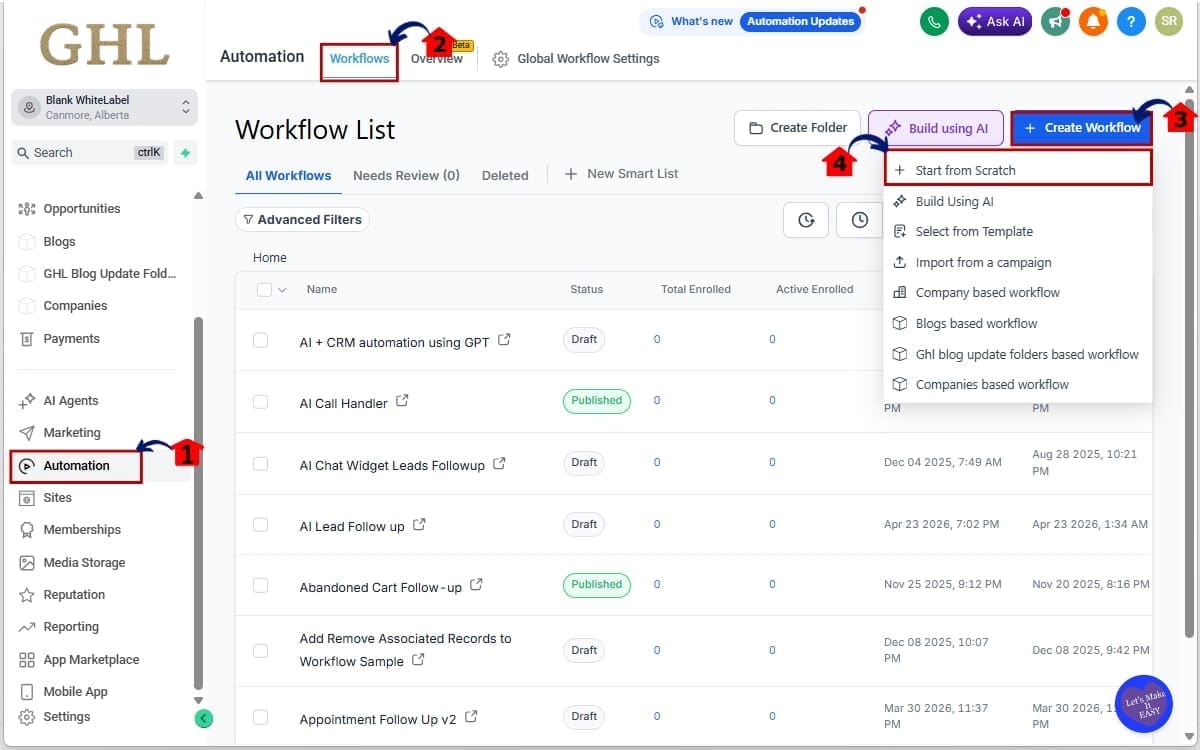
Step 01 – Access the Workflows Section in GoHighLevel
- The Main Menu on the left side of your screen contains all primary working areas where you manage automation, contacts, marketing, and more.
1.1 Click on the “Automation” menu item.
- This opens your Automation dashboard where all workflow tools are located.
1.2 Click on “Workflows.”
- This displays the full list of existing workflows in your sub-account.
1.3 Click “Create Workflow” to build a new one.
- This opens the workflow creation screen where you choose how to start.
1.4 Click “Start from Scratch.”
- This creates a blank workflow canvas so you can build your AI Workflow Automation from the ground up.
Step 02 – Add or Review an AI Action in Workflows
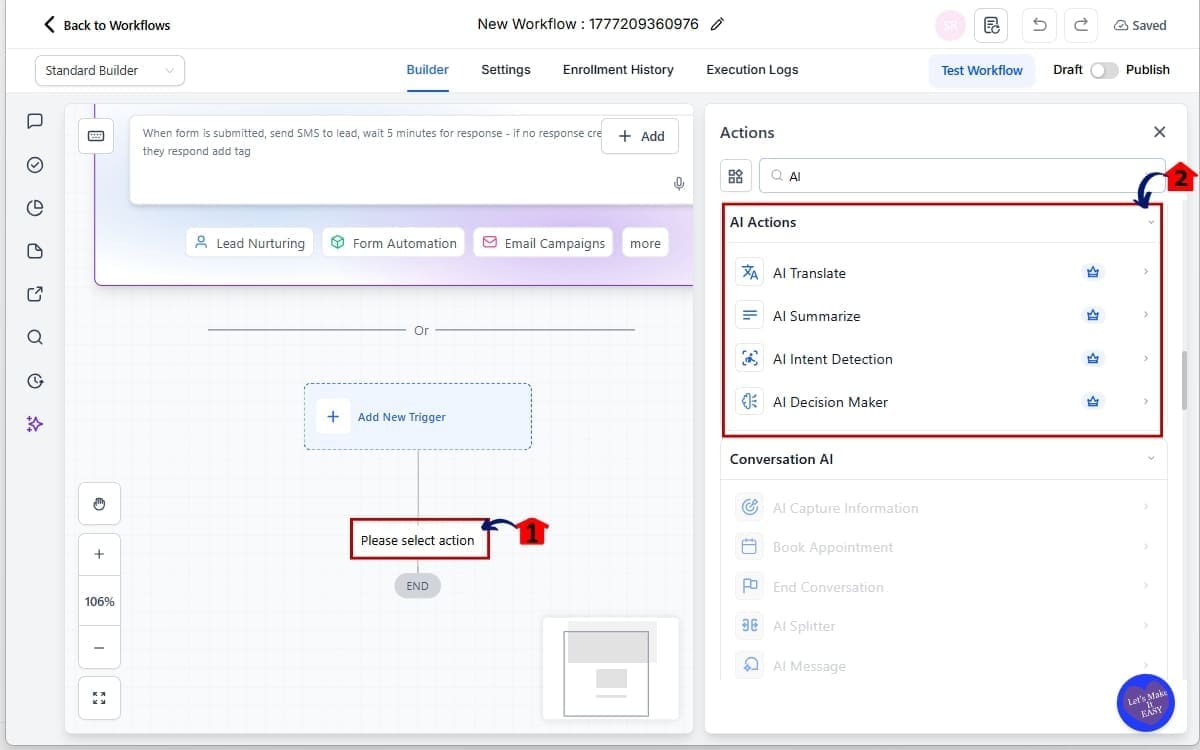
- In this step, you will add a new AI action or review an existing one. AI actions process your data inside the workflow, so selecting the correct action is important for accurate automation.
2.1 Inside your workflow, click the “+” button to add a new action.
- This opens the action selection panel.
2.2 Scroll and select one of the AI actions.
- Choose the action that matches what you want the workflow to analyze or process.
- AI Translate
- AI Summarize
- AI Intent Detection
- AI Decision Maker
Step 03 – Validate Variable Formatting in Actions
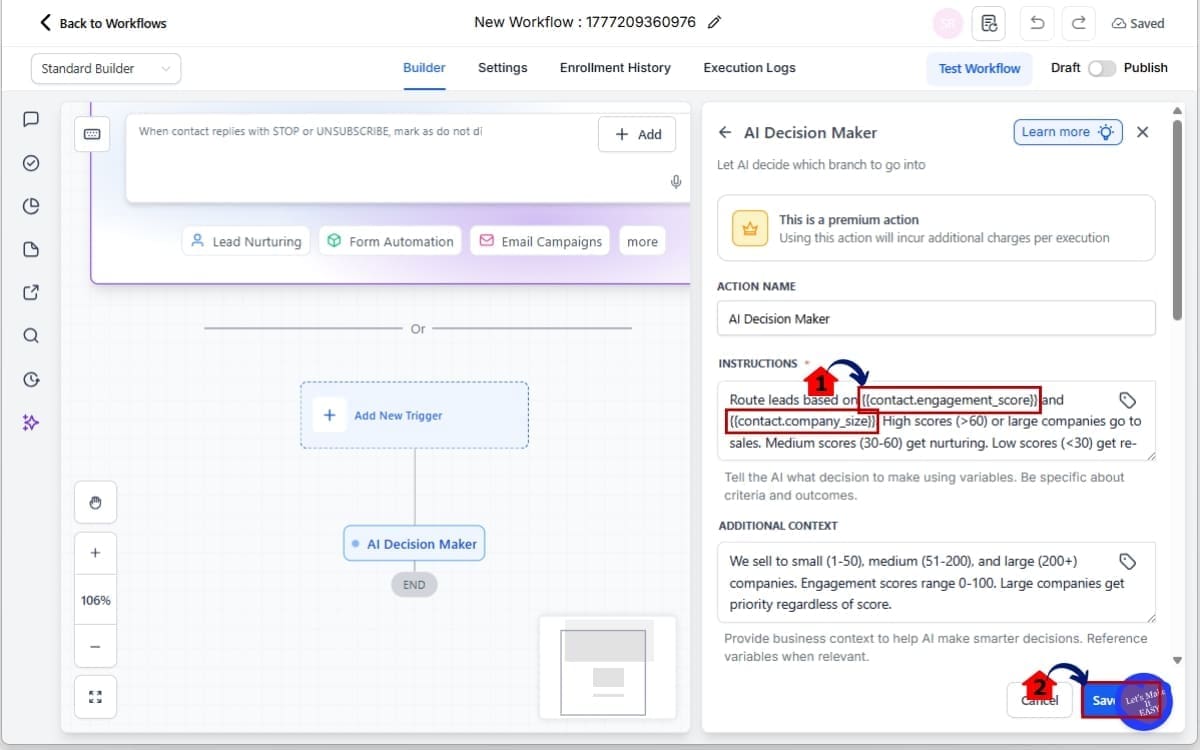
- In this step, you will confirm that your AI action is receiving a properly formatted variable. Correct formatting ensures the AI processes the intended data without errors.
3.1 Confirm the variable format uses double curly brackets:
- The format must follow this structure: {{variable_name}}
Examples:
- {{contact.engagement_score}}
- {{contact.company_size}}
3.2 Save the action after confirming clean input.
- This confirms your AI Workflow Automation uses clean and properly formatted input.
Step 04 – Improve Create Task Descriptions in Workflow
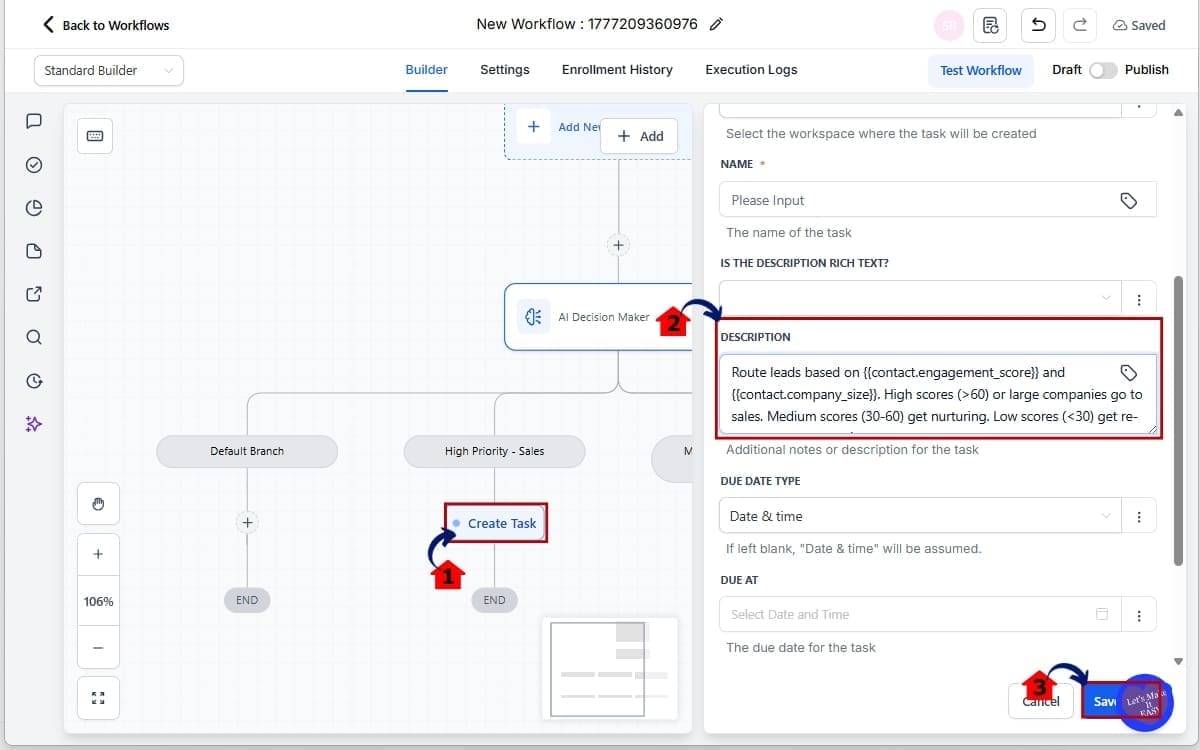
- In this step, you will update the Create Task action so the task reads clearly for the assigned user. The goal is to make the task immediately understandable without additional explanation.
4.1 Add or edit a “Create Task” action inside your workflow.
- This opens the task configuration panel.
4.2 In the “Task Description” field, write a clear, direct instruction.
- Describe exactly what the assignee needs to do. Avoid system-style wording.
4.3 Click “Save Action.”
- This ensures the task displays as a clear action item for your team.
Step 05 – Test Your AI Workflow Automation
- In this step, you will test and activate your workflow to confirm everything runs correctly. Testing ensures your AI actions, branches, and tasks behave as expected before going live.
5.1 Click “Test Workflow.”
- This allows you to simulate the workflow and review the AI outputs.
5.2 Click “Publish.”
- This activates the workflow so it can run with real triggers.
5.3 Click “Save.”
- This confirms all recent changes are stored and applied.
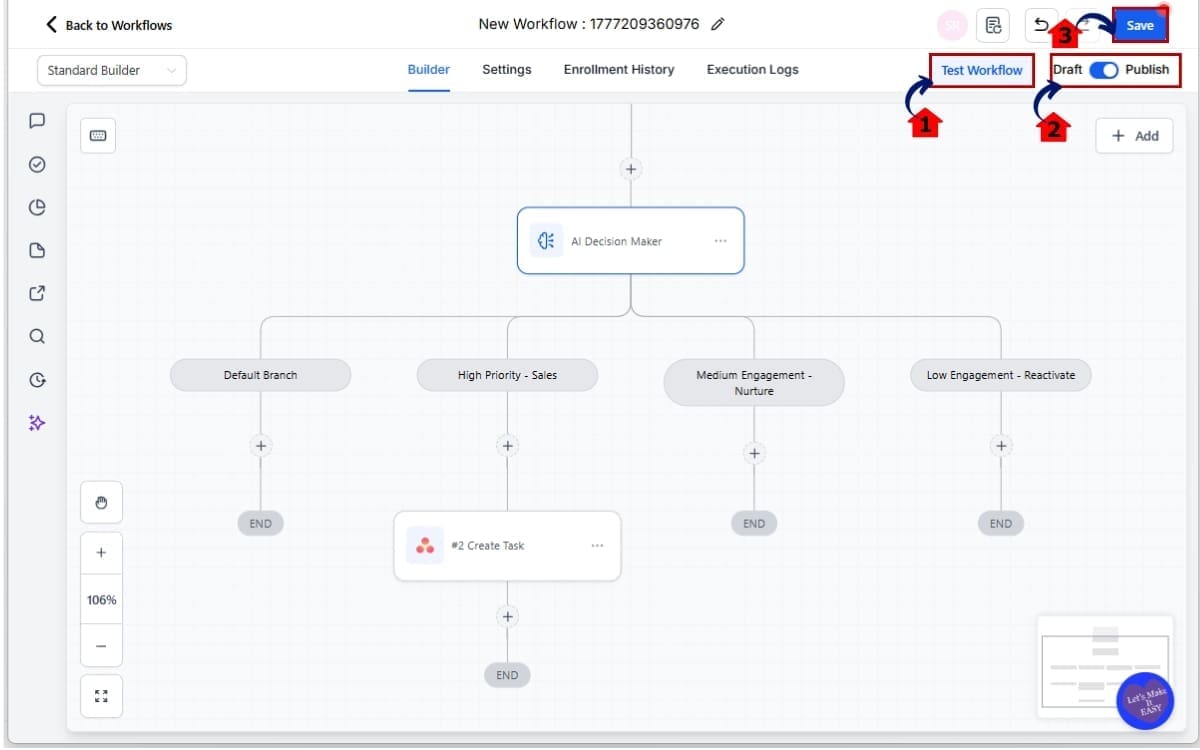
Once you’ve completed these steps, your AI Workflow Automation will run with clean inputs and reliable logic. A quick review now prevents bigger issues later.
Pro Tips for Cleaner AI Workflow Automation
AI Workflow Automation is powerful. But power without discipline creates chaos.
Let’s talk about keeping your workflows solid as you grow.
Keep Inputs Minimal
The biggest mistake people make? Over-instructing the AI. Each AI action already knows what it’s supposed to do.
If you’re using:
- AI Summarize
- AI Translate
- AI Intent Detection
- AI Decision Maker
Pass the variable. Nothing more. Let the action handle the logic internally. Less input clutter = better output consistency.
Always Test Decision Maker Branches
AI Decision Maker is where workflows either shine or break.
After adding or editing this action:
- Confirm branch names populate
- Confirm each branch leads somewhere
- Confirm no branch is left empty
An empty branch can silently stop your workflow. Testing takes 2 minutes. Fixing broken automation later takes 2 hours.
Use Dynamic Variables in Tasks
Create Task just got smarter. Use that advantage.
Instead of generic descriptions, use variables:
- {{contact.name}}
- {{contact.email}}
- {{conversation.last_message}}
This makes tasks:
- Clear
- Personalized
- Action-ready
Your team shouldn’t have to open the contact record just to understand the task.
Audit Snapshots Before Deployment
If you sell white-labeled systems or deploy snapshots:
- Review AI actions before pushing live
- Remove legacy prompts
- Confirm variable-only inputs
This ensures every sub-account gets the upgraded, clean version of AI Workflow Automation. Consistency is how agencies scale.
Avoid Prompt Layering
Don’t do this:
“Summarize this message clearly and concisely: {{message.body}}”
Do this:
{{message.body}}
Let the action define formatting behavior. Prompt layering introduces variability. Clean inputs create predictable systems.
Re-Test After Editing
Whenever you:
- Edit variables
- Change branching logic
- Adjust task descriptions
Run another test. AI Workflow Automation is stronger now. But smart operators always verify.
AI Workflow Automation That Actually Scales
This update isn’t about cleaner code. It’s about scalable systems.
You can finally roll this out in real client accounts without wondering if something is going to break behind the scenes.
Let’s bring this out of theory and into something real.
Scenario 1 – Smarter Lead Follow-Up
Before: Lead submits form → AI Summary → Decision Maker → Create Task.
But sometimes:
- The summary was inconsistent
- Branch names didn’t populate
- Tasks looked like prompts instead of instructions
Now:
Lead submits form
- {{message.body}} passes cleanly into AI Summarize
- Intent Detection reads raw message correctly
- Decision Maker branches properly
- Task is created with a clear, actionable description
No manual edits required. That’s true AI Workflow Automation.
Scenario 2 – Sentiment-Based Routing
Imagine you run support for multiple clients.
You use AI Intent Detection to route:
- Positive inquiries → Sales team
- Neutral inquiries → General follow-up
- Negative sentiment → Priority escalation
Before, layered prompts could distort analysis. Now, raw message data is passed directly.
That improves:
- Sentiment accuracy
- Routing consistency
- Team response time
Small backend improvement. Big operational gain.
Scenario 3 – Multilingual Automation
You receive inquiries in multiple languages.
Workflow:
Inbound message
- AI Translate
- AI Summary
- Decision branch
- Task assignment
Previously, prompt layering sometimes caused translation inconsistencies. Now, clean variable passing ensures translation actions process only the source text.
More reliable outputs. Better client experience.
Time-Saving and Operational Gains
Here’s what this update really buys you:
- Fewer debugging sessions
- Less manual workflow cleanup
- Faster snapshot deployment
- More predictable automation logic
- Higher confidence in AI-driven systems
When AI Workflow Automation works cleanly, you stop babysitting it. You start scaling it.
For Agencies and SaaS Builders
If you resell GHL systems or deploy standardized automations: This upgrade reduces risk.
It protects:
- Brand consistency
- Automation stability
- Client trust
Because nothing kills confidence faster than a workflow that “mostly works.”
Now? It works. Cleanly.
Questions and answers about AI Workflow Automation
AI Workflow Automation Is Now Production-Ready
AI Workflow Automation inside GoHighLevel just became dependable. Not flashy. Not cosmetic. Dependable.
Cleaner variable passing. Stable decision branching. Human-readable task descriptions. Less manual cleanup. That’s what this update delivers.
If you build automations for clients, this is a quiet but powerful upgrade. It removes friction you may not have even realized was slowing you down.
No more stacked prompts inside actions. No more confusing task descriptions. No more wondering why a branch didn’t fire.
Just clean data going into smart AI actions. That’s how automation should work.
If you’re serious about scaling AI Workflow Automation inside GHL, take 20 minutes today:
- Audit older workflows
- Clean up redundant prompts
- Test your Decision Maker branches
- Improve your task descriptions
Small refinements now prevent bigger problems later. This update might look minor on the surface. It’s not. It’s a stability upgrade for every AI-driven workflow you deploy.
Have you reviewed your AI workflows since this improvement rolled out? If not, now’s the time.
And check back to the GHL Growth Garage blog for more practical GoHighLevel upgrade guides that actually move the needle.
Scale Your Business Today.
Streamline your workflow with GoHighLevel’s powerful tools.


